How to Take Website Screenshots With Python
Use Playwright to capture a website’s visible page, full scrollable page, or a selected element with Python. Includes runnable examples, troubleshooting, and a no-browser-setup option.

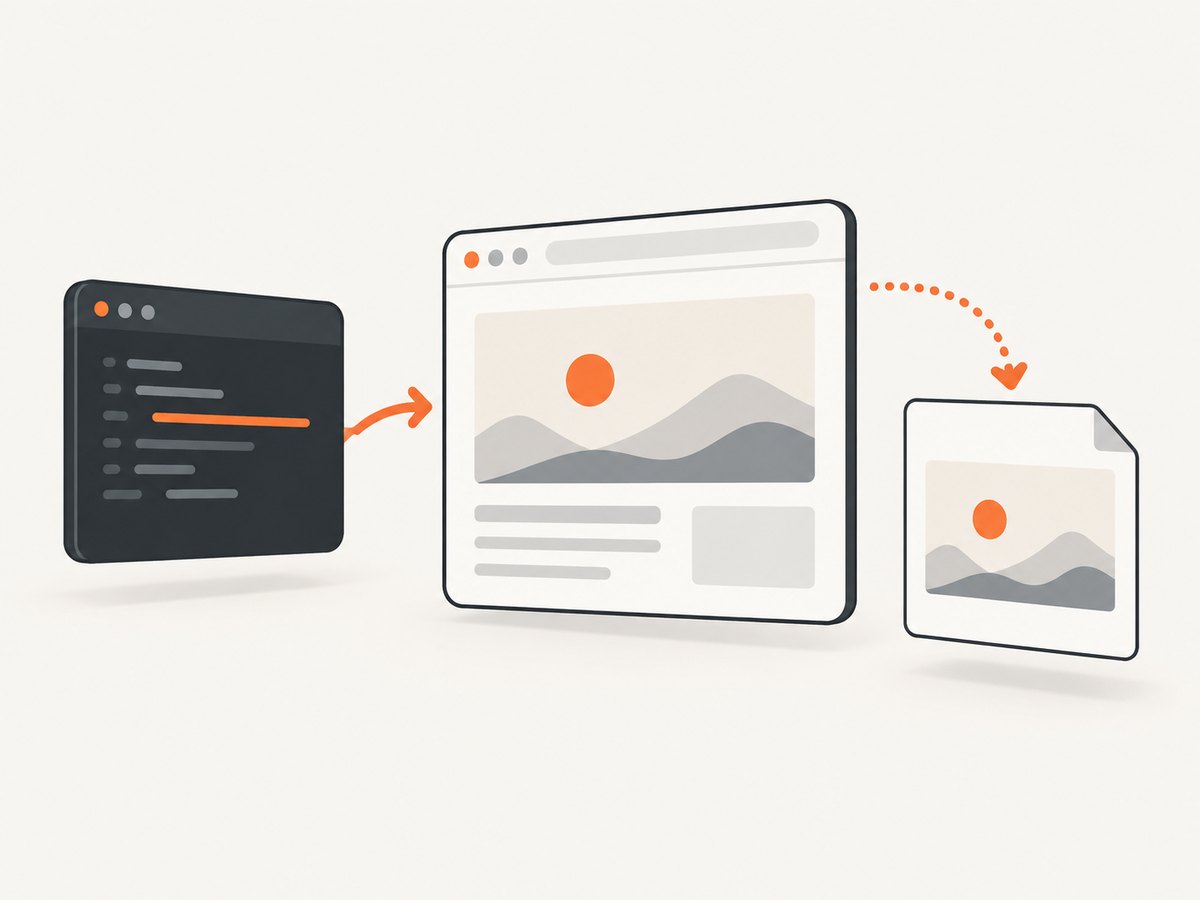
To take a website screenshot with Python, use Playwright to open the page in a real browser and save the rendered result. The basic flow is: install Playwright, launch Chromium, navigate to a URL, call page.screenshot(), and close the browser. Use full_page=True for the full scrollable page or a locator’s screenshot() method for one element.
This guide uses Playwright’s synchronous Python API so each step runs in order. It also covers output formats, waiting for dynamic content, common failures, Selenium’s narrower alternative, and an API option when you do not want to manage a browser installation.
1. Install Playwright and its browser
Install the Python package, then install a supported browser binary. Installing the package alone may not install the browser executable needed to render pages.
python -m pip install playwright
python -m playwright install chromium
On a machine where the Python command is named python3, substitute that command in both lines. In a project, use the same virtual environment for installation and execution so the script can import the package you installed. Playwright’s official Python guides document the setup and screenshot workflow: Getting started and Screenshots.
2. Capture a visible page in Python
Save this as screenshot.py. Replace the example URL with a public page you are allowed to access.
from pathlib import Path
from playwright.sync_api import sync_playwright

URL = "https://example.com"
OUTPUT = Path("screenshot.png")

with sync_playwright() as p:
    browser = p.chromium.launch(headless=True)
    page = browser.new_page(viewport={"width": 1440, "height": 900})
    page.goto(URL, wait_until="load", timeout=30_000)
    page.screenshot(path=str(OUTPUT))
    browser.close()

print(f"Saved {OUTPUT.resolve()}")
Run it with python screenshot.py. The viewport settings choose the browser’s visible width and height. With no full-page option, the screenshot represents the current page view. The documented core capture call is page.screenshot(path="screenshot.png"); navigation and rendering state determine what appears in that image. See the Playwright Page API for screenshot controls.
Close the browser even when a step fails
The context manager closes Playwright, but explicit browser cleanup is useful if navigation or capture raises an exception. Put browser work in a try/finally block for long-running scripts or batch jobs:
from playwright.sync_api import sync_playwright

with sync_playwright() as p:
    browser = p.chromium.launch(headless=True)
    try:
        page = browser.new_page()
        page.goto("https://example.com", wait_until="load", timeout=30_000)
        page.screenshot(path="screenshot.png")
    finally:
        browser.close()
For one-off scripts the first example is shorter. For a service that processes many URLs, cleanup matters because an exception should not leave browser processes around.
3. Capture the full page or one element
Full scrollable page
Set full_page=True to capture the whole scrollable page as one tall image:
page.screenshot(path="full-page.png", full_page=True)This is convenient for a page archive or review, but very long pages can produce large images and consume more memory. Pages that load content only when scrolled may need extra handling before capture; a full-page flag does not guarantee that every lazy image or asynchronous section has loaded.
One element
Use a locator when you only need a component such as a header, chart, or product card:
page.locator(".header").screenshot(path="header.png")Choose a selector that matches the intended element. If it matches several elements, narrow it or select a specific match. If the element is created later, wait for it before taking the screenshot:
header = page.locator(".header")
header.wait_for(state="visible", timeout=10_000)
header.screenshot(path="header.png")
4. Choose image format, scale, and browser size
Playwright’s screenshot API documents a path, image type, scale, and full-page setting. PNG is the default when saving a PNG path. Use a matching file extension and type when choosing JPEG:
page.screenshot(path="page.jpg", type="jpeg", quality=85)JPEG quality applies to JPEG output and trades file size against image detail. For sharp text or diagrams, compare the result with PNG before switching formats. Device pixel ratio affects how many pixels represent the viewport; you can set it when creating a context:
context = browser.new_context(
    viewport={"width": 1440, "height": 900},
    device_scale_factor=2,
)
page = context.new_page()
page.goto("https://example.com", wait_until="load")
page.screenshot(path="retina.png")
A larger device scale factor creates a higher-resolution capture and can increase output size and processing needs. Pick dimensions that match how the image will be viewed. For reproducible output, set the viewport and scale explicitly rather than relying on defaults.
5. Wait for the page state you actually need
A screenshot records the browser state at capture time. A successful navigation does not prove that every client-side widget, image, or API-driven section has finished updating. Select a wait condition suited to the target:
wait_until="load"waits for the page load event, as in the basic example.- Wait for a specific element when its appearance signals that the useful content is ready.
- Use a short fixed delay only when a known animation or delayed update needs time; fixed delays add time and may still be too short or unnecessarily long.
page.goto("https://example.com", wait_until="domcontentloaded", timeout=30_000)
page.locator("main article").wait_for(state="visible", timeout=15_000)
page.screenshot(path="article.png")
For content triggered by scrolling, scroll deliberately and allow the page’s own loading behavior to run before capture. Avoid assuming that network silence or a generic delay means the page is visually complete. If the target requires login, a consent choice, custom headers, or a particular location, configure that state intentionally; browser automation cannot infer access you have not supplied.
6. Save screenshot bytes instead of a file
When you omit the path, Playwright returns screenshot bytes. This is useful for uploading to object storage, passing the image to an image-processing library, or returning it from a web service without writing a temporary file:
image_bytes = page.screenshot(full_page=False)
with open("screenshot.png", "wb") as image_file:
    image_file.write(image_bytes)
The bytes are PNG by default. Specify the desired type in the screenshot call if you need another supported format. Keep in mind that an in-memory result still occupies memory; for large full-page captures, avoid retaining many images at once.
7. Asynchronous Python version
The earlier examples use Playwright’s synchronous API. In an async application, use async_playwright and await navigation and capture consistently:
import asyncio
from playwright.async_api import async_playwright

async def main():
    async with async_playwright() as p:
        browser = await p.chromium.launch(headless=True)
        try:
            page = await browser.new_page(viewport={"width": 1440, "height": 900})
            await page.goto("https://example.com", wait_until="load", timeout=30_000)
            await page.screenshot(path="screenshot.png", full_page=True)
        finally:
            await browser.close()

asyncio.run(main())
Use the async form when the surrounding program already uses asyncio, such as an async web service. Do not mix synchronous Playwright calls into an active asynchronous flow; choose one style for the capture path.
8. Selenium alternative
If your project already uses Selenium, its Python WebDriver API provides driver.save_screenshot(filename) for the current window. The narrow example below opens a page, saves a PNG, and quits:
from selenium import webdriver

options = webdriver.ChromeOptions()
options.add_argument("--headless")
driver = webdriver.Chrome(options=options)
try:
    driver.get("https://example.com")
    driver.save_screenshot("screenshot.png")
finally:
    driver.quit()
Selenium also documents screenshot retrieval as PNG bytes and Base64 text. Playwright’s cited screenshot guide explicitly covers full-page and locator-level capture; the Selenium methods cited here establish current-window and image-data capture. Choose based on the scope you need and the browser automation already in your project, not an assumed universal speed or quality difference. Sources: Selenium Python WebDriver API and Selenium windows and tabs guide.
Or skip the browser setup
ScreenshotNeo provides a website screenshot API and MCP server. A single GET request can return an image or PDF; see the API documentation. Here is the Python call:
import requests

r = requests.get(
    "https://api.screenshotneo.com/v1/shot",
    params={"access_key": "YOUR_API_KEY", "url": "https://example.com"},
    timeout=90,
)
open("shot.webp", "wb").write(r.content)
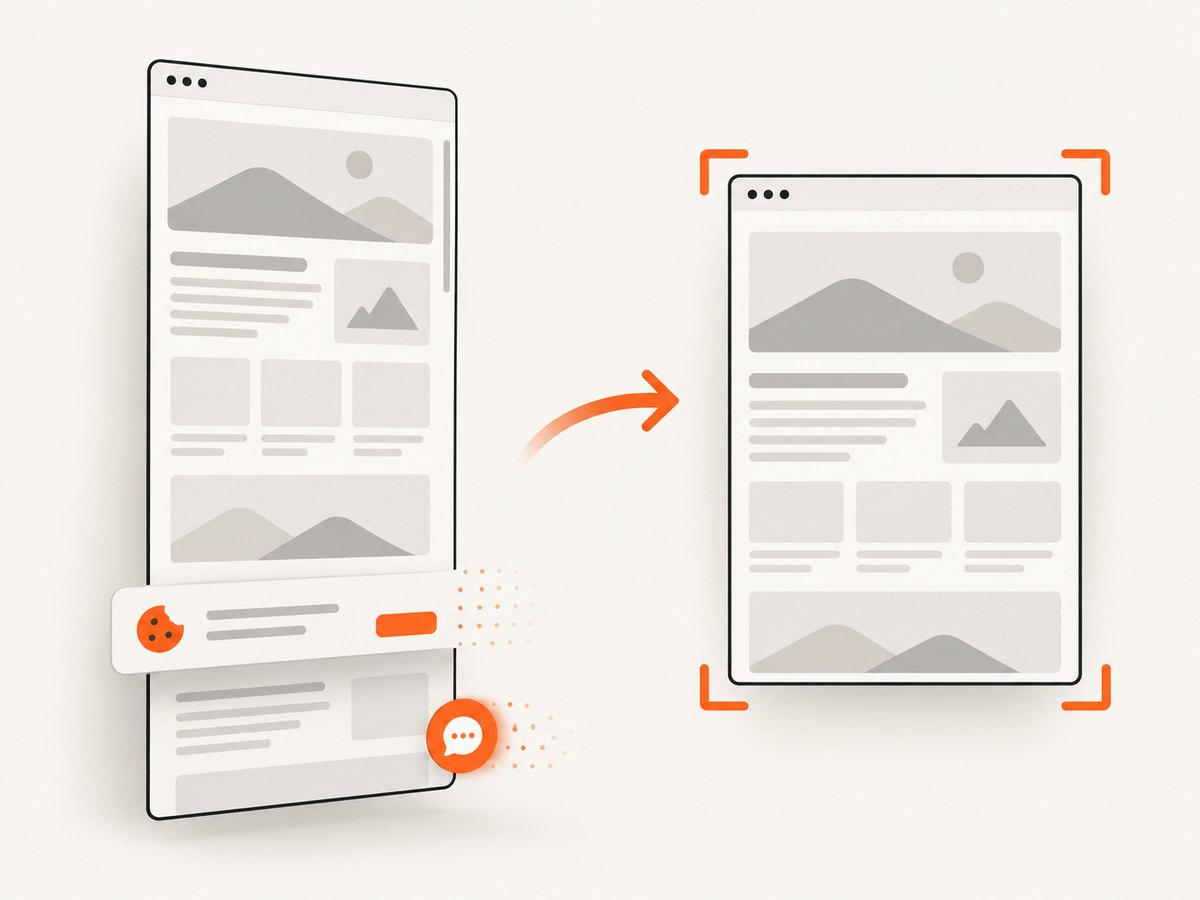
ScreenshotNeo accepts cookie and consent banners and removes more than 60 known consent platforms, newsletter popups, and chat widgets before capture; each step can be turned off. Bot checks, blank pages, timeouts, failed loads, and cache hits are not billed, and response headers report the page verdict and billing status. Its MCP server offers take_screenshot, get_page_info, and capture_pdf for Claude, Cursor, and other MCP clients. The free plan includes 1,000 screenshots a month with no card; paid plans start at $5 for 3,000 screenshots. Every feature is available on every plan.
Sign up free for 1,000 screenshots a month, with no card.
9. Troubleshooting common screenshot problems
| Symptom | Likely cause | What to try |
|---|---|---|
| Browser executable missing | The Python package is installed, but its browser was not installed in this environment. | Run python -m playwright install chromium using the same Python environment as your script. |
| Navigation times out | The site is slow, keeps connections open, or the chosen load condition is too strict. | Check the URL and access first. Consider domcontentloaded, set an appropriate timeout, then wait for the particular content needed. |
| Screenshot is blank or incomplete | The page is still rendering, content is loaded dynamically, or access was blocked. | Wait for a meaningful locator, inspect the page state, and handle authentication or consent requirements explicitly. |
| Element screenshot fails | The selector matched no visible element, or the element is not ready. | Check the selector, wait for visibility, and ensure it matches the intended element. |
| Full-page image is unexpectedly huge | The document is very tall or device scale is high. | Capture a viewport or a specific element, reduce the viewport or scale where appropriate, and avoid retaining many large byte results. |
| Output does not match the extension | The requested image type and filename extension disagree. | Use PNG with a .png path or JPEG with type="jpeg" and a .jpg path. |
| Works locally, fails in deployment | The runtime may lack the installed browser or required operating-system dependencies. | Install the browser in the deployment environment and follow Playwright’s installation guidance for that platform. |
10. Performance, reliability, and cost
Browser screenshots require a browser process, page navigation, and image encoding. Reuse a browser for multiple pages in a controlled batch instead of launching one for every URL, while giving each task a clear timeout and closing contexts and browsers when finished. Keep concurrency within the memory and CPU capacity of the machine: high-resolution and full-page captures can use more resources than viewport images.
For reliability, make the capture deterministic where possible: set viewport and device scale, use a stable readiness condition, choose explicit output paths, and record the URL and error when a capture fails. Retry only transient failures and cap attempts so one unreachable site does not stall the whole job. A screenshot reflects a point-in-time page state; changing site content, access restrictions, and remote assets can change the result.
Self-hosted Playwright or Selenium has no per-screenshot API fee in these cited library instructions, but you provide the machine, browser installation, execution time, storage, and maintenance. An API shifts browser operation to a service and has plan costs. ScreenshotNeo’s listed plans are Free: 1,000 shots/month; Starter: $5 for 3,000; Growth: $15 for 15,000; Pro: $39 for 60,000; Scale: $99 for 250,000; and Business: $249 for 1,000,000. Yearly billing gives two months free. Only clean shots are billed according to the product facts, and its response includes billing and page-verdict headers. Use the plan that fits actual volume; do not assume a particular capture time or rendering outcome.
11. Frequently asked questions
Can I take a screenshot without opening a visible browser window?
Yes. The examples launch Chromium in headless mode, so the browser runs without a visible desktop window while still rendering the page.
Can Python capture a page behind a login?
It can if your script supplies the authorized login state, such as a supported browser context or session setup. The basic examples only navigate to a URL and do not sign in.
Does a full-page screenshot include content below the fold?
Playwright’s full_page=True captures the full scrollable page. A site may still defer some content until scrolling or another interaction, so prepare the page state when needed.
Which should I use, Playwright or Selenium?
Use the library that fits your existing workflow and required capture scope. The sources cited here document Playwright page, full-page, and element screenshots, and Selenium current-window screenshots and image data access.
Can I save the image in memory?
Yes. Playwright returns screenshot bytes when no output path is supplied, so you can upload or process them without first writing a file.