Website Screenshots with Selenium in Python
Capture website screenshots with Selenium in Python, save PNGs or bytes, target elements, and handle full-page limits, setup issues, and failures.
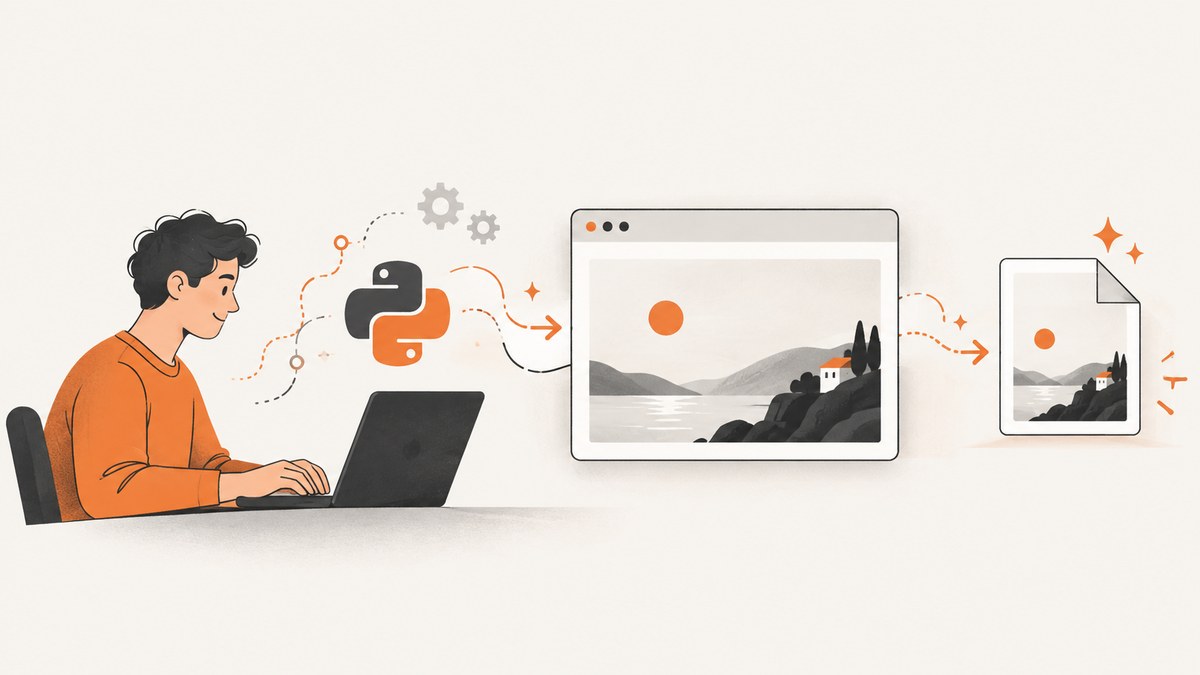
Selenium’s Python WebDriver can save the browser’s current window as a PNG with driver.save_screenshot("page.png"). Create a driver, open the URL, save the image, check the return value, and always close the browser in a finally block. This captures the visible browser window; it does not automatically capture the entire scrollable document.
from pathlib import Path
from selenium import webdriver

output = Path("screenshots/page.png")
output.parent.mkdir(parents=True, exist_ok=True)

driver = webdriver.Chrome()
try:
    driver.set_window_size(1440, 1000)
    driver.get("https://example.com")
    saved = driver.save_screenshot(str(output))
    if not saved:
        raise OSError(f"Could not write screenshot to {output}")
finally:
    driver.quit()

print(f"Saved {output.resolve()}")
Install Selenium with python -m pip install -U selenium. Current Selenium bindings use Selenium Manager to locate or obtain a compatible browser driver in most supported environments. See the Selenium WebDriver documentation and Python API reference.
1. Install Selenium and prepare a browser
Use a virtual environment so the Selenium version is isolated from other Python projects. The examples below use Chrome; Firefox is also supported, with some screenshot behavior specific to its API.
python -m venv .venv
# macOS or Linux:
source .venv/bin/activate
# Windows PowerShell:
# .venv\Scripts\Activate.ps1
python -m pip install -U selenium
Install a supported browser such as Chrome or Firefox. With a current Selenium release, the binding invokes Selenium Manager when you have not supplied a driver path; it detects the browser version, resolves a compatible driver, downloads it if needed, and caches it. This handles many standard setups without manually downloading a driver.
Driver management still depends on the environment. A restricted network, proxy, unsupported platform, browser startup dependency, or managed workstation policy can prevent automatic setup. In those cases, configure a browser driver explicitly with Selenium’s service options and follow the official browser-specific setup guidance.
2. Save a current-window screenshot
save_screenshot(path) is the concise method. It writes the current window to a PNG file and returns a boolean. Check that result if the screenshot is an important output. The equivalent get_screenshot_as_file(path) also writes PNG and reports success as a boolean.
from selenium import webdriver

url = "https://example.com"
driver = webdriver.Chrome()
try:
    driver.get(url)
    if not driver.get_screenshot_as_file("page.png"):
        raise OSError("Screenshot could not be written")
finally:
    driver.quit()
The destination folder must exist and be writable. A path such as screenshots/page.png fails if the screenshots directory has not been created. Use pathlib.Path.mkdir(parents=True, exist_ok=True) before capture, as in the first example. Give the output a .png extension; Selenium’s standard screenshot methods produce PNG, not JPEG or WebP.
Set a repeatable viewport
The screenshot reflects the current browser window. For consistent output between runs, set the window dimensions before navigation or capture, and keep the browser, dimensions, page state, and timing consistent. A responsive site may show different layouts at different widths.
driver.set_window_size(1365, 900)
driver.get("https://example.com")
driver.save_screenshot("viewport.png")
Window dimensions describe the browser window, and the resulting page viewport can vary with browser chrome and environment. If exact pixel dimensions matter, inspect the resulting PNG dimensions in your pipeline rather than assuming the requested outer window dimensions equal the image dimensions.
3. Capture only one element
When you need a chart, product card, or other specific element, locate it and call the element’s screenshot() method. This creates an image of that element rather than the full page.
from selenium import webdriver
from selenium.webdriver.common.by import By
from selenium.webdriver.support import expected_conditions as EC
from selenium.webdriver.support.ui import WebDriverWait

driver = webdriver.Chrome()
try:
    driver.get("https://example.com")
    chart = WebDriverWait(driver, 10).until(
        EC.visibility_of_element_located((By.CSS_SELECTOR, "#chart"))
    )
    if not chart.screenshot("chart.png"):
        raise OSError("Element screenshot could not be written")
finally:
    driver.quit()
Prefer an explicit wait for an element that appears asynchronously. A fixed sleep can be too short on a slow run and waste time on a fast one. The selector must match an element in the active document, and the element must be visible to take a useful screenshot. If the page replaces the element during rendering, locate it after the update rather than retaining a stale reference.
4. Choose file, bytes, or Base64 output
Use a file method when the next step is uploading or archiving a PNG. If an image-processing library or HTTP client needs the data in memory, use get_screenshot_as_png(). For HTML or a text transport that expects encoded data, use get_screenshot_as_base64().
from selenium import webdriver
import base64

 driver = webdriver.Chrome()
try:
    driver.get("https://example.com")
    png_bytes = driver.get_screenshot_as_png()
    with open("page-from-bytes.png", "wb") as image_file:
        image_file.write(png_bytes)

    encoded = driver.get_screenshot_as_base64()
    decoded = base64.b64decode(encoded)
    assert decoded.startswith(b"\x89PNG")
finally:
    driver.quit()
Remove the leading space before driver = when copying that sample. The bytes method returns binary PNG data; the Base64 method returns text that can be embedded or transferred where binary data is inconvenient. Avoid keeping both forms for large batches unless needed, since each representation occupies memory.
5. Understand current-window versus full-page capture
The generic WebDriver screenshot methods are described as capturing the current window. They should not be presented as automatic full-document capture: a long page may extend below the visible viewport and remain absent from the resulting image.
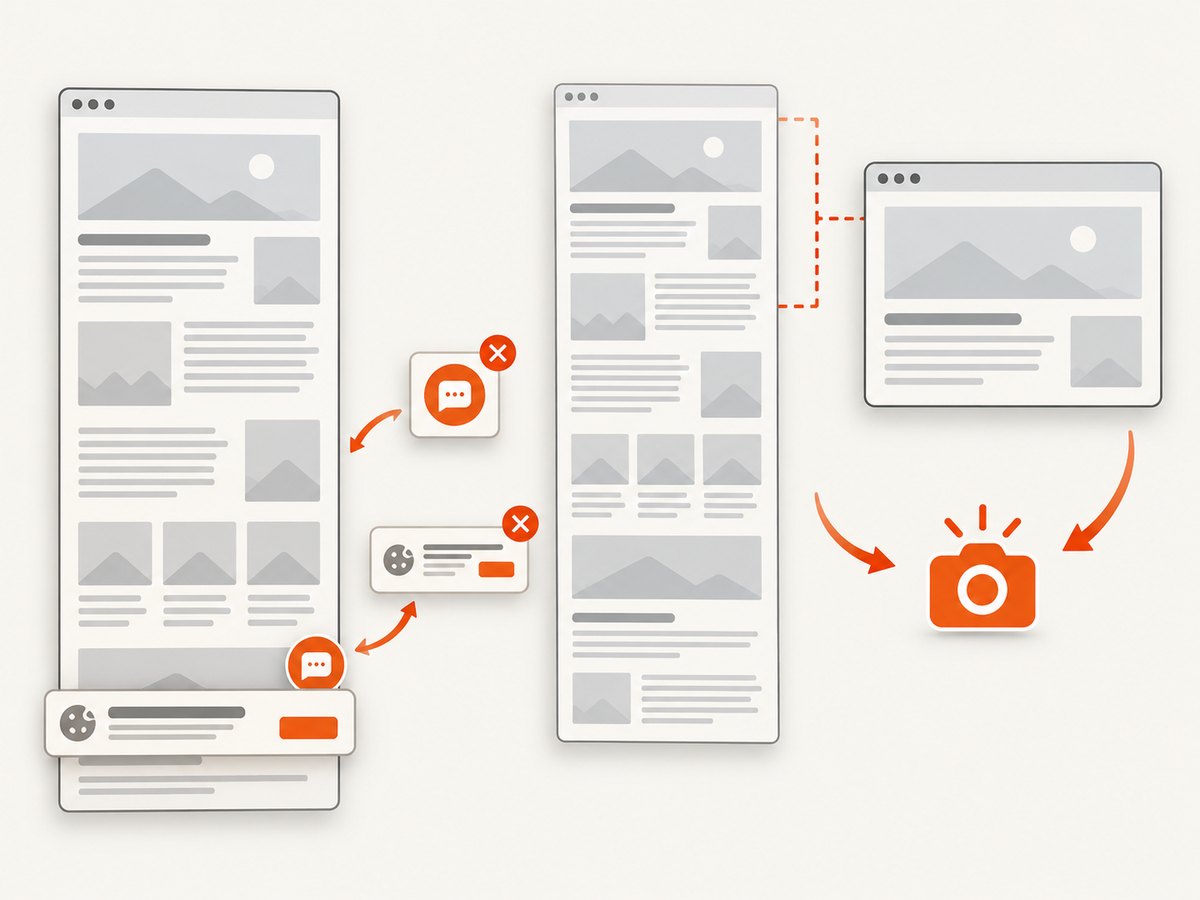
The Selenium Firefox Python API separately documents full-page screenshot methods, including get_full_page_screenshot_as_file(). That is a Firefox-specific API; verify support for the browser and Selenium version you use. Do not assume the method is available in Chrome or works identically across browser bindings.
# Firefox-specific API; confirm your installed Selenium and Firefox support it.
from selenium import webdriver

driver = webdriver.Firefox()
try:
    driver.get("https://example.com/long-page")
    driver.get_full_page_screenshot_as_file("full-page.png")
finally:
    driver.quit()
For cross-browser visual checks, decide whether the test needs a viewport image or a full-document image, then use the matching browser-specific capability. Full-page strategies can interact with lazy-loaded content and sticky elements differently; inspect the page and output rather than treating a viewport capture as proof that every below-the-fold section was included.
6. Wait for the page state you need
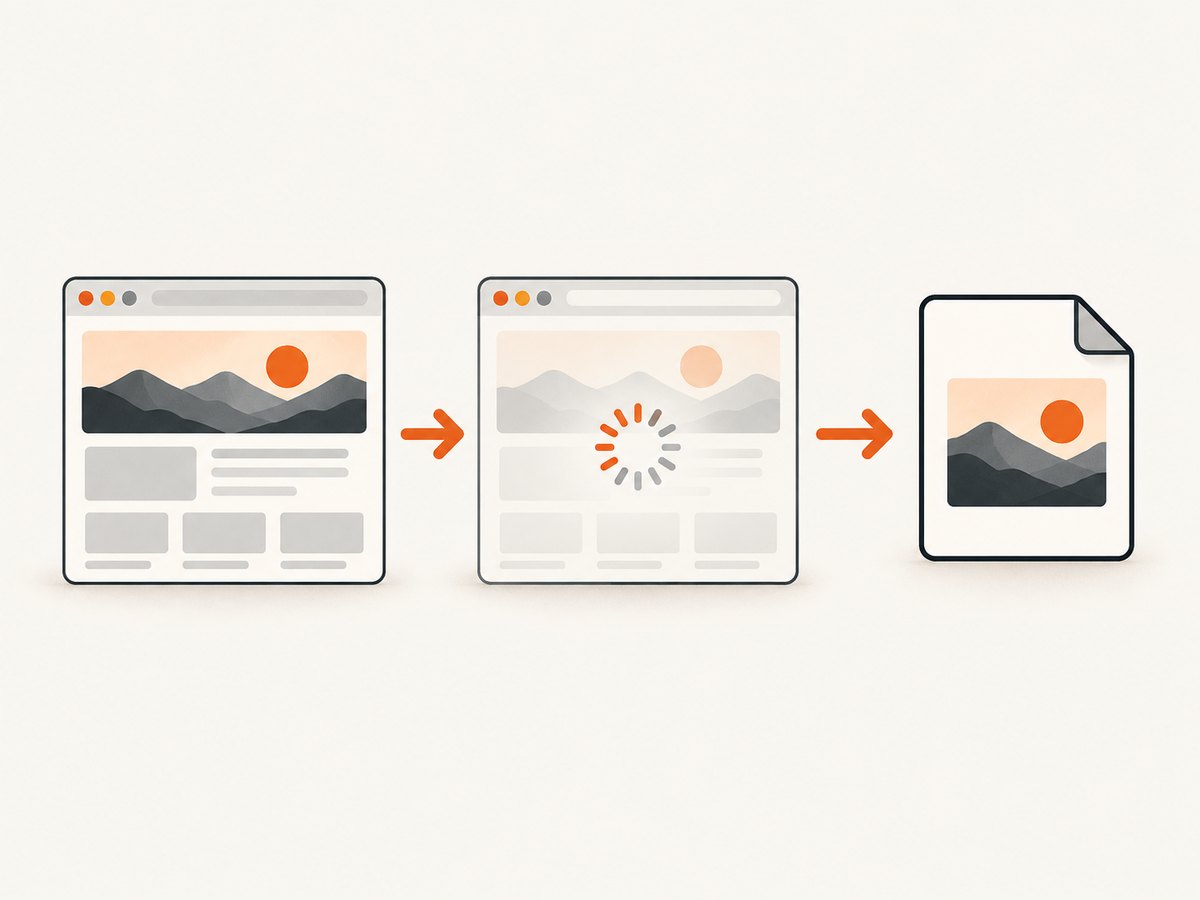
driver.get() navigates to a URL, but a page can continue changing after navigation: client-side rendering, images, fonts, animations, or network requests may still be in progress. Selenium does not make a screenshot visually deterministic simply because navigation returned.
Wait for a meaningful condition, such as a heading or target element being visible. Use a bounded timeout so a broken page does not hang the job indefinitely.
from selenium import webdriver
from selenium.webdriver.common.by import By
from selenium.webdriver.support import expected_conditions as EC
from selenium.webdriver.support.ui import WebDriverWait

driver = webdriver.Chrome()
try:
    driver.get("https://example.com")
    WebDriverWait(driver, 15).until(
        EC.visibility_of_element_located((By.TAG_NAME, "h1"))
    )
    driver.save_screenshot("ready.png")
finally:
    driver.quit()
Choose a condition tied to the content you need, not merely a generic delay. If an animation changes the captured state, wait for the relevant application state or use a site-specific way to disable animation in a controlled test environment. A timeout should lead to a useful failure record, not a misleading screenshot of a partially loaded page.
7. Run captures in scripts and CI
For a one-off script, a local browser window is convenient. For a CI worker or server without a display, configure the browser for headless operation using the browser’s supported options. Headless rendering can differ from a developer’s desktop due to browser version, installed fonts, operating system, and viewport.
Make each capture job explicit about its inputs: target URL, browser, viewport, expected page condition, output path, and timeout. Record the URL and failure reason alongside the screenshot. Avoid sharing one WebDriver instance across concurrent tasks; use an isolated browser session per worker so navigation and capture state cannot race.
Keep output directories predictable and clean up sessions in finally. In a batch run, catch failures per URL if the goal is to continue processing, but retain a nonzero job result or failure list so a partial batch is not mistaken for complete success.
8. Troubleshooting
| Symptom | Likely cause | Fix |
|---|---|---|
SessionNotCreatedException or driver startup failure |
Browser and driver mismatch, browser missing, or incompatible environment. | Update Selenium, confirm the browser is installed, and allow Selenium Manager network access. If automatic management is blocked, configure a compatible driver with the relevant Selenium service. |
| Selenium Manager cannot download a driver | Proxy, firewall, offline worker, unsupported platform, or restricted cache location. | Configure the environment’s proxy/network and writable cache, or provision a compatible browser driver through your deployment process. |
save_screenshot() returns False |
The file could not be written, commonly due to a missing directory or permissions. | Create the parent directory, use a writable absolute path, and check the boolean return value. |
| Screenshot is blank or shows the wrong state | Capture ran before meaningful content appeared, navigation failed, or a browser check blocked the page. | Wait for a page-specific element, record the final URL and browser errors, and distinguish page failure from a successful capture. |
| Bottom of a long page is missing | The standard method captured the current window only. | Use a browser-supported full-page method, such as Firefox’s documented API where applicable, and verify behavior for your browser/version. |
| Element screenshot raises an error or misses the target | Selector does not match, element is hidden, document changed, or element became stale. | Wait for visibility, confirm the selector, and locate the element again after page updates. |
| Image differs between runs | Viewport, browser, fonts, content timing, or page state changed. | Pin the browser environment and viewport, wait for the same condition, and stabilize dynamic content in the test setup. |
9. Performance, reliability, and cost
A Selenium screenshot includes the cost of starting or reusing a browser session, navigating, waiting for page state, rendering, and writing the image. For a few captures, a fresh driver per script is simple and reliable. For a large batch, browser startup becomes part of total runtime; reuse a session sequentially where isolation permits, while ensuring each capture has its own navigation and readiness checks.
Set timeouts and handle navigation or wait failures explicitly. Always quit the driver, even if file output fails. Keep screenshots and diagnostic metadata together so a missing or misleading image can be traced to the page and run conditions. A screenshot is an artifact of one browser state; it does not establish that the page is healthy for all users or environments.
Selenium itself is an open-source browser automation tool; this workflow has no ScreenshotNeo API charge. Operational costs can still include compute, browser infrastructure, storage, and any hosted execution environment you choose. The research does not establish a specific hosted provider or price, so compare current terms directly if you need managed browser capacity.
10. Or skip the browser setup
If your goal is simply to get a website image or PDF, ScreenshotNeo provides a website screenshot API and MCP server. One GET request returns PNG, JPEG, WebP, or PDF. Its API documentation describes the request options.
curl -G "https://api.screenshotneo.com/v1/shot" \
  -d access_key=YOUR_API_KEY \
  --data-urlencode url=https://stripe.com \
  -o shot.webp
import requests
r = requests.get(
"https://api.screenshotneo.com/v1/shot",
params={"access_key": "YOUR_API_KEY", "url": "https://stripe.com"},
timeout=90,
)
r.raise_for_status()
open("shot.webp", "wb").write(r.content)const q = new URLSearchParams({
access_key: 'YOUR_API_KEY',
url: 'https://stripe.com'
});
const res = await fetch(`https://api.screenshotneo.com/v1/shot?${q}`);
if (!res.ok) throw new Error(`Screenshot request failed: ${res.status}`);
await Bun.write('shot.webp', res);ScreenshotNeo accepts cookie and consent banners like a visitor and removes 60+ known consent platforms, newsletter popups, and chat widgets before capture; each step can be turned off. Bot checks or CAPTCHAs, blank pages, timeouts, failed loads, and cache hits cost nothing, and response headers identify the page verdict and billing status. Its MCP server offers take_screenshot, get_page_info, and capture_pdf for Claude, Cursor, and other MCP clients.
The free plan includes 1,000 screenshots per month with no card. Paid plans start at $5 for 3,000 screenshots; every feature is on every plan. Sign up for 1,000 free screenshots a month, with no card.
11. FAQ
Does Selenium save screenshots as PNG or JPEG?
The documented WebDriver screenshot methods save PNG output. If another format is required, convert the PNG with an image library after capture.
Can I return a screenshot from a web service without writing a file?
Yes. Use get_screenshot_as_png() to obtain bytes in memory, then return or process those bytes in your application.
Does Selenium automatically remove cookie banners?
No. Selenium captures the browser state it reaches. You need site-specific automation to interact with banners, or use a service designed to clean consent overlays before capture.
Can the same code capture a page in Chrome and Firefox?
The basic WebDriver save-to-file pattern is common, but setup and browser-specific capabilities differ. In particular, the cited full-page screenshot API is Firefox-specific.


