How to Take Website Screenshots on Ubuntu
Capture a visible Ubuntu screen, a browser window, or an entire webpage. Learn the built-in shortcuts, Firefox and command-line options, and how to automate captures.

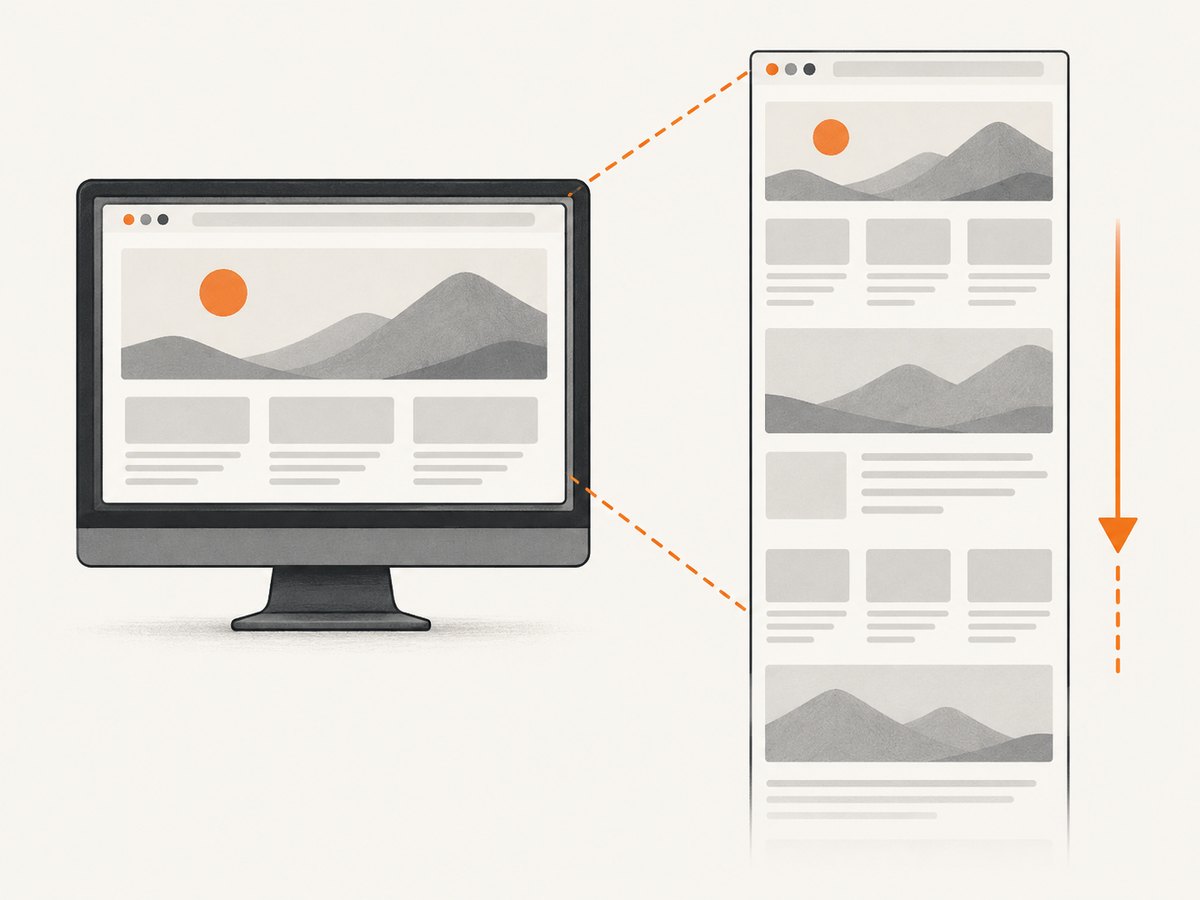
To capture a webpage on Ubuntu, use the screenshot tool built into your browser: in Firefox, press Ctrl+Shift+S or right-click the page and choose Take Screenshot, then select Save full page. To capture the Ubuntu desktop instead, press Print to open its screenshot tool, Alt+Print for a window, or Shift+Print for the whole screen. A desktop capture only includes what is on screen; a full-page browser capture includes content below the viewport.
This distinction matters when documenting a site, saving a long article, filing a visual bug, or automating screenshots for review. The methods below cover desktop captures, complete webpages, command-line tools, browser automation, and an API option.
1. Choose the capture you need
| Goal | Use | What it captures |
|---|---|---|
| Quick desktop image | Ubuntu screenshot shortcut | Whole screen or active window |
| Only part of the screen | Ubuntu screenshot interface or Flameshot | A selected rectangle, optionally annotated |
| Entire webpage, including below the fold | Firefox full-page screenshot or browser automation | The document, not just the visible screen |
| Repeatable captures in a script or service | Playwright or a screenshot API | A page or selected element with configurable waits and viewport |
If you need evidence of what was visible to a user at a particular moment, capture the desktop or browser window. If you need a complete page image for documentation or review, use the browser’s full-page mode. A long page can be much taller than the display and may need to be resized or split for convenient sharing.
2. Capture the Ubuntu desktop
Ubuntu Help lists these shortcuts:
- Print opens the screenshot tool.
- Alt+Print captures a window.
- Shift+Print captures the whole screen.
- Press the shortcut for the capture you want.
- If the screenshot interface opens, choose its screen, window, or area mode as needed.
- Save the image. Ubuntu Help documents the default folder as
~/Pictures/Screenshots; filenames start with “Screenshot” and include date and time.
Desktop environment, release, and keyboard settings can affect shortcut behavior and save location. If the image is not where expected, check the destination shown by the screenshot interface and your Pictures folder. On a multi-monitor setup, inspect the saved image to confirm whether it contains one display or all displays.
3. Capture a full webpage in Firefox
- Open the page in Firefox and wait for the content you need to appear.
- Right-click an empty part of the page and choose Take Screenshot, or press Ctrl+Shift+S.
- Choose Save full page to capture beyond the viewport. Choose Save visible for just the current browser view.
- Save the image and open it once to check that the bottom of the page and any important dynamic content are present.
Firefox’s support instructions document both full-page and visible-page options. Menu names and shortcuts may vary with the installed Firefox version, so if the shortcut does not open the tool, use the context menu or look for the screenshot command in the browser interface. Full-page capture is not the same as stitching together desktop screenshots: the browser captures the document’s page area.
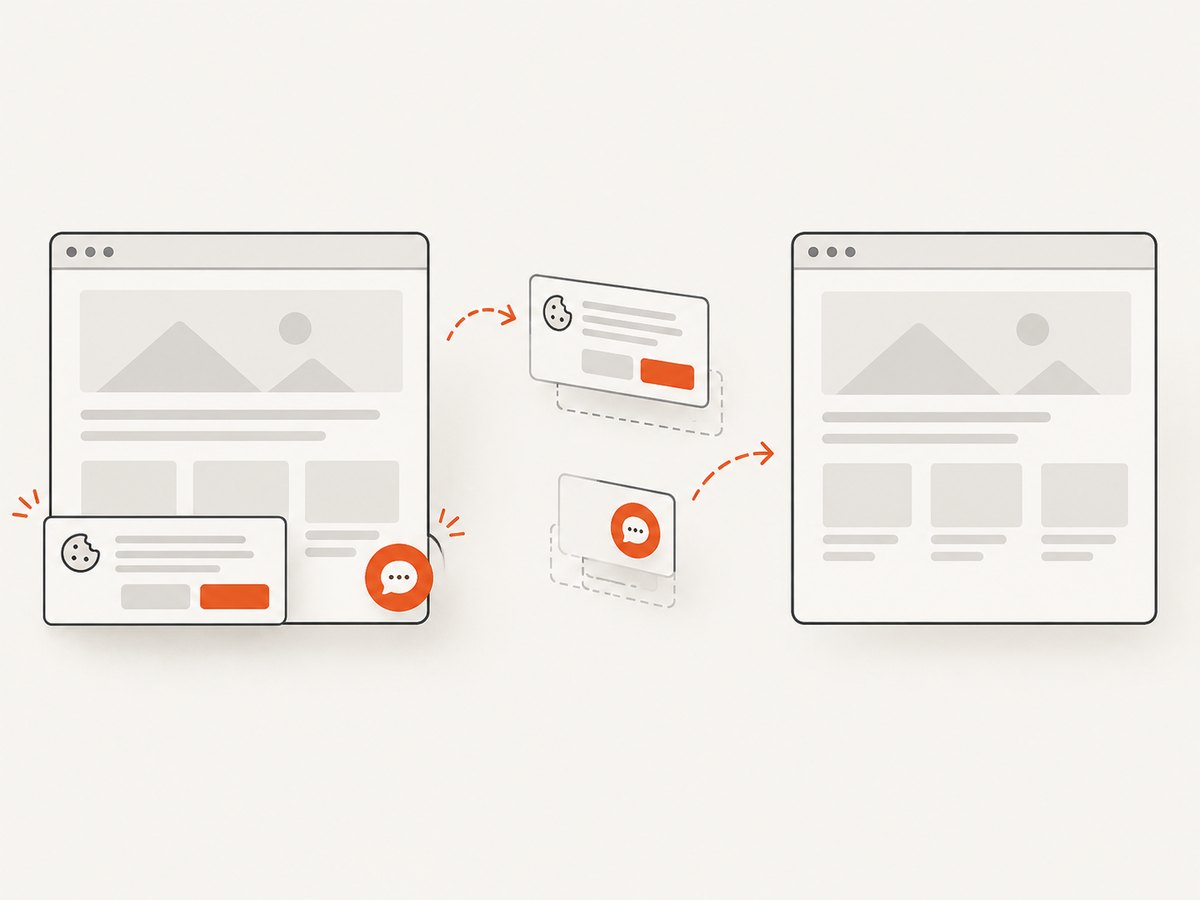
Before capturing a long page, scroll through it if images or other sections load only as they approach the viewport. This gives lazy-loaded content a chance to appear. Also dismiss any consent dialog or transient overlay that obscures the content you intend to show.
4. Use command-line screenshot tools
The Ubuntu Jammy manual for gnome-screenshot documents screen, active-window, and user-defined-area captures, plus options for copying to the clipboard and delaying a capture. The following examples use those documented options; availability and exact behavior depend on the installed package and desktop session.
# Capture the screen and save to a chosen path
gnome-screenshot --file="$HOME/Pictures/ubuntu-screen.png"

# Capture the active window
gnome-screenshot --window --file="$HOME/Pictures/active-window.png"

# Select a region interactively
gnome-screenshot --area --file="$HOME/Pictures/selected-area.png"

# Wait five seconds before capturing
gnome-screenshot --delay=5 --file="$HOME/Pictures/delayed.png"

# Copy a screen capture to the clipboard
gnome-screenshot --clipboard
Check the installed command’s help if an option is rejected: distributions ship different versions, and the cited manual describes Jammy’s version 41.0-2. If the command is missing, use the desktop shortcut or install the package through your distribution’s usual software-management method.
Use Flameshot for selection and annotation
Flameshot is an optional utility when you regularly select regions and annotate them before sharing. Its Ubuntu Questing manual describes GUI selection and annotation, full-screen captures, and monitor-specific modes. Its upstream guide explains assigning the GUI command to a GNOME keyboard shortcut. Package availability and behavior are release- and desktop-dependent; check the manual for the Ubuntu version you use.
For a one-off image, the built-in shortcut is usually the shortest path. Use Flameshot when the selection and annotation workflow is useful, and use a browser’s full-page feature when the target is a webpage longer than the display.
5. Automate full-page website captures with Playwright
For repeatable website screenshots, browser automation can load a URL, set a viewport, wait for a page condition, and save a full-page image. Install Playwright and its Chromium browser in your project using the official installation instructions. Save this as screenshot.mjs and run it with Node.js after installation:
import { chromium } from 'playwright';

const url = process.argv[2] ?? 'https://example.com';
const output = process.argv[3] ?? 'page.png';
const browser = await chromium.launch({ headless: true });

try {
  const page = await browser.newPage({
    viewport: { width: 1440, height: 900 },
    deviceScaleFactor: 1,
  });
  await page.goto(url, { waitUntil: 'networkidle', timeout: 60000 });
  await page.screenshot({ path: output, fullPage: true });
  console.log(`Saved ${output}`);
} finally {
  await browser.close();
}
node screenshot.mjs https://example.com example.pngnetworkidle is convenient for pages that settle quickly, but analytics, polling, or long-lived connections can prevent the network from becoming idle. If that happens, wait for a meaningful selector instead, or use a short delay after navigation:
await page.goto(url, { waitUntil: 'domcontentloaded', timeout: 60000 });
await page.locator('main').waitFor({ state: 'visible', timeout: 15000 });
await page.screenshot({ path: output, fullPage: true });
Control what gets captured
- Viewport: change width and height to represent the target screen. The viewport changes responsive layout.
- Device scale: set
deviceScaleFactorhigher for a denser image, which also increases pixel dimensions and file size. - Full page: set
fullPage: trueto include the document below the viewport; omit it for a viewport capture. - Element: locate a specific element and call
locator.screenshot({ path: output })when only one card, chart, or component is needed. - Wait condition: wait for the page element or content that signals readiness, rather than relying on an arbitrary pause when possible.
Dynamic pages may require authentication, cookies, a locale, or a specific browser context. Keep credentials out of source control and pass them through a secure runtime configuration. For a screenshot of a page that requires login, establish the session before navigating to the target and verify the resulting capture does not expose private account information.
6. Or skip the browser setup
ScreenshotNeo is a website screenshot API and MCP server for developers. One GET request returns an image or PDF. Its clean-shot flow accepts consent banners like a visitor and removes more than 60 known consent platforms, newsletter popups, and chat widgets before capture; each cleanup step can be disabled. Only clean shots are billed: bot checks or CAPTCHAs, blank pages, timeouts, failed loads, and cache hits cost nothing, and response headers report the page verdict and billing status. AI agents can use its MCP server tools, including take_screenshot, get_page_info, and capture_pdf.
See the ScreenshotNeo API documentation for parameters and current request options. For a quick Ubuntu-friendly call, save the returned WebP response to a file:
curl -G "https://api.screenshotneo.com/v1/shot" -d access_key=YOUR_API_KEY --data-urlencode url=https://stripe.com -o shot.webpReplace YOUR_API_KEY with your key. The request runs from Ubuntu’s terminal and does not require you to install or manage a local browser. ScreenshotNeo has a free plan with 1,000 shots per month and no card; paid plans start at $5 for 3,000 shots. Sign up for 1,000 free screenshots a month, with no card.
7. Troubleshooting
| Symptom | Likely cause | What to try |
|---|---|---|
| Print does nothing | Shortcut is remapped, intercepted, or differs in this desktop session | Open the applications menu and launch Screenshot, or inspect keyboard shortcuts in system settings. |
| No image in Pictures/Screenshots | Different release or interface saved elsewhere | Check the destination shown by the tool and search your home folder for the newest screenshot. |
| Firefox captures only what is visible | Visible-page option was selected | Repeat and choose Save full page. |
| Firefox screenshot command is unavailable | Browser version or shortcut differs | Try the page context menu and check the installed browser’s help. |
gnome-screenshot reports an unknown option |
Installed version does not match the Jammy manual | Run gnome-screenshot --help and use the flags listed by the local version. |
| Automation times out at network idle | The page keeps requests open or polls continuously | Wait for a content selector or use domcontentloaded followed by a targeted wait. |
| Images are missing in the saved page | Images are lazy-loaded or still downloading | Scroll through the page before capture, wait for the specific image or section, and capture again. |
| Capture is blank or an error page | Navigation failed, the site blocks automation, or the target did not load | Check the URL and network access, inspect the browser page before capture, and allow more navigation time if appropriate. |
8. Performance, reliability, and file size
A desktop shortcut is fastest for a one-off visible capture because it reuses the running session. Browser automation adds startup and page-load time, but produces repeatable viewport, wait, and output settings. Reusing a browser process for a batch of pages can avoid repeated startup overhead; isolate page contexts when cookies or account state must not leak between captures.
Full-page screenshots consume more memory and create larger files than viewport images, especially at high device scale. Prefer a viewport shot when below-the-fold content is irrelevant. For long pages, consider whether a PDF or a smaller image format is better for the destination. Capture at the smallest viewport and pixel density that still makes text legible.
Reliability depends on the page as well as the capture tool. Content may change, personalize by region, require consent, or load after user interaction. Use a stable wait condition, set locale or timezone when these affect rendering, and record the target URL and capture settings alongside automated artifacts. For a failure-sensitive batch, retry transient navigation failures with a limit and distinguish a genuine site error from a screenshot process error.
9. Cost and method checklist
The Ubuntu desktop shortcuts, Firefox capture feature, and local screenshot utilities do not charge per screenshot. Automation has infrastructure costs if run on a server: browser CPU and memory, storage, and the time spent maintaining browser dependencies. An API can reduce browser setup and operations work, but has plan limits and pricing. ScreenshotNeo’s listed plans are Free: 1,000 monthly shots; Starter: $5 for 3,000; Growth: $15 for 15,000; Pro: $39 for 60,000; Scale: $99 for 250,000; and Business: $249 for 1,000,000. Yearly billing gives two months free, and every feature is on every plan.
- Need a visible desktop image? Use Print, Alt+Print, or Shift+Print.
- Need a selected region or annotations? Use the screenshot interface or Flameshot.
- Need a complete webpage once? Use Firefox’s Save full page.
- Need repeatable captures? Use Playwright with a deliberate viewport and readiness condition.
- Need many URL captures without maintaining browser setup? Consider an API, and compare its billing behavior and limits against your volume.
FAQ
Does Shift+Print capture a full website?
No. It captures the desktop screen. Use the browser’s full-page capture feature for content below the viewport.
Can I screenshot only one element on a webpage?
Yes. Browser automation such as Playwright can target a locator and save that element’s screenshot, which is useful for a chart, card, or component.
Where does Ubuntu save screenshots?
Ubuntu Help documents ~/Pictures/Screenshots as the default. Check the destination displayed by your installed screenshot tool if it differs.
Can I use an API from Ubuntu?
Yes. Any HTTP client available on Ubuntu can call a screenshot API. ScreenshotNeo also provides an MCP server for compatible AI agents.


