How to Take Website Screenshots Without Losing Image Quality
Capture sharp, high-resolution website screenshots with the right viewport, DPR, rendering state, full-page mode, and lossless output.
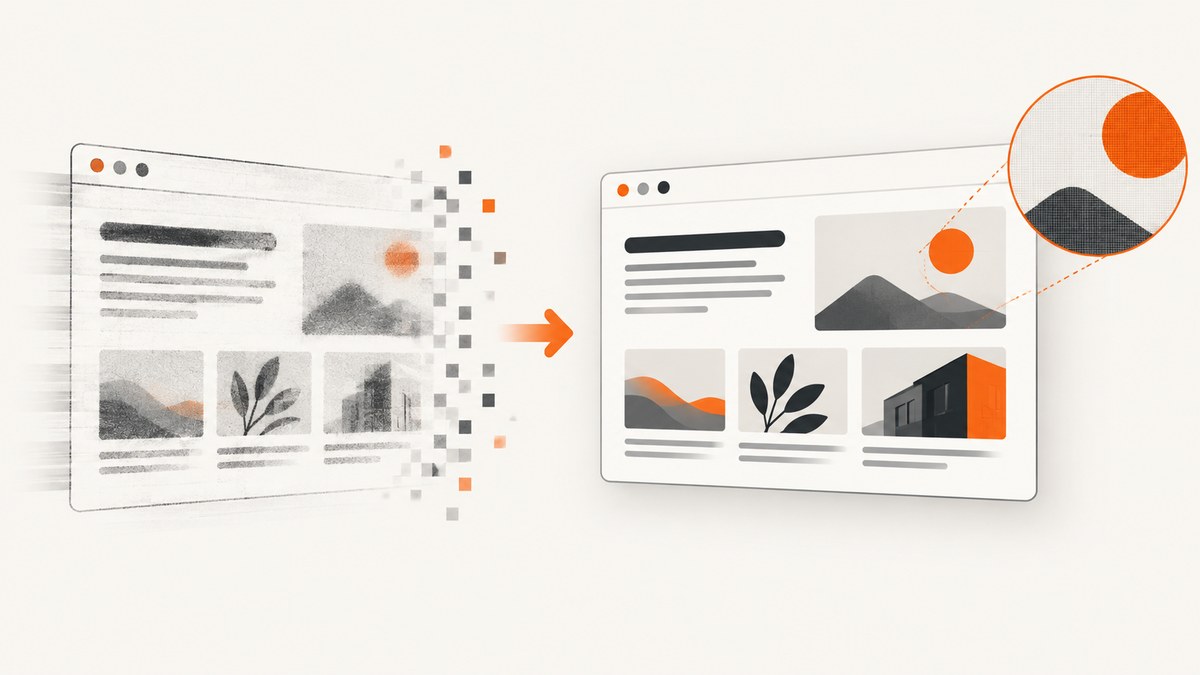
The reliable way to avoid blurry website screenshots is to capture the page from browser-native tools at the final viewport size and device pixel ratio (DPR) you need. Wait for fonts, images, and interactive states to finish rendering, then save the original PNG. Do not enlarge a small screenshot later; missing pixels cannot be reconstructed.
What determines screenshot quality?
Screenshot quality is set during rendering. Four choices matter most:
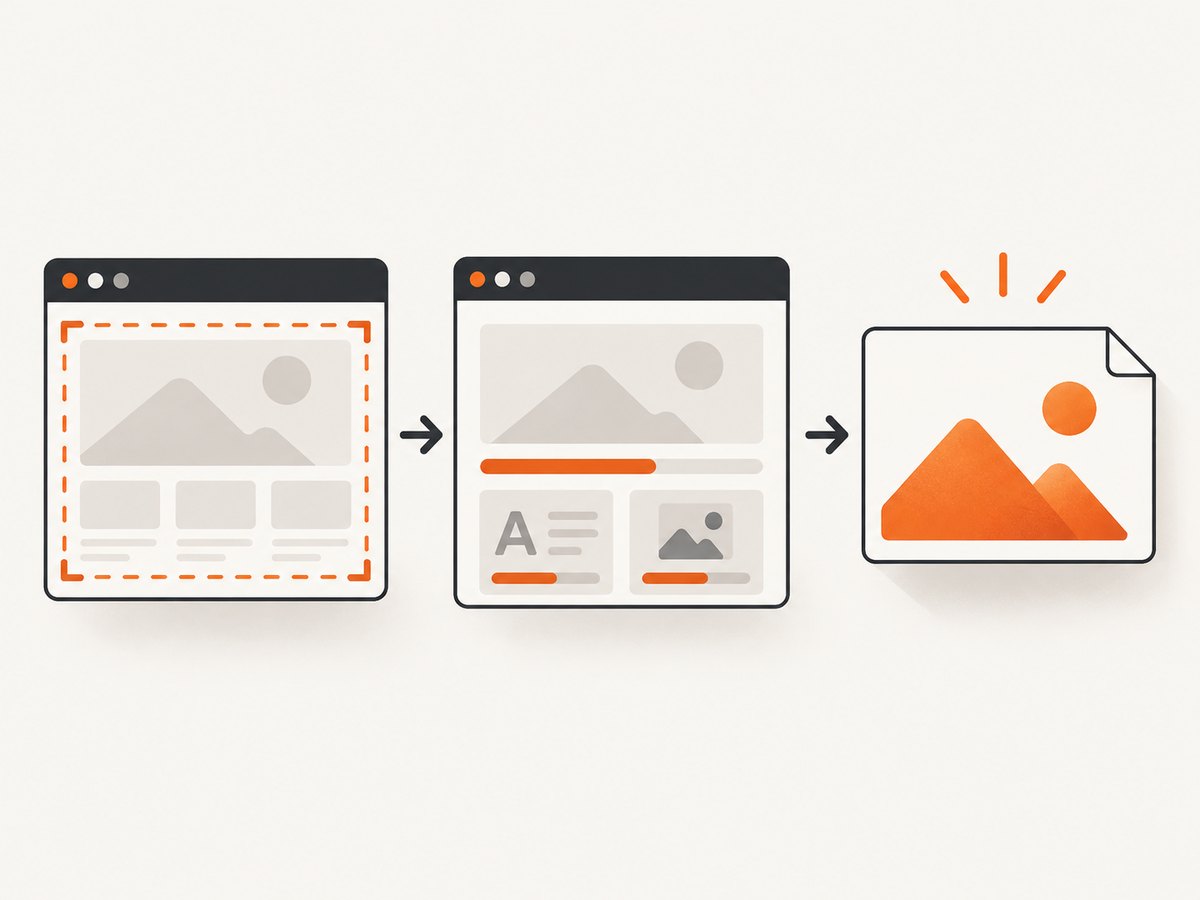
- Viewport dimensions: CSS width and height control responsive breakpoints, line wrapping, and layout.
- Device pixel ratio (DPR): DPR is the ratio between physical hardware pixels and logical CSS pixels. A DPR of 2 renders two physical pixels for each CSS pixel.
- Rendering state: Web fonts, lazy images, animations, cookie banners, hover menus, and consent dialogs must be ready before capture.
- Output format: Keep a lossless PNG master. Create JPEG or WebP derivatives only after the original is archived.
Page zoom is different from DPR. Zoom changes how content is displayed; DPR changes the pixel density used for the capture.
Choose the right capture scope
| Goal | Capture mode | Why |
|---|---|---|
| Show what a visitor sees now | Visible viewport | Preserves the exact above-the-fold layout. |
| Document an entire page | Full-page or full-size | Includes content below the fold without manual stitching. |
| Highlight a card, chart, or component | Element or region | Keeps text large enough to inspect. |
| Capture a menu or tooltip | Prepared state plus delay | Gives transient UI time to render. |
For very tall pages, capture meaningful sections or elements separately. Browser canvas and image-size limits vary by browser version.
Chrome and Chromium: high-resolution screenshots
- Open the page and DevTools.
- Enable the Device Toolbar.
- Set the target viewport width and height. Common documented presets include 320, 375, 425, 768, 1024, 1440, and 2560 CSS pixels.
- Select or enter the required DPR. Use a higher DPR when text and fine details must remain sharp.
- Prepare the page: accept or remove consent UI, scroll to trigger lazy images, wait for web fonts, and stop animations if they change the frame.
- Open the DevTools More options menu and choose Capture screenshot for the viewport or Capture full size screenshot for the complete page.
- Keep the downloaded PNG as the untouched master.
Set the viewport before capture because changing it afterward can move responsive breakpoints and alter text wrapping.
Firefox: full page, region, and repeatable captures
Firefox’s screenshot tool supports a selected region, an automatically detected page part, the full page, and the visible page.
- Right-click an empty area and choose Take Screenshot, or press Ctrl+Shift+S on Windows/Linux or Command+Shift+S on macOS.
- Choose Save full page, Save visible, an automatically detected page part, or a custom region.
- Download the PNG or copy it to the clipboard.
For repeatable technical captures, open the Web Console and use Firefox’s :screenshot helper:
:screenshot --fullpage --dpr 2 --delay 1500 --filename page@2x.png--dpr 2 requests a two-to-one device pixel ratio. --delay allows a menu, hover state, fonts, or lazy content to settle. Use --selector when you need one element instead of the whole page:
:screenshot --selector ".pricing-card" --dpr 2 --filename pricing-card.pngPrepare the page before capture
Wait for fonts and images
A screenshot taken while a web font is loading can show fallback text with different widths. Lazy images may be absent until they enter the viewport.
- Wait for the page’s loading indicator to disappear.
- Scroll through long pages once to trigger lazy loading, then return to the desired position.
- Check that image placeholders have been replaced by the final assets.
- Capture after layout stops shifting.
Control transient UI
Open menus and tooltips deliberately, disable animations when possible, and use a delay for hover states. Cookie banners, newsletter popups, and chat widgets can cover content or change the pixels between runs.
Match the intended device
Set both viewport width and device type. A mobile emulation profile can change responsive layout, touch behavior, and user-agent-dependent content. If a mobile page appears unexpectedly, verify that the intended desktop or mobile profile is selected.
Preserve pixels after capture
- Keep the original PNG and make derivatives from that file.
- Do not repeatedly export JPEG; each lossy export can add artifacts.
- Keep the aspect ratio unchanged when resizing.
- Inspect at 100% zoom before publishing. A scaled preview can hide resampling problems.
- Avoid messaging apps or image workflows that silently recompress uploads.
If text is sharp but an image is soft, the website may be serving a low-resolution source asset. A screenshot cannot restore detail that was never rendered.
Automate a repeatable capture with Playwright
For documentation, visual regression, or scheduled archives, automation makes viewport, DPR, waiting, and output settings explicit.

import { chromium } from 'playwright';

const browser = await chromium.launch();
const page = await browser.newPage({
  viewport: { width: 1440, height: 900 },
  deviceScaleFactor: 2
});

await page.goto('https://example.com', { waitUntil: 'networkidle' });
await page.evaluate(() => document.fonts.ready);
await page.screenshot({ path: 'example-full.png', fullPage: true });
await browser.close();
Use a stable test URL, wait for application-specific selectors when network idle is insufficient, and disable animations in a test stylesheet if motion changes the result.
Or skip the browser setup
ScreenshotNeo provides a website screenshot API and MCP server. One GET request returns PNG, JPEG, WebP, or PDF, with controls for full-page capture, lazy images, CSS selectors, dark mode, device presets, custom viewport and retina scale, waits, custom CSS and JavaScript, hidden selectors, request blocking, headers, cookies, user agents, timezone, geolocation, transparent backgrounds, resizing, caching, signed links, asynchronous jobs, webhooks, bulk capture, and usage reporting. See the ScreenshotNeo API documentation for the complete option list.
curl -G "https://api.screenshotneo.com/v1/shot" \
  -d access_key=YOUR_API_KEY \
  --data-urlencode url=https://stripe.com \
  -o shot.webp
import requests
r = requests.get(
"https://api.screenshotneo.com/v1/shot",
params={"access_key": "YOUR_API_KEY", "url": "https://stripe.com"},
timeout=90,
)
r.raise_for_status()
open("shot.webp", "wb").write(r.content)const q = new URLSearchParams({
access_key: 'YOUR_API_KEY',
url: 'https://stripe.com'
});
const res = await fetch(`https://api.screenshotneo.com/v1/shot?${q}`);
if (!res.ok) throw new Error(`${res.status} ${await res.text()}`);
const fs = await import('node:fs/promises');
await fs.writeFile('shot.webp', Buffer.from(await res.arrayBuffer()));Cookie banners, newsletter popups, and chat widgets are removed before the shot. Bot checks, blank pages, failed loads, timeouts, and cache hits are not billed; response headers identify the page verdict and billing status. The MCP server lets Claude, Cursor, and other MCP clients call take_screenshot, get_page_info, and capture_pdf. The Free plan includes 1,000 screenshots a month with no card; paid plans start at $5 for 3,000 shots. Create a free ScreenshotNeo account.
Troubleshooting blurry or incomplete screenshots
| Symptom | Likely cause | Fix |
|---|---|---|
| Blurry text everywhere | Capture DPR or viewport is too small. | Recapture at the intended viewport and a higher DPR. Never upscale the existing bitmap. |
| Only images look soft | The source asset is low resolution. | Inspect the page’s image source and use a larger asset if available. |
| Mobile layout appears unexpectedly | Device emulation or viewport width is wrong. | Select the intended device type and set the target CSS width. |
| Below-the-fold content is missing | Visible capture was used. | Use Chrome’s full-size or Firefox’s full-page mode. |
| Lazy images are blank | Capture happened before loading was triggered. | Scroll through the page, wait for images, then capture. |
| Menu or tooltip is absent | The state closed before capture. | Open it immediately before capture and add a delay. |
| Text changes between runs | Web fonts or dynamic data were still loading. | Wait for document.fonts.ready and a stable application selector. |
| Very tall capture fails | Browser or image-size limits. | Capture sections or key elements separately and retain the original pieces. |
Performance, reliability, and cost notes
- Performance: Full-page screenshots take longer than viewport captures because more layout and image work is required. Higher DPR increases pixel count and output size.
- Reliability: Use fixed viewport, DPR, URL state, waits, and font readiness. Record the capture time and settings alongside the file.
- Bandwidth: PNG preserves detail but can be large. Generate WebP or JPEG derivatives only after storing the PNG master.
- Automation: Cache stable pages when appropriate, and split exceptionally tall pages into sections.
- ScreenshotNeo billing: Only clean shots are billed. Bot checks, CAPTCHAs, blank pages, timeouts, failed loads, and cache hits cost nothing, and the response includes
X-Page-VerdictandX-Billedheaders.
Quality checklist
- Define the target CSS viewport before opening capture.
- Choose DPR intentionally and verify final pixel dimensions.
- Use full-page mode for content below the fold.
- Wait for fonts, lazy images, and application state.
- Remove or wait out overlays and animations.
- Save an untouched PNG master.
- Inspect at 100% before publishing.
- Keep capture settings with the file so the result can be reproduced.
FAQ
What DPR should I use?
Use the DPR that matches the delivery target. DPR 1 is often sufficient for ordinary documentation; DPR 2 preserves more detail for retina displays and close inspection. Higher DPR also increases pixel count and file size.
Is PNG always better than JPEG?
PNG is the safer archival master because it is lossless. JPEG can be useful for smaller photographic derivatives after the PNG is preserved.
Why does a screenshot differ from what I see on my monitor?
Your monitor preview may be scaled, while the capture uses explicit CSS dimensions and DPR. Responsive breakpoints, fonts, animation timing, and dynamic content can also change the rendered pixels.
Should I stitch screenshots manually for a long page?
Use built-in full-page capture first. If the page exceeds browser limits, capture stable sections or important elements and keep each original image for later assembly.


