Take Website Screenshots Without Popups
Dismiss cookie banners, modals, and chat widgets before capture with browser steps, Playwright code, and a hosted API option.
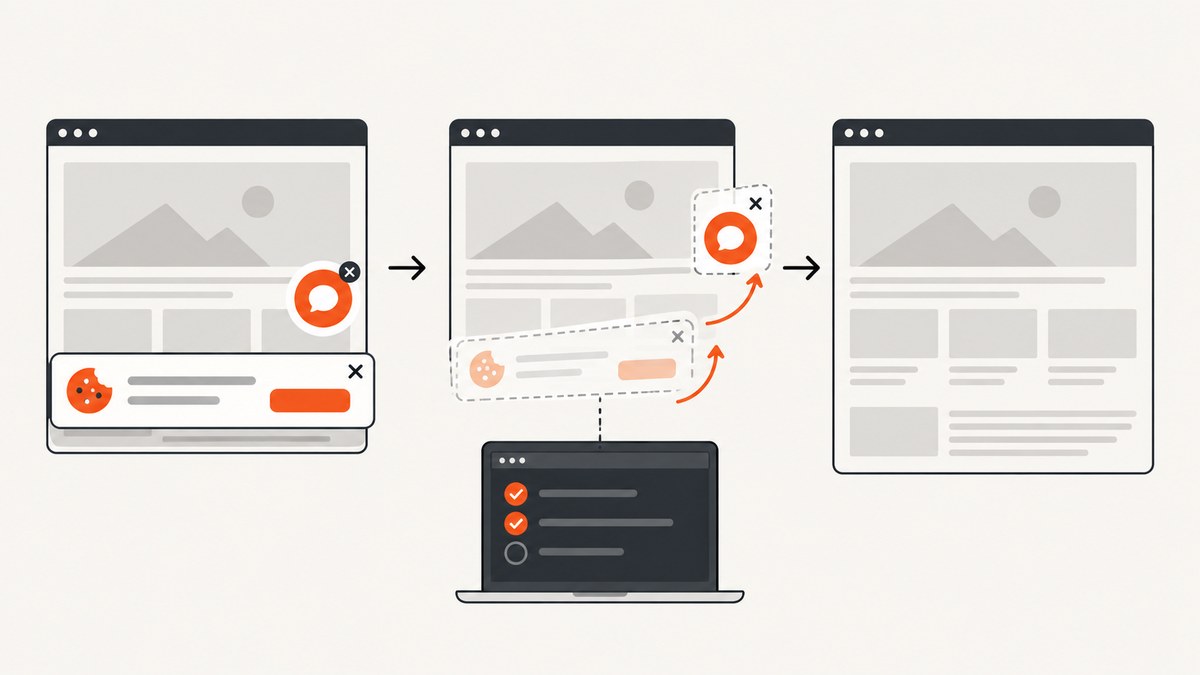
Cookie banners, newsletter modals, chat bubbles, and JavaScript dialogs can cover the page you need to capture. The reliable fix is to deal with the overlay before the screenshot: use the site’s own dismiss or consent control, then capture the page. For repeatable work, automate that interaction and make the screenshot step wait for the page to settle.
There are two different problems. An in-page banner or modal is ordinary DOM content and needs a locator, click, or page-specific rule. A browser-level JavaScript alert, prompt, confirm, or before-unload dialog is handled through Playwright’s dialog event. Hiding pixels with CSS can produce a clean visual regression image, but it does not record consent or change what a real visitor would see.
1. Choose the right capture method
| Situation | Best starting point | Trade-off |
|---|---|---|
| One screenshot | Browser screenshot UI | Fast and manual; you dismiss the popup yourself. |
| Repeatable screenshots in tests | Playwright or Puppeteer | More setup, but interactions are scripted. |
| Full page or one element in Firefox | Firefox screenshot UI or Developer Tools | Built in, with extra controls in DevTools. |
| Many URLs or a hosted workflow | Screenshot API | Less browser maintenance; check processing, privacy, price, and reliability. |
| Diagnosing script-dependent behavior | Temporarily disable JavaScript | Diagnostic only; it can change or break the page. |
2. Take a one-off screenshot in a browser
- Open the page and let its content settle.
- If the popup asks for consent or preferences, use the site’s own controls and choose according to your preference. Do not describe cosmetic concealment as consent.
- In Firefox, right-click an empty part of the page and choose Take Screenshot, or press Ctrl+Shift+S on Windows/Linux (Command+Shift+S on macOS). Select a region, page part, full page, or visible area, then download or copy the image. Mozilla documents these modes.
- Inspect the result. Lazy images and overlays that appear after scrolling may require a short wait or a scroll before capture.
Firefox Developer Tools also support full-page and element screenshots. Open DevTools, use the command line, and run a helper such as :screenshot --fullpage or :screenshot --selector .article. The helper accepts a delay, device-pixel ratio, filename, full-page mode, and CSS selector; see the Firefox DevTools screenshot documentation.
3. Automate dismissal with Playwright
Install Playwright and its browser once:
npm install -D playwright
npx playwright install chromium
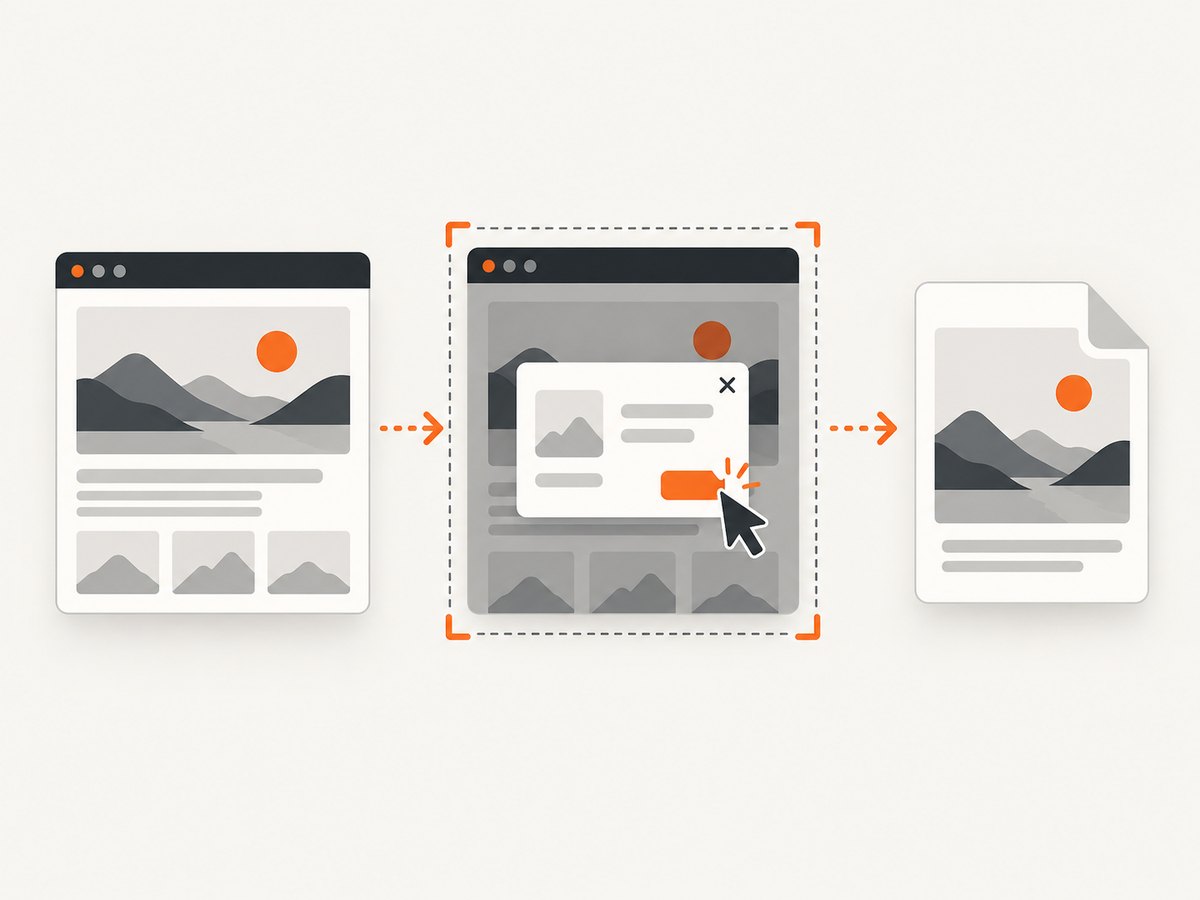
This script opens a page, waits for a predictable consent button, clicks it, waits for the page, and writes a full-page PNG. Replace the selector with the control used by the site you own or are authorized to capture.
import { chromium } from 'playwright';

const browser = await chromium.launch();
const page = await browser.newPage({ viewport: { width: 1440, height: 900 }, deviceScaleFactor: 1 });
await page.goto('https://example.com', { waitUntil: 'domcontentloaded', timeout: 45_000 });

const accept = page.getByRole('button', { name: /accept|allow all|agree/i });
if (await accept.isVisible({ timeout: 5_000 }).catch(() => false)) {
  await accept.click();
}
await page.waitForLoadState('networkidle').catch(() => {});
await page.screenshot({ path: 'page.png', fullPage: true });
await browser.close();
Playwright recommends explicitly waiting for and dismissing an overlay that appears predictably as part of the normal flow. For an intermittent overlay, page.addLocatorHandler() can run a handler before an actionability-checked action or auto-waiting assertion. The handler can change focus and mouse state, so later steps must not depend on those states remaining unchanged. See the Page API.
await page.addLocatorHandler(
  page.getByRole('dialog').getByRole('button', { name: /close/i }),
  async locator => { await locator.click(); }
);
JavaScript dialogs are a separate case
Alerts, prompts, confirms, and before-unload dialogs are browser dialogs, not HTML overlays. Register a listener before the action that triggers one:
page.on('dialog', async dialog => {
  console.log(dialog.type(), dialog.message());
  await dialog.accept(); // use dialog.dismiss() when that is the intended choice
});
await page.getByRole('button', { name: 'Delete' }).click();
Without a listener, a dialog can block the action and leave the capture hanging. Never blindly accept a consent dialog when the correct behavior is to reject or configure preferences.
4. Hide or mask an irrelevant overlay for visual tests
If the goal is a stable comparison and the popup itself is irrelevant, a screenshot stylesheet or mask is appropriate. It changes the image; it does not prove that the site’s state changed or that a visitor would not see the popup. Playwright’s screenshot stylesheet can hide dynamic elements, including elements in shadow DOM and inner frames, and masking covers matched elements in the output. Screenshot options document both.
await page.screenshot({
  path: 'regression.png',
  fullPage: true,
  style: `
    .newsletter-modal, .cookie-banner, [aria-label="Chat"] {
      visibility: hidden !important;
    }
  `
});

await page.screenshot({
  path: 'masked.png',
  fullPage: true,
  mask: [page.locator('.cookie-banner'), page.locator('.chat-widget')]
});
Prefer a real click when the interaction matters to the test. Use hiding or masking only when you document the treatment and want deterministic pixels.
5. Capture one element, a viewport, or the full page
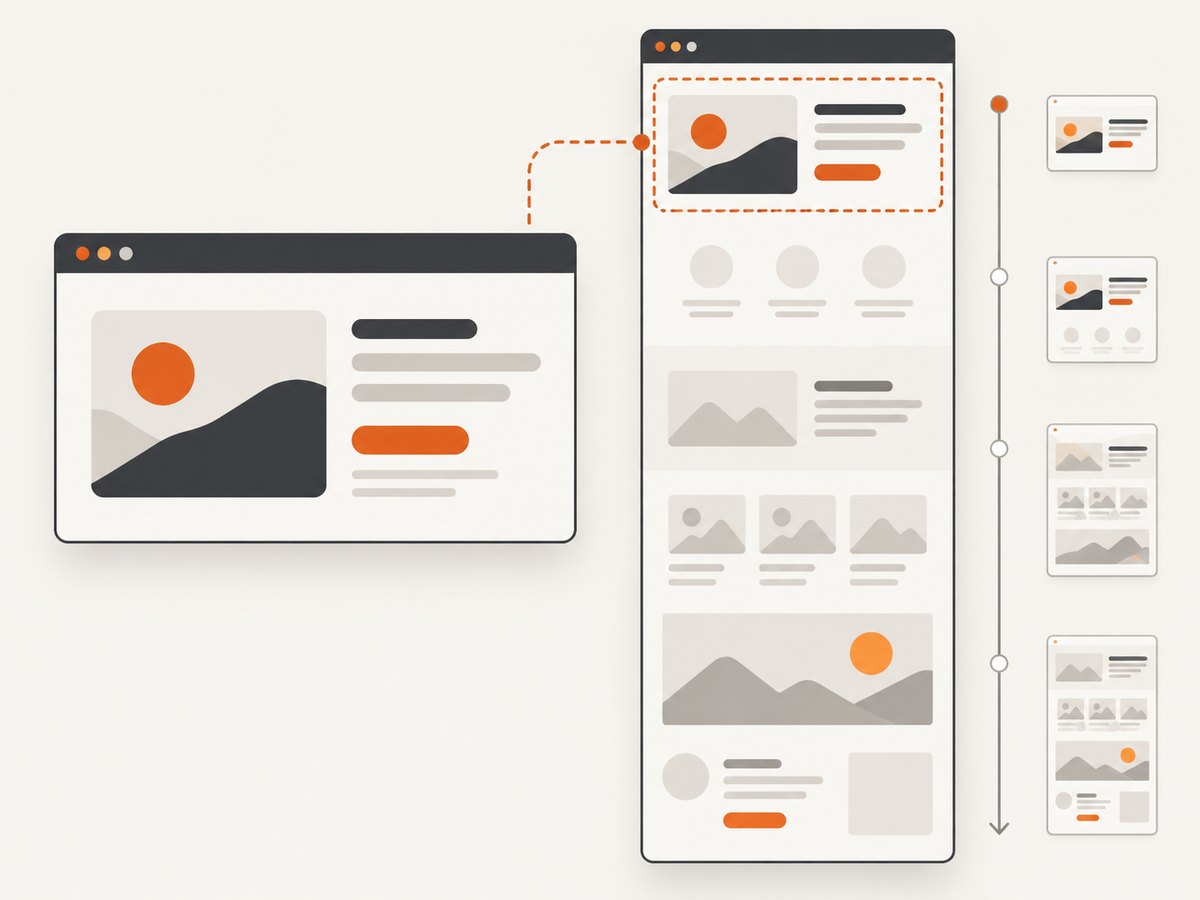
Playwright supports viewport screenshots, locator screenshots, and full-page screenshots. An element capture is useful for a card or component; full-page mode stitches the page height.
await page.screenshot({ path: 'viewport.png' });
await page.locator('main article').screenshot({ path: 'article.png' });
await page.screenshot({ path: 'full.png', fullPage: true });
For a long page, lazy content may not exist until it is scrolled into view. Scroll in controlled increments, wait for images, and then capture:
await page.evaluate(async () => {
  await new Promise(resolve => {
    let y = 0;
    const step = 600;
    const timer = setInterval(() => {
      window.scrollBy(0, step);
      y += step;
      if (y >= document.body.scrollHeight) { clearInterval(timer); resolve(); }
    }, 100);
  });
});
await page.waitForTimeout(500);
await page.screenshot({ path: 'lazy-loaded.png', fullPage: true });
Use a fixed viewport and device scale factor for repeatability. Set a color scheme when the site supports dark mode:
const page = await browser.newPage({
  viewport: { width: 1280, height: 800 },
  deviceScaleFactor: 2,
  colorScheme: 'dark'
});
6. Puppeteer alternative
Puppeteer automates Chrome and Firefox and supports full-page or element screenshots. The same principles apply: wait for a known control, click it, then capture.
import puppeteer from 'puppeteer';
const browser = await puppeteer.launch();
const page = await browser.newPage();
await page.setViewport({ width: 1440, height: 900, deviceScaleFactor: 1 });
await page.goto('https://example.com', { waitUntil: 'networkidle2', timeout: 45_000 });
const button = await page.$('button[aria-label="Accept cookies"]');
if (button) await button.click();
await page.screenshot({ path: 'puppeteer.png', fullPage: true });
await browser.close();
7. Firefox and Chrome diagnostics
Firefox’s built-in UI and DevTools are convenient when you do not need a script. Chrome DevTools can disable JavaScript from the Command Menu. The Chrome documentation presents this as a way to inspect a page with scripts disabled; it is not a universal popup remover. Disabling scripts can remove a script-created overlay, but it can also remove content, break navigation, or produce a page unlike what visitors see. Use it to diagnose the cause, then restore JavaScript and automate the intended interaction.
8. Or skip the browser setup
ScreenshotNeo is a hosted screenshot API and MCP server. It accepts one GET request and returns PNG, JPEG, WebP, or PDF. Before capture it accepts cookie or consent banners like a visitor and removes more than 60 known consent platforms, newsletter popups, and chat widgets; each step can be turned off. Clean shots are the only billable ones: bot checks or CAPTCHAs, blank pages, timeouts, failed loads, and cache hits cost nothing, and the response reports the result in X-Page-Verdict and X-Billed headers. Its MCP server provides take_screenshot, get_page_info, and capture_pdf for Claude, Cursor, and other MCP clients.
Start with the ScreenshotNeo API documentation. The basic request is:
curl -G "https://api.screenshotneo.com/v1/shot" -d access_key=YOUR_API_KEY --data-urlencode url=https://stripe.com -o shot.webpimport requests
r = requests.get("https://api.screenshotneo.com/v1/shot", params={"access_key": "YOUR_API_KEY", "url": "https://stripe.com"}, timeout=90)
r.raise_for_status()
open("shot.webp", "wb").write(r.content)const q = new URLSearchParams({ access_key: 'YOUR_API_KEY', url: 'https://stripe.com' });
const res = await fetch(`https://api.screenshotneo.com/v1/shot?${q}`);
if (!res.ok) throw new Error(`${res.status} ${await res.text()}`);
const fs = await import('node:fs/promises');
await fs.writeFile('shot.webp', Buffer.from(await res.arrayBuffer()));Useful options cover full-page capture with lazy images loaded, a CSS-selector element, dark mode, 12 device presets or any viewport, retina scale, PDF paper size/margins/landscape/page ranges, HTML/CSS to image, custom CSS and JavaScript, a pre-capture click, hidden selectors, waits for a selector/delay/network idle, blocking ads/trackers/requests/resource types, custom headers/cookies/user agent/Authorization, timezone and geolocation, transparent background, image resizing, a chosen cache TTL, signed links for public <img> tags, asynchronous jobs with signed webhooks, bulk capture of 100 URLs per call, a usage API, and an OpenAPI specification. Parameter names used by other screenshot APIs also work, which eases migration.
Pricing is Free for 1,000 shots per month with no card; Starter is $5 for 3,000, Growth $15 for 15,000, Pro $39 for 60,000, Scale $99 for 250,000, and Business $249 for 1,000,000. Yearly billing gives two months free, and every feature is on every plan. Create a free ScreenshotNeo account to get 1,000 screenshots each month with no card.
9. Troubleshooting checklist
| Symptom | Likely cause | Fix |
|---|---|---|
| Click times out | Wrong selector, iframe, or popup never appeared. | Use a role or stable attribute, wait for the frame, and make the click conditional. |
| Popup returns on every run | Consent is not persisted. | Use a browser context with storage state or perform the consent action each run. |
| Alert blocks the test | No dialog listener. |
Register page.on('dialog') before the triggering action. |
| Blank or partial full page | Navigation, lazy loading, or a timeout is incomplete. | Increase navigation timeout, wait for a stable selector or network idle, scroll lazy content, and inspect response status. |
| Consent button is inside an iframe | Top-level locators cannot see frame content. | Find the frame and use frameLocator(...) or the frame object. |
| Hidden CSS leaves a gap | visibility:hidden preserves layout. |
Use the site’s close action, or choose display:none only when layout changes are acceptable. |
| Different pixels on each run | Animations, fonts, ads, time, or viewport differ. | Freeze animations in CSS, wait for fonts, block volatile requests, set viewport/timezone, and use a consistent device scale. |
| Screenshot API response is not an image | Authentication or target-page failure. | Check HTTP status and X-Page-Verdict/X-Billed; inspect the response body and retry transient navigation failures. |
10. Performance, reliability, and cost
- Reuse one browser process and create isolated contexts for batches; launching a browser per URL is slower.
- Set explicit navigation and action timeouts. Wait for the smallest meaningful readiness signal instead of an unbounded sleep.
- Capture only what you need: an element is cheaper to process than a very tall full page, and a fixed viewport is faster than stitching a long document.
- Retry navigation failures with a limit and record URL, viewport, selector, and timestamp so a changed site can be diagnosed.
- For hosted capture, use caching with a TTL when freshness permits, asynchronous jobs and signed webhooks for slow pages, and bulk calls for up to 100 URLs. Check usage data rather than estimating spend.
- Do not send secrets in page URLs. Use headers, cookies, or Authorization options only for pages you are allowed to access, and review where page content is processed.
11. FAQ
Does hiding a popup count as dismissing it?
No. Hiding or masking changes screenshot pixels. A click on the site’s control records the intended interaction and is the right choice when consent or application state matters.
Can I remove every popup by disabling JavaScript?
No. It is a diagnostic experiment. It can also remove required content or produce a different page.
Should I use a locator handler for every overlay?
No. For predictable overlays, explicitly wait and dismiss them in the normal flow. Use a handler for overlays that appear unexpectedly around actions or assertions.
How do I capture a protected page?
In a browser script, establish the authorized session and storage state. With ScreenshotNeo, provide the required custom headers, cookies, user agent, or Authorization value and follow the site’s access rules.
What is the simplest repeatable setup?
Use Playwright with a stable consent locator, fixed viewport, explicit waits, and full-page capture. For hosted or multi-URL work, use ScreenshotNeo’s API or MCP tools.


