Website Thumbnail Design Ideas for Articles and Social Sharing
Create clear, platform-ready website thumbnails with practical design ideas, Open Graph metadata, sizing guidance, and a reliable screenshot workflow.
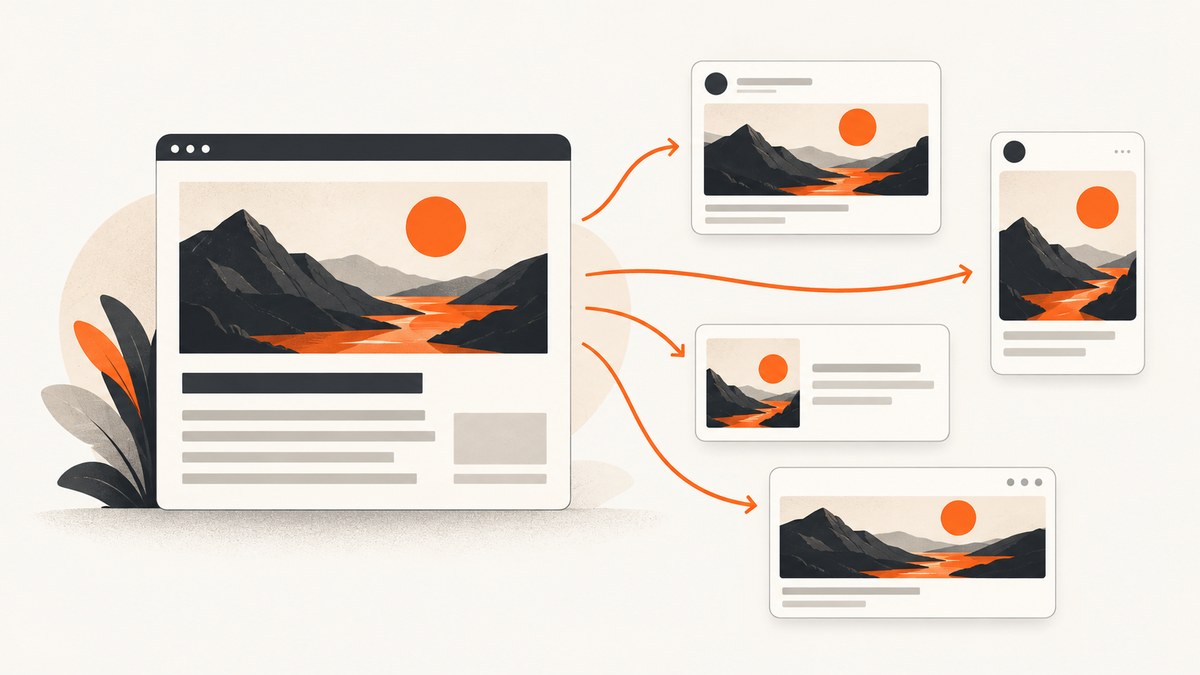
A website thumbnail is the image shown when someone shares a page link. For most websites, you choose it with the Open Graph og:image property. The best thumbnail is relevant to the article, recognizable at a small size, readable when text is included, and safe from platform cropping. Start with a 1200 × 630 pixel master image, keep important content inside generous margins, export an RGB JPG or PNG, and test the result on the platform where readers will see it.
This guide covers design ideas, platform specifications, metadata, a do-it-yourself generation workflow, troubleshooting, and an automated option with ScreenshotNeo.
What a website thumbnail actually is
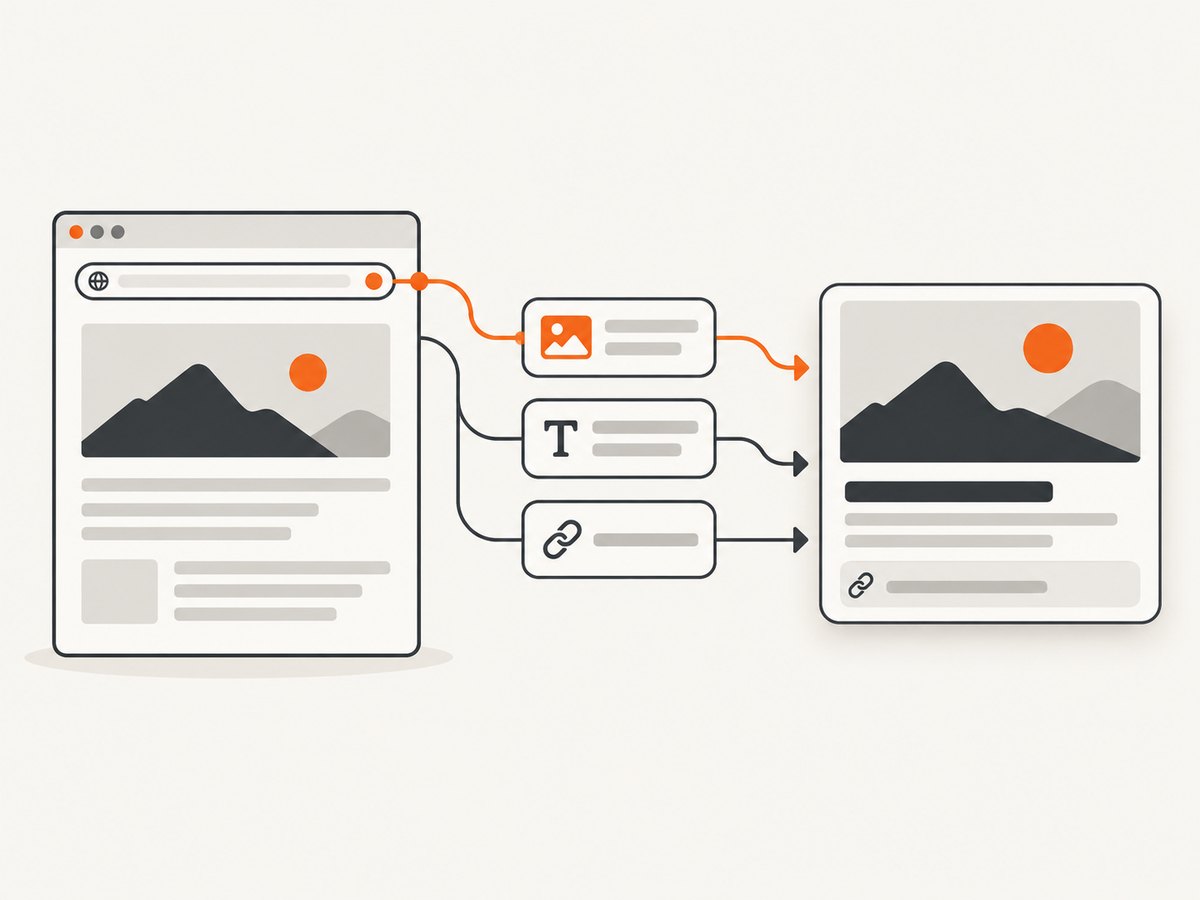
In link-sharing contexts, “website thumbnail” usually means the representative image attached to a page preview. Open Graph defines og:image as the image URL representing the page’s object. The basic Open Graph properties are og:title, og:type, og:image, and og:url. Open Graph protocol
If you do not set an image deliberately, a platform may select an unrelated image from the page. That can produce a logo, author headshot, advertisement, or the first decorative image instead of an image that explains the article. FIU’s social-image guide
Size and export recommendations
Use a master file that can survive several preview sizes and crops.
| Decision | Practical starting point | Why it matters |
|---|---|---|
| Canvas | 1200 × 630 px | A common landscape ratio for link previews; FIU lists this as a dated general recommendation. |
| Color | RGB | Matches browser and social-platform display. |
| Export | JPG for photos; PNG for sharp graphics or transparency | Choose the format that keeps the focal subject clean at an acceptable file size. |
| Margins | At least 80 px on each side of a 1200 × 630 canvas | Protects headlines, logos, and faces from crops and interface overlays. |
| Text | One short headline or label | Large, simple text remains scannable in a compact card. |
These are design recommendations, not universal requirements. Platforms can resize, crop, compress, or overlay your image. Always preview the actual destination.
Eight website thumbnail design ideas
1. Show the article’s central object
Choose an image that answers “what will I learn here?” A code article can show a clean browser-and-editor composition; a travel guide can show the destination; a data article can show one restrained chart. The image should preview the destination rather than decorate it.
2. Use one focal point
One subject is easier to recognize than a collage of small objects. Place the focal object on one side and reserve the other side for a short headline. Remove background details that compete with the subject.
3. Treat text as a label, not a summary
If text is necessary, use a concise promise such as “CSS Grid Layout” or “Remote API Patterns.” Use a large weight, high contrast, and a line length that remains readable at thumbnail size. Do not attempt to fit the article’s title, subtitle, author, date, and category into one image.
4. Build contrast deliberately
Test light text on the actual background, not on a color swatch. A translucent dark or light overlay can separate a headline from a photo. Leave clear space around text and logos. Pinterest applies a faint black layer to very light Pins in light mode and a faint white layer to very dark Pins in dark mode, so extreme backgrounds can change after upload. Pinterest Pin specifications
5. Keep branding restrained
A small, consistent brand mark can help readers recognize a series. Keep it inside the safe area and subordinate to the article subject. Brand color is useful when it supports contrast; it should not force every thumbnail into the same low-contrast template.
6. Design a series system
Create reusable slots for category color, headline, focal image, and logo. A system reduces production time while allowing each article to have a distinct subject. Compare variants on recognition, small-size legibility, contrast and safe margins, and destination fit.
7. Make a crop-safe composition
Keep faces, product edges, and essential words away from the outer margins. Place the focal point near the center third rather than at an extreme edge. Generate a square preview during review even if your source is landscape; it reveals whether the subject survives aggressive cropping.
8. Match the destination
A landscape Open Graph image is a useful default, but it is not guaranteed to display identically everywhere. Pinterest recommends vertical images, text overlays, and tasteful branding for Pins, and publishes separate safe zones and limits. Its current help page lists BMP, JPEG, PNG, TIFF, and WEBP, with a 20 MB web limit. It lists 100 characters for Pin titles and 250 characters for text boxes; description limits differ between Pinterest pages, so check the current publishing interface before relying on a limit. Pinterest Help Pinterest developer guidance
Set the image with Open Graph metadata
Add metadata in the document’s <head>. Use an absolute, publicly reachable URL; a local file path or development URL cannot be fetched by a crawler.
<meta property="og:title" content="Website Thumbnail Design Ideas">
<meta property="og:type" content="article">
<meta property="og:url" content="https://example.com/blog/website-thumbnail-design-ideas">
<meta property="og:image" content="https://example.com/images/website-thumbnail-design-ideas.jpg">
<meta property="og:image:width" content="1200">
<meta property="og:image:height" content="630">
<meta property="og:description" content="Practical ideas for clear, platform-ready website thumbnails.">
Use one canonical URL in og:url. Keep the image URL stable when possible; changing it creates cache and debugging work. If you publish Pinterest article Rich Pins, Pinterest says to add Open Graph or Schema.org article markup. Pinterest notes that metadata synchronization can take up to 24 hours. Pinterest Rich Pins documentation
A do-it-yourself thumbnail workflow
- Write the visual brief. State the article subject, one focal object, the optional headline, brand color, and intended platforms.
- Build a 1200 × 630 layout. Keep the focal object and text inside the safe margins. Use a grid so repeated articles align consistently.
- Export and optimize. Export an RGB JPG or PNG. Remove unnecessary metadata and keep the file comfortably below platform limits.
- Publish the file. Put it on a stable HTTPS URL that serves the correct
Content-Type. - Add metadata. Set
og:image, title, type, URL, and description in the page head. - Preview and recrawl. Share the URL privately on each target platform. If an old image remains, inspect the fetched HTML and wait for the platform cache to refresh.
For generated thumbnails, HTML and CSS can provide repeatable layouts. A simple page might look like this:
<!doctype html>
<html><head>
<meta charset="utf-8">
<style>
  body { margin: 0; width: 1200px; height: 630px; background: #14213d; color: white; font: 700 64px system-ui; }
  .card { box-sizing: border-box; width: 100%; height: 100%; padding: 80px; display: flex; align-items: center; gap: 48px; }
  .title { width: 52%; } .shape { width: 360px; height: 360px; border-radius: 50%; background: #fca311; }
</style></head>
<body><main class="card"><div class="title">Website Thumbnail Design Ideas</div><div class="shape"></div></main></body></html>
Open this file in a browser automation tool, set the viewport to 1200 × 630, wait for fonts and images, and capture the page. For dynamic content, wait for a selector or network idle instead of relying on a fixed delay alone.
Or skip the browser setup
ScreenshotNeo turns a URL into a PNG, JPEG, WebP, or PDF. It accepts full-page or element captures, custom CSS and JavaScript, dark mode, device presets, retina scale, waits, hidden selectors, custom headers and cookies, timezone and geolocation, transparent backgrounds, resizing, caching, signed links, asynchronous jobs, bulk capture, and HTML/CSS-to-image. Each step can be configured so you can render a thumbnail page and capture only the intended element.
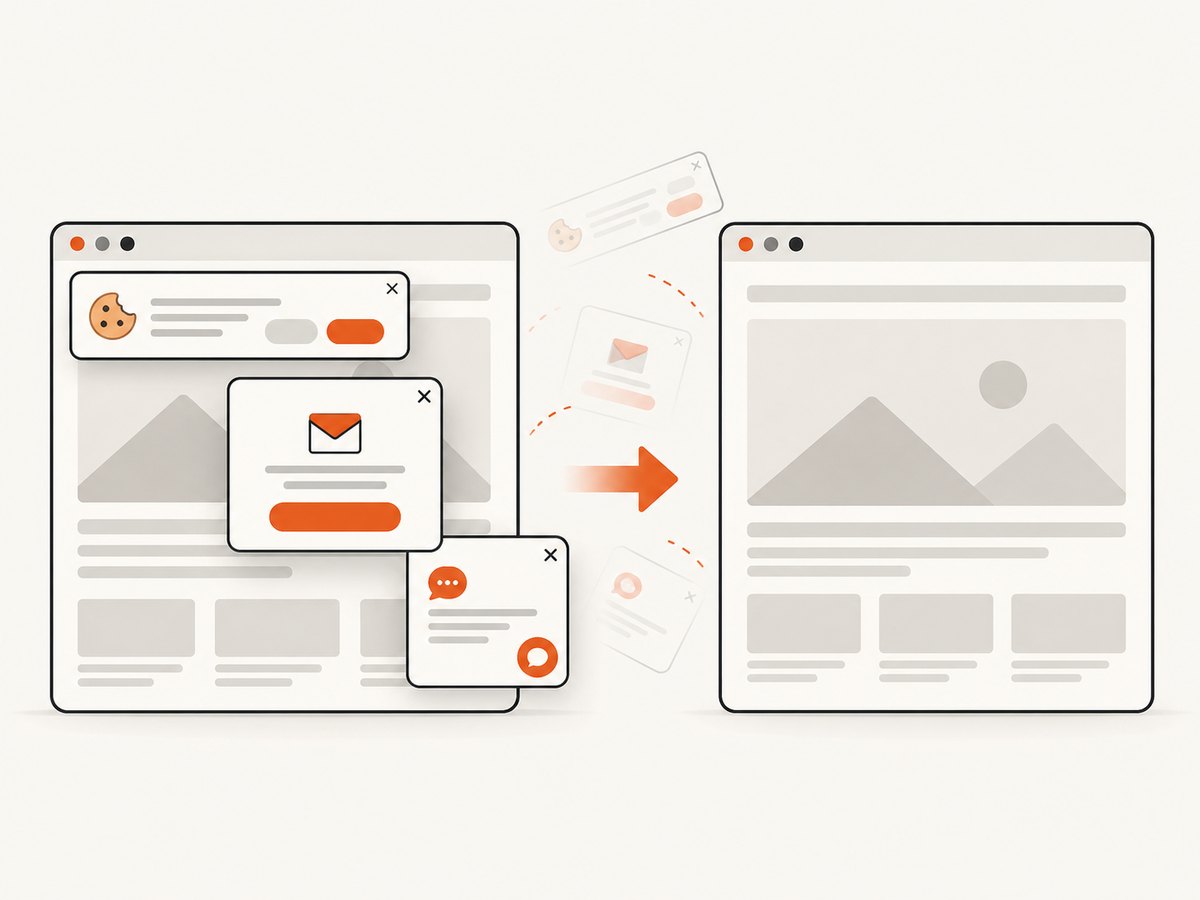
Cookie banners, newsletter popups, and chat widgets are removed before the shot. Bot checks, blank pages, timeouts, failed loads, and cache hits are not billed, and response headers identify the page verdict and billing status. ScreenshotNeo also provides an MCP server for AI agents with take_screenshot, get_page_info, and capture_pdf.
See the ScreenshotNeo API documentation for the full option list.
cURL
curl -G "https://api.screenshotneo.com/v1/shot" -d access_key=YOUR_API_KEY --data-urlencode url=https://example.com/blog/website-thumbnail-design-ideas -o thumbnail.webpPython
import requests
r = requests.get("https://api.screenshotneo.com/v1/shot", params={"access_key": "YOUR_API_KEY", "url": "https://example.com/blog/website-thumbnail-design-ideas"}, timeout=90)
open("thumbnail.webp", "wb").write(r.content)
Node.js
const q = new URLSearchParams({ access_key: 'YOUR_API_KEY', url: 'https://example.com/blog/website-thumbnail-design-ideas' });
const res = await fetch(`https://api.screenshotneo.com/v1/shot?${q}`);
The Free plan includes 1,000 shots per month with no card. Paid plans start at $5 for 3,000 shots; yearly billing gives two months free. Create a free ScreenshotNeo account.
Options that affect thumbnail output
| Need | Useful setting | Review point |
|---|---|---|
| One article card | Element capture by CSS selector | Ensure the selector is unique and visible after fonts load. |
| Long article preview | Full-page capture with lazy images loaded | Check that below-the-fold assets do not create an unintended collage. |
| Dark variant | Dark mode or custom CSS | Recheck contrast and platform overlays. |
| Private page | Custom headers, cookies, user agent, or Authorization | Never expose secrets in a public thumbnail URL. |
| Repeat requests | Cache with a chosen TTL | Invalidate when the design or article title changes. |
| Many articles | Bulk capture, up to 100 URLs per call | Record each URL’s result and retry only failures. |
Troubleshooting
The wrong image appears
Inspect the fetched HTML for duplicate og:image tags, confirm the URL is absolute, and remove stale CMS defaults. Then wait for the platform cache to recrawl.
The image is cropped badly
Move essential content inward, create a square test crop, and follow the destination’s safe zones. Pinterest publishes different safe-zone values from general link previews.
Text is unreadable
Increase type size, shorten the wording, strengthen contrast, and remove decorative text. Preview at the smallest card size you expect.
The image is blank or missing
Check that the server returns 200, uses HTTPS, sends an image content type, and does not require authentication. For automated captures, wait for the target selector, fonts, and images.
A capture includes a cookie banner or chat bubble
Hide those selectors in your browser workflow or enable ScreenshotNeo’s consent and widget removal steps. Keep each cleanup step independently switchable so you can diagnose an over-aggressive rule.
A dynamic page times out
Reduce unnecessary resources, block ads or trackers, wait for a specific selector, and set a bounded delay or network-idle condition. Capture a stable element instead of the entire page when possible.
Performance, reliability, and cost
Generate thumbnails during publishing rather than on every social share. Store the resulting asset at a stable URL and use a cache TTL for repeated requests. For bulk work, process URLs in batches and retain the verdict for each response so failed pages can be retried without duplicating successful captures.
File size affects upload time and platform processing. Use JPG for photographic backgrounds, avoid oversized source images, and inspect the exported file before publishing. Reliability depends on the page itself: blocked resources, authentication, consent flows, and bot checks can all change the rendered result. A screenshot service that reports page verdict and billing status makes these cases visible; ScreenshotNeo bills only clean shots, while bot checks, blank pages, failed loads, timeouts, and cache hits cost nothing.
Pre-publish checklist
- The image explains the article’s subject.
- The focal point survives a square crop.
- Headline text is short, large, and high contrast.
- Important content is inside safe margins.
- The file is RGB and served over HTTPS.
og:title,og:type,og:url, andog:imageare present once.- The canonical URL and image URL are stable.
- The preview has been checked on every target platform.
- Any Pinterest Rich Pin metadata has been added and allowed time to synchronize.
FAQ
What size should a social media thumbnail be?
Use 1200 × 630 px as a practical landscape starting point, then adapt for platforms with different crops or vertical formats.
How do I make a thumbnail for a blog post?
Choose one relevant focal image, add a short readable label if needed, export it, host it at a public HTTPS URL, and reference it with og:image.
Why is the wrong image showing in my link preview?
The platform may be using cached metadata, a duplicate tag, or an unintended page image. Inspect the HTML, correct the canonical metadata, and allow the platform to recrawl.
Do I need a different image for every platform?
Not always. Keep a landscape master for Open Graph, but create platform-specific variants when the destination’s crop, safe zone, or format makes the master hard to read.
Can a screenshot API create thumbnails from HTML?
Yes. Render a dedicated thumbnail route with fixed dimensions and capture it as an image. ScreenshotNeo also supports HTML/CSS-to-image, custom CSS and JavaScript, element capture, and bulk jobs.


