Website URL to PDF: Every Reliable Way to Save a Webpage
Save any website URL as a PDF with browser print, Edge selection, Acrobat, online tools, or ScreenshotNeo—with troubleshooting and layout tips.
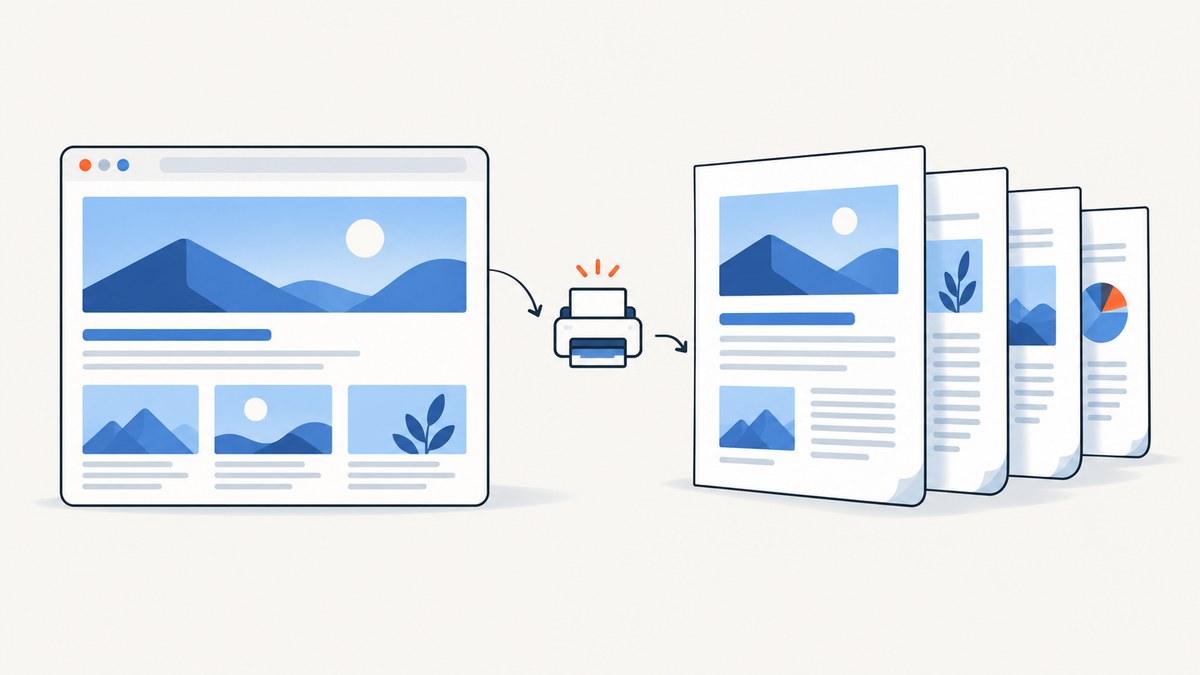
Fastest answer: open the webpage, press Ctrl+P on Windows or Command+P on Mac, choose Save as PDF (or the equivalent PDF destination), review the page range, layout, margins, headers, footers, and background graphics, then save the file. Open the PDF once afterward to check page breaks and missing content.
This creates a document snapshot for reading, sharing, printing, or records. It is not a live copy of the website, so interactive controls, changing data, login sessions, and some dynamic content may not appear as they do in the browser.
Save a website URL as a PDF in a desktop browser
Chrome, Edge, Firefox, and other browsers
- Open the exact URL you want to save.
- Wait for the content you need to appear. Expand sections or load more content first.
- Open the print dialog. Use the browser menu and choose Print, or use the keyboard shortcut.
- Choose Save as PDF, Microsoft Print to PDF, or the equivalent PDF destination.
- Set the page range, portrait or landscape orientation, paper size, margins, scale, and any available background-graphics setting.
- Decide whether headers and footers should include the URL, title, date, or page numbers.
- Click Save, choose a filename and folder, then open the PDF to inspect it.
Adobe documents this browser workflow and notes that headers, footers, and background graphics can be adjusted in the print settings. See Adobe’s webpage-to-PDF guidance.
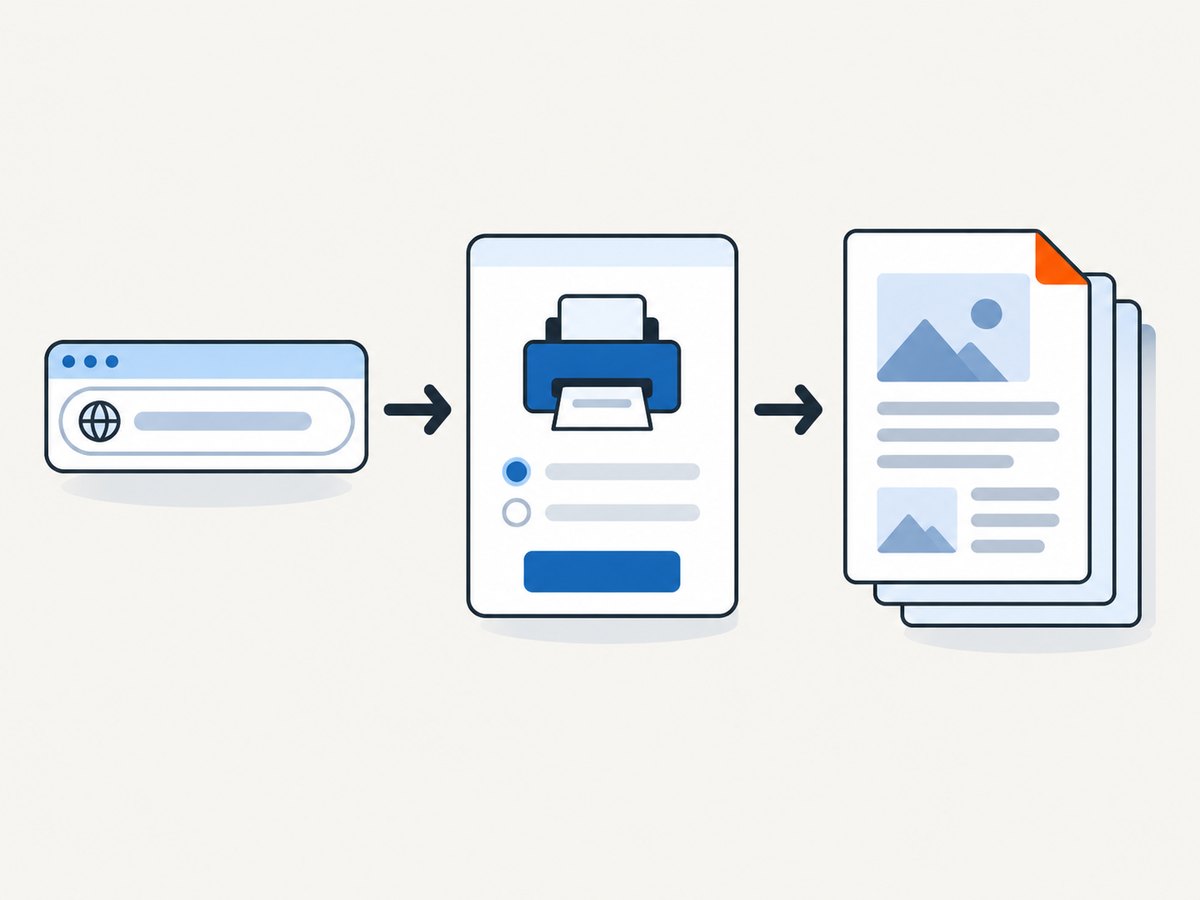
Microsoft Edge shortcuts
Microsoft lists Ctrl+P for Windows and Command+P for Mac. You can also open the Edge menu and select Print. See Microsoft’s Edge printing instructions for the current interface.
Save only part of a webpage as a PDF
Edge supports printing a selection on supported pages:
- Drag across the text or images you need.
- Right-click the selection.
- Choose Print.
- Choose the PDF destination and review the preview.
- Save the file.
Selection printing can remove navigation, comments, advertisements, and unrelated sections. Some pages do not expose a usable selection, and complex layouts may reflow when printed. Microsoft documents this selection workflow in its Edge help.
Make the PDF include the content you actually need
Before opening Print
- Expand accordions, tabs, and “read more” sections.
- Scroll through the page if images or sections load lazily.
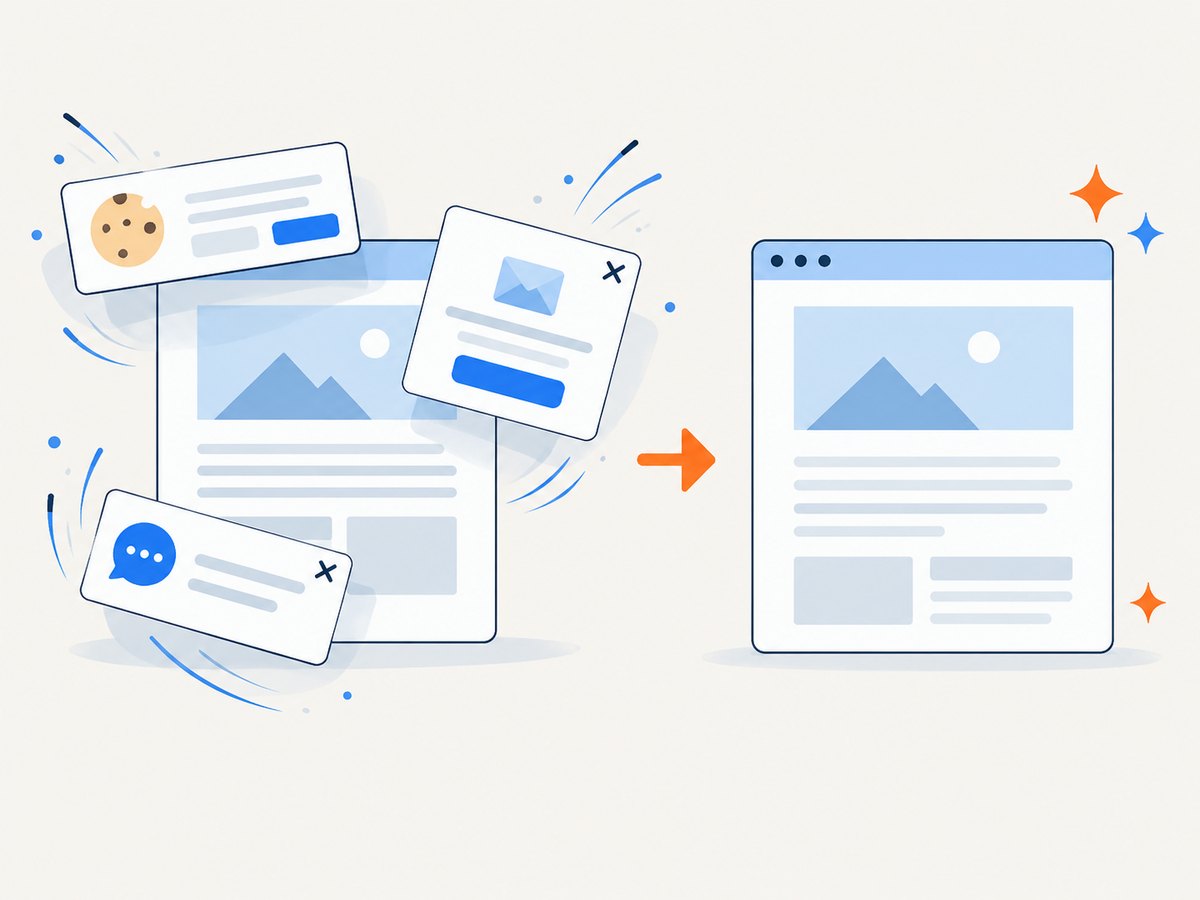
- Close cookie banners, chat widgets, and newsletter popups that cover content.
- Sign in if the page requires authentication, then confirm the session is still active.
- Use reader mode or a print stylesheet when the page offers one.
In the print preview
- Background graphics: enable them when color blocks, charts, or diagrams are essential.
- Headers and footers: disable them for a cleaner handout; keep the URL or date when preserving provenance matters.
- Scale and margins: reduce scale or use narrower margins if columns are clipped.
- Orientation: use landscape for wide tables and dashboards.
- Page range: exclude cover pages, navigation, or blank trailing pages.
Convert a URL with Acrobat
Acrobat desktop can accept a webpage URL or an HTML file. Its documentation also describes capturing multiple levels of a site, which is useful when a single printout is insufficient and you need linked pages. This is a different workflow from printing the currently open page and may require more configuration. See Adobe Acrobat’s web capture documentation.
- Open Acrobat’s web-page conversion or create-PDF workflow.
- Enter the URL or select the local HTML file.
- Choose the available capture depth or linked-page options.
- Review the generated PDF and save it.
Use this approach when you need Acrobat’s site-level controls or already work in an Acrobat-based document process. For one visible page, browser printing is usually the shortest path.
Use an online URL-to-PDF converter
Some web services accept a webpage URL and return a PDF. PDF24 describes a tool that accepts a webpage URL at its webpage-to-PDF page.
Before submitting a private or authenticated URL, read the service’s current privacy and retention terms. The research for this guide does not verify PDF24’s handling, retention period, or suitability for confidential pages. Avoid sending secrets in query strings and do not submit sensitive pages unless you accept the service’s data handling.
Or skip the browser setup
ScreenshotNeo is a website capture API and MCP server. A GET request captures a URL, and its PDF options support paper size, margins, landscape mode, and page ranges. It can also wait for a selector, delay, or network idle; load lazy images in full-page captures; set cookies, headers, user agents, timezone, and geolocation; run custom JavaScript; click or hide elements; and block ads, trackers, requests, or resource types. See the ScreenshotNeo API documentation for the current parameters.
The basic request pattern is:
curl -G "https://api.screenshotneo.com/v1/shot" -d access_key=YOUR_API_KEY --data-urlencode url=https://stripe.com -o shot.webpimport requests
r = requests.get("https://api.screenshotneo.com/v1/shot", params={"access_key": "YOUR_API_KEY", "url": "https://stripe.com"}, timeout=90)
open("shot.webp", "wb").write(r.content)const q = new URLSearchParams({ access_key: 'YOUR_API_KEY', url: 'https://stripe.com' });
const res = await fetch(`https://api.screenshotneo.com/v1/shot?${q}`);Use the PDF configuration documented for the endpoint when the output must be a PDF rather than an image. ScreenshotNeo removes cookie and consent banners, newsletter popups, and chat widgets before capture. Bot checks, blank pages, failed loads, timeouts, and cache hits are not billed, and response headers identify the page verdict and billing status. Its MCP server lets Claude, Cursor, and other MCP clients call take_screenshot, get_page_info, and capture_pdf.
There is a free plan with 1,000 screenshots per month and no card. Paid plans start at $5 for 3,000 shots. Create a free ScreenshotNeo account.
Dynamic, login-protected, and difficult pages
JavaScript-rendered content
Print only after the page has finished rendering. If a chart or table appears after a delay, wait for it before opening the print dialog. A URL converter or browser automation workflow may be more appropriate when rendering must be repeatable.
Lazy-loaded images
Scroll through the page first, or use a capture tool that explicitly loads lazy images. Otherwise the PDF may contain empty image areas.
Login-protected pages
The browser method uses your current session. Online converters generally cannot use your local login unless you provide a supported authenticated workflow. Never paste passwords or session tokens into a URL.
Interactive controls
Sliders, video players, menus, and forms become static page content, and some controls may disappear entirely. Export data separately when the PDF must preserve values that are only available through interaction.
Troubleshooting website-to-PDF problems
| Problem | Likely cause | Fix |
|---|---|---|
| Text or images are cut off | Scale, margins, or orientation do not fit the layout. | Try landscape, smaller scale, narrower margins, or a larger paper size. |
| Colors or backgrounds are missing | Background graphics are disabled. | Enable background graphics in print settings. |
| Blank pages appear | Page-break CSS, oversized elements, or a print-layout bug. | Change scale and margins, switch orientation, or print a narrower selection. |
| Only the first part of the page is present | Content loads as you scroll or sits behind collapsed sections. | Expand sections and scroll through the page before printing. |
| The PDF looks different from the browser | Print CSS intentionally changes layout; interactive content is static. | Compare print preview with the screen version and adjust print options. Keep a screenshot or source URL when exact visual fidelity matters. |
| Fonts change | The font is unavailable, blocked, or not embedded for print. | Wait for fonts to load, disable extensions that block them, or use a local export workflow. |
| Images are missing | Lazy loading, blocked requests, or cross-origin restrictions. | Scroll to load images, allow required resources, or use a renderer with resource controls. |
| An online converter cannot access the page | The URL requires login, blocks automated requests, or is available only on a private network. | Use the already-authenticated browser session or an authorized capture service. |
| Output contains a consent banner or chat bubble | The page printed before overlays were dismissed. | Close overlays before printing, use reader mode, or use ScreenshotNeo’s cleanup controls. |
Reliability, privacy, performance, and cost
- Reliability: browser printing is dependable for one page you can open. Repeatable batch jobs need a documented URL capture workflow and explicit waits.
- Performance: large pages, web fonts, videos, and delayed JavaScript increase rendering time. Limit the page range and unnecessary resources when possible.
- Privacy: local browser printing keeps the page in your browser. An online converter retrieves the URL in its environment, so inspect its current terms before sending sensitive content.
- Cost: browser printing is included with the browser. Acrobat and online services may have their own licensing or usage limits. ScreenshotNeo has 1,000 free shots per month with no card; paid plans begin at $5 for 3,000.
- Repeatability: record the source URL, capture date, page range, orientation, and any custom settings alongside the PDF.
Checklist before you share the PDF
- Open the saved file on a second device or viewer.
- Confirm the title, URL, date, and page count.
- Check the first and last pages for clipping or blank output.
- Verify tables, images, charts, and code blocks.
- Remove confidential query parameters and metadata when required.
- Keep the original URL and capture date with the file.
FAQ
How do I convert a URL to PDF?
Open the URL in a browser, choose Print, select Save as PDF, review settings, and save. An Acrobat or URL capture service is useful when you need additional site-level or automation controls.
Can I save a webpage as a PDF on my phone?
Many mobile browsers expose a Share or Print action with a PDF destination, but menus vary by device and browser. Use the browser’s current help for exact steps.
Can I save only part of a webpage?
Edge documents selecting text or images, right-clicking, and choosing Print. If selection printing is unavailable, copy the needed content into a document and export that document as PDF.
Is a PDF a live version of the website?
No. It is a point-in-time document. Dynamic data, links, forms, videos, and interactive controls may not behave like the original page.
Why does my PDF look different from the webpage?
Print stylesheets, page width, fonts, image loading, and disabled backgrounds can all change the result. Compare print preview, adjust layout settings, and verify the saved file.


