How to Download Files to a Directory with Wget
Use wget -P to download files into a chosen directory, or -O to set a filename. Learn recursive downloads, directory layout, troubleshooting, and safe usage.
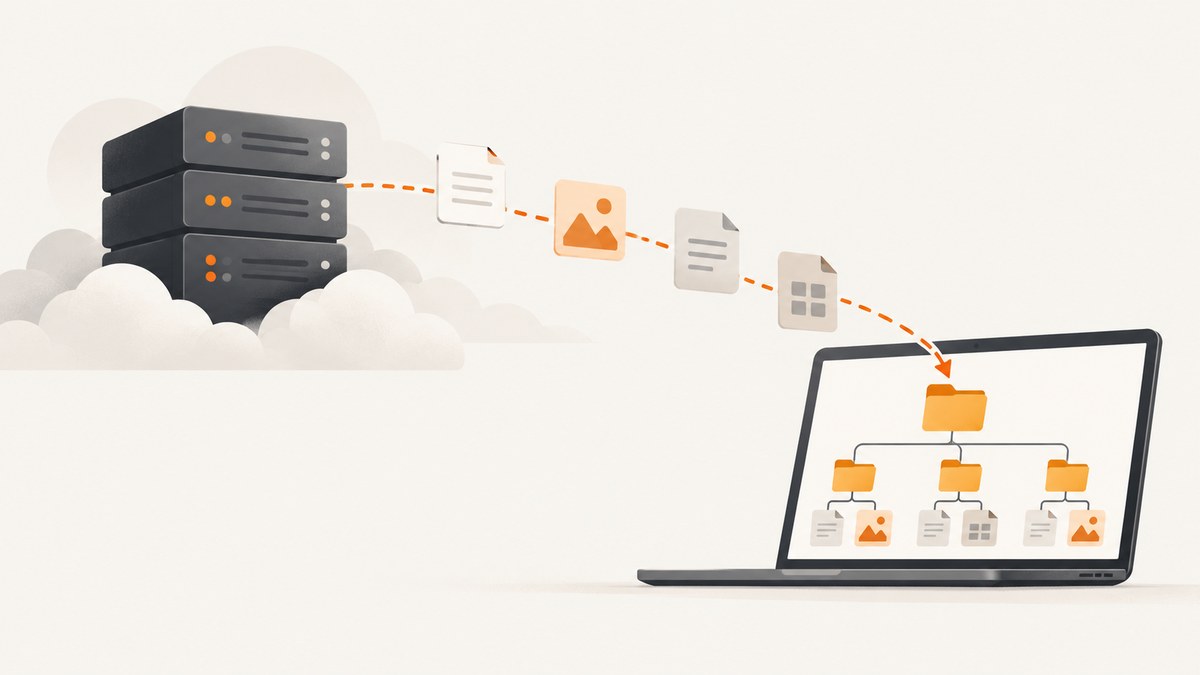
To download a file into a chosen directory with GNU Wget, use -P (or its long form, --directory-prefix):
wget -P /path/to/directory https://example.com/file.zipFor example, this saves the downloaded file under downloads/, creating that directory if needed:
wget -P downloads https://example.com/file.zip-P chooses the destination directory while Wget derives the local filename from the URL. Use -O when you want to specify the complete output file path yourself. The GNU Wget manual defines the directory prefix as the top of the retrieval tree; if you omit it, files go to the current directory. GNU Wget manual: directory options.
1. Choose a destination directory with -P
The basic syntax is:
wget -P DIRECTORY URLExamples:
# Relative to the current working directory
wget -P downloads https://example.com/releases/app.tar.gz

# Absolute path on Linux or macOS
wget -P /home/sam/Downloads https://example.com/releases/app.tar.gz

# A directory whose name contains spaces
wget -P "/home/sam/Project files" https://example.com/releases/app.tar.gz
Quote paths containing spaces so the shell passes the entire path as one argument. On Windows, the command syntax depends on which Wget build and shell you use; if the path contains spaces, quote it there as well. The destination is interpreted by the local operating system, not by the remote server.
If the directory does not exist, Wget normally creates the required directories. Check that the parent directory exists and that your account can write there. A relative path such as downloads is resolved from the directory where you run the command, which you can inspect with pwd on Unix-like shells.
2. Use -O when you want to choose the filename
-P sets a directory prefix. -O sets an output file. Use -O when the URL has an awkward filename or you want a stable local name:
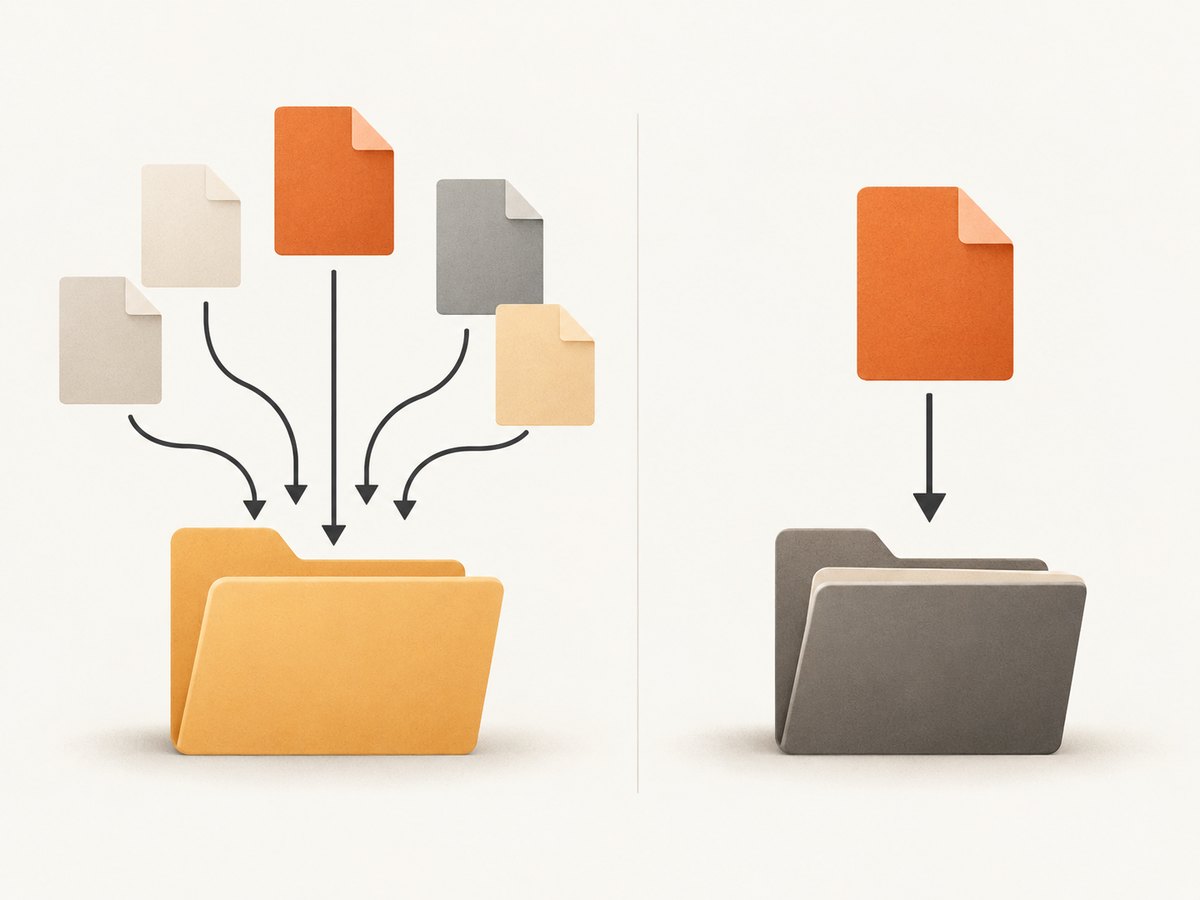
wget -O downloads/latest-release.tar.gz https://example.com/releases/app.tar.gzHere, Wget writes the response to the exact path downloads/latest-release.tar.gz. Make sure the parent directory exists and is writable. Unlike -P, -O is not a directory selector.
| Need | Option | Example |
|---|---|---|
| Save in a directory and keep Wget’s derived filename | -P DIR |
wget -P downloads URL |
| Write to one exact path and filename | -O FILE |
wget -O downloads/archive.zip URL |
| Download multiple URLs into one destination directory | -P DIR |
wget -P downloads URL1 URL2 |
Do not use one -O output filename for a recursive or page-requisite download. Wget warns that this directs all retrieved content into the named output file, which is not the intended per-file directory structure. Use -P for those jobs. See the GNU Wget manual’s output-file and directory options.
3. Download several files into the same directory
Pass multiple URLs to a single invocation and set the destination once:
wget -P downloads \
  https://example.com/files/manual.pdf \
  https://example.com/files/checksum.txt \
  https://example.com/files/archive.zip
Each URL is retrieved separately, with its own derived local filename. This is useful for a short, fixed list. For a long or generated list, put one URL per line in a file and use -i:
wget -P downloads -i urls.txtReview the input list before running it, especially if the URLs are supplied by an external source. The directory prefix controls where the files are placed; it does not validate the URLs or guarantee that each server returns the file you expect.
4. Download a bounded part of a site recursively
Wget can follow links to retrieve a site or part of one. Recursive retrieval is useful for mirroring linked files, but it can follow more links than a single-file download. Bound the scope explicitly:
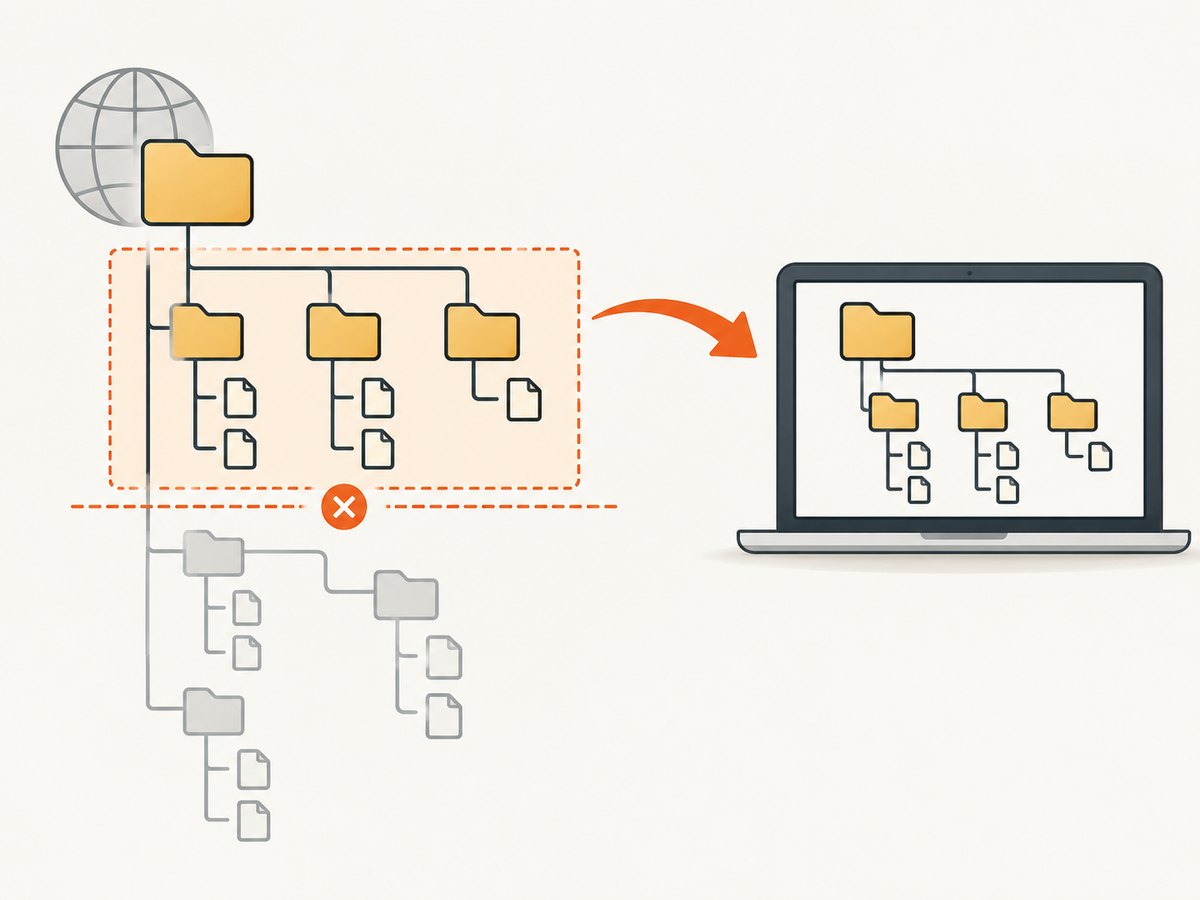
wget -r -l 1 -np -P downloads https://example.com/files/-renables recursive retrieval.-l 1limits traversal depth to one. The documented default depth is five;-l 0means unlimited depth, not zero recursion.-npor--no-parentprevents traversal into parent directories.-P downloadsputs the resulting retrieval tree under the chosen local prefix.
This is a starting pattern, not a guarantee that every file in a server directory will be found. Recursive Wget follows links it discovers in HTML and CSS. A server may not expose a browsable index, and files that are not linked from the starting pages may not be discovered. Review the result and the server’s access rules before relying on a recursive mirror. The manual recommends limiting scope and depth; recursive retrieval can use substantial local resources and can burden the remote server. GNU Wget manual: recursive download.
For a page and the resources it needs to display, use -p (or --page-requisites):
wget -p -P downloads https://example.com/guide/Page requisites can include images, stylesheets, and other referenced resources. Avoid combining this with a single -O output file, because these are multiple retrieved items.
5. Control the local directory layout
During recursive retrieval, Wget normally creates a local hierarchy that reflects the remote structure. -P sets the prefix above that tree; it does not by itself flatten the tree. These options change parts of the hierarchy:
| Option | Effect | When it helps |
|---|---|---|
-nd / --no-directories |
Do not create the directory hierarchy. | You want retrieved files placed together. |
-nH / --no-host-directories |
Do not add a directory named for the host. | You want to omit the host component from a recursive tree. |
-P DIR / --directory-prefix=DIR |
Set the top of the local retrieval tree. | You want all output rooted under a particular directory. |
For example, this places recursive output under downloads while suppressing the host directory and other hierarchy:
wget -r -l 1 -np -nH -nd -P downloads https://example.com/files/Flattening can cause two different remote paths with the same filename to collide. If filenames must remain distinct, keep the hierarchy or choose a narrower set of URLs. Layout controls affect different parts of the path, so combine them only when you understand the output structure you want.
6. Verify the result and keep downloads bounded
- Confirm the destination. Resolve relative paths from the working directory where Wget ran.
- Check the command’s output and exit status. Wget reports retrieval failures; in scripts, check the process exit code rather than assuming a file was saved correctly.
- Inspect the file. Confirm its name and size, and use an independently supplied checksum when integrity matters.
- Keep recursive scope narrow. Set an explicit depth and use
-npwhen starting below a site’s parent path. - Be considerate of the server. Recursive retrieval can create many requests. The GNU manual recommends considering
-wto add a delay between accesses.
For example, a bounded retrieval with a two-second delay between requests is:
wget -r -l 1 -np -w 2 -P downloads https://example.com/files/Choose a delay and scope appropriate to the site and its rules. A delay does not limit total disk use, so monitor the destination if the link set may be large.
7. Troubleshooting
| Symptom | Likely cause | What to do |
|---|---|---|
| File appeared in the wrong place | The path passed to -P was relative to a different working directory, or -P was omitted. |
Use an absolute path or run pwd first; specify -P before the URL. |
| “Permission denied” | Your account cannot create files or directories at that path. | Choose a writable destination or adjust its permissions through your normal system administration process. |
“No such file or directory” with -O |
The parent directory for the explicit output file does not exist. | Create the parent directory first, or use -P to select a directory prefix. |
| The filename is not what you expected | Wget derived it from the URL, which may end in a path segment or be affected by redirects. | Use -O path/name for one file; use -P when the derived name is acceptable. |
| Only some files were downloaded recursively | The server exposes only linked resources, the depth was too small, or the directory is not browsable. | Inspect the pages and links Wget can reach. Adjust a bounded depth only when needed; do not assume an unlinked file will be found. |
| Unexpected files from parent paths | Recursive traversal was allowed above the starting directory. | Add -np and set an explicit -l depth. |
| Files overwrote or collided after flattening | -nd removed path distinctions, leaving duplicate filenames. |
Keep directories, or retrieve a smaller set whose filenames are unique. |
| Download consumes too much bandwidth or disk | Recursive scope or depth is too broad. | Stop the retrieval, narrow the URL and depth, add a delay with -w, and check available disk space. |
8. Performance, reliability, and cost
For a single file, wget -P DIR URL is a direct transfer, and the main practical factors are network speed, server response time, and local disk availability. A directory prefix does not make the transfer faster; it only controls placement.
Recursive jobs have a wider cost envelope. Each discovered link can add requests, bandwidth, storage, memory, and CPU work. Depth limits, -np, and a deliberate starting URL reduce the retrieval scope. A delay with -w spaces accesses, but it can increase total completion time. For repeatable automation, log output, check exit status, verify important files, and ensure the destination has sufficient space.
Wget is a free utility, so there is no per-download API charge described in its manual. You still use network bandwidth, local storage, and server resources. Follow the site’s access policy, especially for recursive downloads.
Or skip the browser setup
Wget downloads files and pages. If what you actually need is an image or PDF capture of a rendered page, ScreenshotNeo is a website screenshot API and MCP server from Yorker Media. It accepts a URL in one GET request and returns a PNG, JPEG, WebP, or PDF. See the ScreenshotNeo API documentation for request options.
curl -G "https://api.screenshotneo.com/v1/shot" \
  -d access_key=YOUR_API_KEY \
  --data-urlencode url=https://stripe.com \
  -o shot.webp
ScreenshotNeo accepts cookie and consent banners like a visitor and removes more than 60 known consent platforms, newsletter popups, and chat widgets before capture; each step can be turned off. Bot checks, blank pages, timeouts, failed loads, and cache hits cost nothing, and response headers report the page verdict and billing status. Its MCP server gives AI agents tools for screenshots, page information, and PDF capture. The free plan includes 1,000 screenshots per month with no card; paid plans start at $5 for 3,000 shots.
Sign up free for 1,000 screenshots a month, with no card.
FAQ
Does -P rename the downloaded file?
No. It sets the directory prefix. Wget determines the filename; use -O to provide an exact output path for a single file.
Does -l 0 disable recursion?
No. In Wget’s documented recursive options, zero means infinite depth. Use a positive depth to bound traversal.
Will recursive Wget find every file in a directory?
Only if it can discover links to the files through the pages and stylesheets it follows. A server need not expose a directory listing, and unlinked resources may remain undiscovered.
Can I download a page and its images into one named file?
No. A page plus its requisites consists of multiple files. Use -p with -P so Wget can save the items in a directory structure.


