Where Wget Saves Downloaded Files and How to Change the Location
Wget saves files in the current directory by default. Learn how to choose a folder, name one output file, control recursive paths, and troubleshoot locations.
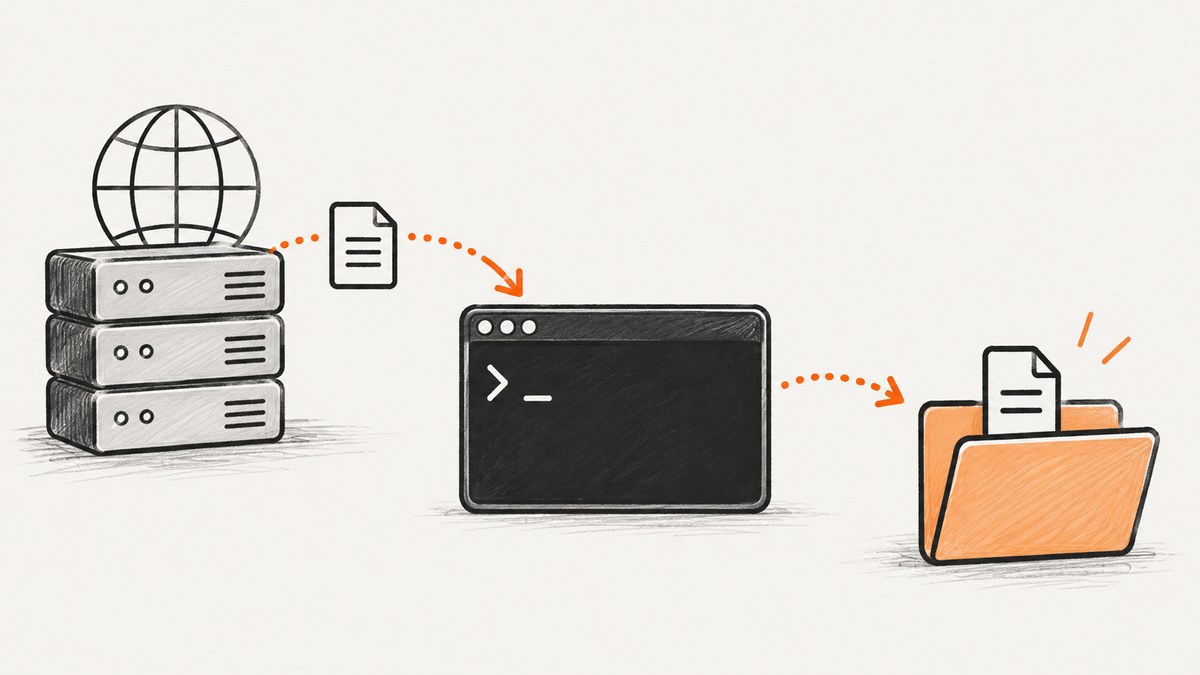
Wget saves a normal download in the shell’s current working directory. GNU Wget’s default directory prefix is ., which means the directory where the Wget process starts. Use pwd to see that directory before downloading.
pwd
wget https://example.com/file.zip
ls -l file.zip
To choose a folder, use -P (or --directory-prefix):
wget -P /path/to/downloads https://example.com/file.zip
# equivalent long form
wget --directory-prefix=/path/to/downloads https://example.com/file.zip
-P chooses the root of Wget’s local retrieval tree while retaining the URL-derived filename. Use -O (or --output-document) when you need one exact output path.
Find Wget’s default download directory
- Print the current directory with
pwdon Linux and macOS. In PowerShell, useGet-Location; in Command Prompt, usecd. - Run Wget without
-Por-O. - List the directory and check the filename shown in Wget’s output.
pwd
wget https://example.com/archive.tar.gz
ls -lh archive.tar.gz
Relative paths are resolved from this working directory. If a script, cron job, IDE, container, or service launches Wget, its working directory may differ from the directory visible in your interactive terminal. Print the directory inside the same script or job to avoid guessing.
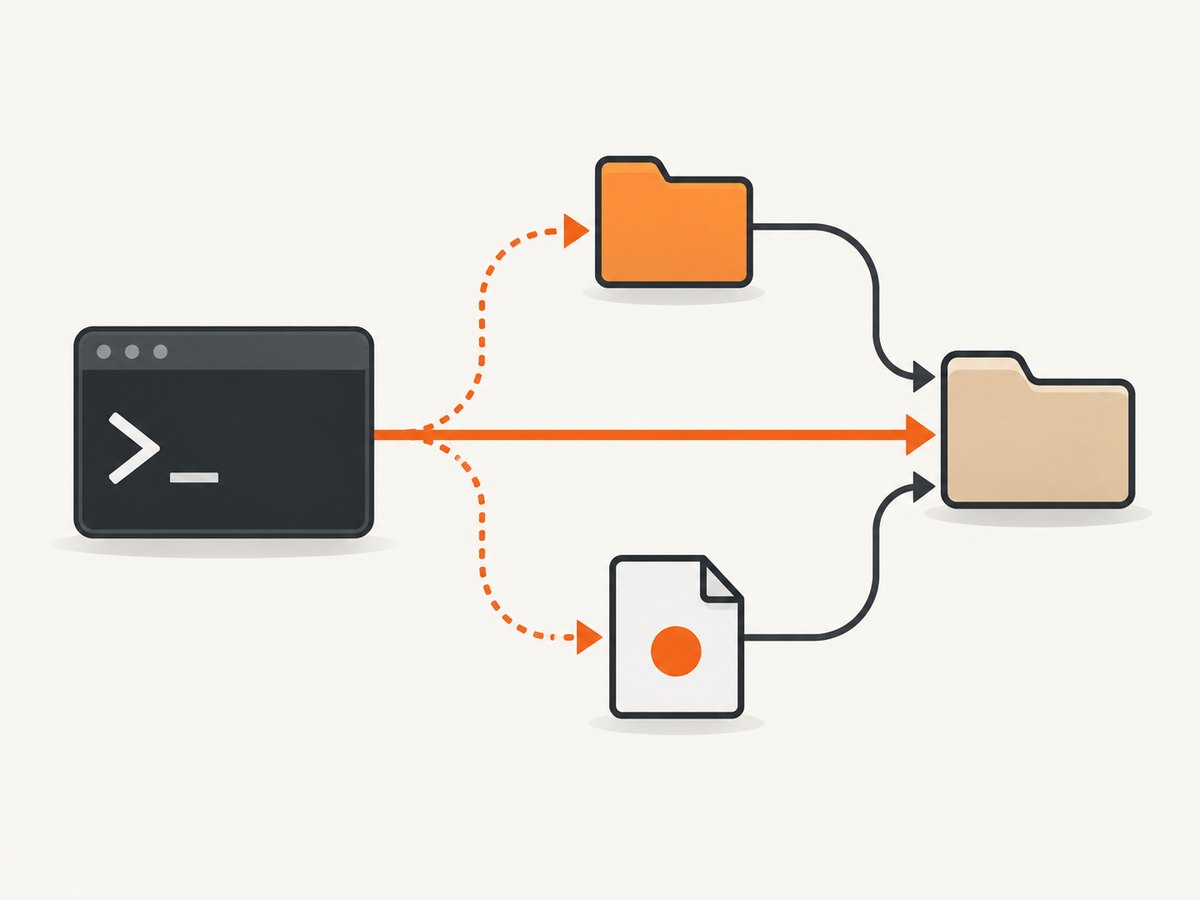
Choose a download directory with -P
-P sets the top of the retrieval tree. Wget creates the directory if needed when it can write there.
mkdir -p "$HOME/Downloads/wget"
wget -P "$HOME/Downloads/wget" https://example.com/file.zip
ls -l "$HOME/Downloads/wget/file.zip"
The long form is useful in self-documenting scripts:
wget --directory-prefix=/var/tmp/releases https://example.com/file.zipHow -P names files
With a single ordinary URL, Wget keeps the server-provided or URL-derived filename beneath the prefix:
wget -P ./downloads https://example.com/releases/app-2.4.1.tar.gz
# resulting path is normally ./downloads/app-2.4.1.tar.gz
Query strings, redirects, Content-Disposition, and duplicate names can affect the final filename. Read Wget’s “Saving to” line when the exact result matters.
Write one exact file with -O
Use -O when the requirement is a single, explicit output path:
wget -O /path/to/downloads/file.zip https://example.com/file.zipThe GNU manual treats -O like shell redirection, not like a simple rename switch. Wget truncates the target immediately. If multiple documents are retrieved, their contents are concatenated into that one file, which can produce an invalid archive or HTML document.
Safe single-file patterns
# Create the parent directory first
mkdir -p ./downloads
wget --output-document=./downloads/latest.zip https://example.com/file.zip

# Avoid accidental overwrite by choosing a new name
wget -O "./downloads/file-$(date +%Y%m%d).zip" https://example.com/file.zip
Do not use -O as a general replacement for -P in recursive jobs. Use -P and the layout options described below when downloading a tree.
Control paths for recursive downloads
Recursive mode (-r) can create host and remote-path directories. Choose the layout deliberately.
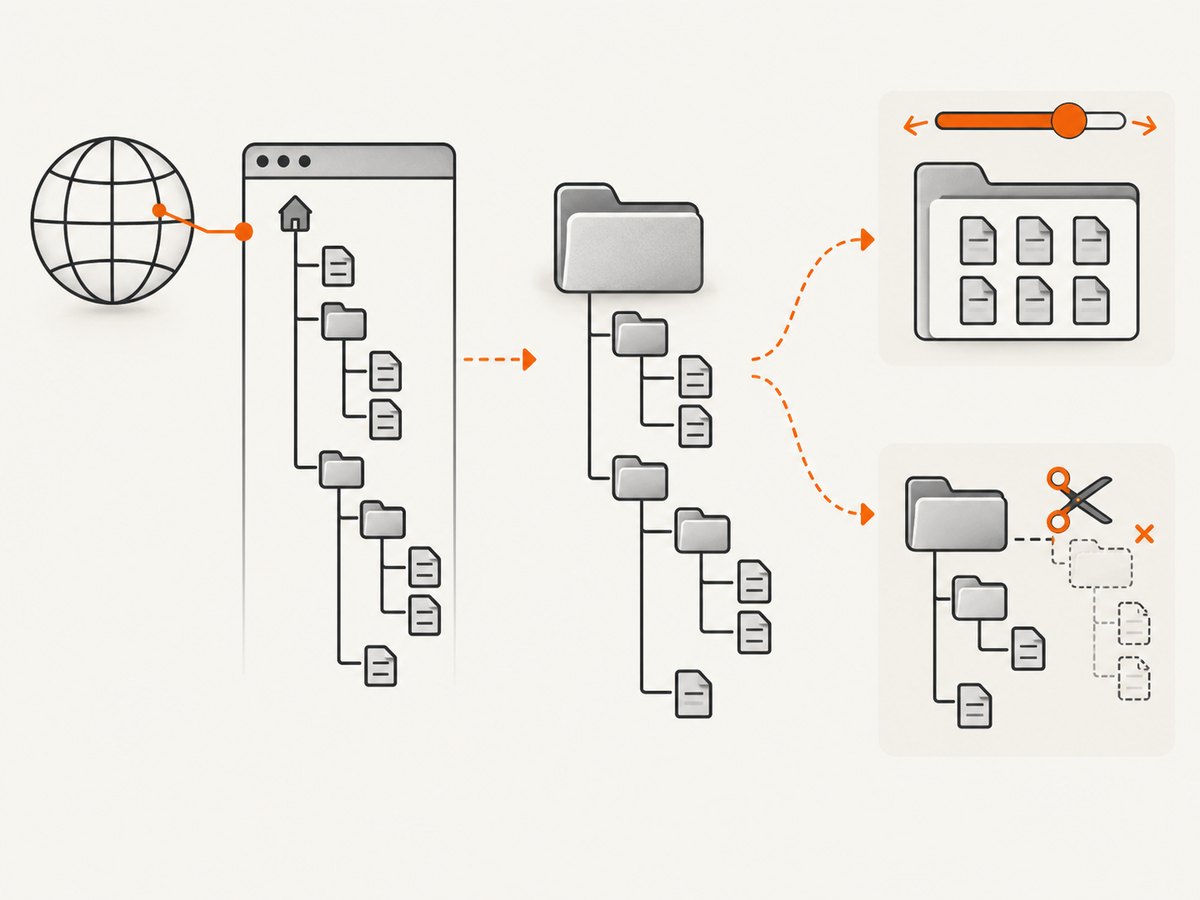
| Option | Effect | Typical use |
|---|---|---|
-nH / --no-host-directories |
Removes the leading host-name directory. | Keep paths below a chosen root without an example.com folder. |
-nd / --no-directories |
Does not create a directory hierarchy; collision suffixes may be added. | Put fetched files together in one directory. |
-x / --force-directories |
Forces a directory hierarchy. | Preserve URL structure even for a single file. |
--cut-dirs=N |
Removes N leading remote directory components. |
Drop unwanted path levels while retaining the rest. |
Examples
# Keep the remote hierarchy below ./site, but omit the host directory
wget -r -P ./site -nH https://example.com/docs/

# Put recursive files directly in ./flat without host or path directories
wget -r -P ./flat -nH -nd https://example.com/assets/

# Force directories for a non-recursive URL
wget -x -P ./mirror https://example.com/a/b/file.txt

# Remove the first two remote path components
wget -r -P ./mirror -nH --cut-dirs=2 https://example.com/releases/2026/linux/
Recursive downloads can also obey domain, path, link-conversion, depth, and file-type rules. Test a narrow URL first, because a broad crawl can create many files and consume substantial bandwidth and disk space.
Set a persistent default with wgetrc
Wget reads a startup configuration file called wgetrc. Set dir_prefix there to establish a default base directory:
dir_prefix = /home/alice/Downloads/wgetThe exact location of the user or system wgetrc depends on the platform and installation. Keep one-off destinations on the command line so a job’s output is visible next to the command. A command-line -P override is clearer for scripts that must be reproducible.
Which option should you use?
| Goal | Use | Why |
|---|---|---|
| Save a normal download in a chosen folder | -P DIR |
Preserves normal per-URL naming. |
| Write one known filename | -O FILE |
Sets an exact path; truncates the target and concatenates multiple documents. |
| Preserve a recursive tree | -r -P DIR plus layout flags |
Separates the root from the hierarchy below it. |
| Flatten recursive output | -r -P DIR -nH -nd |
Removes host and directory nesting; names can collide. |
| Use the same base every time | dir_prefix in wgetrc |
Provides a persistent default. |
Common errors and fixes
“I cannot find the downloaded file”
Cause: Wget saved it in the process’s working directory, which may differ from your file browser or terminal tab. Fix: run pwd in the same shell or print the working directory in the script, then inspect Wget’s “Saving to” line.
“Wget created a directory named after the host”
Cause: recursive retrieval normally includes host directories. Fix: add -nH, for example wget -r -P ./mirror -nH URL.
“My recursive files are scattered through unexpected folders”
Cause: Wget is preserving remote path components. Fix: choose between preserving the tree, using --cut-dirs=N, or flattening with -nd.
“The output file is empty or corrupted”
Cause: -O truncates immediately, and multiple retrieved documents can be concatenated. Fix: use -O only for one document, or switch to -P for recursive or multi-URL work.
“Permission denied”
Cause: the destination or one of its parents is not writable by the account running Wget. Fix: choose a writable directory, create it with appropriate permissions, or run the job under the account that owns the destination. Avoid writing into protected system directories unless that is intentional.
“The directory does not exist”
Cause: a parent path is missing or misspelled. Fix: create it first with mkdir -p /path/to/downloads and quote paths containing spaces.
“Two files have the same name”
Cause: -nd flattens paths and Wget must avoid collisions. Fix: preserve directories, use distinct output names, or download each URL to a deliberately named single-file target.
Performance, reliability, and disk usage
- Prefer a local, fast destination. Network mounts and slow removable media increase write time and can fail during large downloads.
- Estimate recursive size first. A recursive job can follow many links. Limit scope and depth, and monitor available disk space.
- Use the simplest layout that preserves identity. Flattening saves directory traversal but increases name collisions and makes provenance harder to recover.
- Make scripts explicit. Use absolute paths or a deliberate
cd, then logpwd, the URL, and the destination. - Protect partial files. Download into a temporary directory and move completed files into place when consumers must never see partial output.
- Consider retries and resume for unstable links. Wget’s retry and continuation options can improve recovery, but verify the server supports resuming before relying on it.
- Account for cost. Wget itself is open-source command-line software; your practical costs are bandwidth, storage, and any compute or network service used to run it.
Or skip the browser setup
If your real goal is a clean screenshot or PDF of a URL rather than downloading the site’s files, ScreenshotNeo provides a single HTTP request. Its API removes cookie banners, newsletter popups, and chat widgets before capture. Bot checks, blank pages, failed loads, timeouts, and cache hits are not billed, and the response identifies the page verdict and billing status. An MCP server lets Claude, Cursor, and other MCP clients take screenshots. The Free plan includes 1,000 screenshots a month with no card; paid plans start at $5 for 3,000. See the ScreenshotNeo API documentation for all options.
curl -G "https://api.screenshotneo.com/v1/shot" -d access_key=YOUR_API_KEY --data-urlencode url=https://stripe.com -o shot.webpimport requests
r = requests.get("https://api.screenshotneo.com/v1/shot", params={"access_key": "YOUR_API_KEY", "url": "https://stripe.com"}, timeout=90)
open("shot.webp", "wb").write(r.content)const q = new URLSearchParams({ access_key: 'YOUR_API_KEY', url: 'https://stripe.com' });
const res = await fetch(`https://api.screenshotneo.com/v1/shot?${q}`);Create a free ScreenshotNeo account with 1,000 screenshots per month and no card.
FAQ
Does Wget save downloads to Downloads automatically?
No. Unless your shell starts in that folder or you pass a destination option, Wget saves to the current working directory.
What is the difference between -P and -O?
-P selects a directory prefix and keeps normal URL-based naming. -O writes one explicit output file and has truncation and concatenation behavior.
Why does recursive Wget create nested directories?
Recursive mode mirrors host and remote path components by default. Use -nH, -nd, -x, and --cut-dirs to control that layout.
Can I change Wget’s default permanently?
Yes. Set dir_prefix in your wgetrc, then override it per job with -P when needed.


