What Is a Link Preview and How Does It Work?
Learn how link previews fetch metadata, choose images, cache results, and fail—and how to build previews that work across Slack, Messages, and social apps.

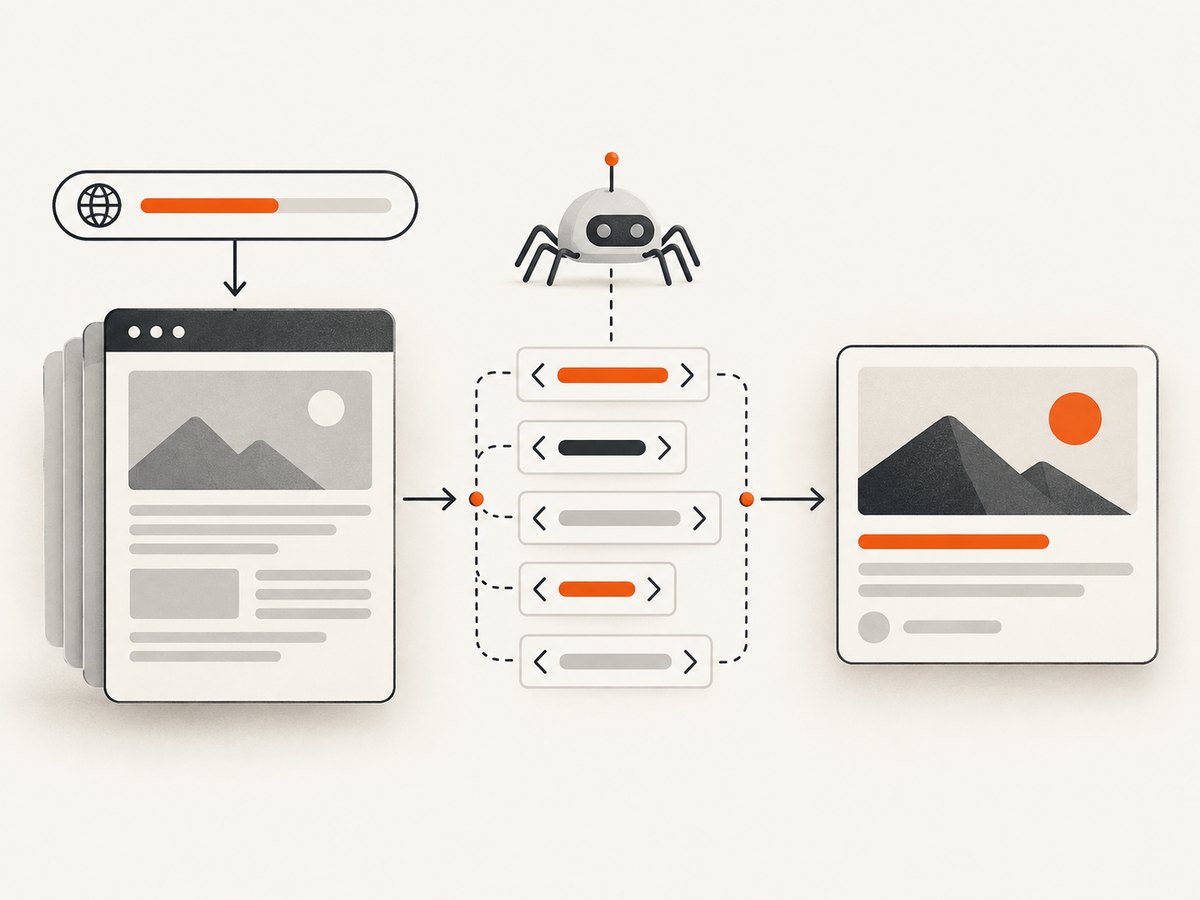
A link preview is the rich card that appears when you paste a URL into a chat, social network, email client, or messaging app. The receiving service fetches the URL, reads metadata from the HTML, optionally downloads referenced media, and renders the card using its own rules.
The practical answer is simple: publish preview metadata in the first HTML response, use absolute HTTPS media URLs, keep fallback title and description tags useful, and test the exact URL in every destination where it will be shared. Link previews do not follow one universal standard, so Slack, Apple Messages, and social platforms can show different results for the same page.
How a link preview works
- A person shares a fully qualified URL. The destination detects a URL such as
https://example.com/article. Slack can emit alink_sharedevent for a registered domain, allowing an app to return a custom unfurl. - A crawler fetches the page. The service makes an HTTP request before the recipient necessarily clicks. Slack says its robot fetches as little of the page as possible, using HTTP Range headers to extract metadata, and may request referenced images, video, or audio.
- Metadata is parsed. The crawler looks for Open Graph properties, Twitter Card tags, oEmbed data, the document title, and the meta description. It may also inspect image dimensions, content type, redirects, and response headers.
- The platform selects a card layout. The service decides whether to show a small thumbnail, a large image, a video player, an audio control, or plain text. It can truncate text, crop images, reject media, or require authentication.
- The result can be cached. A platform may reuse a fetched representation after you edit your tags. Cache duration and invalidation are platform-specific, so an update is not guaranteed to appear immediately.
Slack’s robot documentation describes its metadata fetch behavior. Apple’s TN3156 states that link previews do not run JavaScript and do not follow meta redirects; required metadata must be available directly in the linked HTML.
The metadata a preview reads
Open Graph tags
Open Graph is the most broadly useful vocabulary for a page preview. Put these tags in the document <head>:
<meta property="og:title" content="Practical Link Preview Guide">
<meta property="og:description" content="Understand preview crawlers, metadata, images, caching, and debugging.">
<meta property="og:image" content="https://example.com/images/link-preview-guide.jpg">
<meta property="og:url" content="https://example.com/guides/link-previews">
<meta property="og:site_name" content="Example Docs">
<meta property="og:type" content="article">
<meta property="og:image:width" content="1200">
<meta property="og:image:height" content="630">og:title, og:description, and og:image usually control the visible card. og:url helps identify the canonical page, while og:site_name provides a brand label where supported. Use one canonical set of tags per response; duplicate or conflicting tags make platform behavior harder to predict.
Twitter Card tags
Where supported, declare the desired card format:
<meta name="twitter:card" content="summary_large_image">
<meta name="twitter:title" content="Practical Link Preview Guide">
<meta name="twitter:description" content="Understand preview crawlers, metadata, images, caching, and debugging.">
<meta name="twitter:image" content="https://example.com/images/link-preview-guide.jpg">
Apple documents summary and summary_large_image as supported Twitter Card values for rich previews. If a destination ignores Twitter tags, it can still use Open Graph or HTML fallbacks.
HTML fallbacks
<title>Practical Link Preview Guide</title>
<meta name="description" content="Understand preview crawlers, metadata, images, caching, and debugging.">
Keep these values meaningful because a crawler may not understand every specialized property. The title should identify the page without relying on a logo or navigation context. The description should make sense when shown alone.
oEmbed and media metadata
Some services inspect oEmbed endpoints for rich media. Slack’s crawler documentation says it looks for oEmbed, Twitter Card, and Open Graph data and may fetch referenced media to validate it. Serve media with a correct Content-Type, a stable HTTPS URL, and no authentication requirement for the crawler.
Build a preview-friendly page
- Render tags on the server. Put metadata in the initial HTML response. Do not add it only after a React, Vue, or other client-side application runs.
- Use absolute URLs. Write
https://...values forog:image,og:url, and media. Relative paths can fail when a crawler resolves them outside a browser context. - Serve public HTTPS resources. Check that the crawler can resolve DNS, complete TLS, follow redirects, and download the image without cookies or a logged-in session.
- Keep redirects conventional. Use server-side HTTP redirects. Apple says previews do not follow HTML meta redirects.
- Choose a useful image. Apple’s guidance recommends images at least 900 pixels wide. It also describes a 108-pixel minimum for square icons, a 1 MB main-resource limit, and a 10 MB total limit for associated resources; these are guidance values that may change.
- Keep payloads small. Compress JPEG, PNG, or WebP files, avoid enormous animated assets, and return metadata quickly.
- Protect private data. Never put passwords, session tokens, or sensitive records in a URL or preview description.
Why a link preview is missing or wrong
| Symptom | Likely cause | Fix |
|---|---|---|
| No card appears | Missing tags, crawler blocked, or non-HTML response | Inspect the first response with curl -I and fetch the HTML without JavaScript. |
| Old title or image | Destination cache | Use the platform’s documented refresh or re-share process; do not assume an instant purge. |
| Wrong image | Relative URL, inaccessible asset, duplicate tags, or unsupported format | Use one absolute HTTPS image URL, return the correct content type, and remove conflicting tags. |
| Title is generic | Open Graph tags absent or malformed | Validate quoting and ensure tags are inside <head>; keep <title> useful. |
| Preview differs by app | Different vocabularies, limits, cropping, and authentication rules | Test the exact URL in each target destination and tune metadata for the strictest one. |
| Preview shows a login page | The crawler cannot access the authenticated page | Publish a safe public landing page or provide an approved integration that returns a custom unfurl. |
| Image is blank | Image requires cookies, blocks bots, exceeds limits, or is not actually an image | Request the image anonymously, check status and content type, and reduce its size. |
Inspect the exact response a crawler sees
Start with a header check:
curl -I -L https://example.com/guides/link-previewsConfirm the final status is successful, the content type is HTML, and redirects lead to the intended canonical URL. Then download the first response and search it:
curl -L https://example.com/guides/link-previews -o page.html
rg -n "og:title|og:description|og:image|twitter:card|<title>" page.html
If those tags appear only in a JavaScript bundle or after hydration, a preview crawler that does not execute JavaScript will miss them. View the raw response rather than relying on browser developer tools after scripts have run.
Slack unfurls and custom previews
Slack can passively expand a URL from page metadata. For an interactive integration, register the domain, subscribe to the link_shared event, and return a custom unfurl using the links:write scope. Slack’s link-unfurling documentation explains the event and response format.
A custom unfurl is useful when the public page cannot contain the information you want to show, or when the preview needs buttons and structured blocks. Treat the event payload as external input, validate the URL, and avoid exposing private records to a channel where the link was posted.
Security and privacy
Automatic fetching happens before a person clicks. A crawler can reveal that a URL exists, request tracking parameters, and retrieve media from your server. Academic research on link previews has documented unintended disclosure risks. Slack also warns that some third-party work-object previews are not validated or endorsed by Slack and that data entered there can be processed outside Slack.
- Do not encode credentials or one-time secrets in URLs.
- Use short-lived, non-sensitive identifiers if a public preview must reference an object.
- Return only metadata intended for anyone who can receive the link.
- Rate-limit unusual crawler traffic and log requests without storing unnecessary query values.
- Keep authenticated content behind authentication; do not rely on an obscure URL as access control.
Capture and verify previews with a screenshot
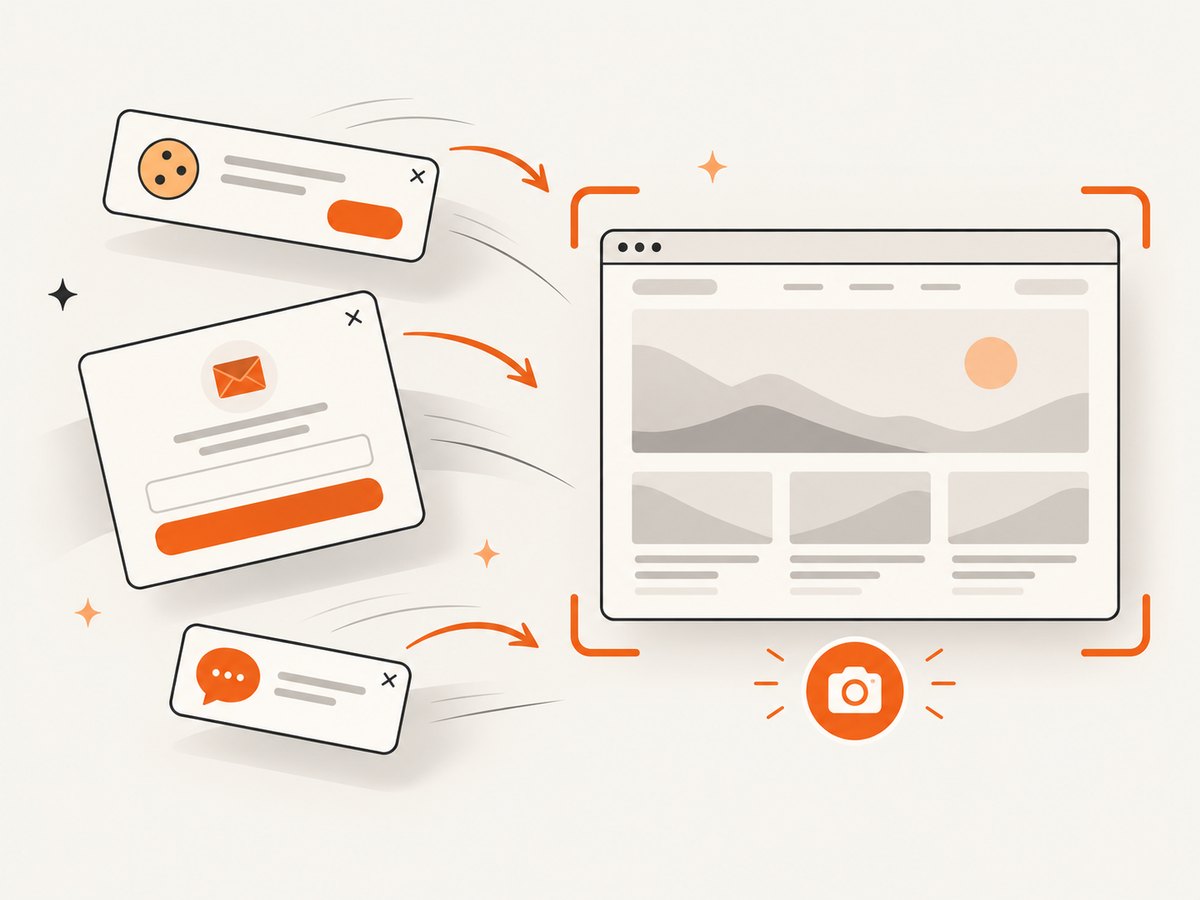
When debugging a mismatch, a screenshot of the fetched page can show whether a cookie banner, popup, chat widget, or bot check is covering the content. You can run a browser yourself with Playwright or Puppeteer, wait for the page to settle, and capture the relevant viewport or element. That approach gives control, but it also means maintaining browser binaries, timing rules, consent handling, retries, and storage.
DIY browser capture with Playwright
import { chromium } from 'playwright';

const browser = await chromium.launch();
const page = await browser.newPage({
  viewport: { width: 1440, height: 900 },
  deviceScaleFactor: 1
});
await page.goto('https://example.com/guides/link-previews', {
  waitUntil: 'networkidle',
  timeout: 60_000
});
await page.screenshot({ path: 'preview-debug.png', fullPage: true });
await browser.close();
For production, add bounded retries, a navigation timeout, cleanup in a finally block, and selectors for consent dialogs that you are allowed to dismiss. A page that never reaches network idle can otherwise hold a worker indefinitely. Prefer a specific readiness selector when the application has long-lived analytics or websocket requests.
Or skip the browser setup
ScreenshotNeo is a website screenshot API and MCP server. It accepts one GET request and returns PNG, JPEG, WebP, or PDF. Before capture, it can accept the cookie or consent banner like a visitor and remove more than 60 known consent platforms, newsletter popups, and chat widgets; each step can be turned off. Only clean shots are billed: bot checks, CAPTCHAs, blank pages, timeouts, failed loads, and cache hits cost nothing, and the response identifies the result with X-Page-Verdict and X-Billed headers.
See the ScreenshotNeo API documentation for the full parameter list.
cURL
curl -G "https://api.screenshotneo.com/v1/shot" -d access_key=YOUR_API_KEY --data-urlencode url=https://example.com/guides/link-previews -o shot.webpPython
import requests

r = requests.get(
    "https://api.screenshotneo.com/v1/shot",
    params={"access_key": "YOUR_API_KEY", "url": "https://example.com/guides/link-previews"},
    timeout=90,
)
r.raise_for_status()
open("shot.webp", "wb").write(r.content)
Node.js
const q = new URLSearchParams({
  access_key: 'YOUR_API_KEY',
  url: 'https://example.com/guides/link-previews'
});
const res = await fetch(`https://api.screenshotneo.com/v1/shot?${q}`);
if (!res.ok) throw new Error(`Screenshot failed: ${res.status}`);
const fs = await import('node:fs/promises');
await fs.writeFile('shot.webp', Buffer.from(await res.arrayBuffer()));
ScreenshotNeo supports full-page capture with lazy images loaded, CSS-selector element capture, dark mode, 12 device presets or any viewport, retina scale, custom CSS and JavaScript, click and wait actions, blocked ads or resource types, custom headers and cookies, timezone and geolocation, transparent backgrounds, resizing, selectable cache TTLs, signed image links, asynchronous jobs with signed webhooks, bulk capture for up to 100 URLs per call, a usage API, and an OpenAPI specification. PDF output includes paper size, margins, landscape mode, and page ranges. The parameter names used by other screenshot APIs also work, which simplifies migration.
An MCP server provides take_screenshot, get_page_info, and capture_pdf tools for Claude, Cursor, and other MCP clients. For cost control, use caching when a page can tolerate it, capture only the element you need, and choose an appropriate viewport and image format. Plans include 1,000 shots per month free with no card; paid plans start at $5 for 3,000 shots. Create a free ScreenshotNeo account.
Performance, reliability, and cost considerations
- Server rendering wins on latency. Metadata in the first response avoids waiting for application JavaScript.
- Images dominate transfer time. Resize and compress preview media, and serve it from a fast HTTPS endpoint.
- Expect retries. Crawlers can time out or retry; make page generation idempotent and avoid expensive work on every anonymous request.
- Plan for cache variance. A metadata change may be visible in one app and stale in another.
- Measure by destination. Track status code, user agent, response size, and media fetch failures without logging secrets.
- Control screenshot spend. Cache stable captures, use bulk calls for batches, and inspect verdict and billing headers when processing results.
Link preview testing checklist
- Paste the exact final URL, including query parameters, into each target app.
- Fetch the page without JavaScript and verify all required tags are present.
- Check server redirects, canonical URL, status code, and content type.
- Open the image URL anonymously and confirm dimensions, format, and size.
- Test logged-out behavior and remove secrets from metadata.
- Recheck after publishing changes because caches can hide fixes.
- Capture a screenshot at desktop and mobile widths to find overlays and layout problems.
FAQ
Does a link preview require JavaScript?
No. Apple says link previews do not run JavaScript, so the essential tags must be in the initial HTML response. JavaScript can enhance the page for people, but it cannot be the only source of preview metadata.
Why does the same URL have different cards?
Each destination supports a different set of tags, image rules, authentication behavior, cropping, and cache policy. A valid Open Graph implementation is necessary but does not force identical rendering everywhere.
Can I force a platform to refresh a preview?
Only when that platform provides a refresh or re-scrape mechanism. Otherwise, wait for its cache policy or share a canonical URL whose metadata has already been corrected.
Are link previews safe?
They are external requests made before a click. Keep credentials and private data out of URLs, publish only safe metadata, and assume that referenced media can be fetched by automated clients.
What is the fastest way to inspect a visual problem?
Fetch the raw HTML to validate metadata, then capture the page at the destination viewport. A screenshot reveals overlays and bot checks that source inspection alone cannot show.


