What Is a Website Thumbnail and How Is It Used?
A website thumbnail is a small preview image for a page. Learn where thumbnails appear, how metadata influences them, and how to create reliable previews.
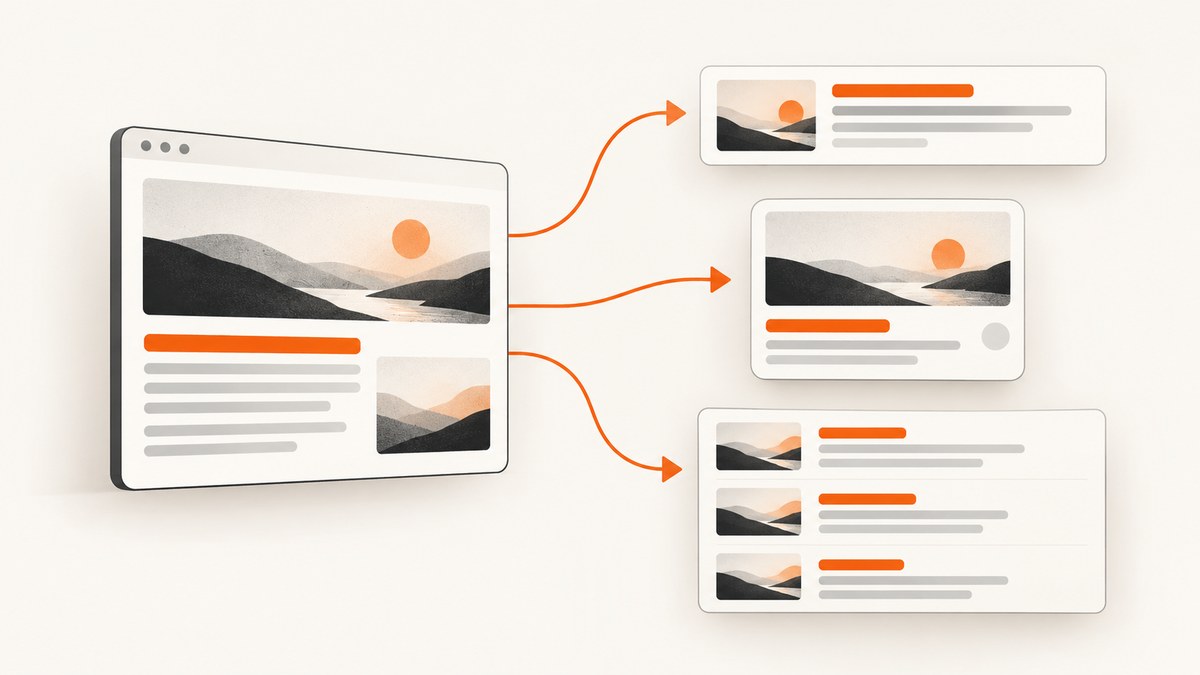
Direct answer: A website thumbnail is a small image preview associated with a web page or another piece of content. It can appear beside a title in search results, inside a social link preview, or in a content listing. The image gives people a quick visual clue about the destination before they open it. A site can suggest a preferred image with metadata, but each platform decides whether to show a thumbnail and which image to use.
The term describes the role of the image, not one universal file format or pixel size. A thumbnail in a search result, a social card, and a card in your own CMS may use different dimensions and crops. This guide explains the terminology, the metadata that influences selection, practical design and accessibility decisions, and reliable ways to generate thumbnail files from live pages.
1. Where website thumbnails are used
Search results
Search systems may display an image associated with a result to help a person recognize or assess the linked content. Search.gov describes an image associated with content that may serve as a thumbnail, while Google explains that search previews help users understand why a result may be relevant. A thumbnail is optional: a search engine can show a text-only result or select another image from the page.
Social link previews
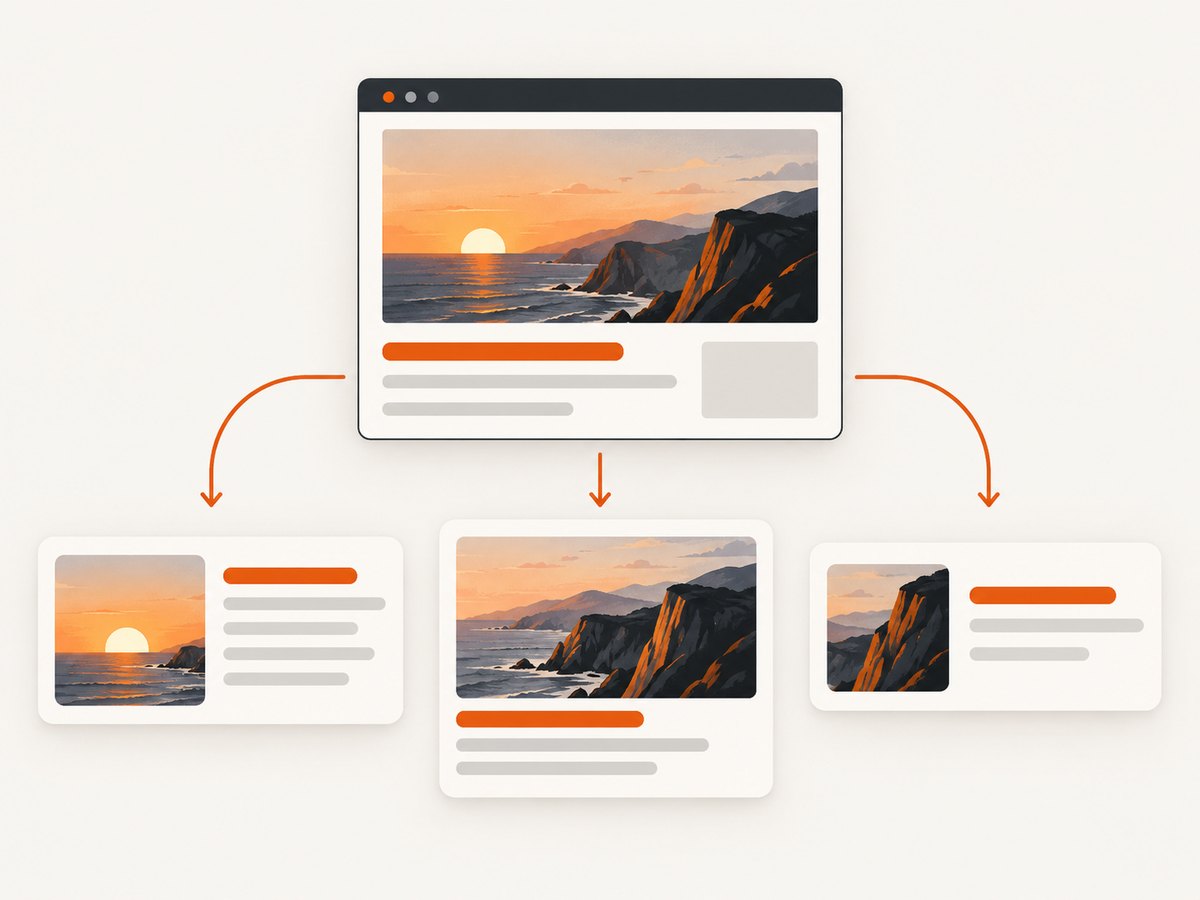
When someone pastes a URL into a social or messaging service, the service can build a link card from the page metadata. The Open Graph Protocol uses og:image to identify a preferred image URL. Related properties can provide a secure URL, MIME type, dimensions, and alternative text. The receiving service may cache the card, crop the image, or ignore the metadata.
Content listings and discovery pages
Blogs, documentation sites, marketplaces, and internal dashboards often place a small image beside a title and summary. Here, your application controls the data and layout, so the thumbnail can be generated from a cover image, a screenshot of the page, or an illustration. The same source image may be reused in search and social contexts, but each context can crop it differently.
| Context | Who chooses the image? | What you control |
|---|---|---|
| Search result | Mostly automated by the search engine | Page images, structured data, metadata, and preview directives |
| Social share | The sharing platform, influenced by page metadata | og:image, dimensions, MIME type, and alt text |
| Your content list | Your application | Source image, crop, dimensions, caching, and fallback behavior |
2. Thumbnail, preview image, and Open Graph image
People use “thumbnail” and “preview image” interchangeably in everyday conversation. “Thumbnail” is the broad term for a small visual representation. “Open Graph image” is more specific: it usually means the image URL supplied by an og:image meta tag for a shared link. A single page can have a thumbnail in your site’s article grid and a different Open Graph image for social sharing.
Do not assume that every platform uses the same image or displays one at all. A publisher can provide signals; the platform owns the final rendering decision. Google says its image-preview selection is automated and can use several sources, such as an image in the text result or a preview image in Discover. Metadata is therefore an influence, not a guarantee.
3. How to suggest a preferred thumbnail with metadata
Add Open Graph properties in the document <head>. Use an absolute, publicly reachable URL. The image should be available to the crawler without a login, short-lived authorization token, or a robots rule that blocks fetching.
<meta property='og:title' content='How to render a website thumbnail'>
<meta property='og:description' content='A practical guide to page previews'>
<meta property='og:type' content='article'>
<meta property='og:url' content='https://example.com/guides/thumbnail'>
<meta property='og:image' content='https://example.com/assets/thumbnail.jpg'>
<meta property='og:image:secure_url' content='https://example.com/assets/thumbnail.jpg'>
<meta property='og:image:type' content='image/jpeg'>
<meta property='og:image:width' content='1200'>
<meta property='og:image:height' content='630'>
<meta property='og:image:alt' content='A browser page represented as a small preview card'>
The Open Graph specification says og:image:alt should describe the image, rather than act as a caption, and should be supplied when og:image is present. Keep the description meaningful if the image fails to load or is consumed by an assistive technology.
Structured data as another signal
Google documents primaryImageOfPage in schema.org data, or an image property attached to the page’s main entity, as another way to indicate a preferred image. You can provide both structured data and Open Graph metadata, but neither forces a particular thumbnail in every product.
Controlling Google preview size
Google’s max-image-preview robots directive accepts none, standard, or large. It controls the maximum preview size Google may show in its search products. It is not a universal setting for social networks or other websites.
<meta name='robots' content='max-image-preview:large'>4. Choosing an image that works at thumbnail size
- Represent this specific page. A reader should be able to connect the image to the article, product, report, or tool it represents.
- Use a clear subject. A simple composition with one obvious focal point survives shrinking better than a busy collage.
- Avoid generic logos. Google advises against using a site logo as the primary image for a page when a more representative image is available.
- Plan for crops. Social cards and search layouts can crop the edges. Keep important subjects away from the extreme borders.
- Use a sensible aspect ratio. Extreme panoramic or extremely tall images are more likely to be cropped awkwardly. There is no single pixel dimension that applies to every platform.
- Export an appropriate file. JPEG works well for photographs, PNG for sharp illustrations or transparency, and WebP can reduce transfer size where the consuming platform accepts it.
- Keep the source stable. Avoid changing the same URL’s image contents repeatedly; crawlers and social services cache previews.
5. Accessibility and semantics
A thumbnail is a visual asset; alternative text communicates its meaning to people who cannot see it. Google notes that useful alt text supports people using screen readers and people on low-bandwidth connections. For an HTML image in your own interface, write concise alt text that identifies the subject and purpose.
<img src='/assets/guide-thumbnail.webp'
     alt='Diagram showing a web page becoming a search and social preview'>
If the thumbnail is purely decorative and the adjacent heading already conveys the same information, an empty alt attribute can be appropriate in your own UI. For Open Graph, use og:image:alt as a description of the image, not a marketing caption.
6. Creating a thumbnail by capturing a live page
If the thumbnail should show the current state of a page, capture the rendered page instead of maintaining a separate graphic. A browser automation workflow needs to launch a browser, load the URL, wait for fonts and images, handle cookie dialogs, set a viewport, and save an image. The following Playwright example is a complete starting point.

import { chromium } from 'playwright';

const browser = await chromium.launch();
const page = await browser.newPage({
  viewport: { width: 1200, height: 630 },
  deviceScaleFactor: 1
});

await page.goto('https://example.com', { waitUntil: 'networkidle' });
await page.screenshot({ path: 'thumbnail.png', type: 'png' });
await browser.close();
For a production pipeline, add a timeout, an explicit wait for the page element that defines readiness, and cleanup for overlays that obscure the content. Use a fixed viewport and device scale factor so repeated captures are comparable. If the page is personalized, pass the intended cookies or headers and record the capture configuration with the resulting asset.
Element versus full-page capture
A full-page screenshot is useful for an article or landing page, but it can produce a very tall image that is hard to recognize when reduced. Capturing a hero, card, or other element gives a consistent thumbnail boundary. When the element is below the fold, scroll it into view before capture and wait for lazy-loaded images.
Dynamic pages and consent dialogs
Single-page applications may render content after the initial navigation event. Wait for a selector, a short delay, or network idle as appropriate. Cookie banners, newsletter popups, and chat widgets can cover the subject. Handle them before the screenshot, and make the behavior configurable so legal or regional requirements are respected.
7. Or skip the browser setup
ScreenshotNeo provides a website screenshot API and MCP server. One GET request returns a PNG, JPEG, WebP, or PDF. The API can capture full pages or one CSS-selected element and supports dark mode, device presets, custom viewports, retina scale, custom CSS and JavaScript, clicks, selector or network-idle waits, blocked resource types, headers, cookies, user agents, authorization, timezone, geolocation, transparent backgrounds, resizing, caching, signed links, asynchronous jobs, bulk capture, and a usage API. See the ScreenshotNeo documentation for parameter details.
curl -G 'https://api.screenshotneo.com/v1/shot' -d access_key=YOUR_API_KEY --data-urlencode url=https://stripe.com -o shot.webpimport requests
r = requests.get('https://api.screenshotneo.com/v1/shot', params={'access_key': 'YOUR_API_KEY', 'url': 'https://stripe.com'}, timeout=90)
open('shot.webp', 'wb').write(r.content)const q = new URLSearchParams({ access_key: 'YOUR_API_KEY', url: 'https://stripe.com' });
const res = await fetch(`https://api.screenshotneo.com/v1/shot?${q}`);Cookie banners, newsletter popups, and chat widgets are removed before the shot; each cleanup step can be turned off. Bot checks, blank pages, timeouts, failed loads, and cache hits are not billed, and the response identifies the result with X-Page-Verdict and X-Billed headers. The MCP server exposes take_screenshot, get_page_info, and capture_pdf for Claude, Cursor, and other MCP clients. The Free plan includes 1,000 screenshots each month with no card; paid plans start at $5 for 3,000. Create a free ScreenshotNeo account.
8. Troubleshooting thumbnail generation
| Symptom | Likely cause | Fix |
|---|---|---|
| No image appears in a share card | The URL is blocked, relative, inaccessible, or the platform has a cached result | Use an absolute HTTPS URL, allow crawlers, verify the response, and refresh the platform’s preview cache |
| The wrong image is selected | The platform chose another page image automatically | Set og:image, provide structured image data, remove misleading competing images, and allow time for recrawling |
| Screenshot contains a cookie banner | The automation captured before consent handling | Click or remove the banner before capture, or use ScreenshotNeo’s consent cleanup |
| Thumbnail is blank | JavaScript, fonts, or lazy images were not ready | Wait for a selector or network idle, increase the timeout, and confirm the page works without a login |
| Content is cut off | Viewport or element bounds do not match the intended crop | Set an explicit viewport, capture the target element, and keep the focal subject inside safe margins |
| Image looks blurry | Low device scale factor or an over-compressed source | Use retina scale or a higher-resolution source, then resize once for delivery |
| API request returns an error | Invalid key, malformed URL, blocked destination, or timeout | Check credentials and URL encoding, inspect the response and X-Page-Verdict, and retry transient failures with a limit |
9. Performance, reliability, and cost considerations
- Cache by URL and options. A thumbnail is usually identical until the page or capture settings change. Include viewport, theme, locale, and selector in the cache key.
- Capture asynchronously for batches. Queue jobs and use signed webhooks when generating many previews. Bulk capture can reduce request overhead.
- Set bounded timeouts. A page that never finishes should not hold a worker forever. Return a useful failure state and retry only transient errors.
- Keep originals separate from derivatives. Store the captured image once, then create card-size derivatives. This avoids repeated browser work.
- Measure the rendered result. Log URL, viewport, response status, verdict, billed status, and capture duration. ScreenshotNeo exposes verdict and billing headers for this purpose.
- Control spend. Cache stable pages, avoid recapturing on every page view, and choose the smallest output that meets the consuming platform’s needs. ScreenshotNeo bills only clean shots; failed loads, bot checks, blank pages, timeouts, and cache hits cost nothing.
10. A practical thumbnail checklist
- Does the image represent this exact page?
- Is the subject recognizable when reduced?
- Is the source URL absolute, HTTPS, and publicly fetchable?
- Are
og:imageandog:image:altpresent? - Do structured data and Open Graph point to the intended image?
- Have you tested a crop at the smallest display size?
- Does the page provide useful alt text?
- Are cookie dialogs and overlays handled before automated capture?
- Are dynamic content, fonts, and lazy images ready before saving?
- Is the image cached and invalidated when the page meaningfully changes?
FAQ
Is a website thumbnail the same as a favicon?
No. A favicon identifies a site or browser tab and is usually tiny. A thumbnail previews a page or content item and is normally much larger.
Can I force Google to show my chosen thumbnail?
No. You can provide metadata and structured image signals, but Google selects previews automatically.
Do thumbnails need text inside the image?
No. Text can help in some editorial designs, but a clear subject and useful alt text matter more. Keep any text legible after cropping and reduction.
Should every page have a different thumbnail?
Use a page-specific image when possible. Reusing a brand image is acceptable for pages without meaningful visual content, but a representative image gives readers a stronger cue.
What is the simplest way to automate page thumbnails?
A browser tool such as Playwright gives control but requires infrastructure and cleanup logic. An API such as ScreenshotNeo handles the browser service and can return a ready-to-store image from one request.
A good website thumbnail is a small, recognizable explanation of what waits behind a link. Treat metadata as a set of signals, design for several crops, provide an accessible description, and use a repeatable capture pipeline when the image must reflect a live page.


