What Is an Open Graph Image? A Developer’s Guide to og:image
Learn what og:image does, which dimensions to use, how to add it correctly, and how to fix wrong link-preview images.
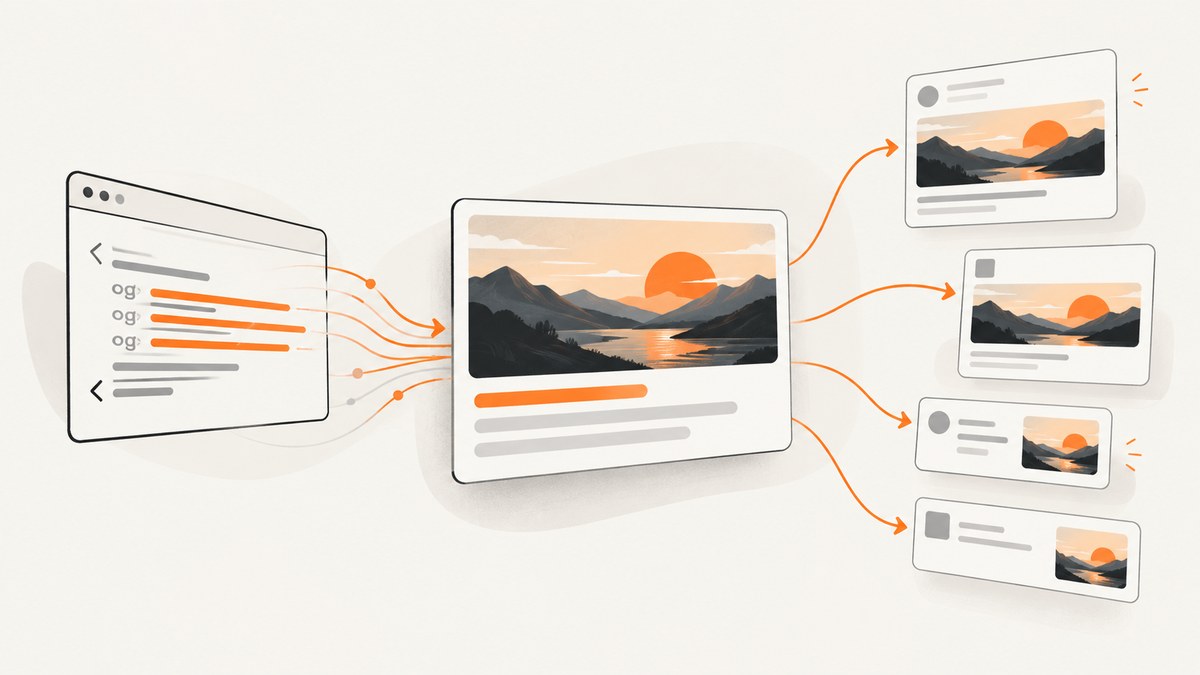
Direct answer: An Open Graph image is the image URL supplied in a page’s og:image metadata. When someone shares that page, preview consumers use the URL to find the image that represents the page in a rich link preview. The image is declared in the HTML <head>; it is not an inline <img> element.
The Open Graph protocol lets a web page become a rich object in a social graph. Its four required properties are og:title, og:type, og:image, and og:url. The protocol specification is maintained at ogp.me. A correct Open Graph image has a reachable absolute HTTPS URL, an appropriate MIME type, dimensions that work for the target platform, and descriptive alternative text.
What does og:image do?
When a crawler or sharing service receives a page URL, it fetches the page and reads its Open Graph metadata. The value of og:image tells that consumer which image should represent the page. The consumer may then download the image, cache it, crop it, resize it, and display it beside the title and description.
Because the value is a URL, the image must be available to the service fetching it. A local path such as /images/share.jpg, a data URI, an image hidden behind authentication, or an asset blocked by a firewall can fail even when the image works in your browser. Use a fully qualified URL such as https://example.com/images/share.jpg.
Required Open Graph properties
| Property | Purpose | Typical value |
|---|---|---|
og:title |
The title shown in the rich object. | Example article |
og:type |
The object type, often website or article. |
article |
og:image |
The representative image URL. | https://example.com/images/article-preview.jpg |
og:url |
The canonical URL for the object. | https://example.com/article |
Put these tags in the document head. The optional XML namespace declaration is commonly included on the html element.
How to add an Open Graph image
- Create a share image at a stable public URL.
- Add the required Open Graph tags to the page’s
<head>. - Add image structured properties for format, dimensions, and accessibility.
- Publish the page and verify that an unauthenticated request can fetch both the HTML and image.
- Use each platform’s preview or inspection tool to refresh a cached result.
<html prefix="og: https://ogp.me/ns#">
<head>
  <meta property="og:title" content="Example article" />
  <meta property="og:type" content="article" />
  <meta property="og:url" content="https://example.com/article" />
  <meta property="og:image" content="https://example.com/images/article-preview.jpg" />
  <meta property="og:image:secure_url" content="https://example.com/images/article-preview.jpg" />
  <meta property="og:image:type" content="image/jpeg" />
  <meta property="og:image:width" content="1200" />
  <meta property="og:image:height" content="627" />
  <meta property="og:image:alt" content="Description of the article preview image" />
</head>
</html>
og:image:secure_url repeats the HTTPS image URL for consumers that look specifically for a secure alternative. og:image:type should match the response’s MIME type, such as image/jpeg, image/png, or image/webp. The width and height describe the actual asset. Do not publish metadata that says 1200 × 627 when the file has different dimensions.
Framework examples
In a server-rendered template, emit the tags for every page using that page’s canonical URL and image. In React or another client-rendered application, make sure the tags are present in the initial HTML delivered to crawlers; adding them only after hydration can be too late for a crawler that does not execute JavaScript.
// Example data used by a server-side template
const openGraph = {
  title: "Example article",
  type: "article",
  url: "https://example.com/article",
  image: "https://example.com/images/article-preview.jpg",
  width: 1200,
  height: 627,
  alt: "Description of the article preview image"
};
What size should an OG image be?
There is no single universal size enforced by the Open Graph protocol. The target platform decides what it accepts, crops, or displays. LinkedIn’s sharing documentation specifies a minimum image size of 1200 × 627 pixels for its sharing module; that is a LinkedIn requirement, not a rule for every service. If LinkedIn is a target, create at least that size and keep important content away from the edges where crops may remove it.
Choose dimensions by checking the platforms your audience uses, then compose one image that remains clear as a small card. Prefer a simple focal subject, strong contrast, and short or no embedded text. Export in a supported format and keep the file reasonably small so crawlers can retrieve it quickly.
Image selection checklist
- Coverage: The declared dimensions meet the target platform’s documented minimum.
- Clarity: The subject remains understandable after thumbnailing or cropping.
- Technical validity: The URL is absolute, HTTPS, reachable without login, and returns the declared MIME type.
- Accessibility:
og:image:altdescribes what is in the image, rather than acting as a caption. - Control: The first image is deliberate if you publish more than one.
Multiple Open Graph images and precedence
You may publish multiple og:image tags. This can provide fallbacks, but it also makes selection less predictable across consumers. The Open Graph specification says that when values conflict, the first image is preferred. Structured properties apply to the image root tag that precedes them, so keep each image’s width, height, type, and alt tags immediately after that image declaration.
<meta property="og:image" content="https://example.com/images/primary.jpg" />
<meta property="og:image:width" content="1200" />
<meta property="og:image:height" content="627" />
<meta property="og:image:alt" content="Primary article illustration" />

<meta property="og:image" content="https://example.com/images/fallback.jpg" />
<meta property="og:image:width" content="1200" />
<meta property="og:image:height" content="627" />
<meta property="og:image:alt" content="Fallback article illustration" />
Use one carefully selected first image unless you have a clear reason to provide alternatives. A later tag cannot reliably override an earlier one.
Why is my link preview image wrong?
Most incorrect previews come from one of five causes:
- Cached metadata: A sharing service stored an older image. Use its URL inspection or debug tool to request a fresh scrape, then share the URL again.
- Wrong tag order: Another
og:imageappears first in the HTML. Search the final response, not only your source template. - Unreachable asset: The image returns a redirect loop, authentication challenge, 4xx/5xx status, or a firewall response to crawlers. Fetch it without browser cookies and check the response headers.
- Relative or non-secure URL: A relative path or HTTP-only URL may be ignored. Replace it with an absolute HTTPS URL.
- Client-only metadata: JavaScript inserts the tags after load, while the consumer reads the server response before rendering. Render the tags in the initial document.
Inspect the exact HTML received over the network:
curl -L https://example.com/article | grep -i 'og:image'Then inspect the asset itself:
curl -I -L https://example.com/images/article-preview.jpgConfirm a successful status, an image content type, and a final HTTPS URL. If the image is generated dynamically, ensure the generation endpoint does not require a session and that its cache headers allow the sharing service to retrieve it.
Generating and validating preview images
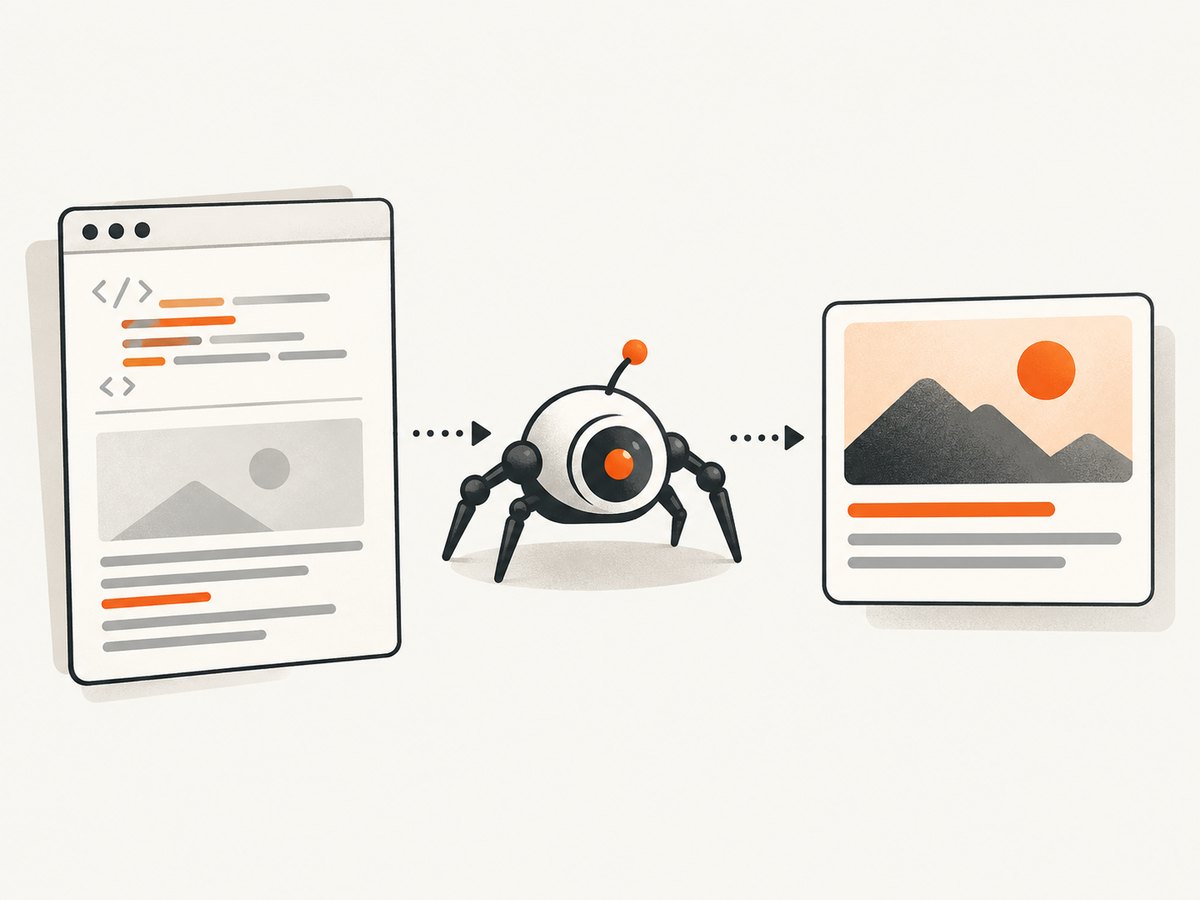
You can create a static graphic in a design tool, render HTML and CSS in a headless browser, or capture an existing page. A browser capture is useful when the preview should match the page’s current visual state, but it introduces browser setup, loading waits, consent dialogs, popups, and bot checks.
For a do-it-yourself browser workflow, launch a headless browser, navigate to the page, wait for the main content, dismiss a consent dialog if present, set the viewport, and save a screenshot. Validate that the resulting file has the expected dimensions and that the public URL returns an image response.
import { chromium } from "playwright";

const browser = await chromium.launch();
const page = await browser.newPage({ viewport: { width: 1200, height: 627 }, deviceScaleFactor: 1 });
await page.goto("https://example.com/article", { waitUntil: "networkidle" });
await page.screenshot({ path: "article-preview.jpg", type: "jpeg", quality: 88 });
await browser.close();
Or skip the browser setup
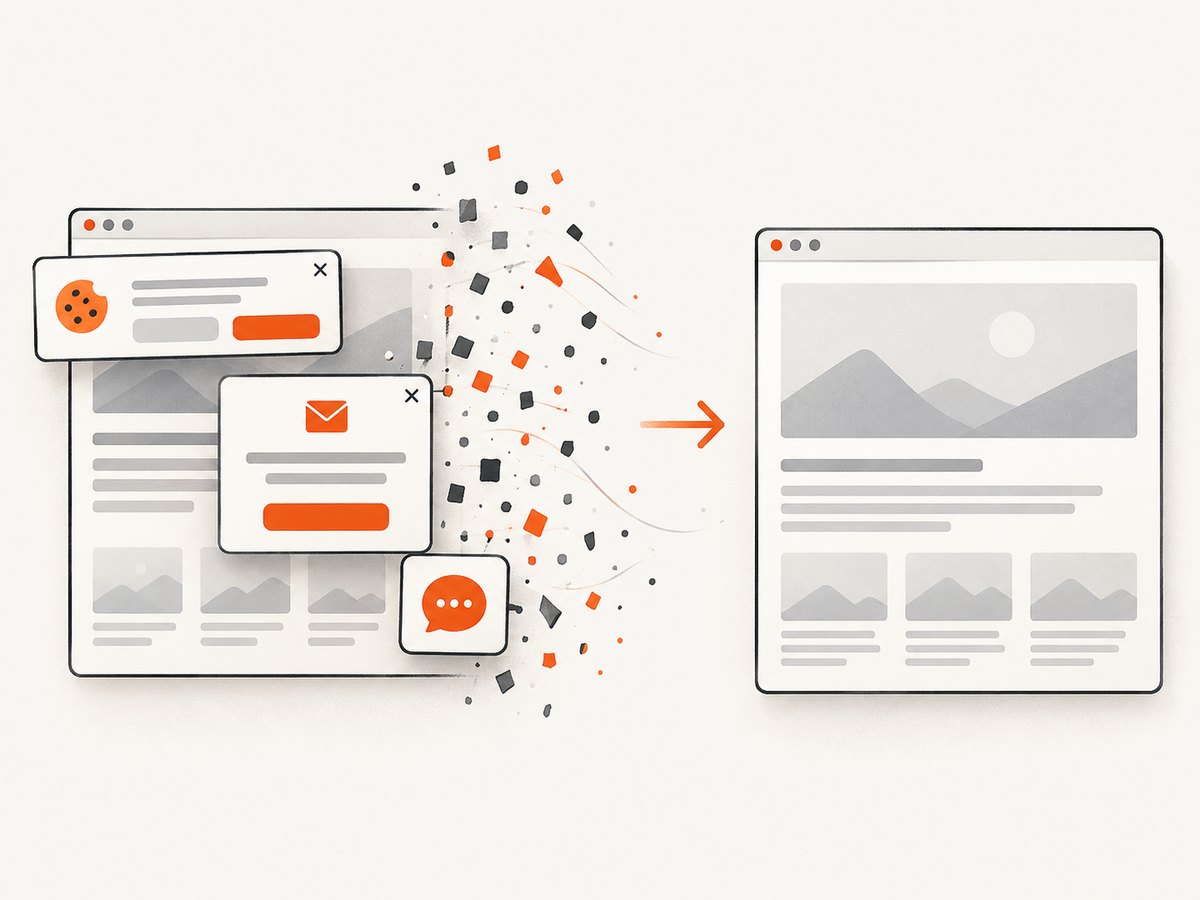
ScreenshotNeo is a website screenshot API and MCP server. It accepts one GET request and returns a PNG, JPEG, WebP, or PDF. Before capture it accepts cookie or consent banners like a visitor and removes more than 60 known consent platforms, newsletter popups, and chat widgets; each step can be turned off. Bot checks or CAPTCHAs, blank pages, timeouts, failed loads, and cache hits cost nothing, and the response identifies the result with X-Page-Verdict and X-Billed headers.
See the ScreenshotNeo API documentation for all options. A minimal request is:
curl -G "https://api.screenshotneo.com/v1/shot" -d access_key=YOUR_API_KEY --data-urlencode url=https://stripe.com -o shot.webpimport requests
r = requests.get("https://api.screenshotneo.com/v1/shot", params={"access_key": "YOUR_API_KEY", "url": "https://stripe.com"}, timeout=90)
open("shot.webp", "wb").write(r.content)const q = new URLSearchParams({ access_key: 'YOUR_API_KEY', url: 'https://stripe.com' });
const res = await fetch(`https://api.screenshotneo.com/v1/shot?${q}`);Use the resulting public image URL in og:image. ScreenshotNeo also supports full-page captures with lazy images loaded, CSS-selector element captures, dark mode, 12 device presets or any viewport, retina scale, custom CSS and JavaScript, clicks, waits for selectors or network idle, hidden selectors, blocked ads or resource types, custom headers, cookies, user agents, Authorization, timezone, geolocation, transparent backgrounds, resizing, selectable cache TTLs, signed links, asynchronous jobs with signed webhooks, bulk capture for up to 100 URLs per call, a usage API, and an OpenAPI specification. Its parameter names match those used by other screenshot APIs, which makes switching easier.
An MCP server provides take_screenshot, get_page_info, and capture_pdf tools for Claude, Cursor, and other MCP clients, so an AI agent can inspect or capture a page without custom browser orchestration.
Plans include 1,000 screenshots per month free with no card, Starter at $5 for 3,000, Growth at $15 for 15,000, Pro at $39 for 60,000, Scale at $99 for 250,000, and Business at $249 for 1,000,000. Yearly billing gives two months free, and every feature is available on every plan. Start with 1,000 free screenshots a month—no card required.
Performance, reliability, and cost considerations
Performance
- Use a stable image URL so consumers can cache it.
- Keep the asset no larger than necessary for the display dimensions.
- For screenshots, wait for the specific selector or network idle instead of adding an unnecessarily long fixed delay.
- Use caching with a TTL when a page changes infrequently; regenerate when content changes.
Reliability
- Make the image publicly reachable without cookies or an account.
- Use retries around transient 5xx responses, with backoff.
- For bulk or scheduled work, asynchronous jobs and signed webhooks avoid holding a request open.
- Check verdict and billing headers when using ScreenshotNeo so failed loads and non-clean results can be handled explicitly.
Cost
Static images cost only the storage and delivery resources you already use. Browser capture can consume compute for every render. ScreenshotNeo bills only clean shots; bot checks, blank pages, timeouts, failed loads, and cache hits are not billed. Select a cache TTL and an appropriate output format to avoid needless repeated captures.
Troubleshooting checklist
| Symptom | Likely cause | Fix |
|---|---|---|
| No image appears | Missing or malformed og:image. |
Publish one absolute HTTPS URL in the initial HTML. |
| Old image still appears | Platform cache. | Run the platform’s URL debugger or inspector and reshare after it refreshes. |
| Unexpected image appears | Another image tag comes first. | Search the final HTML and move the intended image to the first position. |
| Image is rejected | Unsupported MIME type, dimensions, or inaccessible URL. | Return a standard image type, accurate dimensions, and a public HTTPS response. |
| Screenshot contains a cookie banner | Capture occurred before consent handling. | Dismiss the banner before capture or use ScreenshotNeo’s consent handling. |
| Capture is blank or timed out | Content needs more wait time, blocks automation, or failed to load. | Wait for a selector or network idle, inspect the page, and check the verdict headers. |
FAQ
Is an Open Graph image the same as a favicon?
No. A favicon identifies a site or browser tab. An Open Graph image represents a shared page in a rich link preview.
Does og:image replace the visible hero image?
No. It is metadata for sharing services. You can choose the same file as the visible hero image, but the two roles are independent.
Should I use PNG, JPEG, or WebP?
Use a format accepted by your target platforms and served with the matching MIME type. JPEG is often practical for photographic artwork; PNG suits transparency or sharp flat graphics. Verify support before relying on WebP.
Does alt text appear as the preview caption?
No. og:image:alt describes what is in the image for consumers that expose that information. It is not a replacement for og:title or a caption.
Can I use one OG image for every page?
Yes, but page-specific images usually communicate the shared content more clearly. Whichever strategy you use, keep the URL stable, public, and technically valid.
Final validation checklist
- Required tags exist in the initial HTML.
- The first
og:imageis the intended image. - The URL is absolute, HTTPS, public, and reachable.
- The response has the correct image MIME type and dimensions.
- Structured properties immediately follow their image root tag.
og:image:altdescribes the image content.- The image remains legible when cropped to a small preview.
- Each target platform’s inspector shows the current image after cache refresh.
With these checks, og:image becomes a predictable contract between your page and the services that render its shared preview.


