What Is an SDK? Software Development Kits Explained
An SDK is a software development kit: APIs, libraries, tools, documentation and examples that help you build for a platform or service.

SDK stands for software development kit. It is a collection of software resources that helps you build an application for a particular platform, operating system, framework, device, or online service. An SDK can include APIs, libraries, headers, command-line tools, compilers, runtime files, documentation, examples, installers, and debugging utilities. The exact contents depend on the provider and the work you need to do.
An API is an interface that software can call. An SDK is a broader package that may include an API client plus the supporting code and tools needed to use that interface productively. You can often call an API without installing an SDK, and an SDK does not always contain every possible development tool.
What does SDK stand for?
SDK means software development kit. The name describes its purpose rather than one specific product. A Windows SDK, Android SDK, .NET SDK, and AWS SDK are all SDKs, but they target different platforms and contain different components.
What is an SDK used for?
Developers install or add an SDK when they need to create software that targets a defined platform or service. An SDK can help you:
- Compile and link code against a platform’s headers and libraries.
- Call a service through a language-specific client library.
- Authenticate requests and serialize or validate data.
- Use command-line tools for building, packaging, deploying, or inspecting an application.
- Run local emulators, simulators, debuggers, or test utilities.
- Read API references and working examples for supported features.
- Install redistributable or runtime components required by the target platform.
For example, the Windows SDK provides headers and libraries needed to compile and link Windows applications, along with command-line tools such as a compiler and linker. Microsoft describes the .NET SDK as the libraries and tools used to create .NET applications and libraries; it includes the .NET CLI, runtime and libraries, and the dotnet executable. Android’s SDK Manager installs platform packages, build tools, platform tools such as adb, command-line tools, and optional emulator images. AWS SDKs provide language-specific libraries and tools around AWS service APIs, including request signing, retries, and error handling.
What is inside an SDK?
There is no universal SDK contents checklist. Look for the pieces that match your target and language.
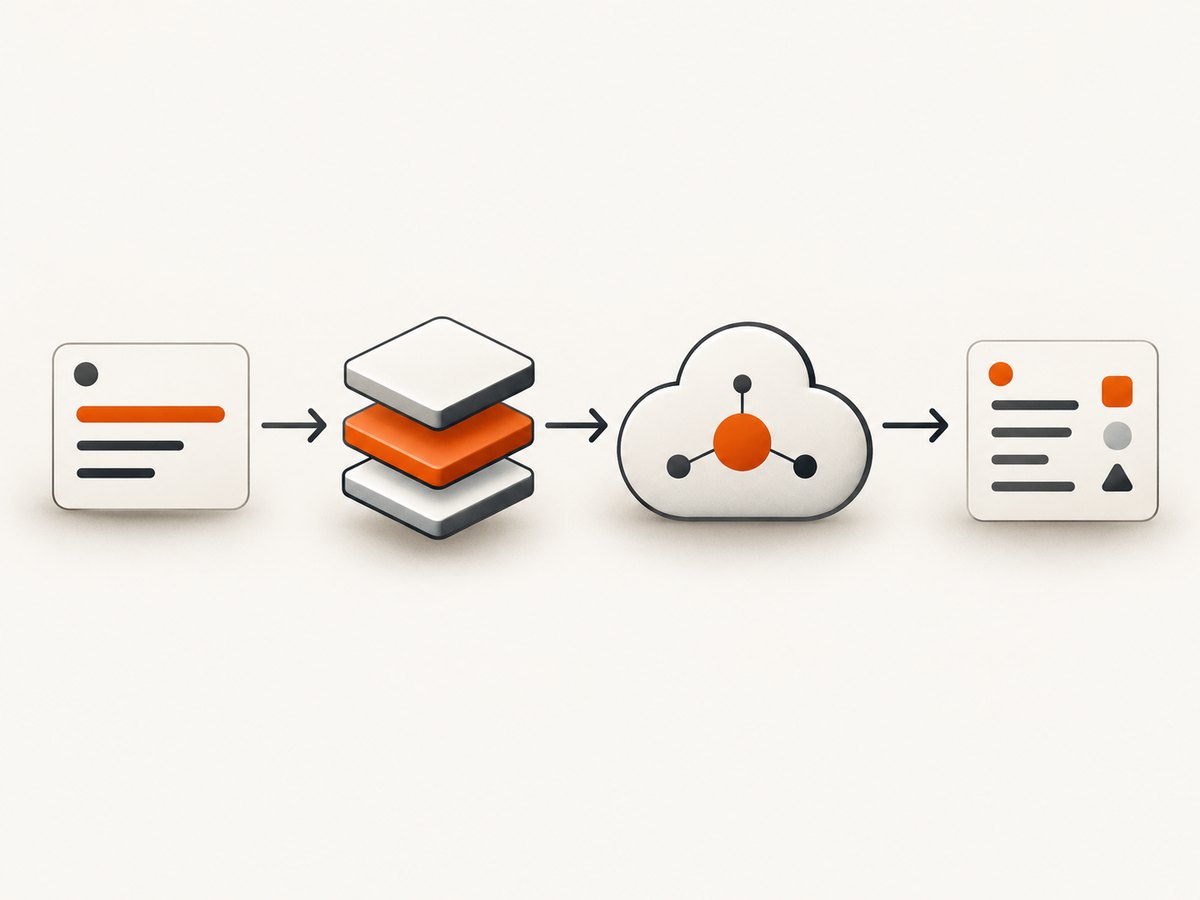
| Component | What it does | Typical example |
|---|---|---|
| API or client library | Exposes functions, classes, or methods that call a platform or service. | An AWS client for a language such as Java or Python. |
| Headers and libraries | Let native code compile and link against platform functionality. | Windows SDK header files and link libraries. |
| Build tools | Compile, package, sign, or transform an application. | Android build tools or a platform compiler. |
| Command-line utilities | Automate installation, device access, deployment, or diagnostics. | Android sdkmanager and adb. |
| Runtime or redistributables | Provide files needed to run an application or SDK tool. | The .NET SDK includes a runtime and libraries. |
| Documentation and examples | Explain supported operations, configuration, and expected responses. | Reference pages, tutorials, and sample projects. |
| Emulators and test tools | Approximate a device or service locally and help find defects. | An Android system image for an emulator. |
Do not assume that every SDK includes all of these items. Read the provider’s package list and installation guide for the version you plan to use.
What is the difference between an SDK and an API?
| API | SDK | |
|---|---|---|
| Meaning | A defined interface that software uses to communicate with another component. | A toolkit for developing against a platform or service. |
| Typical contents | Endpoints, methods, parameters, authentication rules, and response formats. | An API or client library plus tools, documentation, examples, headers, build support, or runtime files. |
| How you use it | Send requests directly, often with HTTP, or call an interface exposed by a library. | Install a package or toolchain, configure a project, then use its libraries and utilities. |
| Scope | Usually one interface or contract. | Can cover the complete development workflow for a platform. |
For a web service, you might send an HTTP request with cURL and need no SDK. The provider’s SDK could add typed methods, authentication helpers, retries, pagination, and examples. The SDK is therefore related to the API, but the terms are not interchangeable.
SDK versus library, framework, runtime, and CLI
SDK versus library
A library is reusable code that your program imports. An SDK can contain one or more libraries along with documentation, build tools, platform files, and utilities. A client library may be one part of an SDK.
SDK versus framework
A framework supplies structure and conventions for an application, often controlling parts of the program’s execution flow. An SDK supplies resources for targeting a platform or service. A framework can be distributed inside an SDK, but the terms describe different roles.
SDK versus runtime
A runtime provides what an application needs to execute. Development tools are generally separate from a runtime. Microsoft’s .NET packaging is a useful case: the .NET SDK includes a runtime and libraries, but that does not mean every SDK includes a runtime. Check the specific product’s documentation.
SDK versus CLI
A command-line interface is a way to operate a tool from a shell. An SDK may include a CLI, such as Android’s sdkmanager, but a CLI by itself is not necessarily an SDK.
How to choose an SDK
- Identify the target. Write down the operating system, device, cloud service, API version, and programming language your application needs.
- Check supported versions. Confirm that the SDK supports your platform version and deployment environment. Android API levels identify framework revisions; preview APIs can change, be renamed, or be removed before release.
- Compare language support. Prefer an official language-specific SDK when it offers the authentication, pagination, retries, and types your project needs.
- Inspect the toolchain. Check whether you receive compilers, headers, platform tools, emulators, debuggers, or only a client library.
- Review distribution and updates. Note whether installation uses an official installer, package manager, SDK manager, or language package registry, and how versions are pinned in your project.
- Check licensing and provenance. Download from the provider’s official site or a trusted package source. Review required licenses and verify repository ownership.
- Read the compatibility notes. Look for operating-system support, architecture requirements, environment variables, minimum runtime versions, and breaking changes.
How to install and verify an SDK
There is no single universal installer. Use the target provider’s official instructions:
- Install the required platform or language version.
- Install the SDK using the provider’s installer, package manager, or SDK manager.
- Accept the applicable license terms.
- Configure environment variables or project settings exactly as documented.
- Pin the dependency version in your project where the ecosystem supports lockfiles or manifests.
- Run the provider’s version command and a minimal sample.
Android’s SDK Manager can install and remove packages, and its command-line form is sdkmanager. Microsoft provides native installers for .NET and documents Windows SDK installation through the Windows development tools. Keep those instructions tied to the relevant ecosystem rather than applying them to every SDK.
Review source provenance carefully. Microsoft warns that the .NET SDK locates and executes tools and that untrusted repositories could provide malicious binaries with names matching tools in the SDK installation directory. Use known providers and trusted update sources; Android also supports third-party update sites, so verify one before adding it.
A small API client: the SDK idea in code
The following example shows the difference between calling an HTTP API directly and wrapping that call in a tiny SDK-style client. It uses a public placeholder endpoint, so it runs without credentials.
#!/usr/bin/env python3
import requests

class ExampleSDK:
    def __init__(self, base_url='https://httpbin.org'):
        self.base_url = base_url.rstrip('/')

    def get_status(self):
        response = requests.get(f'{self.base_url}/status/200', timeout=10)
        response.raise_for_status()
        return {'status_code': response.status_code}

if __name__ == '__main__':
    print(ExampleSDK().get_status())
The class is not a complete commercial SDK. It illustrates the packaging idea: a reusable client, a base URL, timeout handling, and a method that hides request details. A production SDK would also document authentication, errors, supported versions, retries, and configuration.
Calling an API without an SDK
You do not need an SDK when the API’s protocol is clear and your application can handle authentication, serialization, retries, errors, and response changes itself. Here is a direct cURL request:
curl --fail --show-error --silent https://httpbin.org/status/200Direct HTTP can be a good fit for a small integration or a language without an official SDK. An SDK becomes more valuable when the service has many operations, signed requests, pagination, asynchronous jobs, or platform-specific setup.
Using ScreenshotNeo as an API and SDK-style integration
ScreenshotNeo is a website screenshot API and MCP server. One GET request returns a PNG, JPEG, WebP, or PDF. You can call it directly or wrap it in your own SDK module. The API accepts common screenshot parameter names, which helps when switching providers. See the ScreenshotNeo API documentation for the complete option list.
cURL
curl -G 'https://api.screenshotneo.com/v1/shot' \
  -d access_key=YOUR_API_KEY \
  --data-urlencode url=https://stripe.com \
  -o shot.webp
Python
import requests

r = requests.get(
    'https://api.screenshotneo.com/v1/shot',
    params={'access_key': 'YOUR_API_KEY', 'url': 'https://stripe.com'},
    timeout=90,
)
r.raise_for_status()
open('shot.webp', 'wb').write(r.content)
Node.js
const q = new URLSearchParams({
  access_key: 'YOUR_API_KEY',
  url: 'https://stripe.com'
});
const res = await fetch(`https://api.screenshotneo.com/v1/shot?${q}`);
if (!res.ok) throw new Error(`Screenshot failed: ${res.status}`);
const data = Buffer.from(await res.arrayBuffer());
require('fs').writeFileSync('shot.webp', data);
ScreenshotNeo options to know
ScreenshotNeo has 63 options for controlling capture behavior. You can capture a full page with lazy images loaded, target one element by CSS selector, choose dark mode, use 12 device presets or any viewport, and set a retina scale. Output can be PNG, JPEG, WebP, or PDF; PDF options include paper size, margins, landscape mode, and page ranges.
For dynamic pages, provide custom CSS or JavaScript, click an element before capture, wait for a selector, delay, or network idle, and hide selected elements. You can block ads, trackers, requests, or resource types. Requests can include custom headers, cookies, a user agent, and an Authorization header, plus timezone and geolocation settings. Other controls include transparent backgrounds, image resizing, caching with a chosen TTL, signed links for public image tags, asynchronous jobs with signed webhooks, bulk capture of up to 100 URLs per call, a usage API, and an OpenAPI specification.
Or skip the browser setup
Browser automation is useful when you need complete control, but ScreenshotNeo handles the capture workflow through one request:
curl -G 'https://api.screenshotneo.com/v1/shot' \
  -d access_key=YOUR_API_KEY \
  --data-urlencode url=https://stripe.com \
  -o shot.webp
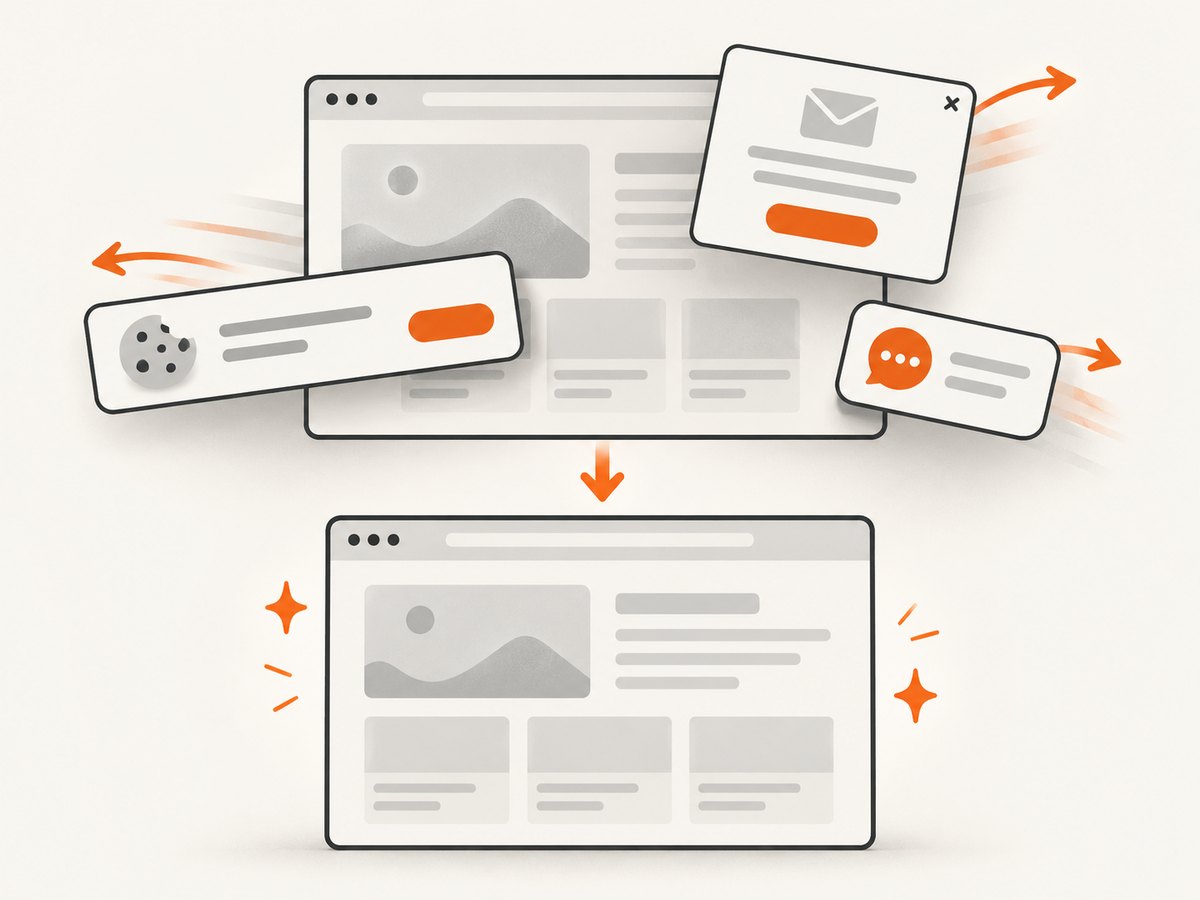
Before capture, ScreenshotNeo accepts the cookie or consent banner like a visitor and removes more than 60 known consent platforms, newsletter popups, and chat widgets. Each step can be turned off. Bot checks or CAPTCHAs, blank pages, timeouts, failed loads, and cache hits cost nothing; response headers identify the page verdict and whether the request was billed with X-Page-Verdict and X-Billed. An MCP server provides take_screenshot, get_page_info, and capture_pdf tools for Claude, Cursor, and other MCP clients. The Free plan includes 1,000 screenshots per month with no card; paid plans start at $5 for 3,000 shots. Create a free ScreenshotNeo account.
Performance, reliability, and cost considerations
- Startup time: A full SDK can add installation and build steps. A direct API request may be quicker to prototype, while a client library can reduce repeated setup in a larger codebase.
- Timeouts: Set explicit connection and request timeouts. Browser captures and remote APIs can take longer than a local function call.
- Retries: Retry only transient failures, use backoff, and avoid retrying invalid credentials or malformed parameters. Follow the service’s documented idempotency guidance.
- Version pinning: Pin SDK and platform versions, then update deliberately after reading release notes.
- Caching: Cache immutable metadata and artifacts where appropriate. For screenshots, choose a cache TTL that matches how often the source page changes.
- Concurrency: Bound parallel requests, respect service limits, and use asynchronous jobs or bulk operations when the provider offers them.
- Costs: Account for API calls, build infrastructure, storage, and any runtime or platform licensing. ScreenshotNeo bills only clean shots; cache hits and failed or unusable captures are not billed.
Troubleshooting SDK problems
| Symptom | Likely cause | Fix |
|---|---|---|
| Command not found | The SDK’s binary directory is not on PATH, or the installation is incomplete. |
Run the provider’s version command, locate the installation directory, and follow its documented environment setup. |
| Compiler cannot find headers or libraries | The platform package or architecture-specific files are missing. | Install the matching SDK platform package and verify compiler and linker search paths. |
| Runtime version mismatch | Your project targets a version not installed by the SDK. | Install the required runtime or retarget the project to a supported version. |
| Authentication or permission error | Credentials are absent, expired, or lack the required scope. | Use the provider’s credential flow, keep secrets out of source control, and check scopes. |
| API method or field missing | Client and server versions differ, or the feature is preview-only. | Check the API version, SDK release notes, and preview stability guarantees. |
| Screenshot is blank or includes a popup | The page failed to load, content was still dynamic, or a selector was not hidden. | Increase the wait condition, target the correct selector, add custom CSS, and inspect X-Page-Verdict. |
| Screenshot request is slow | The page has heavy assets, blocked requests, or an overly long wait condition. | Use network-idle or a specific selector, block unnecessary resource types, and set a practical timeout. |
| Unexpected charge | The response was a clean, billable capture rather than a failed load or cache hit. | Read X-Billed, review cache settings, and check the requested output and options. |
SDK security and maintenance checklist
- Download installers and packages from the official provider or a trusted registry.
- Verify package names, repository ownership, signatures, or checksums when supplied.
- Keep credentials in environment variables or a secret manager.
- Review tools that execute local binaries or scripts before adding untrusted repositories.
- Pin versions in CI and test upgrades in a separate change.
- Remove unused platform packages and revoke credentials that are no longer needed.
- Read preview and deprecation notices before depending on unstable APIs.
Frequently asked questions
Do I need an SDK to develop an app?
Usually you need the target platform’s development resources, but not always a package branded “SDK.” A compiler, headers, libraries, and tools may be distributed separately. For a web API, direct HTTP calls can be sufficient.
Is an SDK the same as an API?
No. An API is an interface; an SDK is a broader toolkit that may include an API client and other development resources.
Can one SDK support multiple programming languages?
Yes. A provider may publish separate language-specific SDKs or one package with bindings. Check the provider’s supported-language list and version policy.
Should I use an official SDK or a community library?
Compare maintenance, security provenance, feature coverage, release cadence, licensing, and compatibility. An official SDK is not automatically the best choice, but its ownership and support policy should be clear.
What happens when an SDK is deprecated?
Read the migration guide, pin the last compatible version temporarily, and move to the supported SDK or API version before the provider removes access.
Summary
An SDK is a software development kit: a collection of code, tools, documentation, and sometimes runtimes that helps you build for a defined platform or service. APIs are interfaces inside that larger picture. Choose an SDK by target, language, supported versions, included tools, distribution method, licensing, and source provenance. When you only need a straightforward HTTP operation, call the API directly; when repeated integration work, authentication, retries, tooling, and examples matter, an SDK can save implementation time.


