What Is Live Preview? A Developer’s Guide to Cameras, Websites, Streams, and Apps
Live preview shows a current view before capture, publishing, or broadcasting. Learn how it works across cameras, CMSs, streams, and apps.
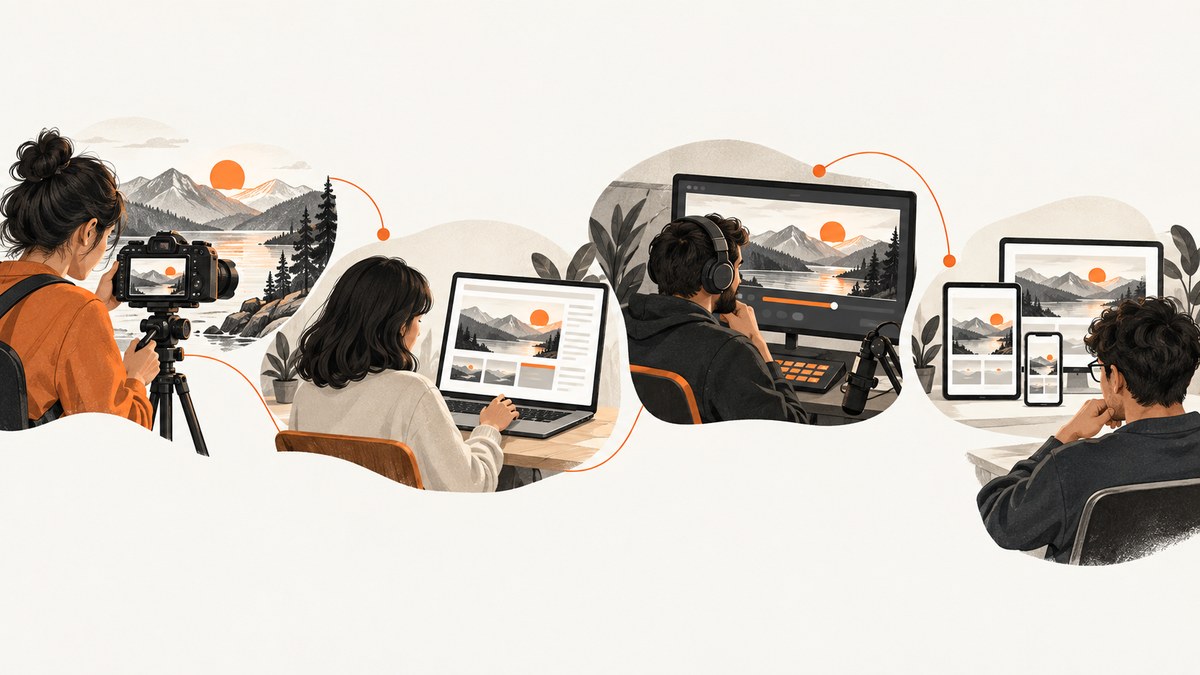
Live preview is a view of something before the final action happens. The action might be taking a photo, publishing edited content, starting a public broadcast, or testing an app. The phrase describes a shared idea rather than one universal technology: you inspect a current or changing result while it is still being framed, edited, prepared, or configured.
The details depend on the product. A camera may show its lens view on a phone. A content management system may render draft content beside the editor and update as fields change. A streaming platform may keep an encoder feed private until a producer clicks Go Live. An app development tool may render a screen at simulated sizes while code changes. In every case, preview means “see the likely result before committing.”
Live preview in four common contexts
| Context | What you see | What follows | Limits to check |
|---|---|---|---|
| Camera | The camera’s current view, locally or on a connected phone | Capture a photo or start recording | Supported camera, phone, connection, and shooting modes |
| Content management | A rendered page using draft entry data | Continue editing, then publish | Preview setup, SDK integration, iframe security, locale and plan restrictions |
| Live broadcasting | The incoming stream and stream health | Explicitly make the event public | Platform configuration, encoder state, privacy and recording behavior |
| App development | A built or rendered app screen, often at simulated sizes | Inspect, debug, then test on target hardware | Device-only APIs and native dependencies may not run in a desktop preview |
What does live preview mean on a camera?
On a camera, live preview is the moving view from the lens shown on the camera display or another connected device. GoPro documents Quik Live Preview as a way to see a connected camera’s view in the Quik mobile app. This is useful when the camera is mounted somewhere that makes its rear screen difficult to see. GoPro describes preview before recording in Photo, Video, and Time Lapse modes.
How to use a camera preview reliably
- Pair the camera and phone using the manufacturer’s current app and supported connection method.
- Place the camera and confirm the intended orientation, crop, and horizon in the remote view.
- Select the shooting mode and settings you intend to use.
- Check that the preview is live rather than a paused playback frame.
- Start capture from the camera or app, then verify the recording indicator.
Preview is not a promise that every recording condition is represented. Connection dropouts, unsupported modes, battery-saving behavior, or a different final resolution can change the result. Confirm compatibility in the current camera support documentation before designing a workflow around remote preview.
What does live preview mean when editing a website?
In a content management system, live preview renders draft data beside the fields an editor is changing. The editor can see how a headline, image, or component will look before publishing. Contentful’s live preview documentation separates three capabilities:
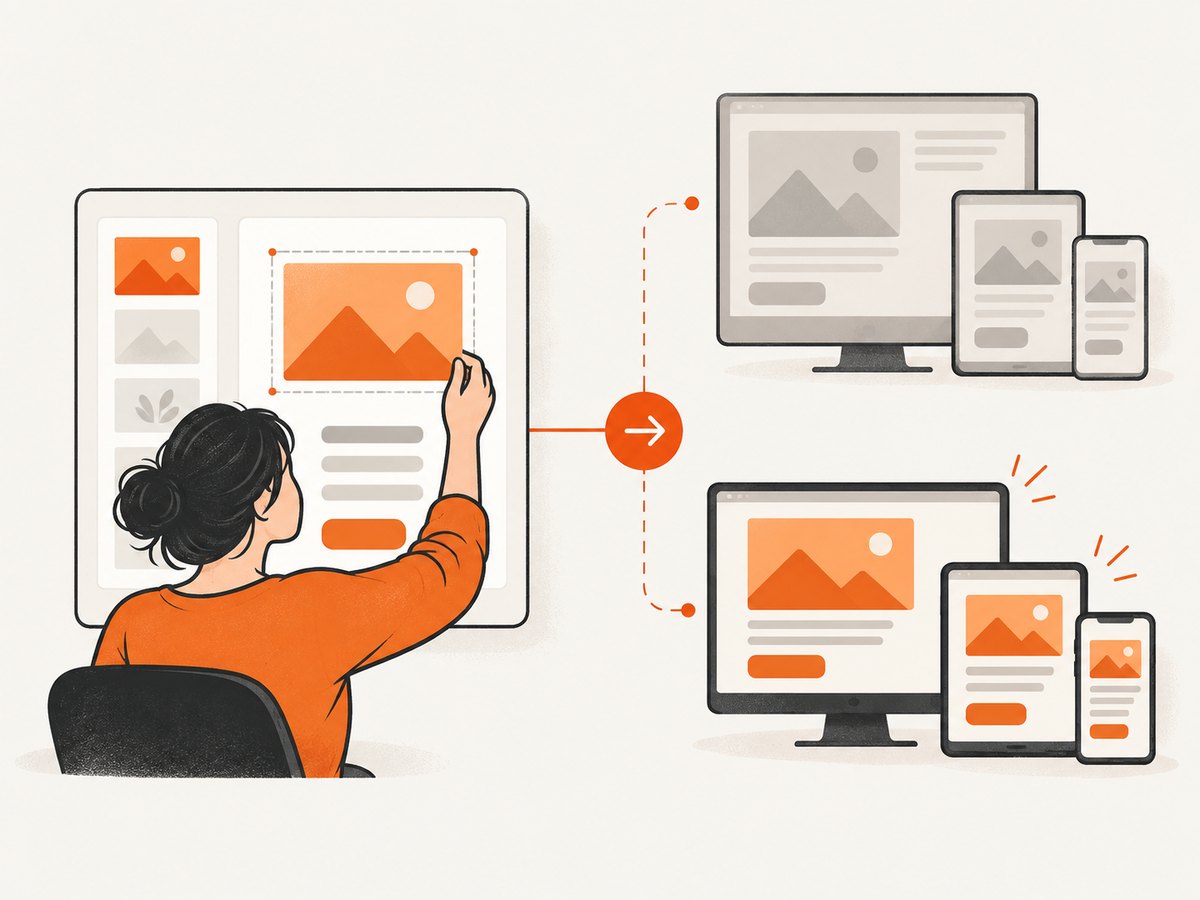
- Side-by-side preview: the editor and rendered page appear in one application. Content preview setup is required, but the basic mode does not require the live preview SDK.
- Live updates: changes appear in the preview without manually refreshing. This requires initializing the Live Preview SDK.
- Inspector mode: selecting content in the preview takes the editor to its source field. This also requires the SDK and the required field metadata.
A minimal browser implementation follows the same principle: keep draft state in memory, render it, and update the preview on each input event.
<!doctype html>
<html lang="en">
<meta charset="utf-8">
<title>Live preview demo</title>
<style>
  body { display:grid; grid-template-columns: 1fr 1fr; gap:24px; font:16px system-ui; margin:24px; }
  textarea { width:100%; min-height:120px; }
  .preview { border:1px solid #ccc; padding:24px; min-height:180px; }
</style>
<label>Draft headline
  <textarea id="headline">A headline before publishing</textarea>
</label>
<section class="preview" aria-live="polite">
  <h1 id="rendered"></h1>
</section>
<script>
  const input = document.querySelector('#headline');
  const rendered = document.querySelector('#rendered');
  function render() { rendered.textContent = input.value; }
  input.addEventListener('input', render);
  render();
</script>
</html>
This example updates text safely with textContent. A production preview must also handle draft authentication, routing, referenced entries, images, responsive viewports, localization, and unsaved changes. Never expose a privileged content API token in browser code. Use a server-side preview endpoint or the CMS’s official preview mechanism.
Website preview failures and security settings
An embedded preview can remain blank when the site sends a Content-Security-Policy or X-Frame-Options header that blocks framing. Allow only the CMS origin that needs to embed the preview, and keep production publishing credentials separate from preview credentials. If a preview is stale, verify that the request is using draft data, that cache headers are appropriate, and that the editor is changing the entry and locale you are rendering.
Contentful documents additional setup constraints for custom editors and locale switching. Treat those as product-specific requirements and verify the current plan and documentation before promising them to editors.
Can you preview a live stream before viewers see it?
Yes, when the streaming platform provides a private preview state. Kaltura’s Preview Live documentation describes a workflow in which the broadcaster starts the encoder, checks the stream, adjusts encoder settings, and clicks Go Live only when ready. Viewers cannot see the stream during preview. The documented workflow also says recording starts when the event goes live; confirm current account behavior because platform controls can change.
Preflight checklist for a broadcast preview
- Start the encoder with the intended resolution, frame rate, bitrate, audio channels, and keyframe interval.
- Confirm the platform receives video and audio and reports a healthy connection.
- Watch several seconds for frozen video, drift, clipping, dropped frames, or an incorrect scene.
- Check privacy: the preview URL must not be publicly discoverable if the event is still private.
- Change encoder settings if necessary, then wait long enough to verify the new signal.
- Click the platform’s explicit live control only after the producer approves the feed.
A preview reduces launch surprises, but it cannot predict every viewer network, ad insertion, moderation rule, or distribution failure. Keep a runbook and a second communication channel for the production team.
What does live preview mean in app development?
Developer tools often render an app while source code or design properties change. The preview can show multiple viewport sizes, navigation states, and component variations quickly. It is useful for layout and interaction work, but a desktop renderer may not execute native APIs that require a real handset.
Versioned Kony Visualizer documentation, for example, notes that its preview cannot run certain native or foreign-function interfaces, third-party dependencies, or APIs that require a handheld device, such as vibration. Treat a preview as one test layer. Validate camera access, push notifications, sensors, Bluetooth, filesystem permissions, and performance on the actual target devices.
How to design a dependable live preview
- Define the boundary. Write down what previewed state means: draft content, encoder input, camera framing, or a simulated app build.
- Make freshness visible. Show a last-updated time, connection state, or draft revision so users can distinguish current data from a cached frame.
- Separate preview from commit. Publishing, recording, or going live should require an explicit action.
- Handle reconnects. Retry temporary network failures with bounded backoff and show when the view is stale.
- Protect credentials. Keep API keys and signing secrets on a server; use short-lived preview tokens where supported.
- Test the final path. Compare preview with the published page, recorded file, broadcast output, or physical device.
Capturing a live preview of a website
If your goal is to save the rendered result as an image or PDF, a browser automation script can open the page, wait for it to settle, and capture it. A minimal Playwright example is:
import { chromium } from 'playwright';

const browser = await chromium.launch();
const page = await browser.newPage({ viewport: { width: 1440, height: 900 }, deviceScaleFactor: 1 });
await page.goto('https://example.com', { waitUntil: 'networkidle' });
await page.screenshot({ path: 'preview.png', fullPage: true });
await browser.close();
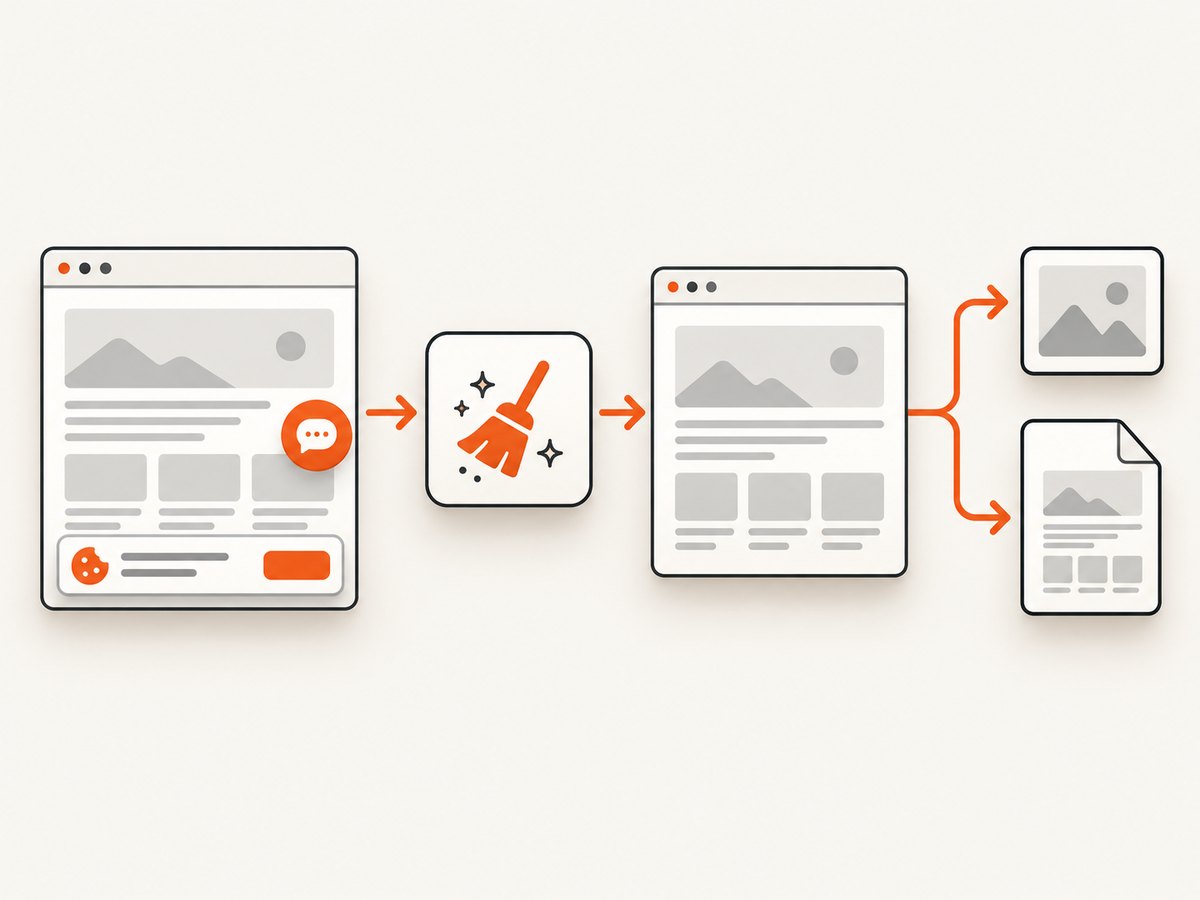
For a useful capture, decide whether you need the visible viewport or the full document, wait for a selector or lazy-loaded images, set the timezone and locale, and disable animations if visual consistency matters. Handle cookie dialogs and chat widgets before capturing. In CI, pin browser versions, use deterministic fonts, and retry only transient navigation errors. Do not hide an error page and treat it as a successful screenshot.
Or skip the browser setup
ScreenshotNeo provides a website screenshot API and MCP server. One GET request returns a PNG, JPEG, WebP, or PDF. It accepts the cookie or consent banner like a visitor and removes more than 60 known consent platforms, newsletter popups, and chat widgets before capture; each step can be turned off. Bot checks and CAPTCHAs, blank pages, timeouts, failed loads, and cache hits cost nothing, and response headers identify the page verdict and whether it was billed.
See the ScreenshotNeo API documentation for the complete parameter reference. This is a runnable cURL request:
curl -G "https://api.screenshotneo.com/v1/shot" -d access_key=YOUR_API_KEY --data-urlencode url=https://stripe.com -o shot.webpPython:
import requests

r = requests.get(
    "https://api.screenshotneo.com/v1/shot",
    params={"access_key": "YOUR_API_KEY", "url": "https://stripe.com"},
    timeout=90,
)
r.raise_for_status()
open("shot.webp", "wb").write(r.content)
Node.js:
const q = new URLSearchParams({ access_key: 'YOUR_API_KEY', url: 'https://stripe.com' });
const res = await fetch(`https://api.screenshotneo.com/v1/shot?${q}`);
if (!res.ok) throw new Error(`${res.status} ${res.statusText}`);
const bytes = Buffer.from(await res.arrayBuffer());
require('fs').writeFileSync('shot.webp', bytes);
Options for preview-like captures
- Full-page capture with lazy images loaded, or one element selected by CSS selector.
- Dark mode, 12 device presets, any viewport, and retina scale.
- PDF output with paper size, margins, landscape mode, and page ranges.
- Custom CSS and JavaScript, a click before capture, hidden selectors, and waits for a selector, delay, or network idle.
- Blocking for ads, trackers, requests, or resource types.
- Custom headers, cookies, user agent, Authorization, timezone, and geolocation.
- Transparent backgrounds, image resizing, and caching with a TTL you choose.
- Signed links for public image tags, asynchronous jobs with signed webhooks, bulk capture of up to 100 URLs per call, a usage API, and an OpenAPI specification.
Its MCP server exposes take_screenshot, get_page_info, and capture_pdf for Claude, Cursor, and other MCP clients. Parameter names used by other screenshot APIs also work, which can simplify migration.
Plans include 1,000 screenshots per month free with no card; Starter is $5 for 3,000, Growth $15 for 15,000, Pro $39 for 60,000, Scale $99 for 250,000, and Business $249 for 1,000,000. Yearly billing gives two months free, and every feature is on every plan. For a live-preview workflow, the practical advantages are that consent UI is handled before the shot, failed loads are not billed, and an agent can request a capture through MCP.
Create a free ScreenshotNeo account to start with 1,000 screenshots per month and no credit card.
Troubleshooting live preview
| Symptom | Likely cause | Fix |
|---|---|---|
| Preview is blank | Iframe policy, failed draft request, or blocked script | Inspect browser console and response headers; allow the trusted preview origin and verify draft credentials. |
| Changes do not appear | SDK not initialized, wrong locale, or cached response | Confirm live-update setup, entry and locale, cache headers, and the current revision. |
| Camera view freezes | Wireless interference, unsupported mode, or battery-saving behavior | Move closer, reconnect, use a supported mode, and verify on the camera display. |
| Stream looks healthy but viewers see nothing | Preview is still private or the platform has not received a go-live command | Check event state and explicitly start the broadcast after preflight. |
| App preview works but device fails | Native API or dependency is unavailable in the simulator | Test the feature on the target handset and add a device-specific fallback. |
| Screenshot shows a popup or bot check | The page needs interaction or blocks automation | Use a consent or click step, wait for the correct selector, and inspect the page verdict; do not classify an error page as a clean capture. |
Performance, reliability, and cost considerations
Preview freshness is a tradeoff between update frequency and resource use. Debounce rapid editor keystrokes, send only the fields needed for a draft, and avoid rebuilding an entire page when one component changed. For streams, choose a bitrate your uplink can sustain and monitor dropped frames. For browser captures, reuse a browser process for batches, wait on meaningful conditions rather than arbitrary long delays, and cache only when the page is intentionally stable.
Reliability comes from explicit states: connecting, current, stale, failed, and ready to publish or go live. Record errors with a correlation ID and preserve the last known good preview. Cost depends on the platform and workload. With ScreenshotNeo, cache hits and failed, blank, timed-out, or bot-check pages are not billed; inspect X-Page-Verdict and X-Billed in responses when accounting for usage.
FAQ
Is live preview the same as a final result?
No. It is an inspection of a current state. Device-only behavior, final publishing transformations, viewer delivery, or capture timing can still differ.
Does live preview always update instantly?
No. Update speed depends on the product, network, SDK, rendering work, and debounce settings. A good interface exposes staleness instead of implying perfect real-time behavior.
Can people see a stream during preview?
In Kaltura’s documented Preview Live workflow, viewers cannot see the stream until the broadcaster selects Go Live. Other platforms may use different states, so verify the current documentation.
Should I use a simulator or a real device?
Use the simulator for layout and fast iteration, then test device-only APIs and production performance on the real target hardware.
What is the simplest way to save a website preview?
Use browser automation when you need complete control over a local browser. Use ScreenshotNeo when you want a single API call, consent and popup cleanup, verdict headers, PDF support, or an MCP workflow.


