What Is Playwright and Why Use It?
Playwright is a cross-browser automation framework for tests, scripts, and AI agents. Learn its architecture, setup, debugging workflow, and limits.
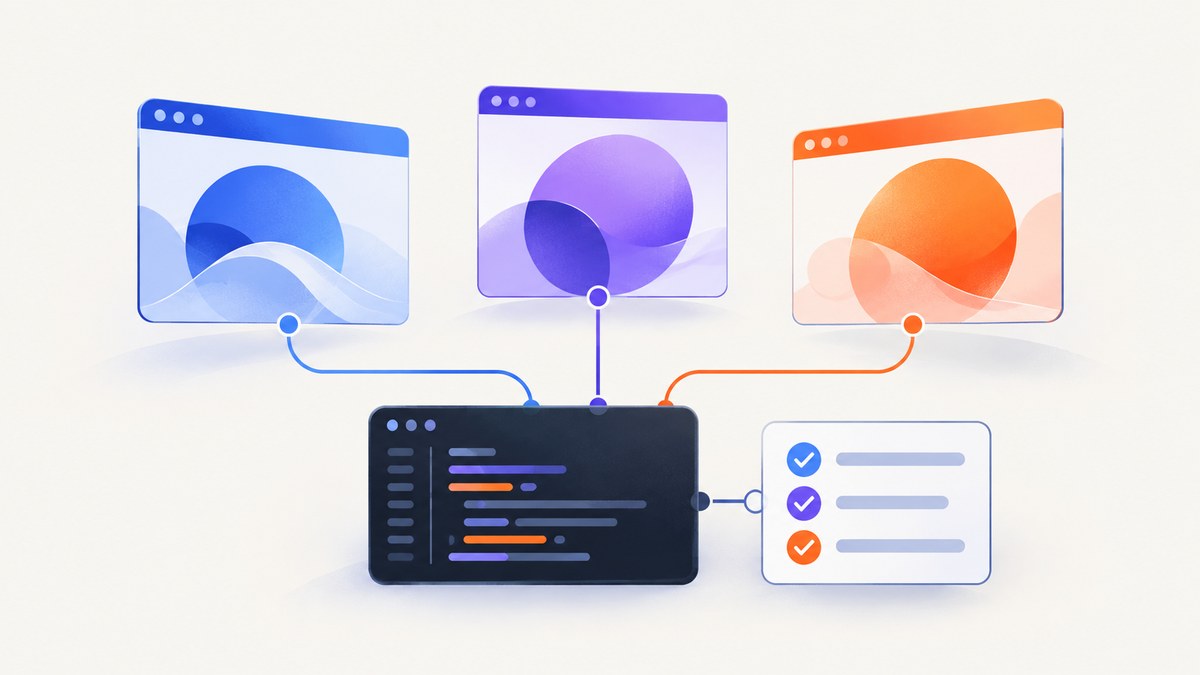
Playwright is an open-source browser automation framework for testing, scripting, and AI-agent workflows. It drives Chromium, Firefox, and WebKit through a common API, with language bindings for JavaScript/TypeScript, Python, Java, and .NET. The Node.js package also includes Playwright Test, an end-to-end test runner with browser-context isolation, automatic actionability waits, retrying assertions, parallel execution, and debugging tools.
Use Playwright when your software must exercise a real user-facing flow: signing in, submitting a form, navigating a single-page app, checking accessibility-visible behavior, or collecting a screenshot after the page reaches a known state. It is not a guarantee that tests never flake, nor does every installed browser build exactly match a branded Chrome, Edge, Firefox, or Safari release. Your selectors, application state, data, and CI environment still determine test quality.
What Playwright includes
The project combines several layers:
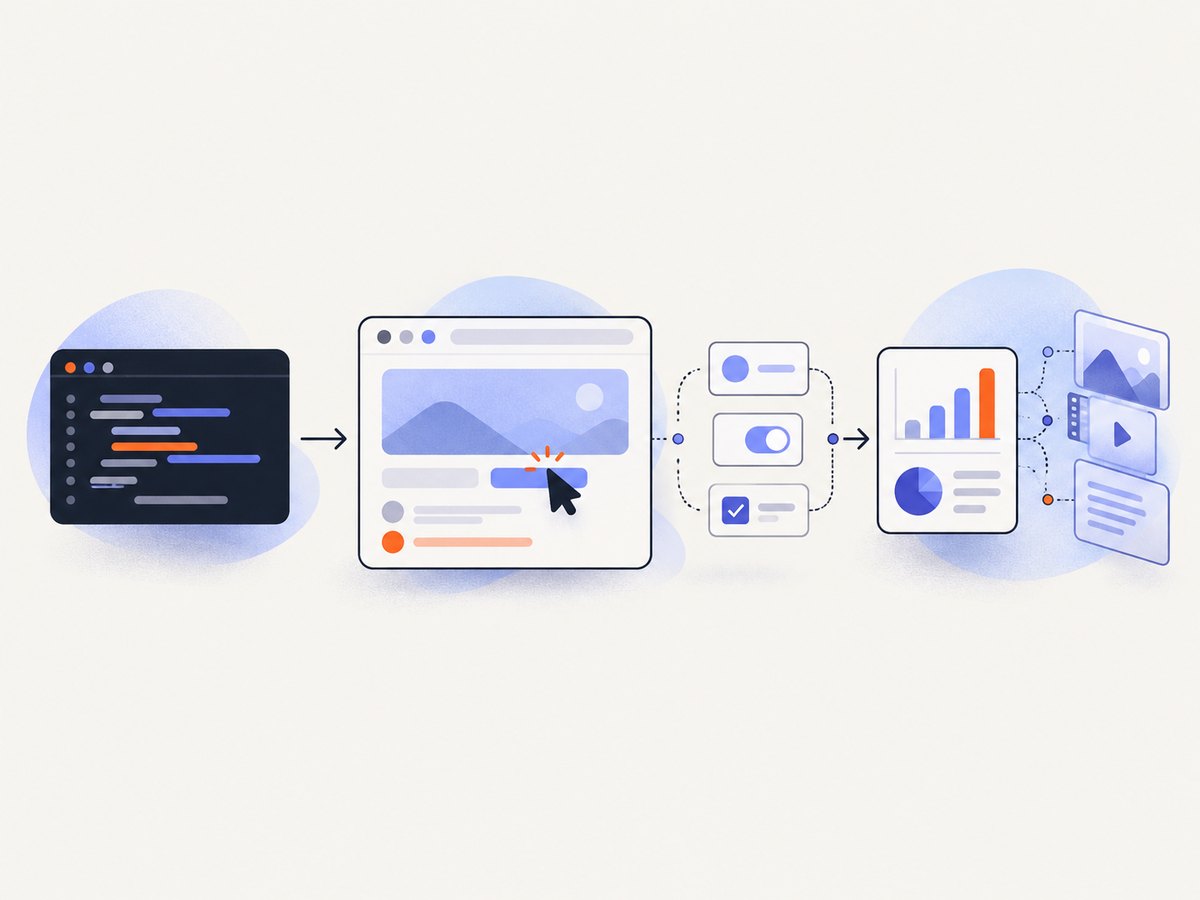
- Browser automation: launch and control Chromium, Firefox, or WebKit.
- Pages and contexts: interact with tabs inside isolated browser contexts.
- Locators: find elements by role, label, text, test id, or CSS and wait for them to become actionable.
- Assertions: web-first expectations retry while the page changes.
- Playwright Test (Node.js): fixtures, projects, retries, parallel workers, reports, and configuration.
- Debugging: Inspector, UI mode, HTML reports, screenshots, videos, and Trace Viewer recordings.
Playwright describes its purpose as reliable web automation for testing, scripting, and AI agents. The official overview explains auto-waiting, web-first assertions, isolated contexts, resilient locators, and parallelism as framework capabilities; those features are not performance or flakiness guarantees. See the official overview.
Why teams choose Playwright
One API across three browser engines
Chromium, Firefox, and WebKit let a suite check engine-specific behavior. Playwright installs browser binaries tied to the package release. Those binaries are not identical to every branded browser. Its Firefox build uses project patches, and WebKit comes from upstream WebKit rather than branded Safari. For Safari-sensitive behavior, the browser documentation recommends running WebKit on macOS in relevant cases. Read the browser support notes before treating a pass as proof of Safari compatibility.
Actionability waits and retrying assertions
Before a click or fill, Playwright waits for conditions such as visibility, stability, and enabled state. An assertion such as await expect(locator).toHaveText('Done') retries until it passes or its timeout expires. This handles many normal rendering delays better than fixed sleeps. It cannot repair an unstable application, a race in your test data, an ambiguous selector, or an external service that fails intermittently.
Isolation and parallel execution
A browser context is a lightweight, isolated session with its own cookies, local storage, permissions, and cache. Playwright Test creates a fresh context for each test by default, reducing state leakage. Workers can run tests in parallel; use this only when tests have independent data and no shared mutable resources.
Debugging artifacts
When a test fails, the HTML report and Trace Viewer show action history, page snapshots, screenshots, logs, console messages, network requests, errors, and source locations. Traces are especially useful in CI because they preserve what happened on a remote worker. The documentation recommends recording selectively, such as on the first retry or only after failure, because recording every test adds overhead. See running and debugging tests and the Trace Viewer guide.
Install Playwright and create a first test
The following Node.js example uses Playwright Test. Node.js is the only official binding that ships with this integrated runner.
- Create a project and install the package.
mkdir playwright-demo
cd playwright-demo
npm init -y
npm init playwright@latest
The setup wizard creates a configuration file, an example test, and a test directory. Install or refresh the matching browser binaries after package updates:
npx playwright installReplace the example with a deterministic test:
import { test, expect } from '@playwright/test';

test('home page has a title and navigation', async ({ page }) => {
  await page.goto('https://playwright.dev/');
  await expect(page).toHaveTitle(/Playwright/);
  await expect(page.getByRole('link', { name: 'Get started' })).toBeVisible();
});
Run it headlessly (the default):
npx playwright testRun one project, show the browser, or open the interactive UI:
npx playwright test --project=chromium
npx playwright test --headed
npx playwright test --ui
Configuration that matters
A playwright.config.ts file controls projects, timeouts, retries, reporters, and artifacts. This example runs the same tests against the three bundled engines and records a trace on the first retry:
import { defineConfig, devices } from '@playwright/test';

export default defineConfig({
  testDir: './tests',
  timeout: 30_000,
  expect: { timeout: 5_000 },
  fullyParallel: true,
  retries: process.env.CI ? 1 : 0,
  reporter: [['html', { open: 'never' }]],
  use: {
    baseURL: 'http://127.0.0.1:3000',
    headless: true,
    trace: 'on-first-retry',
    screenshot: 'only-on-failure',
    video: 'retain-on-failure',
  },
  projects: [
    { name: 'chromium', use: { ...devices['Desktop Chrome'] } },
    { name: 'firefox', use: { ...devices['Desktop Firefox'] } },
    { name: 'webkit', use: { ...devices['Desktop Safari'] } },
  ],
});
Choose settings deliberately:
| Setting | Use it for | Trade-off |
|---|---|---|
baseURL |
Short relative URLs and local or staging runs | Every environment must expose the same routes |
retries |
Capturing a trace after a transient failure in CI | Retries can hide a real intermittent defect if you only watch the final status |
workers |
Parallel suites | Shared accounts, ports, and databases need isolation |
trace, screenshot, video |
Failure diagnosis | Artifacts consume CPU, storage, and time |
projects |
Multiple engines, devices, or branded channels | Each project multiplies execution work |
Reliable locator and test design patterns
- Prefer user-facing locators:
getByRole,getByLabel, andgetByText. Add stabledata-testidvalues where semantics are not unique. - Keep locators specific. A locator matching two buttons is ambiguous and will fail rather than click an arbitrary element.
- Assert outcomes, not implementation details: URL, visible text, enabled state, or a response that the user can observe.
- Use API requests or database fixtures to prepare data when a long UI setup is not the behavior under test.
- Give each test independent accounts and records when running workers in parallel.
- Use explicit waits only for a known external condition. Prefer locator assertions and response waits to arbitrary
sleepcalls.
Code generation can create a starting point from recorded browser actions. Treat generated selectors as draft code: simplify them, give important elements stable test ids, and verify behavior across all configured projects.
Python, Java, and .NET options
The official language guide covers JavaScript/TypeScript, Python, Java, and .NET. Core browser automation is available in each, while test-runner integration differs: Python commonly uses the pytest plugin; Java and .NET connect to their ecosystem frameworks. Choose based on team familiarity, existing fixtures and CI, and the language your application team can maintain. Consult supported languages for current installation commands.
Capturing screenshots with Playwright
For a one-off script, launch a browser, navigate, wait for a meaningful locator, and save an image:
import { chromium } from 'playwright';

const browser = await chromium.launch();
const page = await browser.newPage({ viewport: { width: 1440, height: 900 } });
await page.goto('https://example.com', { waitUntil: 'networkidle' });
await page.screenshot({ path: 'page.png', fullPage: true });
await browser.close();
Use page.screenshot({ locator }) or locator.screenshot() for an element, type: 'jpeg' for JPEG output, and scale: 'css' or 'device' to control pixel density. A full-page shot can be expensive on pages with very long documents or lazy-loaded content; scroll or wait for the content your capture requires.
Or skip the browser setup
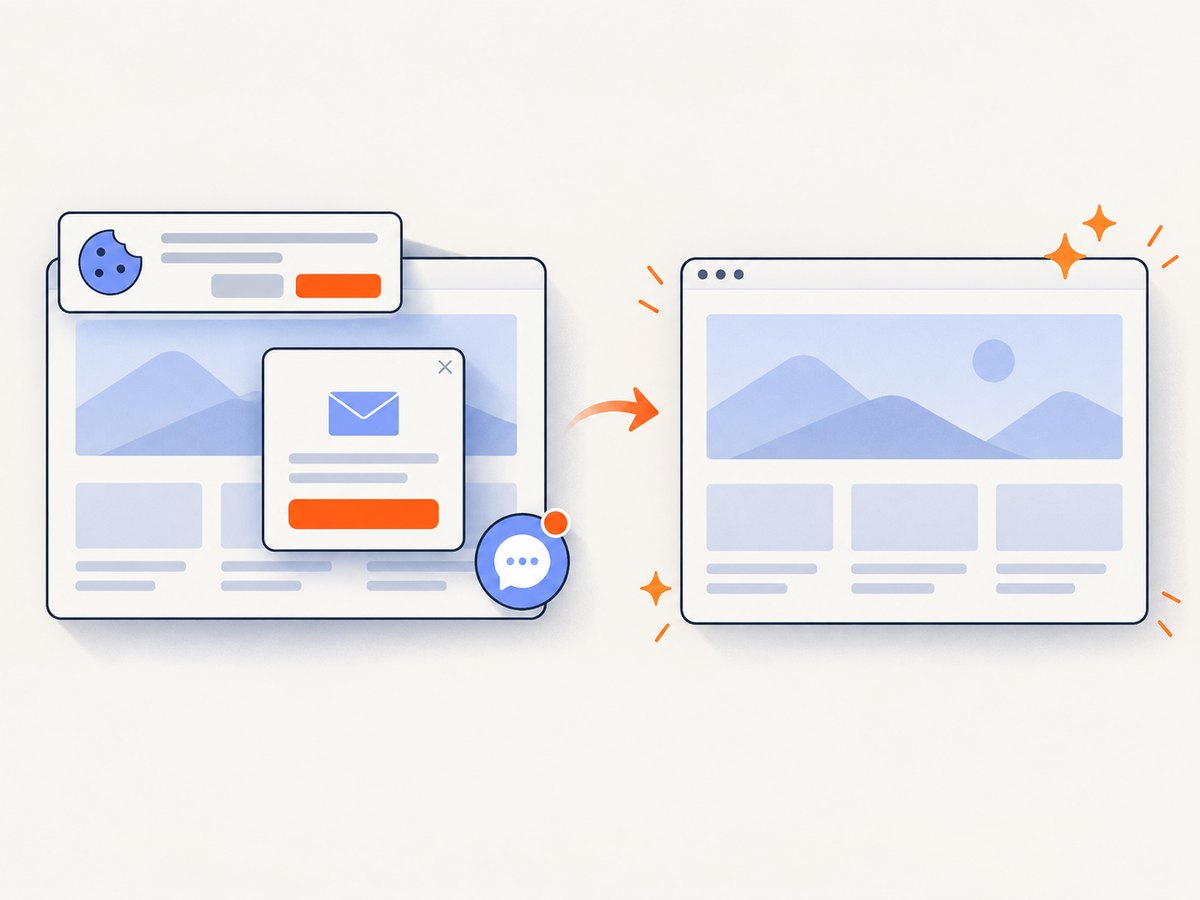
ScreenshotNeo provides a website screenshot API and MCP server. One GET request returns PNG, JPEG, WebP, or PDF. Cookie and consent banners, newsletter popups, and chat widgets are removed before capture. Bot checks, blank pages, timeouts, failed loads, and cache hits cost nothing, and response headers identify the page verdict and whether it was billed. Its MCP tools (take_screenshot, get_page_info, and capture_pdf) let Claude, Cursor, and other MCP clients capture pages.
See the ScreenshotNeo API documentation for all options. A minimal request:
curl -G "https://api.screenshotneo.com/v1/shot" -d access_key=YOUR_API_KEY --data-urlencode url=https://stripe.com -o shot.webpimport requests
r = requests.get("https://api.screenshotneo.com/v1/shot", params={"access_key": "YOUR_API_KEY", "url": "https://stripe.com"}, timeout=90)
open("shot.webp", "wb").write(r.content)const q = new URLSearchParams({ access_key: 'YOUR_API_KEY', url: 'https://stripe.com' });
const res = await fetch(`https://api.screenshotneo.com/v1/shot?${q}`);Options cover full-page captures with lazy images loaded, CSS element selection, dark mode, 12 device presets or custom viewports, retina scale, PDF paper and page settings, custom CSS and JavaScript, clicks, selector or network-idle waits, ad and tracker blocking, headers, cookies, user agents, authorization, timezone, geolocation, transparency, resizing, TTL caching, signed image links, asynchronous jobs with signed webhooks, bulk capture of 100 URLs, usage reporting, and an OpenAPI specification. Parameter names used by other screenshot APIs also work.
Plans include 1,000 shots per month free with no card; paid plans start at $5 for 3,000 shots. Every feature is available on every plan. Create a free ScreenshotNeo account.
Troubleshooting Playwright
| Error or symptom | Likely cause | Fix |
|---|---|---|
| “Executable doesn’t exist” | Browser binaries were not installed or no longer match the package | Run npx playwright install in the same environment as the test. |
| Timeout waiting for locator | Wrong selector, hidden element, navigation failure, or an app state that never occurs | Inspect with UI mode or a trace; use a role or test id; assert the preceding state. |
| Strict mode violation | A locator matches multiple elements | Make it specific with role, name, ancestor, or a stable test id. |
| Works locally, fails in CI | Different browser version, fonts, viewport, timezone, network, or data | Pin the Playwright version, install its browsers in CI, set environment values explicitly, and retain a retry trace. |
| Flaky parallel tests | Shared accounts, records, ports, or files | Create isolated fixtures and unique data per worker; disable parallelism only while diagnosing. |
| Trace or video is missing | Artifact policy does not retain it, or the process ended before writing | Use trace: 'on-first-retry' or 'retain-on-failure' and publish the test-results directory. |
Performance, reliability, and cost considerations
- Startup: Reuse a browser process and create contexts per test when practical. Repeated launches add overhead.
- Suite speed: Parallel workers help independent tests, but browser projects multiply work. Measure your own CI queue and resource limits; the cited Playwright sources provide no universal benchmark.
- Network control: Mock stable third-party calls when the integration itself is not under test. Keep a smaller set of tests against real services.
- Artifacts: Traces, screenshots, and videos improve diagnosis while consuming storage and CPU. Record them on retry or failure.
- Browser fidelity: Test the engines your users need and validate branded-browser differences separately where they matter.
- Hosted capture economics: With ScreenshotNeo, only clean shots are billed; failed loads, bot checks, blank pages, timeouts, and cache hits are free. Choose a cache TTL and async jobs when repeated or long-running captures would otherwise occupy workers.
FAQ
Is Playwright a testing framework or a browser?
It is browser automation software. Playwright Test is the integrated Node.js end-to-end test runner; other language bindings use different runner integrations.
Does Playwright test Safari?
It tests the Playwright WebKit build. WebKit is not a branded Safari binary, so use macOS WebKit runs and additional validation when Safari-specific fidelity matters.
Should every test run in every browser?
Run critical user journeys across required engines. Keep broad suites focused where behavior differs, and use projects to make that coverage explicit.
Can Playwright replace visual regression software?
It can produce deterministic screenshots for a comparison system, but pixel-diff thresholds, baseline storage, and review workflow are separate concerns.
When should I use an API instead of Playwright?
Use Playwright when you need to exercise browser behavior or a user flow. Use ScreenshotNeo when you need repeatable hosted screenshots or PDFs without maintaining browser binaries and cleanup logic.


