Why WhatsApp Link Image Thumbnails Fail and How to Fix Them
Find out why WhatsApp link thumbnails disappear and fix sender settings, Open Graph metadata, image access, rendering, and stale previews.
WhatsApp link thumbnails usually fail for one of five reasons: the sender has enabled Disable link previews, the page does not deliver valid Open Graph metadata, the og:image URL is not publicly fetchable, metadata appears only after client-side JavaScript runs, or WhatsApp is showing a cached preview. Check the sender setting first, then inspect the HTML and image response delivered to a crawler.
WhatsApp’s Help Center says that Disable link previews is under Settings (or your profile picture) → Privacy → Advanced, and that it prevents previews for links you send. The setting is off by default, and received previews are unaffected. Read WhatsApp’s setting guidance.
1. Identify whether the problem is WhatsApp or your website
Share two unrelated links in a new chat or conversation. If none of them produces a preview, start with the sender-side privacy setting. If other links work but one domain does not, inspect that domain’s delivered page HTML and image URL.
| Symptom | First check | Confidence |
|---|---|---|
| No previews for any link you send | Disable link previews in WhatsApp privacy settings | Official WhatsApp guidance |
| Only one website lacks a card or image | Delivered Open Graph tags and og:image response |
Third-party troubleshooting guidance |
| Image works in your browser but not in WhatsApp | Public unauthenticated HTTPS access, redirects, and crawler restrictions | Third-party troubleshooting guidance |
| Old image remains after an update | Fresh share and cache-aware retest | Cache behavior is not officially documented here |
2. Turn link previews back on
- Open WhatsApp Settings, or tap your profile picture.
- Open Privacy → Advanced.
- Turn off Disable link previews.
- Send the URL again in a new message.
This setting controls links sent by that user. Changing it will not force a preview for a URL whose page or image cannot be fetched.
3. Add valid Open Graph metadata
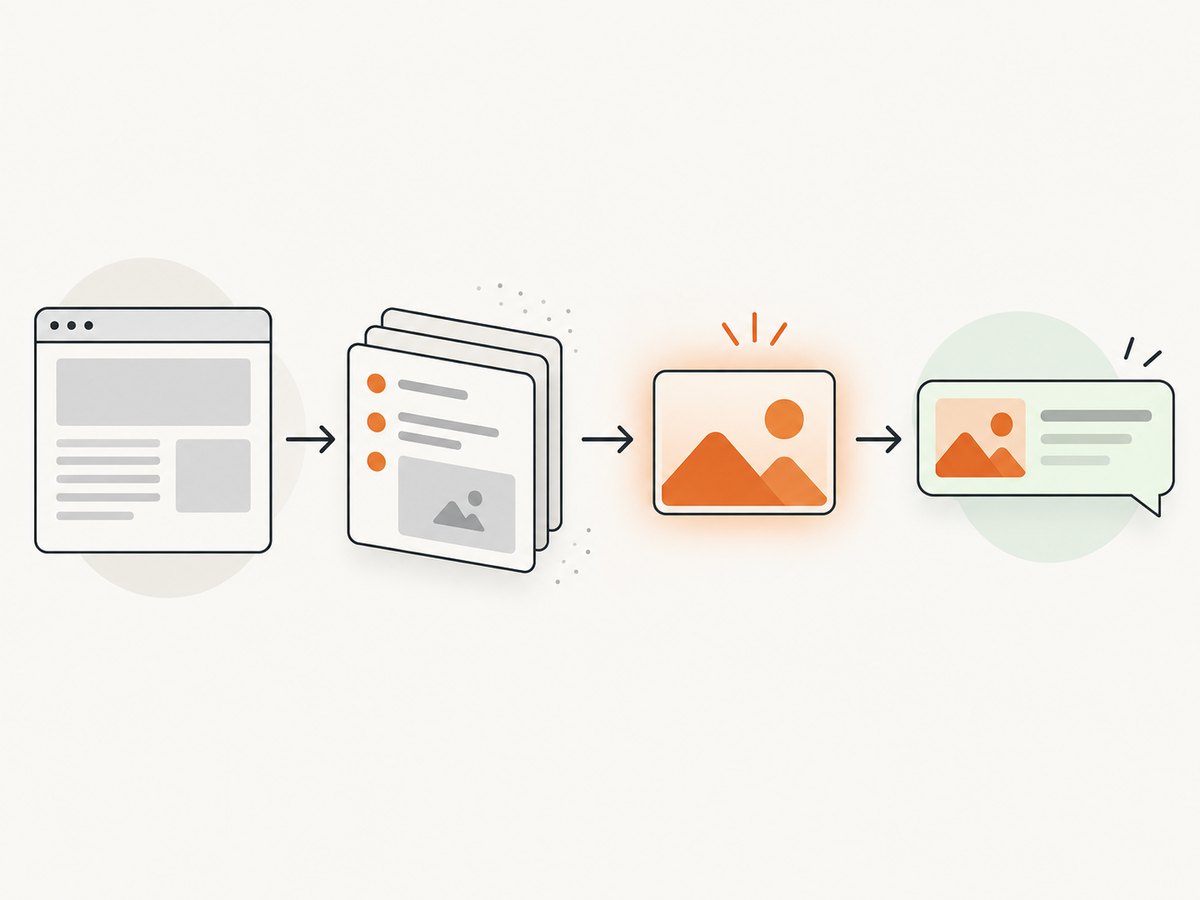
The metadata must be present in the HTML response that a fetcher receives. Tags added only after a browser executes JavaScript may be missed. Use absolute HTTPS URLs for the page and image.
<!doctype html>
<html lang='en'>
<head>
  <meta property='og:title' content='Your page title'>
  <meta property='og:description' content='A concise description of the page.'>
  <meta property='og:url' content='https://www.example.com/article'>
  <meta property='og:type' content='article'>
  <meta property='og:image' content='https://www.example.com/images/article-preview.jpg'>
  <meta property='og:image:alt' content='Description of the preview image'>
</head>
<body>...</body>
</html>
Place these tags in the server-rendered <head>. Confirm that your framework, reverse proxy, CMS, or template is not removing them for anonymous requests. OpenGraphPlus documents missing or malformed og:title, og:description, and og:image as common causes, while noting that this is troubleshooting guidance rather than an official WhatsApp protocol specification. See the metadata troubleshooting guide.
4. Verify the image URL independently
Copy the exact value of og:image and test it outside your logged-in browser. It should resolve over HTTPS, return the intended image, and work without cookies, a login, an expiring token, hotlink protection, or a crawler block.
curl -I -L 'https://www.example.com/images/article-preview.jpg'Look for a successful final response and an image content type such as image/jpeg or image/png. Also check that redirects do not lead to an HTML error page. OpenGraphPlus recommends a complete HTTPS URL and public access for preview images. See the image troubleshooting guide.
Automated Python check
import requests
from bs4 import BeautifulSoup

page_url = 'https://www.example.com/article'
page = requests.get(page_url, timeout=20, headers={'User-Agent': 'preview-check/1.0'})
page.raise_for_status()
soup = BeautifulSoup(page.text, 'html.parser')
for name in ('og:title', 'og:description', 'og:url', 'og:image'):
    tag = soup.find('meta', attrs={'property': name})
    print(f'{name}: {tag.get("content") if tag else "MISSING"}')

image_url = soup.find('meta', attrs={'property': 'og:image'})['content']
image = requests.get(image_url, timeout=20, allow_redirects=True,
                     headers={'User-Agent': 'preview-check/1.0'})
print('image status:', image.status_code)
print('image type:', image.headers.get('content-type'))
print('final URL:', image.url)
Automated Node.js check
const pageUrl = 'https://www.example.com/article';
const pageRes = await fetch(pageUrl, { headers: { 'user-agent': 'preview-check/1.0' } });
if (!pageRes.ok) throw new Error(`Page returned ${pageRes.status}`);
const html = await pageRes.text();
const getOg = (property) => {
  const re = new RegExp(`<meta[^>]+property=["']${property}["'][^>]+content=["']([^"']+)["']`, 'i');
  return html.match(re)?.[1] ?? null;
};
for (const key of ['og:title', 'og:description', 'og:url', 'og:image']) {
  console.log(`${key}:`, getOg(key) ?? 'MISSING');
}
const imageUrl = getOg('og:image');
if (!imageUrl) throw new Error('og:image is missing');
const imageRes = await fetch(imageUrl, { method: 'HEAD', redirect: 'follow' });
console.log('image status:', imageRes.status);
console.log('image type:', imageRes.headers.get('content-type'));
console.log('final URL:', imageRes.url);
5. Treat image dimensions and file size as experiments
Third-party guides suggest that very small images may be omitted or shown as small thumbnails and that very large files can fail to process. The research available for this article does not establish any numeric dimensions or byte limits as official WhatsApp requirements. If the URL and metadata are correct, try a reasonably sized JPEG or PNG, then retest. Record the change so you can tell whether it affected the result.
- Use a stable image URL rather than a short-lived signed URL.
- Make sure the response is an image, not an HTML error document.
- Keep the important subject inside the center-safe area because different clients crop previews differently.
- Do not rely on CSS backgrounds for the preview; use
og:image.
6. Handle JavaScript-rendered pages
View source or fetch the raw response with curl. Do not rely only on the browser’s Elements panel, which shows the DOM after scripts have run. If the Open Graph tags appear only after hydration, move them into server-side rendering, static HTML, or a framework’s metadata API that emits tags in the initial response.
Also check redirects, locale middleware, authentication gates, robots or firewall rules, and user-agent-specific responses. A page that looks correct to you may return a different document to an anonymous fetcher.
7. Retest after changing metadata
- Publish the corrected HTML and image.
- Fetch the page and image from a clean network or an unauthenticated session.
- Send the URL in a new WhatsApp message.
- Compare the new card with the delivered
og:image.
Preview cards can remain stale. A third-party guide suggests sharing a changed URL, such as one with a versioned query string, as a cache-refresh experiment. WhatsApp’s official help article found for this research does not document preview-cache duration or guarantee that this workaround invalidates a cache. See the cache troubleshooting suggestion.
8. Troubleshooting checklist
| Error or symptom | Likely cause | Fix |
|---|---|---|
| No preview for every URL | Disable link previews is enabled | Turn it off under Privacy → Advanced and share again. |
| Card appears without an image | Missing, relative, malformed, or inaccessible og:image |
Use an absolute HTTPS URL and test it without authentication. |
| Image URL returns 200 in a browser only | Cookies, login, hotlink protection, or expiring authorization | Make the asset publicly readable and stable. |
| Metadata visible only in DevTools | Tags are injected after JavaScript runs | Emit tags in the initial HTML response. |
| Preview shows an old image | Cached card | Send a fresh message; optionally test a versioned URL, with no guarantee. |
| Preview is inconsistent across URLs | Redirect, firewall, locale, or user-agent variation | Inspect the final response and compare anonymous requests. |
9. Performance, reliability, and cost considerations
For a website you control, server-rendered metadata avoids the extra browser execution step and usually gives the most predictable fetch. Host the image on an endpoint designed for anonymous reads, keep redirects short, and monitor image responses separately from page responses. Test from outside your office network so local DNS, VPN, or authentication does not hide failures.
WhatsApp does not publish the numeric image thresholds or cache timing needed to promise a particular thumbnail size or refresh time. Treat those values as variables to test rather than contractual limits. The core fix normally costs nothing beyond your existing hosting; a screenshot service is useful when you need to inspect the rendered result of pages that require browser actions.
10. Or skip the browser setup
ScreenshotNeo can capture the rendered page while you diagnose what a visitor sees. It accepts one GET request and returns PNG, JPEG, WebP, or PDF. Before capture, it accepts cookie or consent banners and removes more than 60 known consent platforms, newsletter popups, and chat widgets; each step can be turned off. Bot checks, CAPTCHAs, blank pages, timeouts, failed loads, and cache hits are not billed, and the response identifies the result with X-Page-Verdict and X-Billed headers. Its MCP server also provides take_screenshot, get_page_info, and capture_pdf for Claude, Cursor, and other MCP clients.

See the ScreenshotNeo API documentation for all options. The same request works from cURL, Python, or Node.js:
curl -G "https://api.screenshotneo.com/v1/shot" -d access_key=YOUR_API_KEY --data-urlencode url=https://example.com -o shot.webpimport requests
r = requests.get("https://api.screenshotneo.com/v1/shot", params={"access_key": "YOUR_API_KEY", "url": "https://example.com"}, timeout=90)
open("shot.webp", "wb").write(r.content)const q = new URLSearchParams({ access_key: 'YOUR_API_KEY', url: 'https://example.com' });
const res = await fetch(`https://api.screenshotneo.com/v1/shot?${q}`);You can also use full-page capture with lazy images loaded, a CSS element selector, custom JavaScript or CSS, waits for a selector or network idle, custom headers and cookies, a user agent, timezone and geolocation, request blocking, caching with a chosen TTL, signed links, asynchronous jobs with signed webhooks, bulk capture of up to 100 URLs per call, and a usage API. Plans include 1,000 shots per month free with no card; paid plans start at $5 for 3,000 shots. Create a free ScreenshotNeo account.
FAQ
Does WhatsApp require Open Graph tags?
Open Graph tags are the practical way to tell link-preview systems which title, description, and image to use. The research here treats missing or malformed tags as troubleshooting causes, not as a published WhatsApp protocol guarantee.
Why does the link work when I open it?
Your browser may have cookies, JavaScript state, or authentication that a public fetcher does not. Test the initial HTML and image URL without those credentials.
Can I force WhatsApp to refresh a thumbnail?
There is no verified cache-control method in the sources used here. Send a fresh message after the change; a versioned URL is only a third-party experiment.
Will changing the image dimensions always fix it?
No. Numeric limits were not verified as official WhatsApp requirements. First confirm metadata and public image access, then try a reasonably sized JPEG or PNG.


