How to Determine When Puppeteer Captures a Screenshot
Puppeteer captures exactly when awaited page.screenshot() runs. Learn which waits produce reliable images, how to handle dynamic pages, and when to use an API.

Direct answer: Puppeteer takes the screenshot when your code calls and awaits page.screenshot(). The method does not decide whether the page is ready. Your script decides that by waiting for navigation, a selector, network inactivity, a timer, or an application-specific condition before invoking the screenshot method.
A reliable baseline looks like this:
import puppeteer from 'puppeteer';

const browser = await puppeteer.launch();
const page = await browser.newPage();

await page.goto('https://example.com/report', { waitUntil: 'networkidle2' });
await page.waitForSelector('#report', { visible: true });
await page.screenshot({ path: 'report.png' });

await browser.close();
goto() establishes a navigation milestone, waitForSelector() confirms that the content you need is present and visible, and screenshot() captures the current rendered state. The right wait depends on the page and on what the image must contain.
What actually triggers a Puppeteer screenshot?
Page.screenshot() is the capture operation. It returns a promise for the image data (or writes to a path), so the capture occurs at the point where the call executes in your script. Puppeteer does not automatically wait for every image, animation, API request, font, or framework render to finish. The official screenshots guide describes the method, while the Page.screenshot API reference lists its options.
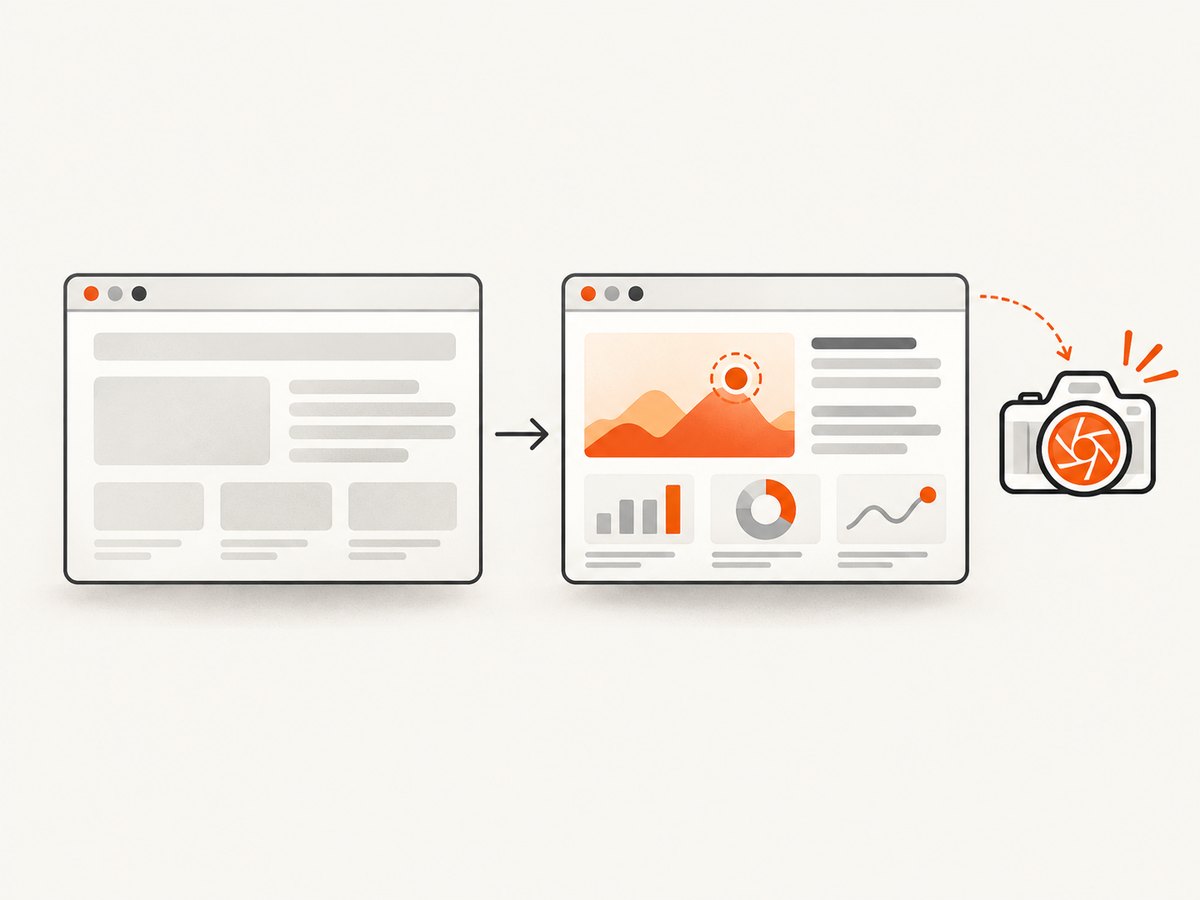
Any work after the screenshot call happens too late for that image. For example, setting a value, clicking a tab, or waiting for a chart after page.screenshot() changes the page but not the already-created file. Put every readiness action before the call and await it.
Choose a readiness condition
domcontentloaded
This lifecycle event fires when the HTML has been parsed. It is useful for static documents where later images, stylesheets, fonts, or JavaScript are not part of the required result. It is often the lowest-latency choice, but it is not proof that the visible page is complete.
await page.goto(url, { waitUntil: 'domcontentloaded' });
await page.screenshot({ path: 'dom.png' });
load
The load event waits for the document’s load event, including resources that participate in that event. Use it when the document load milestone is meaningful to your page. A single-page application can continue fetching data and rendering after load, so pair it with a selector or application condition when the final UI matters.
await page.goto(url, { waitUntil: 'load' });
await page.waitForSelector('.invoice-total', { visible: true });
await page.screenshot({ path: 'invoice.png' });
networkidle0 and networkidle2
Puppeteer defines networkidle0 as no more than zero active connections for at least 500 ms, and networkidle2 as no more than two active connections for at least 500 ms. These settings are navigation milestones, not a universal definition of “fully rendered.” Analytics, WebSockets, polling, ads, and other long-lived requests can prevent networkidle0 or make networkidle2 occur before a late render.
await page.goto(url, { waitUntil: 'networkidle2' });
await page.screenshot({ path: 'network-quiet.png' });
For a separate idle wait after navigation, use page.waitForNetworkIdle(). Its documented default idle window is 500 ms, and you can set the idle time and timeout.
await page.goto(url, { waitUntil: 'domcontentloaded' });
await page.waitForNetworkIdle({ idleTime: 1000, timeout: 30000 });
await page.screenshot({ path: 'after-idle.png' });
Wait for a selector
A selector is usually the clearest condition when a known widget, report, chart, or result must appear. waitForSelector() resolves immediately if the selector already exists. Set visible: true to require that it is present and not hidden.
await page.goto(url, { waitUntil: 'domcontentloaded' });
await page.waitForSelector('[data-testid="results"]', {
  visible: true,
  timeout: 30000
});
await page.screenshot({ path: 'results.png' });
A selector only proves that the matching element meets the requested state. If its text, rows, or chart data arrives later, wait for a more specific signal, such as a row count or a completion attribute.
Wait for an application condition
Framework applications often expose a better readiness signal than network activity. You can wait until a status attribute changes, a loading element disappears, or a global variable is set.
await page.goto(url, { waitUntil: 'domcontentloaded' });
await page.waitForFunction(
  () => document.querySelector('#report')?.dataset.status === 'ready',
  { timeout: 30000 }
);
await page.screenshot({ path: 'ready-report.png' });
For a simple, known delay, use page.waitForTimeout() only when there is no observable condition. Fixed sleeps are easy to write but either waste time or fail when a slow run needs longer than the chosen delay.
Navigation started by a click
When a click causes navigation, start the navigation wait and click together. Waiting for the click first can miss the navigation event.
await Promise.all([
  page.waitForNavigation({ waitUntil: 'networkidle2' }),
  page.click('a.next-page')
]);
await page.waitForSelector('#next-page-content', { visible: true });
await page.screenshot({ path: 'next-page.png' });
If the click updates the current document without navigation, replace waitForNavigation() with a selector or waitForFunction() that observes the resulting state.
Control what gets captured
Viewport versus full page
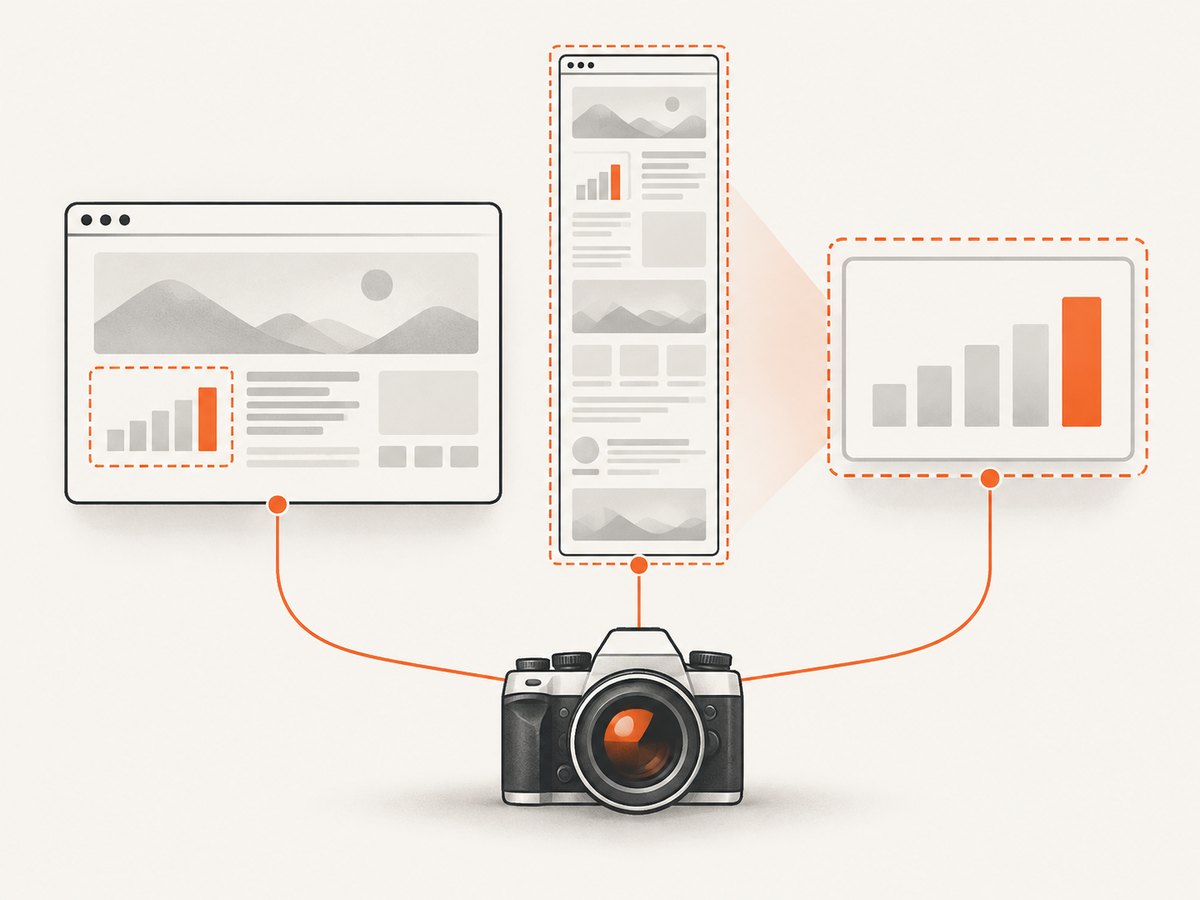
By default, Puppeteer captures the current viewport. Set fullPage: true to request the complete page height.
await page.setViewport({ width: 1440, height: 900, deviceScaleFactor: 1 });
await page.screenshot({ path: 'full.png', fullPage: true });
Full-page capture can expose lazy-loading problems: content below the fold may not load until it is scrolled into view. Trigger the page’s lazy content before capture, or use a page-specific condition that confirms all sections are populated.
Capture one element
For a card, chart, or invoice, wait for the element and call ElementHandle.screenshot(). Puppeteer scrolls the element into view when needed. The call fails if the element has detached from the DOM, so re-query after a render that replaces it.
const chart = await page.waitForSelector('#sales-chart', { visible: true });
await chart.screenshot({ path: 'sales-chart.png' });
Clip a region
clip accepts an x, y, width, and height rectangle. Use it when you need a stable viewport region rather than an entire element. captureBeyondViewport controls whether Puppeteer can capture outside the current viewport for a clip.
await page.screenshot({
  path: 'region.png',
  clip: { x: 40, y: 120, width: 800, height: 500 },
  captureBeyondViewport: true
});
Complete Puppeteer example with robust waits
import puppeteer from 'puppeteer';

const url = process.argv[2] ?? 'https://example.com/report';
const browser = await puppeteer.launch({ headless: true });
try {
  const page = await browser.newPage();
  await page.setViewport({ width: 1440, height: 900, deviceScaleFactor: 1 });

  await page.goto(url, {
    waitUntil: 'domcontentloaded',
    timeout: 60000
  });

  await page.waitForSelector('#report', {
    visible: true,
    timeout: 30000
  });

  await page.waitForFunction(
    () => document.querySelector('#report')?.dataset.status === 'ready',
    { timeout: 30000 }
  );

  await page.screenshot({
    path: 'report.webp',
    type: 'webp',
    fullPage: true,
    captureBeyondViewport: true
  });
} finally {
  await browser.close();
}
Install Puppeteer with npm install puppeteer. Adjust the selector and readiness predicate to match the application. Keep the navigation timeout, selector timeout, and condition timeout explicit so a failed capture produces a useful error instead of hanging indefinitely.
Common timing failures and fixes
| Symptom | Likely cause | Fix |
|---|---|---|
| Screenshot is blank or shows a spinner | Capture ran after DOM parsing but before application data rendered. | Wait for a visible result selector or a ready state exposed by the app. |
| Images or fonts are missing | Resources load after the chosen lifecycle event. | Use load, network idle, or an explicit image/font readiness condition. |
networkidle0 times out |
Polling, analytics, WebSockets, or ads keep connections open. | Use networkidle2 or domcontentloaded plus a page-specific selector. |
| Capture is sometimes too early | A fixed delay is shorter than a slow API response. | Replace the sleep with waitForSelector() or waitForFunction(). |
| Element screenshot throws detached error | The framework replaced the element after you obtained its handle. | Wait again and obtain a fresh handle immediately before capture. |
| Click navigation wait hangs | The click changed the page without navigation, or the event was awaited in the wrong order. | Use Promise.all for real navigation; otherwise wait for the resulting DOM state. |
| Full page misses lower content | Lazy loading only runs when content enters the viewport. | Scroll through the page or trigger the app’s loading mechanism before capture. |
| Animation creates inconsistent images | The screenshot lands at a different animation frame each run. | Disable animations with injected CSS or wait for an application “settled” state. |
Reliability checklist
- Set an explicit navigation timeout and handle timeout errors.
- Use a semantic readiness signal tied to the content in the image.
- Set the viewport and device scale factor explicitly for repeatable dimensions.
- Wait for fonts and critical images when typography or layout matters.
- Use a fresh page or reset state between unrelated captures.
- Log the URL, wait condition, elapsed time, and error type for failed jobs.
- Close the browser in a
finallyblock so crashes do not leak processes.
Performance and cost considerations
Every wait adds latency, but an unnecessary global wait is usually slower than a targeted condition. Start navigation with domcontentloaded, then wait for the exact selector or state required by the screenshot. Use network idle when quiet traffic is itself the requirement. Reuse a browser process for a batch of pages while creating isolated pages for separate sessions.
Full-page screenshots and high device scale factors consume more memory than viewport captures. Large pages can require extra time to layout and encode. Choose PNG for lossless UI text, JPEG for photographs, and WebP when you want a smaller modern image and your consumers support it.
Puppeteer itself has no per-screenshot service charge, but you pay for the machine, browser startup, bandwidth, storage, and engineering time required to operate it. Third-party pages can also contain bot checks, consent banners, popups, or failing resources that make a “successful” browser run produce an unusable image.
Or skip the browser setup
ScreenshotNeo provides a website screenshot API and MCP server. One GET request returns a PNG, JPEG, WebP, or PDF. It accepts the URL and handles the capture service for you. See the ScreenshotNeo API documentation for the complete parameter list.
curl -G "https://api.screenshotneo.com/v1/shot" -d access_key=YOUR_API_KEY --data-urlencode url=https://stripe.com -o shot.webpimport requests
r = requests.get("https://api.screenshotneo.com/v1/shot", params={"access_key": "YOUR_API_KEY", "url": "https://stripe.com"}, timeout=90)
open("shot.webp", "wb").write(r.content)const q = new URLSearchParams({ access_key: 'YOUR_API_KEY', url: 'https://stripe.com' });
const res = await fetch(`https://api.screenshotneo.com/v1/shot?${q}`);ScreenshotNeo can wait for a selector, a delay, or network idle, and supports full-page shots, element selectors, custom JavaScript and CSS, clicks, hidden selectors, device presets, arbitrary viewports, retina scale, headers, cookies, user agents, authorization, timezone, geolocation, resource blocking, caching, signed links, asynchronous jobs, webhooks, bulk capture, PDFs, and HTML/CSS rendering. Cookie and consent banners are accepted and more than 60 known consent platforms, newsletter popups, and chat widgets are removed before capture; each step can be turned off.
Only clean shots are billed. Bot checks or CAPTCHAs, blank pages, timeouts, failed loads, and cache hits cost nothing, and the response identifies the result with X-Page-Verdict and X-Billed headers. An MCP server exposes take_screenshot, get_page_info, and capture_pdf to Claude, Cursor, and other MCP clients.
The Free plan includes 1,000 screenshots each month with no card. Paid plans start at $5 for 3,000 shots; yearly billing gives two months free, and every feature is included on every plan. Create a free ScreenshotNeo account to start.
FAQ
Does page.screenshot() wait for network idle automatically?
No. It captures when called. Add waitUntil, waitForNetworkIdle(), a selector wait, or an application condition before it.
Is networkidle2 proof that the page is fully rendered?
No. It only observes a period with no more than two active connections. Client-side rendering can continue afterward.
Should I always use fullPage: true?
No. Use viewport capture for what a user sees, full page for a document, and an element screenshot for a specific component.
What is the best wait for a dashboard?
Wait for a dashboard-specific ready signal, such as a visible results container with a completed status. Combine it with navigation or network idle only when those milestones add value.
How do I capture after a navigation click?
Use Promise.all([page.waitForNavigation(...), page.click(...)]) when the click navigates. If it updates the current page, wait for the resulting selector or state instead.


