When to Use PNG for Open Graph Images
Choose PNG for transparent, text-heavy, and screenshot-based Open Graph cards; use JPEG for photos and test WebP support before relying on it.
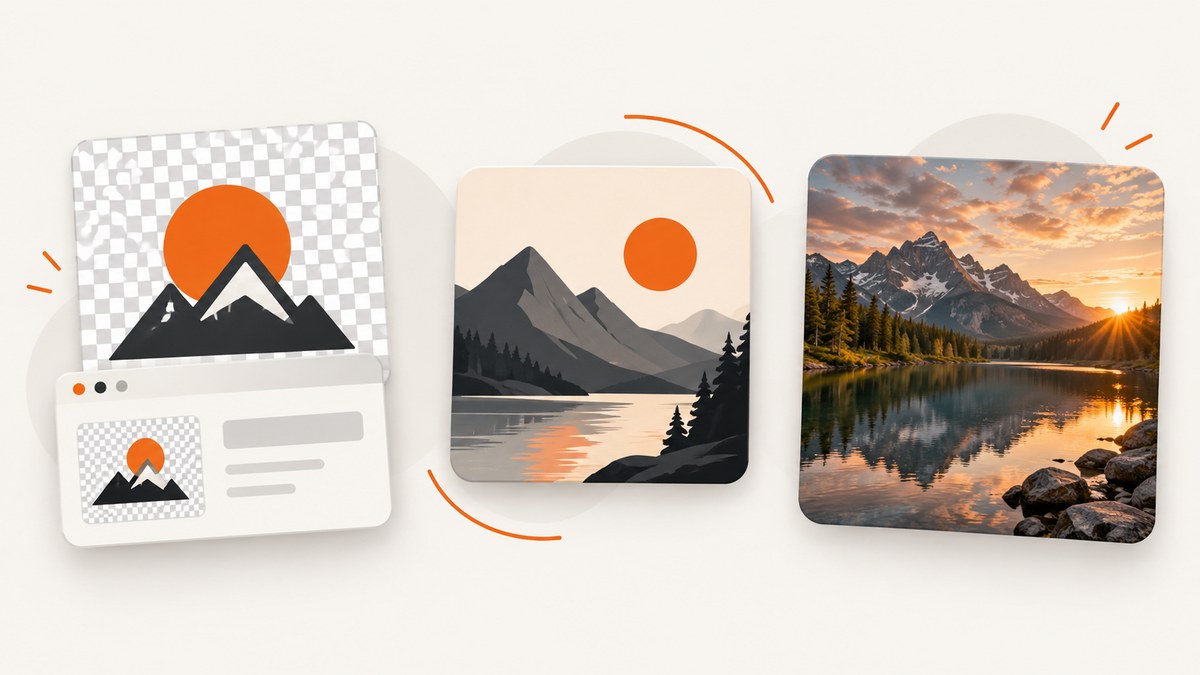
Use PNG for an Open Graph image when the card contains transparency, a logo, a screenshot, a diagram, a UI capture, or small type that must remain sharp. PNG uses lossless compression, so it avoids the ringing and block artifacts that JPEG can create around hard edges and lettering. Use JPEG when the card is mainly photographic and a smaller file matters. WebP can reduce bytes and still support transparency, but make it your only asset only after testing every crawler and platform that matters to you.
For a conservative default, create a 1200 × 630 pixel (1.91:1) image, publish it at an absolute HTTPS URL, and include complete Open Graph metadata. The Open Graph protocol defines image type, dimensions, and alt metadata in addition to the image URL. See the Open Graph protocol for the canonical property definitions.
PNG, JPEG, or WebP: the direct decision
| Asset content | Recommended format | Why |
|---|---|---|
| Logo, icon, screenshot, diagram, UI capture, or text-heavy card | PNG | Lossless edges keep type and geometry readable; alpha transparency is available. |
| Photo or gradient-heavy artwork without transparency | JPEG | Photographic detail usually compresses to fewer bytes. |
| Transparency plus lower bytes, with tested crawler support | WebP | WebP supports lossy and lossless compression and alpha transparency; verify destinations first. |
| Unknown or mixed crawler compatibility | PNG or JPEG fallback | These are the conservative choices when you cannot validate WebP everywhere. |
Choose PNG when edges carry meaning
PNG is a strong fit when one-pixel boundaries, text, icons, or transparency are part of the design. A code screenshot, product interface, flow diagram, or logo may look acceptable in an editor but become visibly soft after JPEG compression. JPEG divides an image into blocks and discards detail; that can produce halos around dark text on a light background and muddy thin lines.
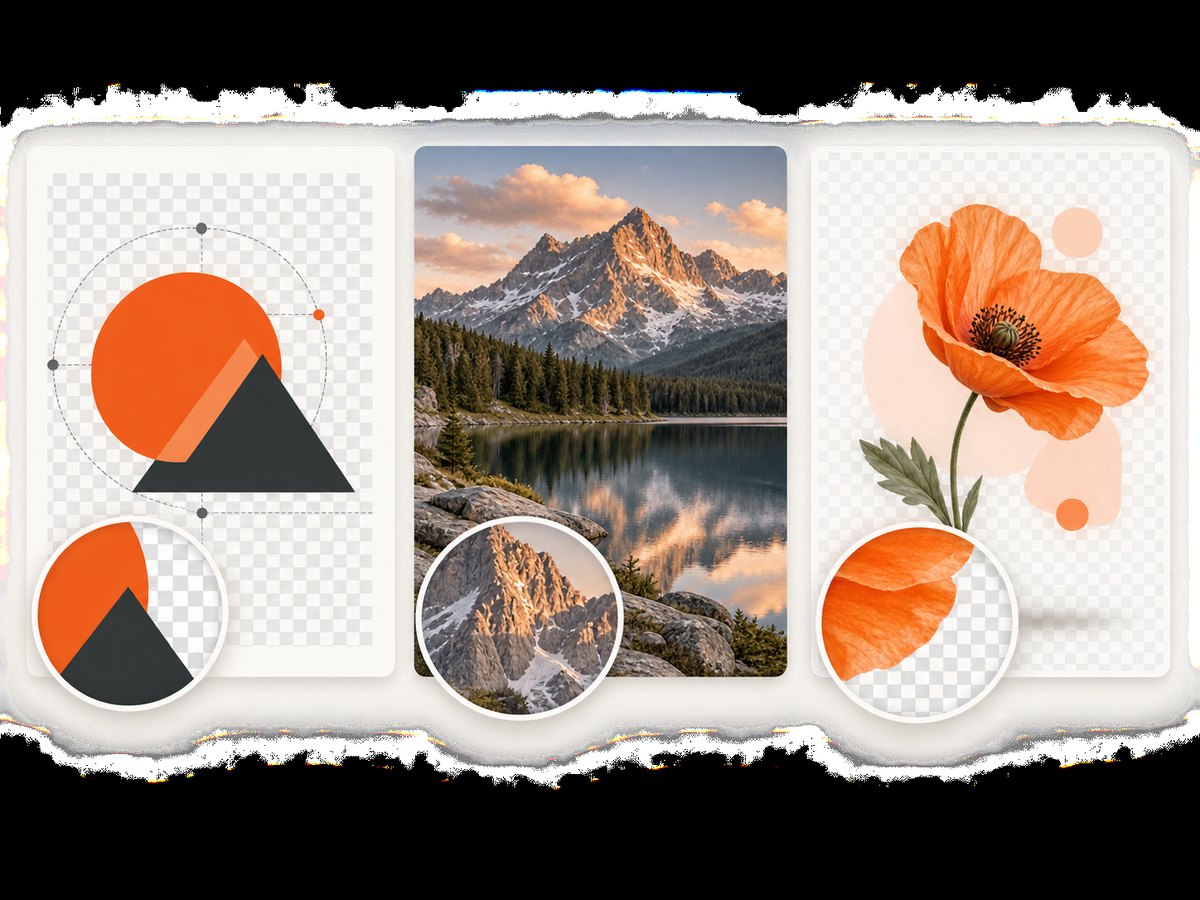
PNG also preserves an alpha channel. You can prepare a card with a transparent logo or illustration, then place it over different background colors during your publishing workflow. If the final card has a solid photographic background, flattening to JPEG may still be the smaller delivery choice.
Choose JPEG when the image is photography first
A photo-led announcement, travel image, or people-focused campaign normally has many gradual color changes and little small text. JPEG is designed for that kind of content and often produces a smaller file at a visually acceptable quality setting. Avoid JPEG when the same card contains a crisp wordmark, a dense chart, or a screenshot that readers must inspect.
WebP is an optimization option, not an automatic replacement
Google’s WebP documentation describes WebP as supporting both lossy and lossless compression, with smaller images possible than PNG when lossy RGB compression is acceptable. RFC 9649 specifies WebP’s lossy and lossless modes and alpha channel. Those capabilities make WebP attractive for a modern pipeline, but the Open Graph protocol page does not promise that every social crawler accepts it.
Serve a tested PNG or JPEG fallback when a platform is important and its crawler behavior is uncertain. Do not infer support from the fact that a normal browser displays WebP: social crawlers can fetch, cache, transform, or reject assets differently.
Open Graph dimensions and metadata
Start at 1200 × 630 pixels. A current cross-platform guide lists that 1.91:1 canvas as a practical size for Facebook, LinkedIn, Discord, Slack, WhatsApp, iMessage, Threads, Bluesky, and Mastodon. The guide reports PNG and JPG as acceptable for those destinations; still check the preview generated by each service before launch. Keep essential lettering and logos away from the outer edges because previews may crop or reframe the image.
Use an absolute HTTPS URL in og:image. Add the MIME type when known, plus width, height, and useful alternative text:
<meta property="og:title" content="When to Use PNG for Open Graph Images">
<meta property="og:description" content="A practical guide to choosing PNG, JPEG, or WebP for social previews.">
<meta property="og:type" content="article">
<meta property="og:url" content="https://example.com/guides/og-images">
<meta property="og:image" content="https://cdn.example.com/og/og-images.png">
<meta property="og:image:type" content="image/png">
<meta property="og:image:width" content="1200">
<meta property="og:image:height" content="630">
<meta property="og:image:alt" content="Comparison of PNG, JPEG, and WebP choices for Open Graph cards">
The image URL must be reachable without a login, cookie, or JavaScript challenge. Keep redirects short and make sure your server returns the correct Content-Type, such as image/png. A URL ending in .png is not enough if the response headers identify another media type.
Designing a PNG Open Graph card
Use a safe area for text
Place the title, logo, and key numbers in an interior zone with generous padding. A platform may crop a preview, add rounded corners, or show the image at a small size. Test the design at thumbnail dimensions as well as at 1200 × 630. If the title only works when zoomed in, simplify it or increase its size.
Keep transparency purposeful
Transparency is useful while composing a card, but many social previews look more consistent with a solid background. Preview the flattened result and check that anti-aliased edges still look clean against the final color. If you export a transparent PNG, confirm that the destination displays it as expected instead of compositing it over an unintended background.
Reduce size without damaging type
Use indexed or palette PNG when the artwork has a limited number of colors, and remove metadata that is not needed for publishing. Do not lower color depth blindly: gradients and photographs can band. For a text-heavy card, inspect small characters after optimization and compare the optimized file with the source at 100% zoom.
Generate and validate an OG PNG yourself
A browser renderer is useful when your card is built from HTML and CSS. The following Playwright example creates a 1200 × 630 page, waits for fonts and images, and writes a PNG. Install Playwright with npm install playwright, then install its browser with npx playwright install chromium.
import { chromium } from 'playwright';

const browser = await chromium.launch();
const page = await browser.newPage({
  viewport: { width: 1200, height: 630 },
  deviceScaleFactor: 1
});

await page.setContent(`
  <!doctype html>
  <html>
    <head>
      <style>
        * { box-sizing: border-box; }
        html, body { margin: 0; width: 1200px; height: 630px; }
        body {
          display: grid;
          place-items: center;
          padding: 72px;
          color: #102033;
          background: #f4f7fb;
          font: 700 64px/1.05 system-ui, sans-serif;
        }
        .card { width: 100%; }
        .eyebrow { margin-bottom: 24px; color: #3567d6; font-size: 24px; }
      </style>
    </head>
    <body>
      <main class="card">
        <div class="eyebrow">IMAGE ENGINEERING</div>
        <div>When to use PNG for Open Graph images</div>
      </main>
    </body>
  </html>
`, { waitUntil: 'load' });

await page.evaluate(() => document.fonts.ready);
await page.screenshot({ path: 'og-image.png', type: 'png' });
await browser.close();
For a page with remote fonts or images, wait for those resources explicitly and use stable asset URLs. If the card contains animation, freeze it before capture. Review the resulting PNG for clipped text, missing fonts, transparent areas, and unexpected scrollbars.
Validate the published result
- Fetch the public URL from a clean session and inspect the HTTP status and
Content-Type. - Confirm the dimensions are exactly 1200 × 630 or the dimensions you intentionally selected.
- Inspect the HTML head for one canonical
og:imageand matching type, width, height, and alt values. - Paste the page URL into each important platform’s preview or debugger and check the rendered crop.
- After replacing an image, account for crawler caches. A changed file at the same URL may not appear immediately; version the URL when your publishing process permits it.
Or skip the browser setup
ScreenshotNeo is a website screenshot API and MCP server. It can return PNG, JPEG, WebP, or PDF from one GET request, which is useful when your OG artwork starts as a live page or component. See the ScreenshotNeo documentation for request options.
cURL:
curl -G "https://api.screenshotneo.com/v1/shot" -d access_key=YOUR_API_KEY --data-urlencode url=https://stripe.com -o shot.webpPython:
import requests
r = requests.get("https://api.screenshotneo.com/v1/shot", params={"access_key": "YOUR_API_KEY", "url": "https://stripe.com"}, timeout=90)
open("shot.webp", "wb").write(r.content)
Node.js:
const q = new URLSearchParams({ access_key: 'YOUR_API_KEY', url: 'https://stripe.com' });
const res = await fetch(`https://api.screenshotneo.com/v1/shot?${q}`);
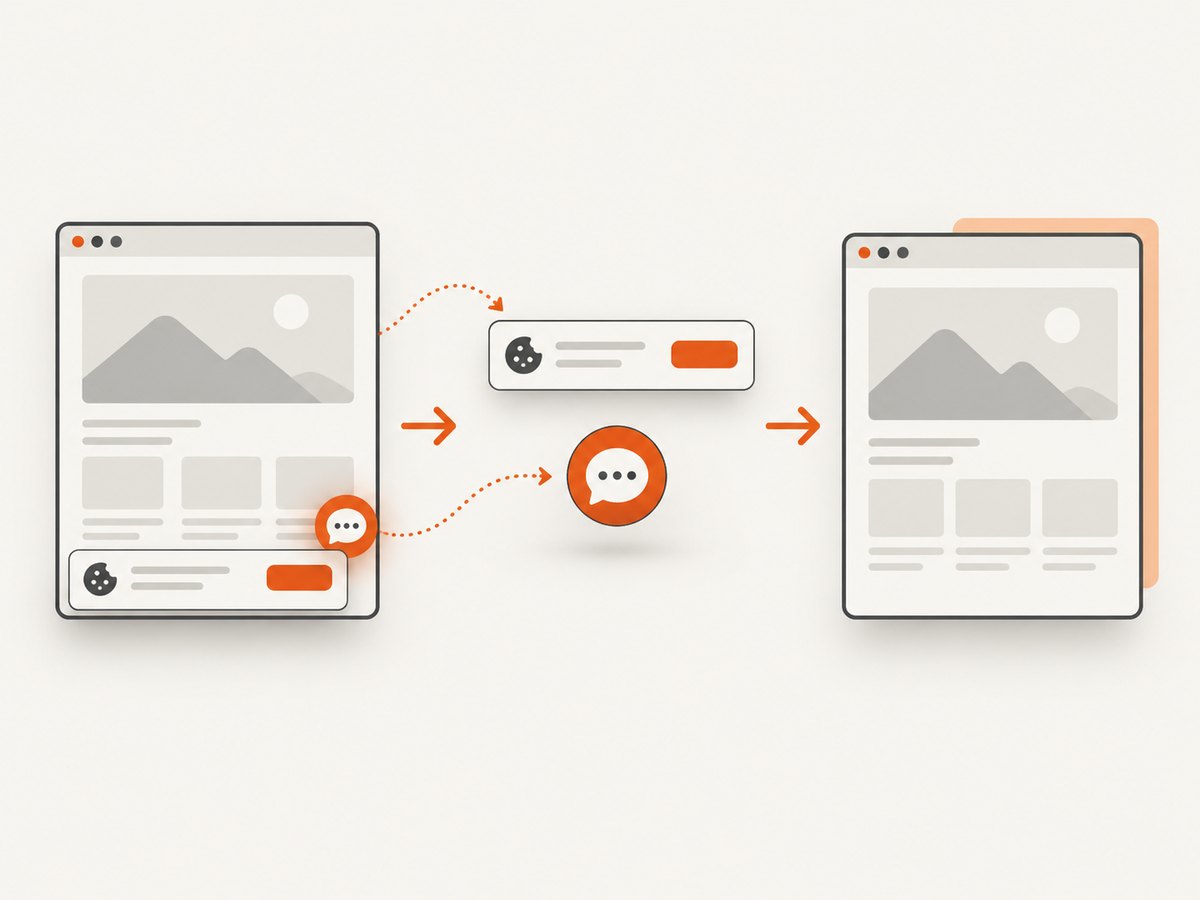
ScreenshotNeo removes cookie and consent banners, newsletter popups, and chat widgets before capture. Bot checks, blank pages, timeouts, failed loads, and cache hits are not billed, and each response reports its result through X-Page-Verdict and X-Billed headers. Its MCP server provides take_screenshot, get_page_info, and capture_pdf tools for Claude, Cursor, and other MCP clients. You can use full-page capture, element capture, custom CSS and JavaScript, device presets, retina scale, waits, request blocking, headers, cookies, user agents, caching, signed links, asynchronous jobs, bulk capture, and a usage API.
There are 1,000 free screenshots per month with no card. Paid plans start at $5 for 3,000 shots, and every feature is available on every plan. Create a free ScreenshotNeo account.
Troubleshooting common preview failures
| Symptom | Likely cause | Fix |
|---|---|---|
| No image appears | The URL is private, blocked, malformed, or returns an error. | Fetch the absolute HTTPS URL without authentication and verify a successful response. |
| Image is blurry | The source is too small, JPEG quality is too low, or the platform resized it. | Start from 1200 × 630, keep text large, and use PNG for sharp UI and type. |
| Text is cut off | The platform cropped the card or the renderer captured before fonts loaded. | Use an interior safe area and wait for document.fonts.ready before capture. |
| Transparent background looks wrong | The destination composited alpha over an unexpected color. | Preview a flattened version or publish a solid-background PNG/JPEG fallback. |
| Old artwork keeps showing | A crawler cached the previous URL. | Use the platform’s refresh tool where available or publish a versioned image URL. |
| WebP works in a browser but not in a card | The social crawler does not accept that format or cached an earlier response. | Provide a tested PNG or JPEG fallback and verify the crawler’s fetched MIME type. |
Performance, reliability, and cost considerations
File size affects how quickly a crawler can fetch the asset, but a tiny unreadable card is not an optimization win. Optimize the format that preserves the design: PNG for text and transparency, JPEG for photographic content, and WebP only after compatibility testing. Keep the image on a reliable HTTPS host, avoid unnecessary redirects, and make the response cacheable.
If you render cards on demand, cache by a content hash or version and reuse the result for every platform. A browser-based pipeline should wait only for resources that affect the final card; excessive network-idle waits make batch generation slower. When using an external screenshot service, inspect verdict and billing headers so failed captures can be handled separately from successful assets.
FAQ
Is PNG always better for Open Graph?
No. PNG is better for transparency, screenshots, diagrams, logos, and small type. JPEG is usually more efficient for photo-led artwork.
Can I publish only WebP?
Only when every important crawler has been tested with your exact URL and headers. Otherwise publish PNG or JPEG as the conservative fallback.
What is the safest starting size?
Use 1200 × 630 pixels and keep key content inside a generous margin.
Does the file extension determine the format?
No. The HTTP Content-Type and the actual encoded bytes must agree. Check both when debugging a missing preview.
Should an OG image have alt text?
Yes. Include og:image:alt that describes the image’s meaningful content, alongside its type, width, and height.


