When to Use a Headless Browser for Web Automation and Screenshots
Learn when headless browsers are the right choice for automation, screenshots, PDFs and CI—and when a simpler HTTP or accessibility tool is better.
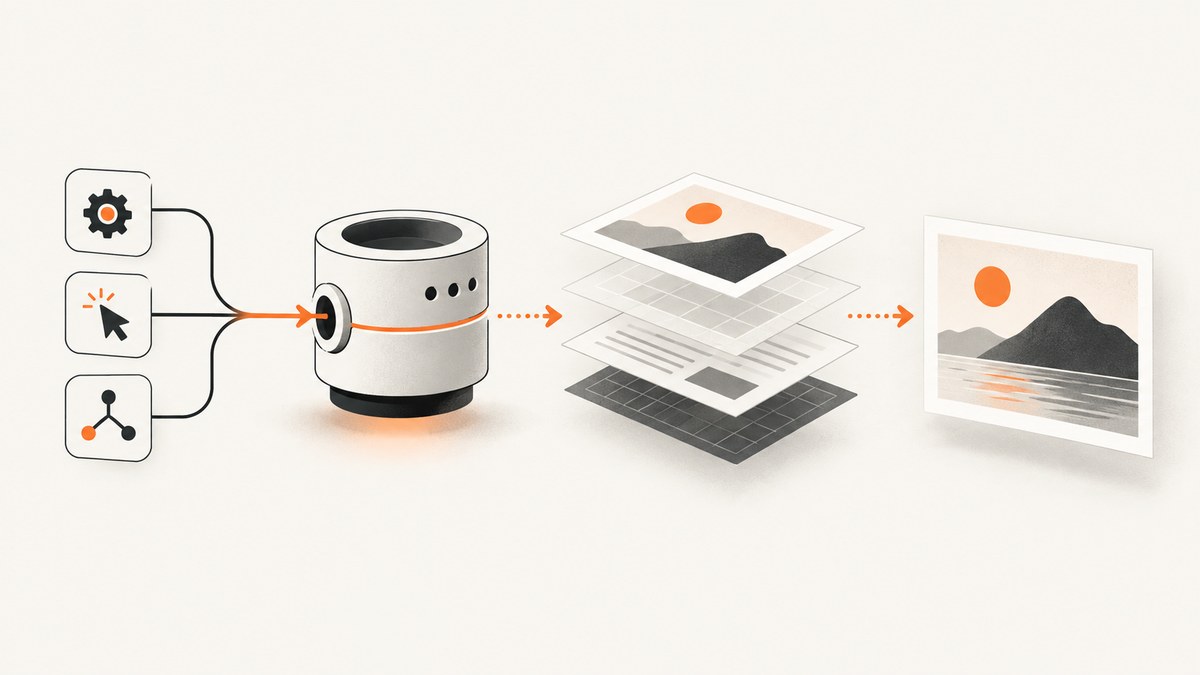
A headless browser is the right tool when your job needs a real browser engine: JavaScript execution, navigation, forms, UI interaction, SPA rendering, screenshots or PDFs. It runs Chrome, Chromium, Firefox or another supported browser without opening a visible window, so it works well in CI and unattended workers.
Use an HTTP client instead when you only need server HTML or an API response. Use an accessibility snapshot or DOM assertions when you need semantic structure, text, labels or actionable controls rather than rendered pixels.
What “headless” means
Headless mode removes the visible browser window, not browser behavior. The browser still loads resources, executes JavaScript, applies CSS, lays out the page and paints pixels. Puppeteer runs headless by default and can be switched to a visible browser; Playwright supports headless and headed browser channels. See the Puppeteer headless modes guide and Playwright browser documentation.
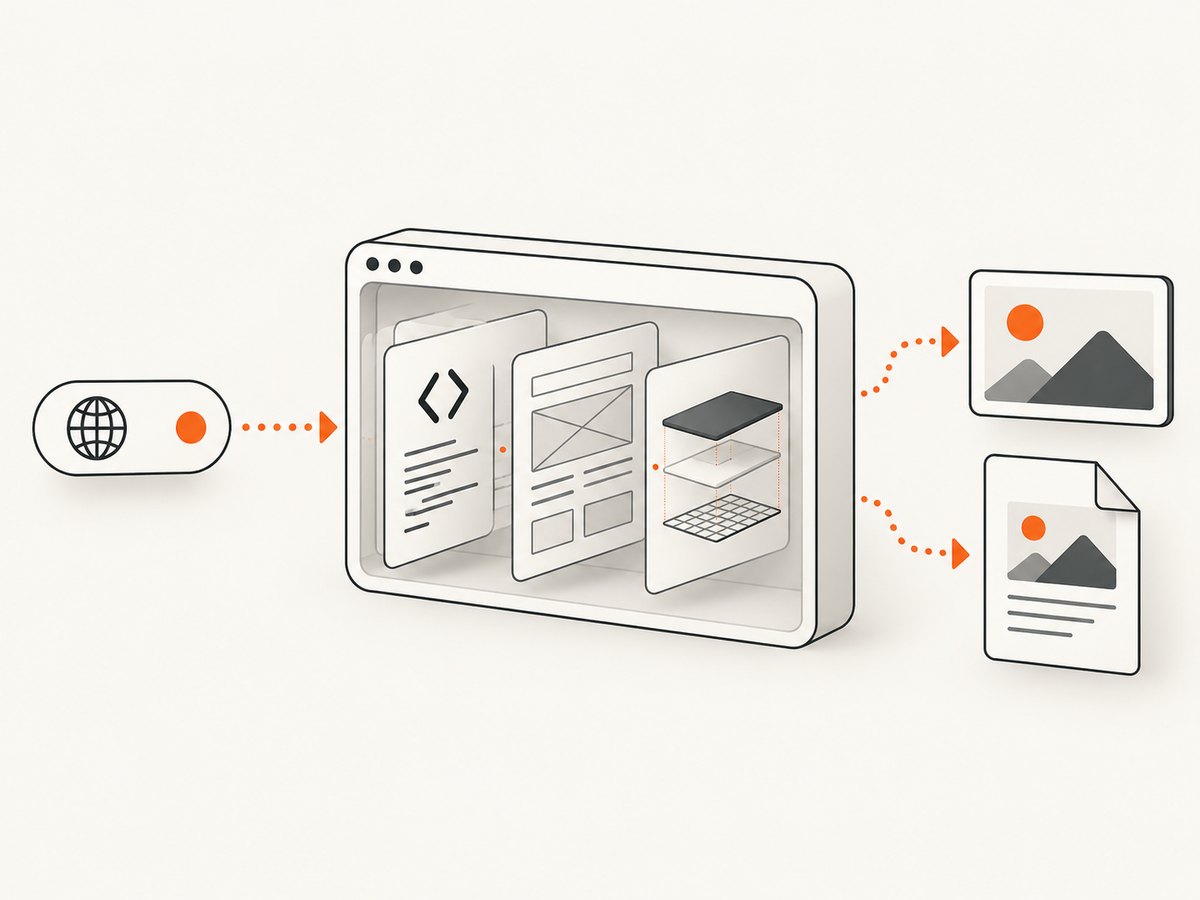
When you should use a headless browser
1. The page depends on JavaScript
Many single-page applications send an almost empty HTML shell and build the visible page after JavaScript runs. A headless browser can execute that code and capture the rendered result. An HTTP request alone usually sees only the shell.
2. You must navigate or interact with the UI
Use a browser when the workflow includes clicking, typing, selecting a menu, submitting a form, scrolling, opening a modal, signing in or following client-side navigation. Browser automation can dispatch the same user-facing actions that a person performs.
3. You need a screenshot or PDF of rendered output
Use a browser for a viewport screenshot, a full scrollable page, a component, a chart rendered on canvas, or a PDF generated from the page. Puppeteer exposes page and element screenshot methods; Playwright documents viewport, full-page, format and device-scale options in its screenshot guide.
4. You are testing a web application in CI
Headless operation is suited to unattended jobs because no desktop session is required. Run headed while developing selectors, diagnosing timing, investigating authentication or comparing rendering differences, then run headless in CI.
5. You are crawling a client-rendered application
A browser can wait for client-side routes, expand controls, trigger lazy loading and collect the resulting DOM. Keep the crawl narrow and deliberate: a browser costs more CPU and memory than an HTTP client.
When a headless browser is the wrong tool
| Requirement | Better first choice | Reason |
|---|---|---|
| Fetch server HTML or JSON | HTTP client | Lower startup cost and simpler failure handling |
| Read headings, labels or available controls | Accessibility snapshot or DOM query | Semantic output is more useful than pixels |
| Prove a button exists and is operable | DOM or accessibility assertions | A screenshot cannot prove semantics or behavior |
| Capture a static image already available at a URL | Direct download | No layout or JavaScript work is required |
Screenshot versus accessibility snapshot
A screenshot records rendered pixels. It is useful for visual layout, canvas and chart content, bug reports and visual regression. An accessibility snapshot or DOM assertion is better for checking that a control exists, has a label, contains text or can be operated. Playwright summarizes this distinction by describing screenshots as output for looking at and snapshots as output for acting on elements.
For a robust test, combine both: assert the semantic state with DOM or accessibility checks, then capture a screenshot when visual evidence is useful.
Playwright or Puppeteer?
| Choose | Good fit | Relevant capabilities |
|---|---|---|
| Playwright | Multi-browser automation and visual testing | Chromium, branded Chrome, Edge and additional channels; screenshot assertions and visual comparison support |
| Puppeteer | JavaScript teams automating Chrome or Firefox | High-level browser control for forms, UI tests, crawling, screenshots, PDFs and performance tracing |
Both support headless and headed debugging and page or element screenshots. Browser choice should follow the browser coverage and test workflow you need, rather than a screenshot-only preference.
Complete Playwright example
Install Playwright and its browser binaries:
npm init -y
npm install playwright
npx playwright install chromium
Create screenshot.mjs:
import { chromium } from 'playwright';

const browser = await chromium.launch({ headless: true });
const page = await browser.newPage({
  viewport: { width: 1440, height: 900 },
  deviceScaleFactor: 1
});

try {
  await page.goto('https://example.com', { waitUntil: 'networkidle', timeout: 60000 });
  await page.screenshot({ path: 'page.png', fullPage: true });
} finally {
  await browser.close();
}
For a component, wait for the selector and capture only that element:
const card = page.locator('[data-testid="pricing-card"]');
await card.waitFor({ state: 'visible', timeout: 15000 });
await card.screenshot({ path: 'pricing-card.png' });
For visual regression, keep the browser version, operating system, fonts, viewport and device scale stable. Playwright documents screenshot assertions in its visual comparisons guide.
Complete Puppeteer example
Install Puppeteer:
npm init -y
npm install puppeteer
Create capture.mjs:
import puppeteer from 'puppeteer';

const browser = await puppeteer.launch({ headless: true });
const page = await browser.newPage();
await page.setViewport({ width: 1440, height: 900, deviceScaleFactor: 1 });

try {
  await page.goto('https://example.com', {
    waitUntil: 'networkidle2',
    timeout: 60000
  });
  await page.screenshot({ path: 'page.png', fullPage: true });
} finally {
  await browser.close();
}
Puppeteer also supports element screenshots through an element handle. Its official overview covers browser control, forms, UI testing, crawling, screenshots, PDFs and tracing.
Choosing readiness and screenshot options
Navigation readiness
domcontentloaded: the initial HTML has been parsed; client rendering may still be running.load: page resources participating in the load event have completed.networkidleornetworkidle2: useful for pages that settle after requests, but unsuitable for applications with long polling or analytics that never become idle.
For dynamic pages, wait for a meaningful selector, then add a short delay only when an animation or delayed paint requires it. Waiting for a real condition is more reliable than using a large fixed sleep.
Viewport, full page and device scale
- Set the viewport explicitly so runs are comparable.
- Use full-page capture for a document or landing page; use viewport capture for what a user sees.
- Set device scale factor when you need a retina-sized image, and remember that it increases output dimensions.
- Capture an element when surrounding content is irrelevant.
Headless versus headed
Use headed mode during selector development and visual diagnosis:
const browser = await chromium.launch({ headless: false, slowMo: 100 });Playwright distinguishes its Chromium headless shell from newer Chrome headless mode. The newer mode is closer to regular Chrome and can be preferable when rendering fidelity matters; verify the exact channel in your environment.
Reliable browser automation in CI
- Pin the browser version and use a consistent CI image.
- Install the same fonts and locale on every worker.
- Set viewport, timezone, color scheme and device scale explicitly.
- Wait for fonts and asynchronous content before capture.
- Disable or mask animations where visual comparison requires stable pixels.
- Save the HTML, console output and a diagnostic screenshot when a run fails.
- Review pixel diffs as visual changes. A difference can come from the operating system, browser version, hardware, power source or headless mode rather than a functional defect.
A screenshot is evidence of one rendering environment. It does not establish that a control is accessible, contains the expected text or works when clicked.
Performance, reliability and cost
Performance
- Reuse a browser process for a batch of pages and create isolated contexts or pages per job.
- Use an element or viewport screenshot when a full page is unnecessary.
- Block unneeded ads, trackers and large resources when they are not part of the result.
- Prefer selector-based readiness over long delays.
- Limit concurrency to the CPU and memory available; too many simultaneous browsers cause contention and timeouts.
Reliability
Browser output varies with the host OS, browser version, settings, hardware, power source and headless mode. Pin what you can, make waits explicit and treat screenshots as environment-dependent artifacts.
Cost
Self-hosted browsers consume worker CPU, memory, storage for browser binaries and engineering time for upgrades and debugging. A managed screenshot API can be simpler when you need occasional captures, many URLs or a consistent capture service. Compare total operational cost, not only the HTTP request price.
Or skip the browser setup
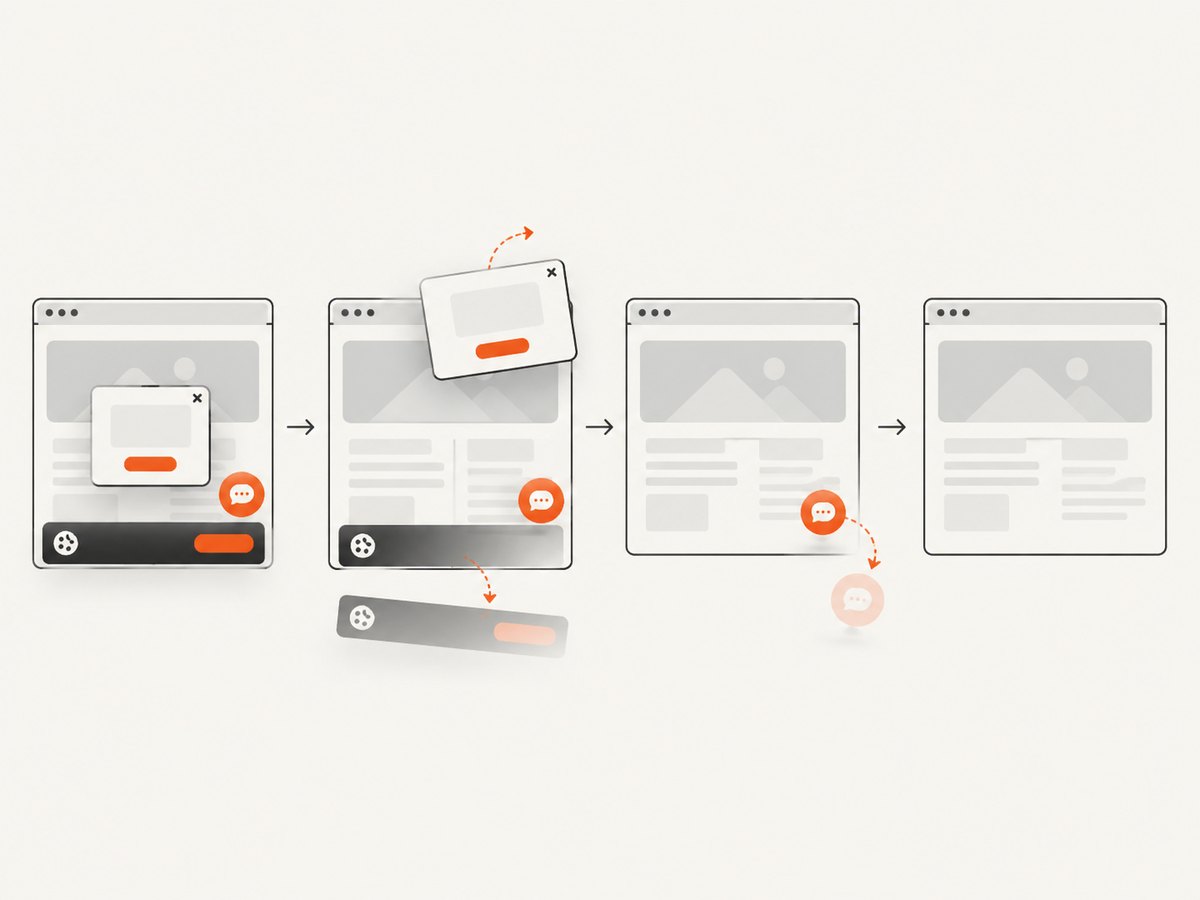
ScreenshotNeo provides a website screenshot API and MCP server. One GET request returns PNG, JPEG, WebP or PDF. It accepts cookie and consent banners before capture, then removes more than 60 known consent platforms, newsletter popups and chat widgets; each step can be turned off. Bot checks, blank pages, timeouts, failed loads and cache hits are not billed, and the response identifies the result with X-Page-Verdict and X-Billed headers.
See the ScreenshotNeo API documentation for all options.
cURL
curl -G "https://api.screenshotneo.com/v1/shot" \
  -d access_key=YOUR_API_KEY \
  --data-urlencode url=https://stripe.com \
  -o shot.webp
Python
import requests

r = requests.get(
    "https://api.screenshotneo.com/v1/shot",
    params={"access_key": "YOUR_API_KEY", "url": "https://stripe.com"},
    timeout=90,
)
r.raise_for_status()
open("shot.webp", "wb").write(r.content)
Node.js
const q = new URLSearchParams({
  access_key: 'YOUR_API_KEY',
  url: 'https://stripe.com'
});
const res = await fetch(`https://api.screenshotneo.com/v1/shot?${q}`);
if (!res.ok) throw new Error(`Screenshot failed: ${res.status}`);
const fs = await import('node:fs/promises');
await fs.writeFile('shot.webp', Buffer.from(await res.arrayBuffer()));
ScreenshotNeo also supports full-page capture with lazy images loaded, CSS element capture, dark mode, device presets or any viewport, retina scale, PDF paper size and page ranges, HTML/CSS to image, custom CSS and JavaScript, clicks, selector waits, delays, network-idle waits, request and resource blocking, headers, cookies, user agents, Authorization, timezone, geolocation, transparent backgrounds, resizing, configurable-TTL caching, signed links, asynchronous jobs with signed webhooks, bulk capture for 100 URLs per call, a usage API and an OpenAPI specification. Common parameter names from other screenshot APIs work as well.
An MCP server provides take_screenshot, get_page_info and capture_pdf tools for Claude, Cursor and other MCP clients. Plans include 1,000 screenshots per month free with no card; paid plans start at $5 for 3,000 shots. Create a free ScreenshotNeo account.
Troubleshooting
| Symptom | Likely cause | Fix |
|---|---|---|
| Blank or partially rendered image | Capture ran before client rendering completed | Wait for a meaningful selector, fonts or a page-specific ready signal |
| Timeout at navigation | Slow resource, blocked request or never-ending connection | Increase timeout moderately, use a more suitable readiness event, and inspect failed requests |
| Element not found | Selector changed, iframe boundary or element is not rendered yet | Use a stable test attribute, wait for visibility and handle the correct frame |
| Different pixels in CI | Browser, OS, fonts, hardware or headless mode differs | Pin the environment and review the diff as a rendering change |
| Animations change screenshots | Capture occurs at different animation frames | Disable animations with CSS or wait for the animation to finish |
| Lazy images are missing | Images load only after scrolling or intersection events | Scroll through the page or use a capture service that loads lazy images |
| Authentication flow fails headless | Missing storage state, redirect timing or bot challenge | Debug headed, persist the authenticated state securely and inspect redirects |
| Out-of-memory worker | Too many concurrent pages or large full-page captures | Reduce concurrency, close contexts promptly and capture only the required region |
Decision checklist
- Does the page require JavaScript to become meaningful?
- Must the job click, type, submit, scroll or authenticate?
- Do you need rendered pixels, a PDF, a canvas or a chart?
- Will the job run without a desktop session in CI?
- Can you pin browser, OS, fonts and viewport for repeatable output?
- Would an HTTP client or accessibility snapshot answer the question more directly?
- Would a managed screenshot API reduce browser maintenance for this workload?
FAQ
Is headless faster than headed mode?
It avoids displaying a window and is suitable for unattended execution, but total time depends on browser startup, page work, resources and concurrency. Use measurements from your own workload.
Can headless browsers take PDFs?
Yes. Both Playwright and Puppeteer expose PDF workflows, subject to the browser and runtime configuration you use.
Should every screenshot test run in a browser?
Use a browser when pixels or browser behavior are under test. Use DOM or accessibility assertions for semantics and interaction, and combine them when both matter.
Do I need Playwright and Puppeteer together?
No. Choose based on browser coverage, testing workflow, API preference and the existing conventions of your project.
When should I use a screenshot API instead?
Use one when you want a request-based workflow without maintaining browser binaries, CI images and capture workers, especially for repeatable captures, bulk URLs or AI-agent tooling.


