Where to Find Screenshots on Your Device
Find screenshots on iPhone, Android, Mac, Windows, and Chromebook. See the default locations, how to check save settings, and what to try if a screenshot is missing.

The screenshot location depends on your device and how you captured it. On iPhone or iPad, look in Photos; on Android, check Google Photos or your phone’s Gallery; on Mac, check the desktop; on Windows, check Pictures > Screenshots or the location used by Snipping Tool; and on Chromebook, check Downloads. If it is missing, confirm the capture method and inspect that tool’s save destination.
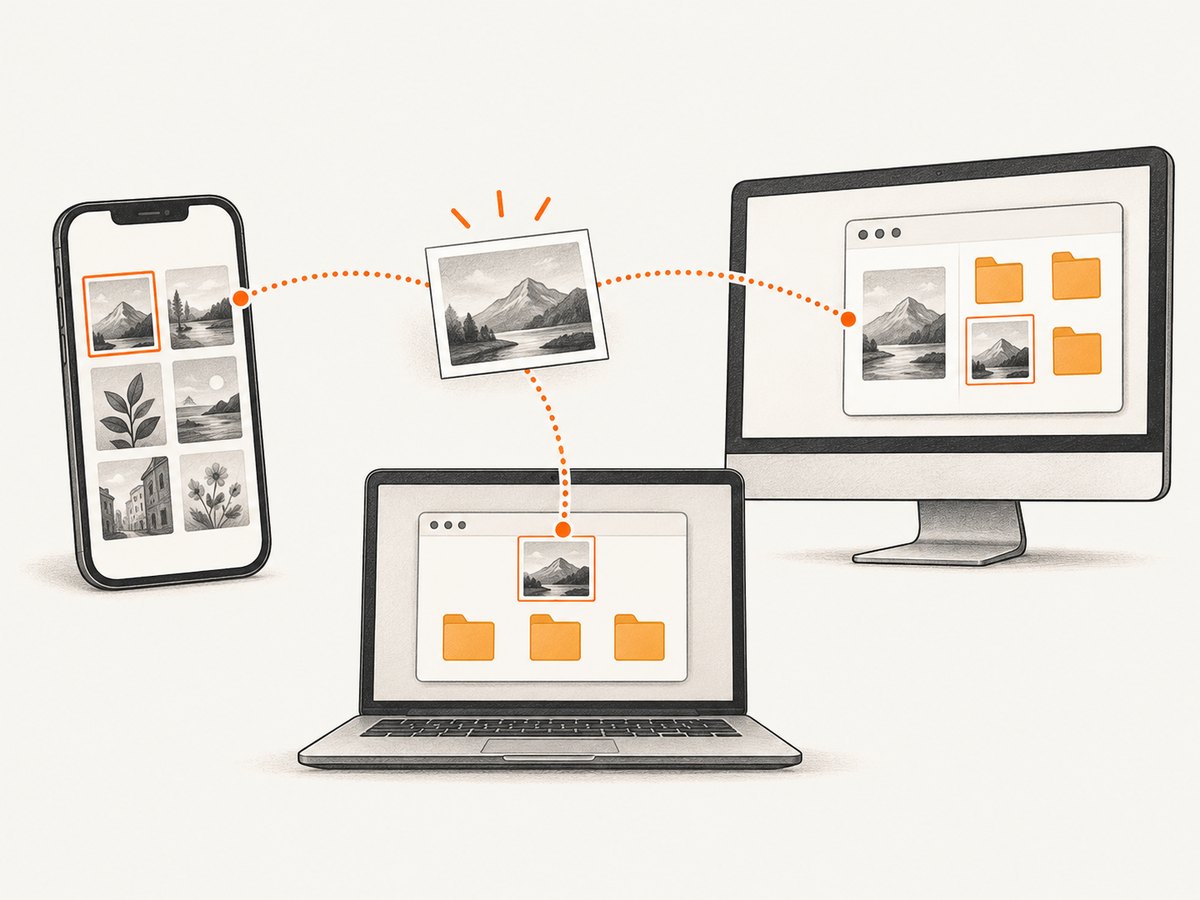
There is no universal screenshots folder. Phones usually show screenshots in a photo app collection or album, while computers save image files into folders. The locations below are defaults: a setting, manufacturer, or different capture method can change where a file goes.
1. Find screenshots on iPhone or iPad
Open the Photos app, then open Collections. Scroll to Media Types and tap Screenshots. This is a category inside Photos, rather than a folder you need to find in the Files app.
- Open Photos.
- Tap Collections.
- Scroll to Media Types.
- Tap Screenshots to see the captures together.
Apple says screenshots are saved to the photo library in Photos by default. If a recent capture is absent, check that it finished saving and look in the main library as well as the Screenshots collection. The collection helps group screenshots; it does not establish that a copy is synced to every device or cloud account.
2. Find screenshots on Android
In Google Photos, open Collections > On this device > Screenshots. If Google Photos is not installed or your phone uses a different photo app, open the manufacturer’s Gallery app and look for its Screenshots album or folder.
- Open Google Photos.
- Tap Collections, then On this device.
- Open Screenshots.
- If that path is unavailable, use the phone’s Gallery app and check its Screenshots folder.
Android phones can differ by manufacturer, model, and installed apps. Google’s general directions account for this variation and recommend consulting the phone maker when they do not match your device. Do not assume every Android phone will present exactly the same menu names or filesystem path.
If your screenshot appears in the Gallery but not in Google Photos, first check whether you are looking at the on-device collection rather than a cloud view. The documented location here is local to the device; cloud availability depends on your own app and account settings.
3. Find screenshots on Mac
Check the desktop first. That is the default screenshot destination on Mac. To see or change the destination, press Shift-Command-5, open Options, and inspect the save location.
- Look across the desktop for the screenshot file.
- Press Shift-Command-5 to open the Screenshot controls.
- Choose Options and check the selected save destination.
- If it points to another folder, open that folder in Finder.
On macOS Mojave 10.14 and later, the Screenshot app is also available in Applications > Utilities. A previous destination choice can explain why the file is not on the desktop. Changing the destination affects where later captures are saved; it does not necessarily move screenshots already created.
4. Find screenshots on Windows
The right place depends on how you captured the image. For Windows key + Print Screen, open File Explorer and check Pictures > Screenshots. For a capture made with Snipping Tool, check its Screenshots folder or the location you selected when saving.
| Capture method | Where to look | What can differ |
|---|---|---|
| Windows key + Print Screen | File Explorer > Pictures > Screenshots | The Pictures folder may have a different location on your PC. |
| Snipping Tool | The Screenshots folder, or the folder selected in Save | You can save a snip with a chosen filename and location. |
For Snipping Tool, open the capture and use Save if you want to choose a filename and destination explicitly. If you used another shortcut or pasted an image into another app, that workflow may not have saved a screenshot file in either location.
5. Find screenshots on Chromebook
Open the Files app and select Downloads. That is the default location for screenshots and screen recordings. If you changed the destination, inspect the Screen Capture settings.
- Open Files and select Downloads.
- If the screenshot is not there, open Screen Capture with Shift-Ctrl-Show windows.
- Open Settings and choose Select folder.
- Open the selected folder in Files. You can also search Files for the saved image.
Downloads is only the default: Screen Capture lets you select another folder. Searching in Files is useful when you know the image was saved but do not remember which folder was selected.
6. Check the capture method and save destination
When a screenshot seems to have disappeared, retrace how you made it before searching every folder. A keyboard shortcut, a dedicated capture app, and a manual Save action can lead to different destinations or leave the image inside another application instead of saving it as a file.

- Identify the device and capture method. Was it a keyboard shortcut, Screen Capture, Snipping Tool, or a phone’s hardware buttons?
- Open the matching library or file manager. Use Photos or Gallery on phones, Finder on Mac, File Explorer on Windows, or Files on Chromebook.
- Inspect the save setting. Check Screenshot Options on Mac, Screen Capture settings on Chromebook, or the save destination used by Snipping Tool.
- Search the likely area. Check the named Screenshots collection or folder, then search the device’s library or file manager.
- Account for platform variation. On Android, use the phone maker’s instructions if its Gallery and Google Photos options do not match the general steps.
Keep the distinction between an album and a folder in mind. iPhone and iPad surface captures as a Photos collection; desktop systems expose files in a location such as the desktop, Pictures, Downloads, or a folder you chose. Moving or changing a destination is a separate action from finding an existing capture.
7. Troubleshooting: screenshot is not where expected
| What you see | Likely cause | What to do |
|---|---|---|
| No Screenshots folder in the place you checked | You used another capture tool, or the destination was changed. | Confirm the capture method and inspect that tool’s save setting. |
| Mac desktop is empty | The Screenshot destination was set to another location. | Press Shift-Command-5, open Options, and check the selected destination. |
| Windows shortcut screenshot is missing | You are checking the Snipping Tool location, or Pictures points elsewhere. | For Windows key + Print Screen, check Pictures > Screenshots in File Explorer. |
| Snipping Tool image is not in Screenshots | It may have been saved manually to another folder or filename. | Reopen the capture if available and use Save to choose a known location. |
| Chromebook Downloads has no screenshot | Screen Capture may be set to another folder. | Open Screen Capture settings and inspect Select folder; search in Files. |
| Android menus do not match | The phone maker’s Gallery or Android version differs. | Try the manufacturer’s Gallery app and consult that manufacturer’s support instructions. |
| Screenshot appears in one app but not another | You may be viewing a local collection in one app and a different library or account view in another. | Check the on-device collection or folder. Do not assume cloud sync is enabled. |
For each platform, the key recovery steps are the same: verify how the capture was made, inspect the relevant save setting, then search the device’s own photo library or file manager. These steps locate saved captures; they cannot recover an image that was never saved.
8. When you need a screenshot of a website
The device instructions above are for screenshots you capture on your own phone or computer. If you need a repeatable screenshot of a webpage for documentation, monitoring, or an automated workflow, a screenshot API can capture the page and return an image file without relying on a desktop capture shortcut.
ScreenshotNeo is a website screenshot API and MCP server for developers. Its API takes a URL and returns PNG, JPEG, WebP, or PDF. See the ScreenshotNeo API documentation for the request options and setup.
Or skip the browser setup
Send one GET request with the page URL. This cURL example writes a WebP image to shot.webp:
curl -G "https://api.screenshotneo.com/v1/shot" \
  -d access_key=YOUR_API_KEY \
  --data-urlencode url=https://stripe.com \
  -o shot.webp
Equivalent Python:
import requests

r = requests.get(
    "https://api.screenshotneo.com/v1/shot",
    params={"access_key": "YOUR_API_KEY", "url": "https://stripe.com"},
    timeout=90,
)
open("shot.webp", "wb").write(r.content)
Equivalent Node.js:
const q = new URLSearchParams({
  access_key: 'YOUR_API_KEY',
  url: 'https://stripe.com'
});
const res = await fetch(`https://api.screenshotneo.com/v1/shot?${q}`);
const bytes = Buffer.from(await res.arrayBuffer());
await import('node:fs/promises').then(fs => fs.writeFile('shot.webp', bytes));
ScreenshotNeo accepts cookie or consent banners like a visitor and removes more than 60 known consent platforms, newsletter popups, and chat widgets before capture; each step can be turned off. Bot checks and CAPTCHAs, blank pages, timeouts, failed loads, and cache hits are not billed, and the response identifies the page verdict and billing status in headers. Its MCP server offers take_screenshot, get_page_info, and capture_pdf for Claude, Cursor, and other MCP clients. The free plan includes 1,000 screenshots a month with no card; paid plans start at $5 for 3,000 screenshots.
Sign up free for 1,000 screenshots a month, no card required.
9. Quick reference by device
| Device | Default place to check | Destination setting or variation |
|---|---|---|
| iPhone or iPad | Photos > Collections > Media Types > Screenshots | Screenshot collection within Photos; saved to the photo library by default. |
| Android | Google Photos > Collections > On this device > Screenshots | Gallery app and menus vary by manufacturer. |
| Mac | Desktop | Shift-Command-5 > Options. |
| Windows | Pictures > Screenshots for Windows key + Print Screen | Snipping Tool may save elsewhere when a destination is chosen. |
| Chromebook | Files > Downloads | Screen Capture > Settings > Select folder. |
10. Frequently asked questions
Are screenshots always saved as image files?
The desktop workflows described here save image files to folders. On iPhone and iPad, the documented way to find them is in the Photos library’s Screenshots collection.
Why does my phone have no folder named Screenshots?
The photo app may present screenshots as an album or collection rather than a browsable folder. On Android, the manufacturer’s Gallery app and terminology can vary.
Can I change where screenshots go?
Mac Screenshot Options, Chromebook Screen Capture settings, and Snipping Tool’s Save action provide ways to use another destination. Check the relevant device section above.
Will I see the same screenshots on all my devices?
Not necessarily. These instructions identify a local library or folder and do not guarantee that screenshots are synced to other devices or a cloud account.
What should I check first when one is missing?
Start with the capture method, then check its destination setting. That usually narrows the search to the right photo collection or folder.


