Which Keyboard Key Takes a Screenshot?
The screenshot key depends on your device. Find the right shortcut for Windows, Mac, Chromebook, or Linux, plus fixes when the key is missing.
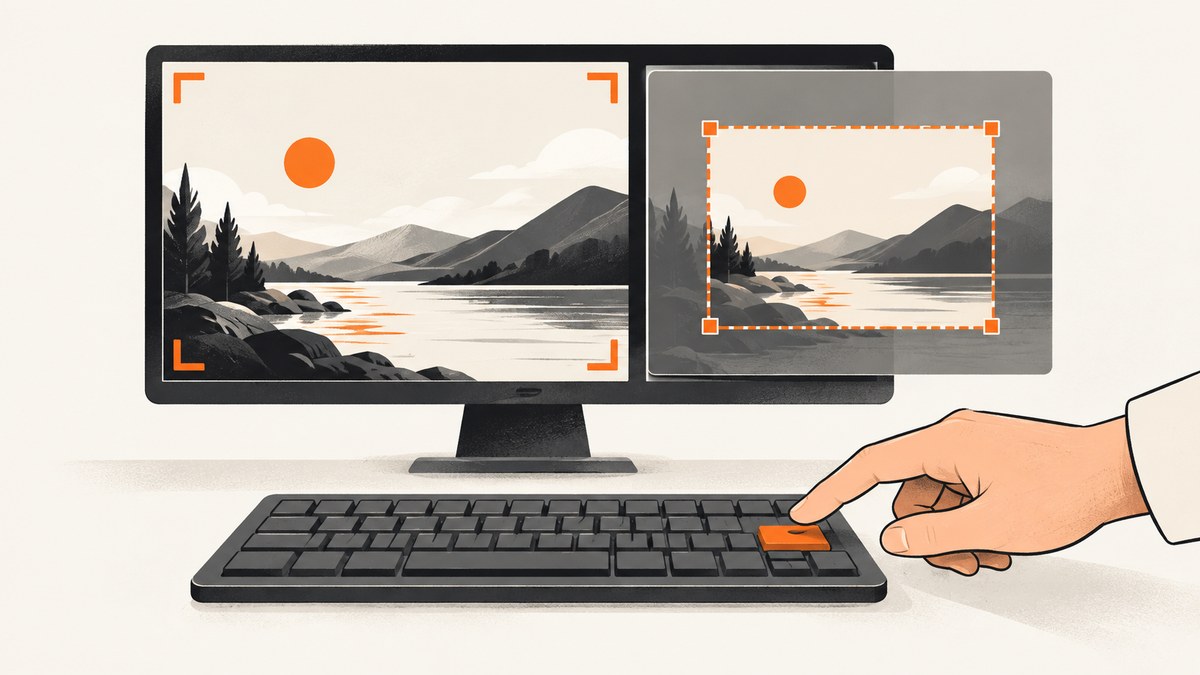
There is no single screenshot key for every computer. On Windows, look for Print Screen or PrtSc; on a Mac, use Shift + Command + 3 or Shift + Command + 4; on a Chromebook, press the Screenshot key or use Ctrl + Shift + Show windows. Linux shortcuts depend on the desktop environment; in GNOME, Shift + Prnt Scrn selects an area.
If the shortcut seems to do nothing, check whether the result was copied to the clipboard, whether your laptop needs the Fn key, and whether your keyboard has a compact layout. The steps below cover the common shortcuts, where to look for the key, and what to try when it is missing.
1. Find the screenshot shortcut for your device
| Platform | Full screen | Selected area or window | Dedicated key? |
|---|---|---|---|
| Windows | Print Screen (PrtSc), where supported | Windows + Shift + S | Common on full-size keyboards |
| macOS | Shift + Command + 3 | Shift + Command + 4; add Space for a window or menu | No Print Screen key required |
| Chromebook | Ctrl + Show windows | Screenshot key, or Ctrl + Shift + Show windows to open capture controls | Some models have a Screenshot key |
| GNOME Linux | Print Screen shortcut varies by setup | Shift + Prnt Scrn | Often uses Print Screen |
Shortcuts, save behavior, and clipboard behavior can vary with operating-system version, keyboard layout, and settings. If a key combination differs on your device, open the operating system’s screenshot or keyboard-shortcut controls and use the platform-specific instructions below.

2. Windows: use Print Screen or the snipping shortcut
Use the Print Screen key
On a full-size Windows keyboard, find Print Screen, often abbreviated PrtSc, PrtScn, or a similar label. Microsoft says the key is usually in the keyboard’s upper-right area. Press it to use the screen-capture function supported by your Windows setup. The exact result can depend on settings: a capture may be copied to the clipboard or invoke a capture experience.
To use a copied image, switch to an app that accepts images and press Ctrl + V. If nothing appears, check whether the screenshot opened in a capture tool or whether the key needs an Fn modifier.
Select a region with Windows + Shift + S
- Press Windows logo key + Shift + S.
- Choose a capture mode if the controls appear, then select the screen area, window, or full screen as offered.
- Use the notification or clipboard to open, copy, or save the result.
This shortcut is a practical fallback on a laptop without a visible Print Screen key. For Microsoft’s current instructions, see Microsoft’s Snipping Tool guidance.
When the key is shared with another function
On some compact keyboards, the Print Screen action shares a key with another function. Try holding Fn while pressing the labeled key. The location and modifier depend on the keyboard, so inspect the key labels or the manufacturer’s keyboard guide. You can also use Windows + Shift + S without locating the dedicated key.
3. Mac: use Shift + Command + 3 or 4
Capture the entire screen
- Press and release Shift + Command + 3 together.
- Look for the screenshot file in the configured screenshot location.
Apple’s standard shortcut captures the screen to a file. On systems with multiple displays, the capture behavior may include a file for each display. The configured save location and options can be changed through the screenshot controls.
Capture part of the screen or a window
- Press Shift + Command + 4.
- Drag to select an area. Release to capture it.
- To capture a window or menu instead, press Space after the first shortcut, then select the target.
For the full set of Mac screenshot shortcuts and controls, consult Apple’s screenshot instructions. If the shortcut does not work, verify the Command key on your keyboard, check keyboard-shortcut settings, and look for a capture file in the configured location.
4. Chromebook: use Screenshot or Show windows
Some Chromebook keyboards include a dedicated Screenshot key. Press it to open the capture controls. On other Chromebook keyboards, use the Show windows key: it looks like a rectangle with lines beside it and is typically in the top row.
- Full-screen capture: press Ctrl + Show windows.
- Capture controls: press Ctrl + Shift + Show windows, then choose a full-screen, window, or partial capture option.
- External keyboard without Show windows: try Ctrl + Shift + F5 to open the capture tool.
Google’s Chromebook guidance lists Ctrl + Show Windows for a screenshot. See Google’s screenshot instructions for the current capture controls and options. Save location and controls can vary by ChromeOS version.
5. Linux: check your desktop environment
Linux does not have one universal screenshot shortcut because desktop environments and user settings can assign different actions. In GNOME, Shift + Prnt Scrn captures an area. The Print Screen key may open screenshot controls or capture the full screen, depending on the desktop version and configuration.
If the shortcut does not match, search the desktop’s Settings for keyboard shortcuts or screenshot. Check the assigned action and key combination there. The GNOME screenshot help documents the area shortcut and related capture controls.
6. What to do if your keyboard has no Print Screen key
A missing PrtSc label usually reflects a compact layout or a different keyboard design; it does not mean the computer cannot take screenshots. Try these options in order:
- Use the operating system’s alternate shortcut. Windows: Windows + Shift + S. Mac: Shift + Command + 3 or 4. Chromebook: Ctrl + Shift + Show windows, or the external-keyboard fallback.
- Check for a secondary key function. Look for a small PrtSc label printed on another key and try it with Fn.
- Open the on-screen capture controls. Windows Snipping Tool, ChromeOS screenshot controls, and macOS screenshot controls let you choose the capture type without relying on a dedicated key.
- Use an external keyboard if you prefer a physical key. A USB or Bluetooth keyboard with a labeled Print Screen key can provide a familiar control, especially if you take screenshots often.
On a Chromebook external keyboard, the missing Show windows key has a documented F5-based fallback. On other keyboards, exact Fn combinations depend on the model.
7. Troubleshooting: shortcut pressed, but no screenshot appears
| Symptom | Likely cause | What to try |
|---|---|---|
| Nothing happens with PrtSc | Key is shared, remapped, or configured to invoke capture controls | Try Fn + PrtSc, Windows + Shift + S, or the system’s screenshot controls. |
| You cannot find the screenshot file | The capture was copied to the clipboard, or saved in a different configured location | Paste with Ctrl + V into an image-capable app; check screenshot settings and recent notifications. |
| Mac shortcut does not work | Incorrect key combination, remapped shortcut, or keyboard issue | Use Shift + Command + 3 or 4; check keyboard shortcuts and the configured save location. |
| Chromebook external keyboard has no Show windows key | The keyboard uses a different layout | Try Ctrl + Shift + F5 to open capture controls. |
| Linux shortcut opens the wrong action | Desktop environment or user settings assign a different shortcut | Open keyboard shortcut settings and locate the screenshot action. |
| Screenshot is incomplete or content is missing | A standard screen capture only records what is currently visible; overlays or off-screen content may obscure the target | Dismiss overlays, scroll to the needed area, or use an application’s full-page or export feature. |
When diagnosing, first identify the operating system, then test its documented combination. This avoids treating a Linux desktop shortcut or a compact keyboard’s Fn behavior as if it were universal.
8. Screenshot key versus website screenshot
A keyboard shortcut captures your current display. That is the right tool for saving what you can see and interact with. Developers sometimes need a different result: a repeatable screenshot of a web page, a full page including content below the fold, or an image captured from a script or AI agent. In those cases, a browser automation workflow or screenshot API can capture a URL without manually pressing a key.
9. Or skip the browser setup
For a website screenshot from code, ScreenshotNeo is a screenshot API and MCP server from Yorker Media. Its GET endpoint returns an image or PDF for a URL. See the ScreenshotNeo documentation for request options and setup details.
cURL
curl -G "https://api.screenshotneo.com/v1/shot" -d access_key=YOUR_API_KEY --data-urlencode url=https://stripe.com -o shot.webpPython
import requests

r = requests.get(
    "https://api.screenshotneo.com/v1/shot",
    params={"access_key": "YOUR_API_KEY", "url": "https://stripe.com"},
    timeout=90,
)
r.raise_for_status()
open("shot.webp", "wb").write(r.content)
Node.js
const q = new URLSearchParams({ access_key: 'YOUR_API_KEY', url: 'https://stripe.com' });
const res = await fetch(`https://api.screenshotneo.com/v1/shot?${q}`);
if (!res.ok) throw new Error(`Screenshot request failed: ${res.status}`);
await Bun.write('shot.webp', new Uint8Array(await res.arrayBuffer()));
The Node.js example uses Bun’s file-writing helper. In Node.js, save the response bytes with the built-in file system module:
import { writeFile } from 'node:fs/promises';

const q = new URLSearchParams({ access_key: 'YOUR_API_KEY', url: 'https://stripe.com' });
const res = await fetch(`https://api.screenshotneo.com/v1/shot?${q}`);
if (!res.ok) throw new Error(`Screenshot request failed: ${res.status}`);
await writeFile('shot.webp', Buffer.from(await res.arrayBuffer()));
Replace the sample target with the page you need to capture and keep the API key private. These examples use the supplied endpoint and API key parameter; consult the documentation for supported output formats and other request parameters.
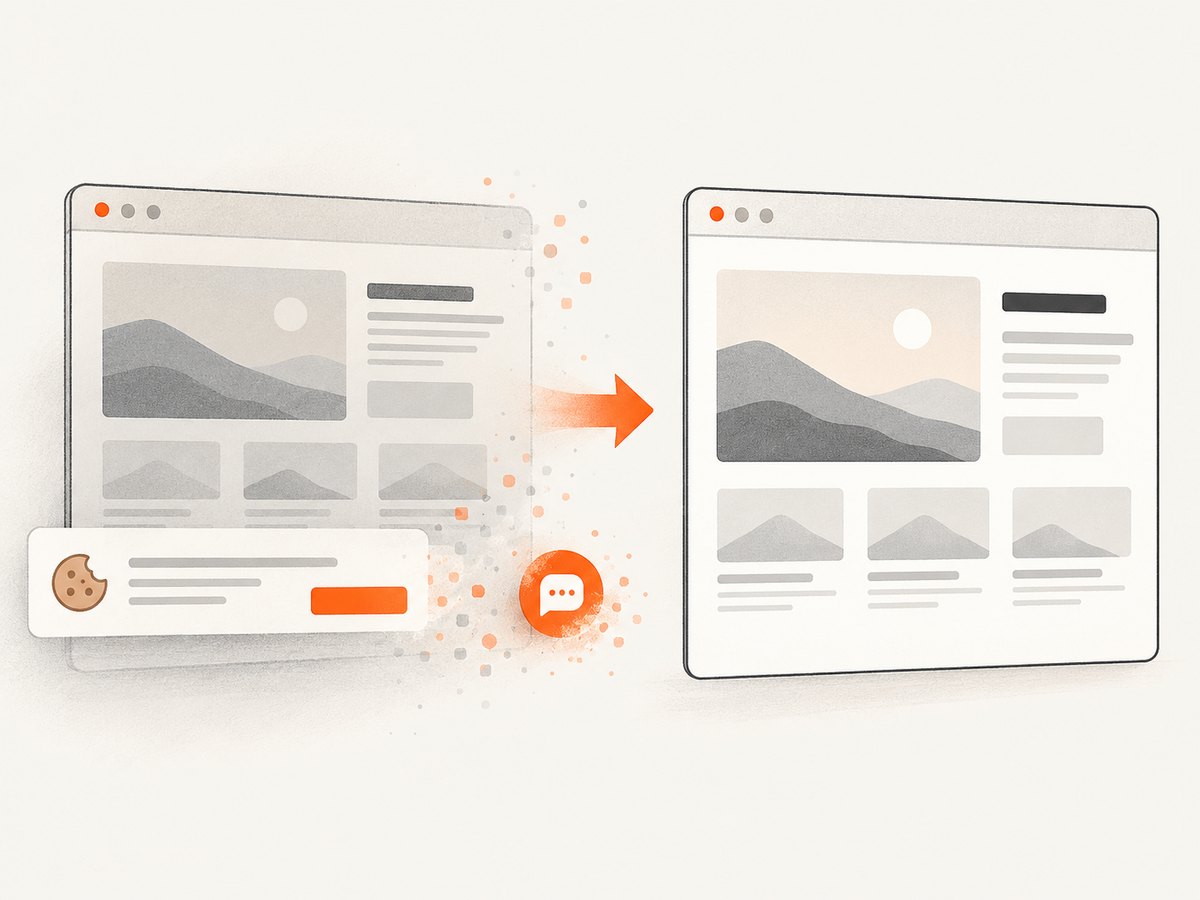
ScreenshotNeo removes cookie and consent banners, newsletter popups, and chat widgets before capture; each of those steps can be turned off. Bot checks, blank pages, failed loads, timeouts, and cache hits cost nothing, and response headers identify the page verdict and billing status. Its MCP server provides take_screenshot, get_page_info, and capture_pdf tools for Claude, Cursor, and other MCP clients. The free plan includes 1,000 screenshots per month with no card; paid plans start at $5 for 3,000 shots. Sign up for 1,000 free screenshots a month, with no card required.
10. Reliability, performance, and cost considerations
For a one-off desktop capture, the built-in shortcut is usually the simplest route: it records the current screen without an API request or service plan. Its limits are manual operation and the fact that it captures what is displayed, rather than automatically navigating to a URL or loading the entire page.
For repeated website captures, scripts and APIs can make the URL, output, and timing repeatable. Wait for content that loads dynamically before capture, and handle failed navigation or empty output in the calling code. Browser-based capture takes time to load the page, so set a timeout that fits the target site and avoid requesting the same capture unnecessarily. Caching can reduce repeated work when a fresh capture is not needed.
For ScreenshotNeo, only clean shots are billed; blank pages, bot checks or CAPTCHAs, timeouts, failed loads, and cache hits are not billed. The listed monthly plans are Free: 1,000 shots; Starter: $5 for 3,000; Growth: $15 for 15,000; Pro: $39 for 60,000; Scale: $99 for 250,000; Business: $249 for 1,000,000. Yearly billing gives two months free, and every feature is available on every plan. Use the free allowance for occasional captures, and compare the paid monthly allowance with your expected volume before choosing a plan.
Frequently asked questions
What button is Print Screen?
It is a keyboard key usually labeled Print Screen, PrtSc, or PrtScn. On many full-size Windows keyboards it is near the upper right; compact layouts may combine it with another key.
Do Macs have a Print Screen key?
No dedicated Print Screen key is needed. Use Shift + Command + 3 for the full screen or Shift + Command + 4 for an area.
Does pressing Print Screen save a file?
That depends on the operating system, its settings, and the shortcut behavior. The image may be copied to the clipboard, saved automatically, or opened in capture controls. Check the relevant platform section above.
Can I take a screenshot of a whole website with a keyboard key?
A standard keyboard shortcut captures the visible screen. Use a browser’s full-page capture feature, browser automation, or a screenshot API when you need content beyond the visible area.


