How to White Out or Black Out Screenshots Before Printing with JavaScript
Cover sensitive screenshot regions with opaque canvas rectangles, then print or export the redacted bitmap safely with JavaScript.
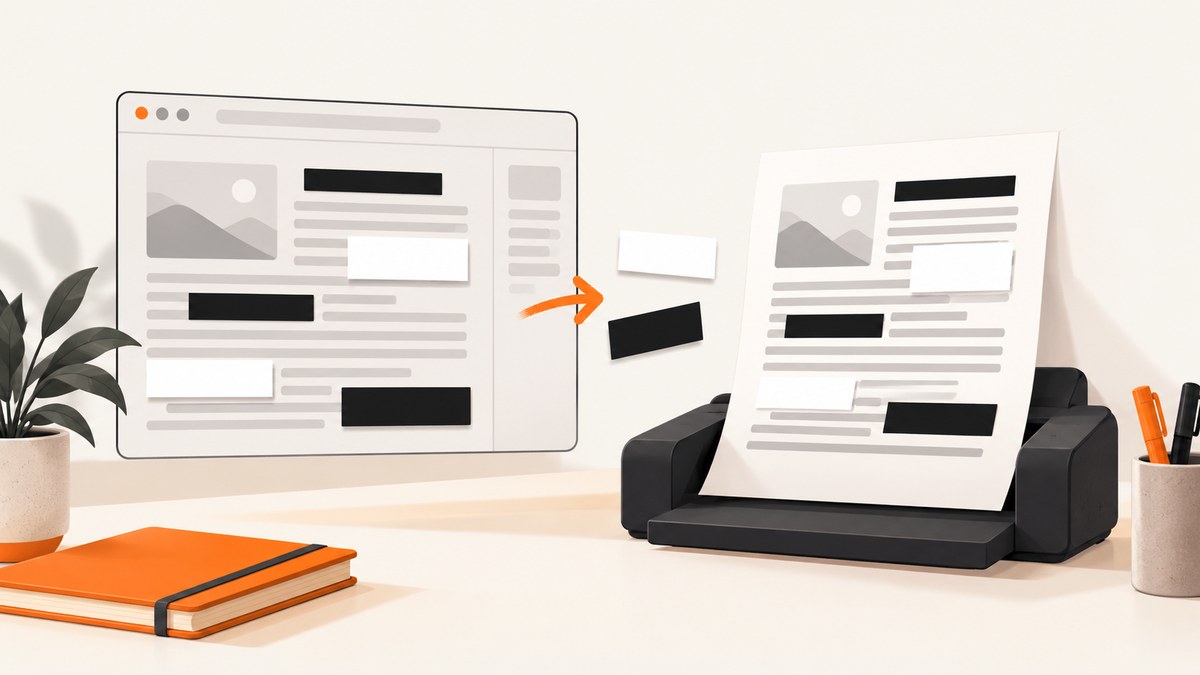
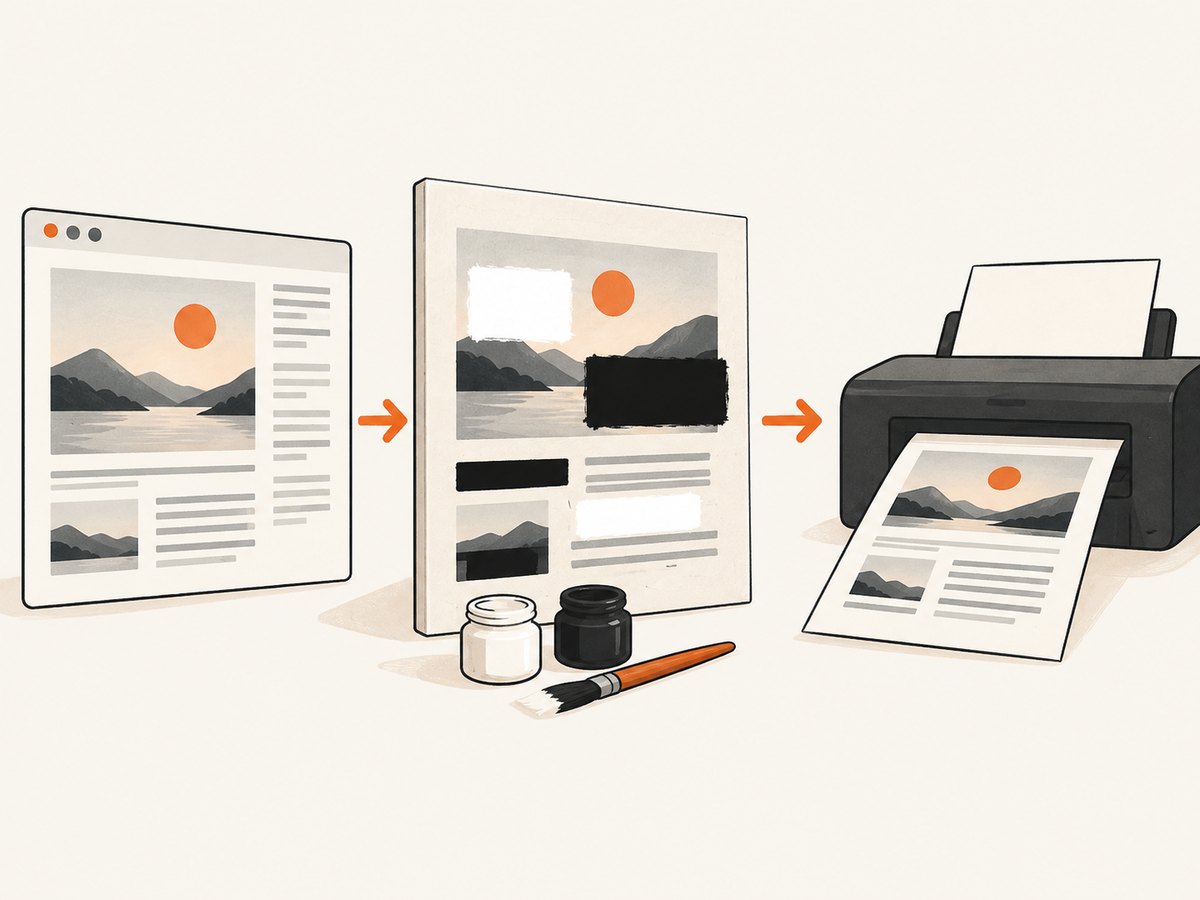
Use an HTML canvas to permanently cover screenshot regions before printing. Load the image, size the canvas to the image’s pixel dimensions, draw it with drawImage(), paint opaque white or black rectangles with fillRect(), and print or export the modified canvas. Do not rely on a separate HTML overlay: the covered pixels must be part of the bitmap sent to print.
This follows the canvas model documented by the WHATWG HTML Standard and MDN’s canvas documentation. The canvas’s current bitmap is what static visual media, including printing, represents.
1. Minimal JavaScript method
<canvas id="redacted"></canvas>
<script>
const image = new Image();
image.onload = () => {
  const canvas = document.querySelector('#redacted');
  const context = canvas.getContext('2d');

  // Use source pixels for predictable print quality.
  canvas.width = image.naturalWidth;
  canvas.height = image.naturalHeight;
  context.drawImage(image, 0, 0);

  // White out one region and black out another.
  context.fillStyle = '#ffffff';
  context.fillRect(120, 90, 420, 80);
  context.fillStyle = '#000000';
  context.fillRect(120, 210, 420, 80);

  // Put only this modified canvas in the print area.
  window.print();
};
image.src = 'screenshot.png';
</script>
Wait for image.onload before drawing. Set the bitmap dimensions with canvas.width and canvas.height; changing only CSS dimensions scales the existing bitmap and can blur or distort the result.
2. Complete browser example with selectable redaction regions
The following standalone page lets a user upload a screenshot, enter rectangles in image pixels, choose white or black, preview the result, download a PNG, and print it.
<!doctype html>
<html lang="en">
<head>
  <meta charset="utf-8">
  <meta name="viewport" content="width=device-width, initial-scale=1">
  <title>Redact a screenshot</title>
  <style>
    body { font: 16px system-ui, sans-serif; margin: 2rem; }
    label { display: block; margin: .5rem 0; }
    input { max-width: 8rem; }
    canvas { max-width: 100%; height: auto; border: 1px solid #999; }
    .controls { display: grid; grid-template-columns: repeat(5, minmax(5rem, 1fr)); gap: .5rem; max-width: 50rem; }
    @media print {
      body * { visibility: hidden; }
      #redacted, #redacted * { visibility: visible; }
      #redacted { position: absolute; inset: 0; max-width: none; width: 100%; height: auto; border: 0; }
    }
  </style>
</head>
<body>
  <h1>White out or black out a screenshot</h1>
  <label>Screenshot: <input id="file" type="file" accept="image/*"></label>
  <div class="controls">
    <label>X <input id="x" type="number" value="0"></label>
    <label>Y <input id="y" type="number" value="0"></label>
    <label>Width <input id="w" type="number" value="200"></label>
    <label>Height <input id="h" type="number" value="80"></label>
    <label>Color
      <select id="color"><option value="#ffffff">White</option><option value="#000000">Black</option></select>
    </label>
  </div>
  <p>
    <button id="apply" disabled>Apply rectangle</button>
    <button id="download" disabled>Download PNG</button>
    <button id="print" disabled>Print</button>
  </p>
  <canvas id="redacted"></canvas>
  <script>
    const file = document.querySelector('#file');
    const canvas = document.querySelector('#redacted');
    const context = canvas.getContext('2d', { alpha: false });
    const apply = document.querySelector('#apply');
    const download = document.querySelector('#download');
    const print = document.querySelector('#print');
    let source;

    file.addEventListener('change', () => {
      const selected = file.files[0];
      if (!selected) return;
      const url = URL.createObjectURL(selected);
      const image = new Image();
      image.onload = () => {
        source = image;
        canvas.width = image.naturalWidth;
        canvas.height = image.naturalHeight;
        context.drawImage(image, 0, 0);
        apply.disabled = download.disabled = print.disabled = false;
        URL.revokeObjectURL(url);
      };
      image.onerror = () => alert('The selected file could not be decoded as an image.');
      image.src = url;
    });

    apply.addEventListener('click', () => {
      if (!source) return;
      const x = Number(document.querySelector('#x').value);
      const y = Number(document.querySelector('#y').value);
      const width = Number(document.querySelector('#w').value);
      const height = Number(document.querySelector('#h').value);
      if (![x, y, width, height].every(Number.isFinite) || width <= 0 || height <= 0) {
        alert('Enter finite coordinates and positive width and height.');
        return;
      }
      context.fillStyle = document.querySelector('#color').value;
      context.fillRect(x, y, width, height);
    });

    download.addEventListener('click', () => {
      canvas.toBlob(blob => {
        const link = document.createElement('a');
        link.download = 'redacted-screenshot.png';
        link.href = URL.createObjectURL(blob);
        link.click();
        URL.revokeObjectURL(link.href);
      }, 'image/png');
    });

    print.addEventListener('click', () => window.print());
  </script>
</body>
</html>
Coordinates are in the source image’s pixels, not the displayed CSS size. If a 2,000-pixel-wide image is displayed at 1,000 CSS pixels, a visible mouse selection must be multiplied by naturalWidth / displayedWidth before calling fillRect().
3. Printing the redacted bitmap correctly
Use print-specific CSS to hide controls and keep the canvas in the print area. The MDN printing guide covers @media print; MDN’s @page reference covers paper size, orientation, and margins.
@page {
  size: A4 portrait;
  margin: 12mm;
}

@media print {
  body { margin: 0; }
  .controls, button, h1 { display: none !important; }
  canvas {
    display: block;
    width: 100%;
    height: auto;
    break-inside: avoid;
  }
}
Open print preview and check all four edges, scaling, page breaks, and whether the browser adds headers or footers. Browser print settings can override CSS margins and scale.
4. Handling multiple regions and redaction data
Represent redactions as data so the same list can be replayed, reviewed, or generated by another tool.
const redactions = [
  { x: 80, y: 120, width: 360, height: 64, color: '#fff' },
  { x: 80, y: 240, width: 360, height: 64, color: '#000' }
];

for (const region of redactions) {
  const x = Math.max(0, Math.round(region.x));
  const y = Math.max(0, Math.round(region.y));
  const right = Math.min(canvas.width, Math.round(region.x + region.width));
  const bottom = Math.min(canvas.height, Math.round(region.y + region.height));
  if (right > x && bottom > y) {
    context.fillStyle = region.color === '#000' ? '#000000' : '#ffffff';
    context.fillRect(x, y, right - x, bottom - y);
  }
}- Clamp rectangles to the canvas so negative coordinates or oversized regions do not produce unexpected output.
- Use opaque colors. A fill with alpha, such as
rgba(0,0,0,.5), can leave text partially readable. - Cover the entire sensitive region, including anti-aliased edges and nearby labels.
- Redact before exporting. Keeping the original image alongside the output defeats the privacy goal if both are distributed.
- For cross-origin image URLs, the source server must permit canvas use with appropriate CORS headers. Otherwise the canvas becomes tainted and
toBlob(),toDataURL(), or pixel reads can fail. - Very large screenshots consume memory proportional to width times height. Downscale intentionally only when the print resolution remains sufficient.
5. White out versus black out
| Choice | Use it when | Trade-off |
|---|---|---|
| White | The page background is light or you want a clean printed document | Can look like an empty space on dark designs |
| Black | You want an unmistakable privacy block or the background is dark | Uses more printer toner and draws attention |
| Blur | Only when visual context matters and the data is not security-sensitive | Blur is not dependable redaction and browser support for CanvasRenderingContext2D.filter is limited; MDN marks it as not Baseline |
For a privacy guarantee, use a solid opaque rectangle. The MDN canvas filter documentation describes blur support and its compatibility limitation.
6. Automated screenshots and PDFs with Playwright
If the sensitive content is a stable DOM element, Playwright can mask that locator during screenshot capture. This is page-level automation, not a general editor for arbitrary pixels.
import { chromium } from 'playwright';

const browser = await chromium.launch();
const page = await browser.newPage();
await page.goto('https://example.com', { waitUntil: 'networkidle' });
await page.screenshot({
  path: 'redacted.png',
  fullPage: true,
  mask: [page.locator('[data-private]')],
  maskColor: '#000000'
});
await page.pdf({
  path: 'redacted.pdf',
  format: 'A4',
  printBackground: true
});
await browser.close();
Playwright’s Page screenshot API documents locator masking. Its PDF API uses print CSS by default; use page.emulateMedia({ media: 'screen' }) when the screen stylesheet is the desired source.
7. Common errors and fixes
| Problem | Cause | Fix |
|---|---|---|
| Rectangle is in the wrong place | CSS display coordinates were used as bitmap coordinates | Multiply by canvas.width / renderedWidth and canvas.height / renderedHeight. |
| Printed image is blurry | Only CSS dimensions were changed or the source was downscaled | Set canvas bitmap dimensions to the source’s natural pixel dimensions before drawing. |
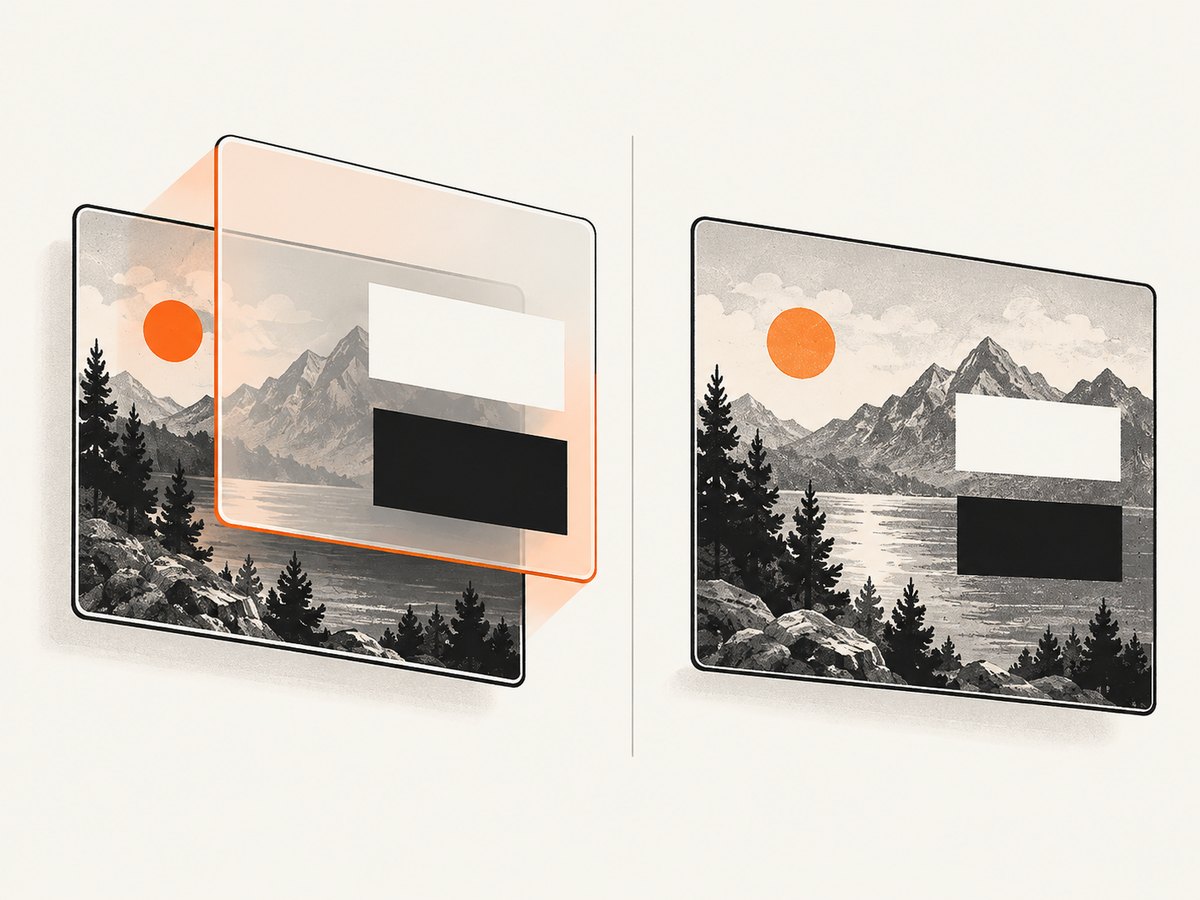
| Original text is still visible | The overlay was an HTML element, or the fill had transparency | Paint an opaque rectangle into the canvas, then print or export that canvas. |
toBlob() throws a security error |
A cross-origin image tainted the canvas | Serve the image with CORS permission, set image.crossOrigin = 'anonymous' before src, or process a local upload. |
| Image is blank | Drawing happened before image load completed | Draw inside onload or await a load promise. |
| Print crops the right or bottom edge | Page size, margins, or browser scaling changed the layout | Set @page, inspect preview, and choose a fit-to-page setting deliberately. |
| Playwright mask is missing | Locator did not match or content appeared later | Wait for the locator and verify it is visible before calling screenshot(). |
8. Performance, reliability, and cost considerations
- Canvas drawing is local and avoids uploading the source image to a server, which is useful for confidential screenshots.
- For repeated jobs, keep one canvas and reuse it instead of creating many large bitmaps.
- Use PNG when exact pixels matter. JPEG is smaller but introduces compression artifacts around text and edges.
- Call
toBlob()rather thantoDataURL()for large files; it avoids keeping a large base64 string in memory. - For automated browser capture, wait for the required content and use deterministic viewport, timezone, and fonts where reproducibility matters.
- Printing itself has no JavaScript API for controlling every user setting. Treat print preview as the final verification step.
Or skip the browser setup
ScreenshotNeo returns a screenshot or PDF from one GET request. It can accept cookie and consent banners before capture and remove more than 60 known consent platforms, newsletter popups, and chat widgets; each step can be turned off. Bot checks, blank pages, timeouts, failed loads, and cache hits are not billed, and responses identify the result with X-Page-Verdict and X-Billed headers. It also provides an MCP server for Claude, Cursor, and other MCP clients.
See the ScreenshotNeo API documentation for the available options, including full-page capture, CSS-element capture, custom CSS and JavaScript, hidden selectors, device presets, PDF settings, headers, cookies, caching, async jobs, and bulk capture.
curl -G "https://api.screenshotneo.com/v1/shot" -d access_key=YOUR_API_KEY --data-urlencode url=https://stripe.com -o shot.webpimport requests
r = requests.get("https://api.screenshotneo.com/v1/shot", params={"access_key": "YOUR_API_KEY", "url": "https://stripe.com"}, timeout=90)
open("shot.webp", "wb").write(r.content)const q = new URLSearchParams({ access_key: 'YOUR_API_KEY', url: 'https://stripe.com' });
const res = await fetch(`https://api.screenshotneo.com/v1/shot?${q}`);Plans include 1,000 screenshots per month free with no card; paid plans start at $5 for 3,000 shots. Create a free ScreenshotNeo account.
9. FAQ
Does a canvas overlay protect the original image?
No. It only protects the exported or printed bitmap. Keep the original private or delete it when it is no longer needed.
Can I redact a PDF with this technique?
Render the PDF page to an image first, paint the rectangles, and print or export the resulting bitmap. A visual cover is not the same as removing text from a searchable PDF.
Should I use CSS backgrounds instead?
For a screenshot image, canvas is more predictable because the redaction becomes part of the bitmap. CSS is useful for page layout around the canvas.
How do I let users draw rectangles with a mouse?
Track pointer coordinates on the displayed canvas, convert them to bitmap coordinates using the width and height ratio, then call fillRect() on pointer release.
Will browser print settings preserve transparent areas?
Do not depend on that. Use an opaque canvas background and verify the preview, especially when printing a PNG with transparency.


