Why Can’t You Print a Screenshot and How to Fix It
A screenshot can fail at capture, in the app, or on its way to the printer. Follow these checks to find where printing breaks and fix it.
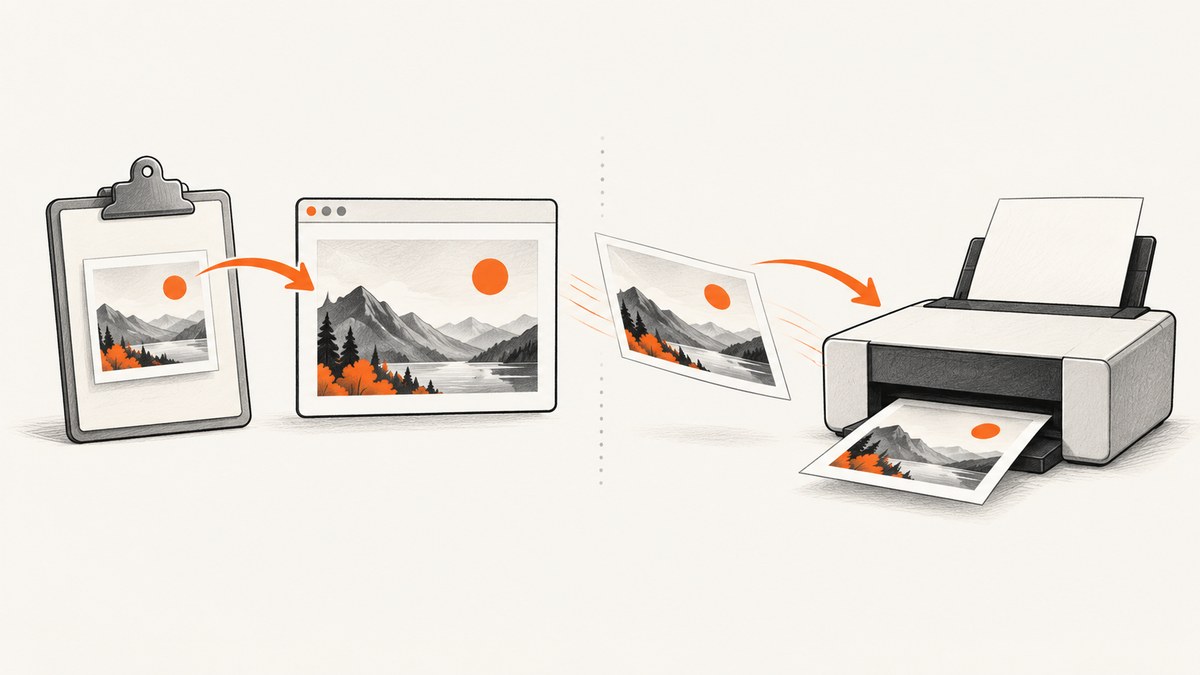
When a screenshot will not print, first check whether you actually have an image file or only an image on the clipboard. Then open or paste it into an app that can print images, choose the intended printer, and print. If the same image prints from another app, the issue is probably the original app or its print settings; if other files and a printer test page fail too, investigate the printer connection, queue, or driver.
Capturing a screenshot and printing it are separate operations. A capture can succeed while the print dialog targets the wrong device, the job gets stuck in a queue, or the printer cannot communicate with the computer. These steps help locate the failing part before you change printer software or reset settings.
1. Confirm that the screenshot exists
Start with the capture method. A Print Screen keypress may copy the screen image to the clipboard without creating a file. In that case, there is nothing to select in a file picker until you paste the image into an image editor or document and save it. Microsoft documents the Print Screen key as a way to copy the screen image to the clipboard. [Microsoft: Keyboard shortcut for Print Screen]
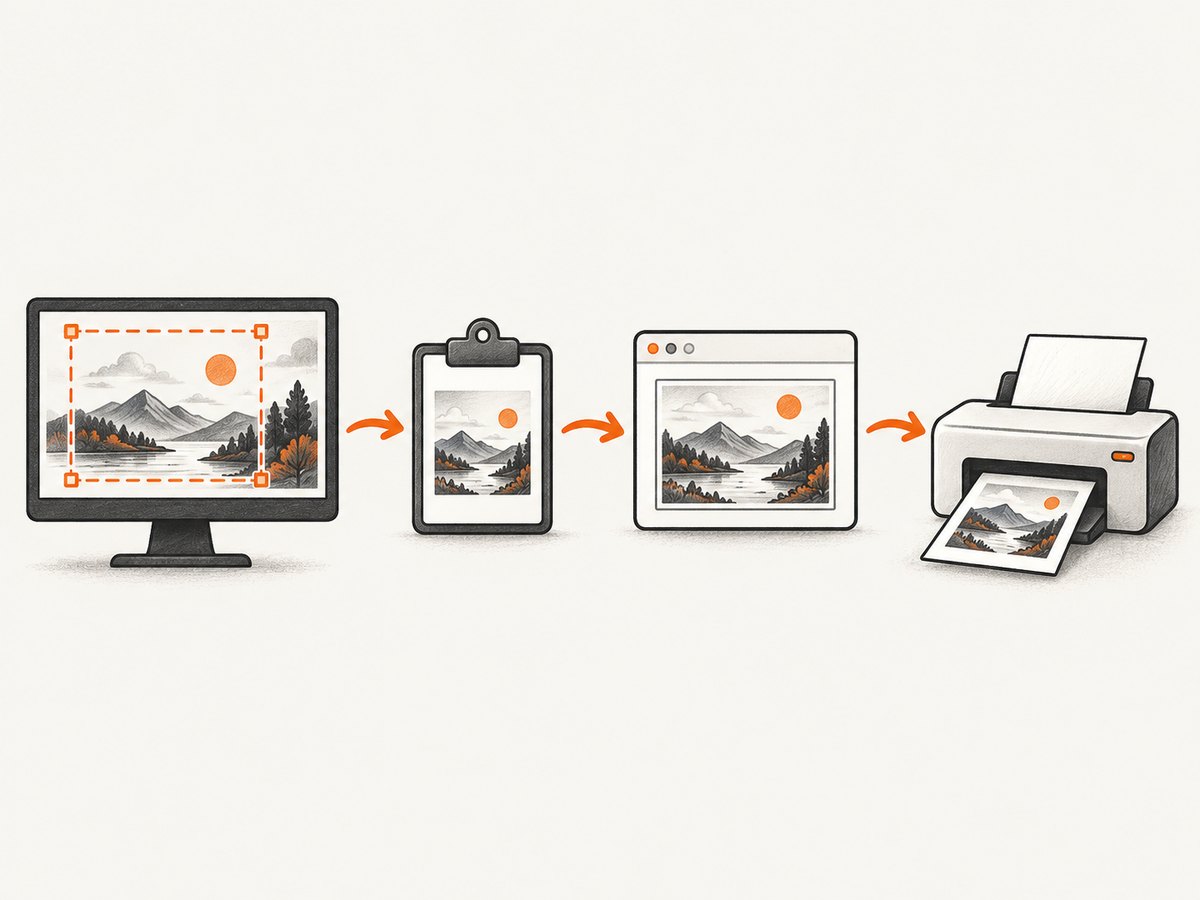
On supported Windows hardware, Windows logo key + PrtScn saves a screenshot; Microsoft points to Pictures > Screenshots for the resulting file. If the device has no PrtScn key, Microsoft documents Fn + Windows logo key + Space Bar as an alternative. Exact behavior can vary with hardware and configuration, so check the Screenshots folder and clipboard rather than assuming a file was saved. [Microsoft: Keyboard shortcut for Print Screen]
If you used Snipping Tool, open the capture and choose File > Print. [Microsoft: Use Snipping Tool to capture screenshots]
2. Print it from an app that handles images
- If it is on the clipboard: open an image editor or a document app, paste the screenshot, and save it as an image if you want a reusable file.
- If it is already saved: open the image in an image viewer or editor that offers printing.
- Open the print dialog: select the physical printer you mean to use, then check the preview before sending the job.
- For Snipping Tool: with the capture open, use File > Print.
Before clicking Print, verify the printer name, paper size, orientation, page range, and scaling or layout options. Check that the selected destination is not Print to PDF or Print to file if you expect paper. Microsoft recommends checking the selected printer and print settings when troubleshooting an app that will not print. [Microsoft: Fix printing problems in apps]
3. Find out whether the problem is the app, image, or printer
Use two simple comparison tests. First, print a different file from the same app or another app. Second, print the same screenshot from a different app. If only one app or image fails, focus on that app, image, or its settings. If multiple apps and files fail, the problem is more likely farther along the printer path.
| What happens | Likely area to investigate | Next check |
|---|---|---|
| Other files print, but this screenshot does not | Image file, app, or file-specific print settings | Reopen the image, save a fresh copy, or print it from another app. |
| The screenshot prints from a different app | Original app or its print dialog | Review that app’s printer selection, page settings, and help documentation. |
| Nothing prints from any app | Printer selection, connection, queue, or driver | Check device state and connection, then inspect the queue and run a printer test page. |
| The operating system cannot find the printer | Connection, printer setup, or driver | Check USB or wireless connectivity, then follow the operating system’s printer troubleshooting steps. |
On Windows, printing a test page helps distinguish an app-specific issue from a printer or driver issue. If the test page fails too, investigate communication with the printer and its driver. [Microsoft: Fix printing problems in apps]
4. Windows troubleshooting
Check the printer and connection
Confirm the printer is powered on and ready, and make sure the print dialog names the right printer. For USB, check that the cable is firmly connected at both ends. For Wi-Fi, confirm the printer is on the expected network and that its wireless connection is available. Microsoft recommends restarting the printer and checking its wired or wireless connection when print jobs fail. [Microsoft: Fix printer connection and printing problems in Windows]
If the printer is missing or Windows does not recognize it, begin with the connection and device state. For Windows 11, Microsoft advises starting with the automated printer troubleshooter in Get Help. If that does not resolve the issue, follow Microsoft’s steps for restarting the Print Spooler and updating or reinstalling the printer driver. [Microsoft: Fix printer not found or not recognized]
Inspect the print queue and driver
A queued or failed job can prevent later work from proceeding. Open the printer’s queue, check whether the screenshot job is paused or showing an error, and follow the Windows printer guidance to clear or restart the stuck job. If the printer is still not recognized, Microsoft recommends checking the connection, restarting the Print Spooler, and updating or reinstalling the driver using the instructions for your Windows version and printer. Avoid downloading drivers from an unrelated source; use the printer manufacturer’s support path or Windows’ applicable driver options. [Microsoft printer recognition troubleshooting]
Windows 10 support ended on October 14, 2025, according to Microsoft’s current support notice. If you are troubleshooting a Windows 10 system, consult Microsoft’s support-status guidance as well as the printer manufacturer’s information for that device. [Microsoft app printing guidance]
5. Mac troubleshooting
Verify the selected printer in the print dialog, then open Print Centre and check whether a failed or paused job is blocking the queue. Resolve or remove the offending job as appropriate. Try printing a different file from another app. If that works, investigate the screenshot app’s print path and consult that app’s documentation; Apple points to app-specific support when printing fails only in one app. [Apple: Solve printing problems on Mac]
If the printer is unavailable or expected print options are missing, Apple recommends adding the printer again with different settings or printer software where appropriate. Options and labels depend on the printer and macOS version. [Apple: Update printer software on Mac]
Resetting the printing system removes printer configuration and is a later escalation. Apple advises trying other troubleshooting techniques first. Consider a reset only after checking the queue, selected printer, connection, other apps, and printer software, and be prepared to add and configure printers again. [Apple: Reset the printing system]
6. Fix a blank, cropped, or incorrectly sized print
If the printer produces paper but the screenshot looks wrong, the capture may have printed successfully while layout settings changed the result. Check the preview, paper size, orientation, page range, and scaling options. A full desktop image can be reduced to fit a page, split across pages, or cropped depending on the app’s layout choices. Try portrait versus landscape and a fit-to-page option if available, then print a preview or test page before using more paper.
If the preview itself is blank, reopen the screenshot and confirm the image displays correctly on screen. Save a fresh copy and open it in another app. A blank preview in one app points toward that app or its handling of the file; a correct preview that prints blank calls for checking the selected printer, queue, and device status. This comparison narrows the problem without assuming a particular file format or printer model is at fault.
7. Common errors and fixes
| Symptom | Possible cause | Fix |
|---|---|---|
| Screenshot cannot be found | The capture was copied to the clipboard rather than saved | Paste it into an image or document app; save it if a file is needed. |
| Print dialog appears, but no paper comes out | Wrong printer selected, printer offline, or queue stalled | Verify the destination, check printer state and connection, then inspect the queue. |
| A PDF file appears instead of a paper print | Print to PDF was selected | Reopen the dialog and choose the physical printer. |
| Only the screenshot app fails | App-specific print path or settings | Print the same image from another app and check the original app’s support guidance. |
| Every app fails on Windows | Connection, printer state, spooler, or driver problem | Try a test page, check connectivity, then follow Microsoft’s spooler and driver steps. |
| Mac jobs remain queued | A blocked or errored print job | Inspect Print Centre and resolve the job; reset the printing system only after other checks. |
| Image is too small or split across pages | Paper layout or scaling does not fit the screenshot’s dimensions | Review orientation, paper size, and fit or scaling controls in the preview. |
8. Reliability, time, and cost
For a single print, checking the image, app, destination, and preview usually costs less time than reinstalling a driver or resetting printer configuration. Change one thing at a time and repeat the same print attempt so you can tell which check made a difference. Keep the original screenshot intact while testing a copy, particularly if the image is important.
Printer troubleshooting can consume paper and ink or toner. Use the on-screen preview and a small test page where practical. If a wired connection appears to be the issue, first reseat the existing USB printer cable and verify the printer connection. Buying a cable is relevant only if the current cable is faulty or unavailable; it is not a general fix for screenshot printing.
If your goal is only to save a website image rather than put it on paper, a browser screenshot workflow avoids the print queue entirely. ScreenshotNeo is a website screenshot API and MCP server from Yorker Media. It returns an image or PDF from a URL, and its API can capture a web page without setting up a local browser. That solves website capture; it does not repair a physical printer.
Or skip the browser setup
For a website screenshot, make one GET request to ScreenshotNeo. See the ScreenshotNeo API documentation for parameters and formats.
cURL
curl -G "https://api.screenshotneo.com/v1/shot" -d access_key=YOUR_API_KEY --data-urlencode url=https://stripe.com -o shot.webpPython
import requests

r = requests.get(
    "https://api.screenshotneo.com/v1/shot",
    params={"access_key": "YOUR_API_KEY", "url": "https://stripe.com"},
    timeout=90,
)
open("shot.webp", "wb").write(r.content)
Node.js
const q = new URLSearchParams({ access_key: 'YOUR_API_KEY', url: 'https://stripe.com' });
const res = await fetch(`https://api.screenshotneo.com/v1/shot?${q}`);
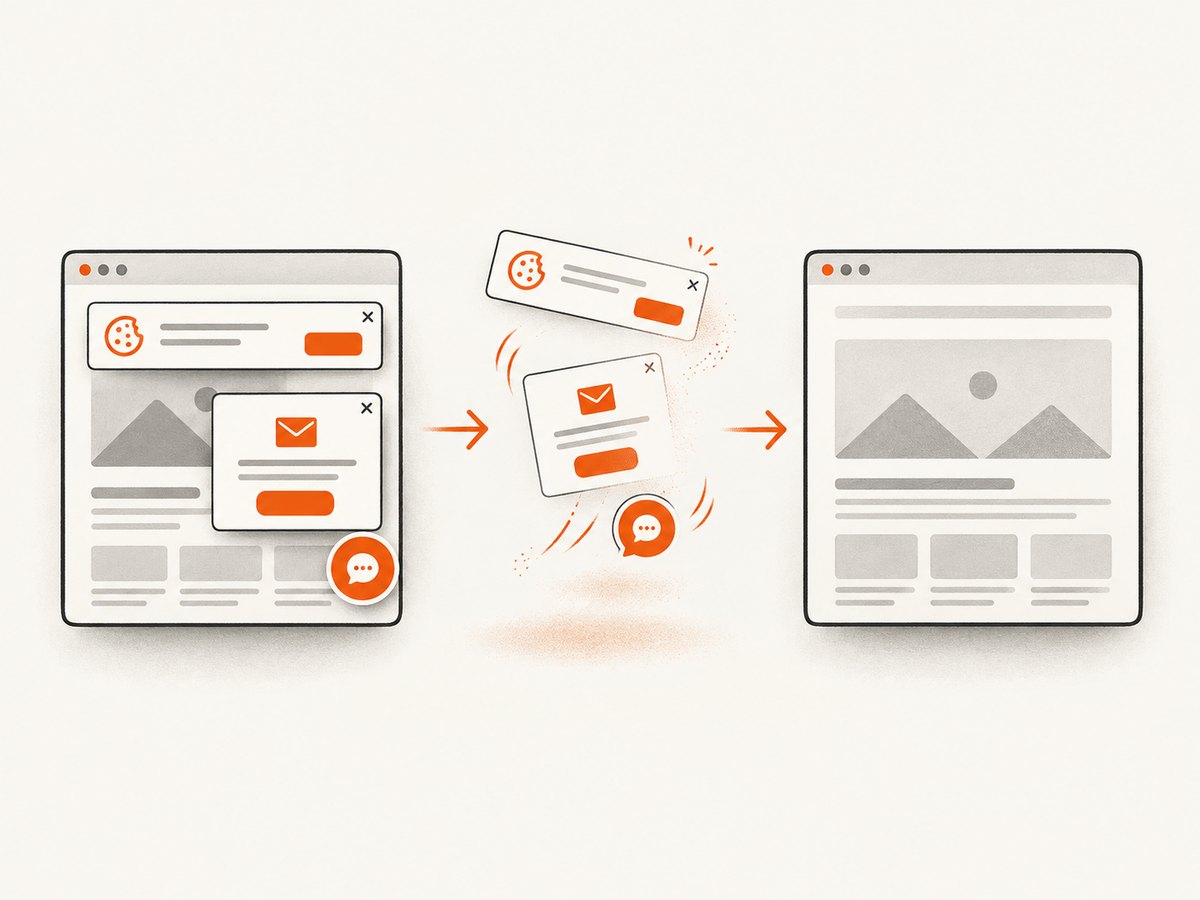
ScreenshotNeo removes cookie banners, newsletter popups, and chat widgets before the shot; bot checks, blank pages, and failed loads are never billed. Its MCP server lets AI agents take screenshots. The free plan includes 1,000 screenshots a month with no card, and paid plans start at $5 for 3,000. See ScreenshotNeo or the API docs for details.
Sign up free for 1,000 screenshots a month with no card.
Frequently asked questions
Can I print a screenshot directly from the clipboard?
Usually you need to paste it into an app that can print, such as an image editor or document app. A clipboard capture is not necessarily a saved image file.
Why does a screenshot print blank when it looks normal on screen?
Compare the print preview, another app, and another file. That shows whether the issue follows the image, the app, or the printer path.
Should I reset my Mac printing system?
Only after checking the queue, printer selection, connection, other apps, and printer software. Apple describes reset as an escalation after other troubleshooting.
Does ScreenshotNeo fix my printer?
No. It captures website pages to image or PDF. Use it when you need a web capture without local browser setup; use the printer steps above when paper output is the problem.


