Why Do We Need Puppeteer?
Puppeteer automates browser work from JavaScript: interaction, testing, screenshots, PDFs, performance traces and more. Learn when it helps, how to start, and when you can skip browser setup.
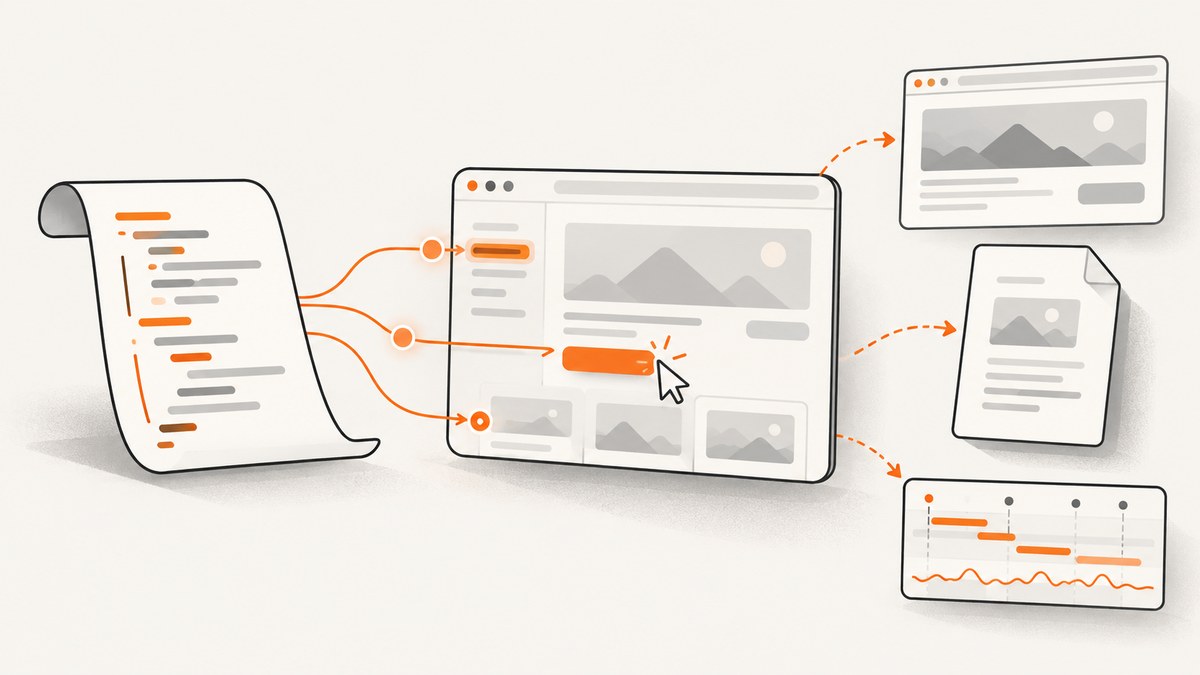
Puppeteer is useful when you need a program to control a browser and repeat browser tasks reliably. A JavaScript script can open pages, interact with forms and controls, inspect results, take screenshots, create PDFs, record performance traces, or render dynamic pages. You do not need Puppeteer for every web project: use it when the work actually requires browser behavior that you want to automate.
The Puppeteer documentation defines it as “a JavaScript library which provides a high-level API to control Chrome or Firefox over the DevTools Protocol or WebDriver BiDi.” It runs headlessly by default, though you can configure a visible browser window. Browser and protocol support can differ, so do not assume Chrome and Firefox behave identically for every API. See the Puppeteer documentation for current details.
1. What problem does Puppeteer solve?
A browser is more than an HTTP client. It runs JavaScript, builds a page, lays it out, reacts to clicks and keyboard input, and exposes the resulting document and browser state. When you need to repeat actions through that browser interface, Puppeteer gives a JavaScript program a way to drive a browser and observe what happens.
Without browser automation, a person may need to repeat a sequence manually, or a script may only fetch the initial HTML and miss content rendered later by page JavaScript. Puppeteer can automate the browser steps and let your code work with the page after it has loaded and rendered. That makes it useful for workflows where the browser itself is part of the task.
2. What do developers use Puppeteer for?
The project’s examples include browser interaction, rendering, scraping and testing. Chrome for Developers also describes screenshots, PDFs, navigation, complex interface testing and performance analysis as common tasks. These are capabilities, not permission to automate every website: follow the site’s terms, applicable law and access controls.
Repeatable interaction and UI checks
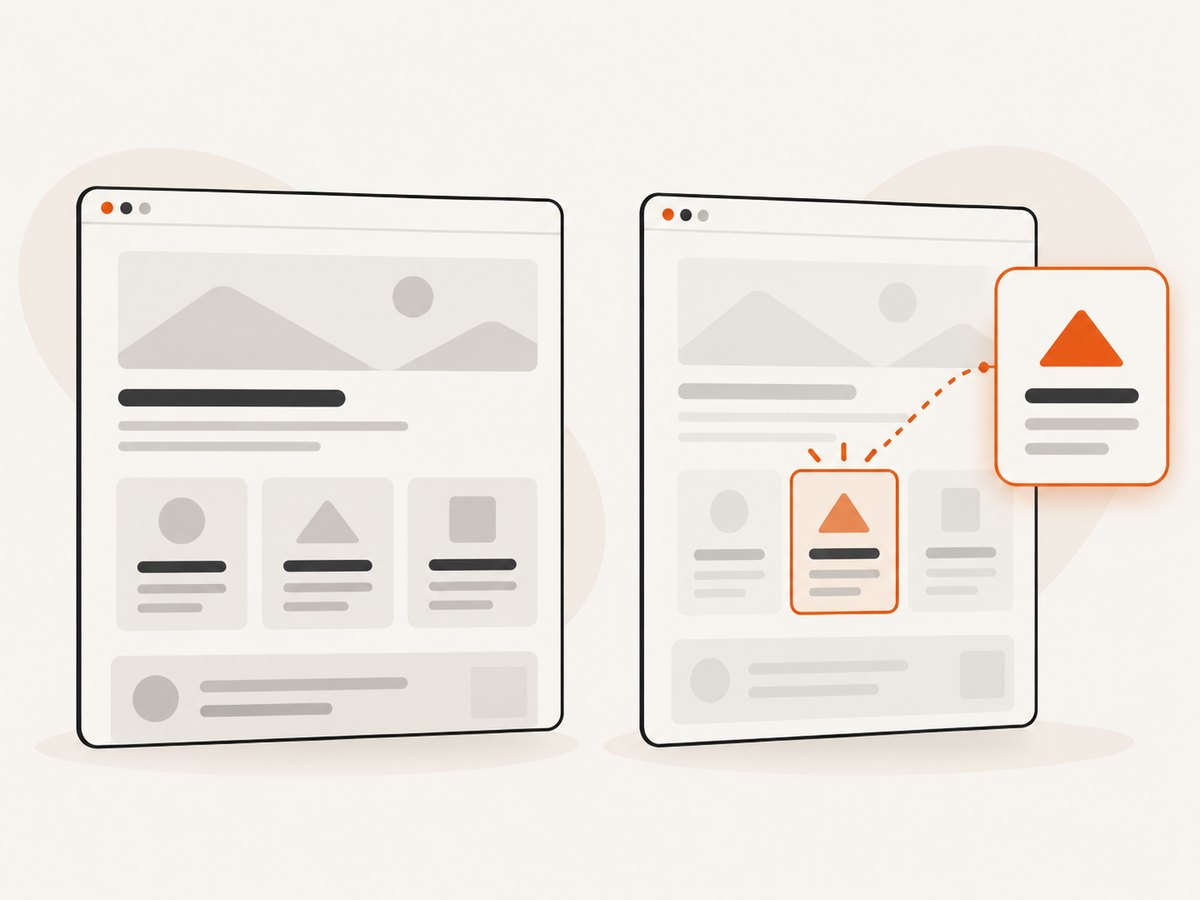
A script can navigate to a page, fill a form, type into a field, click a button and check the result. This is useful for exercising a workflow repeatedly, including in automated UI tests. Browser-driven checks can cover what a user sees and does, while lower-level tests may be faster for logic that does not depend on a rendered page.
Screenshots and PDFs
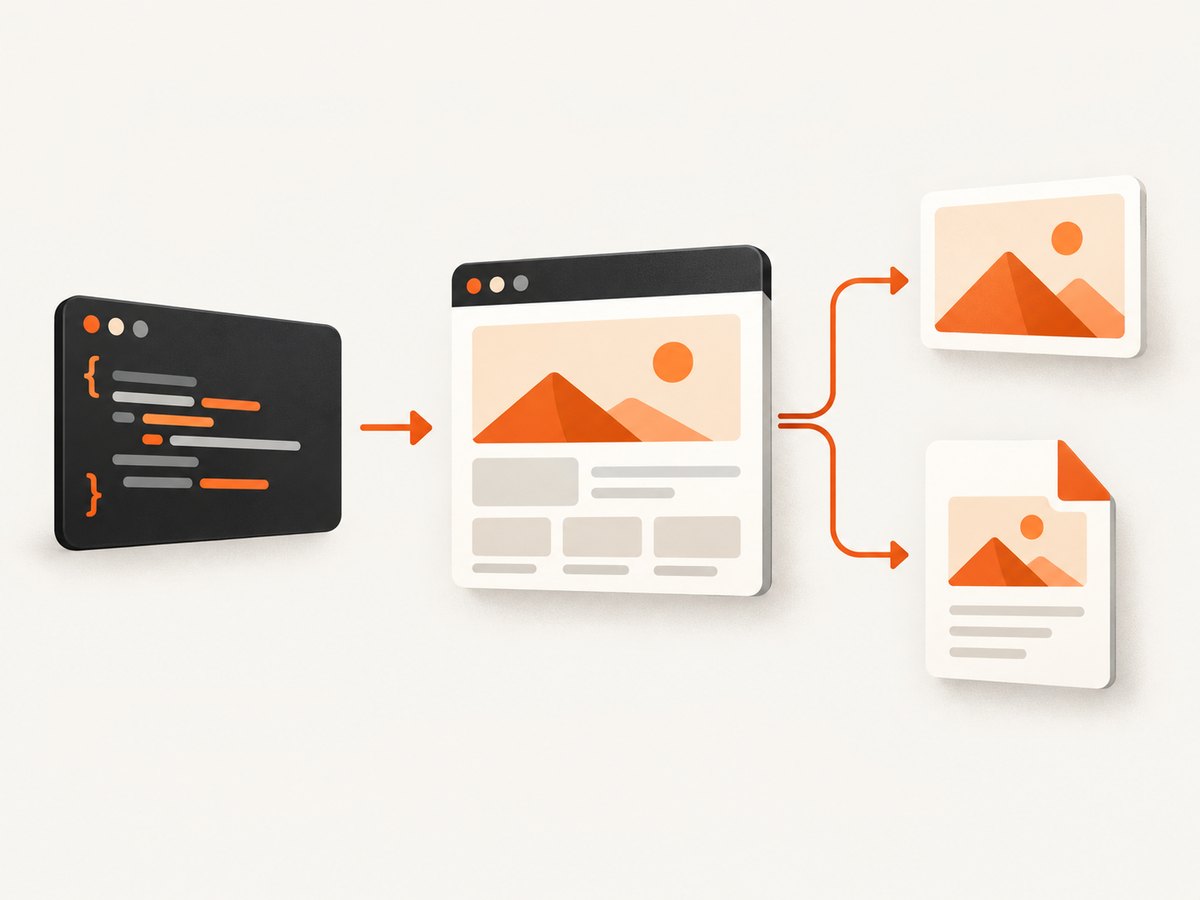
Puppeteer can save a screenshot or print a page to PDF. This helps when you need a visual record, a rendered document, or an artifact from a repeatable browser workflow. The browser still has to load and render the page; details such as viewport, page readiness and fonts can affect the result.
Performance investigation
Puppeteer can capture a performance trace that you can inspect to investigate page behavior. A trace is evidence to analyze, not by itself a diagnosis or a guarantee that a page is fast. Reproduce the same browser conditions when comparing runs, and interpret the trace in the context of the page and environment.
Dynamic pages and pre-rendering
Single-page applications may populate visible content after the initial document arrives. A browser can execute the application’s JavaScript before you inspect or capture the result. Puppeteer can crawl a page and produce pre-rendered content as part of a pipeline. Account for loading states, routing, and pages that require authentication or user action.
Extensions and browser-specific workflows
The official feature material also lists Chrome extension testing. This is a more specialized case: it makes sense when your workflow depends on browser extension behavior, and less so for ordinary server-side code or a static page.
3. A runnable Puppeteer example
The following Node.js script opens a page, waits for the document load event, saves a screenshot, and prints a PDF. Install Puppeteer in a new directory, save this as capture.mjs, and run it with Node.js. Installing the puppeteer package downloads a compatible Chrome for Testing browser and headless-shell binary by default; the installation guide explains browser management and package-manager caveats.
npm init -y
npm install puppeteer
import puppeteer from 'puppeteer';

const browser = await puppeteer.launch();

try {
  const page = await browser.newPage();
  await page.setViewport({ width: 1440, height: 900 });
  await page.goto('https://example.com', { waitUntil: 'load' });
  await page.screenshot({ path: 'page.png', fullPage: true });
  await page.pdf({ path: 'page.pdf', format: 'A4', printBackground: true });
} finally {
  await browser.close();
}
Run it with node capture.mjs. Replace the example URL with a page you are allowed to access. The finally block closes the browser even if navigation or capture fails, which matters in scripts that may run repeatedly.
Choose the right readiness condition
waitUntil: 'load' waits for the page’s load event. That does not guarantee that every application has finished rendering or that every image loaded. For a page with a known ready element, wait for that element explicitly:
await page.goto('https://example.com/dashboard', { waitUntil: 'domcontentloaded' });
await page.waitForSelector('[data-ready="true"]', { timeout: 15000 });
Use a readiness signal tied to the page’s actual content. Waiting for network silence can be a poor fit for pages that keep connections open or poll in the background. A fixed delay is simple but can waste time on fast pages and still be too short on slow ones.
Show the browser while debugging
Puppeteer launches headlessly by default. To watch a run and inspect what it does, launch with a visible window:
const browser = await puppeteer.launch({ headless: false });
Use this while debugging locally. Headless execution is generally more convenient for unattended scripts; the appropriate mode depends on the environment and debugging need.
4. Installing Puppeteer or managing your own browser
The package choice determines who manages the browser binary:
| Package | What it does | Use it when |
|---|---|---|
puppeteer |
Installs Puppeteer and downloads a compatible Chrome for Testing browser and headless shell by default. | You want the standard local setup with a browser version selected for the library. |
puppeteer-core |
Installs the library without automatically downloading Chrome. | You manage a browser yourself or connect to a remote browser. |
With puppeteer-core, point Puppeteer at the browser you manage, or configure the appropriate channel or remote connection for your setup. The exact executable path is environment-specific. Keep the browser version and Puppeteer version compatible, and consult the installation guide before changing package or browser management.
Package managers sometimes block dependency install scripts. If that prevents the automatic browser download, the documented options include installing browsers with npx puppeteer browsers install or allowing the install script in the package manager configuration. Browser downloads can be large, so account for them in container builds, CI caches and deployment setup.
5. Browser and protocol support
Puppeteer supports Chrome and Firefox. According to its FAQ, Firefox support arrived in v23.0.0; Chrome automation uses CDP by default, while WebDriver BiDi is the default for Firefox. Puppeteer says it will continue supporting Chrome automation with CDP. This does not mean all APIs or browser behavior are identical across browser and protocol combinations. Check the current compatibility documentation when choosing a browser for a specific workflow.
If a test depends on a browser-specific feature, run it against the browser and protocol you plan to support. Treat a passing Chrome run as evidence about that configuration, not as proof that another browser will behave the same way.
6. Puppeteer versus Selenium
These tools solve overlapping browser automation problems, but Puppeteer is not a universal replacement for Selenium. The Puppeteer FAQ notes that Selenium provides bindings for more programming languages and tooling for large-scale orchestration, such as Selenium Grid, beyond Puppeteer’s scope.
| Question | Why it matters |
|---|---|
| What language does the team use? | Puppeteer is a JavaScript library. Selenium offers bindings for more languages. |
| Do you need large-scale orchestration? | Evaluate whether Selenium Grid or another orchestration setup fits your session management needs. |
| Which browser and protocol must the workflow use? | Check support for the exact browser features and protocol behavior your tests rely on. |
| What is the smallest useful tool? | If the task is simply capturing a page, a browser automation framework may add setup you do not need. |
Choose based on language, browser coverage, protocol requirements, orchestration and team familiarity. The documentation supports these as decision criteria; it does not establish a winner for every project.
7. When Puppeteer is unnecessary
Puppeteer is not required just because a project uses JavaScript or has a website. It may be unnecessary when:
- You only need to fetch an API response and do not need browser rendering or interaction.
- Your page is static and its content is available without executing browser JavaScript.
- You need a single screenshot or PDF and do not want to install, launch and maintain a browser runtime.
- Your team needs another language or an orchestration approach better served by a different tool.
Ask what the task needs the browser to do. If the answer is “run this repeatable browser workflow,” Puppeteer can be a good fit. If the answer is “return an image of this URL,” a screenshot API may remove the browser installation and lifecycle work.
8. Troubleshooting common problems
| Symptom | Likely cause | What to try |
|---|---|---|
| Browser executable not found | The browser download did not run, or puppeteer-core is being used without a managed browser path. |
For the standard package, run npx puppeteer browsers install. For a managed browser, configure its executable or connection as appropriate. |
| Install finishes but launch fails in CI | The environment may lack browser dependencies, or the browser install step was skipped. | Read the error output, ensure the browser install step ran, and follow the current installation guide for the target environment. |
| Screenshot is blank or incomplete | Capture happened before the application rendered the target content. | Wait for a page-specific selector or state signal; confirm the page URL and that navigation succeeded. |
| Navigation times out | The site is slow, keeps requests open, or the chosen lifecycle condition is too strict. | Choose a suitable readiness condition and wait for the content you need. Set a timeout appropriate to the workflow and handle failures. |
| Page looks different in a capture | Viewport, browser version, fonts, device settings or timing differ. | Set the viewport explicitly, use a consistent browser version, and wait for required fonts or content before capturing. |
| Automation is denied or challenged | The site may restrict automated access or require authentication. | Respect the site’s access controls and terms. Do not treat Puppeteer as a way to bypass a challenge. |
9. Performance, reliability and cost
Puppeteer gives you control over a browser process, which also means your application must manage that process. Browser startup, page loading and rendering are part of the workflow. Reusing a browser for related captures can avoid repeated launches, but always close pages and browsers and isolate work appropriately for your security and reliability requirements. Avoid unbounded concurrency: each browser session consumes resources, and parallel jobs can compete for memory and CPU.
For reliable output, make the viewport and readiness condition explicit, handle navigation and capture errors, and close resources in cleanup code. Page content can change, network conditions vary, and third-party scripts can affect timing. A screenshot is a snapshot of a particular browser state, so define which state counts as ready for your application.
The package itself is open-source software; the setup cost includes browser downloads, runtime resources and maintenance of the environment. If you run it in CI or a server, account for browser installation and updates. Remote browser services and managed crawling tools are optional extensions: Puppeteer’s examples page names Browserless as a remote headless Chrome service and Apify SDK as a JavaScript crawling library that manages a pool of Puppeteer browsers. Investigate their current terms and fit independently; they are not prerequisites.
10. Or skip the browser setup
If your task is to get an image of a URL, ScreenshotNeo can return a screenshot with one GET request. The API and examples are documented at ScreenshotNeo docs.
curl -G "https://api.screenshotneo.com/v1/shot" -d access_key=YOUR_API_KEY --data-urlencode url=https://stripe.com -o shot.webpimport requests
r = requests.get(
"https://api.screenshotneo.com/v1/shot",
params={"access_key": "YOUR_API_KEY", "url": "https://stripe.com"},
timeout=90,
)
open("shot.webp", "wb").write(r.content)
const q = new URLSearchParams({ access_key: 'YOUR_API_KEY', url: 'https://stripe.com' });
const res = await fetch(`https://api.screenshotneo.com/v1/shot?${q}`);
if (!res.ok) throw new Error(`Screenshot request failed: ${res.status}`);
await Bun.write('shot.webp', res);
ScreenshotNeo accepts cookie and consent banners like a visitor and removes 60+ known consent platforms, newsletter popups and chat widgets before capture; each step can be turned off. Bot checks, blank pages, timeouts, failed loads and cache hits cost nothing, and response headers say which page verdict and billing status applied. Its MCP server gives AI agents tools to take screenshots, get page information and capture PDFs. The free plan includes 1,000 screenshots a month with no card; paid plans start at $5 for 3,000. See ScreenshotNeo and the API documentation for details. Create a free account for 1,000 screenshots a month, with no card.
11. Frequently asked questions
Is Puppeteer only for testing?
No. UI testing is one use. The official examples also cover screenshots, PDFs, performance traces, extension testing and rendering or crawling dynamic applications.
Does Puppeteer require a visible browser?
No. It runs headlessly by default. You can configure a visible browser window when you need to debug a run.
Does Puppeteer work with Firefox?
Yes, the project documents Firefox support from v23.0.0 onward. Its default protocol differs from Chrome’s, and support details can vary, so check current documentation for your use case.
Do I need Puppeteer to take a website screenshot?
No. Puppeteer is one way to automate a browser and capture a page. For a one-call screenshot workflow, a screenshot API such as ScreenshotNeo can return the image without you managing a local browser.


