Why Download Links Fail and How to Fix Them
Diagnose failed downloads by error type: missing files, permissions, browser security, network policies, and local storage problems.
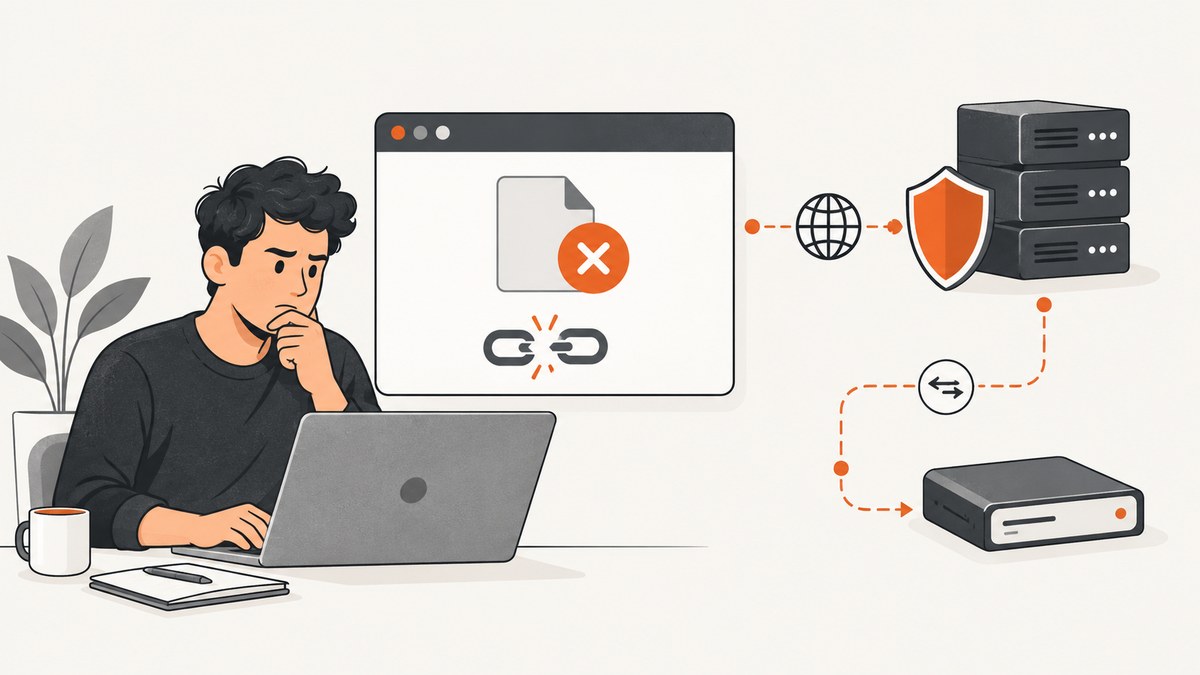
Download links fail for different reasons, and the exact message usually identifies the failing layer. A missing-file message points to the URL or hosting. “Forbidden” points to access control. A security warning means the browser has judged the file or connection risky. A transfer that stops partway often involves the network, proxy, or policy. A file that downloads but does not appear usually involves disk space, folder permissions, or the destination path.
Use this order: record the exact message, verify that the current URL still serves the file, check authentication, review any security warning, isolate network and proxy issues, then check the local save location.
1. Record the exact failure
Before retrying, note:
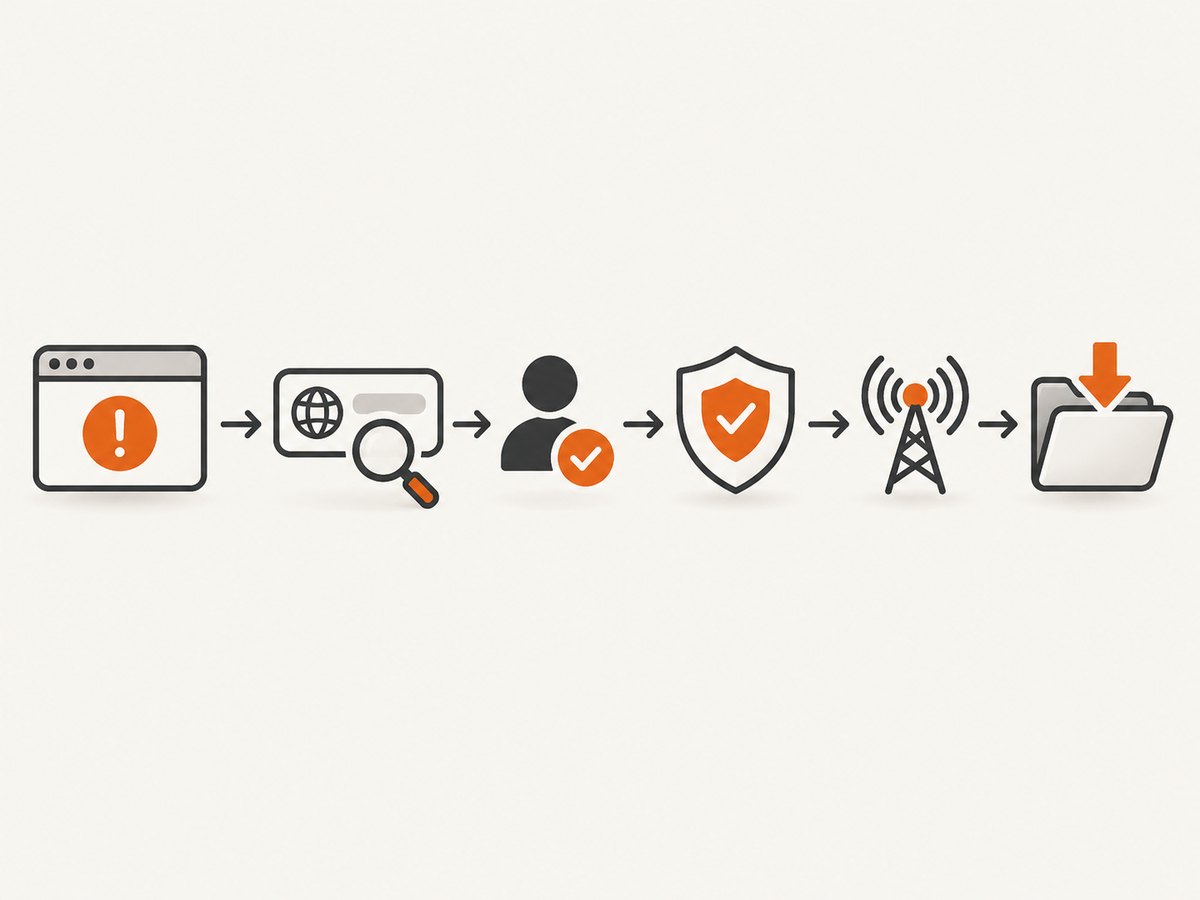
- The complete browser message, such as “Download blocked,” “Forbidden,” “No file,” “File missing,” “Insufficient permissions,” “System busy,” or “Couldn’t download.”
- Whether the transfer never starts, stops partway, or appears to finish without a visible file.
- The page containing the link, the browser, the time, and whether you were signed in.
Chrome and Edge expose different error categories, so the wording is useful diagnostic information. Do not treat every failed download as a browser defect.
2. Check whether the URL and file still exist
“No file” or “File missing” generally means the requested resource does not exist at that location or has moved. Reload the page and navigate from the publisher’s current download page instead of repeatedly using an old bookmark or copied URL. If the file is gone, contact the site owner or locate the publisher’s legitimate replacement page.
Inspect the response with cURL
curl -I -L "https://example.com/files/report.pdf"

curl -L --fail --show-error --output report.pdf "https://example.com/files/report.pdf"
-I requests headers, -L follows redirects, and --fail makes HTTP errors return a failure status. A 404 means the server cannot find the requested resource. A redirect to a sign-in page often means the file requires authentication.
Check the URL with Python
import requests

url = "https://example.com/files/report.pdf"
r = requests.get(url, allow_redirects=True, timeout=30)
print("status:", r.status_code)
print("final URL:", r.url)
print("content type:", r.headers.get("content-type"))
print("bytes:", len(r.content))
r.raise_for_status()
with open("report.pdf", "wb") as f:
    f.write(r.content)
Check the URL with Node.js
const url = 'https://example.com/files/report.pdf';
const res = await fetch(url, { redirect: 'follow' });
console.log('status:', res.status);
console.log('final URL:', res.url);
console.log('content type:', res.headers.get('content-type'));
if (!res.ok) throw new Error(`HTTP ${res.status}`);
const data = Buffer.from(await res.arrayBuffer());
require('fs').writeFileSync('report.pdf', data);
3. Resolve authentication and authorization errors
HTTP 401 means the server is asking you to authenticate. HTTP 403 means the server refuses access, even if the request reached it. Sign in to the correct account, confirm that the account has permission, and retry from the site’s own download page. If access should be available but remains denied, the file owner or server administrator must change the permission.
| Message or status | Likely cause | Action |
|---|---|---|
| Needs authorization / 401 | Authentication is missing or expired | Sign in again and use the current link |
| Forbidden / 403 | Server refuses the account or request | Ask the owner to grant access |
| No file / 404 | URL is stale or resource was removed | Find the publisher’s current page |
4. Handle browser security blocks safely
Chrome may block downloads it considers dangerous, suspicious, unverified, or insecure. These warnings are intended to protect against malware, deceptive software, insecure connections, and privacy risks. Verify the source and file with the publisher before proceeding. Do not disable browser protection as a generic fix.
A secure page can also link to an insecure HTTP download. This is mixed content; browsers may block or upgrade the request. Site owners should serve both the page and the file over HTTPS and remove redirects to HTTP.
5. Isolate network, proxy, and policy problems
- Try downloading from another reputable site. If only one site fails, investigate its URL or permissions.
- Try another network, such as a phone hotspot. If the download works there, the original network, proxy, firewall, or DNS path is implicated.
- On a work or school device, ask the administrator to check proxy rules, group policy, and download restrictions.
- Compare another browser only to isolate a browser-specific problem; keep security protections enabled while testing.
A transfer that stops partway can also result from an interrupted connection. Retry after the network is stable. For large files, the server and client must correctly support range requests if you need resumable downloads.
6. Check the local save location
A link can work while the device fails to save the response. Check free disk space, folder permissions, removable-drive availability, and whether security software is locking the destination. Retry with an accessible folder such as Documents or Desktop, or use “Save link as” and choose a different location.
# Check free space on macOS or Linux
 df -h

# Check the destination directory
 ls -ld ~/Downloads
 test -w ~/Downloads && echo writable || echo not-writable
On Windows, check the drive’s free space in File Explorer and choose a folder where your account can create files. A “System busy” message can clear after closing applications that are scanning or locking the destination.
7. Verify that the downloaded bytes are the expected file
A successful HTTP response does not guarantee that you received the intended file. Some servers return an HTML sign-in page with status 200. Check the final URL, content type, file size, and—when provided by the publisher—a checksum.
file report.pdf
sha256sum report.pdf
If file reports HTML instead of PDF, authenticate first or obtain a fresh authorized link. Never publish private signed URLs or access tokens in support tickets.
8. A cause-first troubleshooting checklist
- Exact message: capture the full text and failure stage.
- Current URL: open the publisher’s download page and follow its link.
- Authentication: sign in to the account that owns the permission.
- Security: verify the source and keep browser protections enabled.
- Network: compare another site and another network.
- Policy: ask IT about proxy, firewall, or managed-device restrictions.
- Storage: check disk space and write access, then select another folder.
- Escalation: provide the error, page URL, browser, time, sign-in state, and test results.
9. What to send to the site owner or IT
Include the exact error, the page where the link appears, whether authentication is required, the time and timezone, browser and operating system, whether another browser or network changes the result, and the HTTP status if you captured it. Treat attempted download URLs as sensitive when they contain signed query parameters or tokens.
10. Or skip the browser setup
If your goal is to document the page that contains a broken download link, ScreenshotNeo can capture that page with one request. See the ScreenshotNeo API documentation for all options.
curl -G "https://api.screenshotneo.com/v1/shot" -d access_key=YOUR_API_KEY --data-urlencode url=https://example.com/download-page -o shot.webpimport requests
r = requests.get("https://api.screenshotneo.com/v1/shot", params={"access_key": "YOUR_API_KEY", "url": "https://example.com/download-page"}, timeout=90)
open("shot.webp", "wb").write(r.content)const q = new URLSearchParams({ access_key: 'YOUR_API_KEY', url: 'https://example.com/download-page' });
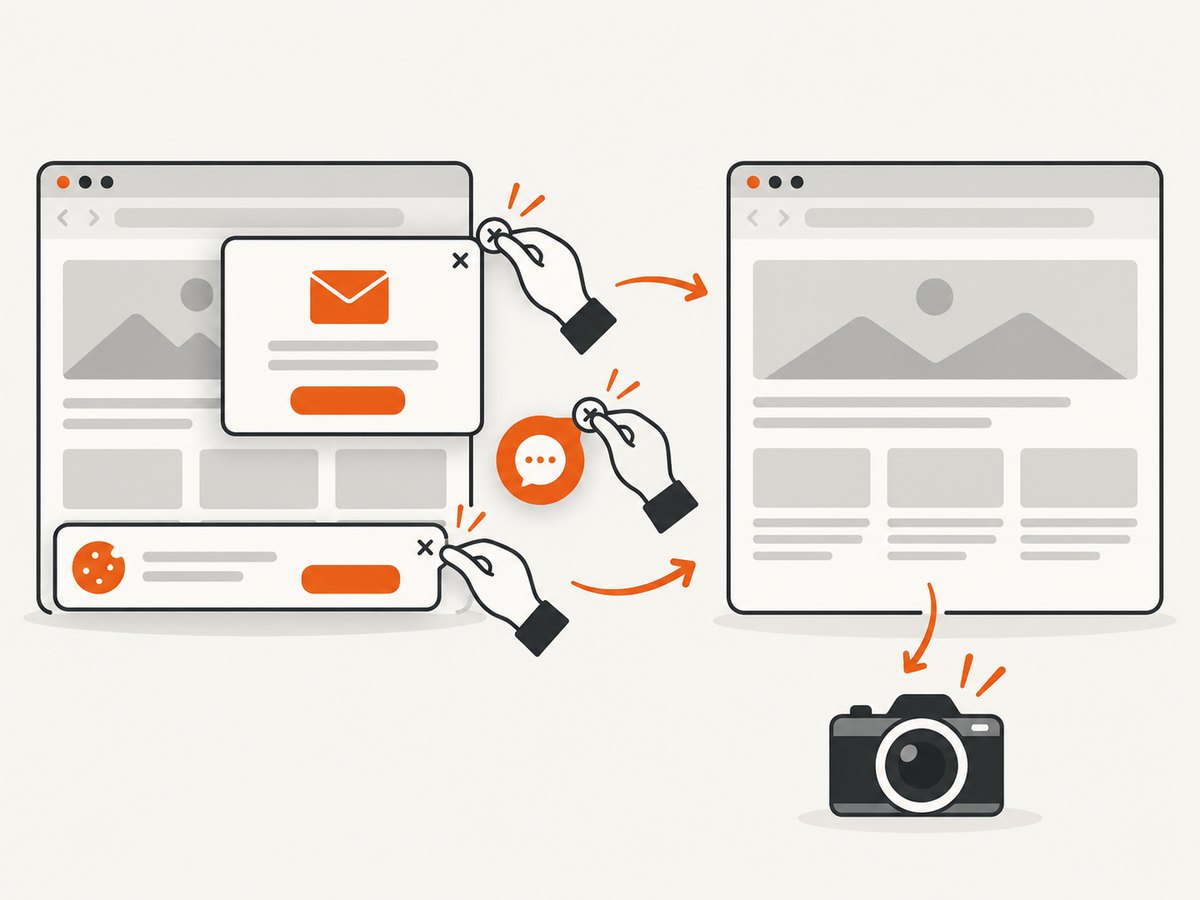
const res = await fetch(`https://api.screenshotneo.com/v1/shot?${q}`);Cookie banners, newsletter popups, and chat widgets are removed before the shot. Bot checks, blank pages, failed loads, timeouts, and cache hits are not billed, and response headers identify the page verdict and billing result. An MCP server lets AI agents take screenshots, inspect pages, and capture PDFs. The Free plan includes 1,000 screenshots a month with no card; paid plans start at $5 for 3,000 shots. Create a free ScreenshotNeo account.
FAQ
Why does it say “Download blocked”?
The browser has classified the file, source, or connection as dangerous, suspicious, unverified, or insecure. Verify the publisher and file before taking action.
Why does the link say “Forbidden”?
The server returned a 403 response and refuses access. Sign in to the correct account or ask the file owner to grant permission.
Why is the download stuck or failing?
Test another network and site, then check proxy or organizational policy. If the transfer completes but no file appears, check disk space and folder permissions.
What does “No file” mean?
The requested resource is missing at that URL or has moved. Use the publisher’s current download page.
Should I turn off browser protection?
No. Verify the source and resolve the underlying URL, authorization, or HTTPS problem instead.


