Why Is My Full-Page Screenshot Squashed?
A squashed full-page screenshot usually means you captured the wrong scroll area or changed pixel scale. Diagnose both with these fixes and runnable examples.
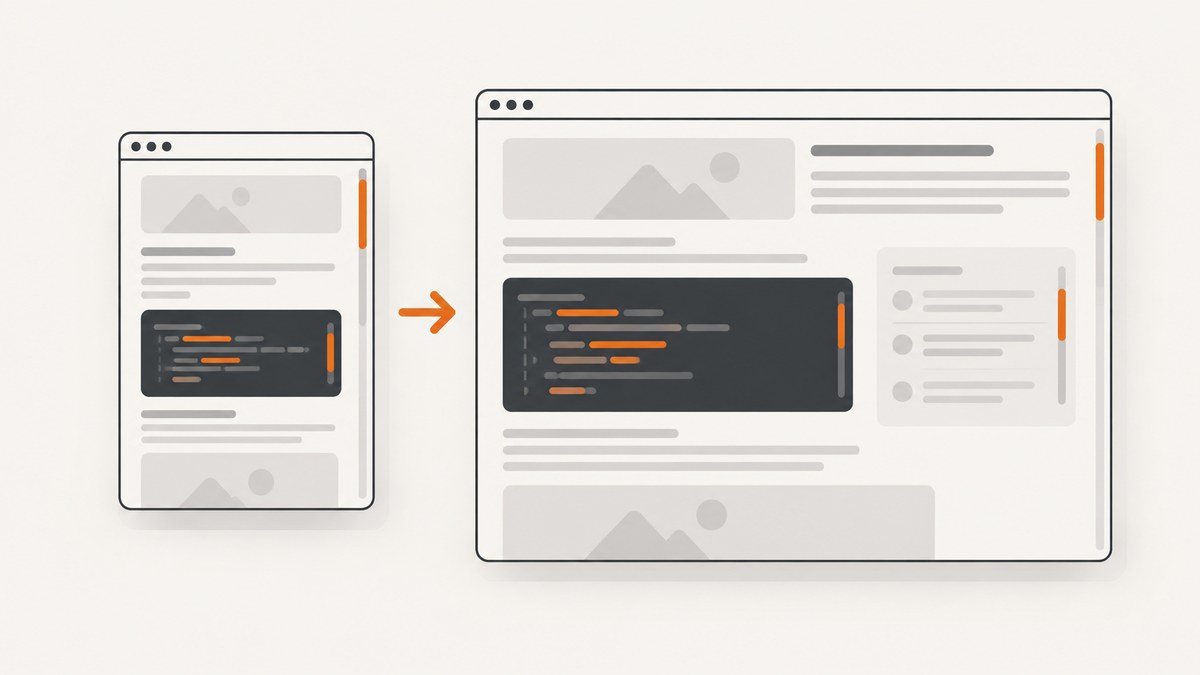
A full-page screenshot can look squashed for two different reasons: the capture included the document but not a separately scrolling panel, or the image is being displayed at a different pixel scale than you expected. These problems look similar in a preview, but they require different fixes.
First inspect the saved file at its native dimensions. Then identify which element actually scrolls. If the browser window scrolls, use a document-level full-page option. If a dashboard, email, modal, table, or other panel has its own scrollbar, capture that element or expand it before capturing. Only after the capture scope is correct should you adjust CSS-pixel versus device-pixel output.
What “squashed” usually means
There are three common interpretations of a squashed screenshot:
- The file is intact, but the preview is scaled down. Tall images are often fitted into a short preview area. The preview can look compressed even when the file has the correct aspect ratio.
- The wrong scroll region was captured. A full-page option generally means the full scrollable document. It does not automatically expand every nested element with
overflow: autooroverflow: scroll. - The output uses a different pixel density. CSS pixels and device pixels can produce different image dimensions. A high-DPI capture may be much larger without containing any additional page content.
These causes are independent. Increasing device scale cannot reveal rows hidden inside a nested scroller, and capturing an element does not by itself change the image density.
How full-page capture chooses content
In Playwright, page.screenshot({ fullPage: true }) is documented as a screenshot of the full scrollable page rather than only the viewport. The “page” here is the document scroll area. A child element with its own scrollbar remains a separate scrolling context. See the Playwright screenshot documentation and the page.screenshot API reference.
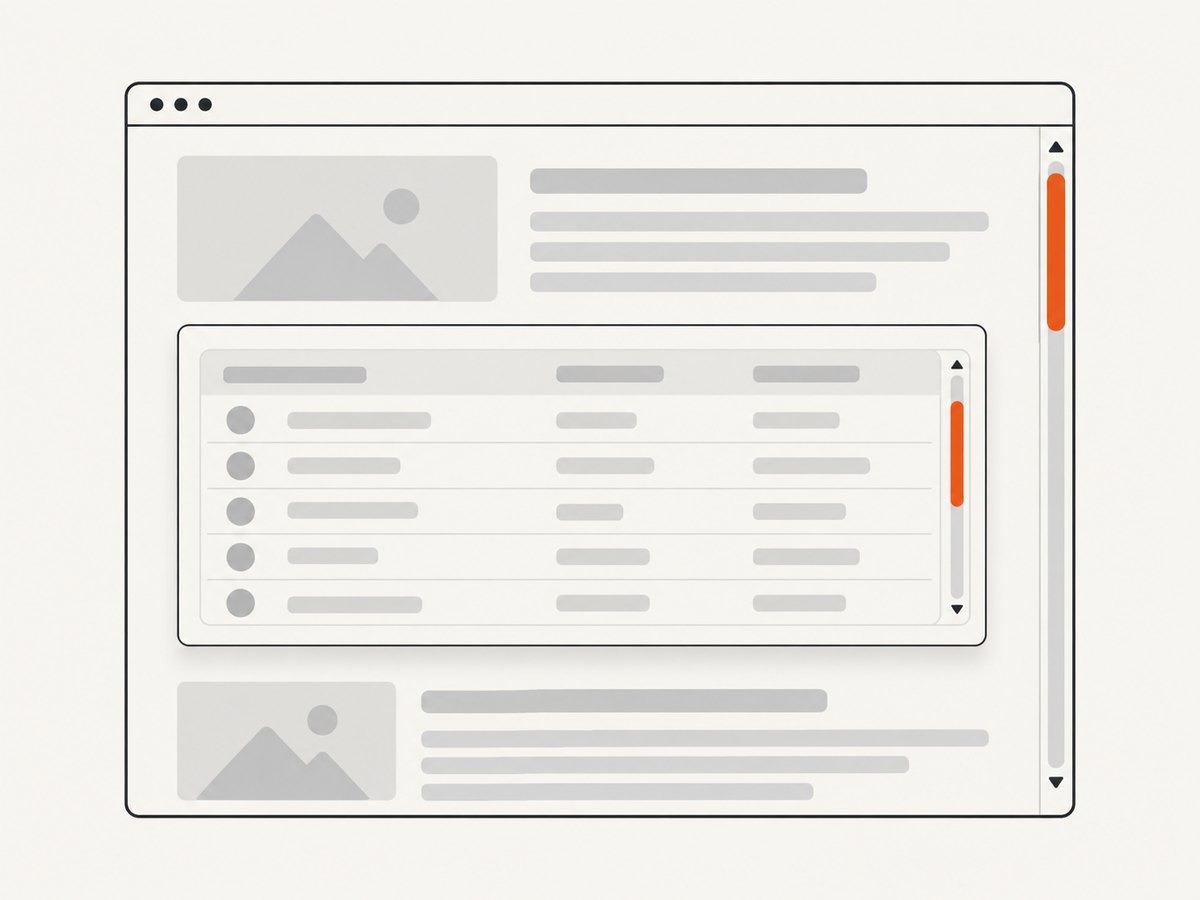
Playwright maintainer dgozman explained this distinction in a 2022 issue: “Full page screenshots do not expand any scrollable container in the page. Instead, they render the full scrollable content of the document itself.” The same reply recommends screenshotting the container directly for the nested-scroller case. Treat that issue discussion as documentation of the reported behavior, not a promise that every browser or capture product behaves identically.
Document scrolling versus nested scrolling
Use your browser’s inspector to determine where the scrollbar belongs:
- Scroll the page with the pointer over empty space. If the whole document moves, the body or document is the primary scroll area.
- Place the pointer over the suspicious panel. If only the panel moves while the page stays fixed, it is a nested scroll container.
- Inspect computed styles for
overflow,overflow-y, a constrainedheightormax-height, and a scrollablescrollHeight. - Capture the document and the panel separately when you need both.
Fix 1: capture the document in Playwright
Use a full-page screenshot when the content you need belongs to the document scroll area.
import { chromium } from 'playwright';

const browser = await chromium.launch();
const page = await browser.newPage({
  viewport: { width: 1440, height: 900 },
  deviceScaleFactor: 1
});

await page.goto('https://example.com/long-page', {
  waitUntil: 'networkidle'
});

await page.screenshot({
  path: 'document-full.png',
  fullPage: true,
  animations: 'disabled'
});

await browser.close();
Use waitUntil: 'networkidle' only when the site reaches a reasonably quiet network state. Applications that keep analytics, polling, or websocket connections open may never become idle; in that case wait for a meaningful selector or use a bounded delay.
Fix 2: capture the nested scrolling element
When a panel owns the scrollbar, target the panel with a locator. This captures the element’s rendered box and content according to the browser’s element screenshot behavior.
import { chromium } from 'playwright';

const browser = await chromium.launch();
const page = await browser.newPage({ viewport: { width: 1440, height: 900 } });
await page.goto('https://example.com/dashboard', { waitUntil: 'domcontentloaded' });

const panel = page.locator('[data-testid="results-panel"]');
await panel.waitFor({ state: 'visible' });
await panel.screenshot({
  path: 'results-panel.png',
  animations: 'disabled'
});

await browser.close();
If you need the entire scrollable contents rather than the visible panel box, temporarily remove the height constraint and capture the expanded element. Do this only when changing the page is acceptable for your test or export.
await page.locator('[data-testid="results-panel"]').evaluate((el) => {
  el.dataset.originalHeight = el.style.height;
  el.dataset.originalOverflow = el.style.overflow;
  el.style.height = `${el.scrollHeight}px`;
  el.style.maxHeight = 'none';
  el.style.overflow = 'visible';
});

await page.locator('[data-testid="results-panel"]').screenshot({
  path: 'results-panel-expanded.png',
  animations: 'disabled'
});
For production automation, restore those styles after capture or use a fresh page for each job. Also check whether expanding the panel changes sticky headers, virtualized rows, or lazy-loaded content.
Fix 3: understand CSS pixels and device pixels
Playwright documents two screenshot scales in its relevant APIs. scale: 'css' produces one image pixel per CSS pixel. scale: 'device' uses device pixels and can create a much larger image on a high-DPI display. The documented default depends on the API context, so set the value explicitly when consistent dimensions matter.
await page.screenshot({
  path: 'css-pixels.png',
  fullPage: true,
  scale: 'css'
});

await page.screenshot({
  path: 'device-pixels.png',
  fullPage: true,
  scale: 'device'
});
Choose CSS scale for predictable layout dimensions, visual diffs, and smaller files. Choose device scale when you need higher pixel density for a retina-style display. Neither setting changes which content is scrollable.
Fix 4: compare the viewport and full-page results
Capture both versions before changing several variables at once. If the viewport image looks normal but the full-page image is compressed or truncated, investigate document height, nested scrolling, sticky positioning, and the full-page capture path. If both images look wrong, inspect the page’s responsive CSS, viewport width, zoom, and font loading.
await page.screenshot({ path: 'viewport.png', fullPage: false, scale: 'css' });
await page.screenshot({ path: 'full-page.png', fullPage: true, scale: 'css' });

const metrics = await page.evaluate(() => ({
  innerWidth,
  innerHeight,
  bodyScrollWidth: document.body.scrollWidth,
  bodyScrollHeight: document.body.scrollHeight,
  documentScrollWidth: document.documentElement.scrollWidth,
  documentScrollHeight: document.documentElement.scrollHeight
}));
console.log(metrics);
A large difference between scrollHeight and the visible content can indicate that the page relies on a child scroller or virtualization. A virtualized table may render only the rows near the viewport; a full-page screenshot cannot include rows that the application has not placed in the DOM.
Lazy loading, sticky elements, and dynamic pages
Content that loads while you scroll needs an explicit check. Scroll through the page before the final capture, wait for images to complete, or use the application’s own “load all” behavior. This is a troubleshooting technique rather than a universal rule: websites implement lazy loading in different ways.
await page.evaluate(async () => {
  const step = Math.max(400, window.innerHeight * 0.8);
  for (let y = 0; y < document.documentElement.scrollHeight; y += step) {
    window.scrollTo(0, y);
    await new Promise(resolve => setTimeout(resolve, 150));
  }
  window.scrollTo(0, 0);
});
await page.waitForTimeout(500);
await page.screenshot({ path: 'loaded-full-page.png', fullPage: true });
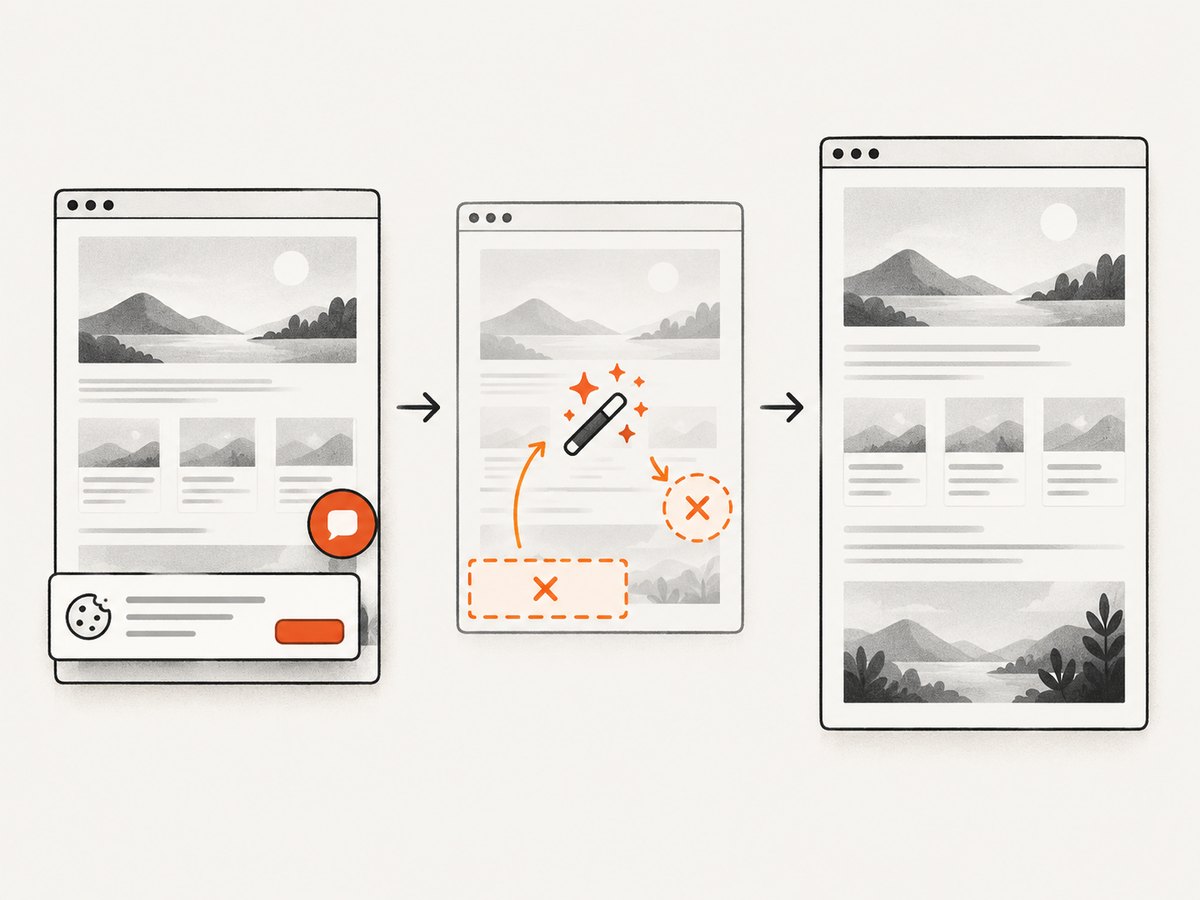
Sticky headers and fixed chat controls can appear repeatedly or cover content in a stitched capture. Hide them with a test-only stylesheet or selector rules when your capture tool supports that. Verify the result at the target viewport because removing a fixed element can change available space.
Browser developer tools: a quick diagnostic
Firefox Developer Tools provides a full-page screenshot and a separate “Screenshot Node” action for an individual element. Use the full-page command for document scrolling and Screenshot Node for a nested panel. The Firefox DevTools screenshot documentation describes both actions.
This two-capture test is useful even if your final pipeline uses automation: if Firefox can capture the element correctly while the document capture omits it, you have identified a scope problem rather than a file viewer problem.
Or skip the browser setup
ScreenshotNeo accepts one GET request and returns a PNG, JPEG, WebP, or PDF. Its full-page capture loads lazy images, and it can capture one element by CSS selector when the content is inside a nested panel. You can also set a viewport or one of 12 device presets, choose retina scale, wait for a selector, delay, or network idle, and add custom CSS or JavaScript.
For a direct full-page request, see the ScreenshotNeo API documentation:
curl -G "https://api.screenshotneo.com/v1/shot" \
  -d access_key=YOUR_API_KEY \
  --data-urlencode url=https://stripe.com \
  -o shot.webp
import requests
r = requests.get(
"https://api.screenshotneo.com/v1/shot",
params={"access_key": "YOUR_API_KEY", "url": "https://stripe.com"},
timeout=90,
)
r.raise_for_status()
open("shot.webp", "wb").write(r.content)const q = new URLSearchParams({
access_key: 'YOUR_API_KEY',
url: 'https://stripe.com'
});
const res = await fetch(`https://api.screenshotneo.com/v1/shot?${q}`);
if (!res.ok) throw new Error(`HTTP ${res.status}`);
const data = new Uint8Array(await res.arrayBuffer());
await Bun.write('shot.webp', data);ScreenshotNeo removes cookie and consent banners, newsletter popups, and chat widgets before the shot. Bot checks, blank pages, timeouts, failed loads, and cache hits cost nothing; response headers identify the page verdict and whether the request was billed. Its MCP server provides take_screenshot, get_page_info, and capture_pdf tools for Claude, Cursor, and other MCP clients. The free plan includes 1,000 shots per month with no card; paid plans start at $5 for 3,000 shots.
Use the API when you want a repeatable capture service without maintaining browsers, consent handling, or cleanup scripts. Create a free ScreenshotNeo account and start with the 1,000 monthly shots.
Useful ScreenshotNeo options for squashed captures
| Need | Option or approach |
|---|---|
| Document content | Enable full-page capture; lazy images are loaded. |
| Nested panel | Capture one element by CSS selector, or use custom JavaScript to expand it. |
| Stable dimensions | Set a viewport or device preset and choose the required retina scale. |
| Late content | Wait for a selector, a delay, or network idle. |
| Overlays | Use hide selectors, custom CSS, or the built-in cleanup of consent platforms, popups, and chat widgets. |
| Restricted pages | Supply custom headers, cookies, a user agent, or an Authorization header. |
| Repeat requests | Choose a cache TTL; cache hits are not billed. |
| Large jobs | Use asynchronous jobs with signed webhooks or bulk capture for up to 100 URLs per call. |
| PDF output | Set paper size, margins, landscape mode, and page ranges. |
ScreenshotNeo also supports custom CSS and JavaScript, click-before-capture actions, dark mode, timezone and geolocation, blocked ads or resource types, transparent backgrounds, image resizing, signed links for public image tags, a usage API, and an OpenAPI specification. Parameter names used by other screenshot APIs also work, which can reduce migration changes.
Troubleshooting checklist
| Symptom | Likely cause | Fix |
|---|---|---|
| The file looks compressed only in a dashboard preview | The preview fits a tall image into a short box. | Open the original file at native dimensions and inspect its width and height. |
| Only the visible rows of a panel appear | The panel, not the document, owns the scrollbar. | Capture the panel element or expand its height before capture. |
| The page is cut off where scrolling starts | The full-page path captured the document while the important content is nested. | Use element/node capture for the nested container. |
| The image is much larger than expected | Device-pixel scale or a high device scale factor. | Set CSS scale or reduce the device scale factor when density is not required. |
| Images are blank below the fold | Lazy content has not loaded. | Scroll through the page, wait for images or a selector, then capture. |
| Rows are missing from a long table | Virtualization renders only visible rows. | Use an export endpoint, disable virtualization for the capture, or scroll and collect separate element shots. |
| Full-page capture never finishes | Network activity never becomes idle. | Wait for a specific selector or bounded delay instead of network idle. |
| Fixed controls cover content | Sticky headers, chat buttons, or consent overlays remain visible. | Hide selectors or inject capture-only CSS; ScreenshotNeo also removes known consent, popup, and chat systems. |
| Authenticated content is missing | The capture browser lacks session state. | Provide cookies, headers, user-agent, or Authorization credentials through your capture method. |
| Different runs have different heights | Fonts, animations, ads, or asynchronous content change layout. | Wait for fonts and key selectors, disable animations, block unstable resources, and use a fixed viewport. |
Performance, reliability, and cost
Keep captures predictable
- Use a fixed viewport and explicit pixel scale.
- Wait for the content that matters instead of waiting indefinitely for every request.
- Disable animations and carousels for visual comparisons.
- Capture a specific element when a full document is unnecessary; the output is smaller and easier to validate.
- Use caching for repeated URLs and select a TTL that matches how often the source changes.
Validate the result
Record the URL, viewport, scale, capture scope, and output dimensions with each artifact. For ScreenshotNeo responses, inspect X-Page-Verdict and X-Billed so your pipeline can distinguish a clean billed shot from a bot check, blank page, timeout, failed load, or cache hit.
Control spend
Self-hosted browser automation shifts cost into compute, browser maintenance, retries, and storage. ScreenshotNeo bills only clean shots; bot checks, blank pages, timeouts, failed loads, and cache hits are free. Its plans are Free (1,000 shots/month), Starter ($5 for 3,000), Growth ($15 for 15,000), Pro ($39 for 60,000), Scale ($99 for 250,000), and Business ($249 for 1,000,000). Yearly billing gives two months free, and every feature is available on every plan.
FAQ
Does fullPage capture every element on a page?
No. It targets the document’s full scrollable area. A child with its own scrollbar needs element capture or a layout change.
Will device scale fix a squashed layout?
No. Device scale changes pixel density and output dimensions. It does not expand hidden or nested content.
Why does my screenshot have the right content but the wrong shape?
Check the saved file’s native width and height. If those are correct, the viewer or web preview is likely fitting the image into a constrained display area.
Should I always use network idle?
No. Sites with analytics, polling, or websockets may never become idle. A selector wait or bounded delay is often more reliable.
Can I capture a nested panel without running Playwright?
Yes. ScreenshotNeo can capture one element by CSS selector and can run custom JavaScript before capture. It also handles consent banners, popups, and chat widgets for you.


