Why Headless Chrome Runs Forever and How to Stop It
Headless Chrome does not exit automatically. Learn which process is waiting, how to clean up Puppeteer, Playwright and Selenium, and how to diagnose hangs.
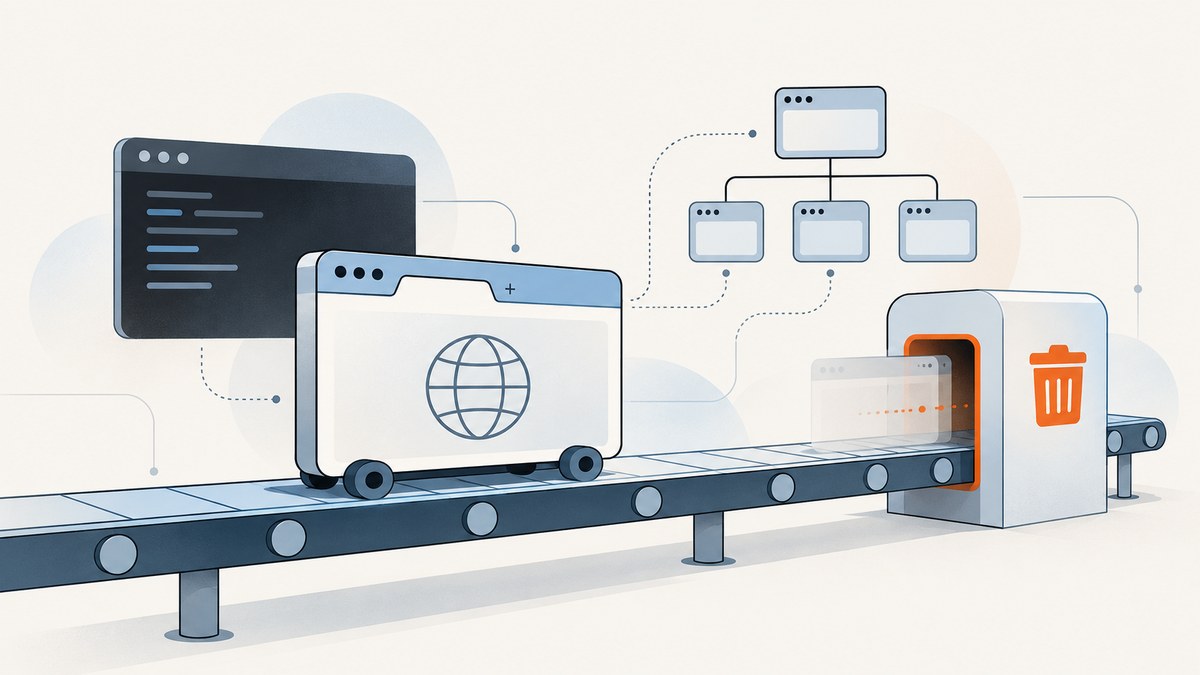
Headless Chrome means Chrome runs without a visible browser window. It does not mean Chrome exits as soon as a page finishes loading. A browser, page, driver, child process, open stream or pending wait can keep your job alive.
The reliable fix is to identify which layer is still running, then close the resource your code owns on every success and error path. Use browser.close() for a Puppeteer or Playwright browser that your script launched, and driver.quit() for Selenium. Do not use Puppeteer browser.disconnect() when you intend to terminate the browser: it only detaches from it.
1. What “running forever” actually means
There are several different things developers describe as a headless Chrome hang:
- The Chrome process remains after the screenshot or PDF was written.
- The Node.js, Python or test-runner process remains while Chrome has already exited.
- A navigation, selector wait or network-idle wait never resolves.
- A spawned process ended, but its standard-input, output or error streams remain open.
- Your script connected to a browser owned by another service and cannot shut that browser down itself.
Headless is only a display mode. Chrome’s official examples explicitly close Puppeteer browsers and end Selenium sessions. Treat browser lifetime as a resource-management problem, just as you would a database connection.
2. The cleanup rule: close what you launched
Put cleanup in a finally block. That block runs after a successful capture and after an exception, including a failed navigation.
Puppeteer
const puppeteer = require('puppeteer');

async function capture(url) {
  const browser = await puppeteer.launch({headless: true});
  try {
    const page = await browser.newPage();
    await page.goto(url, {waitUntil: 'networkidle2', timeout: 30000});
    await page.screenshot({path: 'shot.png', fullPage: true});
  } finally {
    await browser.close();
  }
}

capture('https://example.com').catch((error) => {
  console.error(error);
  process.exitCode = 1;
});
browser.close() closes a browser started by Puppeteer’s launch(). If launch() itself fails, there is no browser object to close, so keep the variable scoped as shown and handle the launch error at the caller.
Playwright
const { chromium } = require('playwright');

async function capture(url) {
  const browser = await chromium.launch({headless: true});
  try {
    const context = await browser.newContext();
    const page = await context.newPage();
    await page.goto(url, {waitUntil: 'networkidle', timeout: 30000});
    await page.screenshot({path: 'shot.png', fullPage: true});
    await context.close();
  } finally {
    await browser.close();
  }
}

capture('https://example.com').catch((error) => {
  console.error(error);
  process.exitCode = 1;
});
Playwright recommends closing explicitly created contexts before the browser when you need graceful page-close events. If a context close throws, the browser close in finally still runs.
Selenium
const { Builder } = require('selenium-webdriver');

async function capture(url) {
  const driver = await new Builder().forBrowser('chrome').build();
  try {
    await driver.get(url);
    // Locate an element or perform the required capture work here.
  } finally {
    await driver.quit();
  }
}

capture('https://example.com').catch((error) => {
  console.error(error);
  process.exitCode = 1;
});
Selenium’s documented shutdown operation is driver.quit(). Closing a tab or calling a framework-specific window method is not a replacement for ending the WebDriver session.
3. Close versus disconnect
Puppeteer has two operations that sound similar but have opposite effects:
| Operation | Effect | Use it when |
|---|---|---|
browser.close() |
Closes the Puppeteer browser and its pages. | Your code launched the browser and owns its lifetime. |
browser.disconnect() |
Detaches Puppeteer; the browser keeps running. | A separate service or process owns the browser. |
If you connected with puppeteer.connect(), determine who owns that browser before changing cleanup. The owner may be a remote Chrome service, a test runner, or a shared process. Your script can disconnect, but only the owner should terminate the shared browser.
4. Bound waits in the Chrome command line
For the standalone Headless capture commands --dump-dom, --screenshot and --print-to-pdf, Chrome provides --timeout to limit how long it waits before the capture operation.
chrome --headless --print-to-pdf --timeout=5000 https://example.com/This example requests a five-second maximum wait before the documented PDF capture. It is not a universal watchdog for every Chrome process, Puppeteer navigation or Selenium command. Framework APIs have their own navigation and action timeouts, which you should configure separately.
5. A diagnostic sequence that finds the stuck layer
- List the process tree. Check whether the remaining process is your Node process, Chrome, a Chrome child, a driver such as chromedriver, or a test runner. A visible Chrome process alone does not prove Chrome is the cause.
- Add lifecycle logs. Log immediately before navigation, after the capture, before cleanup and after cleanup. If “after capture” prints but “after cleanup” does not, the close call is waiting or throwing.
- Check every exit path. Look for early
return, thrown errors, rejected promises and test hooks that bypass cleanup. Move shutdown intofinally. - Check ownership. If you used
connect(), do not assume your script can terminate the remote browser. Find the service or parent process that launched it. - Inspect remote targets. Launch Chrome with
--remote-debugging-port=0, capture the WebSocket endpoint printed to stdout, then openchrome://inspectin a visible Chrome window. This lets you see live pages, workers and targets. - Inspect Node process events. The
exitevent means the process ended. Thecloseevent is emitted after the process has ended and its stdio streams have closed. Ifexitoccurs butclosedoes not, another process may still hold a shared stream.
Instrument a spawned Chrome process
const { spawn } = require('node:child_process');

const child = spawn('chrome', [
  '--headless',
  '--disable-gpu',
  '--screenshot=shot.png',
  '--timeout=5000',
  'https://example.com/'
], {stdio: ['ignore', 'pipe', 'pipe']});

child.stdout.on('data', data => console.log('stdout:', data.toString()));
child.stderr.on('data', data => console.error('stderr:', data.toString()));
child.on('exit', (code, signal) => console.log('exit', {code, signal}));
child.on('close', (code, signal) => console.log('close', {code, signal}));
child.on('error', error => console.error('spawn error', error));
Use the process tree and these events together. Do not kill a parent process until you know whether it owns unrelated browser work.

6. Common causes and fixes
| Symptom | Likely cause | Fix |
|---|---|---|
| Screenshot exists, script never exits | Browser or driver was never closed. | Put browser.close() or driver.quit() in finally. |
disconnect() returns but Chrome remains |
Disconnect intentionally leaves Chrome alive. | Call close() if your code owns the browser; otherwise stop it through its owner. |
| Navigation waits forever | Page never reaches the selected readiness condition, or a request is stalled. | Set a framework navigation timeout and choose a less strict readiness condition when appropriate. |
| Playwright pages remain during shutdown | Contexts were left open. | Close each explicitly created context before browser.close(). |
| Chrome is gone but Node remains | Open timers, sockets, workers or stdio streams keep the event loop alive. | Inspect active resources, close streams and clear intervals; use process exit/close logs. |
| CLI capture exceeds the expected time | --timeout was omitted or applied to a different operation. |
Use --timeout on the documented Headless capture command and keep its scope limited to that wait. |
| Remote debugging shows unexpected targets | A shared browser has other pages, workers or extensions. | Identify the owner and close only the target your job created. |
7. Reliability patterns for CI and production
- Use one owner. Either launch a browser per job and close it, or use a long-lived browser service and never terminate it from individual jobs.
- Set layered timeouts. Give navigation, selector waits, capture operations and the outer job separate limits. A page timeout should not silently become an unbounded CI job.
- Always await shutdown. An unawaited close can race process exit and leave child processes behind.
- Keep cleanup idempotent. Track whether a browser was created, and tolerate a second cleanup attempt after a partial failure.
- Preserve diagnostics. Record URL, timeout, browser ownership, process IDs and the last lifecycle marker when a job fails.
- Reuse carefully. A shared browser can reduce startup cost, but isolate contexts and define who closes the shared process.
There is no single timeout that fixes every hang. The right setting depends on whether you are waiting for navigation, a selector, a CLI capture, a browser process or a parent process’s streams.
8. Or skip the browser setup
If your goal is a clean website screenshot rather than managing Chrome itself, ScreenshotNeo provides a GET endpoint that returns PNG, JPEG, WebP or PDF. See the ScreenshotNeo API docs for all options.
curl -G "https://api.screenshotneo.com/v1/shot" -d access_key=YOUR_API_KEY --data-urlencode url=https://stripe.com -o shot.webpimport requests
r = requests.get("https://api.screenshotneo.com/v1/shot", params={"access_key": "YOUR_API_KEY", "url": "https://stripe.com"}, timeout=90)
open("shot.webp", "wb").write(r.content)const q = new URLSearchParams({ access_key: 'YOUR_API_KEY', url: 'https://stripe.com' });
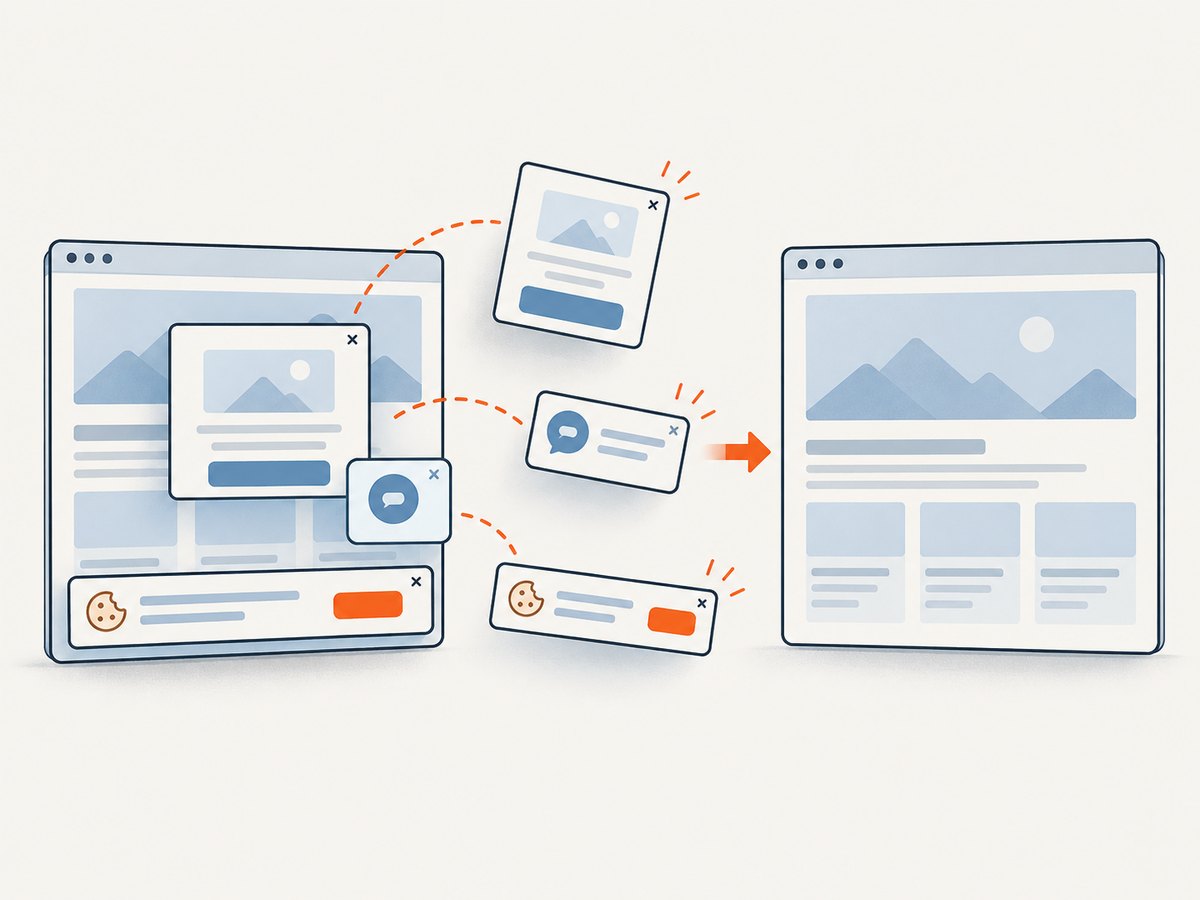
const res = await fetch(`https://api.screenshotneo.com/v1/shot?${q}`);ScreenshotNeo removes cookie and consent banners, newsletter popups and chat widgets before capture. Bot checks, blank pages, timeouts, failed loads and cache hits are not billed, and the response reports the page verdict and billing status in X-Page-Verdict and X-Billed headers. Its MCP server provides take_screenshot, get_page_info and capture_pdf tools for Claude, Cursor and other MCP clients.
You can also configure full-page lazy-image loading, CSS-selector element capture, dark mode, device presets, arbitrary viewports, retina scale, PDF paper and margins, custom CSS and JavaScript, clicks, waits, blocked requests, headers, cookies, user agents, authorization, timezone, geolocation, transparent backgrounds, resizing, caching, signed links, asynchronous webhooks, bulk capture for up to 100 URLs and usage reporting. Every feature is included on every plan. The free plan includes 1,000 screenshots per month with no card; paid plans start at $5 for 3,000.
Create your free ScreenshotNeo account and start with 1,000 screenshots per month without a card.
9. Performance and cost considerations
Launching a fresh browser for every URL adds startup work and increases the number of processes you must clean up. Reusing a browser can improve throughput, but it requires strict context isolation and an owner that remains responsible for shutdown. For CLI captures, a shorter timeout can return sooner, but it may cut off pages that genuinely need more loading time.
Hosted capture changes the cost model: you pay for the ScreenshotNeo captures that are billed, while bot checks, blank pages, failed loads, timeouts and cache hits are free. Choose caching TTLs and image dimensions deliberately, and use bulk capture when processing many URLs.
10. FAQ
Does headless Chrome ever exit automatically?
It can exit when its command completes, but headless mode itself does not guarantee termination. Automation libraries and your surrounding process still need explicit lifecycle management.
Should I call process.exit() after a screenshot?
Usually no. It can skip cleanup and truncate output. Close owned resources, clear remaining handles and let the event loop finish.
Why does closing a page not stop Chrome?
A page is one target inside a browser. Other pages, contexts, workers or the browser process can still be alive.
Can --timeout stop a stuck Puppeteer navigation?
No. The documented flag bounds waiting for specific Headless CLI capture operations. Configure Puppeteer’s navigation and action timeouts separately.
When should I use a remote browser?
Use one when a separate service owns browser startup and reuse. Make ownership explicit so individual jobs disconnect instead of accidentally terminating shared work.


