Why Images Save as WebP and How to Get JPG or PNG
Images often save as WebP because websites deliver an efficient web format. Learn how to identify, convert, or download an image as JPG or PNG.
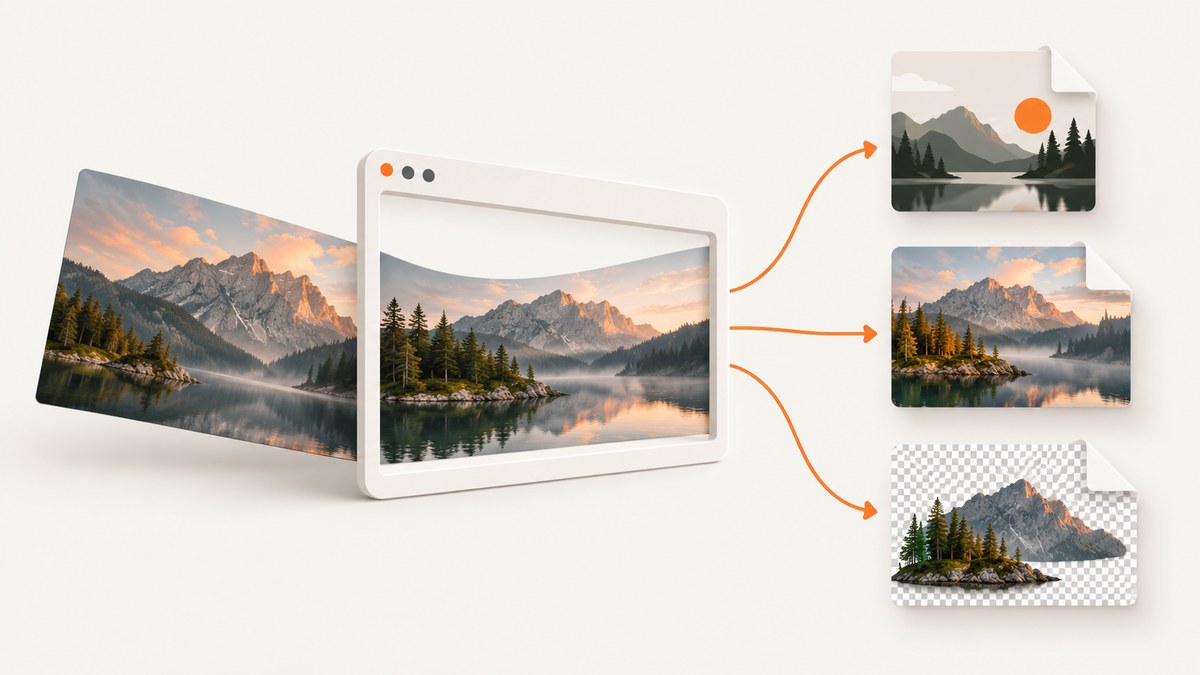
If an image saves as .webp, the site or its delivery system may have provided a WebP version, and the browser or save action may preserve that representation. WebP was designed for efficient image transfer over the web. The exact result depends on the website, image URL, and browser; it is not safe to assume every browser always saves the response bytes unchanged. [RFC 9649]
To get a JPG or PNG, first check whether the site offers that format or an original download. Otherwise, convert the WebP with an image tool. Renaming photo.webp to photo.jpg does not convert the image data. Keep the original, and choose the output format for your intended use.
1. Why an image saves as WebP
WebP is an image format intended for web delivery. A website can serve an image in WebP, and a save action can result in a WebP file. The filename extension is a clue to the format, but the behavior can vary across sites and browsers. A page might use different image URLs or formats in different contexts, so saving the displayed image, opening its image URL, and using a site’s download button may not produce the same file.
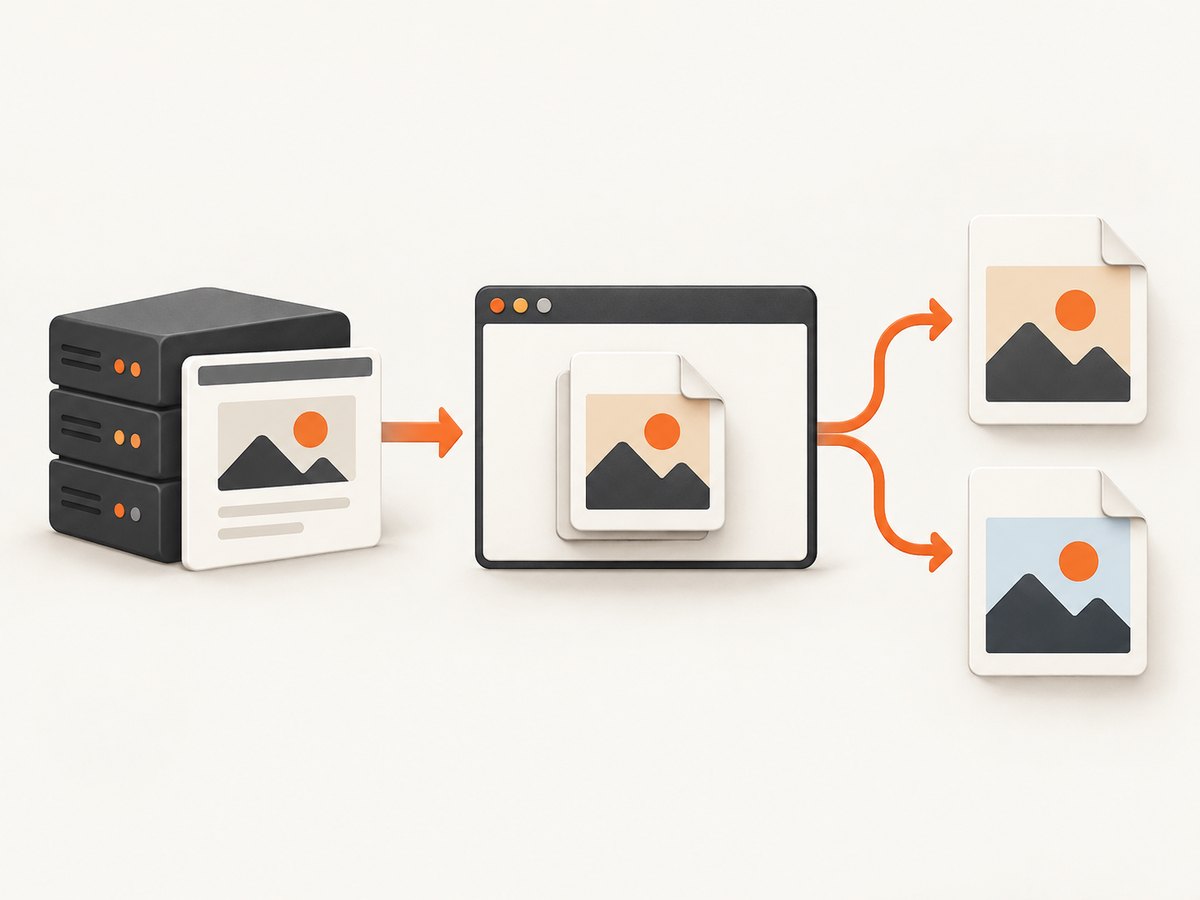
WebP supports both lossy and lossless compression, along with transparency and animation. That makes it useful for a range of web images; it is not just a substitute for JPEG photographs. The RFC describes the format as optimized for fast image transfer over networks, including websites. [RFC 9649]
Smaller files can be useful for delivery, but the size difference depends on the image and encoding settings. Google’s WebP documentation reports that lossless WebP images are 26% smaller than PNGs and lossy WebP images are 25–34% smaller than comparable JPEG images at equivalent SSIM quality. Those are comparisons reported by Google, not a guarantee for an individual image. [Google WebP documentation]
2. Check what file you actually have
Before converting, confirm the file is really an image and preserve a copy of the original. On most systems, you can use the file manager’s properties or information panel to view the filename and file type. An image editor can also report the format when it opens the file.
- Save the file with its current name. Do not overwrite it during conversion.
- Check the extension and file information. Look for WebP, PNG, JPEG, or another recognized image type.
- Open the image. If it fails, the download may be incomplete, the server may have returned a webpage instead of an image, or your app may not support the format.
- Check the source page for an original or download option. A site may offer a separate download in a format or quality different from the displayed image.
A file extension is a useful hint, but renaming the suffix alone does not establish that the bytes have been converted. A valid conversion decodes the source image and encodes it in the requested target format.
3. Choose JPG, PNG, or WebP
| Format | Good fit | Things to know |
|---|---|---|
| JPEG / JPG | Still photographs and workflows that expect JPEG. | JPEG uses lossy compression. Re-encoding can change image quality; another lossy conversion can add another generation of loss. |
| PNG | Workflows that need PNG compatibility, transparency, or precise reproduction. | PNG does not restore detail already lost in a lossy source. A PNG output may be larger than the source. |
| WebP | Web use or when the receiving app supports it and file size matters. | Supports lossy and lossless images, transparency, and animation. Some apps or workflows may require JPG or PNG. |
Choose by compatibility, transparency or animation needs, image fidelity, and file size—not by assuming one format is always best. If the source is lossy WebP, converting to JPEG can introduce another lossy encoding step. Converting to PNG preserves the decoded result without JPEG-style lossy encoding in the output, but it cannot recreate detail discarded by the source’s earlier compression. Keep the WebP in case you need to try different output settings.
4. Convert WebP to PNG from the command line
Google’s WebP documentation describes the dwebp utility for decoding a WebP image to PNG. Install the WebP tools using the package or installer appropriate to your operating system, then run:
dwebp image.webp -o image.pngReplace image.webp with the path to your source file. The -o option names the output file. If the image is in a different directory, provide full or relative paths, for example:
dwebp downloads/product-shot.webp -o exports/product-shot.pngAfter conversion, open the PNG and check dimensions, transparency, and appearance. Keep the WebP source. Refer to the current tool documentation or local help for installation and options because available commands can vary by installed version. Google’s Getting Started guide demonstrates WebP-to-PNG conversion. [Google WebP Getting Started]
5. Get a JPG or PNG with an image editor
If you prefer a graphical workflow, use an image editor that can open WebP and export or save a copy as JPEG or PNG. The exact menu labels and available settings depend on the application and version.
- Open the WebP file in the editor.
- Choose an export or save-a-copy action so the source stays intact.
- Select JPEG/JPG or PNG as the output format.
- For JPEG, choose a quality setting if offered. Higher quality generally retains more visual detail but can create a larger file; inspect the result for artifacts.
- For PNG, check whether transparency is preserved if you need it. If the source has no transparency, exporting as PNG will not create it.
- Save to a new filename and reopen the exported image to confirm it works in the target app.
Use a trusted converter or editor, and check its current instructions. Online converters require uploading the image to a third party, so consider whether the image is private or sensitive before using one. A local editor or command-line tool keeps the conversion on your own machine.
6. If you need the image from a webpage
When you need an image displayed on a page, distinguish between the image file and a screenshot of the page. Downloading or opening the image itself preserves an image asset if the site makes one available. A screenshot captures the rendered page, including layout and surrounding content, and can differ in dimensions and quality from the original asset.
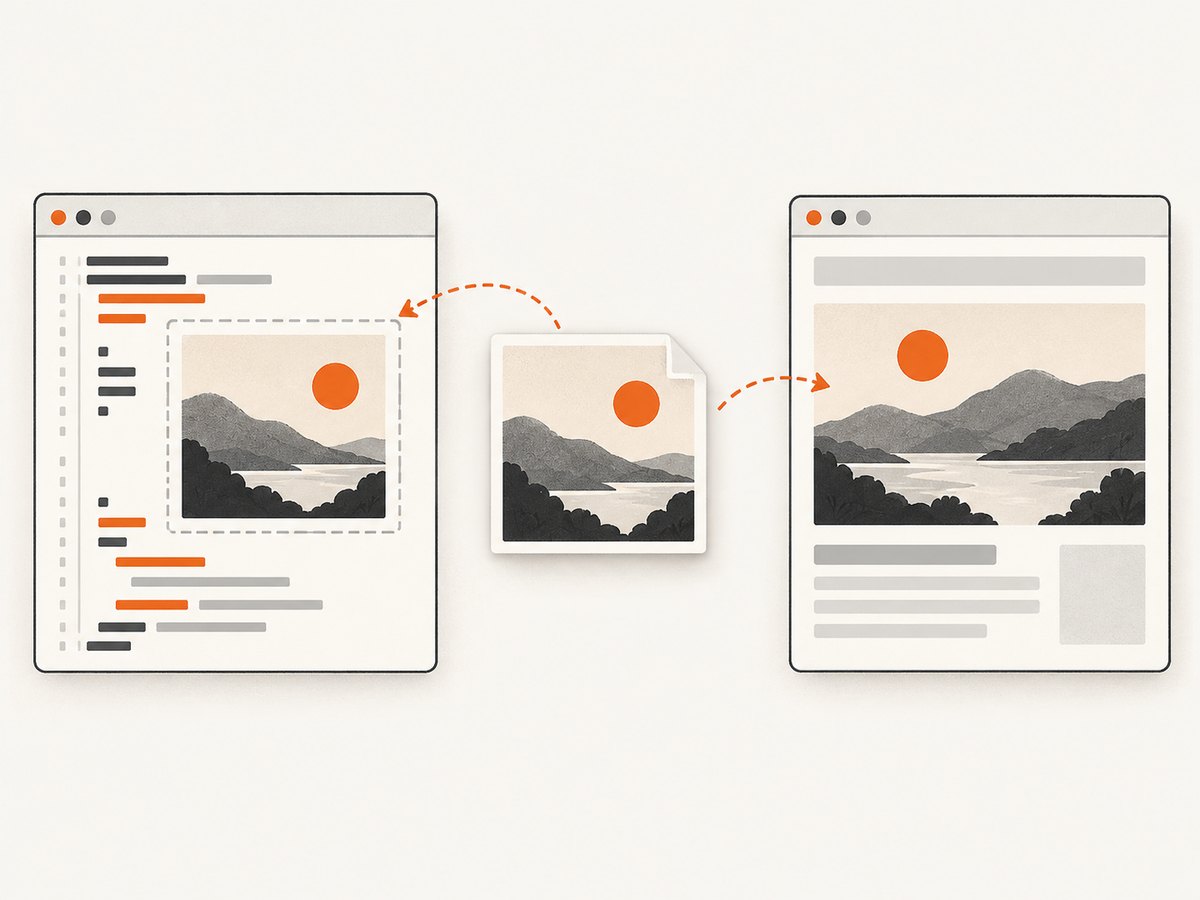
- Use the site’s download or original-image control if provided.
- If the browser offers “open image in new tab” or an equivalent action, inspect the resulting image and save it. Site behavior varies, so check the resulting format rather than assuming it will be JPG or PNG.
- If the browser saves WebP and you need another format, convert the downloaded file using the steps above.
- If your goal is documentation or a visual record of a webpage rather than the original image file, capture the rendered page at the viewport or full-page size you need.
Do not assume that a screenshot is a substitute for the source asset: it may include page styling, scaling, cropping, or other visible content. Conversely, downloading the source image will not reproduce how it looked in the page layout.
7. Capture a webpage image with an API
For a page screenshot, a screenshot API can render a URL and return an image. ScreenshotNeo is a website screenshot API and MCP server from Yorker Media. Its endpoint accepts a URL and can return PNG, JPEG, WebP, or PDF. The examples below use the provided API endpoint and save the response as a WebP file; see the ScreenshotNeo docs for request options and response details.
cURL
curl -G "https://api.screenshotneo.com/v1/shot" \
  -d access_key=YOUR_API_KEY \
  --data-urlencode url=https://stripe.com \
  -o shot.webp
Python
import requests

r = requests.get(
    "https://api.screenshotneo.com/v1/shot",
    params={"access_key": "YOUR_API_KEY", "url": "https://stripe.com"},
    timeout=90,
)
r.raise_for_status()
open("shot.webp", "wb").write(r.content)
Node.js
const q = new URLSearchParams({
  access_key: 'YOUR_API_KEY',
  url: 'https://stripe.com'
});
const res = await fetch(`https://api.screenshotneo.com/v1/shot?${q}`);
if (!res.ok) throw new Error(`Screenshot request failed: ${res.status}`);
const bytes = Buffer.from(await res.arrayBuffer());
await import('node:fs/promises').then(fs => fs.writeFile('shot.webp', bytes));
Replace YOUR_API_KEY with your key. Store keys in an environment variable or secret store in production; do not publish them in client-side code or commit them to a public repository. Check the HTTP response and save the response body as bytes. If you request a different output format using the API’s documented options, make the output filename match that format.
ScreenshotNeo offers full-page captures, CSS selector element captures, viewport and device presets, retina scale, dark mode, custom CSS and JavaScript, waits, request blocking, custom headers and cookies, and caching with a chosen TTL. It also supports image resizing, bulk capture, asynchronous jobs, signed links, a usage API, and an OpenAPI spec. Consult the docs for the applicable parameter names and accepted values. Its MCP server provides take_screenshot, get_page_info, and capture_pdf tools for MCP clients including Claude and Cursor.
8. Or skip the browser setup
Use the same one-call request when you need a rendered webpage screenshot:
curl -G "https://api.screenshotneo.com/v1/shot" -d access_key=YOUR_API_KEY --data-urlencode url=https://stripe.com -o shot.webpWith ScreenshotNeo, cookie banners are accepted and removed along with 60+ known consent platforms, newsletter popups, and chat widgets before the shot; each step can be turned off. Bot checks and CAPTCHAs, blank pages, timeouts, failed loads, and cache hits cost nothing, and the response indicates the page verdict and billing status. An MCP server lets AI agents take screenshots. The Free plan includes 1,000 shots a month with no card; paid plans start at $5 for 3,000. Every feature is on every plan. Sign up for 1,000 free screenshots a month, with no card.
9. Troubleshooting
| Problem | Likely cause | What to do |
|---|---|---|
| The file has a .webp suffix, but an app will not open it. | The app may not support WebP, or the download could be incomplete or not an image. | Check the file information and open it in a WebP-capable editor. If valid, export a PNG or JPEG copy. If it is unexpectedly tiny or fails in multiple tools, download it again. |
| Renaming to .jpg did not make it work. | The file contents are still encoded as WebP. | Convert with dwebp for PNG or an image editor for JPEG/PNG. Give the converted output the correct extension. |
| The converted image looks softer or has artifacts. | JPEG export may use lossy compression; converting a lossy source to another lossy format can add quality loss. | Keep the WebP original. If supported by your target workflow, use PNG output to avoid another lossy output encoding. This cannot restore detail already lost in the source. |
| The PNG is much larger than the WebP. | PNG and WebP use different compression methods, and their relative sizes vary by image. | Use PNG only when the workflow benefits from it. Keep WebP for supported web workflows, or compare JPEG quality and size if transparency is unnecessary. |
dwebp is not recognized. |
The utility is not installed or is not available on the command path. | Install the WebP tools using the instructions for your operating system, then open a new terminal or use the full path to the executable. |
| The API response is not a usable image. | The URL may not load as expected, the request may have failed, or the body may contain an error response. | Check the HTTP status and API response headers, verify the URL and key, and consult the API docs. Save successful response bytes rather than interpreting them as text. |
10. Performance, reliability, and cost
For local conversion, the work depends on the image dimensions, the source and target formats, and the machine. Keep the original and write to a separate output path so an interrupted or unsuitable conversion does not destroy your only copy. For repeated conversions, a command-line utility can be scripted, but verify outputs and handle errors rather than assuming every input is valid.
For webpage screenshots, rendering time depends on the page and chosen waits or capture options. A network-idle wait can take longer on pages with ongoing requests; a fixed delay may be too short for a slow page. Waiting for a meaningful selector can be more targeted when the page has a stable element to wait for. Set realistic client timeouts, inspect statuses and response headers, and avoid treating a failed or blank render as a successful image.
ScreenshotNeo’s listed monthly tiers are Free: 1,000 shots; Starter: $5 for 3,000; Growth: $15 for 15,000; Pro: $39 for 60,000; Scale: $99 for 250,000; Business: $249 for 1,000,000. Yearly billing gives two months free. Only clean shots are billed; bot checks, CAPTCHAs, blank pages, timeouts, failed loads, and cache hits are free. The response includes X-Page-Verdict and X-Billed headers. Use the docs and usage API to build request handling and cost tracking around your needs.
11. Frequently asked questions
Does WebP mean the image was converted by my browser?
Not necessarily. The site or its delivery system may have supplied WebP, and browser behavior varies. The extension alone does not tell you exactly where the format choice occurred.
Can converting WebP to PNG restore the original quality?
No. PNG can preserve the decoded pixels in the new output, but it cannot reconstruct details that were lost if the source WebP used lossy compression.
Will a JPG always be smaller than a PNG?
No. File size depends on image content and encoding. Compare the actual outputs at acceptable quality for your workflow.
Can I preserve transparency in a JPG?
JPEG is not the appropriate choice when transparency must be retained. Use a format and workflow that support transparency, such as PNG or WebP, and confirm the target app supports it.
Is a screenshot the same as downloading the image?
No. A screenshot records rendered pixels from a page. Downloading an image obtains an image asset the site exposes. Choose based on whether you need the source asset or a record of its on-page appearance.


