Why PDF Text Boxes Fail and How to Fix Them
Learn why PDF text boxes fail, disappear, or stop expanding—and how to diagnose fields, fonts, OCR, appearances, XFA, and flattening.

A PDF text box can fail because it is not a real form field, the page is only a scan, the required font is unavailable, the field appearance is wrong, or a conversion process removed or misread the field. Identify the object type first; the correct fix depends on whether you are editing page text, an AcroForm field, an XFA field, an annotation, or a flattened image.
Use this diagnosis first
| What you see | Likely object | First fix |
|---|---|---|
| Text selects like ordinary characters | Page text | Use Acrobat’s Edit tool; check font availability. |
| A cursor appears in a field when you click | AcroForm widget | Inspect field properties, appearance, and position. |
| The page is a photograph or scan | Image-only PDF | Run OCR before editing. |
| A comment balloon or callout is editable | Annotation | Edit the annotation rather than page text. |
| The content looks present but no fields can be selected | Flattened PDF | Return to the source or recreate fields; flattening removed editability. |
| Fields work in one viewer but fail in another | Appearance or XFA compatibility issue | Regenerate appearances, test in the target processor, or simplify to AcroForm. |
Why the box is not editable
Scanned or image-only pages
A scan is a bitmap, not text. A drawn rectangle, underline, or printed blank does not become a form field merely because it looks like one. Run OCR to create a searchable text layer, then use Acrobat’s Edit tool. Adobe documents that Acrobat can automatically run OCR when a PDF is created from a scanned document. OCR can misread handwriting, unusual typefaces, low contrast, and rotated pages, so inspect the result before relying on it.
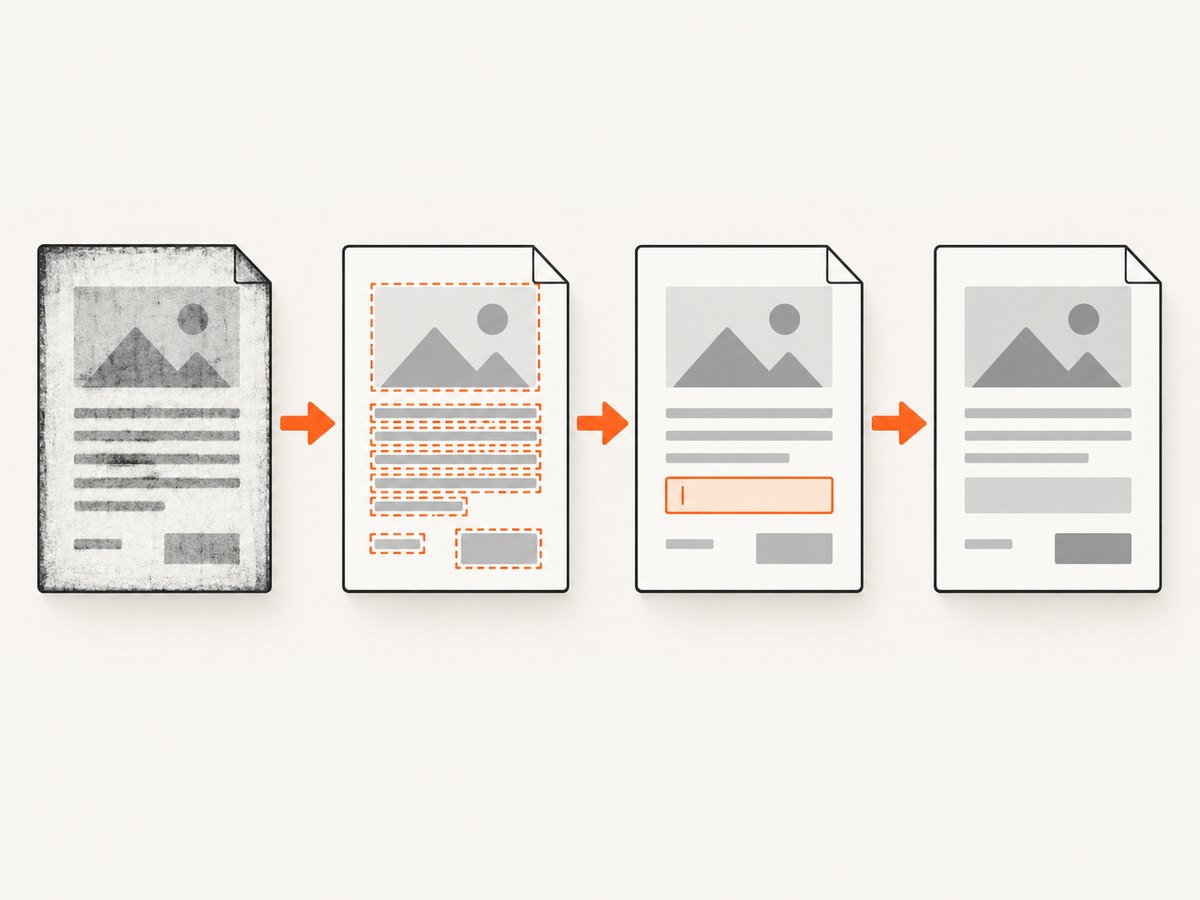
Flattened content
Flattening paints field values into the page and removes the original field objects. The result is often more compatible with upload and printing workflows, but recipients can no longer type into those fields. If you need an editable form, obtain the unflattened source or rebuild the fields.
Annotations are different objects
A comment, text annotation, callout, or stamp can look like a text box while remaining separate from page text and form fields. Select it with the Comment or annotation tools. Exporting, printing, or flattening annotations can change whether they remain editable.
Font problems: missing, substituted, or unsupported
Acrobat can edit page text only when the font used by that text is installed on your system. If a font is embedded but not installed, editing may be limited; if it is neither installed nor embedded, Acrobat cannot reliably edit the text. An unavailable font may be substituted, changing line breaks, spacing, appearance, or glyphs.
- Identify the font in the document’s font properties.
- Install the licensed font on the editing machine, or return to the source file and embed it.
- Check that the font contains the characters you are entering.
- Reopen the PDF after installing the font and save a copy.
For form fields, choose a font that is installed or safely embedded, then verify the font size is automatic or small enough for the field.
When the value exists but the text is invisible
PDF forms store a field value separately from the appearance stream that paints the value. A script or library can set the value without regenerating that appearance, leaving a blank-looking field. Open and resave the form in a compatible viewer, edit the field through Acrobat, or use your PDF library’s appearance regeneration support.
Inspect these appearance settings in Form Field Properties:
- Font family and font size (automatic versus fixed)
- Text color and opacity
- Fill color and transparency
- Border color, thickness, and line style
- Multiline, scroll, comb, and alignment options
- Field width, height, and page coordinates
A non-transparent fill can cover content behind the field. A white text color on a white fill, a field positioned behind another object, or a field that is only a few pixels high can all look like missing text even when the value is present.
Fix a broken AcroForm field step by step
- Make a copy. Preserve the original before changing fields or flattening.
- Open Prepare a form. Confirm that the object is an AcroForm widget, not page artwork.
- Open Properties. Check General, Appearance, Options, and Position tabs.
- Make the field visible. Set a contrasting text color, transparent or intentional fill, and a readable font size.
- Resize and reposition it. Ensure the widget is on the intended page and not covered by another object.
- Check behavior. Enable multiline for paragraphs; disable comb formatting unless one character per cell is intended.
- Regenerate appearance. Enter a test value, save, close, reopen, and verify it in the target viewer.
- Only then distribute or flatten. Flatten after confirming that no recipient needs to edit the fields.
Why text does not expand or continue to the next page
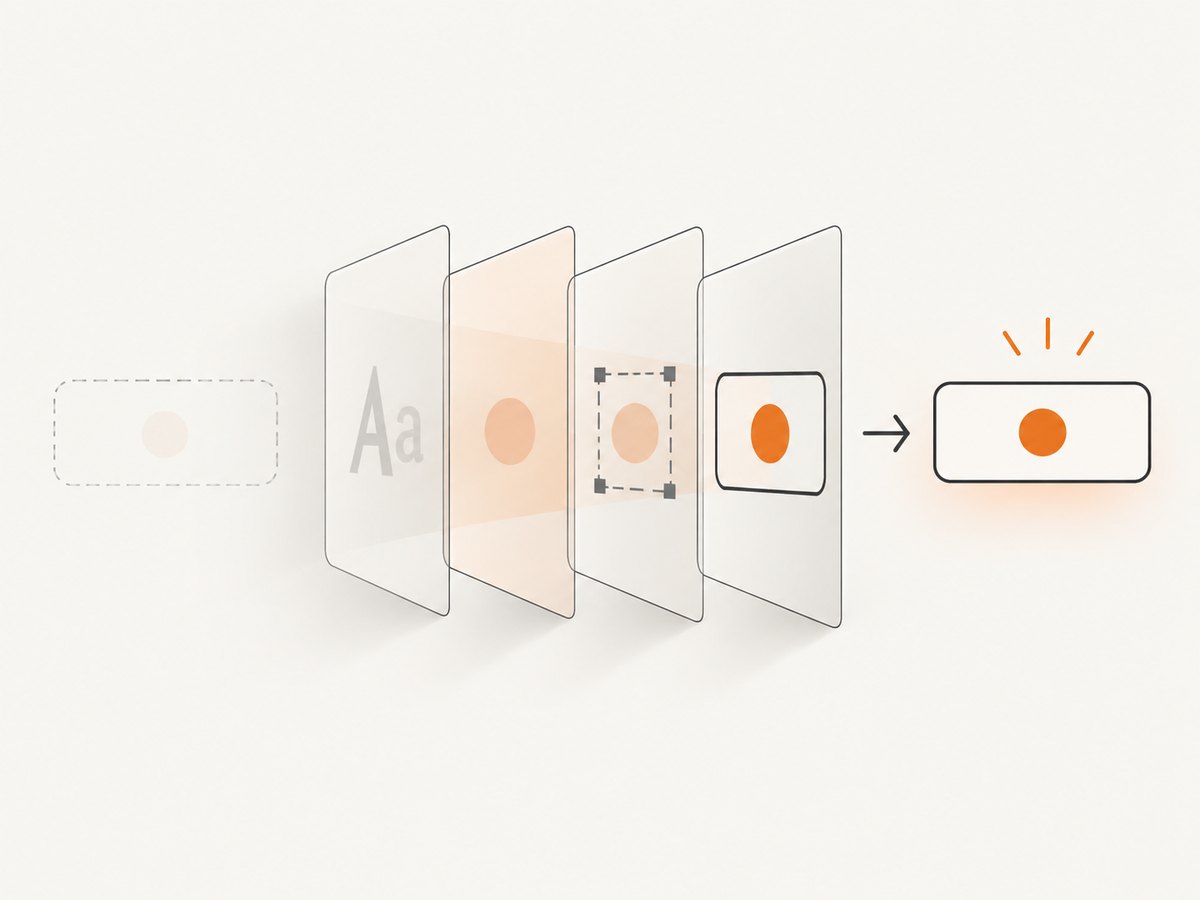
Acrobat text boxes are independent objects. Text reflows inside the selected box, but inserting text does not push a neighboring box down or continue automatically onto another page. Resize the box, reduce the font size, enable multiline behavior for a form field, or split the content deliberately. If the document needs true page reflow, edit the source document in a word processor or desktop-publishing application and export a new PDF.
XFA, encryption, and conversion failures
XFA forms use a different form technology and may contain dynamic layouts, scripts, and data bindings. Conversion services can lose bindings for composite text/date fields, miss misaligned fields, reject complex layouts, or fail on encrypted/password-protected files. Some Adobe conversion workflows also impose page-count limits.
- Open an XFA form in the processor for which it was authored.
- Remove encryption when you are authorized to do so.
- Align fields precisely with their labels and simplify nested or scripted layouts.
- Convert a complex XFA form to a simpler AcroForm when portability matters.
- Test the converted PDF in the exact viewer or upload service used by recipients.
Flattening: when it helps and when it hurts
Flattening is useful when a receiving system rejects editable fields, when a third-party generator produces incompatible field structures, or when the final artifact must be static. Adobe Acrobat Sign recommends printing to PDF as an initial troubleshooting step for some upload failures. Flattening is irreversible for practical purposes: it removes field objects, so save an editable master first.
| Requirement | Flatten? |
|---|---|
| Recipients must type or sign later | No |
| Archive must preserve the final appearance | Usually yes, after validation |
| Upload service rejects fields | Try a copy flattened or printed to PDF |
| Accessibility and searchable text matter | Verify OCR, reading order, and tags after flattening |
Practical troubleshooting checklist
- Work from a duplicate of the original.
- Classify the object: page text, AcroForm, XFA, annotation, or image.
- Run OCR if the page is scanned.
- Use Acrobat’s Edit tool for page text and Prepare a form for fields.
- Verify installed or embedded fonts and character coverage.
- Check field visibility, lock/read-only state, coordinates, size, and stacking order.
- Check fill and text colors, font size, multiline, comb, and border settings.
- Regenerate appearances and reopen the saved file.
- Test in the destination viewer or upload service.
- Flatten or print to PDF only as a compatibility step, keeping the editable master.
- For persistent conversion failures, remove authorized encryption, simplify the layout, align fields, and avoid unsupported XFA scripts.
Common errors and fixes
| Error | Cause | Fix |
|---|---|---|
| “Cannot edit this text” | Font is unavailable, text is an image, or the page is protected. | Install/embed the font, run OCR, or obtain editing permission. |
| Value is accepted but invisible | Appearance stream was not regenerated or colors match. | Edit and save in Acrobat, regenerate appearances, and inspect colors. |
| Text is clipped | Field is too short, fixed font is too large, or multiline is off. | Resize the field, use automatic sizing, or enable multiline. |
| Text appears in the wrong place | Widget coordinates or page rotation are wrong. | Correct Position values and test after reopening. |
| Fields disappear after upload | Service does not support the field type or expects flattened content. | Confirm requirements; submit a flattened copy when editing is no longer needed. |
| Only some viewers show the value | Malformed or stale appearance stream. | Regenerate appearances and validate in the target viewer. |
| Form conversion loses fields | XFA, composite fields, encryption, complex layout, or misalignment. | Simplify, align, decrypt when authorized, or rebuild as AcroForm. |
Automating PDF checks and visual verification
When a pipeline generates or converts PDFs, inspect both the field structure and the rendered pages. A structural check can confirm that fields and values exist; a rendered screenshot reveals clipped text, wrong colors, missing appearances, and layout shifts that metadata alone cannot show. Keep representative PDFs covering scans, multiline fields, embedded fonts, rotated pages, XFA, and encrypted inputs.
Or skip the browser setup
If you need a rendered view of a PDF workflow or a web page that displays the form, ScreenshotNeo captures it through one API request. Cookie banners, newsletter popups, and chat widgets are removed before the shot. Bot checks, blank pages, failed loads, timeouts, and cache hits are not billed, and the response reports the page verdict and billing status in headers. Its MCP server lets Claude, Cursor, and other AI agents use take_screenshot, get_page_info, and capture_pdf.
See the ScreenshotNeo API documentation for all options, including full-page capture, element selectors, custom CSS and JavaScript, waiting rules, headers, cookies, device presets, PDF settings, caching, signed links, asynchronous jobs, and bulk capture.
curl -G "https://api.screenshotneo.com/v1/shot" -d access_key=YOUR_API_KEY --data-urlencode url=https://stripe.com -o shot.webpimport requests
r = requests.get("https://api.screenshotneo.com/v1/shot", params={"access_key": "YOUR_API_KEY", "url": "https://stripe.com"}, timeout=90)
r.raise_for_status()
open("shot.webp", "wb").write(r.content)import fs from 'node:fs/promises';
const q = new URLSearchParams({ access_key: 'YOUR_API_KEY', url: 'https://stripe.com' });
const res = await fetch(`https://api.screenshotneo.com/v1/shot?${q}`);
if (!res.ok) throw new Error(`${res.status} ${await res.text()}`);
await fs.writeFile('shot.webp', Buffer.from(await res.arrayBuffer()));The free plan includes 1,000 screenshots each month with no card. Paid plans start at $5 for 3,000 shots, and every feature is available on every plan. Create a free ScreenshotNeo account.
Performance, reliability, and cost notes
- Use a selector or a fixed viewport when a full-page image is unnecessary; it reduces capture work and makes comparisons more stable.
- Wait for a selector, a short delay, or network idle when fonts and form data load asynchronously.
- Use caching with a chosen TTL for repeated visual checks. Cache hits are not billed.
- For many URLs, use bulk capture (up to 100 URLs per call) or asynchronous jobs with signed webhooks.
- Record
X-Page-VerdictandX-Billedso failed loads and bot checks do not enter downstream image metrics.
FAQ
Can I turn a printed blank into a fillable field?
Yes, but you must create an AcroForm field over it. The printed line itself is only page content.
Why does OCR text still look wrong?
OCR creates an inferred text layer. Low resolution, skew, handwriting, and unusual fonts can produce recognition errors; proofread critical values.
Does flattening improve accessibility?
It can improve compatibility, but it does not automatically create correct tags or reading order. Validate accessibility separately.
Should I rebuild an XFA form?
If portability across viewers and services matters, a simpler AcroForm is usually easier to test and convert.
Why compare a screenshot with the source PDF?
The rendered page is what users and upload processors see. It exposes clipping, missing appearances, and stacking errors that field metadata can hide.


