Why PDF Text Selection Fails and How to Fix It
Find out why PDF text cannot be selected or copied, then fix image-only pages, permissions, OCR errors, and selection-tool conflicts.
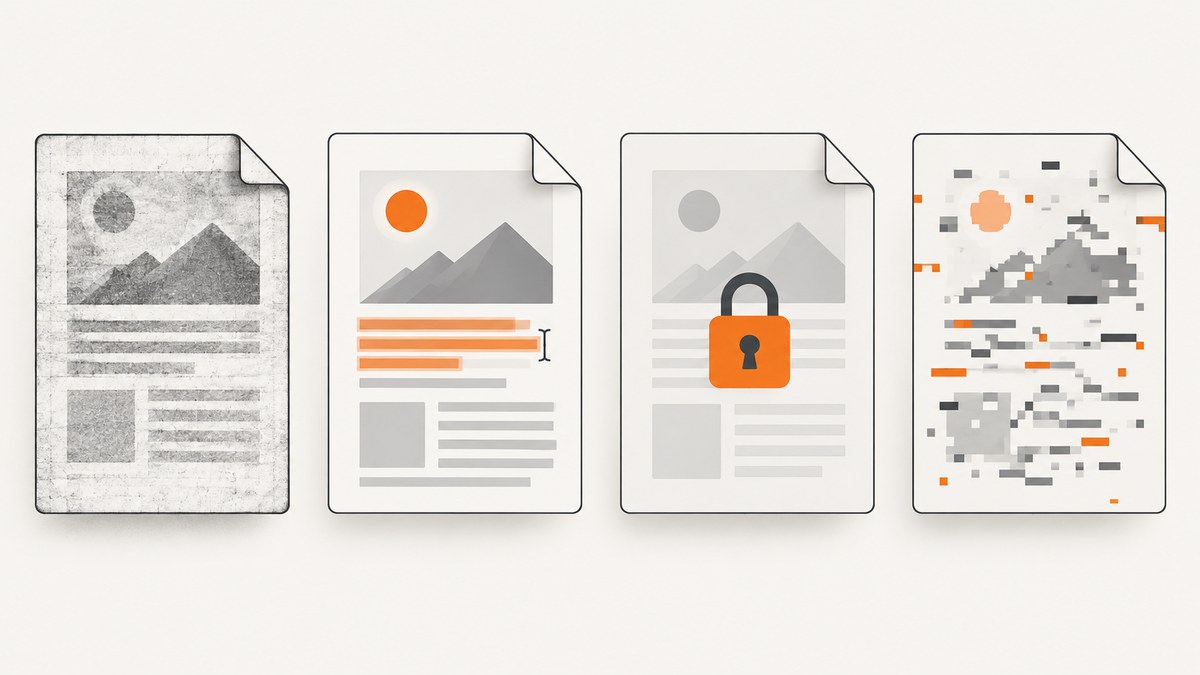
Start with the symptom: a PDF that looks like text may contain only page images, copying may be disabled by the author, OCR may have created inaccurate text, or Acrobat may be selecting an overlapping image instead of words. Each case has a different fix.
Diagnose the failure before changing the PDF
| What you see | Likely cause | Use this fix |
|---|---|---|
| Nothing highlights when you drag over words | The page is image-only, usually a scan without a text layer | Run OCR, then review the result |
| Text highlights, but Copy is unavailable | The author set a permission that restricts copying | Ask the owner for an unrestricted copy or another permitted format |
| Text highlights, but pasted text is garbled or incomplete | OCR recognition errors or a damaged/poor text layer | Compare against the page image and correct suspect OCR words |
| The cursor selects a picture or the wrong object | Text and an image overlap, or the Select preference prioritizes images | Change the image-versus-text selection preference and test again |
| Only some words are selectable | The file mixes image-only and text-bearing pages, or has separate content layers | Test each page; OCR only the pages that need it |
Selection and copying are separate checks. A selectable text layer does not guarantee that the document permits copying.
Fix a scanned PDF with Acrobat OCR
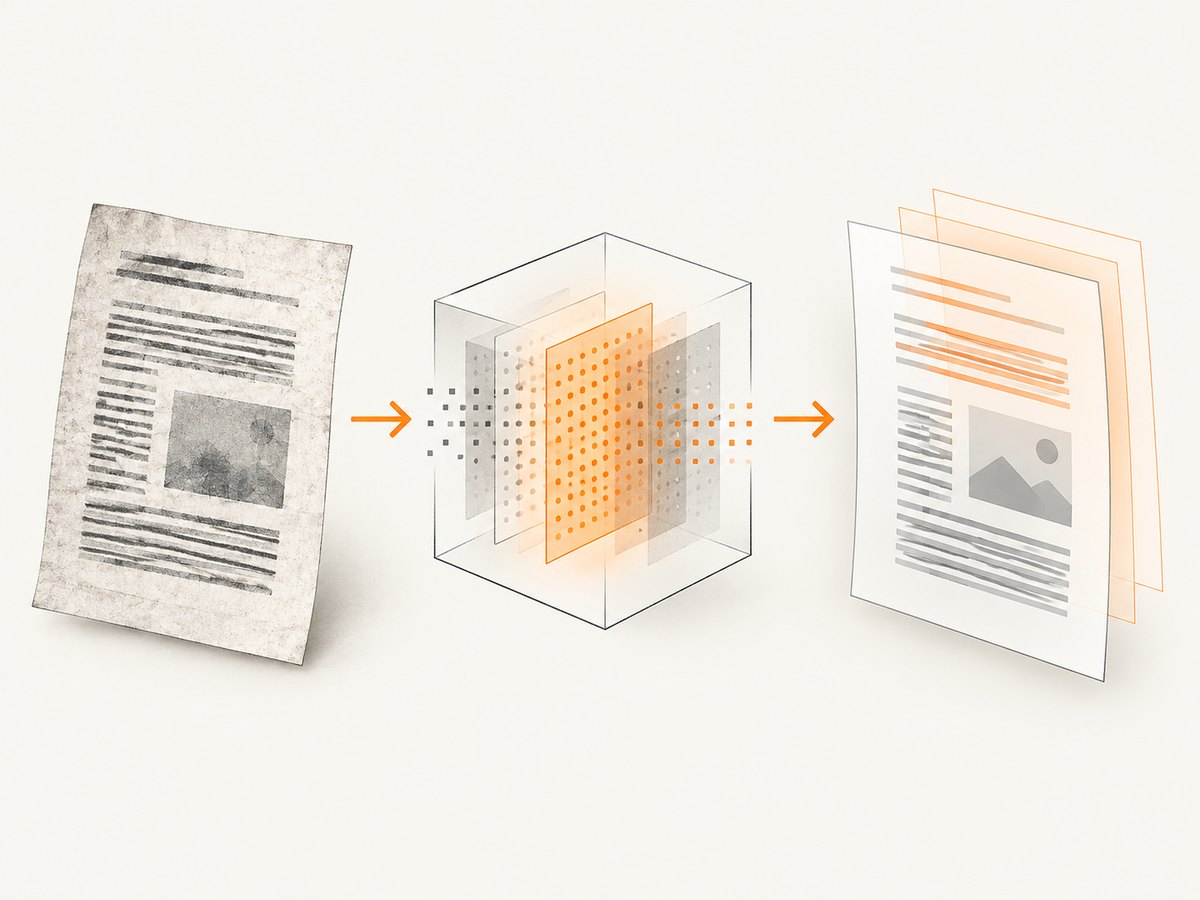
A scan can look exactly like a normal document while containing only pixels. OCR (optical character recognition) analyzes those pixels and adds a searchable, selectable text layer. Adobe documents this workflow in Recognize text in scanned PDFs with Acrobat.
- Save a backup copy of the original PDF.
- Open the file in Acrobat.
- Choose All tools > Scan & OCR.
- Select In this file under Recognize Text.
- Set the page range and recognition language. Choose the language that matches the document.
- Select Recognize Text.
- Save the OCR version under a new filename.
- Try selecting and copying a few passages from different pages.
OCR improves access to image-only content; it does not prove that every word was recognized correctly. Keep the original so you can compare uncertain passages.
Review and correct OCR mistakes
OCR can confuse distorted characters, unusual fonts, complex symbols, low-contrast scans, backgrounds, and skewed pages. Acrobat marks uncertain matches as suspects. To review them, open All tools > Scan & OCR > Correct recognized text, enable Review recognized text, select each highlighted word, compare it with the page image, edit the Recognized as field, and select Accept. The documented correction workflow is described in Fix text recognition errors in scanned PDFs.
For important names, numbers, legal language, tables, and citations, visually verify the copied output. Do not treat OCR as a universal repair for every malformed font mapping in an otherwise digital PDF.
When copying is disabled by PDF permissions
If text visibly highlights but Cut, Copy, Copy with Formatting, and Paste are unavailable, the author may have applied a copying restriction. Adobe documents this distinction in Reusing PDF content: Select and copy text and images.
- Check whether copying is disabled in the document’s security or permissions information.
- Request an accessible or unrestricted copy from the publisher, instructor, employer, or document owner.
- Ask for the source document or an authorized text export.
- Do not attempt to bypass a restriction. OCR cannot turn a permission problem into permission to copy.
When Acrobat selects an image instead of text
The Select tool can select text, images, vector objects, and tables. When an image and text overlap, Acrobat has a preference that controls whether images are selected before text. Open the Select tool preferences, change the image-before-text behavior, then test a short word and a full line. Interface names can differ by Acrobat version and platform, so use the current preference shown in your installation.
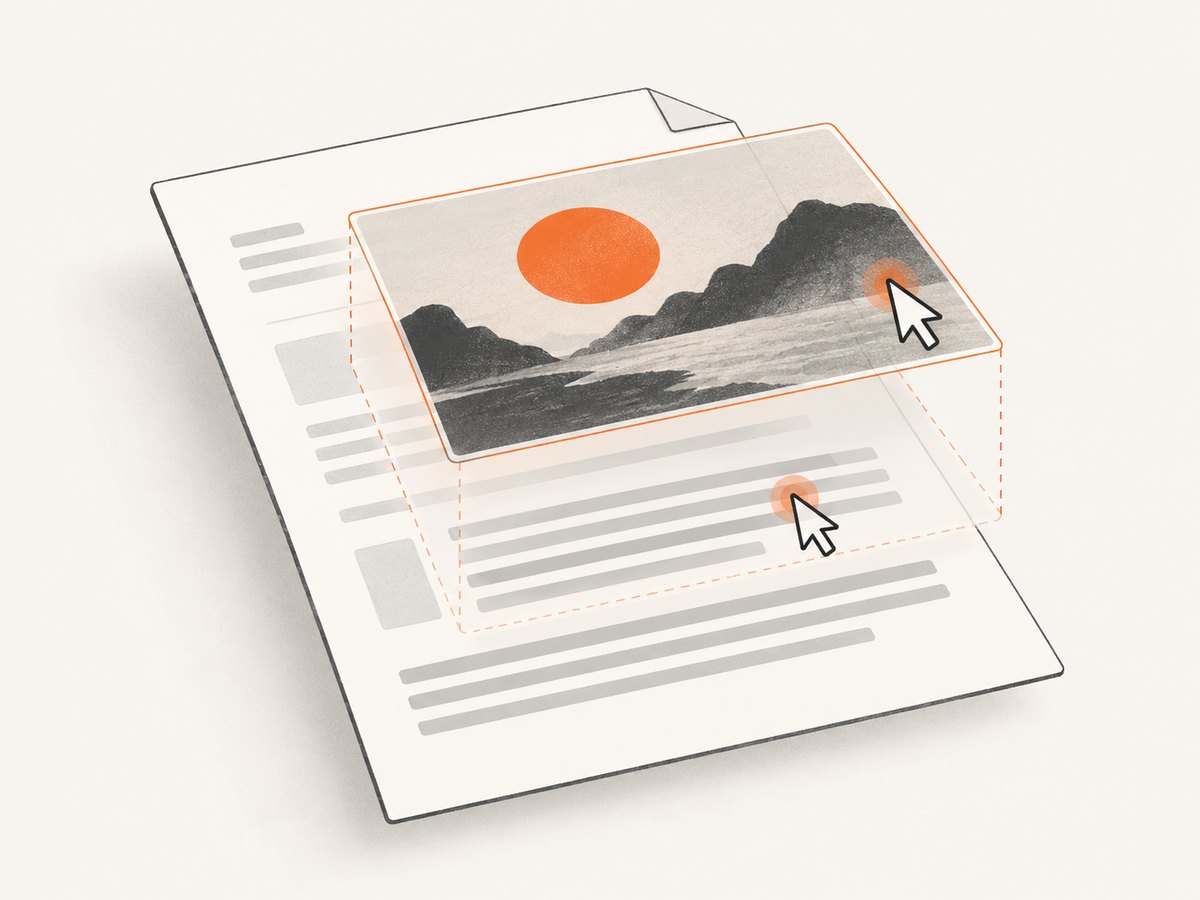
This preference only changes which object receives the selection. It cannot create a missing text layer. If no words can be selected after changing it, return to the OCR diagnosis.
Improve OCR input when recognition is poor
- Use the clearest source available: straight, well-lit pages with strong contrast.
- Remove heavy shadows, background patterns, and distortion before scanning again.
- Choose the correct recognition language.
- Run OCR on the affected page range rather than repeatedly rewriting the entire file.
- Review headings, columns, tables, mathematical symbols, and accented characters manually.
- Keep both the untouched scan and the corrected searchable PDF.
These steps increase the chance of accurate recognition; no OCR workflow guarantees error-free output.
Command-line and programmatic checks
For a quick local check, try extracting text from a copy of the PDF with a tool such as pdftotext. An empty or nearly empty result suggests image-only pages, but an output file does not prove that the text is accurate or that copying is permitted.
pdftotext input.pdf output.txt
wc -c output.txt
head -40 output.txt
Use this as a diagnostic, not as a permission bypass. For OCR, use the PDF application’s documented workflow or an authorized OCR service, then inspect the resulting text against the page image.
Performance, reliability, and file-handling notes
- OCR time grows with page count, image resolution, and document complexity. Process a small page range first when diagnosing a large file.
- Save a new output file so a failed recognition run cannot destroy the original scan.
- After OCR, test several page types: body text, a heading, a column, a table, and a page with symbols.
- For archival or legal work, preserve the source scan and record which pages were recognized and manually corrected.
- When sharing a corrected PDF, confirm that the new file still opens, displays the original page image, and exposes the intended text layer.
Or skip the browser setup
If your workflow starts with web pages and you need a clean PDF or image for review, ScreenshotNeo can capture the page through one API request. It accepts cookie and consent banners like a visitor and removes more than 60 known consent platforms, newsletter popups, and chat widgets before capture; each step can be disabled. Bot checks, blank pages, timeouts, failed loads, and cache hits are not billed, and the response reports the verdict and billing status in X-Page-Verdict and X-Billed headers. Its MCP server provides take_screenshot, get_page_info, and capture_pdf tools for Claude, Cursor, and other MCP clients.
See the ScreenshotNeo API documentation for all options.
cURL
curl -G "https://api.screenshotneo.com/v1/shot" -d access_key=YOUR_API_KEY --data-urlencode url=https://stripe.com -o shot.webpPython
import requests
r = requests.get("https://api.screenshotneo.com/v1/shot", params={"access_key": "YOUR_API_KEY", "url": "https://stripe.com"}, timeout=90)
open("shot.webp", "wb").write(r.content)
Node.js
const q = new URLSearchParams({ access_key: 'YOUR_API_KEY', url: 'https://stripe.com' });
const res = await fetch(`https://api.screenshotneo.com/v1/shot?${q}`);
The free plan includes 1,000 screenshots per month with no card; paid plans start at $5 for 3,000. Create a free ScreenshotNeo account.
Troubleshooting checklist
| Problem | Cause | Action |
|---|---|---|
| OCR option is missing or disabled | The file may already contain renderable text, be protected, or be open in a limited reader | Open an authorized copy in Acrobat, check restrictions, and try the documented Scan & OCR workflow |
| OCR returns an empty or poor layer | Low contrast, skew, distortion, complex characters, or wrong language | Improve the source, choose the right language, rerun OCR, and review suspects |
| Copy is unavailable after successful OCR | Document permissions still restrict copying | Request permission or an authorized alternative; do not bypass the restriction |
| Only an image is selected | Overlapping image or image-first selection preference | Change the preference, then confirm that a text layer exists |
| Copied text has missing spaces or wrong characters | OCR or font-mapping errors | Compare with the visible page, correct suspect words, and verify critical passages |
| Some pages work and others do not | Mixed text and image-only pages | Run OCR on the affected page range and retest each page type |
FAQ
Can a PDF look digital but still have no selectable text?
Yes. A scanned page can be a single image that visually resembles typeset text. OCR adds the selectable layer.
Does OCR make a PDF’s text accurate?
No. It makes image content searchable and selectable, but recognition errors require review and correction.
Why can I highlight text but not copy it?
Copying may be restricted by the PDF author. Selection and copy permission are separate.
Will changing Acrobat’s selection preference fix a scanned PDF?
No. It only changes whether an overlapping image or text object is selected first. A missing text layer still needs OCR.
Should I overwrite the original after OCR?
Keep the original scan and save the recognized version separately so you can audit or redo the process.


