Why Your Pinterest Image Is Not Showing
Find out why a Pinterest image is blank, broken, or missing, and fix source access, dimensions, iframes, proxy rules, Rich Pins, and app issues.
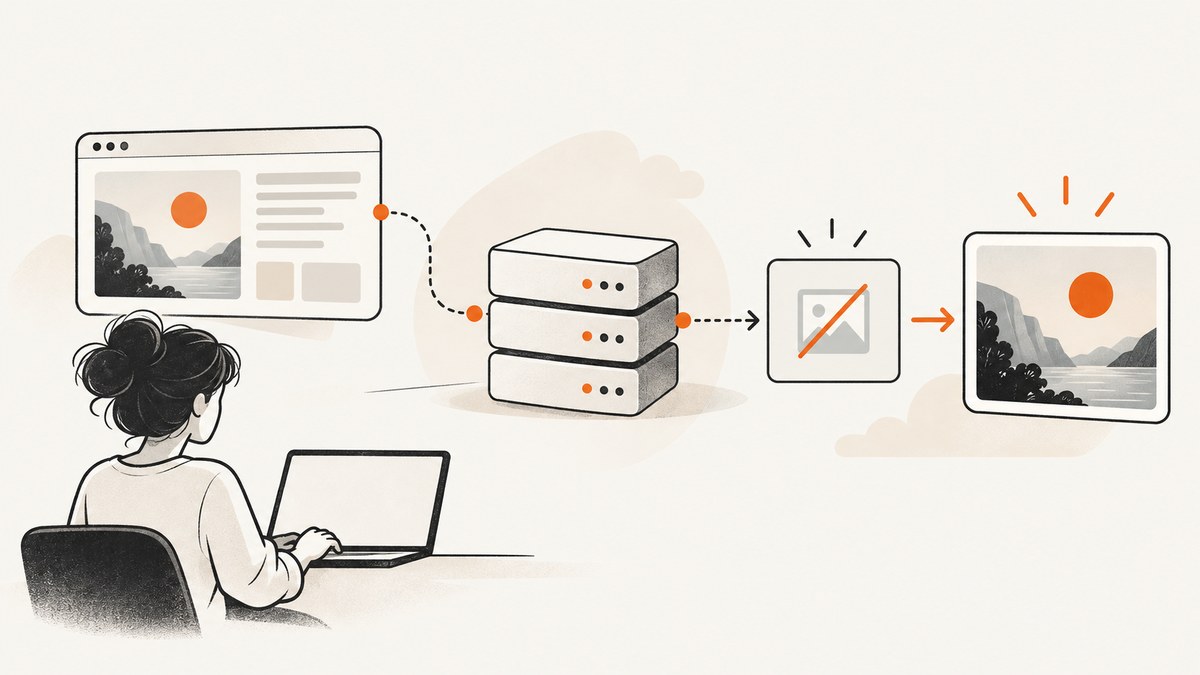
A Pinterest image that is blank, broken, or missing usually has a different cause from missing Rich Pin details. Start by identifying which layer failed: the image itself, Pinterest’s metadata, or only your local app or browser. Then test the source image directly, verify its dimensions and placement, check access controls used by Pinterest’s image proxy, and allow time for Rich Pin metadata to sync.
If the Pin was already published with the wrong image, Pinterest does not let you replace the image contents. Fix the source or upload a corrected image and create a new Pin.
1. Identify exactly what is missing
Pinterest defines an image Pin as a Pin containing one image. A Rich Pin is a separate format that adds information such as an article title, product price, availability, or recipe fields. Treat these as two separate debugging paths.
| What you see | Most likely area to inspect |
|---|---|
| Blank, broken, or absent picture | Source URL, dimensions, iframe placement, proxy access, or app state |
| Picture appears, but title, price, or recipe fields do not | Open Graph or Schema.org metadata, canonical URL, Rich Pin sync |
| Pin works for other people but not in your app | App version, permissions, storage, cache, or device state |
| Image is wrong after publishing | Repin after correcting the source; published media cannot be replaced |
Use this distinction before changing code. Fixing Open Graph tags cannot repair an image URL that Pinterest cannot retrieve, and restarting the app cannot add missing metadata to the page.
2. Check whether the source image is publicly reachable
When you save an image from a website, Pinterest must fetch that image from your server. Open the exact image URL in a logged-out browser window or a private browsing window. The response should be the image file itself, not a login page, consent wall, hotlink-denial page, redirect loop, or generic error page.
Direct source test
- Open the page that contains the image.
- Use the browser’s developer tools, inspect the image element, and copy the final
srcURL. For responsive images, also inspectsrcsetand identify the URL that is actually selected. - Open that URL while logged out. Confirm that it loads over HTTPS.
- Request the URL from a terminal and inspect the status, content type, and redirects:
curl -IL "https://example.com/images/pinterest-pin.jpg"

curl -L "https://example.com/images/pinterest-pin.jpg" -o /tmp/pin-image.jpg
file /tmp/pin-image.jpg
A successful response normally has a 2xx status and an image content type such as image/jpeg, image/png, or image/webp. If file reports HTML, your server is returning an error or sign-in document under an image URL.
Common access problems
- Authentication required: remove the requirement for the image or publish a public asset URL.
- Signed URL expired: use a URL whose validity lasts long enough for Pinterest to fetch it, or provide a stable public asset.
- Hotlink protection: server rules may reject requests without your normal browser referrer. Review image access rules and allow Pinterest’s fetch path.
- Robots, firewall, or WAF challenge: a bot check can return a challenge page instead of the image. Permit the image request or adjust the rule for static assets.
- Client-side generation only: if JavaScript creates the image after an interaction, provide a normal image element with a usable URL in the page HTML.
3. Verify dimensions and HTML placement
Pinterest’s Save-button documentation lists two implementation thresholds: an image should be at least 100px by 200px for the Save button and 200px by 200px for the hover button. These are minimums, not recommendations for a readable Pin. Use a sufficiently large source image so Pinterest has useful pixels to display.
Check the intrinsic dimensions, rather than only the CSS display size:
identify -format "%w x %h\n" /tmp/pin-image.jpgIf ImageMagick is unavailable, inspect the file details in an image editor or browser. A 40px thumbnail stretched to 800px may technically render but still appear unusable.
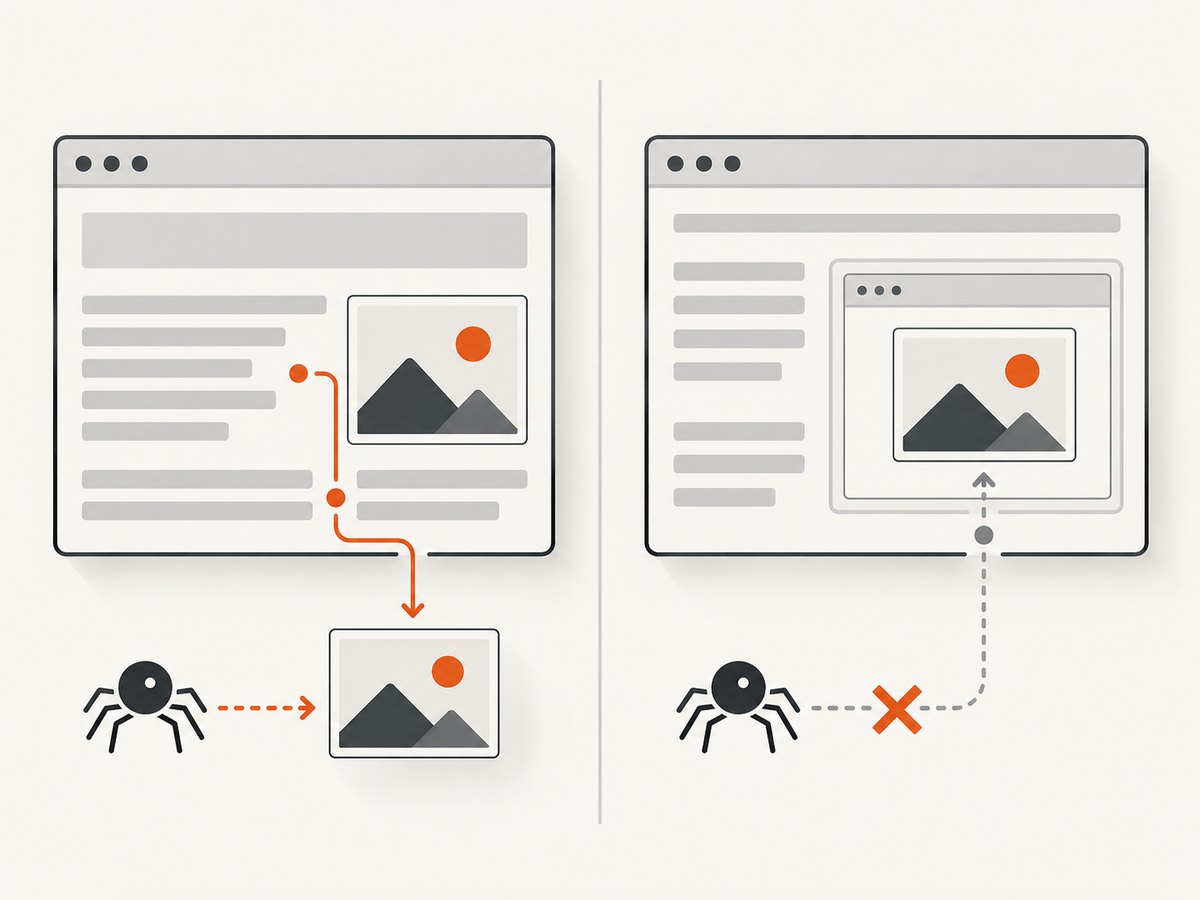
Keep at least one image outside an iframe
Pinterest states that its Save button cannot find images inside iframes. If your page embeds the visual in an iframe, add a qualifying image in the ordinary page HTML as well. A simple pattern is:
<article>
  <img
    src="https://example.com/images/pinterest-pin.jpg"
    alt="Product illustration"
    width="1200"
    height="1500"
  >
  <iframe src="https://cdn.example.com/embed/gallery" title="Gallery"></iframe>
</article>
Do not rely on a background image, a canvas that has no corresponding asset URL, or an image that exists only inside the embedded document. Keep the source image discoverable in the top-level page markup.
4. Account for Pinterest’s image proxy
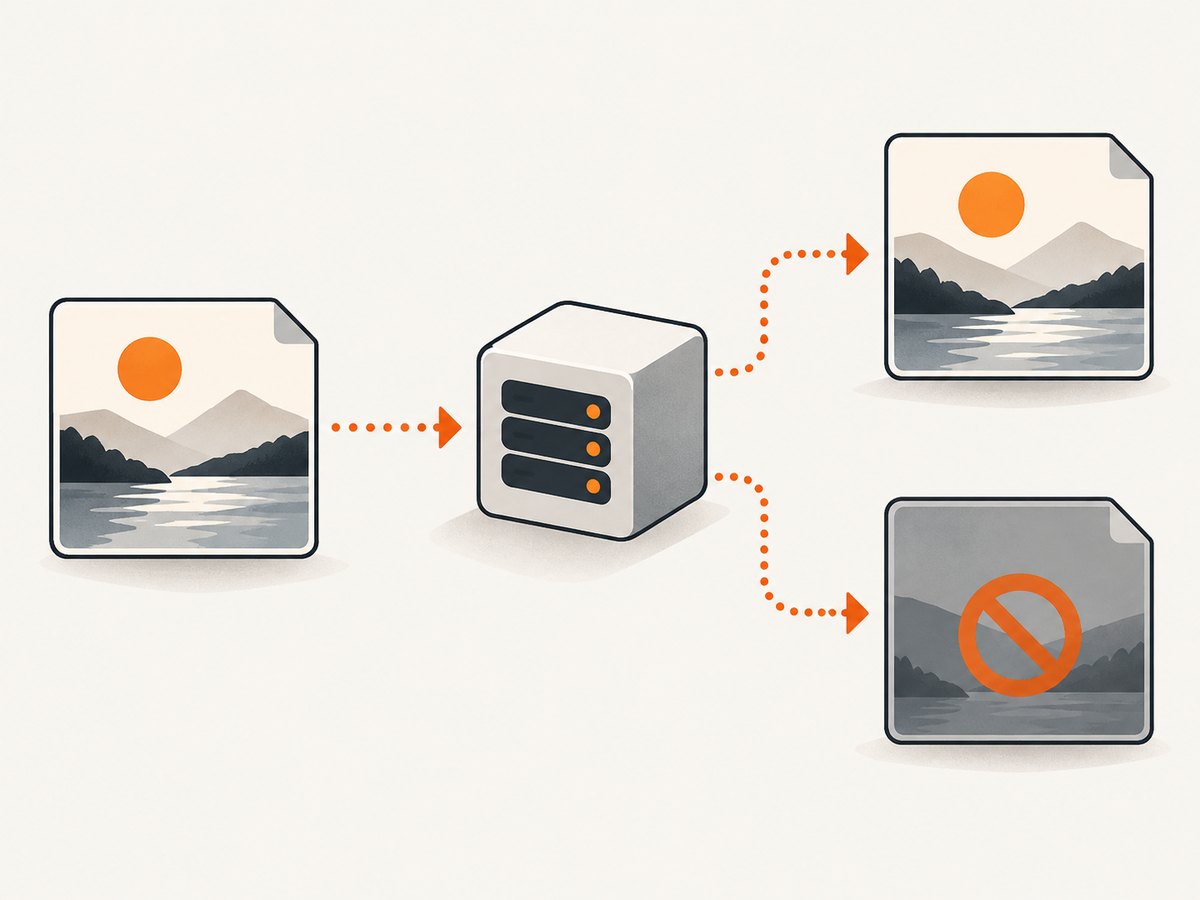
Pinterest uses an image proxy to route third-party image requests through a controlled service. That means the request reaching your server may not look like a normal visit from your browser, and the original visitor referrer may not be present. A server rule that works for human visitors can therefore block Pinterest.
Proxy-related checks
- Review web-server, CDN, WAF, and application logs for requests to the image path.
- Look for 403, 401, 429, redirect, or challenge responses.
- Check whether a rule requires a specific
Referer, cookie, geographic location, or user agent. - Confirm that the image is served from HTTPS with a valid certificate.
- Test the final URL after every redirect. Pinterest must be able to reach the destination without a browser interaction.
Allow public access to static image assets while keeping private application pages protected. If you use a CDN transformation service, make sure the transformed URL is stable and does not expire before Pinterest retrieves it.
5. If the image is visible but Rich Pin details are missing
Rich Pins read metadata from the linked page. Pinterest documents Open Graph and Schema.org as common formats and supports Article, Product, and Recipe Rich Pins. If more than one type is present, Pinterest prioritizes Product, then Recipe, then Article.
Inspect the page head
<head>
  <link rel="canonical" href="https://example.com/article">
  <meta property="og:type" content="article">
  <meta property="og:url" content="https://example.com/article">
  <meta property="og:title" content="Example article">
  <meta property="og:image" content="https://example.com/images/pinterest-pin.jpg">
  <meta property="og:description" content="A concise article description.">
</head>
For a product page, include the canonical URL, product name, and image in the supported product metadata, along with price and availability where applicable. For recipes, provide the recipe properties expected by your structured-data implementation.
Search the rendered HTML for this disabling tag:
<meta name="pinterest-rich-pin" content="false">If it is present, Pinterest will not use Rich Pin data for that page. Remove it when Rich Pins are intended, then make sure the canonical URL points to the page you are actually pinning.
Allow for synchronization time
After you correct metadata, Pinterest Business Help says synchronization may take up to 24 hours. Do not repeatedly rewrite valid tags during that window. Record the time of the change, verify the live HTML, and check again after the sync period.
6. Separate website failures from app or browser failures
If the Pin displays correctly on desktop but not in the mobile app, the source is probably working. Pinterest recommends closing and reopening the app, checking available storage, confirming permission to save photos, updating the app, and trying Pinterest in a desktop or mobile browser.
| Symptom | Action |
|---|---|
| Pin is visible, but download does nothing | Check photo permissions and free storage, then retry in a browser. |
| Only one device shows a blank tile | Restart or update the app and compare with another device or browser. |
| Every viewer sees a broken image | Return to source URL, dimensions, iframe, and proxy checks. |
7. Published Pin media cannot be replaced
Pinterest allows edits to a published Pin’s title, board, and some descriptive details, but the image, video, or audio contents cannot be changed after publication. If the uploaded file is corrupted or the source image was wrong, correct the source and create a new Pin. Remove or archive the old Pin according to your account workflow.
8. A repeatable debugging checklist
- Identify whether the missing layer is the image or Rich Pin metadata.
- Copy the final image URL from the rendered page.
- Open it logged out and with
curl -IL. - Confirm a 2xx response and an actual image content type.
- Check intrinsic dimensions: at least 100px by 200px for Save-button discovery and 200px by 200px for hover discovery.
- Place a qualifying
<img>outside every iframe. - Review CDN, WAF, firewall, hotlink, authentication, and rate-limit logs.
- Validate canonical, Open Graph, and Schema.org metadata.
- Remove
pinterest-rich-pin=falsewhen Rich Pins are required. - Allow up to 24 hours for corrected Rich Pin metadata to sync.
- Compare desktop, mobile browser, and app behavior.
- Repin after fixing a bad published image.
9. Render the page the way a Pinterest visitor sees it
When the source HTML depends on JavaScript, lazy loading, consent banners, or responsive behavior, a rendered screenshot can reveal what a normal fetch misses. Capture the page at the viewport you expect people to use, then inspect whether the intended image is present, whether an overlay covers it, and whether a script leaves the page blank.
You can do this locally with a headless browser such as Playwright:
import { chromium } from 'playwright';

const browser = await chromium.launch();
const page = await browser.newPage({ viewport: { width: 1200, height: 900 } });
await page.goto('https://example.com/article', { waitUntil: 'networkidle' });
await page.screenshot({ path: 'article.png', fullPage: true });
await browser.close();
Use the capture to answer a narrow question: is the image present in the rendered page and unobscured? It does not replace checking the public image URL or proxy response.
Or skip the browser setup
ScreenshotNeo is a website screenshot API that can render a URL as PNG, JPEG, WebP, or PDF. It supports full-page captures with lazy images loaded, CSS-selector element captures, custom JavaScript and CSS, waits for a selector, delay, or network idle, custom headers and cookies, blocking rules, device presets, and caching. The API is useful when you need a repeatable rendered check for a Pinterest source page.
See the ScreenshotNeo API documentation for all options. A one-call capture looks like this:
curl -G "https://api.screenshotneo.com/v1/shot" -d access_key=YOUR_API_KEY --data-urlencode url=https://example.com/article -o shot.webpimport requests
r = requests.get("https://api.screenshotneo.com/v1/shot", params={"access_key": "YOUR_API_KEY", "url": "https://example.com/article"}, timeout=90)
open("shot.webp", "wb").write(r.content)const q = new URLSearchParams({ access_key: 'YOUR_API_KEY', url: 'https://example.com/article' });
const res = await fetch(`https://api.screenshotneo.com/v1/shot?${q}`);ScreenshotNeo removes cookie and consent banners, newsletter popups, and chat widgets before capture. Bot checks, blank pages, timeouts, failed loads, and cache hits are not billed as clean shots; the response identifies the result with X-Page-Verdict and X-Billed headers. Its MCP server gives Claude, Cursor, and other MCP clients take_screenshot, get_page_info, and capture_pdf tools.
The Free plan includes 1,000 screenshots per month with no card. Paid plans start at $5 for 3,000 shots. Create a free ScreenshotNeo account.
10. Performance, reliability, and cost considerations
Performance
Use a stable, appropriately sized source image and avoid unnecessary redirects. If you generate pages dynamically, wait for the specific image selector or network idle rather than adding an arbitrary long delay. Full-page captures and lazy-loaded images take more work than a single element capture, so capture only the region needed for diagnosis when possible.
Reliability
Make image URLs deterministic and publicly reachable. Keep the canonical URL consistent across desktop and mobile versions. Log image status codes and proxy-related blocks so a later Pinterest failure can be tied to a concrete response. For repeated checks, a chosen cache TTL can reduce duplicate rendering work; disable or shorten caching while debugging a newly changed page.
Cost
For a do-it-yourself Playwright workflow, account for browser runtime, memory, and your own scheduling and storage. With ScreenshotNeo, only clean shots are billed; failed loads, bot checks, blank pages, timeouts, and cache hits cost nothing. Plans are Free (1,000/month), Starter ($5 for 3,000), Growth ($15 for 15,000), Pro ($39 for 60,000), Scale ($99 for 250,000), and Business ($249 for 1,000,000). Yearly billing gives two months free, and every feature is available on every plan.
Frequently asked questions
Why does Pinterest show a blank Pin when the image works in my browser?
Pinterest may be fetching through its image proxy, receiving a blocked response, or failing to find an image inside an iframe. Test the direct URL while logged out and inspect server and CDN logs.
Can I fix a missing Rich Pin by changing the image?
No. Rich Pin fields come from page metadata. Check canonical, Open Graph, and Schema.org markup, remove any disabling tag, and allow up to 24 hours for synchronization.
Is WebP acceptable?
The key requirements in this troubleshooting path are public accessibility, valid image response, sufficient dimensions, and discoverable HTML placement. Verify the actual response Pinterest receives rather than relying on the file extension.
Can I replace the image on an existing Pin?
No. Published media cannot be replaced. Correct the source or upload the corrected file and create a new Pin.
Why does saving fail only on my phone?
Check app permissions, free storage, app updates, and whether the Pin works in a mobile browser. If it works elsewhere, treat it as a local app or device issue.


