Why Pyppeteer Returns Empty Content When Scraping Digikala and How to Fix It
Learn why Pyppeteer returns empty Digikala content, how to inspect the response, wait for rendering, verify selectors, and fix extraction safely.

Short answer: an empty result from Pyppeteer does not prove that Digikala blocked your browser or that JavaScript alone is responsible. The usual causes are reading the DOM before the content appears, using a selector that does not match the response you received, or passing a JavaScript expression to evaluate() without forcing expression mode. Inspect the response, final URL, HTML, body text, and screenshot first; then wait for a confirmed condition and extract with a selector verified against that run.
The selector div#ProductTopFeatures appears in an indexed Stack Overflow question about Digikala, but its current validity and the question’s eventual fix were not verified. Treat it as an example to investigate, not as a guaranteed current selector.
1. What an “empty” result can mean
Separate these cases before changing code:
| Observation | Likely area to investigate |
|---|---|
page.content() is nearly empty or unexpected |
Navigation, redirect, consent page, challenge, error response, timeout, or an application that has not rendered yet |
| Body text contains the product page, but your selector returns nothing | Selector mismatch, changed markup, shadow DOM, iframe, or content in a different part of the document |
| The selector exists only after interaction or delayed rendering | Wait for the selector or a meaningful JavaScript condition |
evaluate() returns an unexpected value or fails |
The string was interpreted as a function instead of an expression; use force_expr=True for expressions |
| Navigation returns an unexpected final URL | Redirect, locale selection, login, consent, or another intermediate page |
Pyppeteer’s documented diagnostics are useful here: page.content() returns the document HTML, querySelector() returns None when there is no match, querySelectorAll() can return an empty list, and waitForSelector() and waitForFunction() wait for page conditions instead of relying on an arbitrary delay.
2. Build a diagnostic run before extracting data
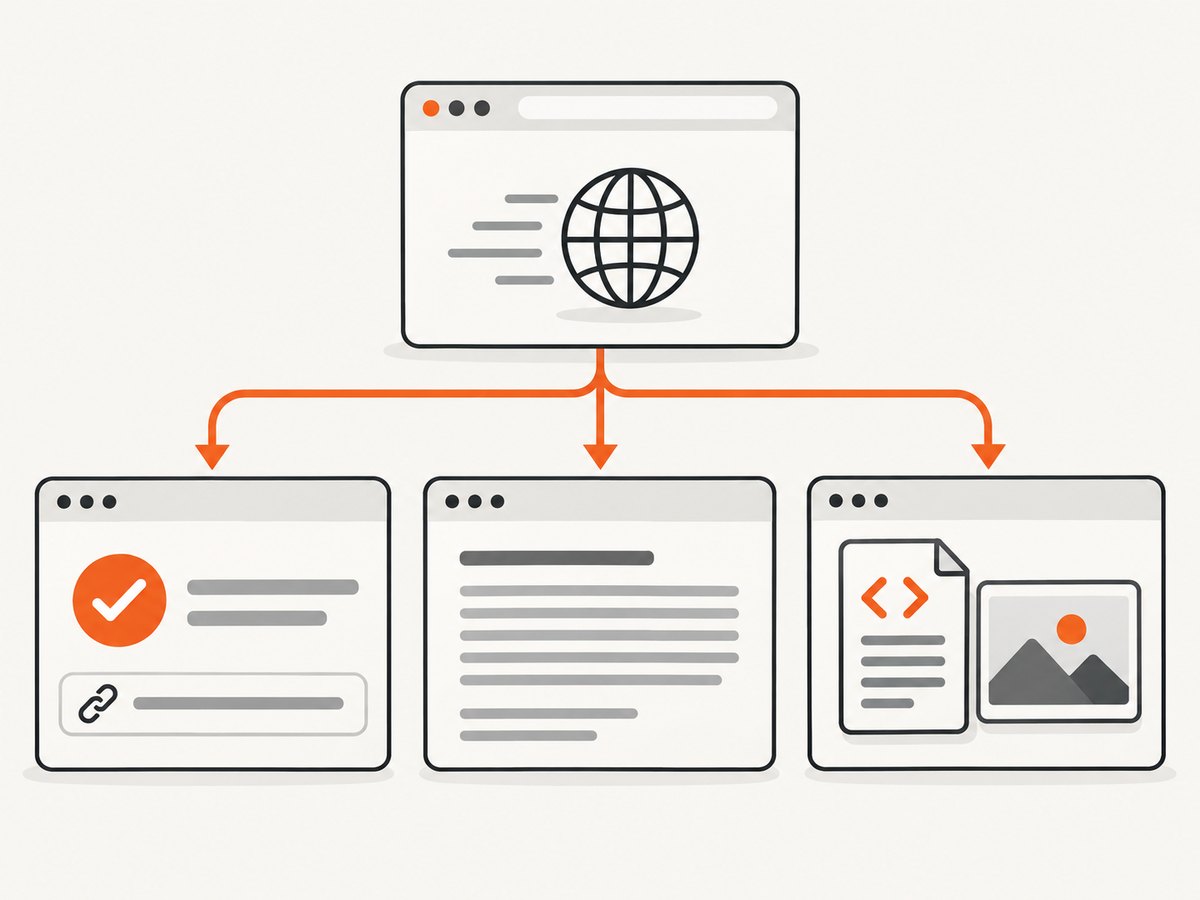
Start with a complete observation pass. Save the HTML and a screenshot so you can inspect exactly what this browser session received.
import asyncio
from pathlib import Path
from pyppeteer import launch

URL = "https://www.digikala.com/"

async def diagnose():
    browser = await launch(headless=True)
    page = await browser.newPage()
    page.setDefaultNavigationTimeout(30_000)

    try:
        response = await page.goto(
            URL,
            {"waitUntil": "domcontentloaded", "timeout": 30_000},
        )

        print("status:", response.status if response else None)
        print("final url:", page.url)
        print("title:", await page.title())

        html = await page.content()
        Path("digikala-response.html").write_text(html, encoding="utf-8")

        body_text = await page.evaluate(
            "document.body.textContent",
            force_expr=True,
        )
        print("body text sample:", (body_text or "")[:500])

        await page.screenshot({"path": "digikala-response.png", "fullPage": True})
    finally:
        await browser.close()

asyncio.run(diagnose())
domcontentloaded only tells you that the initial document event fired. It does not establish that product data, client-rendered components, or lazy content are ready. Use the saved HTML and screenshot to determine what happened before writing an extraction selector.
3. Check rendered body text independently
Read body text without using your target selector. This divides a page-level problem from an extraction-level problem.
body_text = await page.evaluate(
    "document.body.textContent",
    force_expr=True,
)

if body_text and body_text.strip():
    print("The document contains visible text.")
else:
    print("The document body is empty or has no text yet.")
If the body contains meaningful content but the target extraction is empty, inspect the saved HTML for the actual element name, attributes, nesting, and spelling. Do not assume that an older class or ID still exists.
4. Verify selectors against the current DOM
Test a selector in the page that Pyppeteer actually loaded. Start with a count and a small text sample.
selector = "div#ProductTopFeatures"  # Verify this in the current HTML first.

match_count = await page.evaluate(
    """(sel) => document.querySelectorAll(sel).length""",
    selector,
)
print("matches:", match_count)

if match_count:
    sample = await page.evaluate(
        """(sel) => {
            const el = document.querySelector(sel);
            return el ? el.textContent : null;
        }""",
        selector,
    )
    print("sample:", (sample or "").strip()[:500])
else:
    print("No element matched. Recheck the saved HTML and selector.")
Use browser developer tools or the saved response to confirm whether the content is in the main document. An element inside an iframe requires selecting that frame before querying it. Content rendered inside a shadow root may require code that enters the shadow root. Neither situation is fixed by increasing a timeout.
5. Wait for a real rendering condition
Wait for a confirmed selector
Once you have verified a selector in the current DOM, wait for it explicitly.
await page.waitForSelector(
    "YOUR_CONFIRMED_SELECTOR",
    {"timeout": 15_000},
)

html = await page.content()
print(html[:500])
If the selector never appears, Pyppeteer raises a timeout. That is useful evidence: either the page did not reach the expected state or the selector is wrong. Do not hide the timeout and continue as though extraction succeeded.
Wait for non-empty text
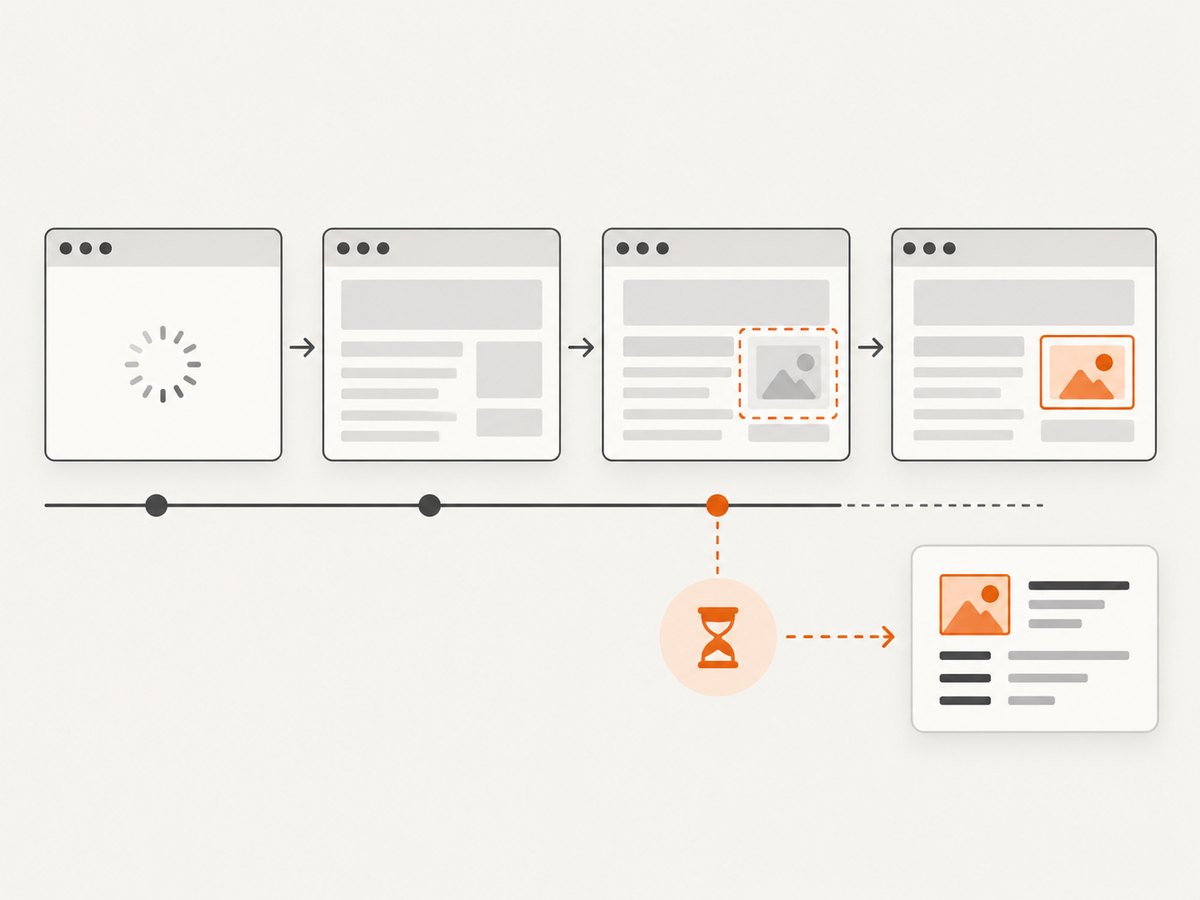
A container can exist before its application data arrives. Wait for a condition that checks the text itself.
selector = "YOUR_CONFIRMED_SELECTOR"

await page.waitForFunction(
    """(sel) => {
        const el = document.querySelector(sel);
        return Boolean(el && el.textContent && el.textContent.trim());
    }""",
    {"timeout": 15_000},
    selector,
)

text = await page.evaluate(
    """(sel) => document.querySelector(sel).textContent""",
    selector,
)
print(text.strip())
This is more reliable than adding a fixed sleep because it finishes as soon as the required condition is true and fails clearly when it never becomes true.
6. Use evaluate() correctly
Pyppeteer tries to detect whether an evaluation string is a function or an expression, but its documentation notes that automatic detection can fail. A string such as document.body.textContent is an expression, so pass force_expr=True.
# Expression: force expression mode.
body_text = await page.evaluate(
    "document.body.textContent",
    force_expr=True,
)

# Function: pass a callable JavaScript function and an argument.
title_text = await page.evaluate(
    """(sel) => {
        const element = document.querySelector(sel);
        return element ? element.textContent : null;
    }""",
    "YOUR_CONFIRMED_SELECTOR",
)
When an expression returns None, that can simply mean the property or selector produced no value. Log the value and check the DOM rather than assuming the browser failed.
7. A complete extraction template
The following template records navigation, waits for a verified condition, checks the match, and writes a useful failure artifact.
import asyncio
from pathlib import Path
from pyppeteer import launch

URL = "https://www.digikala.com/"
SELECTOR = "YOUR_CONFIRMED_SELECTOR"

async def scrape():
    browser = await launch(headless=True)
    page = await browser.newPage()
    page.setDefaultNavigationTimeout(30_000)

    try:
        response = await page.goto(
            URL,
            {"waitUntil": "domcontentloaded", "timeout": 30_000},
        )
        print("status:", response.status if response else None)
        print("final url:", page.url)
        print("title:", await page.title())

        await page.waitForFunction(
            """(sel) => {
                const el = document.querySelector(sel);
                return Boolean(el && el.textContent && el.textContent.trim());
            }""",
            {"timeout": 15_000},
            SELECTOR,
        )

        result = await page.evaluate(
            """(sel) => {
                const elements = Array.from(document.querySelectorAll(sel));
                return elements.map((el) => ({
                    text: (el.textContent || '').trim(),
                    html: el.outerHTML,
                }));
            }""",
            SELECTOR,
        )

        if not result:
            raise RuntimeError("Selector matched no elements in the rendered DOM")

        return result
    except Exception:
        Path("failure.html").write_text(
            await page.content(),
            encoding="utf-8",
        )
        await page.screenshot({"path": "failure.png", "fullPage": True})
        raise
    finally:
        await browser.close()

rows = asyncio.get_event_loop().run_until_complete(scrape())
for row in rows:
    print(row["text"])
Replace YOUR_CONFIRMED_SELECTOR only after inspecting the HTML from the same run. The template intentionally does not assert that any particular Digikala selector is current.
8. Diagnose the page before changing the scraper
Status and final URL
Print the navigation status and page.url. A redirect or an unexpected document can explain an empty selector. The available evidence does not establish which response Digikala returns for a particular run, so treat challenges, consent pages, errors, and redirects as possibilities to inspect.
Title, HTML, and screenshot
A title, saved HTML file, and screenshot often reveal that the scraper received a login page, an error document, a consent prompt, or a page that has not finished rendering. These artifacts also make selector debugging repeatable.
Frames and shadow roots
document.querySelector() searches the current document. If the target is inside an iframe, inspect the frame document. If it is inside a shadow root, query from that shadow root. A selector that is correct in the browser’s Elements panel can still fail when run against the top-level document.
Lazy content and interaction
Some content appears only after scrolling, clicking, or another user-like event. Confirm this from the page you received and automate the required action before waiting for the resulting selector. Do not use an arbitrary delay as proof that the state is ready.
9. Common errors and fixes
| Error or symptom | Cause to check | Fix |
|---|---|---|
querySelector() returns None |
No element matches the selector in this DOM | Save page.content(), inspect the current markup, and update the selector only after confirming it |
querySelectorAll() returns [] |
Same selector mismatch, or the content is in a frame or shadow root | Check document boundaries and verify the selector in the rendered page |
waitForSelector() times out |
The element never appeared before the timeout | Check status, final URL, screenshot, HTML, and whether the selector is current; then wait on a real condition |
| Body text is empty | The page may be blank, incomplete, redirected, challenged, or not rendered yet | Inspect the response and artifacts before changing extraction logic |
evaluate() gives an unexpected result |
Expression/function auto-detection interpreted the string differently | Use force_expr=True for expressions such as document.body.textContent |
| Navigation raises a timeout | The document did not reach the requested navigation condition in time | Record the failure, inspect the partial page, and choose a condition that matches the data you need |
| Selector works manually but not in Pyppeteer | Different URL, session state, frame, shadow root, or timing | Compare page.url, saved HTML, screenshot, and document context from the automated run |
10. Performance, reliability, and cost considerations
- Wait on application state: selector and function waits reduce wasted time compared with long fixed sleeps, while still failing when the expected state never appears.
- Keep diagnostics on failures: HTML and screenshots turn intermittent empty results into inspectable evidence.
- Use bounded timeouts: navigation and condition timeouts prevent a worker from hanging indefinitely. Choose values appropriate for your environment and page behavior.
- Reuse browser resources carefully: launching a browser for every URL adds startup cost. If you process many pages, reuse a browser and isolate pages, while closing pages and browsers on both success and failure.
- Do not treat a successful HTTP navigation as successful extraction: a response can be received while the required application content is absent.
- Do not claim a Digikala-specific root cause without evidence: the available research did not verify blocking, a current selector, or a particular successful fix.
11. A practical debugging checklist
- Print the navigation status and final
page.url. - Print the page title.
- Save
await page.content(). - Capture a screenshot of the received page.
- Read
document.body.textContentwithforce_expr=True. - Count matches for the target selector.
- Confirm the selector in the current HTML, not an old tutorial or snippet.
- Check whether the content is inside an iframe or shadow root.
- Wait for a confirmed selector or non-empty text condition.
- Preserve failure artifacts and log the exact URL and timeout.
Or skip the browser setup
If your goal is a clean screenshot of the page rather than custom DOM extraction, ScreenshotNeo provides a single API request. Cookie and consent banners, newsletter popups, and chat widgets are removed before the shot. Bot checks, blank pages, failed loads, timeouts, and cache hits are not billed, and the response identifies the result with X-Page-Verdict and X-Billed headers. ScreenshotNeo also provides an MCP server so Claude, Cursor, and other MCP clients can take screenshots with take_screenshot, inspect pages with get_page_info, and create PDFs with capture_pdf.
See the ScreenshotNeo API documentation for the available options.
cURL
curl -G "https://api.screenshotneo.com/v1/shot" \
  -d access_key=YOUR_API_KEY \
  --data-urlencode url=https://www.digikala.com/ \
  -o digikala.webp
Python
import requests

r = requests.get(
    "https://api.screenshotneo.com/v1/shot",
    params={
        "access_key": "YOUR_API_KEY",
        "url": "https://www.digikala.com/",
    },
    timeout=90,
)
r.raise_for_status()
open("digikala.webp", "wb").write(r.content)
print("verdict:", r.headers.get("X-Page-Verdict"))
print("billed:", r.headers.get("X-Billed"))
Node.js
const q = new URLSearchParams({
  access_key: 'YOUR_API_KEY',
  url: 'https://www.digikala.com/'
});

const res = await fetch(`https://api.screenshotneo.com/v1/shot?${q}`);
if (!res.ok) throw new Error(`HTTP ${res.status}`);
const buffer = Buffer.from(await res.arrayBuffer());
await Bun.write('digikala.webp', buffer);
ScreenshotNeo supports full-page capture with lazy images loaded, element capture by CSS selector, custom CSS and JavaScript, waits for selectors, delays or network idle, custom headers and cookies, user agents, authorization, timezone and geolocation, device presets, arbitrary viewports, retina scale, dark mode, resource blocking, caching, signed links, asynchronous jobs, webhooks, bulk capture, PDFs, and HTML/CSS-to-image workflows. Use only the options your page requires.
There is a free plan with 1,000 screenshots per month and no card. Paid plans start at $5 for 3,000 screenshots; every feature is available on every plan. Create a free ScreenshotNeo account to get started.
Frequently asked questions
Is Digikala definitely blocking Pyppeteer?
The supplied evidence does not establish that. Inspect the response, final URL, HTML, body text, and screenshot from your own run before drawing that conclusion.
Should I increase the timeout first?
First verify that the selector is present and that the page is the expected document. Then use a bounded selector or function wait. A longer timeout cannot repair a wrong selector or wrong document.
Why does page.content() help?
It shows the HTML currently present in the page, allowing you to distinguish a page-level failure from a selector-level failure.
When should I use force_expr=True?
Use it when the string passed to evaluate() is a JavaScript expression, such as document.body.textContent, rather than a function body.
Is div#ProductTopFeatures the correct selector?
It was mentioned in an indexed report, but its current validity was not verified. Confirm it against the HTML returned by your current run.


