Why Watir-WebDriver Screenshots Are Black and How to Fix Them
A systematic Ruby and Watir guide to black screenshots: synchronization, drivers, headless mode, background sessions, diagnostics, and fixes.
A black Watir-WebDriver screenshot does not identify one universal cause. Isolate synchronization, the browser and driver, headed versus headless mode, and local versus background execution one variable at a time. Record the exact Watir, Selenium, browser, driver, Ruby, operating system and execution environment before changing configuration.
The name Watir-WebDriver is legacy terminology: the code moved into the watir gem, whose active implementation is based on Selenium. The diagnostic approach below applies to current Watir and Selenium stacks, while old versions may require different option syntax.
1. Reproduce the symptom with a minimal Ruby case
Start with one URL, one browser, one screenshot call and an explicit wait. Save the page source and browser or driver logs when the image is black.
require 'watir'

browser = Watir::Browser.new(:chrome, options: {args: ['--window-size=1365,900']})
browser.goto('https://example.com')

# Wait for a state that proves the page you need is ready.
browser.h1.wait_until(&:present?)
browser.screenshot.save('watir-shot.png')

puts "Watir: #{Watir::VERSION}"
puts "URL: #{browser.url}"
puts "Title: #{browser.title}"
puts "Screenshot: watir-shot.png"

browser.close
Replace the URL and readiness condition with the element or state your test actually needs. A fixed sleep can be useful as a temporary diagnostic, but it should not be the permanent synchronization strategy.
2. Check synchronization before changing flags
Selenium’s official troubleshooting guide says, “The most common Selenium-related error is a result of poor synchronization.” That is a general troubleshooting cue, not proof that synchronization caused every black image. A screenshot taken while navigation, rendering, redirects, lazy loading or a consent overlay is still changing can capture an unusable state.
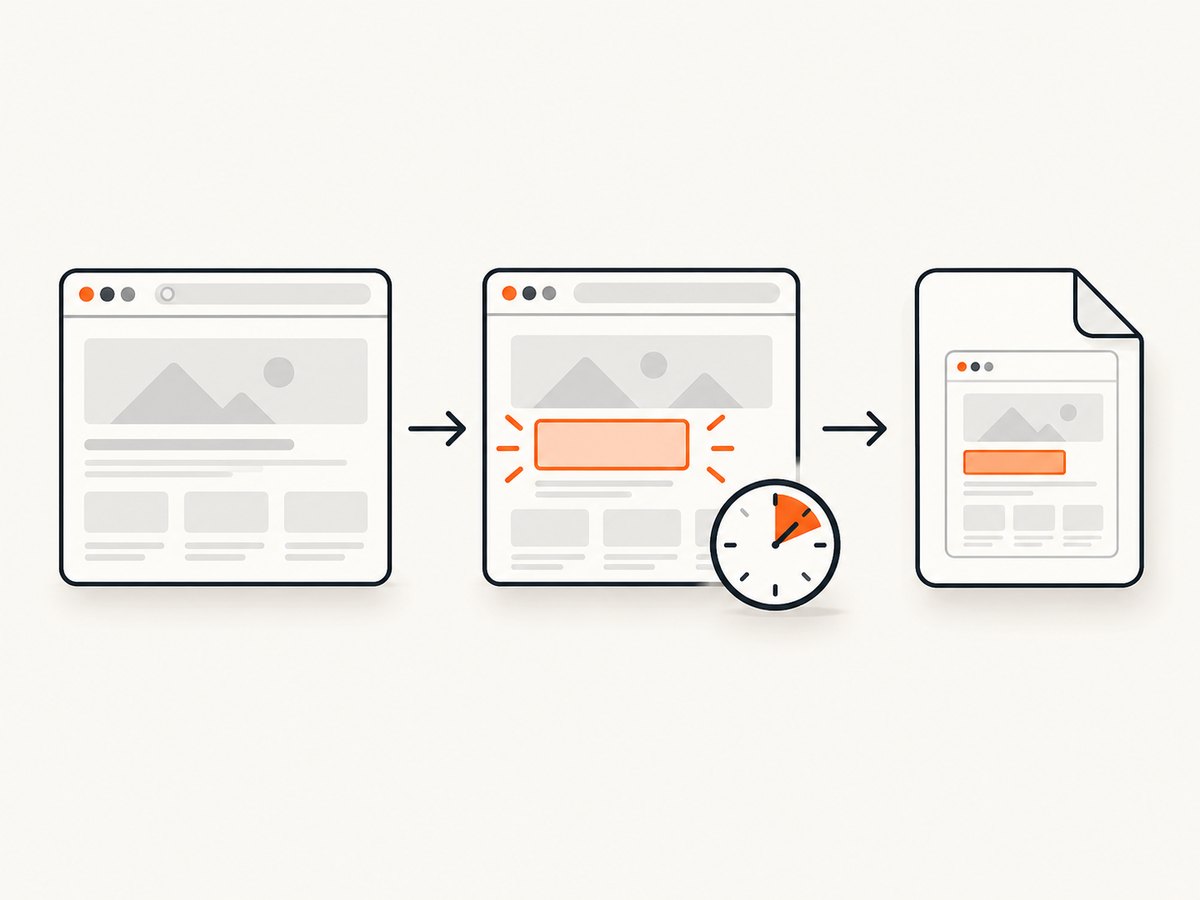
Use an explicit condition
browser.goto('https://your-site.example')
browser.element(css: '[data-testid="dashboard"]').wait_until(timeout: 30, &:present?)
browser.screenshot.save('dashboard.png')
Check for loading and navigation races
- Wait after the final navigation, not only after the initial
goto. - Wait for the content that proves the correct route loaded.
- For JavaScript applications, wait for a meaningful application state rather than a page title alone.
- Use a short sleep only to compare behavior during diagnosis; replace it with a condition once the cause is known.
3. Compare the browser and driver stack
Selenium notes that many reported errors originate in the underlying browser drivers and recommends trying multiple browsers to rule out a driver problem. Run the same minimal case with another supported browser and keep the URL, wait condition and screenshot API identical.
require 'watir'

%i[chrome firefox].each do |browser_name|
  browser = Watir::Browser.new(browser_name)
  browser.goto('https://example.com')
  browser.body.wait_until(&:present?)
  browser.screenshot.save("#{browser_name}-shot.png")
  browser.close
end
If only one browser and driver combination produces black output, collect its versions and update according to the compatibility guidance for that stack. Do not assume a particular browser is universally best; this comparison is diagnostic.
4. Compare headed, headless, local and background execution
Run the identical test interactively, headlessly where supported, and in the same background or CI service that generates the black file. Change one factor per run and label each output.
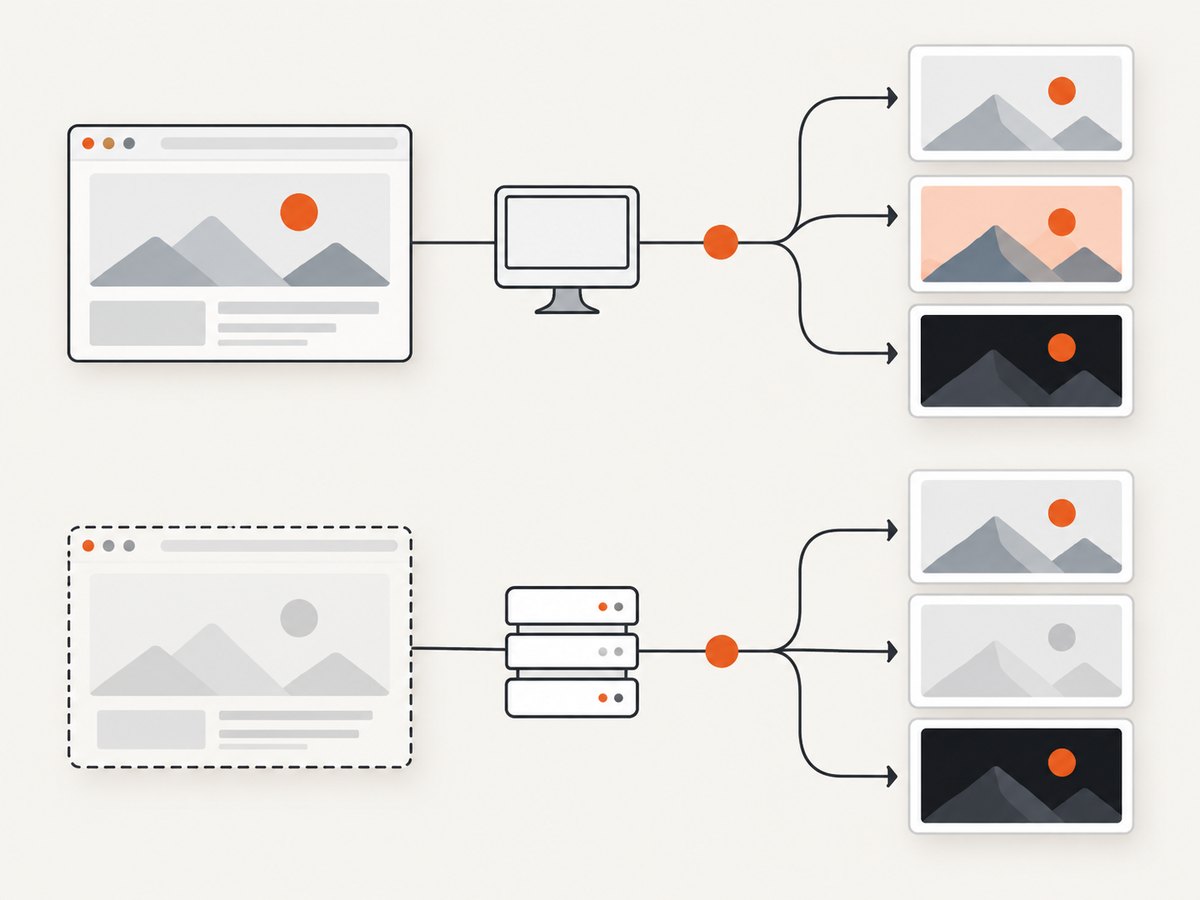
| Comparison | What it can reveal |
|---|---|
| Headed versus headless | A rendering difference or a headless limitation. |
| Interactive versus background service | Session, desktop, permissions or process-launch differences. |
| Local versus remote WebDriver | Remote browser, driver or transport-specific behavior. |
| Chrome versus Firefox (or another supported browser) | A browser or driver-specific symptom. |
Watir’s headless guide warns that headless implementations have limitations and are not exact replications of what users see in a real browser. Treat headless mode as an environment to compare, then validate the rendering you actually need.
A historical SeleniumHQ report described a black image on Windows 10 with Internet Explorer 11 and Selenium Server 2.53.1 or 3.0.1 when the Hub and Node ran in the background; manually starting them worked for that reporter. The issue documents no final resolution, so use it only as a clue to compare interactive and background execution, not as a general rule.
5. Verify versions and the launch environment
Watir 7.3.0 fixed its headless implementation to work with Selenium 4.11. If you are on an older Watir, check the project’s changelog and compatibility notes before copying current configuration examples.
puts "Ruby: #{RUBY_VERSION}"
puts "Watir: #{Watir::VERSION}"
# Depending on your bundle, inspect the installed Selenium version with:
# bundle exec ruby -e 'spec = Gem.loaded_specs["selenium-webdriver"]; puts spec.version if spec'
Also record browser and driver versions, operating system, whether execution is local or remote, whether it is headed or headless, the command that launches the process, and whether a desktop session exists. These details are essential when the failure occurs only in CI or a service account.
6. Inspect the page and the output, not only the PNG
- Print the final URL and title after the wait.
- Save page HTML to confirm that navigation reached the expected document.
- Capture browser and driver logs at debug level when available.
- Open the file with an image tool that reports dimensions and color mode; a valid black PNG is different from a zero-byte or corrupted file.
- Check whether the page is blocked by authentication, a bot check, a certificate warning or a network policy.
File.write('page.html', browser.html)
puts "Final URL: #{browser.url}"
puts "Title: #{browser.title}"
puts "Dimensions: #{browser.screenshot.path if browser.screenshot.respond_to?(:path)}"
7. Common errors and fixes
| Symptom | Likely area | Action |
|---|---|---|
| Black only immediately after navigation | Synchronization | Wait for the target element or application state; inspect the final URL. |
| Black only in headless mode | Headless limitation or version mismatch | Compare headed mode, verify Watir/Selenium/browser/driver versions, and consult current support notes. |
| Black only in CI or a service | Execution environment | Run interactively and in the service with one-variable comparisons; capture logs and launch details. |
| Black only with one browser | Driver or browser stack | Repeat with another supported browser and update the affected stack according to its compatibility guidance. |
| File is empty or unreadable | File handling | Check the screenshot path, process permissions, write completion and file size before interpreting pixels. |
| Page itself is blank | Navigation or access | Print URL/title, save HTML, and check authentication, redirects, bot checks and network errors. |
Do not treat --disable-gpu, a window-size flag, a different screenshot API or any single capability as a universal fix. The available evidence does not establish one. Use flags only as controlled experiments that you can explain and reproduce.
8. Build a self-contained bug report
When the minimal case still fails, include the information Watir requests on its help page: relevant versions, a small reproducible program, HTML when possible, the complete error or stack trace and useful debug logs. Add the screenshot file, its dimensions and hash, the exact launch command, and whether the browser was headed, headless, local, remote or running as a background service.
9. Or skip the browser setup
ScreenshotNeo provides a single HTTP request for a screenshot or PDF, with options for full-page captures, lazy images, CSS selectors, custom JavaScript and CSS, waits, headers, cookies, user agents, geolocation, caching and more. See the ScreenshotNeo API documentation for the complete option list.
curl -G "https://api.screenshotneo.com/v1/shot" -d access_key=YOUR_API_KEY --data-urlencode url=https://stripe.com -o shot.webpimport requests
r = requests.get("https://api.screenshotneo.com/v1/shot", params={"access_key": "YOUR_API_KEY", "url": "https://stripe.com"}, timeout=90)
open("shot.webp", "wb").write(r.content)const q = new URLSearchParams({ access_key: 'YOUR_API_KEY', url: 'https://stripe.com' });
const res = await fetch(`https://api.screenshotneo.com/v1/shot?${q}`);Cookie and consent banners, newsletter popups and chat widgets are removed before the shot. Bot checks, blank pages and failed loads are never billed, and response headers identify the page verdict and billing status. An MCP server lets AI agents use take_screenshot, get_page_info and capture_pdf. The free plan includes 1,000 screenshots a month with no card; paid plans start at $5 for 3,000. Create a free ScreenshotNeo account.
10. Performance, reliability and cost notes
- Explicit waits reduce wasted captures caused by taking a screenshot before the page is ready.
- Run a second browser only for diagnosis; parallel browser coverage increases resource use.
- Headless mode can reduce desktop dependencies, but compare its output with the mode your users rely on.
- Remote sessions add driver and network variables; retain logs from both ends where available.
- For ScreenshotNeo, cache with a TTL when repeated captures can reuse the same page, and use bulk capture for up to 100 URLs per call. Only clean shots are billed; cache hits and failed loads are not billed.
FAQ
Is a black screenshot always a GPU problem?
No. The evidence supports checking synchronization, drivers, browser mode and execution context before attributing the symptom to graphics settings.
Should I permanently add a long sleep?
No. Use a short sleep only to test whether timing is involved, then wait for the element or application state that proves readiness.
Does headless guarantee the same pixels as a headed browser?
No. Watir documents limitations in headless implementations, so compare modes and validate the mode you intend to use.
What details should I include when asking for help?
Include Watir, Selenium, browser, driver, Ruby and operating-system versions; code, HTML, full errors, logs; and whether execution is local, remote, headed, headless or a background service.
Can I avoid maintaining WebDriver for simple captures?
Yes. ScreenshotNeo provides an HTTP screenshot API and an MCP server, with the free sign-up linked above.


