Why Website Images Don’t Load on iPhone and How to Fix It
Images missing on your iPhone? Use this step-by-step Safari checklist to find whether the cause is your network, settings, blocker, or the site.
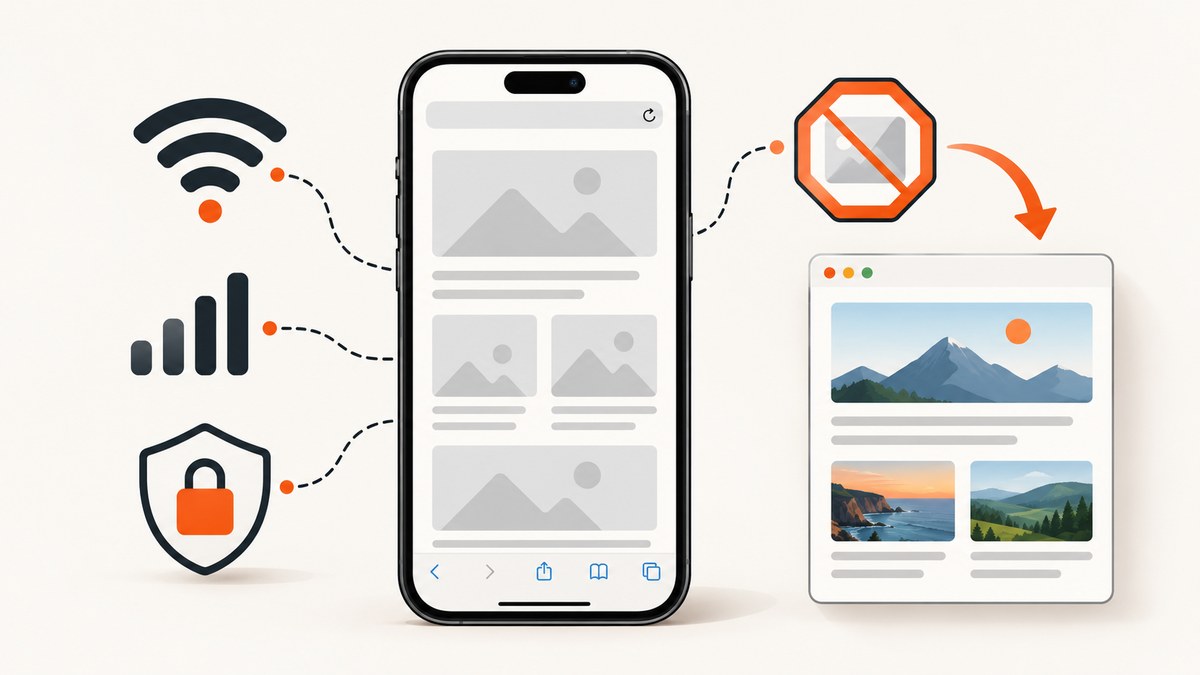
When website images do not load on an iPhone, first determine whether Safari cannot load the page at all or whether the page text and controls work while images are missing. That distinction narrows the next check. A page-wide failure points you toward the network, VPN, JavaScript, or Safari data. An image-only failure makes content blockers, the individual website, or a resource-loading problem more plausible.
Work through the checks below in order. They are low-risk, reversible, and based on Apple’s guidance for Safari loading problems and content blockers. None of these observations proves a root cause by itself.
1. Check whether the problem affects the whole page or only images
Open a familiar site in Safari and answer three questions:
- Can Safari load the page’s text, navigation, buttons, and forms?
- Are image areas empty, broken, or replaced by placeholders?
- Does the same thing happen on every website, one website, or one page?
Use this quick diagnostic map:
| What you see | Best first checks | What it suggests |
|---|---|---|
| No website loads | Another network, VPN, restart, JavaScript, website data | A broader Safari or network-loading problem |
| Pages load but images are absent everywhere | Content blockers, extensions, network comparison | A resource or filtering issue is plausible |
| Only one website is affected | Private Relay test, site-specific checks, contact the developer | The page or its delivery path may differ from other sites |
| Only one image or section is absent | Reload, try another browser, report the page | A page-specific image URL or server problem is possible |
This is a practical way to choose the next step, not a diagnosis. Apple’s general Safari article covers pages that do not load, while its content-blocker documentation explains that blockers can block images and other resources. Apple’s Safari loading guidance and Apple’s history, cache, and cookie guidance are the primary references.
2. Compare cellular data with Wi-Fi
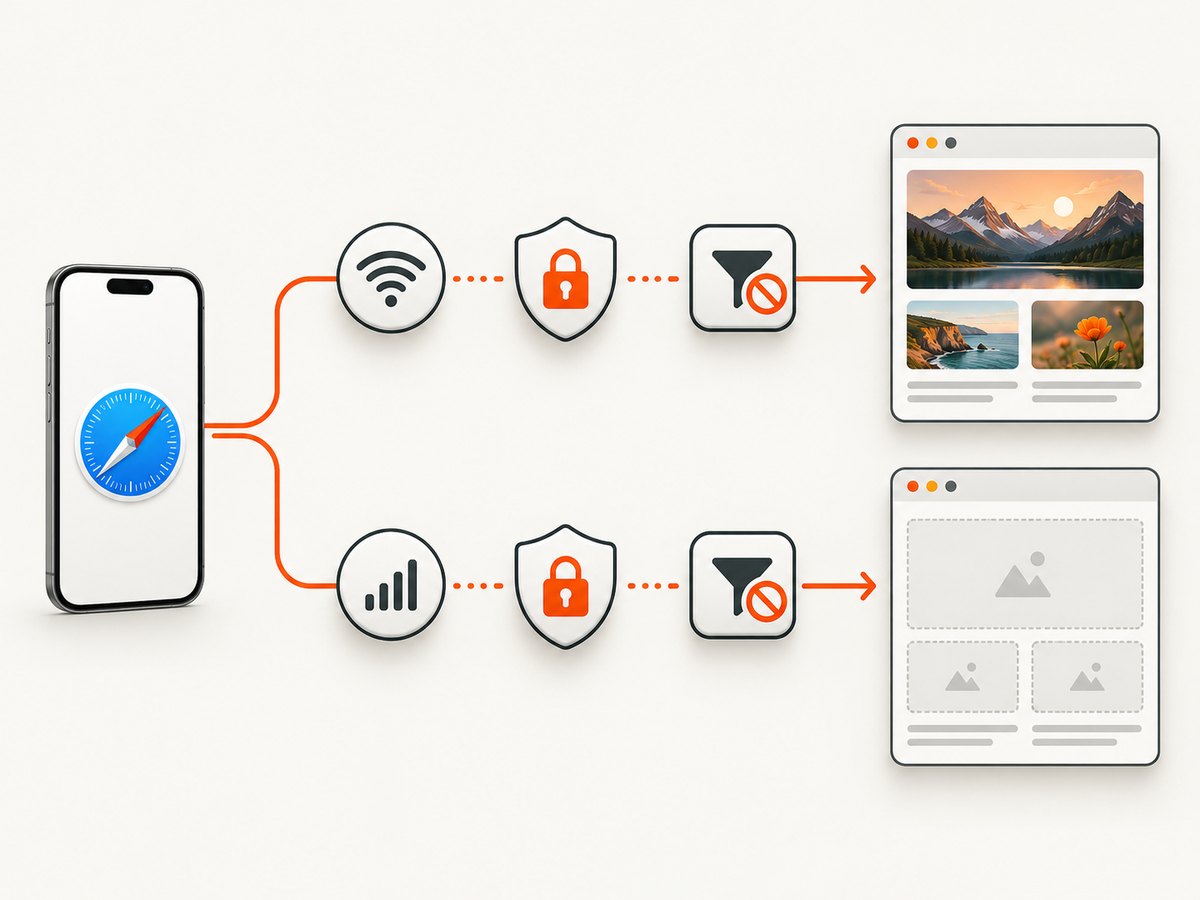
Load the same page first on your current Wi-Fi, then on cellular data. If cellular data is unavailable, join another Wi-Fi network. A change between networks tells you that the network path is different; it does not identify whether the cause is DNS, filtering, a proxy, or the website’s connection.
- Turn off Wi-Fi temporarily in Control Center, leaving cellular data on.
- Reload the page in Safari.
- Turn Wi-Fi back on and repeat the test.
- If possible, test a second Wi-Fi network.
If images return only on one network, check that network’s filtering, captive-portal login, or security software. For a home network, restarting the router can be a reasonable local step. If every network behaves the same way, continue with the iPhone and Safari checks.
3. Review VPN settings
A VPN can change how a website is reached or what content it serves. Apple states: “If you have a VPN turned on, some apps or websites might block content from loading.” Apple Support recommends checking this when Safari pages fail to load.
- Open Settings.
- Look for the VPN control or the VPN configuration installed by your VPN app.
- Temporarily disconnect the VPN and reload the affected page.
- Compare the result, then reconnect it if the VPN is required.
A change after disconnecting is evidence that the network path or VPN policy matters. It is not proof that the website is broken. If the VPN belongs to an employer or school, ask its administrator before changing required settings.
4. Restart the iPhone
Restarting clears temporary state in the operating system and network services. It is a simple check for a broad loading problem.
- Turn the iPhone off using the hardware buttons and on-screen slider.
- Wait for it to shut down completely.
- Turn it on again, reconnect to the network, and reload the page.
If only one site remains broken after a restart, move to the site-specific steps instead of repeatedly restarting.
5. Confirm JavaScript is enabled
Some pages use JavaScript to request images, select responsive image URLs, or finish rendering the page. Apple’s current instructions place the JavaScript switch at:
Settings > Apps > Safari > Advanced > JavaScript
Make sure JavaScript is enabled, then return to Safari and reload the page. The exact labels can change with iOS releases, so use Settings search for “JavaScript” if the path differs on your device.
Disabling JavaScript can affect much more than images: menus, log-in forms, checkout flows, and lazy-loaded content may stop working. Enabling it is a diagnostic check, not a guarantee that every site will render correctly.
6. Inspect Safari content blockers and extensions
Apple describes content blockers as third-party apps or extensions that can block cookies, images, resources, pop-ups, and other content. That makes a blocker a plausible setting to inspect when text loads but images do not.
- Open Settings > Apps > Safari > Extensions.
- Review extensions that filter ads, trackers, scripts, or page resources.
- Temporarily disable a blocker, then reload the affected page.
- Re-enable extensions one at a time to identify whether behavior changes.
This test does not establish that a blocker is responsible. If disabling one fixes the page, contact the blocker’s developer for product-specific help and consider allowing the affected site if you trust it.
Do not enable “Block All Cookies” as an image fix
Apple warns that blocking all cookies can prevent sign-in and make some pages or features fail. It is not a recommended remedy for missing images. If the setting is already enabled, understand that it can affect site functionality before deciding whether to change it. Apple’s cookie guidance explains the impact.
7. Clear Safari website data
Stale website data can interfere with a site’s stored state. Apple’s current path is:
Settings > Apps > Safari > Clear History and Website Data
Confirm the action, then reopen Safari and test the page. Clearing data can remove stored log-ins, preferences, and other website information, so have account credentials available. Treat this as a troubleshooting step, not a guaranteed image fix.
If you want to preserve history while removing data for a particular site, use Safari’s website-data controls when available on your iOS version. The names and placement of these controls can change, so follow the options shown on your device.
8. Test a site-specific problem
If other websites show images normally and one site does not, gather a few observations before contacting its owner:
- Record the exact page URL and the time of the failure.
- Note whether text, buttons, and video load.
- Compare Wi-Fi and cellular data.
- Test Safari with content blockers disabled.
- Try the same URL in another browser on the iPhone, if available.
For a problem limited to one site, Apple recommends checking Private Relay and temporarily turning it off in iCloud settings as a test. The setting can affect how a particular site sees and connects to your request. If the page still fails after Apple’s checks, contact the website developer; that is a reasonable escalation step, not proof that the website is at fault.
9. Understand common causes and fixes
| Symptom | Likely area to inspect | Action |
|---|---|---|
| Nothing loads on Wi-Fi, but cellular works | Wi-Fi path or filtering | Test another Wi-Fi, sign in to any captive portal, and inspect network filtering |
| Nothing loads while a VPN is connected | VPN path or policy | Disconnect temporarily and compare |
| Text loads, images do not, across many sites | Content blocker or extension | Disable blockers temporarily and retest |
| Forms and menus also fail | JavaScript or blocked resources | Confirm JavaScript and review extensions |
| Only one site fails | Private Relay, site delivery, or page code | Compare networks, test Private Relay, then contact the site |
| Failure persists after clearing data | External or site-specific cause | Capture details and escalate to the website developer |
10. What website owners should check
If you maintain the affected site, ask for the URL, device model, iOS version, browser, network type, and a screenshot of the missing image. Check that image URLs use HTTPS, return an image content type, and do not require a blocked third-party request. Review CDN logs for failed requests, redirects, authorization errors, and rate limits. Test responsive image variants and lazy-loading behavior at a narrow viewport.

Do not assume an iPhone is the cause because one visitor reports missing images. Compare the same URL from multiple networks and browsers, and look for a pattern in server logs. A content blocker, VPN, Private Relay, or network policy can change what reaches your origin.
Or skip the browser setup
Developers who need a repeatable server-side capture can use ScreenshotNeo instead of maintaining a headless-browser setup. Its API accepts a URL and returns a PNG, JPEG, WebP, or PDF. Before capture, it accepts cookie or consent banners and removes more than 60 known consent platforms, newsletter popups, and chat widgets; each step can be turned off. Bot checks or CAPTCHAs, blank pages, timeouts, failed loads, and cache hits are not billed, and the response identifies the result with X-Page-Verdict and X-Billed headers. An MCP server provides take_screenshot, get_page_info, and capture_pdf tools for Claude, Cursor, and other MCP clients.
See the ScreenshotNeo API documentation for authentication and options.
cURL
curl -G "https://api.screenshotneo.com/v1/shot" -d access_key=YOUR_API_KEY --data-urlencode url=https://stripe.com -o shot.webpPython
import requests

r = requests.get(
    "https://api.screenshotneo.com/v1/shot",
    params={"access_key": "YOUR_API_KEY", "url": "https://stripe.com"},
    timeout=90,
)
r.raise_for_status()
open("shot.webp", "wb").write(r.content)
Node.js
const q = new URLSearchParams({ access_key: 'YOUR_API_KEY', url: 'https://stripe.com' });
const res = await fetch(`https://api.screenshotneo.com/v1/shot?${q}`);
if (!res.ok) throw new Error(`HTTP ${res.status}`);
const image = Buffer.from(await res.arrayBuffer());
require('fs').writeFileSync('shot.webp', image);
ScreenshotNeo also supports full-page captures with lazy images loaded, CSS-selector element captures, device presets and custom viewports, retina scale, dark mode, custom CSS and JavaScript, click and wait actions, request or resource blocking, custom headers and cookies, timezone and geolocation, transparent backgrounds, resizing, caching with a chosen TTL, signed image links, asynchronous jobs with signed webhooks, bulk capture of up to 100 URLs per call, a usage API, and an OpenAPI specification. Parameters used by other screenshot APIs also work, which can simplify migration.
Free accounts include 1,000 shots per month with no card. Paid plans start at $5 for 3,000 shots; yearly billing gives two months free, and every feature is available on every plan. Create a free ScreenshotNeo account.
Performance, reliability, and cost notes
- For iPhone troubleshooting: compare networks before changing multiple settings, so you know which observation changed the result.
- For repeated captures: use a chosen cache TTL when the page does not change frequently. Cache hits are not billed by ScreenshotNeo.
- For slow pages: wait for a selector, a delay, or network idle; full-page captures can load lazy images before the shot.
- For unreliable targets: inspect
X-Page-VerdictandX-Billedrather than assuming every HTTP response is a clean page. - For volume: bulk capture supports 100 URLs per call, while asynchronous jobs and signed webhooks help keep long captures out of a request timeout.
FAQ
Why do images load on cellular but not Wi-Fi?
The network paths differ. A Wi-Fi filter, DNS service, captive portal, or local policy may affect image requests. Test another Wi-Fi before changing Safari settings.
Can low storage cause website images to disappear?
It can affect overall device behavior, but the checks in this guide first distinguish a network, blocker, Safari, or site-specific problem. Check available storage if broader problems continue.
Should I switch browsers?
Trying another browser is a useful comparison. If images work there, compare browser extensions and settings; the result still does not prove which component caused the Safari behavior.
Will clearing Safari data delete my photos?
No. It removes Safari history and website data, which can include stored sign-ins and preferences. It does not delete photos from the Photos app.
When should I contact the website?
Contact the developer when one site or page remains affected after network, VPN, blocker, JavaScript, restart, website-data, and Private Relay checks. Include the URL, device and iOS details, network comparison, and a screenshot.


