Why Website Screenshot Timestamps Are Wrong
A screenshot’s filename, file metadata and cloud display can show different times. Find the layer that changed and troubleshoot it without guessing.
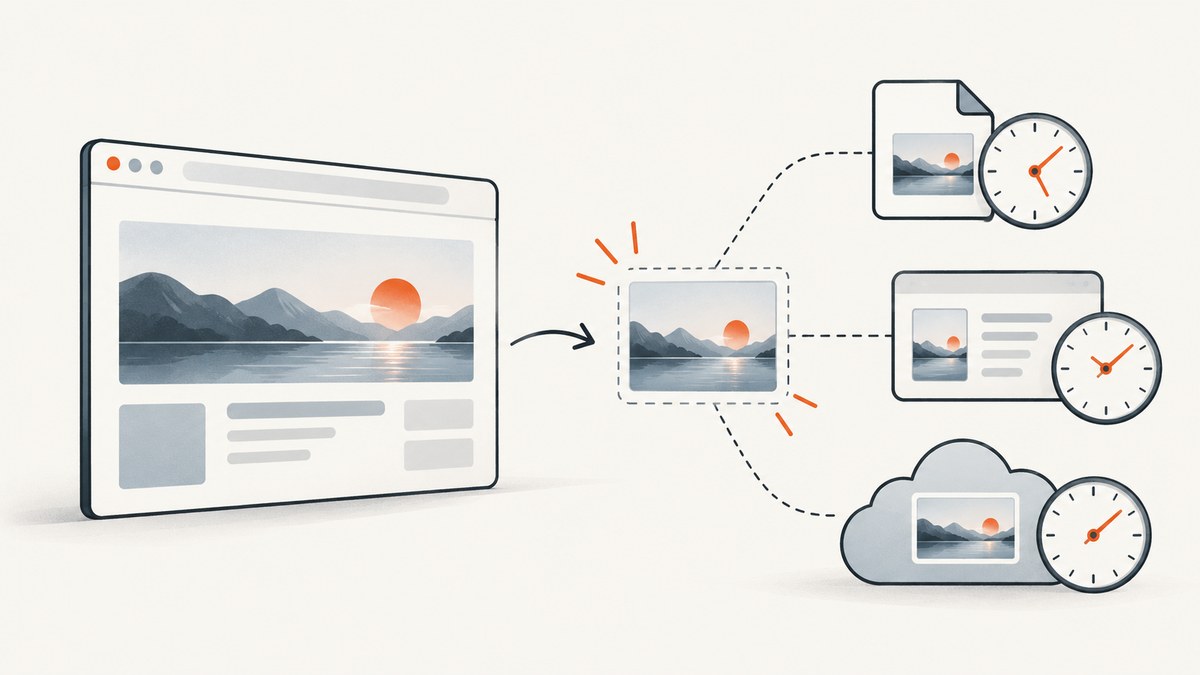
A website screenshot can show an unexpected timestamp because “timestamp” may refer to several different values: a date in the filename, a date stored in the file’s metadata, the file’s filesystem dates, or the time a photo or cloud app displays after upload. Those values can differ. The first step is to identify exactly where the unexpected date appears, then compare the original saved file with the later display.
There is no single universal cause or fix established for every browser, operating system, capture method and destination service. A historical Firefox DevTools bug did produce a filename with the wrong day and was fixed in Firefox 89. An individual ShareX issue reports an upload display discrepancy in Google Photos, but it does not establish a general behavior for all uploads. Mozilla Support’s Firefox report, the Firefox bug record and the ShareX issue show why it matters to diagnose the layer before changing settings.
1. Identify which timestamp is wrong
Before changing your clock or browser settings, write down the value you see and where you see it. A filename such as Screenshot-2026-09-30.png is a naming convention; it is not automatically the file’s creation time. Filesystem “created” and “modified” dates are properties of the saved copy and can be affected by copying, downloading or processing. Image metadata may contain date fields, but a screenshot does not necessarily include a capture-time field. A photo app can also display a date derived from its own interpretation of the uploaded file.
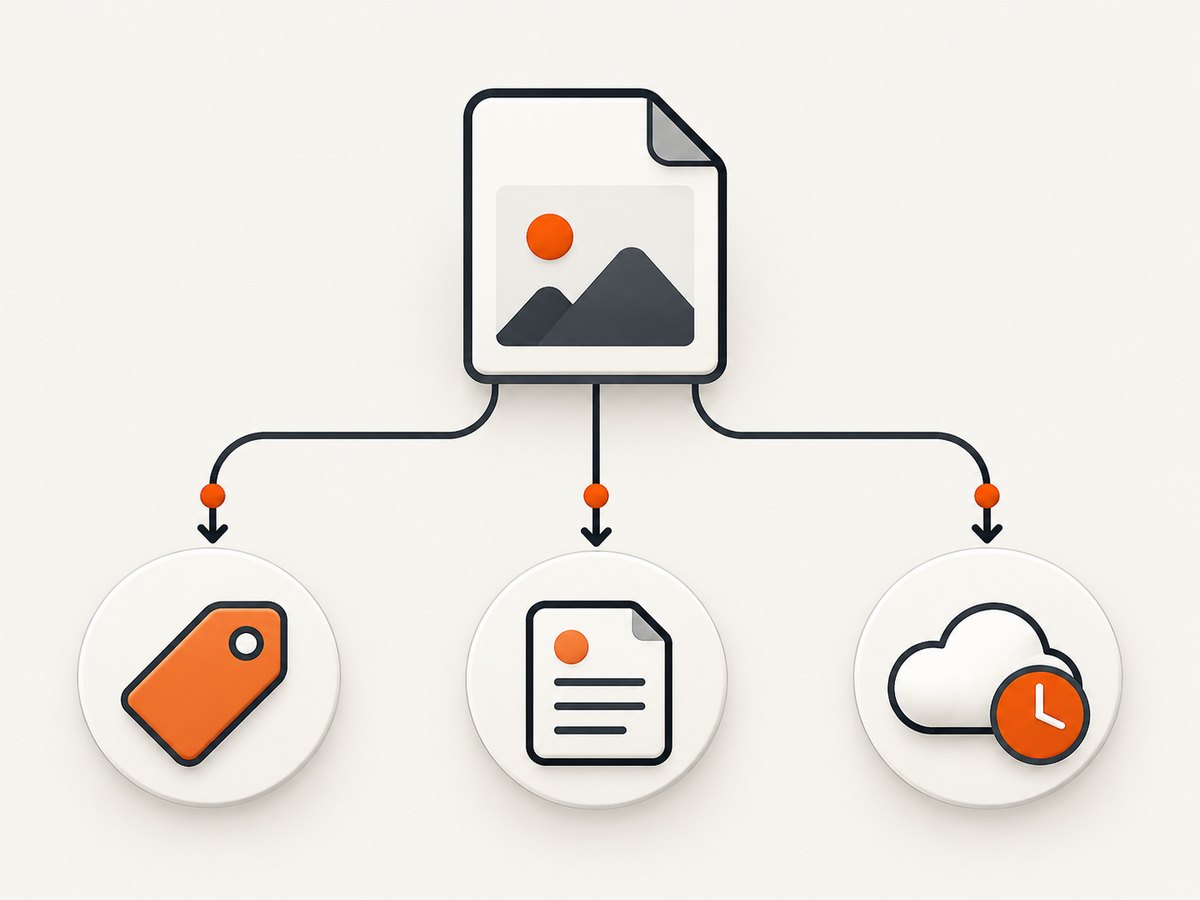
| Where the date appears | What it represents | First check |
|---|---|---|
| Filename | Text chosen by the capture tool or a later renaming step | Capture tool, version and naming template |
| File details | Filesystem dates, and possibly image metadata | Original file properties and metadata fields |
| Photo or cloud app | The service’s displayed interpretation after upload | Compare local original with service display |
| Visible date drawn into the page | Website content rendered at capture time | Page timezone, page data and capture timing |
Keep the original file unchanged while diagnosing. If possible, make a copy for experiments and note the capture method, browser and version, local timezone, date and time of capture, and how the file was transferred or uploaded. This creates a useful comparison without assuming that the visible filename is the same value the receiving application displays.
2. Check the original file before the cloud copy
Compare the original name and local file details with the value shown by the destination app. If the original file already has the unexpected date in its name, investigate capture-tool naming. If the filename and local details look correct but the cloud app differs, focus on the upload and display path. If only the web page’s own clock is wrong inside the screenshot, that is a rendering or page-data problem, not necessarily a file timestamp issue.
On macOS or Linux, inspect filesystem timestamps with stat:
stat screenshot.pngThis reports filesystem properties; it does not prove when the browser rendered the page. On Windows, right-click the file, choose Properties, and inspect the General and Details tabs. Treat “Date created” and “Date modified” as separate observations. Copying the file to another disk or downloading it again can change some filesystem dates.
To see whether a PNG contains common textual metadata chunks, this small Python script reads the file without modifying it:
from pathlib import Path
import struct

path = Path("screenshot.png")
data = path.read_bytes()
if not data.startswith(b"\x89PNG\r\n\x1a\n"):
    raise SystemExit("Not a PNG file")

offset = 8
while offset + 12 <= len(data):
    length = struct.unpack(">I", data[offset:offset + 4])[0]
    kind = data[offset + 4:offset + 8]
    value = data[offset + 8:offset + 8 + length]
    if kind in (b"tEXt", b"iTXt", b"tIME"):
        print(kind.decode("ascii"), value[:200])
    offset += 12 + length
    if kind == b"IEND":
        break
PNG’s optional chunks are not a universal capture-time record. No output simply means these particular chunks were not found by this inspection. JPEG and WebP have different formats, so use a format-aware metadata reader for those files and do not interpret absence of a date as evidence that the capture clock was wrong.
3. Separate clock conversion from a wrong calendar day
A timezone conversion usually changes the displayed hour and can cross midnight, which changes the calendar date as a consequence. A filename bug can instead write the wrong day while keeping the local time looking plausible. Compare the full date, time and timezone, not just the day number. Record whether the difference is a fixed number of hours, a one-day shift, or a wholly different date.
The Mozilla Support discussion titled “Firefox screenshots are saved with wrong time” initially described a timezone concern, then clarified that the day number in the filename was one day ahead. Mozilla’s report ties that symptom to a specific Firefox DevTools filename bug, marked fixed in Firefox 89. That is useful if your symptom and capture path match; it should not be treated as the explanation for a current problem in every browser or screenshot tool.
- Check the exact capture application and whether you used its DevTools, browser menu, operating-system shortcut or an automation library.
- Record its version. For the matching historical Firefox DevTools bug, update to a version containing the Firefox 89 fix.
- Take one new screenshot and compare its filename with the local clock and file details.
- If the date changes only after upload, preserve both local and uploaded observations and investigate the destination’s current guidance.
4. Understand how capture paths differ
“A browser screenshot” can describe different mechanisms. A browser’s DevTools command, an operating-system screenshot, an automated browser and a hosted rendering service may render or read pixels through different paths. This can matter for the image itself, but it does not imply that any particular path inherently assigns an incorrect timestamp.
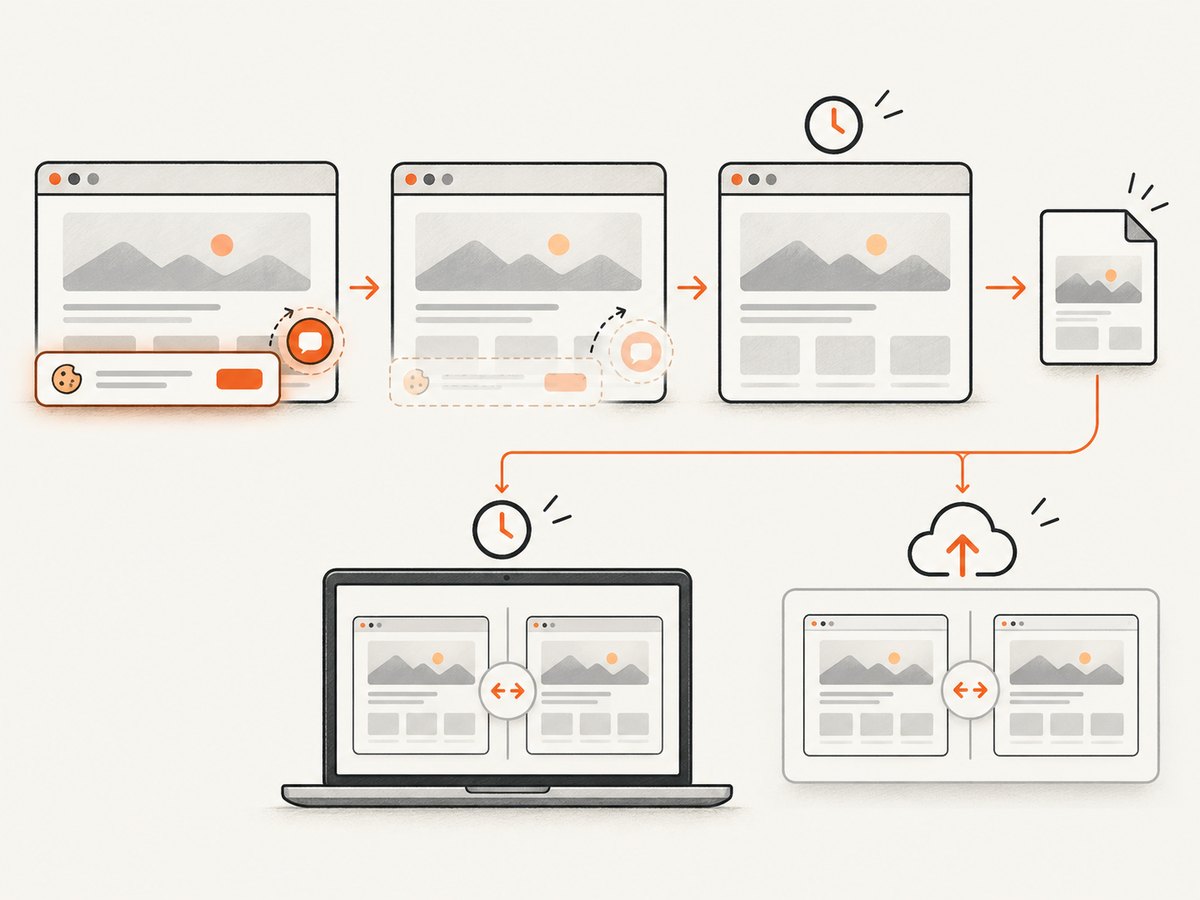
For example, Cloudflare’s Browser Run screenshot documentation describes processing the page’s HTML and JavaScript before capturing the rendered page. Firefox’s technical documentation describes a software snapshot path and compositor readback as distinct ways to capture pixels, with different uses and limitations. That page concerns rendered output and debugging; it does not establish a timestamp rule. Compare the capture source and output when investigating, but keep the filename, file properties and receiving app as separate evidence.
For a reproducible website capture, note the URL, capture time, browser or service, viewport, wait condition and output format. Dynamic pages may show a changing time in their content if the page updates during rendering. That visible text is part of the screenshot pixels and should not be confused with the file’s own metadata or name.
5. A repeatable troubleshooting procedure
- Locate the symptom. Is the mismatch in the filename, file properties, embedded metadata, page content, or an app after upload?
- Preserve the original. Do not rename, resave or re-export the only copy before recording its current name and details.
- Compare values precisely. Write down date, time, timezone and where each value came from. Distinguish an hour offset from a wrong day number.
- Record the capture route. Note browser/tool name and version, operating system, whether DevTools or automation was used, and any image-processing step.
- Check one variable at a time. Capture once with the same method, then change only the version or path you are investigating. This helps determine whether the mismatch is repeatable.
- Compare before and after transfer. Check the local source and the destination display. If the change occurs after upload, look for documentation for that exact service and route.
- Report a minimal reproduction. Include the original filename, local details, displayed value, timezone, capture version and upload path. Remove private page content before sharing a screenshot.
These steps are a practical diagnostic sequence inferred from the separate documented cases; they are not a claim that every operating system or cloud service treats screenshot dates in the same way.
6. Troubleshooting common symptoms
| Symptom | Likely area to investigate | Next action |
|---|---|---|
| Filename is one day ahead, while its time looks right | Capture tool’s filename generation or naming template | Check the exact tool and version. Firefox’s documented DevTools case was fixed in Firefox 89; do not generalize it to other tools. |
| Filename looks right; “Date created” changes after copying | Filesystem dates for the current copy | Compare the original path and copied path. Do not treat the copied file’s creation date as capture time. |
| Local file looks right; cloud app shows another hour or date | Service display or upload interpretation | Record the transfer route and check current service-specific documentation. One ShareX report records a Google Photos discrepancy but does not establish a universal fix. |
| Screenshot contains a wrong clock rendered on the page | Page timezone, dynamic page data or capture timing | Inspect the source page’s displayed value and repeat capture with a known reference page. |
| Different capture methods produce different pixels | Rendering and pixel readback path | Compare the methods and their documented behavior. A pixel-path difference alone does not identify who assigned a file date. |
| No date appears in image metadata | Metadata may be absent | Use filename and filesystem details as distinct clues; do not infer a clock error from missing optional metadata. |
7. Performance, reliability and cost considerations
Timestamp diagnosis should be inexpensive: first inspect the original file, record versions and reproduce the same capture. Avoid repeatedly uploading large files while testing, and retain a local copy so comparisons remain possible. If you automate captures, make filenames deterministic from an explicit timestamp source that your application controls, and record that source separately from the screenshot itself. For example, a UTC timestamp in an application manifest can be useful for your own pipeline, but it does not rewrite or validate metadata created by a browser or photo service.
Hosted capture changes where rendering happens, so record the service and request settings along with the returned image. Cloudflare’s documentation describes its own rendering behavior; this should not be read as a general promise about timestamps. No benchmark or universal reliability ranking follows from the sources here. Choose a workflow based on repeatability, required rendering behavior, and whether you need to inspect or control the output metadata yourself.
8. Or skip the browser setup
ScreenshotNeo is a website screenshot API and MCP server from Yorker Media. One GET request can return a PNG, JPEG, WebP or PDF. It can make capture repeatable, but the returned screenshot should still be distinguished from filename, filesystem and later photo-app dates. See the ScreenshotNeo API documentation for request options.
curl -G "https://api.screenshotneo.com/v1/shot" \
  -d access_key=YOUR_API_KEY \
  --data-urlencode url=https://stripe.com \
  -o shot.webp
import requests
r = requests.get(
"https://api.screenshotneo.com/v1/shot",
params={"access_key": "YOUR_API_KEY", "url": "https://stripe.com"},
timeout=90,
)
open("shot.webp", "wb").write(r.content)const q = new URLSearchParams({
access_key: 'YOUR_API_KEY',
url: 'https://stripe.com'
});
const res = await fetch(`https://api.screenshotneo.com/v1/shot?${q}`);
if (!res.ok) throw new Error(`Screenshot request failed: ${res.status}`);
const bytes = new Uint8Array(await res.arrayBuffer());
await import('node:fs/promises').then(fs => fs.writeFile('shot.webp', bytes));ScreenshotNeo removes cookie banners, newsletter popups and chat widgets before the shot. Bot checks, blank pages and failed loads are never billed; response headers identify the page verdict and billing state. Its MCP server lets AI agents use take_screenshot, get_page_info and capture_pdf. The free plan includes 1,000 screenshots a month with no card; paid plans start at $5 for 3,000. The relevant price options are Starter $5/3,000, Growth $15/15,000, Pro $39/60,000, Scale $99/250,000 and Business $249/1,000,000; yearly billing gives two months free, and every feature is on every plan. Create a free account for 1,000 screenshots a month, with no card.
9. Short FAQ
Does a PNG screenshot always store its capture time?
No. A screenshot may have no embedded capture-time field. Check the actual file and format rather than assuming the date in its name is metadata.
Will changing my computer timezone fix a wrong filename?
Only if timezone interpretation is the cause. First determine whether the difference is an hour shift or a wrong calendar day and identify the tool that generated the name.
Can I tell the exact capture time from the image pixels?
Usually not unless the page itself visibly printed a time or your workflow separately recorded one. Pixel content, filename and file properties are distinct evidence.
Is Firefox still affected by the reported filename bug?
The specific DevTools filename bug was reported fixed in Firefox 89. If a current installation shows a similar symptom, verify its exact version and capture path before attributing it to that historical issue.
Does an unexpected Google Photos date prove the screenshot was taken at that time?
No. A ShareX issue documents an individual discrepancy after upload. Compare the original and destination display, then consult current service-specific documentation for your case.


