Why Website Screenshots Come Out Blank and How to Fix Them
Find out why screenshots are blank, separate page failures from capture timing, and fix lazy loading, browser state, canvas, and automation issues.
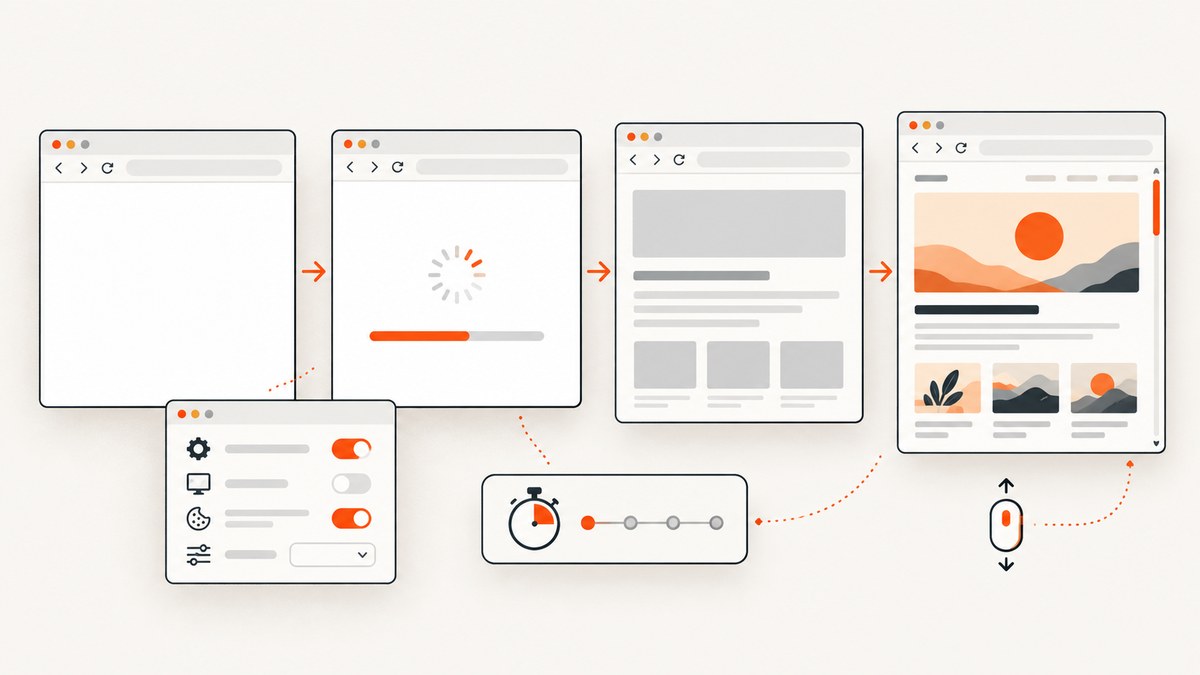
A blank website screenshot has two very different explanations: the page itself did not render, or the screenshot was taken before the page finished rendering. Diagnose that distinction first. Open the URL normally, wait for it to settle, and compare the live page with the saved image. If the live page is blank, troubleshoot the browser, connection, scripts, extensions, or site. If the live page looks correct, fix capture timing, lazy loading, viewport settings, or the automation environment.
This guide gives a complete workflow for both cases, including Playwright code, browser checks, canvas edge cases, performance and reliability guidance, and a hosted option when you do not want to maintain a browser.
1. Decide whether the page or the capture is broken
Start with a simple comparison:
- Open the exact URL in a normal browser window.
- Reload once and wait until visible content, images, and data have settled.
- Open the page in a private or incognito window.
- Capture it manually with the browser’s screenshot tool.
- Compare that image with the automated or downloaded screenshot.
If the page is blank in every browser, the website or network is failing. If it works in a private window, stored site data or an extension is a likely cause. If the page works normally but the automated image is white, the capture is probably early, pointed at the wrong viewport, or running in an environment that renders the page differently.
Chrome’s troubleshooting guidance starts with reloading, checking the connection, and determining whether the failure affects one site or many. Firefox’s support guidance also calls out cached site data, extensions, tracking protection, JavaScript, graphics settings, and modified browser preferences as causes of pages that look wrong.
2. Fix a page that is blank in the browser
Reload and isolate the site
Reload the page once, then test two or three unrelated websites. If all sites fail, resolve the network or DNS problem first. If only one site fails, try the same URL in another browser and on another connection. A site that fails across browsers while other sites work may have a server-side or application problem.
Use a private window
Open a private or incognito window and visit the URL again. A working private session points to local state rather than the page’s public HTML. Clear the site’s cookies and storage, then retry. You can also remove extensions one at a time, starting with ad blockers, privacy tools, script blockers, and appearance customizers.
Check JavaScript and tracking protection
Many modern pages render their visible interface with JavaScript. Confirm that JavaScript is enabled. In Firefox, temporarily test Enhanced Tracking Protection for the affected site if you suspect a script or resource is being blocked. Re-enable protections after identifying the failing setting.
Inspect graphics and browser configuration
If the page is blank only in one browser, inspect graphics acceleration, modified preferences, and browser updates. A graphics or profile problem can affect one installation without affecting other browsers. The browser console and network panel can reveal failed scripts, blocked requests, and JavaScript exceptions.
3. Fix captures taken before the page is ready
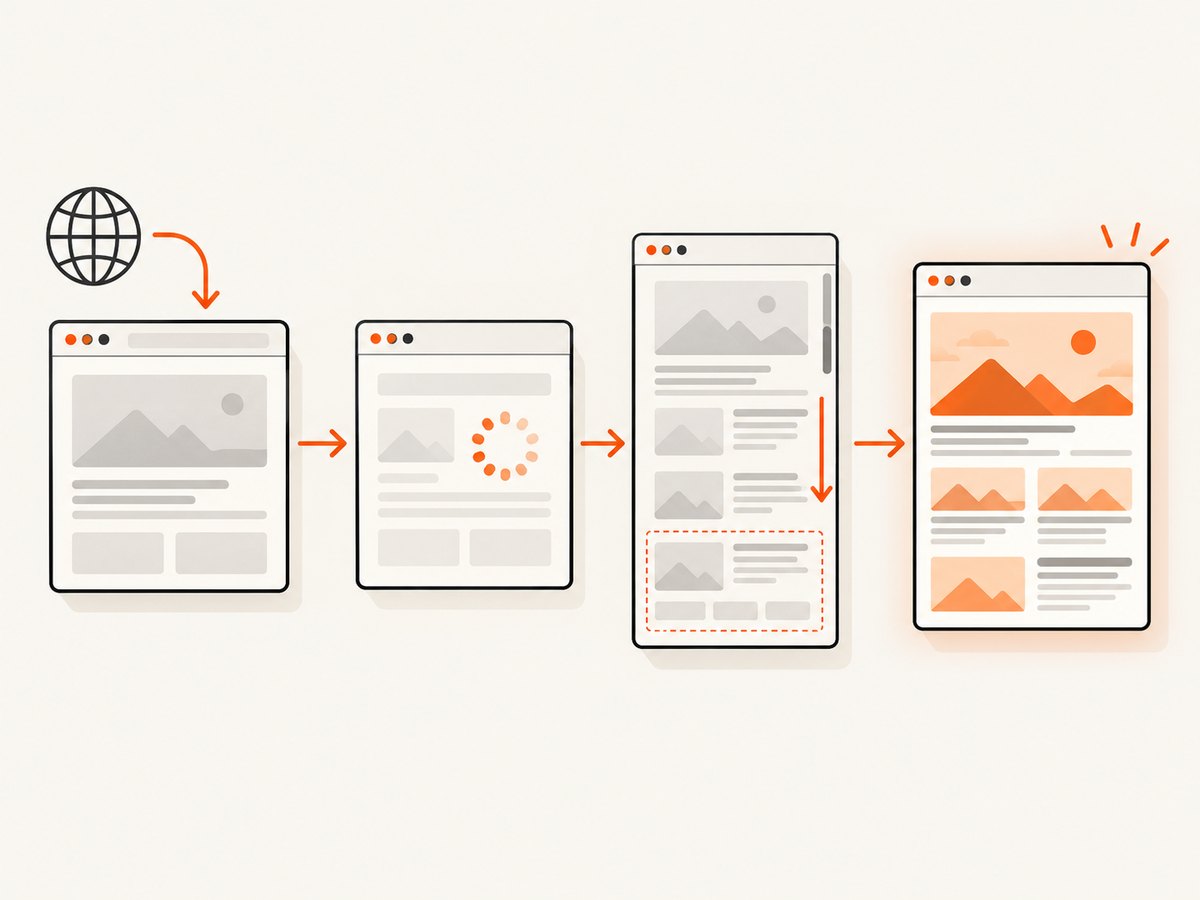
A navigation event is not the same as visual readiness. Modern applications often fetch data and render components after the browser’s load event. Playwright documents this distinction: pages can continue loading resources and rendering UI after the initial lifecycle event. Capture after a meaningful condition that represents the content you need.
Wait for a selector
Prefer a stable application marker over an arbitrary sleep. For example, add data-testid="dashboard-ready" when the page has finished rendering, then wait for it:
import { chromium } from 'playwright';

const browser = await chromium.launch({ headless: true });
const page = await browser.newPage({ viewport: { width: 1440, height: 900 } });

await page.goto('https://example.com/dashboard', { waitUntil: 'domcontentloaded' });
await page.locator('[data-testid="dashboard-ready"]').waitFor({ state: 'visible', timeout: 30000 });
await page.screenshot({ path: 'dashboard.png', fullPage: true });

await browser.close();
Wait for text or an application signal
If you cannot add a marker, wait for a heading, table, or other content that must exist in the finished view:
await page.goto('https://example.com/reports', { waitUntil: 'domcontentloaded' });
await page.getByRole('heading', { name: 'Monthly reports' }).waitFor({ state: 'visible' });
await page.screenshot({ path: 'reports.png', fullPage: true });
Use a bounded timeout. An unbounded wait can leave workers stuck when the site is down. A short, fixed delay is useful only for a known animation or a third-party widget; it should supplement a readiness condition, not replace one.
Use network idle carefully
networkidle can help on pages that finish with a short burst of requests, but analytics, chat, and streaming connections may keep the network busy forever. A selector or application-ready signal is usually more reliable. If you do use it, combine it with a maximum timeout and a fallback condition.
4. Handle lazy-loaded images and below-the-fold content
Lazy-loaded content may not request its image until it enters the viewport. Google recommends loading relevant content when it becomes visible and avoiding lazy loading for content likely to be immediately visible. This is a common reason a full-page image contains blank image regions even though the page looked fine while scrolling.
Scroll through the document before capturing:
await page.goto('https://example.com/gallery', { waitUntil: 'domcontentloaded' });
await page.locator('main').waitFor({ state: 'visible' });

await page.evaluate(async () => {
  await new Promise((resolve) => {
    const distance = 700;
    const timer = setInterval(() => {
      window.scrollBy(0, distance);
      if (window.innerHeight + window.scrollY >= document.body.scrollHeight) {
        clearInterval(timer);
        resolve();
      }
    }, 100);
  });
});

await page.waitForTimeout(500);
await page.screenshot({ path: 'gallery.png', fullPage: true });
For a shorter page, a simpler approach is to scroll to the bottom and back to the top. After scrolling, wait for image elements to complete:
await page.evaluate(async () => {
  const images = Array.from(document.images);
  await Promise.all(images.map((img) => {
    if (img.complete) return Promise.resolve();
    return new Promise((resolve) => {
      img.addEventListener('load', resolve, { once: true });
      img.addEventListener('error', resolve, { once: true });
    });
  }));
});
5. Check viewport, full-page mode, and element targets
A normal screenshot captures only the current viewport. A full-page screenshot captures the scrollable document. If the expected content is below the fold, a viewport capture can look empty or incomplete even when the page is healthy.
await page.setViewportSize({ width: 1366, height: 768 });
await page.screenshot({ path: 'viewport.png' });
await page.screenshot({ path: 'entire-page.png', fullPage: true });
When capturing one component, verify that the selector matches a visible element and that it is not covered by a modal:
const card = page.locator('[data-card="revenue"]');
await card.scrollIntoViewIfNeeded();
await card.waitFor({ state: 'visible' });
await card.screenshot({ path: 'revenue-card.png' });
Responsive breakpoints can also hide or replace content. Set an explicit viewport, device scale factor, color scheme, and locale so repeated captures use the same layout.
6. Investigate canvas and cross-origin images
A canvas that draws images from another origin can become “tainted.” MDN documents that reading pixel data from a tainted canvas can throw a SecurityError. This is a website configuration issue, not a universal screenshot failure. The image host must provide an appropriate CORS response, and the page must request the image with the matching cross-origin mode.
Inspect the browser console for canvas security errors. If you own the site, configure the image server’s CORS headers and use the correct crossorigin attribute before drawing. If you do not own the site, capture the rendered canvas without attempting to read its pixels, or ask the site owner to correct its cross-origin configuration.
7. Keep the rendering environment consistent
Visual output can vary with the operating system, browser version, browser settings, hardware, power source, and headless mode. Playwright lists these as rendering variables. For stable screenshots:
- Pin the browser version used by CI.
- Use the same viewport, device scale factor, fonts, timezone, and locale.
- Run captures on a consistent operating system image.
- Disable animations where they are irrelevant to the visual baseline.
- Save console errors and failed network requests with each failed capture.
- Retry transient navigation failures with a limit and backoff.
const context = await browser.newContext({
  viewport: { width: 1440, height: 900 },
  deviceScaleFactor: 1,
  colorScheme: 'light',
  locale: 'en-US',
  timezoneId: 'UTC'
});
const page = await context.newPage();
page.on('console', msg => console.log(`[console:${msg.type()}] ${msg.text()}`));
page.on('pageerror', err => console.error('[pageerror]', err.message));
page.on('requestfailed', req => console.error('[requestfailed]', req.url(), req.failure()?.errorText));
8. A complete Playwright capture with retries
The following script combines explicit settings, a readiness selector, lazy-load scrolling, and a bounded retry. Replace the URL and selector with your page’s values.
import { chromium } from 'playwright';

const url = 'https://example.com/catalog';
const readySelector = '[data-testid="catalog-ready"]';
const browser = await chromium.launch({ headless: true });

try {
  for (let attempt = 1; attempt <= 3; attempt++) {
    const context = await browser.newContext({
      viewport: { width: 1440, height: 900 },
      deviceScaleFactor: 1,
      colorScheme: 'light',
      locale: 'en-US',
      timezoneId: 'UTC'
    });
    const page = await context.newPage();
    page.on('requestfailed', req => console.error(req.url(), req.failure()?.errorText));

    try {
      await page.goto(url, { waitUntil: 'domcontentloaded', timeout: 30000 });
      await page.locator(readySelector).waitFor({ state: 'visible', timeout: 20000 });
      await page.evaluate(async () => {
        window.scrollTo(0, document.body.scrollHeight);
        await new Promise(r => setTimeout(r, 300));
        window.scrollTo(0, 0);
      });
      await page.screenshot({ path: 'catalog.png', fullPage: true });
      await context.close();
      break;
    } catch (error) {
      await context.close();
      if (attempt === 3) throw error;
      await new Promise(r => setTimeout(r, attempt * 1000));
    }
  }
} finally {
  await browser.close();
}
9. Or skip the browser setup
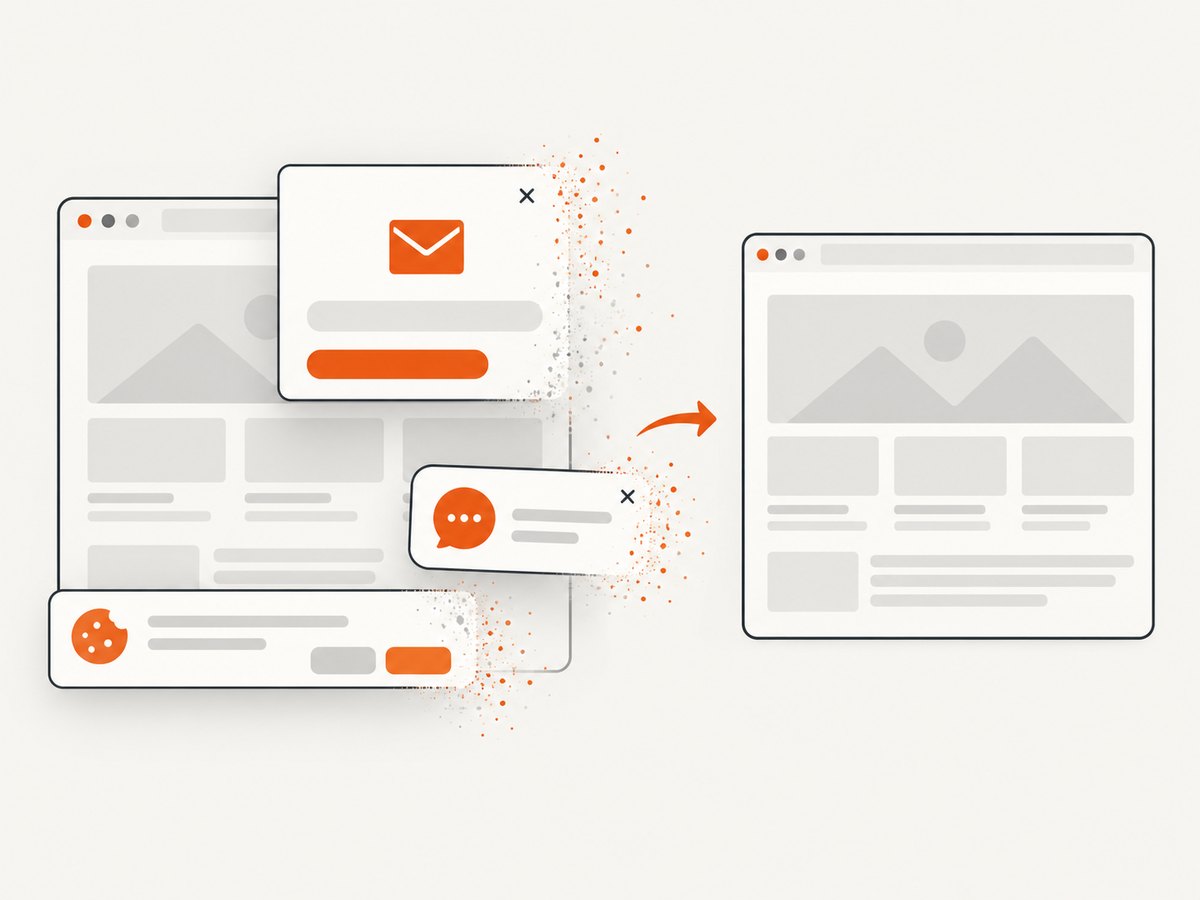
ScreenshotNeo is a website screenshot API and MCP server. It accepts a URL and returns PNG, JPEG, WebP, or PDF. Before capture it accepts cookie and consent banners like a visitor and removes more than 60 known consent platforms, newsletter popups, and chat widgets; each step can be turned off. Bot checks and CAPTCHAs, blank pages, timeouts, failed loads, and cache hits are not billed, and the response identifies the result with X-Page-Verdict and X-Billed headers.
Read the complete parameter list in the ScreenshotNeo documentation. The same endpoint supports full-page capture with lazy images loaded, CSS element capture, dark mode, device presets, custom viewports, retina scale, PDF paper and margin settings, custom CSS and JavaScript, click actions, selector waits, delays, network-idle waits, request blocking, headers, cookies, user agents, authorization, timezone, geolocation, transparent backgrounds, resizing, configurable caching, signed image links, asynchronous jobs with signed webhooks, bulk capture of up to 100 URLs per call, a usage API, and an OpenAPI specification.
cURL
curl -G "https://api.screenshotneo.com/v1/shot" \
  -d access_key=YOUR_API_KEY \
  --data-urlencode url=https://stripe.com \
  -o shot.webp
Python
import requests

r = requests.get(
    "https://api.screenshotneo.com/v1/shot",
    params={"access_key": "YOUR_API_KEY", "url": "https://stripe.com"},
    timeout=90,
)
r.raise_for_status()
open("shot.webp", "wb").write(r.content)
print(r.headers.get("X-Page-Verdict"), r.headers.get("X-Billed"))
Node.js
const q = new URLSearchParams({
  access_key: 'YOUR_API_KEY',
  url: 'https://stripe.com'
});
const res = await fetch(`https://api.screenshotneo.com/v1/shot?${q}`);
if (!res.ok) throw new Error(`HTTP ${res.status}`);
const bytes = Buffer.from(await res.arrayBuffer());
await import('node:fs/promises').then(fs => fs.writeFile('shot.webp', bytes));
console.log(res.headers.get('X-Page-Verdict'), res.headers.get('X-Billed'));
ScreenshotNeo also provides an MCP server with take_screenshot, get_page_info, and capture_pdf tools for Claude, Cursor, and other MCP clients. The Free plan includes 1,000 shots per month with no card. Paid plans start at $5 for 3,000 shots; every feature is available on every plan. Create a free ScreenshotNeo account.
10. Troubleshooting checklist
| Symptom | Likely cause | Fix |
|---|---|---|
| Blank in every browser | Network, server, or site failure | Reload, test another site and browser, inspect server and console errors. |
| Works in private mode only | Cached data or extension | Clear site data and disable extensions one at a time. |
| White automated image, normal live page | Capture happened before rendering | Wait for a selector, text, or app-ready signal. |
| Images missing in full-page output | Lazy loading | Scroll content into view, then wait for image completion. |
| Only lower content is absent | Viewport screenshot | Use full-page mode or capture the target element after scrolling. |
| Canvas throws SecurityError | Tainted cross-origin canvas | Fix CORS on the image host or avoid reading canvas pixels. |
| Different output in CI | Environment drift | Pin browser, OS image, fonts, viewport, timezone, and scale factor. |
| Intermittent timeout | Slow dependency or never-ending connection | Use bounded waits, capture diagnostics, and retry transient failures. |
11. Performance, reliability, and cost notes
Waiting for the right condition improves correctness but can increase capture time. Keep pages fast by blocking analytics, ads, and unnecessary resource types when they are not part of the screenshot. Reuse a browser process for multiple pages, but create a fresh context per job so cookies and storage do not leak between captures.
Use a selector wait for deterministic pages, a short delay for known animations, and network-idle only when the page has a finite request lifecycle. Record verdicts, status codes, timing, console errors, and failed requests so a blank result is diagnosable instead of silently retried forever.
For hosted capture, caching can reduce repeated work when the page has not changed. ScreenshotNeo lets you choose a cache TTL and reports cache hits; cache hits are not billed. Failed loads, timeouts, blank pages, and bot checks are also not billed, which makes retries easier to budget.
12. FAQ
Why is a screenshot white for only a moment?
Browsers can briefly show a white paint while loading. Chrome describes this behavior as “the brief moment during which the browser shows a white paint while loading a page.” Automation that captures during that interval saves the white frame; wait for page-specific content before capturing.
Should I always use a fixed five-second delay?
No. A fixed delay may be too short for a slow page and wasteful for a fast one. Prefer a visible selector, text, or application-ready marker with a maximum timeout.
Why does full-page mode still miss images?
Full-page mode changes the screenshot area; it does not guarantee that lazy-loaded resources were requested. Scroll the page, wait for image loads, and then capture.
Can browser extensions change an automated screenshot?
Yes, extensions can block scripts, alter styles, or remove page elements. Use a clean browser context for automation and compare with a private window when diagnosing local captures.
When should I use an API instead of Playwright?
Use an API when you need repeatable captures without managing browser binaries, timing logic, consent cleanup, retries, and billing for failed pages. Keep Playwright when you need custom in-process browser behavior or access to application internals.


