Why Website Thumbnails Don’t Show Up and How to Fix Them
Find out why website thumbnails, favicons, and link previews disappear, then fix crawl access, HTML markup, metadata, and recrawl issues.
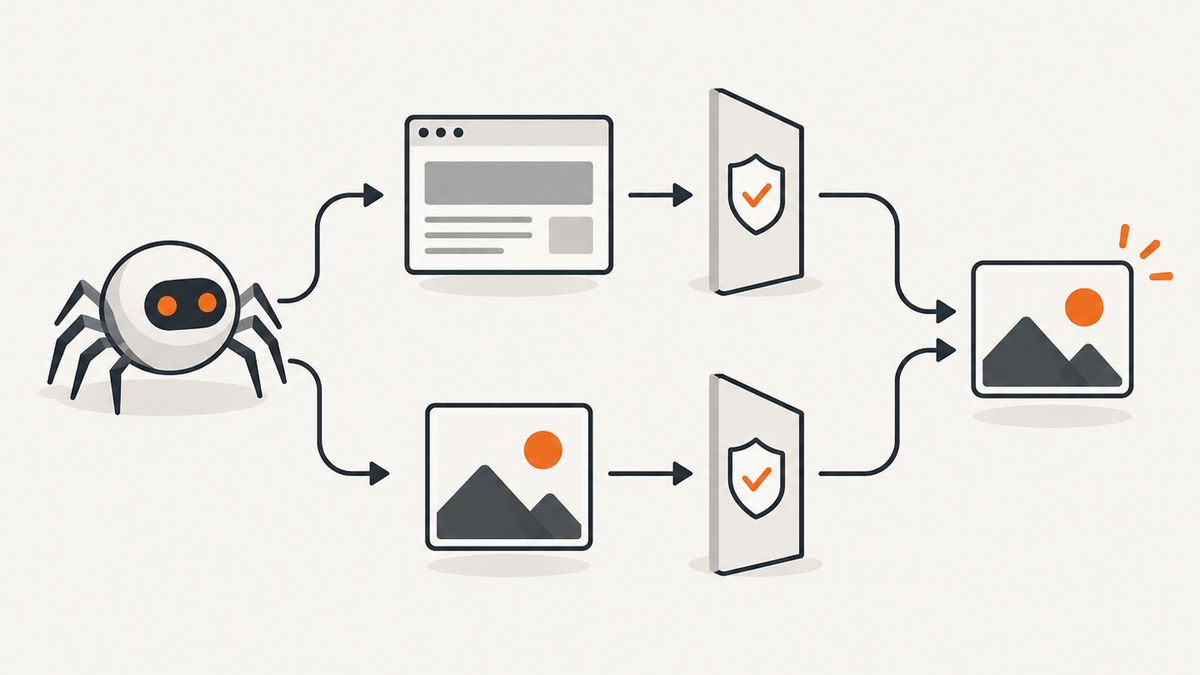
When you ask “Why website thumbnails don’t show up?”, first identify where the image is missing. A Google Search image preview, a favicon beside a result, a Google Images or Discover image, and a social sharing card are different features with different crawlers and selection rules.
The usual causes are blocked crawling, an image that is not exposed in crawlable HTML, preview-control directives, inaccessible assets, or a delay before a crawler recrawls the fix. Work through the surface-specific checks below.
1. Identify the missing thumbnail surface
| Where it is missing | What to inspect first |
|---|---|
| Google Search result image or Discover preview | Page and image crawl access, rendered HTML, image metadata, and max-image-preview. |
| Google Images result | An indexed image URL exposed through an <img src> or other supported image discovery path. |
| Favicon beside a result | A crawlable <link rel='icon'> on the home page and a crawlable icon file. |
| Social link preview | The affected service’s current documentation and crawler access. Do not assume Google’s rules or cache behavior apply. |
Search appearance varies by device, country, language, query, and other context. Google chooses image previews automatically; metadata can influence that choice but cannot guarantee that a preview will appear. See Google’s image SEO guidance.
2. Check that the crawler can fetch the page and image
A crawler must be able to retrieve both the HTML page and the image file. Check the public URL without being logged in, then inspect the response received by the relevant crawler.
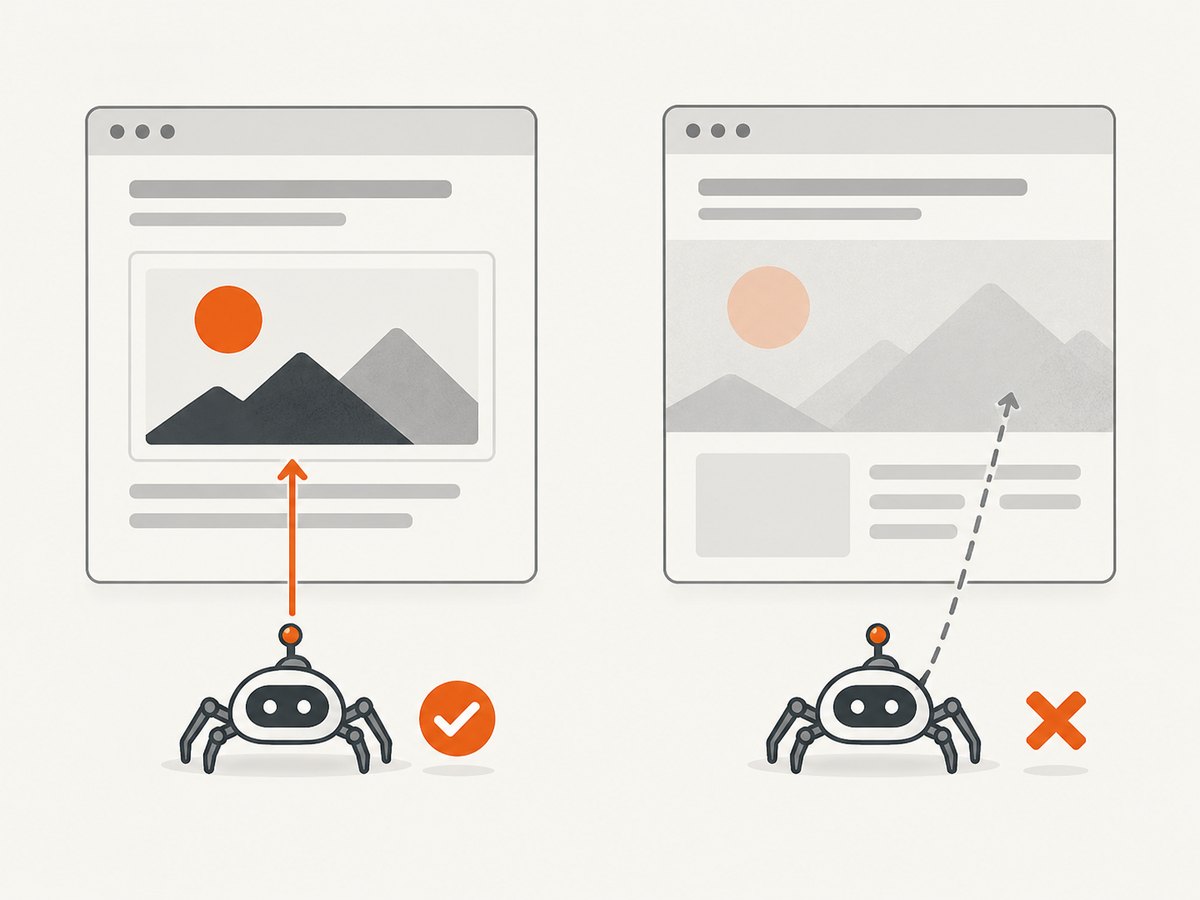
- Open the page and image in a private browser window.
- Use Search Console URL Inspection for the page. Review the rendered HTML and any access or indexing errors.
- Inspect
robots.txtfor rules that accidentally disallow the page, image directory, or crawler user agent. Google’s robots.txt documentation explains the syntax. - Check authentication, IP allowlists, hotlink protection, expiring URLs, and firewall rules. A browser session may succeed while an unauthenticated crawler receives a 403, redirect loop, or challenge page.
- Check the image response itself. It should return a successful status and an image content type rather than HTML, JSON, or a login page.
curl -I https://example.com/page
curl -I https://example.com/images/preview.jpg
Also inspect response headers and HTML-level robots metadata. Google’s robots meta tag documentation describes page directives. The max-image-preview directive applies to Google Search surfaces:
nonedisallows an image preview.standardpermits the default preview.largepermits a larger preview.
<meta name='robots' content='index,follow,max-image-preview:large'>Do not treat this directive as a control for every third-party social preview service.
3. Expose the image in crawlable HTML
Use a normal image element for important content images:
<img src='https://example.com/images/article-preview.jpg'
     alt='Description of the page image'
     width='1200' height='630'>
Google documents image URLs in an <img> element’s src attribute as discoverable, including an image inside a <picture> element. Google does not index CSS images such as background-image. See Image SEO best practices.
If you use lazy loading, ensure the important image URL appears in the rendered HTML without requiring a click, scroll, or other user action. Inspect the rendered page in URL Inspection, not only the original server response. A JavaScript framework that inserts the image after an interaction can prevent discovery.
<picture>
  <source type='image/avif' srcset='/images/preview.avif'>
  <img src='/images/preview.jpg' alt='Article preview'>
</picture>
An image sitemap can help expose image URLs that are difficult to discover through links. It supplements normal discovery; it does not bypass access restrictions or make an inaccessible image indexable.
4. Provide useful preview signals
For a page-level preview, identify an image that actually represents the page. Avoid using a generic site logo when a page-specific image is available, and avoid extreme or unusable aspect ratios.
<meta property='og:image' content='https://example.com/images/article-preview.jpg'>
<meta property='og:image:alt' content='Article preview image'>
Google can use og:image or supported structured data as a preferred-image signal, but selection remains automated and can draw on multiple sources. A correct tag is therefore a useful signal, not a promise that Google will display that image. Keep the URL stable, publicly fetchable, and specific to the page.
When debugging, compare:
- The image URL in the original HTML.
- The image URL in rendered HTML after JavaScript runs.
- The URL returned by the server after redirects.
- The image returned to an unauthenticated crawler.
5. Treat favicons as a separate problem
A favicon is the small site identity icon beside a search result. It is not the same thing as a page thumbnail.
<head>
  <link rel='icon' href='/favicon.ico'>
</head>
Google’s favicon guidance says the home page and favicon file must be crawlable by Googlebot and Googlebot-Image. The favicon should be square, at least 8×8 pixels, and Google recommends an image larger than 48×48 pixels. Google supports one favicon per hostname.
Meeting these requirements does not guarantee display. Confirm that the home page returns the icon link, the icon URL returns an image, and no robots or security policy blocks either request.
6. Allow time for recrawling
Changes are not reflected instantly. After publishing a fix, request indexing for the home page or affected page in URL Inspection, then allow the crawler to revisit the content. Google’s favicon documentation says favicon processing can take several days to several weeks depending on when systems refresh the content. Do not promise a fixed update time for other image features.
Record the change date and recheck the rendered HTML and response headers if the preview remains absent. If the page is newly published, verify that it is indexed before diagnosing image selection.
7. A practical do-it-yourself debugging checklist
- Name the surface: Search thumbnail, Google Images or Discover image, favicon, or a third-party link card.
- Fetch anonymously: Request the page and image with
curl -Iand verify successful responses and content types. - Inspect robots controls: Check
robots.txt, HTML robots metadata, and themax-image-previewvalue. - Inspect rendered HTML: Confirm the image URL is in an
<img src>or supported metadata and does not require interaction. - Validate the asset: Check redirects, authentication, expiring URLs, firewall rules, and image decoding.
- Separate favicon work: Verify the home page’s icon link and a square, crawlable icon file.
- Request a recrawl: Use URL Inspection, then wait for processing.
- Recheck the exact surface: A fix for Google Search does not prove that a social service will use the same image.
Automating basic checks
These scripts check whether a page and image are reachable. They do not reproduce a search engine’s ranking or preview selection.
import requests

urls = [
    'https://example.com/page',
    'https://example.com/images/article-preview.jpg',
]
for url in urls:
    r = requests.get(url, timeout=20, allow_redirects=True)
    print(url, r.status_code, r.headers.get('content-type'), r.url)
const urls = [
'https://example.com/page',
'https://example.com/images/article-preview.jpg'
];
for (const url of urls) {
const res = await fetch(url, { redirect: 'follow' });
console.log(url, res.status, res.headers.get('content-type'), res.url);
}8. Or skip the browser setup
If your task is to create reliable screenshots for QA, documentation, archives, or thumbnail pipelines, ScreenshotNeo returns a screenshot or PDF through one API request. It can remove cookie and consent banners, newsletter popups, and chat widgets before capture. Bot checks, blank pages, timeouts, failed loads, and cache hits are not billed, and each response reports the page verdict and billing status in X-Page-Verdict and X-Billed headers.
See the ScreenshotNeo API documentation for all options.
curl -G 'https://api.screenshotneo.com/v1/shot' \
  -d access_key=YOUR_API_KEY \
  --data-urlencode url=https://example.com \
  -o shot.webp
import requests
r = requests.get(
'https://api.screenshotneo.com/v1/shot',
params={'access_key': 'YOUR_API_KEY', 'url': 'https://example.com'},
timeout=90,
)
r.raise_for_status()
open('shot.webp', 'wb').write(r.content)const q = new URLSearchParams({ access_key: 'YOUR_API_KEY', url: 'https://example.com' });
const res = await fetch(`https://api.screenshotneo.com/v1/shot?${q}`);
if (!res.ok) throw new Error(`HTTP ${res.status}`);
const bytes = new Uint8Array(await res.arrayBuffer());
// Save bytes as shot.webp with your runtime's file API.ScreenshotNeo also supports full-page and element captures, dark mode, device presets, custom viewports, retina scale, custom CSS and JavaScript, waits, request blocking, headers, cookies, user agents, authorization, timezone, geolocation, transparent backgrounds, resizing, TTL caching, signed links, asynchronous jobs, webhooks, bulk capture, usage reporting, and PDF output. Its MCP server provides take_screenshot, get_page_info, and capture_pdf tools for Claude, Cursor, and other MCP clients.
There are 1,000 free screenshots each month with no card. Paid plans start at $5 for 3,000 shots, and every feature is available on every plan. Create a free ScreenshotNeo account.
9. Reliability, performance, and cost considerations
Reliability
- Use stable, absolute image URLs and avoid expiring query parameters for canonical preview assets.
- Keep the page and image available without login, a browser challenge, or a user interaction.
- Monitor both HTML and image responses; a page can be available while its image host is blocked.
- Expect crawler recrawls and preview selection to take time.
Performance
- Serve an appropriately sized preview image and use modern compression while retaining a broadly supported fallback.
- Do not defer the only copy of an important image until after a click or scroll.
- Use a CDN or cache for stable assets, but verify that cached responses remain publicly accessible.
Cost
Search engines do not charge you for crawling an image, but your hosting, image transformation, and screenshot infrastructure can incur costs. If you generate thumbnails programmatically, cache results with a deliberate TTL and avoid recapturing unchanged pages. ScreenshotNeo bills only clean shots; failed loads, blank pages, bot checks, timeouts, and cache hits are not billed.
10. Troubleshooting common errors
| Symptom | Likely cause | Fix |
|---|---|---|
| Image appears in a browser but not to crawlers | Authentication, bot protection, robots rules, or an IP restriction. | Inspect URL Inspection and anonymous requests; permit the relevant crawler and asset URL. |
| HTML contains only a CSS background image | The image is not exposed through a crawlable image element. | Add an appropriate <img src> or supported metadata. |
| Lazy-loaded image is absent from rendered HTML | JavaScript waits for scroll or interaction. | Expose a usable image URL without user action and verify rendered HTML. |
| Search preview is consistently absent | max-image-preview:none, blocked image, or page not indexed. |
Remove the restriction if intended, restore access, and inspect indexing status. |
| Favicon is missing while page thumbnail works | Favicon is a separate feature with separate crawl and processing rules. | Add a supported icon link, use a square crawlable file, and allow recrawling. |
| Social card is missing but Google works | The service uses its own crawler, metadata rules, or cache. | Consult that service’s official documentation and test its crawler access. |
| Screenshot output is blank | Page timeout, bot check, consent overlay, or JavaScript failure. | Use waits or custom headers where appropriate; inspect the page verdict. With ScreenshotNeo, failed or blank captures are not billed. |
FAQ
How do I fix missing website thumbnails?
Identify the display surface, verify that the page and image are crawlable, expose the image through HTML or supported metadata, remove unintended preview restrictions, and request a recrawl.
Does adding og:image guarantee a thumbnail?
No. It is a preferred-image signal. Google selection is automated and can use multiple sources.
Can a CSS background image appear in Google Images?
Google’s image guidance says it does not index CSS images such as background-image. Use a crawlable image element for important images.
How long does a favicon fix take?
Google says favicon processing can take several days to several weeks. Other preview surfaces have their own processing schedules.
Should I use the same fix for social previews?
No. Social services can use different crawlers, metadata rules, and caches. Check the affected service’s official documentation.


