Why Image Thumbnails Do Not Show in Windows 10 and How to Fix Them
Fix missing image thumbnails in Windows 10 with the right Explorer settings, performance options, cache cleanup, and troubleshooting steps.
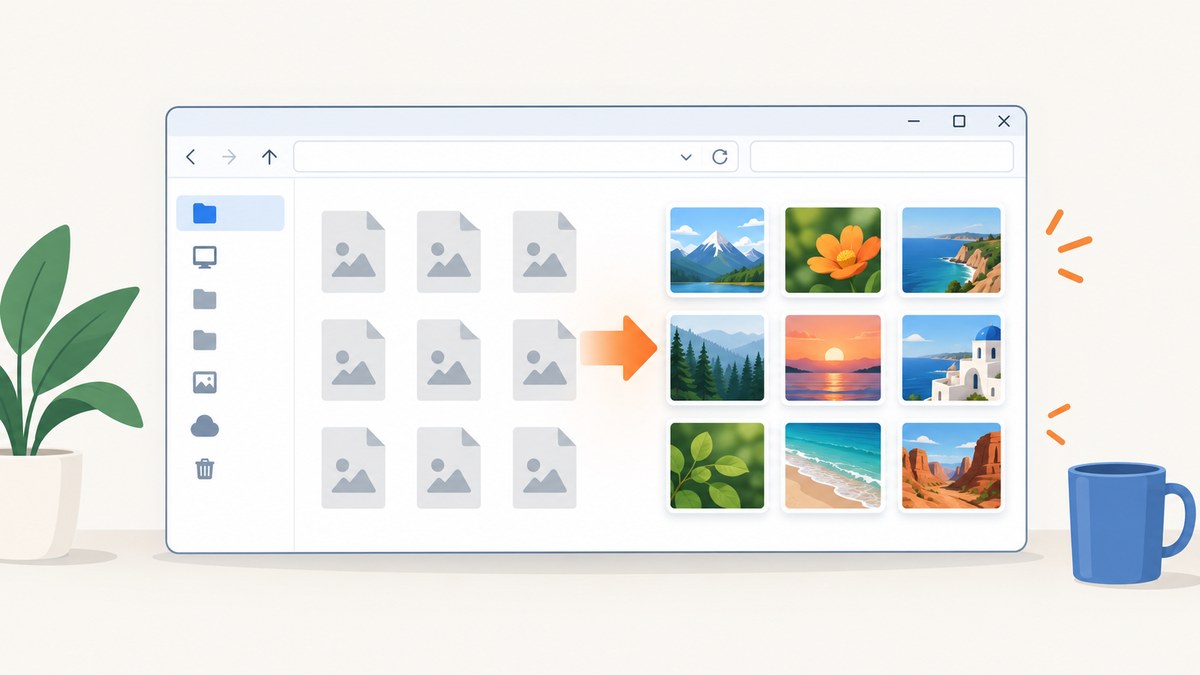
Most missing-thumbnail problems have a setting cause. Open the affected folder and choose View > Large icons or Extra-large icons. Then open View > Options > Change folder and search options > View, clear Always show icons, never thumbnails, select Apply, and choose OK. If thumbnails still do not appear, enable Show thumbnails instead of icons in Windows Performance Options, then rebuild the thumbnail cache.
Why Windows 10 shows icons instead of image thumbnails
File Explorer can suppress thumbnails globally, while a separate performance setting can disable them as well. The folder view also matters: List and Details views do not present image previews like Medium, Large, and Extra-large icon views.
The symptom helps narrow the cause:
| Symptom | Likely cause | Start here |
|---|---|---|
| No thumbnails in every folder | Global Folder Options or Performance setting | Steps 2 and 3 below |
| No thumbnails in one folder | That folder’s view, file availability, or content | Step 1 and a different folder |
| Thumbnails vanished after cleanup | Thumbnail cache was deleted or storage is constrained | Steps 4 and 5 |
| Explorer hangs or crashes | A broader File Explorer or Windows problem | Step 7 |
These are practical troubleshooting inferences used to order the checks; Microsoft does not publish failure-rate statistics for each cause.
Fix missing thumbnails in the recommended order
1. Select a thumbnail-capable view
- Open the folder containing your images.
- Select View on the File Explorer ribbon.
- Choose Medium icons, Large icons, or Extra-large icons.
If previews appear, the problem was only the folder’s display mode. List and Details views are designed primarily for filenames and metadata.
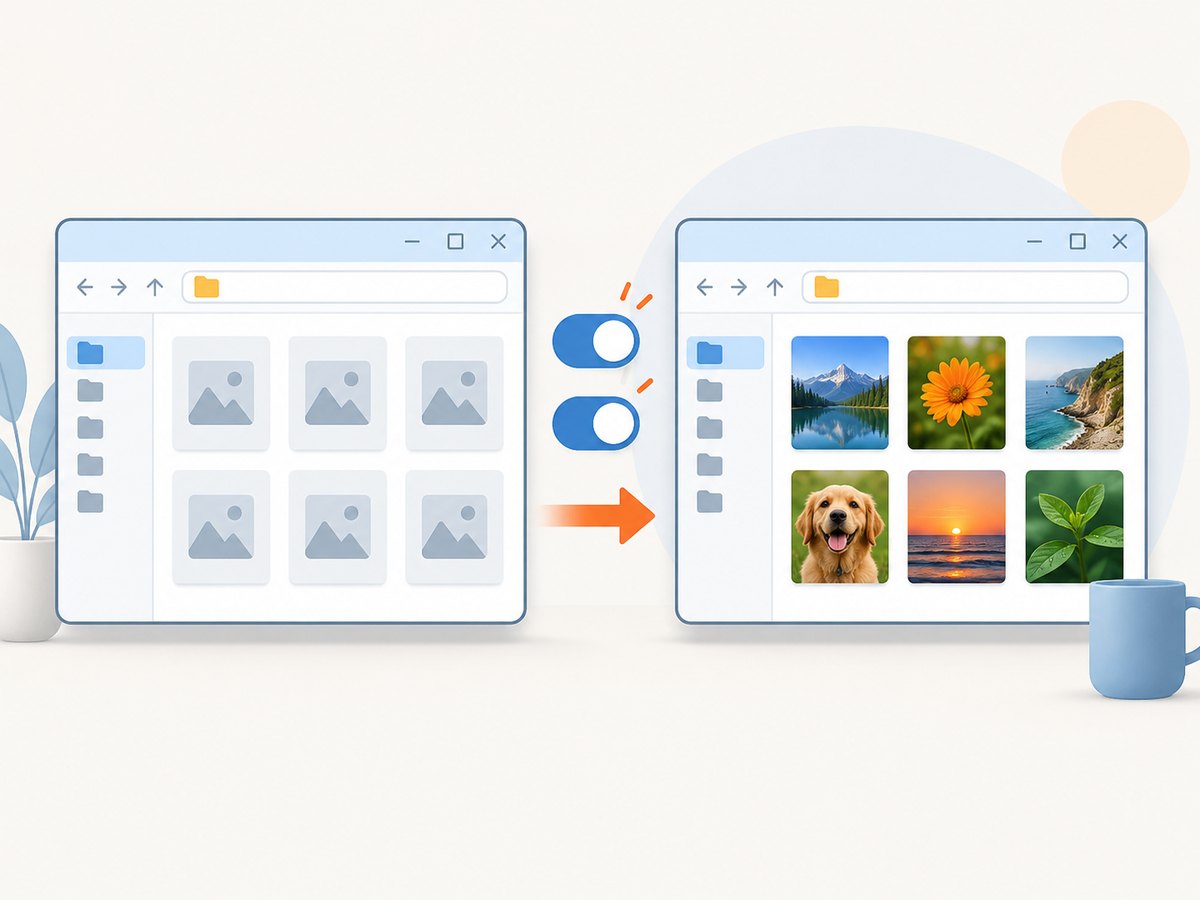
2. Clear “Always show icons, never thumbnails”
- In File Explorer, select View > Options.
- Choose Change folder and search options if that is shown.
- Open the View tab.
- Under Advanced settings, clear Always show icons, never thumbnails.
- Select Apply, then OK.
This is the first global setting to check. Microsoft Community’s Windows 10 procedure specifically instructs users to deselect this entry.
3. Enable thumbnails in Performance Options
- Press the Windows key and search for Advanced system settings.
- Open View advanced system settings.
- In the Advanced tab, under Performance, select Settings.
- In Visual Effects, enable Show thumbnails instead of icons.
- Select Apply and OK.
- Restart File Explorer or restart Windows, then check the folder again.
Performance settings can be changed by manually selecting “Adjust for best performance” or by system-tuning software, so this setting can be disabled even when Folder Options is correct.
4. Rebuild the thumbnail cache with Disk Cleanup
- Type Disk Cleanup in the taskbar search and open it.
- Select the Windows system drive, usually C:.
- Check Thumbnails.
- Select OK, then confirm the cleanup.
- Reopen the image folder and wait while Explorer generates previews again.
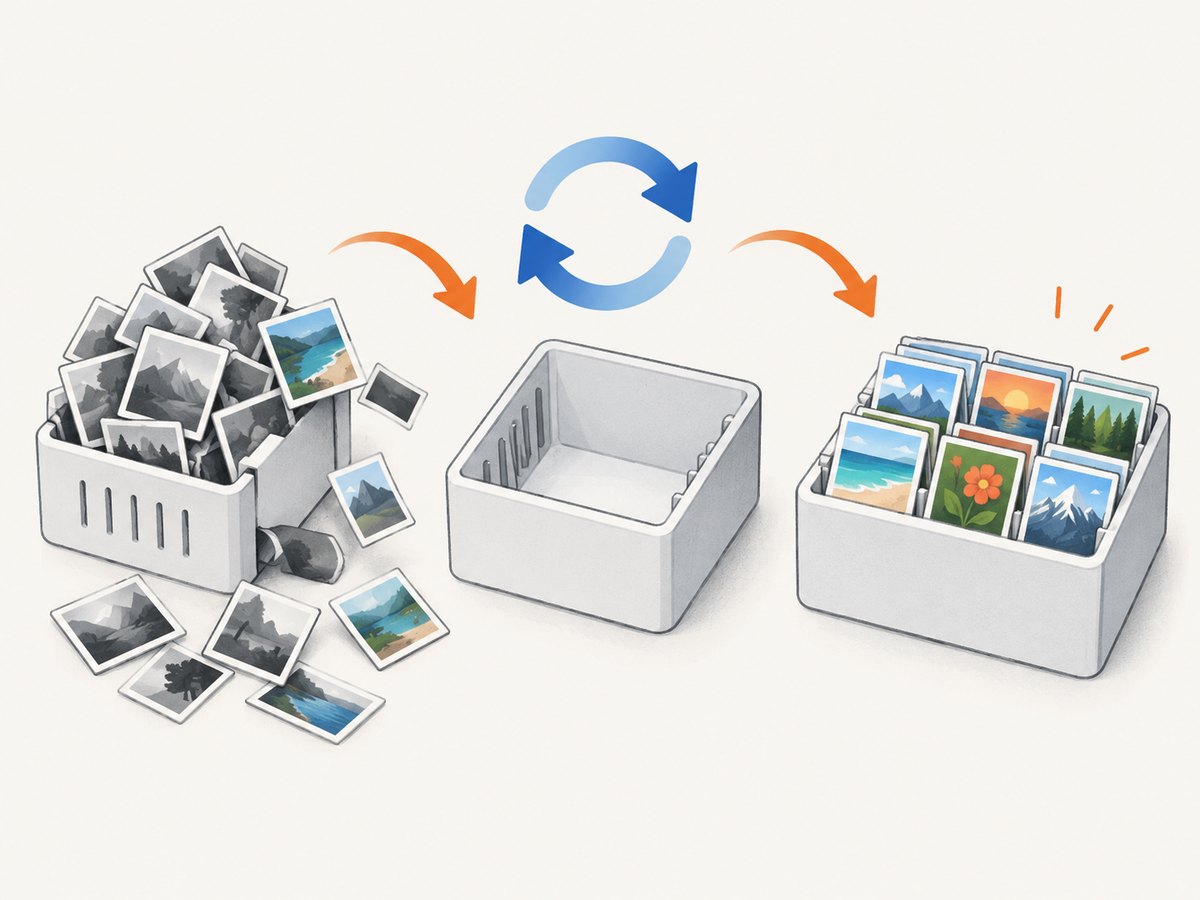
Deleting the cached thumbnail data means Explorer must regenerate it. The regeneration behavior is a practical consequence of clearing the cache, not a guaranteed timing promise from Microsoft.
5. Check available storage
Low free space can prevent cache creation and other temporary work. Open Settings > System > Storage. Turn on or run Storage Sense, and remove unnecessary temporary files when appropriate. Microsoft describes Storage Sense as a built-in feature that automatically frees space by removing unnecessary temporary files and Recycle Bin content.
6. Update, restart, and scan
- Install available Windows updates and optional driver updates.
- Restart Windows after changing the settings.
- Run a malware scan if thumbnails disappeared alongside other unusual Explorer behavior.
- Try the same files in a different folder to separate a folder issue from a system issue.
Microsoft lists updates, malware scanning, storage cleanup, and restarting among standard Windows performance remedies.
7. Repair File Explorer when it crashes or hangs
If Explorer itself is unstable, use Microsoft’s repair sequence for Windows problems. Depending on the symptom, that can include System Maintenance, System File Checker, or Automatic Repair. Fixing Explorer stability is necessary before thumbnail settings can work reliably.
Edge cases to check
- Unsupported or damaged files: Test a known-good JPEG or PNG. If only one file fails, the file may be corrupt or use a format without an installed codec.
- Network, removable, or cloud folders: Confirm the files are available locally and that the drive is connected. A disconnected location cannot provide preview data.
- Large image collections: The first view can take time while Explorer creates thumbnails. Leave the folder open briefly before concluding that generation failed.
- Privacy or policy settings: Managed PCs can enforce Explorer or visual-effect policies. If the checkboxes revert after you change them, contact the device administrator.
- After a cleanup utility: Recheck both thumbnail settings. A utility may have deleted the cache or changed performance preferences.
Troubleshooting common errors
| What you see | Cause to check | Fix |
|---|---|---|
| Only generic icons, everywhere | “Always show icons, never thumbnails” is enabled | Clear it in Folder Options, apply, and reopen Explorer. |
| Settings are correct but icons remain | Performance option is disabled | Enable “Show thumbnails instead of icons” and restart Explorer. |
| Thumbnails disappeared after Disk Cleanup | Cached previews were removed | Allow Explorer to regenerate them; check free space. |
| Only one folder is affected | Folder view or unavailable files | Choose Large icons and verify the drive or cloud files are online. |
| Explorer freezes while opening images | System instability, corrupt files, or a broader Windows issue | Test a small folder, update Windows, scan for malware, then use Microsoft’s repair steps. |
| Checkbox keeps changing back | Policy or maintenance software | Check managed-device policy or uninstall/reconfigure the utility. |
Performance and reliability notes
- Thumbnail generation uses disk space and processing time. Extra-large views create larger previews and can take longer in folders with many files.
- Keep sufficient free space on the Windows drive so Explorer can write its cache and temporary files.
- After clearing the cache, expect the first folder visit to be slower while previews are rebuilt.
- For reliable diagnosis, change one setting at a time and reopen the folder after each change.
- Windows 10 free support ended on October 14, 2025. These procedures still apply to installed Windows 10 systems, but plan migration to a supported Windows version for ongoing updates and security fixes.
Or skip the browser setup
If your goal is to generate image previews from web pages rather than repair Windows Explorer, ScreenshotNeo returns a screenshot with one GET request. It removes cookie banners, newsletter popups, and chat widgets before capture; bot checks, blank pages, and failed loads are never billed; and its MCP server lets AI agents take screenshots.
See the ScreenshotNeo API documentation for all options.
curl -G "https://api.screenshotneo.com/v1/shot" -d access_key=YOUR_API_KEY --data-urlencode url=https://stripe.com -o shot.webpimport requests
r = requests.get("https://api.screenshotneo.com/v1/shot", params={"access_key": "YOUR_API_KEY", "url": "https://stripe.com"}, timeout=90)
open("shot.webp", "wb").write(r.content)const q = new URLSearchParams({ access_key: 'YOUR_API_KEY', url: 'https://stripe.com' });
const res = await fetch(`https://api.screenshotneo.com/v1/shot?${q}`);ScreenshotNeo includes 1,000 screenshots per month free with no card, and paid plans start at $5 for 3,000. Create a free ScreenshotNeo account.
Frequently asked questions
Do I need to reinstall Windows?
No. Check the two thumbnail settings, the folder view, storage, and the cache first. Reinstallation is not a normal fix for this symptom.
Will deleting the thumbnail cache delete my photos?
No. Disk Cleanup’s Thumbnails category removes cached previews, not the original image files.
Why do thumbnails work in one folder but not another?
The folders may use different view modes, contain files on different storage locations, or include files that are offline or unavailable.
Why are thumbnails slow after cleanup?
Explorer has to create the previews again. The first visit to a large folder can therefore take longer.
Is Windows 10 still supported?
Microsoft ended free Windows 10 software updates, technical assistance, and security fixes on October 14, 2025. The settings above remain useful on existing installations.


