How to Take Screenshots on Windows Without Snipping Tool
Use Windows keyboard shortcuts to save the full screen, capture a window, or copy an image without opening Snipping Tool.
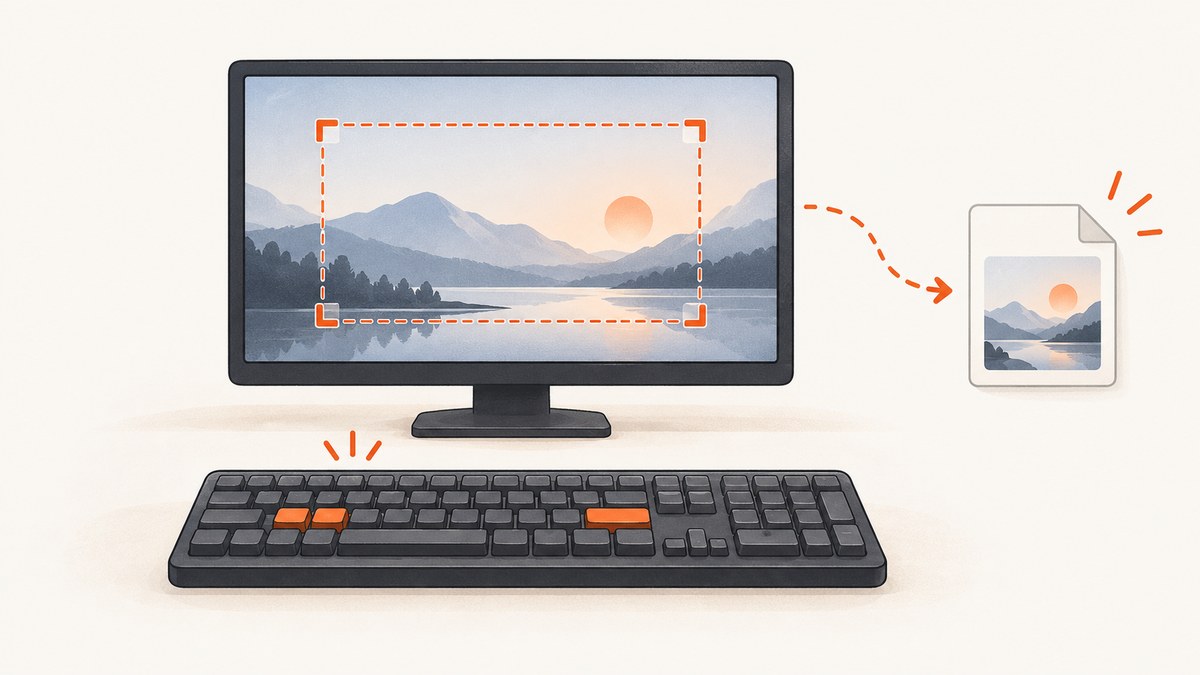
You can take screenshots on Windows without opening Snipping Tool by using the Print Screen key and Windows keyboard shortcuts:
- Save the entire screen to a file: press Windows + PrtScn.
- Copy the active window: press Alt + PrtScn.
- Copy the entire screen: press PrtScn.
- If your keyboard has no Print Screen key: try Fn + Windows + Space Bar.
The first shortcut saves a file automatically. The other two copy an image to the clipboard, so you must paste it into Paint, a document, or another image-capable app before saving it. Microsoft documents these shortcuts in its Print Screen guidance and Windows keyboard shortcut reference.
1. Save the full screen directly as an image
Press Windows + PrtScn at the same time. Windows captures the whole display and saves the image in:
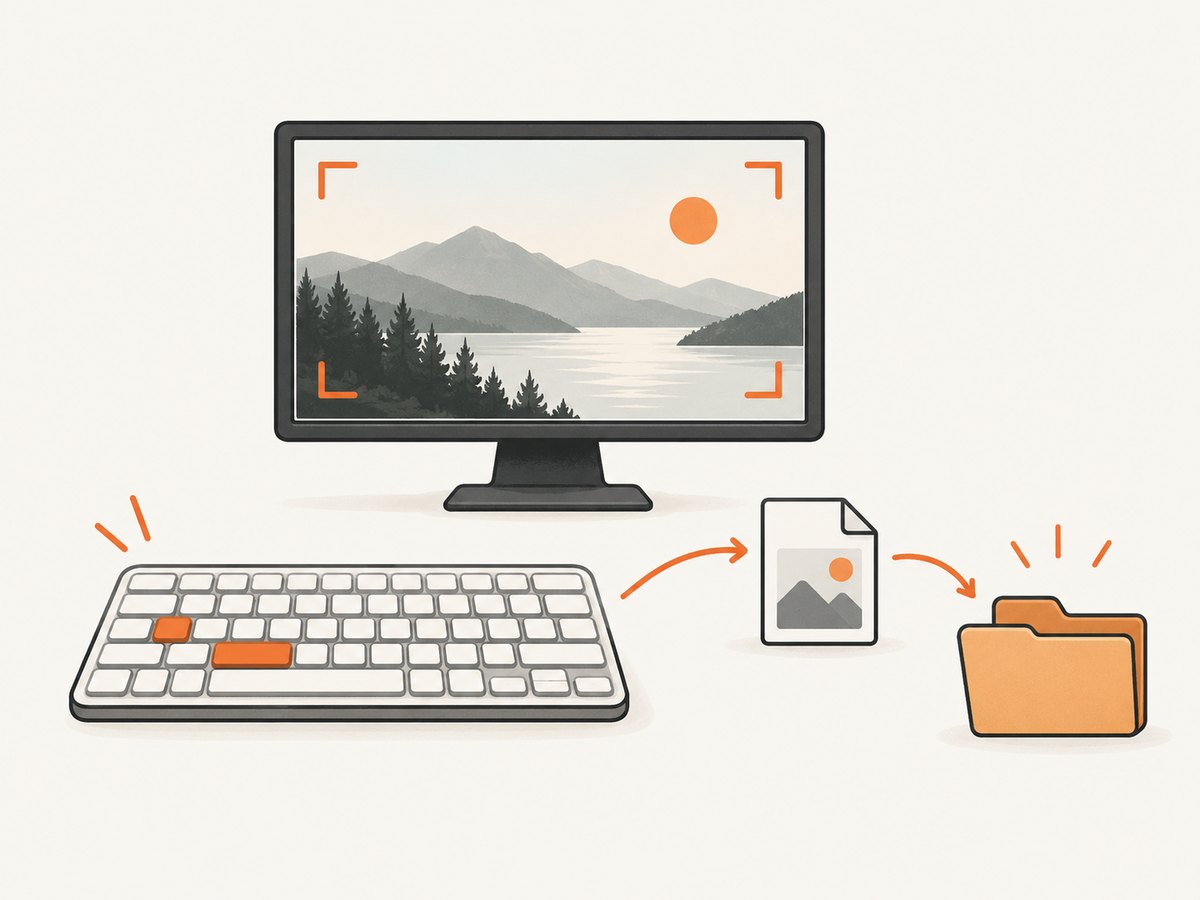
Pictures\ScreenshotsTo find it, open File Explorer, select Pictures, then open Screenshots. This is the quickest method when you need a file immediately and do not need to select a region or window.
What this captures
- Everything visible on the screen.
- All visible monitors may be included depending on your Windows and display setup.
- The capture is saved automatically rather than placed only on the clipboard.
If you need only one application window, use the active-window shortcut below to avoid cropping afterward.
2. Copy only the active window
Click the window you want to capture so it has focus, then press Alt + PrtScn. Windows copies the active window to the clipboard.
- Focus the target window.
- Press Alt + PrtScn.
- Open Paint, Word, an email, or another app that accepts images.
- Press Ctrl + V.
- Use that app’s Save command if you need a file.
This method excludes other windows and the desktop. It is useful for documentation, support tickets, and bug reports where surrounding content could reveal unrelated information.
3. Copy the entire screen to the clipboard
Press PrtScn by itself. Under the default behavior documented by Microsoft, Windows copies the full screen to the clipboard.
PrtScn → open Paint → Ctrl + V → File → SaveNo file is necessarily created when you press the key. If the image seems to disappear, paste it into Paint or another image-capable application and save it there. The key may be labeled PrtSc, PrtScn, or Print Screen.
4. Use the shortcut for keyboards without PrtScn
Microsoft lists Fn + Windows logo key + Space Bar as an alternative for devices without a PrtScn button. Keyboard hardware differs by manufacturer, so this combination may not behave identically on every laptop or compact keyboard. If it fails, check the device maker’s keyboard documentation.
Also look for a secondary Print Screen function printed on another key. On some keyboards, you must hold Fn while pressing that key.
5. Do not use the screen-snipping overlay when avoiding Snipping Tool
Windows + Shift + S opens the screen-snipping overlay. It is useful for selecting a rectangle, window, or other region, but it does not meet a strict requirement to avoid Snipping Tool. Microsoft describes this behavior in its Snipping Tool documentation.
For a rectangular selection without that overlay, capture the full screen with PrtScn, paste it into Paint, and crop the image there.
6. Shortcut comparison
| Need | Shortcut | Result | Trade-off |
|---|---|---|---|
| Save the whole screen | Windows + PrtScn | File in Pictures\Screenshots |
Fastest direct save; captures the full screen. |
| Copy the active window | Alt + PrtScn | Image on clipboard | Requires pasting and saving if you need a file. |
| Copy the full screen | PrtScn | Image on clipboard | Requires pasting; behavior can be changed in Settings. |
| Capture a selected region | Windows + Shift + S | Screen-snipping overlay | Opens Snipping Tool, so it is outside this guide’s strict scope. |
| No visible PrtScn key | Fn + Windows + Space Bar | Microsoft-documented alternative | Support and mapping vary by device. |
7. Troubleshooting
PrtScn opens screen snipping
Windows can be configured so the Print Screen key opens screen snipping instead of performing the regular Print Screen action. Open Settings and search for Print Screen. In Accessibility > Keyboard, turn off Use the Print Screen button to open screen snipping. The exact location or label can move between Windows versions.
Nothing appears in Pictures\Screenshots
Confirm that you pressed Windows + PrtScn, rather than PrtScn alone. The latter normally copies the image to the clipboard. For a clipboard capture, paste with Ctrl + V into Paint and save it manually.
The shortcut does not work on a laptop
Try holding Fn with the Print Screen key. Some keyboards place the function on another key or require a different hardware combination. Search the keyboard model’s manual if the documented Windows alternative does not work.
The wrong window was captured
Alt + PrtScn captures whichever window currently has focus. Click the intended window first, close menus or dialogs that should not appear, and then press the shortcut.
The image is black or incomplete
Some protected video, remote desktop, hardware-accelerated, or security-sensitive applications can restrict screen capture. Try capturing the application window rather than the entire desktop, or use the application’s own export or screenshot feature. Windows shortcut behavior can also vary with device settings and installed software.
The screenshot is too large to send
Open the saved image in Paint and use Resize, or save it as JPEG instead of PNG when photographic detail matters more than lossless text and interface edges. Keep the original if you may need to zoom in later.
8. A reliable workflow for support and documentation
- Prepare the screen: close unrelated windows and remove personal information.
- Choose the capture: Windows + PrtScn for a file, or Alt + PrtScn for one window.
- Check the result in
Pictures\Screenshotsor paste the clipboard image. - Crop or resize in Paint when needed.
- Rename the file with a useful date, application, and issue identifier.
- Store the original separately before compressing or annotating a copy.
For repeated captures, direct-to-file saves reduce extra paste steps. Clipboard captures are faster when you need to insert an image immediately into a ticket or document.
9. Or skip the browser setup
Windows shortcuts are ideal for the screen in front of you. For a screenshot of a website URL, an automated capture service avoids opening a browser and repeating the setup. ScreenshotNeo accepts one GET request and returns a PNG, JPEG, WebP, or PDF. Its cleanup step accepts cookie or consent banners and removes more than 60 known consent platforms, newsletter popups, and chat widgets before capture; each step can be turned off. Bot checks, blank pages, timeouts, failed loads, and cache hits are not billed, and response headers identify the page verdict and billing status.

See the ScreenshotNeo API documentation for all options.
cURL
curl -G 'https://api.screenshotneo.com/v1/shot' \
  -d access_key=YOUR_API_KEY \
  --data-urlencode url=https://stripe.com \
  -o shot.webp
Python
import requests

r = requests.get(
    'https://api.screenshotneo.com/v1/shot',
    params={'access_key': 'YOUR_API_KEY', 'url': 'https://stripe.com'},
    timeout=90,
)
r.raise_for_status()
open('shot.webp', 'wb').write(r.content)
Node.js
const q = new URLSearchParams({
  access_key: 'YOUR_API_KEY',
  url: 'https://stripe.com'
});
const res = await fetch(`https://api.screenshotneo.com/v1/shot?${q}`);
if (!res.ok) throw new Error(`HTTP ${res.status}`);
const fs = await import('node:fs/promises');
await fs.writeFile('shot.webp', Buffer.from(await res.arrayBuffer()));
ScreenshotNeo also supports full-page captures with lazy images loaded, CSS element selection, dark mode, device presets, custom viewports, retina scale, PDFs, custom CSS and JavaScript, clicks, waits, request blocking, headers, cookies, user agents, authorization, timezone, geolocation, transparent backgrounds, resizing, caching, signed links, asynchronous jobs, bulk capture, usage data, and an OpenAPI specification.
An MCP server provides take_screenshot, get_page_info, and capture_pdf tools for Claude, Cursor, and other MCP clients. The Free plan includes 1,000 shots per month with no card; paid plans start at $5 for 3,000 shots. Create a free ScreenshotNeo account.
10. Performance, reliability, and cost notes
- Local shortcuts: are immediate and free, but only capture what is rendered on your Windows display.
- Clipboard workflow: adds a paste and save step but lets you edit before sharing.
- Automated website capture: is better for repeatable URLs, server-side jobs, and pages that need waits, cookies, headers, device settings, or full-page loading.
- Billing behavior: ScreenshotNeo bills only clean shots; bot checks, blank pages, timeouts, failed loads, and cache hits cost nothing. Inspect
X-Page-VerdictandX-Billedin responses. - Cache choice: use a TTL that matches how often the target page changes. Caching can reduce repeat work while preserving a predictable image URL.
- Large pages: full-page and retina captures use more memory and produce larger files. Resize or choose WebP when transfer size matters.
11. FAQ
Where does Windows save screenshots?
Windows + PrtScn saves the full-screen image in Pictures\Screenshots.
Does PrtScn save a file by itself?
Usually it copies the screen to the clipboard. Paste it into Paint or another app, then save.
What is the shortcut for one window?
Focus the window and press Alt + PrtScn.
Can I select a region without Snipping Tool?
The standard region shortcut opens the screen-snipping overlay. To avoid it, capture the full screen and crop the image in Paint.
Why is my Print Screen key different?
It may be labeled PrtSc or PrtScn, share a key with another function, or be remapped in Windows settings.


