wkhtmltoimage Screenshots Are Blank: Causes and Fixes
A blank wkhtmltoimage image can mean an empty render, blocked assets, JavaScript that has not run, or a crop or transparency issue. Diagnose it step by step.
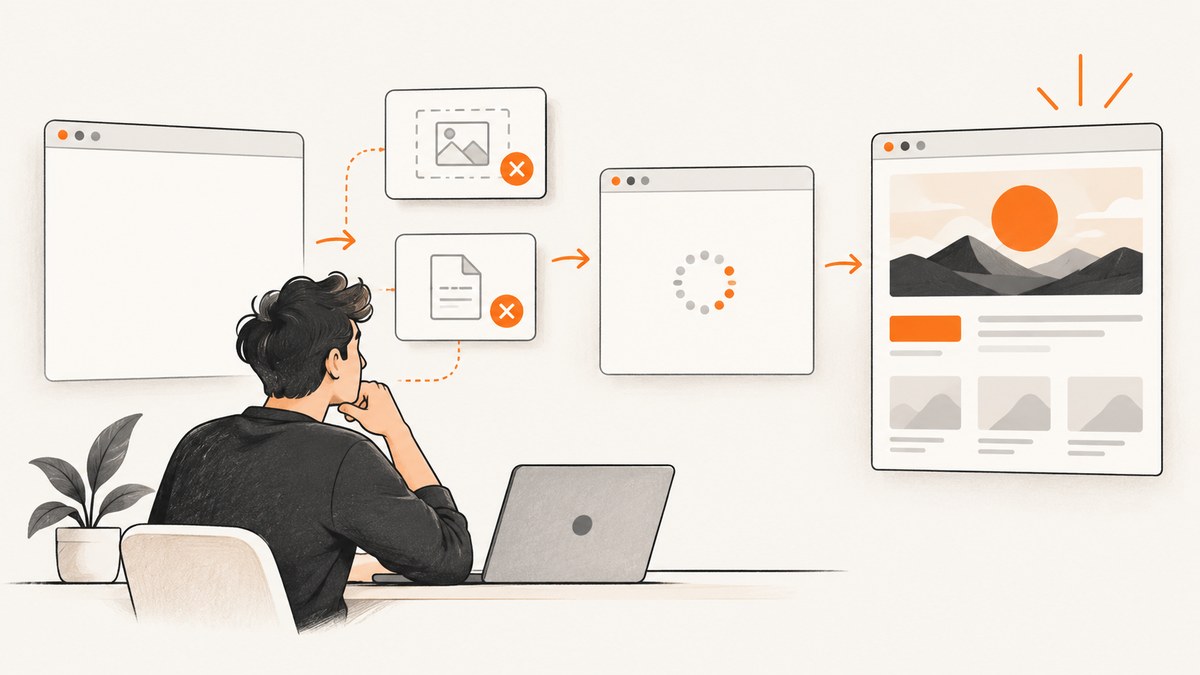
A blank wkhtmltoimage screenshot is a symptom, not a diagnosis. First determine whether the output file is missing, truly empty, transparent, cropped away from the page, or rendered with its main content but without images or other assets. Then isolate the input type, failed resources, JavaScript timing, output options, and the exact wkhtmltoimage build.
The most useful first check is to rerun the same input with visible logs, record the return code, and open the output against a contrasting background. A nonzero return code does not always mean no image was written: a reported 0.12.5 case produced output while a remote image failure still caused an error status. The project issue index also records an “HTML page turns completely white/empty” report, but that report does not establish a universal cause or fix.
1. Classify what “blank” means
Before changing flags, classify the observed result. Each appearance points to a different layer of the capture process.
| What you see | Likely layer to inspect |
|---|---|
| No output file, or a zero-byte file | Command invocation, destination path, permissions, or process failure |
| White image with no visible content | Main document load, JavaScript timing, or a crop/viewport that misses content |
| Transparent image that looks empty in a viewer | PNG/SVG transparency and the viewer’s background |
| Text or layout appears, but images, fonts, or styles are missing | Blocked or failed subresource requests |
| Top of page appears but expected content is absent | Lazy loading, page height, crop, or content that appears after a delay |
Record the exact input (URL or file), full command, wkhtmltoimage version and build, operating system, return code, log output, and whether the result opens. This makes comparisons meaningful; historical reports in the project tracker concern particular 0.12.5 builds and environments, and should not be treated as proof of a current, universal defect.
2. Rerun with diagnostics visible
Do not begin with a command that suppresses output. Use an informational log level and keep the process status. For a remote page:
wkhtmltoimage --log-level info "https://example.com/" /tmp/page.png
printf 'exit code: %s\n' "$?"
ls -l /tmp/page.png
For a local HTML document:
wkhtmltoimage --log-level info /absolute/path/to/index.html /tmp/page.png
printf 'exit code: %s\n' "$?"
ls -l /tmp/page.png
Replace the example input with the exact page or file that fails. Check whether the output exists and has a plausible size, then open it. Logs can reveal failed resource access or load problems that are invisible in the final image. Keep stderr and stdout available during diagnosis; output behavior can differ depending on whether a named destination or stdout is used.
The available controls and their exact behavior depend on the build. Consult the wkhtmltoimage usage manual and settings reference for the version you have installed.
3. Check local files and asset permissions
When the input is a local HTML file, its images, stylesheets, fonts, and scripts may use relative paths. Confirm that each path resolves relative to the document as expected. A file that opens in a browser on your desktop may still fail when the renderer runs from a different working directory, container, service account, or restricted environment.
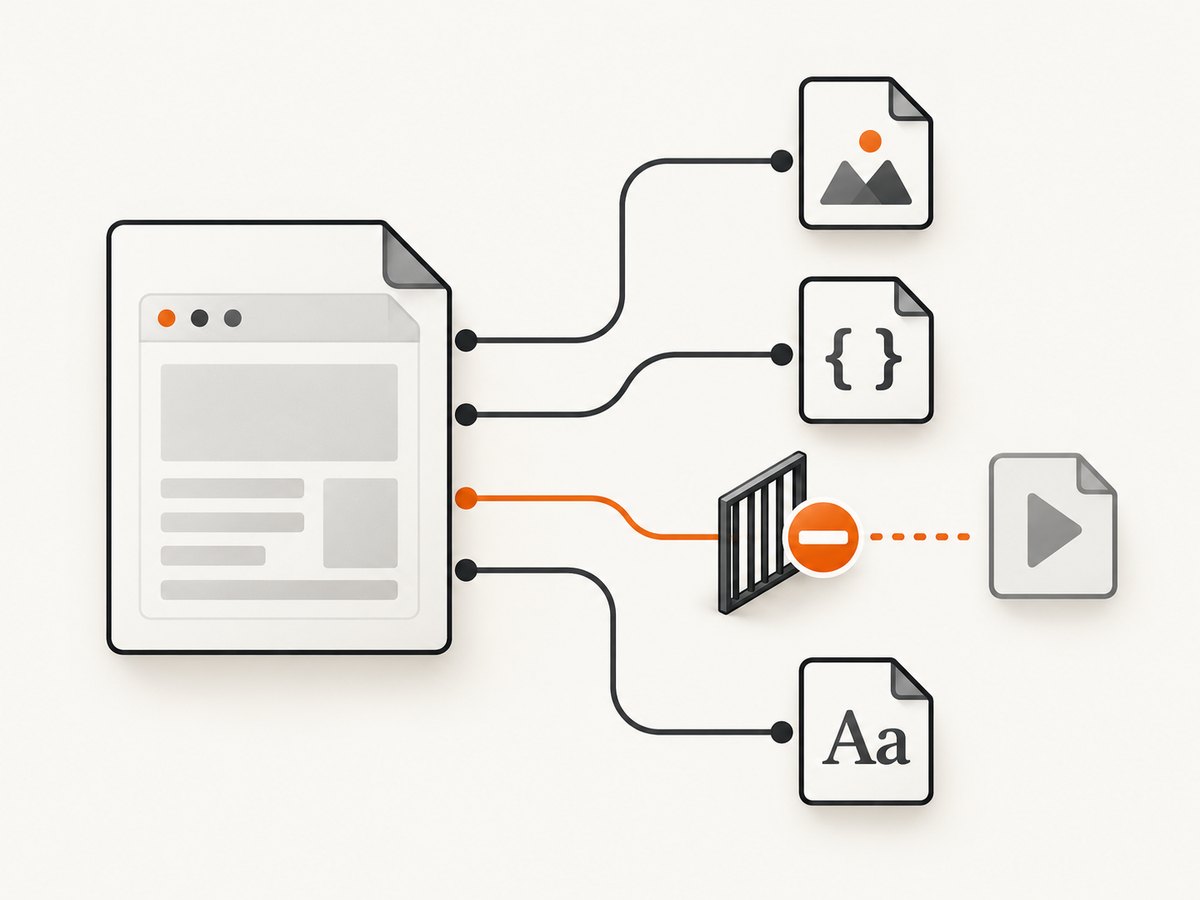
The manual documents --disable-local-file-access and --allow. If local access has been disabled, the document cannot freely read neighboring files. Permit only the directory or files that the page needs; do not broadly expose unrelated local files. For example:
wkhtmltoimage \
  --disable-local-file-access \
  --allow /srv/render-site/assets \
  --log-level info \
  /srv/render-site/index.html \
  /tmp/page.png
Use the real asset directory for your deployment. If your build does not support this combination as expected, check its usage output and settings documentation rather than assuming a flag from another version behaves identically. A project report against 0.12.5 describes a local image being blocked after local-file access was disabled; the general lesson is to inspect the resource path and permission policy together.
4. Inspect remote requests and missing media
If the page is remote, check whether the main document and each subresource can be fetched from the renderer’s environment. A browser on your laptop and a command running in a server or container may have different network access, DNS, proxy configuration, cookies, authentication, or IP permissions.
- Open the log and identify the failing URL and resource type.
- Check the response code, redirects, and whether the endpoint requires authentication or a session.
- Verify proxy and outbound network access from the same machine or container that runs wkhtmltoimage.
- Check whether an image, stylesheet, web font, or script—not the HTML document itself—is what failed.
- Try loading the resource URL directly from that environment, using the same credentials and network path where applicable.
A reported 0.12.5 issue describes a remote image returning HTTP 403 while an output image was still produced and the process reported ContentAccessDenied. Another 0.12.5 report describes error-handling options not making a failed image disappear from the error outcome. These are version-specific reports. In practice, inspect both the file and the status: an error code alone may not prove the output was never written, and an output file alone does not prove every asset loaded.
5. Wait for JavaScript-rendered content
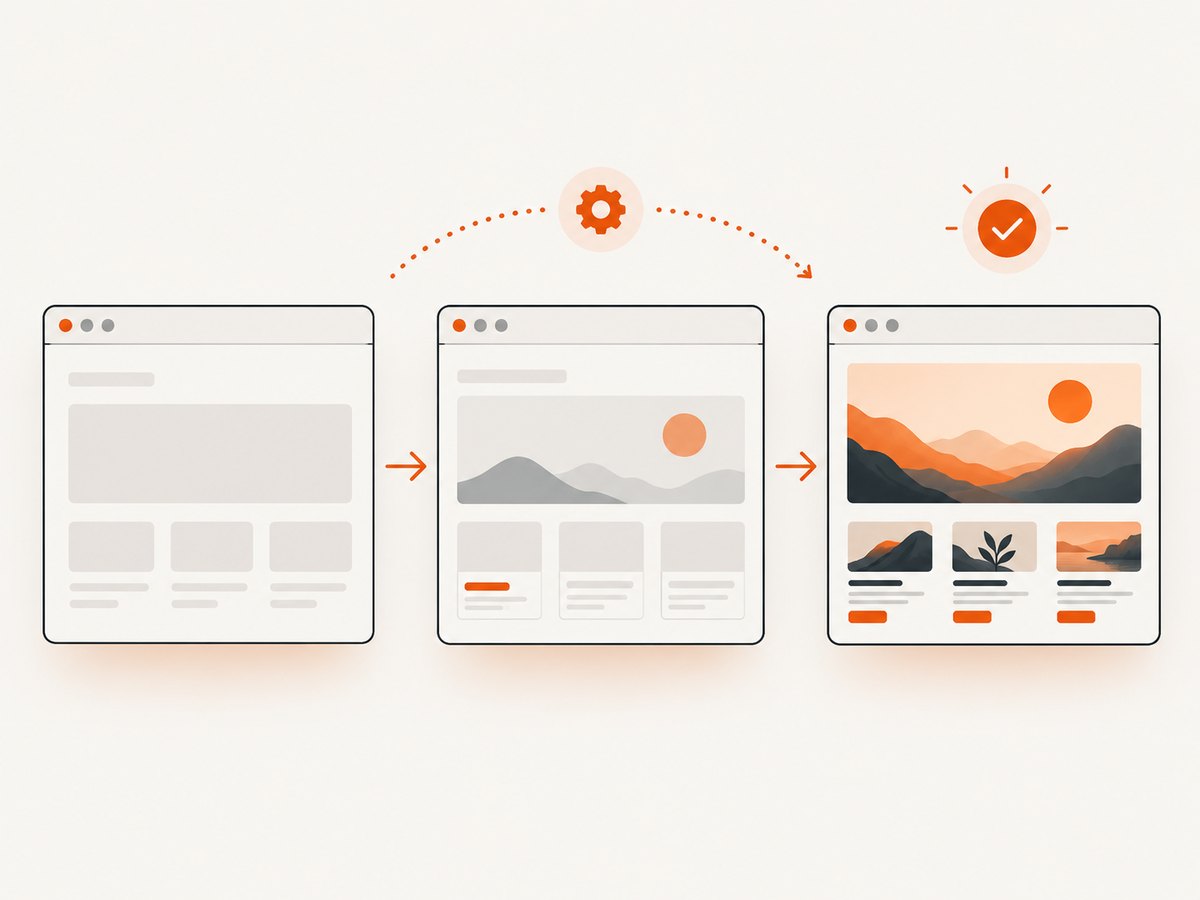
Some pages initially return a shell and fill in the visible content with JavaScript. If capture happens before that work completes, the renderer may save a mostly empty page. The manual documents JavaScript enablement, a post-load delay, and a window-status option. Use these as diagnostics and tailor the wait to the page.
wkhtmltoimage \
  --enable-javascript \
  --javascript-delay 3000 \
  --log-level info \
  "https://example.com/app" \
  /tmp/app.png
Here, 3000 is a starting example in milliseconds, not a recommended universal wait. If the page exposes a reliable completion condition, --window-status can wait for a named status value. The page must actually set that value, and the renderer must support the setting in its build. A fixed delay can be useful to confirm a timing issue, but it adds time to every capture and can still be too short or unnecessarily long.
Check that JavaScript is not disabled elsewhere in the command or wrapper. If a page depends on browser features beyond what the installed renderer supports, waiting longer will not add those features. Compare the same URL in a current browser and note where the rendered result diverges.
6. Verify output format, visibility, and crop
A rendered image can appear blank because its content is transparent, outside the capture area, or in a format/viewer combination that hides what was produced. The tool documents PNG/SVG transparency, screen width, crop controls, and image format. Verify the chosen format and inspect the result against a colored background. If content is clipped, remove crop settings and start from a simple capture.
Use a known visible page element near the top as a reference. Confirm that the configured screen width is appropriate for the page’s responsive layout. A narrow viewport may trigger a mobile layout; a crop that assumes different coordinates can then capture whitespace. Check image-disabling options too: if images alone are absent, confirm they have not been disabled while distinguishing that from a truly empty page.
For an image produced with unexpected dimensions, compare the output dimensions with the requested screen size and crop settings. A simple run with no custom crop or transparency options provides a useful baseline. Add options back one at a time so the setting responsible is clear.
7. A repeatable troubleshooting checklist
- Preserve the failing case. Save the exact input, command, version/build, operating system, return code, logs, and resulting file.
- Classify the image. Decide whether it is absent, zero-byte, white, transparent, cropped, or missing only some media.
- Run with visible logs. Use
--log-level infoorwarn; do not discard diagnostic output. - Separate document from assets. Check whether the main document loads and then inspect image, CSS, font, and script requests individually.
- For local input, audit paths and access. Resolve relative paths and allow only needed local paths when access is restricted.
- For remote input, audit network and access. Check HTTP status, redirects, credentials, proxy, and machine-level network access.
- For dynamic content, test timing. Confirm JavaScript is enabled, then try a suitable delay or a supported completion status.
- Reset output options. Remove crop and transparency options, choose a familiar format, and verify the viewport.
- Compare environments. Record the precise wkhtmltoimage build and OS, then compare the page in a current browser.
- Change one variable at a time. Rerun and retain the output and logs after each change.
8. Common errors and fixes
| Symptom or message | Possible cause | What to do |
|---|---|---|
| Local image or stylesheet is missing | Relative path mismatch or local-file access disabled | Resolve the path from the HTML file’s location; allow only the required directory or files. |
| Remote image returns 403 | Resource denies the renderer, requires credentials, or has access rules | Check the exact resource request, authentication, redirects, and renderer network identity. |
| Output exists but process exits with an error | A subresource failure may coexist with a generated image | Inspect both the image and logs. Fix the failed request instead of inferring output status from the return code alone. |
| Text is missing or page looks like an empty shell | JavaScript content has not appeared, is disabled, or cannot run in this build | Enable JavaScript, test a delay or supported window status, and compare against a current browser. |
| Image looks empty only in one viewer | Transparent output is displayed against a similar background | Inspect against a contrasting background and verify format/transparency settings. |
| Only whitespace is captured | Crop or viewport does not include the content | Remove crop options, check dimensions, and test an appropriate screen width. |
9. Performance, reliability, and cost considerations
Rendering time depends on the page, the resources it requests, and any wait configured. A fixed JavaScript delay directly extends each capture by at least the configured wait period; use a page-specific delay or completion condition where supported. Large pages and slow or blocked assets can also affect completion. The research sources establish configuration controls and historical failure reports, but do not establish a general speed, success-rate, or cost benchmark for wkhtmltoimage.
For reliable automation, capture logs and return codes, verify that the output file exists and opens, and monitor for missing media. Do not silently treat every nonzero status as an empty result, or every present file as a complete render. Pin and record the renderer build and operating system in deployment notes so a result can be reproduced. Before changing a production capture command, compare representative local and remote pages, static and JavaScript-generated content, and pages with external images or fonts.
Cost depends on where and how you run the renderer; the supplied evidence provides no pricing basis for wkhtmltoimage hosting or operation. Account for the machine or service that runs it, network access, and any retries your workflow adds. Avoid blind retries for a persistent 403 or denied local path: fix the cause first, or retries consume time without changing access.
10. Or skip the browser setup
If the task is simply to get a page image, ScreenshotNeo offers a website screenshot API: one GET request takes a URL and returns an image or PDF. The DIY checks above remain useful when you need to debug a local renderer or control its environment. For a remote-page capture, an API call can avoid installing and maintaining that browser setup. See the ScreenshotNeo API documentation.
curl -G "https://api.screenshotneo.com/v1/shot" \
  -d access_key=YOUR_API_KEY \
  --data-urlencode url=https://example.com \
  -o shot.webp
import requests
r = requests.get(
"https://api.screenshotneo.com/v1/shot",
params={"access_key": "YOUR_API_KEY", "url": "https://example.com"},
timeout=90,
)
open("shot.webp", "wb").write(r.content)const q = new URLSearchParams({
access_key: 'YOUR_API_KEY',
url: 'https://example.com'
});
const res = await fetch(`https://api.screenshotneo.com/v1/shot?${q}`);
if (!res.ok) throw new Error(`Screenshot request failed: ${res.status}`);
const image = Buffer.from(await res.arrayBuffer());
await import('node:fs/promises').then(fs => fs.writeFile('shot.webp', image));Replace YOUR_API_KEY with your key and the example URL with the page to capture. ScreenshotNeo removes cookie and consent banners, newsletter popups, and chat widgets before capture; each cleanup step can be turned off. Bot checks, CAPTCHAs, blank pages, timeouts, failed loads, and cache hits are not billed, and response headers identify the page verdict and billing status. Its MCP server exposes take_screenshot, get_page_info, and capture_pdf to Claude, Cursor, and other MCP clients. The free plan includes 1,000 shots a month with no card; paid plans start at $5 for 3,000 shots. All features are on every plan. See ScreenshotNeo or sign up for 1,000 free screenshots a month, with no card required.
11. Frequently asked questions
Does a blank screenshot mean wkhtmltoimage is broken?
Not by itself. It can indicate a page load issue, blocked resources, content that appears after JavaScript runs, transparency, or a crop/viewport problem. Reproduce the case with logs and identify which layer failed.
Why is there an image file if the command failed?
A failed subresource request can be reported even when the renderer has written an output file. Inspect the image, logs, and status together; a historical 0.12.5 report documents this pattern for a remote image error.
Will increasing the JavaScript delay fix every modern web app?
No. A delay helps only when content needs more time and the renderer can run the code and browser features the page depends on. It cannot fix a blocked script or unsupported behavior.
Should I disable local-file restrictions to make assets load?
First identify which local resource is blocked. Permit only the required directory or files with the documented access controls, rather than granting broad access without checking what the page can read.


