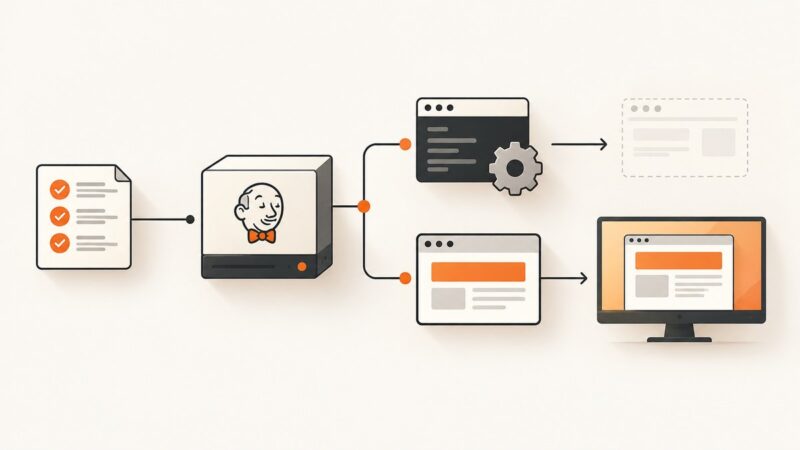
Wkhtmltoimage Example: Render HTML Pages to Images
Learn how to install and use wkhtmltoimage, control image output and page rendering, handle common errors, and choose a modern screenshot API when needed.

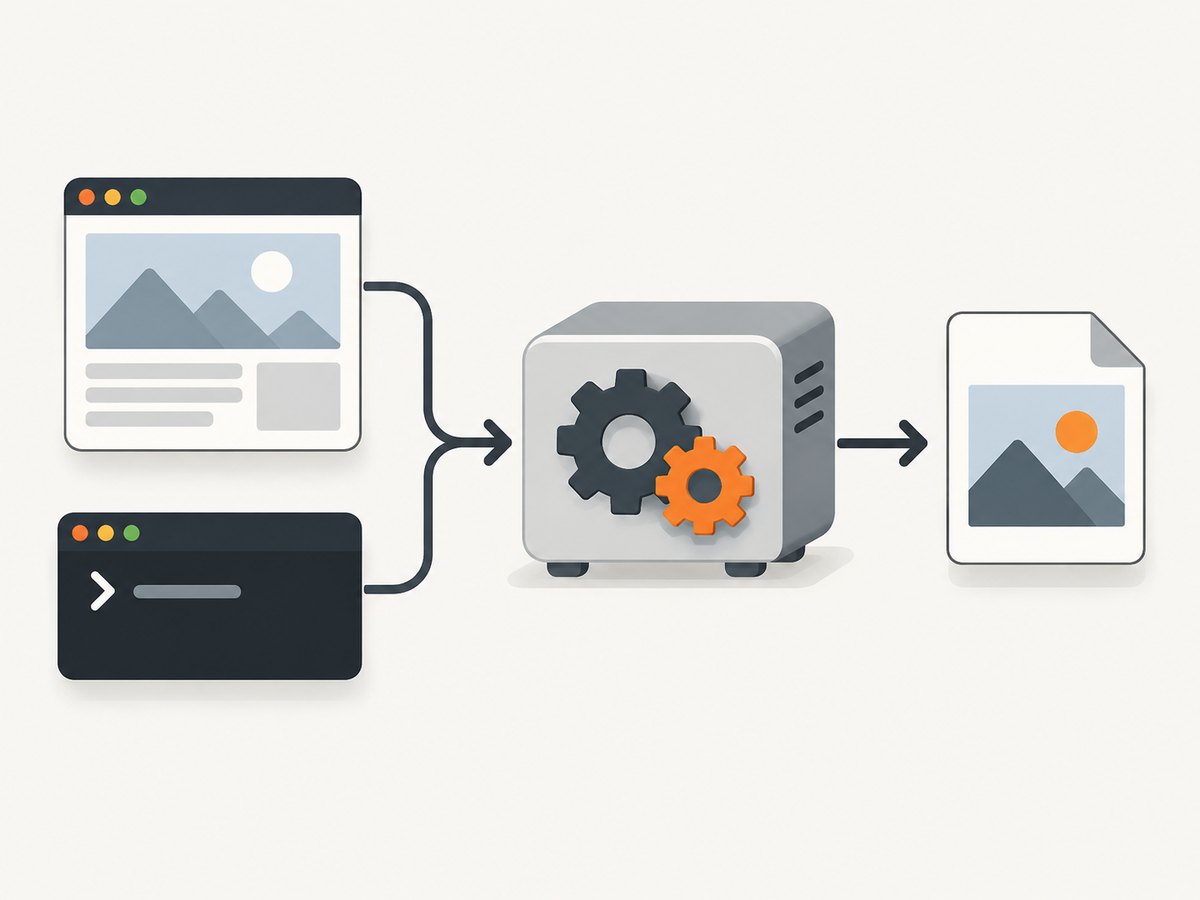
Wkhtmltoimage is a headless command-line tool that renders an HTML page or file into an image using Qt WebKit. Its basic form is wkhtmltoimage [OPTIONS]... <input file> <output file>. For example, wkhtmltoimage --width 1280 https://example.com example.png captures a page at a 1280-pixel-wide viewport. You can set image format and JPEG quality, enable or disable JavaScript, choose viewport dimensions, crop a rectangle, and wait for a page status value. The upstream GitHub repository is archived and read-only, so check your target pages carefully before relying on it for a new production workflow. The project documentation describes the tool as a headless Qt WebKit renderer.
1. Install and check wkhtmltoimage
Install the package using the package source appropriate for your operating system, then confirm that the executable is on your PATH:
wkhtmltoimage --version
wkhtmltoimage --help
Package names and build availability depend on your environment; this guide does not assume a particular installer or version. If the first command returns “command not found,” install a build that includes the image executable, or invoke it by its full path. Some distributions package the related wkhtmltopdf tools together. Check the package documentation before assuming the binary is included.
The project overview describes wkhtmltoimage and wkhtmltopdf as open-source command-line tools under LGPLv3 that use Qt WebKit. The upstream repository page reports that the repository was archived on January 2, 2023 and is read-only. That is a statement about the upstream repository; it does not establish whether every package or downstream fork is unavailable or unsupported. Since the rendering engine is Qt WebKit, verify behavior on the specific pages you need, especially pages that depend on newer web APIs or complex client-side rendering. Upstream repository · wkhtmltoimage manual.
2. Basic command and complete examples
The input can be a local HTML file or a page address. Put options before the input and output paths. Use a file extension that matches the format you request; being explicit with --format makes the intended output clear.
Render a URL to PNG
wkhtmltoimage --format png --width 1280 https://example.com example.pngRender a local HTML file to JPEG
wkhtmltoimage --format jpg --quality 85 --width 1280 ./page.html ./page.jpgJPEG quality is documented on a 0–100 scale. Higher quality generally makes a larger file; choose a value based on legibility and storage needs, then inspect the result. PNG is useful when sharp edges or lossless output matter. The manual supports selecting output format with --format; consult the installed build’s help for accepted format names.
Render from a shell script
#!/usr/bin/env sh
set -eu

input="${1:?Usage: render.sh INPUT OUTPUT}"
output="${2:?Usage: render.sh INPUT OUTPUT}"

wkhtmltoimage --format png --width 1365 "$input" "$output"
Save it as render.sh, make it executable with chmod +x render.sh, and call ./render.sh https://example.com example.png. Quoting paths prevents spaces and shell metacharacters from splitting arguments. Avoid placing access tokens directly in shell history or logs.
3. Viewport, height, and cropping
--width and --height control the viewport dimensions. The manual describes width as a guide unless smart width is disabled, so the resulting image dimensions may not always equal a simple fixed-width crop. A viewport is the browser area used for layout; it is distinct from cropping, which selects an output rectangle from the rendered page.
wkhtmltoimage --width 1440 --height 900 https://example.com viewport.pngTo capture a rectangular region, combine the crop origin and dimensions:
wkhtmltoimage \
  --width 1440 \
  --crop-x 120 --crop-y 80 \
  --crop-w 900 --crop-h 600 \
  https://example.com region.png
Crop coordinates start from the rendered page’s coordinate space. If the desired region is missing, confirm the page’s layout at the chosen viewport and adjust the crop origin and dimensions. A crop rectangle outside the content can produce an empty-looking result. Use a full-page capture option only if the installed manual documents one; do not assume viewport height and full-page output mean the same thing.
4. JavaScript and waiting for the page
JavaScript is relevant when the page populates content after its initial HTML arrives. The manual documents a switch to disable script execution:
wkhtmltoimage --disable-javascript https://example.com static.pngDisabling JavaScript can make a static page simpler to render, but it also prevents script-generated content from appearing. When scripts are needed, allow them and use the documented --window-status condition if the page sets window.status after its content is ready. For example, your own page could set a stable status value after rendering:
<script>
  // Set this only after the content needed for the capture is ready.
  window.status = 'capture-ready';
</script>
wkhtmltoimage --window-status capture-ready https://example.com ready.pngThe status option is useful only if the target page actually sets that value. It is not a general-purpose “wait until every network request is finished” guarantee. If you do not control the page, inspect whether it exposes a reliable ready state; otherwise a captured page may be incomplete. Waiting too long can also increase job duration.
5. Authentication and network-dependent pages
The manual lists controls for authentication, cookies, custom headers, proxy configuration, and SSL client certificates. These can help when a page requires a session or when the network path needs a proxy or client certificate. The exact option spelling and argument format can vary with the installed build, so use its --help output and the manual before copying a command into automation.
Keep credentials out of source code and process logs. For scheduled jobs, supply secrets through your deployment’s secret store and carefully restrict who can read command arguments and output. Cookies and authorization data grant access to private content: use a dedicated account with the minimum required access, and avoid saving authenticated screenshots to public locations.
Authentication support does not make every login flow automatable. Multi-factor challenges, bot checks, single-page application transitions, and pages requiring browser interaction can prevent a useful capture. Test the exact route and access method before building a larger capture job around it.
6. Inspect and validate the output
- Start with one page. Capture a stable public page or a local fixture before batching work.
- Set the viewport deliberately. Match the width and height to the layout you want to document.
- Choose format and quality. Prefer PNG when crisp text and lossless output matter; set JPEG quality when using JPEG.
- Wait for dynamic content. Use a documented readiness condition when available, and do not assume page load means application rendering has finished.
- Open the file. Confirm the content, crop, dimensions, colors, and file type. A successful process exit alone does not prove that the screenshot contains the expected page.
- Repeat with representative pages. Check pages with long content, cookie notices, images, fonts, and authentication if those cases matter to your workflow.
For repeatable output, record the command options and input URL alongside the generated asset. Page content can change independently of your capture command, so a rerun may produce a different image even when the arguments are identical.
7. Common errors and fixes
| Symptom | Likely cause | What to try |
|---|---|---|
wkhtmltoimage: command not found |
Executable is missing or not on PATH. | Install a package containing the image tool; verify with wkhtmltoimage --version or call the binary by full path. |
| Output is blank or mostly white | Page load failed, script content was not ready, the crop missed the page, or the URL redirects to an unavailable page. | Open the source URL independently, remove the crop temporarily, confirm JavaScript is enabled when needed, and use a page readiness condition if supported. |
| Dynamic content is missing | The capture starts before the page sets its final content. | Use --window-status only when the page sets a matching window.status; otherwise consider whether the page is compatible with this renderer. |
| Images or styles are missing from a local file | Relative asset paths resolve differently from the file’s location, or the renderer cannot access the resource. | Use valid absolute paths or URLs and verify file permissions and network access for each dependency. |
| Wrong size or unexpected page width | Width is documented as a guide unless smart width is disabled; page layout or crop settings also affect the result. | Check the installed help for smart-width behavior, set explicit dimensions, and validate the resulting image. |
| JPEG looks soft or blocky | Lossy compression quality is too low for the content. | Raise --quality within its documented 0–100 range or use PNG when exact edges matter. |
| Access denied or login page captured | Credentials, cookies, headers, redirects, or session state are missing. | Use documented authentication options, check the final URL and session requirements, and keep secrets out of logs. |
| Modern page layout differs from a regular browser | The tool renders through Qt WebKit, and the target may depend on behavior this environment does not provide. | Reduce the page to a minimal reproduction, check whether the page has a simpler render path, and evaluate a maintained browser or screenshot service for compatibility needs. |
8. Performance, reliability, and cost
A command-line capture starts a rendering process and must load the document and any resources it needs. For occasional local work, that can be straightforward. For high-volume jobs, account for process startup, page load time, image size, concurrency limits in your environment, and the cost of retaining generated files. No general benchmark is implied here: actual timing depends on the page, network, machine, and chosen options.
Reliability depends on both the renderer and the page. Network failures, changed markup, blocked resources, script timing, authentication expiry, and repository or package variation can all affect results. For a production pipeline, capture representative pages regularly, verify output dimensions and non-empty files, record failures, and define a retry policy for transient network problems. Do not retry deterministic incompatibilities indefinitely.
The project’s open-source licensing does not mean running the capture has zero operational cost. You still provide a host or build environment, networking, storage, and maintenance. The upstream GitHub repository has been archived since January 2, 2023; factor that repository status into maintenance decisions, while checking your specific package and any downstream fork separately.
9. Or skip the browser setup
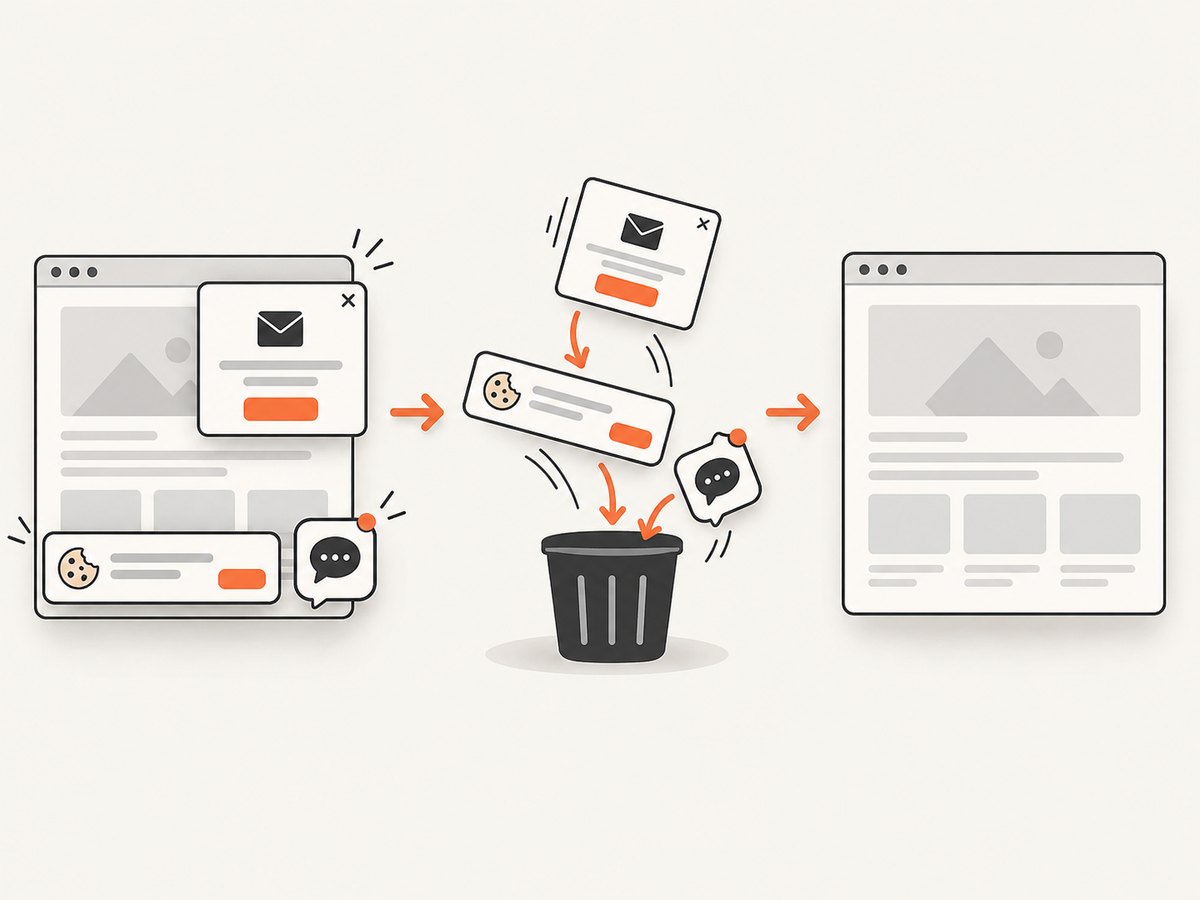
If you need a screenshot without installing and maintaining a local renderer, ScreenshotNeo is a website screenshot API and MCP server. One GET request returns an image or PDF. Its capture flow accepts cookie and consent banners like a visitor, then removes 60+ known consent platforms, newsletter popups, and chat widgets; each step can be turned off. Bot checks, CAPTCHAs, blank pages, timeouts, failed loads, and cache hits are not billed, and responses identify the page verdict and billing status in headers.
Here is a runnable cURL example:
curl -G "https://api.screenshotneo.com/v1/shot" -d access_key=YOUR_API_KEY --data-urlencode url=https://stripe.com -o shot.webpThe API supports PNG, JPEG, WebP, and PDF output, plus controls for full-page capture, element selection, viewport/device presets, waits, custom CSS and JavaScript, headers and cookies, caching, and more. See the ScreenshotNeo API documentation for request options. Its MCP server exposes take_screenshot, get_page_info, and capture_pdf to Claude, Cursor, and other MCP clients. The free plan includes 1,000 screenshots per month with no card; paid plans start at $5 for 3,000 shots.
Create a free ScreenshotNeo account for 1,000 screenshots a month, no card required.
10. FAQ
What does wkhtmltoimage do?
It renders a URL or HTML input into an image from the command line using Qt WebKit.
Can it capture a local HTML file?
Yes. Pass the input file path followed by the output path, and ensure referenced local assets resolve correctly.
Is wkhtmltoimage still maintained?
The upstream GitHub repository is archived and read-only as of January 2, 2023. That fact alone does not establish the status of every package or fork.
Can it wait for a page to finish rendering?
The manual documents waiting for a specified window.status value. The page must set that exact value; it is not an automatic readiness detector.
Can I use it for screenshots in a production service?
You can invoke it from automation, but first verify compatibility, security handling, output validation, and maintenance expectations for your specific workload.