wkhtmltoimage Options: A Complete Configuration Guide
Learn how to configure wkhtmltoimage for JavaScript, assets, requests, local files, and rendering—and how to diagnose failures across builds.

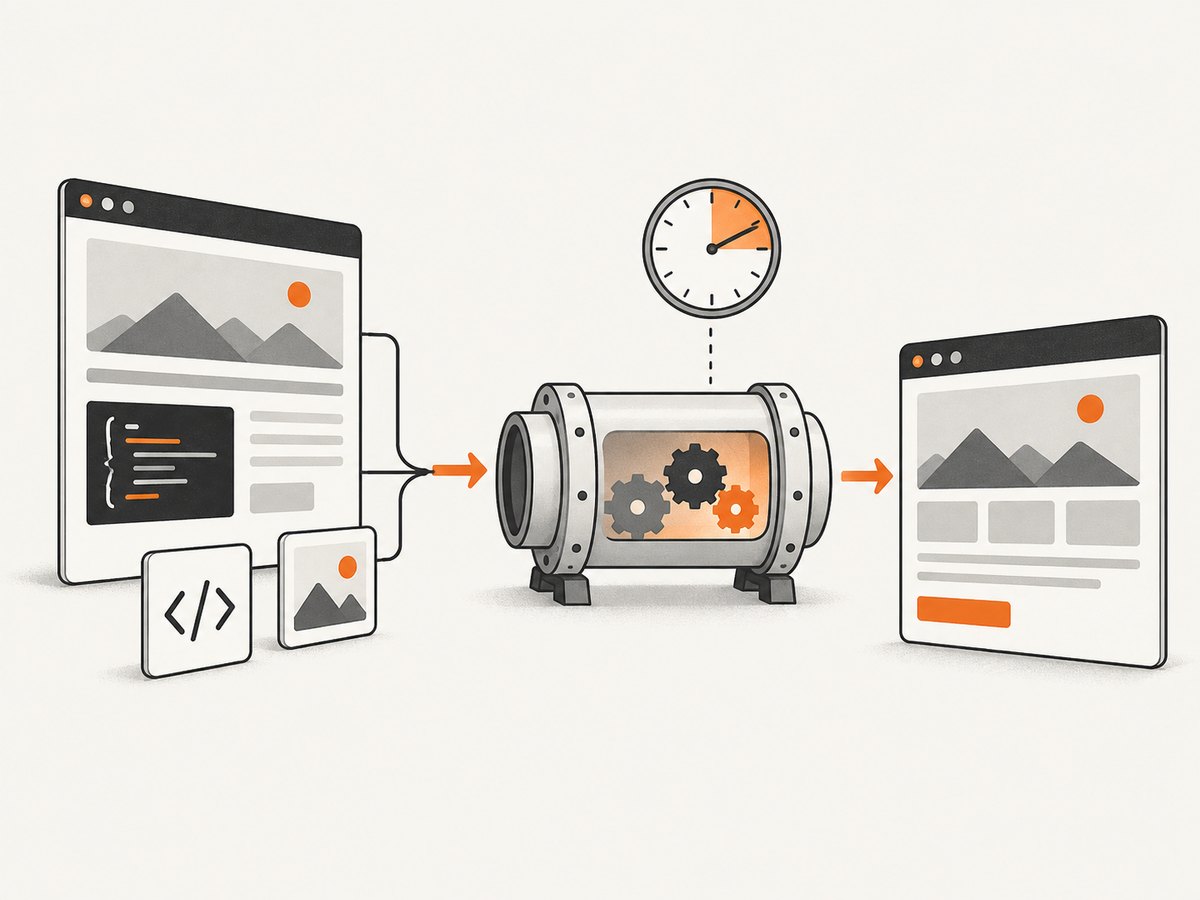
wkhtmltoimage converts web pages and local HTML into images using the Qt WebKit engine. Its settings cover JavaScript, image loading, backgrounds, encoding, zoom, render delay, request details, and local-file access. The exact command-line flags and defaults depend on the installed build, so begin with wkhtmltoimage --help, wkhtmltoimage --extended-help, and wkhtmltoimage --version. The upstream repository is archived, which makes checking the binary you actually run especially important. Upstream project and archive status.
This guide maps the documented settings to practical configuration goals. The available upstream sources include C binding settings and a related wkhtmltopdf manual; they do not establish a complete, current CLI option list for every wkhtmltoimage build. Treat examples below as templates: confirm each flag and spelling in your executable’s help before putting it into a script.
1. Confirm the installed command and its options
Check the executable in the same environment that will perform captures. A developer workstation, container, and production host may have different builds even if the command has the same name.
wkhtmltoimage --version
wkhtmltoimage --help
wkhtmltoimage --extended-help
Read the output for the options you intend to use, including whether an option accepts a value and whether the build supports it. The C binding documentation describes settings as UTF-8 name/value strings for a library interface; that does not prove an identical command-line spelling or parser behavior. The related upstream manual documents wkhtmltopdf, the PDF executable, and is contextual reference only—not confirmation that each PDF flag applies to the image executable. C binding settings · wkhtmltopdf manual.
2. Start with a minimal capture
For a basic URL-to-image run, pass the page URL and a destination path. The output extension indicates the intended format, but confirm supported formats and any format-specific settings with the installed binary.
wkhtmltoimage https://example.com page.pngFor local HTML, provide the file URL and output path:
wkhtmltoimage file:///absolute/path/to/page.html page.pngUse an absolute file URL for predictable resolution. If the HTML references local stylesheets, fonts, or images, check the local-file access behavior described in section 5. For either input, capture stderr and record the exit status when automating; an output file existing does not always mean the process succeeded.
3. Control JavaScript and capture timing
JavaScript can be enabled or disabled through documented settings. The settings also include a JavaScript delay measured in milliseconds after page load. A delay can give scripts time to update the page before rendering, but it does not guarantee that every asynchronous application has finished.
# Illustrative flags only: confirm exact names and syntax with --extended-help.
wkhtmltoimage --enable-javascript --javascript-delay 1500 \
  https://example.com/dashboard dashboard.png
If a page does not need script execution, disabling JavaScript may simplify rendering and avoid script-dependent changes. If it does need scripts:
- Capture the same route with JavaScript enabled and inspect whether the expected content appears.
- Try a delay that matches the page’s observed load behavior; do not assume a universal wait fits all pages.
- Repeat against the exact binary and environment used in production.
- If the result remains incomplete, diagnose the application’s requests and rendering behavior rather than increasing the delay without limit.
The upstream documentation describes delay and JavaScript settings, but does not promise that a delay resolves every modern application timing issue. Settings reference.
4. Decide which page assets to render
Documented settings include whether to load images and whether to draw the page background. They also include default text encoding, minimum font size, and a user stylesheet. These settings affect appearance and completeness:
- Images: Keep image loading enabled when the output needs page imagery. Disabling it can help isolate whether a missing image is the source of a slow or inconsistent capture.
- Background: Enable background rendering when colors or background graphics matter. A missing background may be an intentional setting, not a page defect.
- Encoding: Set the expected default text encoding when input content lacks reliable encoding metadata. Inspect non-ASCII characters in the result.
- Minimum font size: Use this only when small text must remain legible; it can change the page’s visual hierarchy.
- User stylesheet: Apply a stylesheet to adjust the rendered page, such as hiding print-irrelevant elements. Validate layout after applying it.
# Illustrative flags only; verify support and syntax in your build.
wkhtmltoimage --load-images --background \
  --encoding utf-8 --minimum-font-size 10 \
  https://example.com/report report.png
Do not copy these illustrative flags blindly. The upstream settings inventory establishes these categories, but the exact accepted CLI arguments must be checked locally.
5. Configure requests, authentication, and local files
The documented load settings include proxy use, custom headers, whether headers are repeated for loaded resources, cookies, and username/password values. Some entries in the binding documentation are marked TODO, so a setting’s presence there does not establish that your binary exposes a matching option.

When a page requires authentication or serves different content based on request metadata, inspect help for the relevant options and test with a harmless page first. Avoid placing secrets directly in a command that may be stored in shell history or process listings. Prefer a protected execution environment and restrict access to logs that might contain request details.
For local content, the binding documentation includes load.blockLocalFileAccess, which controls whether local or piped content can read other local files. If an HTML file references adjacent images or stylesheets, access restrictions may prevent those assets from loading. Configure access according to the input’s trust boundary: allowing local reads can expose files available to the process. Verify the actual default and CLI configuration on the installed build. Load and local-file settings.
6. Adjust scale and appearance
The documented settings include a zoom factor. Use it when the rendered page’s scale needs adjustment, then check that text and layout remain usable. The C binding source has an ImageGlobal settings class, but nearby DPI and JPEG-quality entries belong to the PDF global settings section. Do not infer that those particular PDF settings are wkhtmltoimage options from that source alone. Confirm format, dimensions, quality, and any other image controls in the installed executable’s own help. Settings class documentation.
7. Use a repeatable configuration workflow
- Record the build. Save the output of
wkhtmltoimage --versionwith deployment metadata. - Check supported flags. Review
--helpand--extended-helpin that environment. - Choose the minimum settings. Add only controls required for scripts, assets, request access, local files, and appearance.
- Capture a representative page. Include cases with dynamic content, remote images, and local assets if those inputs occur in production.
- Inspect both output and process result. Keep stderr, exit code, and artifact checks together.
- Recheck after upgrades. A package change can alter the available options or rendering behavior.
This workflow follows from the archived upstream project and the distinction between binding documentation and CLI help; it is a reliability recommendation, not a guarantee about every downstream build.
8. Troubleshoot common failures
| Symptom | Likely cause | What to check |
|---|---|---|
| Flag is rejected | Different version, unsupported option, or CLI syntax mismatch | Run --version and inspect that binary’s --extended-help; do not infer CLI spelling from a C setting name. |
| Page content is missing | JavaScript is disabled, capture occurs too early, or required requests fail | Check JavaScript and delay settings, then verify the page’s request/authentication needs. |
| Images or backgrounds are absent | Image loading or background rendering is disabled, or resources are inaccessible | Inspect asset-loading settings, request access, and local-file restrictions. |
| Local styles or images do not appear | Local-file access policy blocks referenced files, or paths do not resolve | Use an absolute input path, inspect references, and configure access within the input’s trust boundary. |
| Text looks wrong | Encoding assumptions, font size, or stylesheet changes affect rendering | Check encoding and minimum font size settings; compare with and without the user stylesheet. |
| Command exits nonzero but image exists | A load error may still produce an artifact and nonzero status in some versions | Inspect stderr and validate the image instead of treating file existence as success. |
A version 0.12.5 issue opened in 2019 reports an output image alongside exit code 1 after a network error, even when load-error handling flags were supplied. This is a version-specific report, not a rule for all builds. In automated pipelines, check process status and artifact validity, and preserve stderr so partial output is not silently treated as a successful capture. Issue report for version 0.12.5.
9. Performance, reliability, and cost
Capture time depends on the page, its scripts and assets, network access, and any configured delay. A longer delay adds waiting time to every run; set it based on observed needs and avoid using one large delay as a substitute for diagnosing missing content. For repeatable operation, pin and record the binary version, use representative pages as checks, and log stderr, exit code, and output validation.
Operational cost includes the machine and time spent running captures, plus maintenance of the binary and its runtime environment. The upstream repository was archived on January 2, 2023; that fact makes it prudent to verify the packaged behavior you deploy, but does not establish that downstream forks or packages received no fixes. Repository status.
10. Or skip the browser setup
For a hosted capture, ScreenshotNeo is a website screenshot API and MCP server. One GET request can return PNG, JPEG, WebP, or PDF; see the API documentation.
curl -G "https://api.screenshotneo.com/v1/shot" \
  -d access_key=YOUR_API_KEY \
  --data-urlencode url=https://example.com \
  -o shot.webp
import requests
r = requests.get(
"https://api.screenshotneo.com/v1/shot",
params={"access_key": "YOUR_API_KEY", "url": "https://example.com"},
timeout=90,
)
open("shot.webp", "wb").write(r.content)const q = new URLSearchParams({
access_key: 'YOUR_API_KEY',
url: 'https://example.com'
});
const res = await fetch(`https://api.screenshotneo.com/v1/shot?${q}`);
if (!res.ok) throw new Error(`Screenshot request failed: ${res.status}`);
await Bun.write('shot.webp', res);ScreenshotNeo removes cookie banners, newsletter popups, and chat widgets before the shot. Bot checks, blank pages, and failed loads are never billed; response headers report the page verdict and billing status. Its MCP server lets AI agents use screenshot tools. The free plan includes 1,000 screenshots each month with no card; paid plans start at $5 for 3,000 shots. Create a free account and get 1,000 screenshots a month with no card.
11. Frequently asked questions
Does wkhtmltoimage use a modern browser engine?
The upstream project describes it as a Qt WebKit-based tool. Check the exact build and test pages whose behavior matters to your use case.
Can I use wkhtmltopdf flags with wkhtmltoimage?
Do not assume so. The PDF manual documents a different executable; consult the image command’s own help for each option.
Is a JavaScript delay the same as waiting for the page to be fully ready?
No. It is a configured pause after page load, and the documentation does not guarantee that every asynchronous application will finish within it.
Should I enable local-file access?
Only when the input needs to read local resources and that access fits your security boundary. Verify the setting and default in your build.
Why should scripts record the version?
Because option support and behavior need to be matched to the executable in use, and the upstream repository is archived.


