How wkhtmltopdf Handles DPI and Page Sizes in Pixels
Learn how wkhtmltopdf combines paper size, DPI, zoom and smart shrinking, and how to troubleshoot CSS pixel dimensions in PDFs.
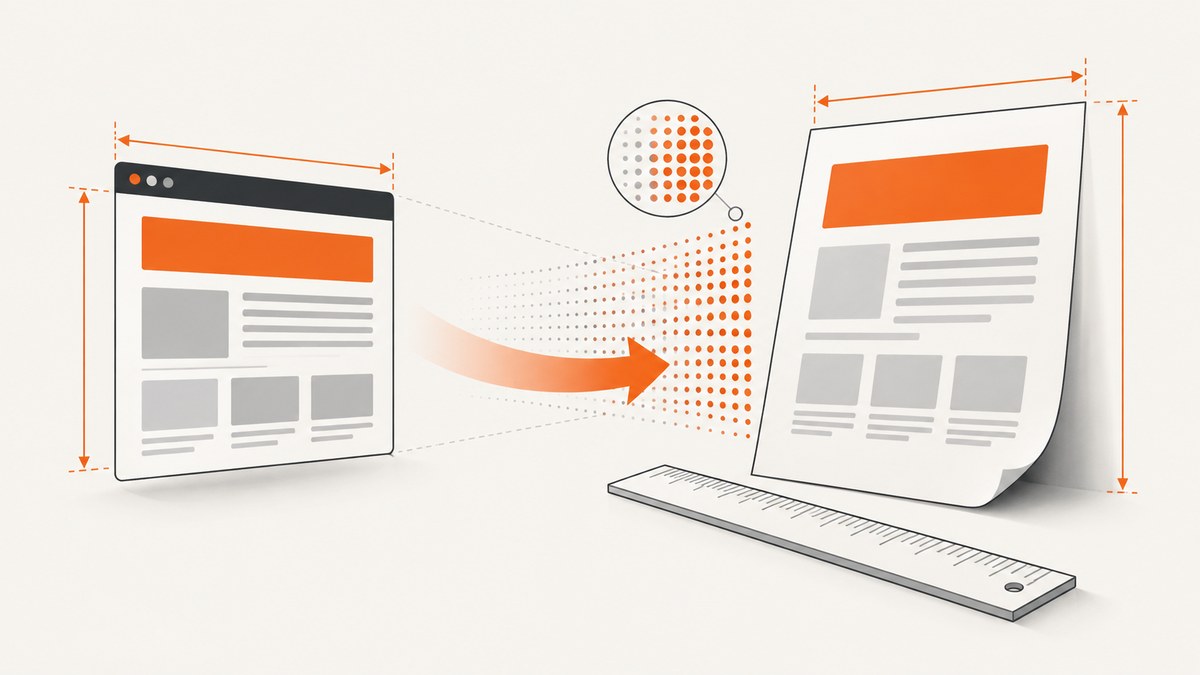
Direct answer: wkhtmltopdf does not provide one universal formula that turns a CSS pixel into a fixed number of millimeters in every PDF. The result depends on the output page size, CSS units, --dpi, --zoom, smart shrinking, the wkhtmltopdf build, the operating system and, in particular, whether rendering uses X11.
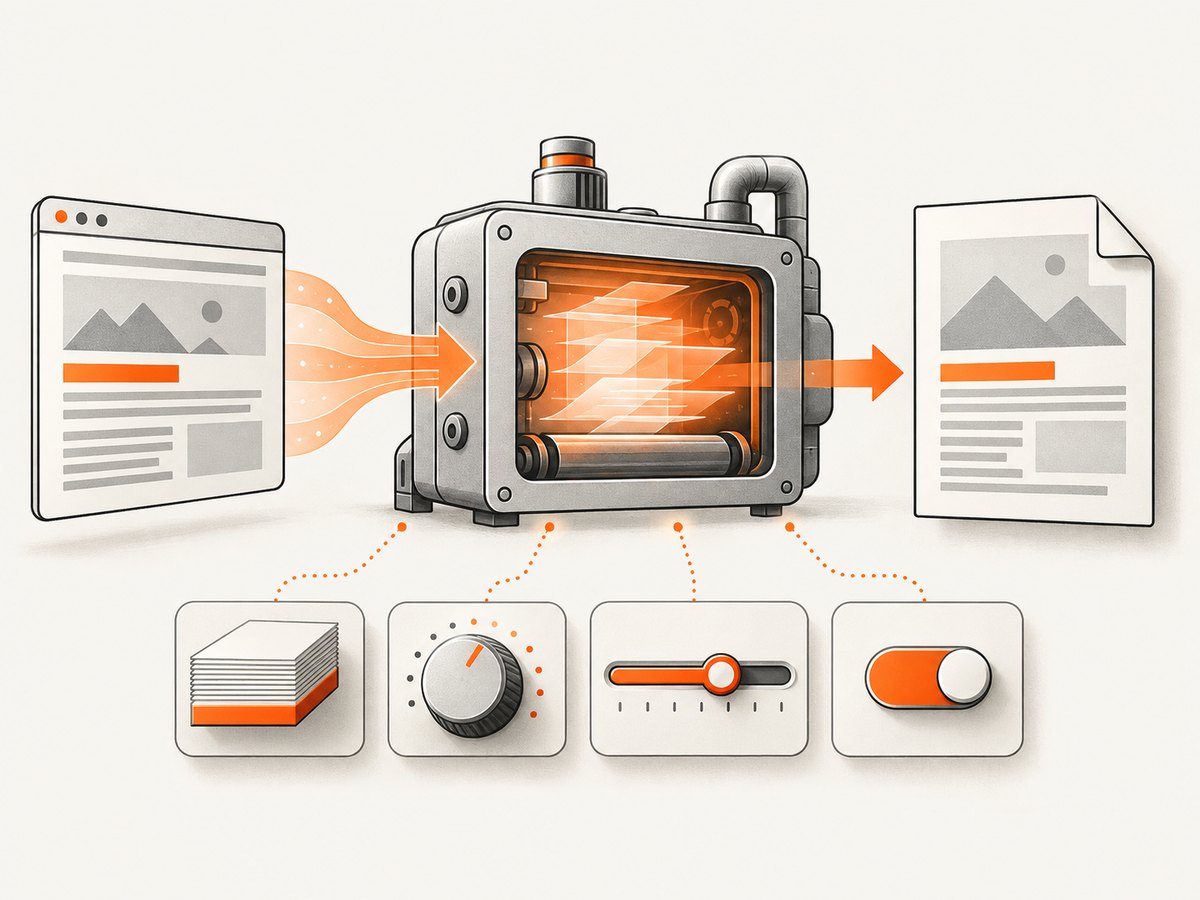
The command-line reference documents a default --dpi of 96 and warns that it has no effect on X11-based systems. Page size is controlled separately with --page-size or explicit --page-width and --page-height. Zoom defaults to 1, while smart shrinking is enabled by default and makes the pixel/DPI ratio non-constant. Treat those as separate variables and measure the exact build you deploy.
What each setting controls
| Setting | What it controls | Default or documented behavior |
|---|---|---|
--page-size |
Named paper format such as A4, A3, Letter or Legal | A4 is the documented default |
--page-width, --page-height |
Custom physical page dimensions | Values use unitreal; specify units such as mm, cm or in |
--dpi |
Rendering DPI setting | 96 in the CLI reference; no effect on X11-based systems |
--zoom |
Additional page scale factor | 1 |
--enable-smart-shrinking |
Allows WebKit to shrink content to fit | Enabled by default |
--disable-smart-shrinking |
Disables that adaptive shrink strategy | Makes scaling more predictable, but does not guarantee a universal px-to-mm conversion |
--image-dpi |
Downscales embedded images above a threshold | 600; it is separate from page rendering DPI |
The official CLI reference documents these options separately. The generated library settings reference likewise separates page size, DPI, zoom and intelligent shrinking.
Why CSS pixels do not map directly to millimeters
A CSS declaration such as width:1240px describes layout pixels inside WebKit. It does not directly declare a physical width on the PDF page. The final placement is affected by the viewport, page dimensions, zoom and WebKit’s shrinking decision.
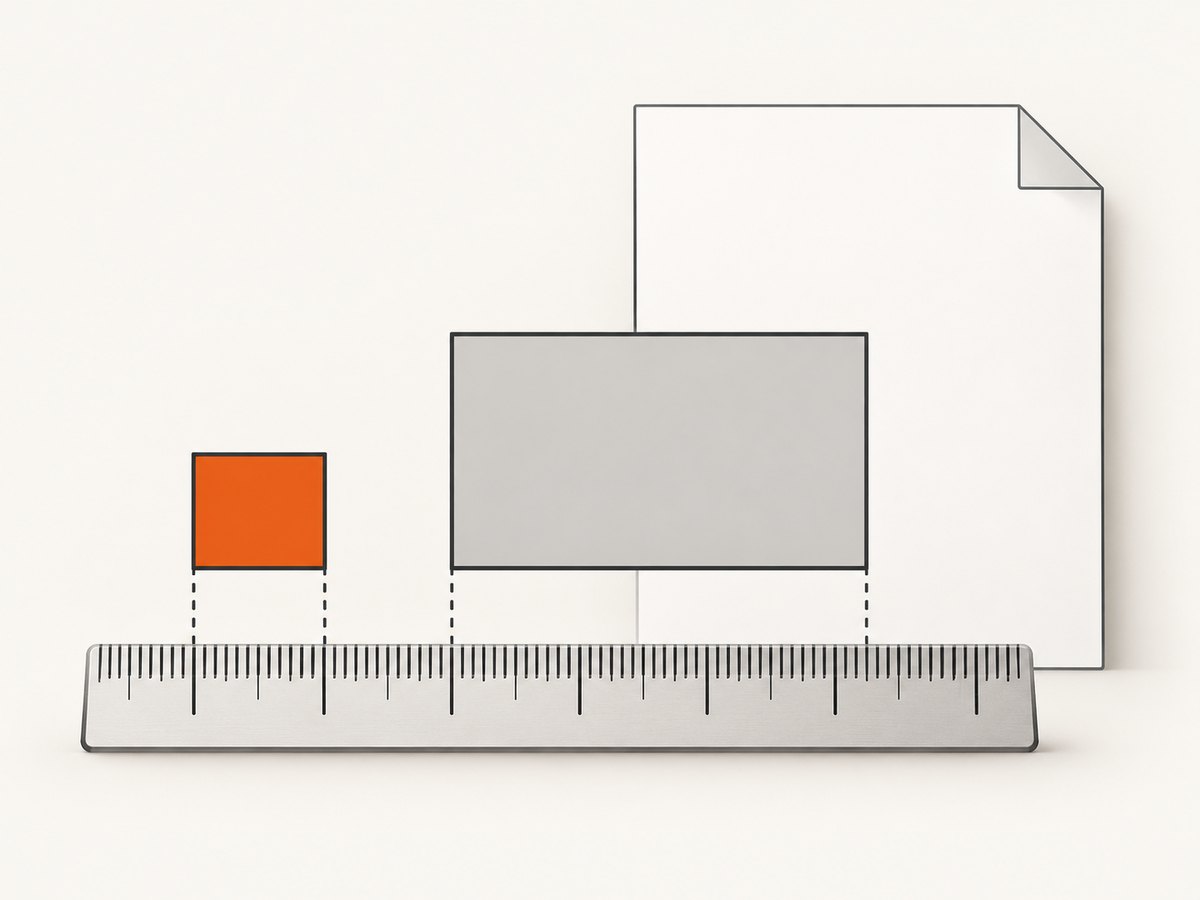
Physical units such as 105mm are a better calibration reference because they express an intended physical dimension. Use both in a minimal document, then inspect the PDF produced by the exact binary and platform you ship.
Do not confuse --dpi with --image-dpi. The former is a page-rendering setting; the latter controls downscaling of embedded images.
A reproducible calibration document
Create calibration.html:
<!doctype html>
<html>
<head>
  <meta charset="utf-8">
  <style>
    @page { margin: 0; }
    html, body { margin: 0; padding: 0; }
    .page { width: 210mm; height: 297mm; position: relative; }
    .physical { position: absolute; left: 10mm; top: 10mm; width: 105mm; height: 20mm; border: 1px solid #000; }
    .pixels { position: absolute; left: 10mm; top: 40mm; width: 1240px; height: 80px; border: 1px solid #000; box-sizing: border-box; }
  </style>
</head>
<body>
  <div class="page">
    <div class="physical">105mm reference</div>
    <div class="pixels">1240px reference</div>
  </div>
</body>
</html>
Render it with a fully specified baseline:
wkhtmltopdf \
  --page-width 210mm \
  --page-height 297mm \
  --dpi 96 \
  --zoom 1 \
  --disable-smart-shrinking \
  calibration.html calibration.pdf
Record the PDF page dimensions and measure both rectangles. Repeat with the production command, then change one variable at a time.
A practical troubleshooting sequence
- Record the environment. Save the complete
wkhtmltopdf --versionoutput, operating system, architecture, Qt build and whether the process runs under X11. The DPI caveat specifically names X11. - Specify physical page dimensions. Use
--page-size A4for a named format or explicit--page-widthand--page-heightwith units. - Separate layout units. Test CSS
px,mmand another physical unit in a minimal document. - Set zoom explicitly. Keep
--zoom 1while diagnosing, then test other values deliberately. - Test smart shrinking. Compare the default with
--disable-smart-shrinking; record the state in every result. - Inspect the generated PDF. Check page size and content dimensions on the target build instead of inferring them from a screen preview.
Common symptoms, causes and fixes
| Symptom | Likely cause | Fix |
|---|---|---|
| A pixel-width block is narrower than expected | Smart shrinking reduced the layout to fit the page | Set the page dimensions explicitly, record zoom, and compare with --disable-smart-shrinking |
Changing --dpi has no visible effect |
The process uses X11, where the CLI reference says DPI has no effect | Record the display environment and use physical units plus explicit page dimensions |
| Images look softer or are unexpectedly reduced | --image-dpi is being confused with page DPI |
Configure image downscaling separately; do not use it to calibrate page layout |
| A4 content spills onto another page | Content height, margins, zoom or shrinking changed the available area | Remove unintended margins, set A4 or 210mm by 297mm explicitly, and test zoom/shrinking |
| Two machines produce different physical sizes | Different versions, Qt builds, operating systems or X11 state | Pin the binary and compare the full environment record |
| A reported zoom value works only on one setup | Zoom compensates for that build’s scaling behavior | Treat it as an environment-specific calibration, not a universal formula |
About the frequently cited 300 DPI example
An individual issue report describes Windows 10 x64 with wkhtmltopdf 0.12.5 64-bit and patched Qt. The reporter calculated A4 as 2480 × 3507 pixels at 300 DPI, observed a 1240-pixel block filling the page, and said that --zoom 0.32 made the pixel dimensions appear correct. This is a report from that exact environment, not a maintainer-confirmed rule or a universal workaround. It demonstrates why “300 DPI means CSS pixels map at 300 pixels per inch” is unsafe.
Reliable production configuration
- Pin one wkhtmltopdf version and Qt build.
- Use explicit page units and margins.
- Set zoom in the command rather than relying on a default.
- Document smart-shrinking state.
- Keep a calibration fixture in CI and compare PDF page size plus one physical reference.
- Run rendering in the same display environment as production; X11 changes the meaning of
--dpi. - Use
--image-dpionly for image handling.
Performance, reliability and cost considerations
Rendering time and output size depend on the page, assets, JavaScript and PDF settings. Smart shrinking can avoid overflow but may alter layout scale. Disabling it can make a design easier to reason about, while requiring you to fit content yourself. For repeatable output, cache or reuse the exact binary and input assets, and log the command-line options alongside each artifact.
When a PDF is generated in a service, validate the resulting page dimensions rather than trusting a requested DPI value. A successful process exit only means that wkhtmltopdf produced output; it does not prove that a CSS pixel has the physical size you intended.
Or skip the browser setup
ScreenshotNeo provides a hosted screenshot and PDF API when you do not want to maintain a browser-rendering setup. Cookie and consent banners are accepted and removed before capture, along with more than 60 known consent platforms, newsletter popups and chat widgets. Bot checks, blank pages, timeouts, failed loads and cache hits are not billed, and response headers identify the page verdict and billing result. Its MCP server lets Claude, Cursor and other MCP clients use take_screenshot, get_page_info and capture_pdf.
See the ScreenshotNeo API documentation for the complete option list. A one-call PDF or image request starts like this:
curl -G "https://api.screenshotneo.com/v1/shot" -d access_key=YOUR_API_KEY --data-urlencode url=https://stripe.com -o shot.webpimport requests
r = requests.get("https://api.screenshotneo.com/v1/shot", params={"access_key": "YOUR_API_KEY", "url": "https://stripe.com"}, timeout=90)
open("shot.webp", "wb").write(r.content)const q = new URLSearchParams({ access_key: 'YOUR_API_KEY', url: 'https://stripe.com' });
const res = await fetch(`https://api.screenshotneo.com/v1/shot?${q}`);Features include full-page capture with lazy images loaded, CSS-selector element capture, device presets and custom viewports, retina scale, PDF paper size/margins/orientation/page ranges, custom CSS and JavaScript, clicks, waits, request blocking, headers, cookies, user agents, authorization, timezone, geolocation, transparent backgrounds, resizing, caching, signed links, asynchronous jobs, webhooks, bulk capture and a usage API. The free plan includes 1,000 screenshots per month with no card; paid plans start at $5 for 3,000. Create a free ScreenshotNeo account.
FAQ
Is 1 CSS pixel always 1/96 inch in wkhtmltopdf?
No. The documented defaults and smart-shrinking behavior do not establish one universal physical mapping across builds.
Should I use --dpi or --zoom?
They are separate controls. Set both explicitly during diagnosis and change one at a time.
Does disabling smart shrinking guarantee exact dimensions?
No. It removes one adaptive scaling behavior, but page size, zoom, platform and build still matter.
What should I compare between two rendering systems?
Compare page size and units, CSS units, DPI, zoom, smart-shrinking state, version, Qt build, operating system and X11 usage.


