How to Apply Page-Break CSS Correctly in wkhtmltopdf
Use page-break-before, page-break-after, and page-break-inside in wkhtmltopdf, with practical CSS, runnable examples, and fixes for breaks that seem ignored.
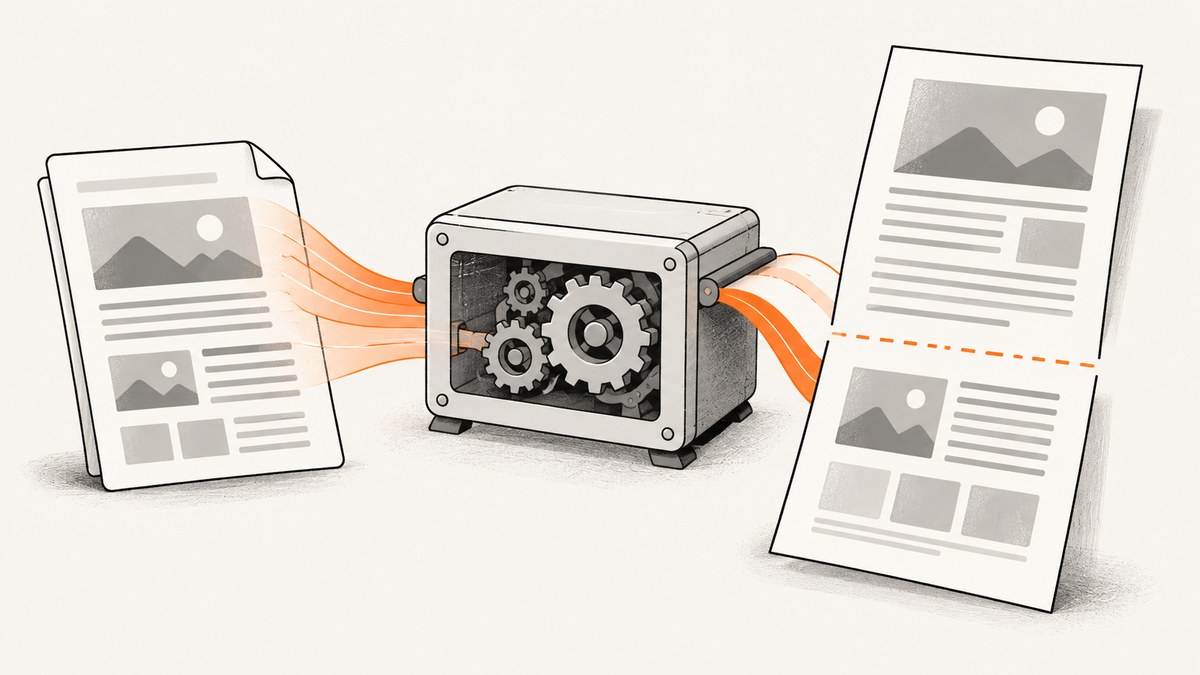
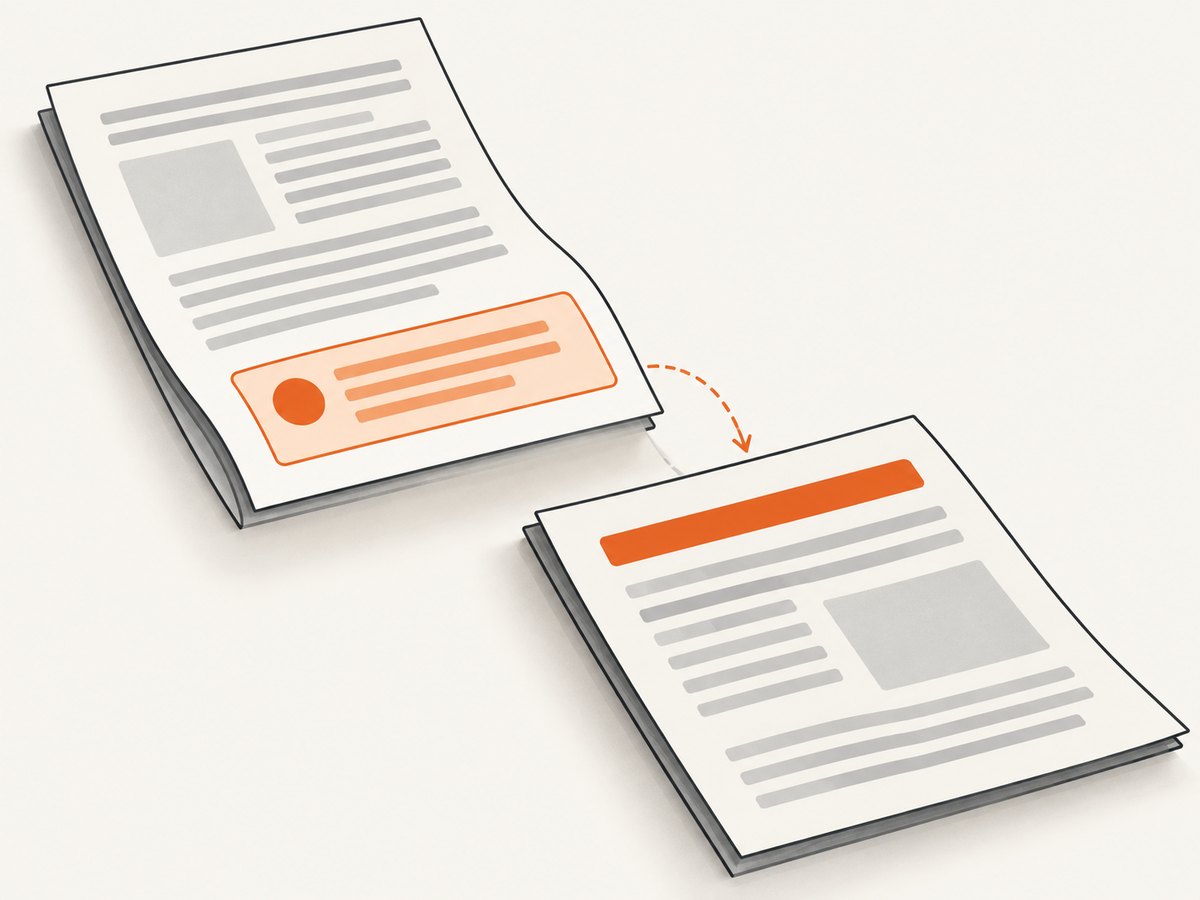
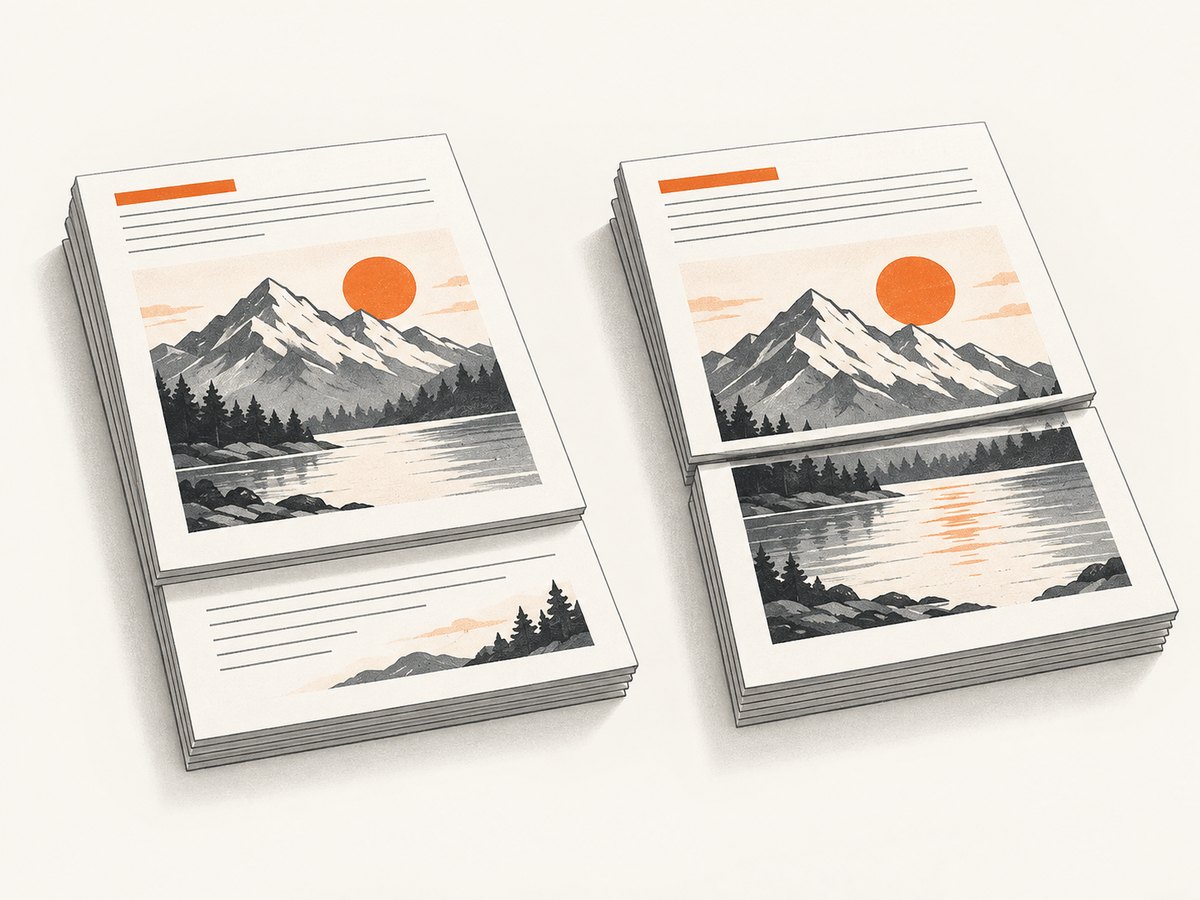
To start a new PDF page before a section, set page-break-before: always on that section’s block element. To end a section at a page boundary, set page-break-after: always on the preceding block. To ask wkhtmltopdf to keep a short block together, try page-break-inside: avoid. These are CSS paged-media properties, but wkhtmltopdf’s manual warns that its page-breaking algorithm can split content and that avoiding inside breaks only helps somewhat with patched Qt. Render and inspect the PDF using the same wkhtmltopdf build and options you will use in production. CSS 2.2 paged media defines the break controls; see also the wkhtmltopdf manual.
1. Add a page break before or after a section
Use a block in normal document flow at the intended boundary. Usually the clearest choice is to put the break before the heading of the section that should start on a fresh page:
.page-start {
  page-break-before: always;
}

.page-end {
  page-break-after: always;
}

.keep-together {
  page-break-inside: avoid;
}
For example, the following HTML makes “Appendix” begin on a new page:
<!doctype html>
<html>
<head>
  <meta charset="utf-8">
  <style>
    body { font: 12pt sans-serif; }
    .new-page { page-break-before: always; }
    .callout { page-break-inside: avoid; border: 1px solid #888; padding: 12px; }
  </style>
</head>
<body>
  <h1>Report</h1>
  <p>Main report content.</p>
  <h1 class="new-page">Appendix</h1>
  <div class="callout">
    <strong>Note</strong>
    <p>A compact callout that should preferably stay together.</p>
  </div>
</body>
</html>
Save it as report.html, then run:
wkhtmltopdf report.html report.pdfThese CSS declarations request pagination behavior; they do not guarantee that every block will stay intact or that every build will paginate a complex layout identically. The manual describes wkhtmltopdf’s approach as laying content out like a long page and cutting it into pages, which can split lines and images. It says page-break-inside helps somewhat with patched Qt. Verify the generated PDF rather than relying on CSS support in a different browser.
2. Choose the right break property
| Goal | Apply to | CSS | Practical note |
|---|---|---|---|
| Start a section on a new page | The following section heading or wrapper | page-break-before: always |
Often the most readable placement for chapter-like sections. |
| Finish a section and then start a new page | The preceding section or its final block | page-break-after: always |
Useful when the preceding section owns the boundary. |
| Keep a small block together when possible | The compact block | page-break-inside: avoid |
Best treated as a request, not a guarantee. |
The CSS 2.2 paged-media specification defines before and after values as forced break controls. Place them on the element that actually participates in block layout at the boundary. A dedicated wrapper can make that relationship easier to understand and debug.
Use inside avoidance selectively
Good candidates include a short callout, a compact table, or a small signature block. Avoid applying it indiscriminately to long sections. If a block is taller than the printable area, the renderer cannot fit it intact on one page. wkhtmltopdf’s documentation describes this support as a partial remedy, not an absolute promise.
Keep the target in normal flow
Floats, nested layout, and surrounding styles can complicate pagination. If a break appears ignored, simplify the target and its ancestors, then add layout rules back gradually. A wkhtmltopdf issue report describes before and after breaks being ignored within floating parent elements. That report is a useful diagnostic clue, not evidence that every float causes the behavior.
3. Use a reproducible command and inspect its output
Keep a minimal HTML file with one forced break, then run it with the same executable and options as the production job. For example:
wkhtmltopdf --version
wkhtmltopdf report.html report.pdf
For a file that uses print-specific styles, compare output with and without print-media mode:
wkhtmltopdf report.html screen-default.pdf
wkhtmltopdf --print-media-type report.html print-media.pdf
Inspect the actual page boundary in a PDF viewer or extract the page count and text with the PDF tools already used in your workflow. Confirm that the target heading starts where expected, that content is not clipped, and that images appear. The PDF—not the source HTML—is the deliverable, so the final check must use the deployed binary, input assets, fonts, and flags.
When behavior differs between machines, record the wkhtmltopdf version, whether it uses patched Qt, full command line, relevant HTML and CSS, and a minimal PDF demonstrating the problem. The project’s support guidance asks for version details and a reproducible case. WebKit’s general CSS feature information does not establish identical behavior for every wkhtmltopdf package or layout combination; check the WebKit CSS feature status as background, then test the target build.
4. Troubleshoot breaks that appear ignored
| Symptom | Likely diagnostic path | What to try |
|---|---|---|
| Break before or after has no visible effect | Rule may be on the wrong element, or target may not behave as a normal block. | Move the rule to the section heading or a dedicated block wrapper. Reduce nested layout and test a minimal document. |
| Break is ignored inside a floating layout | A reported issue concerns breaks within floating parent elements. | Temporarily remove floats from the target’s ancestors. If the break then works, restructure that section into normal flow and reintroduce styles incrementally. |
| A callout or table still splits | page-break-inside: avoid is not guaranteed and may not be effective in every build. |
Apply it to a compact block, reduce its height, and check the patched-Qt status and exact renderer version. |
| Images disappear when using print media | One report describes missing images with --print-media-type on a wkhtmltopdf 0.12.6 patched-Qt setup. |
Reproduce with and without the flag and a minimal image. Check asset URLs and test on the deployed build. See issue #5284; do not assume it affects all installations. |
| Local output differs from production | Binary, Qt build, flags, fonts, or inputs may differ. | Capture version output and command line in logs; run the same test case in both environments. |
A short debugging checklist
- Confirm the CSS selector matches the intended element in the HTML.
- Move the break declaration to a block element directly at the boundary.
- Remove float and complex nested layout rules from the smallest reproduction.
- Compare the default render with
--print-media-typeonly if print CSS is involved. - Check wkhtmltopdf version and Qt patch status, and reproduce with production flags.
- Review the resulting PDF for splits, clipping, missing images, and unexpected blank pages.
5. Performance, reliability, and operating cost
Page-break CSS itself does not require a separate service or network call; it is part of the HTML/CSS that the renderer processes. For reliable output, make the document and rendering environment reproducible: pin the wkhtmltopdf build where practical, keep its command-line options with the job configuration, and retain a small pagination fixture that exercises chapter starts, compact blocks, images, and print styles. This is an operational recommendation, not a claim of identical behavior across builds.
Rendering PDFs also depends on the size and complexity of the document and its assets. Keep images to the required dimensions, avoid needless layout complexity around forced boundaries, and test representative long documents because a small sample cannot show every pagination interaction. The supplied sources do not provide comparative benchmarks or a version-by-version compatibility matrix, so measure runtime and output quality in the environment that will render the real documents.
For cost planning, account for the compute and maintenance involved in running the renderer, maintaining its binary and fonts, and diagnosing output differences. The research sources provide no price or benchmark basis for estimating those costs. If you need a hosted screenshot rather than a PDF generated from your own HTML, see the ScreenshotNeo option below; its API can return PDF as well as image formats.
6. Or skip the browser setup
If your goal is a rendered page capture and you do not need wkhtmltopdf’s HTML-to-PDF workflow, ScreenshotNeo provides a website screenshot API. One GET request accepts a URL and returns PNG, JPEG, WebP, or PDF. Its capture flow accepts cookie and consent banners and removes more than 60 known consent platforms, newsletter popups, and chat widgets before the shot; each of those steps can be turned off. Bot checks, blank pages, failed loads, timeouts, and cache hits are not billed, and response headers identify the page verdict and billing status. ScreenshotNeo also has an MCP server with screenshot tools for AI agents.
Use this cURL call for a WebP capture:
curl -G "https://api.screenshotneo.com/v1/shot" -d access_key=YOUR_API_KEY --data-urlencode url=https://stripe.com -o shot.webpEquivalent Python:
import requests

r = requests.get(
    "https://api.screenshotneo.com/v1/shot",
    params={"access_key": "YOUR_API_KEY", "url": "https://stripe.com"},
    timeout=90,
)
open("shot.webp", "wb").write(r.content)
Equivalent Node.js using built-in fetch:
const q = new URLSearchParams({ access_key: 'YOUR_API_KEY', url: 'https://stripe.com' });
const res = await fetch(`https://api.screenshotneo.com/v1/shot?${q}`);
if (!res.ok) throw new Error(`Screenshot request failed: ${res.status}`);
await Bun.write('shot.webp', new Uint8Array(await res.arrayBuffer()));
See the ScreenshotNeo API documentation for request options and format configuration. There are 1,000 screenshots a month on the free plan without a card; paid plans start at $5 for 3,000. The MCP server supports take_screenshot, get_page_info, and capture_pdf, so an AI agent using an MCP client can request a capture. Create a free ScreenshotNeo account to get started.
7. FAQ
Should the rule go on the heading or the section wrapper?
Either can work if the element is a block in normal flow. Put it on the heading when the heading itself marks the new page; use a wrapper when the boundary belongs to the whole section or you need a stable hook.
Can I guarantee a table stays on one page?
No guarantee follows from page-break-inside: avoid. Keep the table compact, test the actual renderer, and accept that content taller than the printable page must span pages.
Does CSS support alone prove wkhtmltopdf will honor a rule?
No. The renderer embeds a particular WebKit/Qt build, and its pagination behavior depends on that build and the document layout. Test the production binary and options.
Is wkhtmltopdf’s PDF pagination the same as a modern browser’s print preview?
Do not assume that. The manual describes wkhtmltopdf’s page cutting approach and warns that content can split. Validate the generated PDF from the exact command used in deployment.


