How to Fix wkhtmltopdf RemoteHostClosedError Network Failures
Diagnose wkhtmltopdf RemoteHostClosedError by finding the failed request, checking its network path, and choosing safe load and readiness settings.
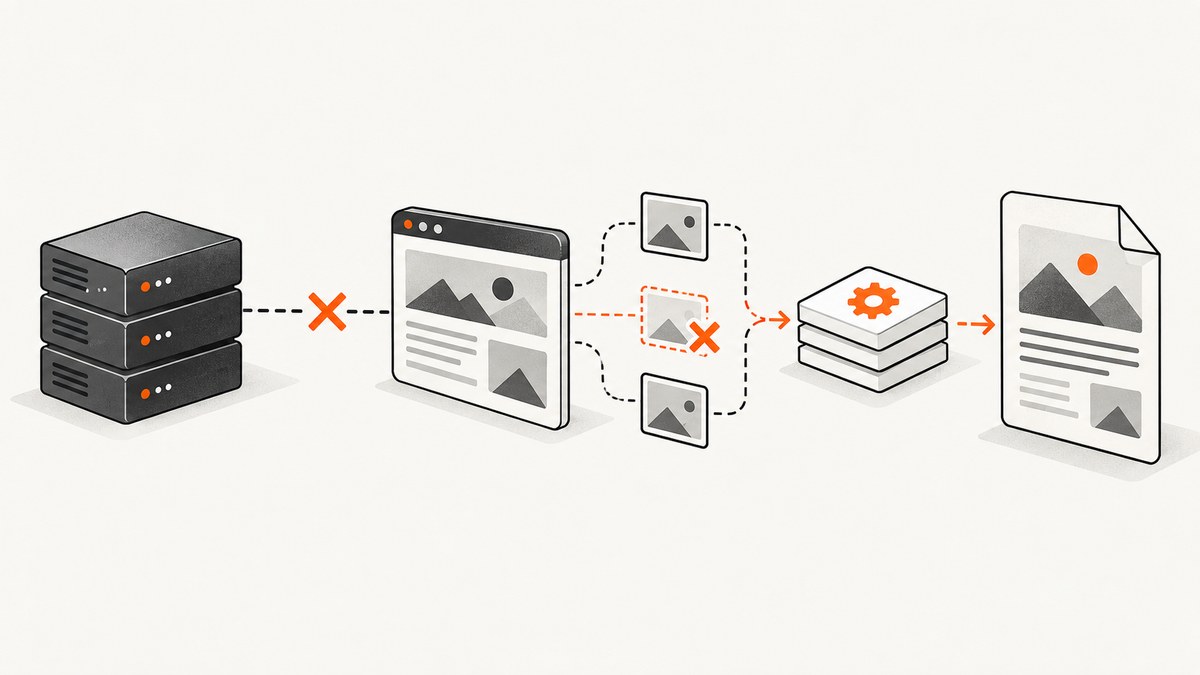
Exit with code 1 due to network error: RemoteHostClosedError means the remote peer closed a connection before Qt received and processed the complete reply. It identifies a network symptom, not the underlying cause. The request might be for the HTML document itself or a resource it references, such as an image, stylesheet, font, script, or redirected URL. Start by identifying that exact request and reproducing it from the same host, container, proxy, and credentials used by wkhtmltopdf.
Then check DNS, proxy settings, TLS diagnostics, redirects and HTTP status, and server or intermediary logs. If the page renders resources asynchronously, use a readiness signal or a measured JavaScript delay. Choose whether missing assets may be tolerated with load-error options, and inspect the resulting PDF. Those options change conversion behavior; they do not repair a prematurely closed connection.
1. What RemoteHostClosedError means
Qt’s QNetworkReply::RemoteHostClosedError has enum value 2. The Qt Project defines it as the remote server closing the connection prematurely, before the entire reply was received and processed. That definition does not say why the peer closed it. It does not, by itself, prove a TLS, DNS, proxy, timeout, server, or wkhtmltopdf defect. Qt QNetworkReply documentation.
A PDF conversion can involve many network requests. A successful main-page response does not guarantee that its images, stylesheets, fonts, scripts, or redirects succeeded. Conversely, a browser loading the page on your workstation does not establish that wkhtmltopdf has the same DNS, outbound access, proxy, or credentials.
2. Diagnose the failed request before changing options
- Preserve the complete failure details. Record the input URL, timestamp, exit status, full stderr, wkhtmltopdf version and build, operating system or container, and the runtime environment. Avoid reducing the log to just the final error line.
- Identify which URL failed. Inspect the page HTML and its redirects for remote images, CSS, fonts, JavaScript, and other referenced assets. Determine whether the error refers to the main document or a subresource. A historical wkhtmltopdf issue describes slow images, but it is marked NeedInfo and does not document a resolution; it is an example, not proof that every such error is image-related. wkhtmltopdf issue #2787.
- Reproduce from the converter’s runtime. Request the suspected URL from the same machine or container with the same DNS, proxy variables, credentials, and egress policy. Compare the response status, headers, redirects, and timing with what you expect. If a command-line HTTP client is available, use it to inspect the exact URL from that environment; success from a developer laptop is only a comparison.
- Check the path between client and server. Inspect DNS resolution, TLS handshake and certificate diagnostics, redirect chain, server logs, and relevant firewall, load-balancer, or proxy logs around the failure time. Qt defines distinct errors for conditions such as host not found, timeout, SSL handshake failure, and proxy closure, so retain the complete error context.
- Compare service and shell environments. A service, job runner, or container may not inherit the proxy variables, trust store, credentials, or network access you see in an interactive shell. Confirm the configuration where the conversion actually runs.
This workflow is diagnostic guidance based on the error definition and documented proxy controls. No one cause or universal fix is established by the error message alone.
3. Check proxy settings
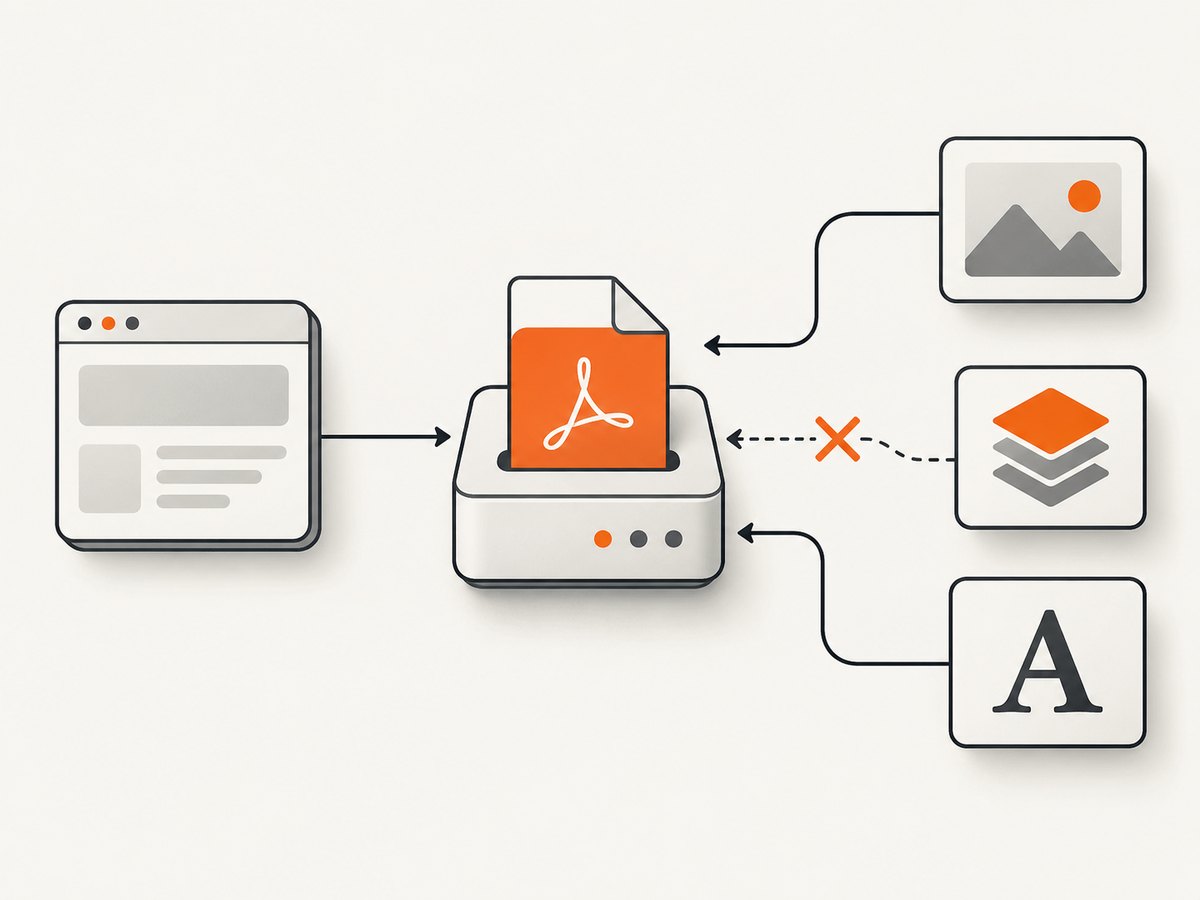
wkhtmltopdf documents proxy configuration through the proxy, all_proxy, and http_proxy environment variables, as well as the --proxy and --bypass-proxy-for command-line options. Check which values are present in the converter’s actual process environment, whether the proxy is reachable, and whether authentication is required. The wkhtmltopdf usage documentation describes the options.
# Inspect proxy variables in the same shell or service environment used for conversion
printenv | grep -i proxy

# Example: configure a proxy for this conversion
wkhtmltopdf --proxy http://proxy.example:8080 https://example.com/report output.pdf

# Example: bypass the proxy for a host where policy permits it
wkhtmltopdf --bypass-proxy-for internal.example.com https://internal.example.com/report output.pdf
These are examples of documented controls, not values to copy blindly. Use your organization’s actual proxy address and bypass policy. Test a direct connection only when your network policy allows it; bypassing an expected proxy may break access or violate egress controls.
4. Wait for page readiness when rendering is asynchronous
Some pages render required content after the initial document load. wkhtmltopdf provides two relevant controls:
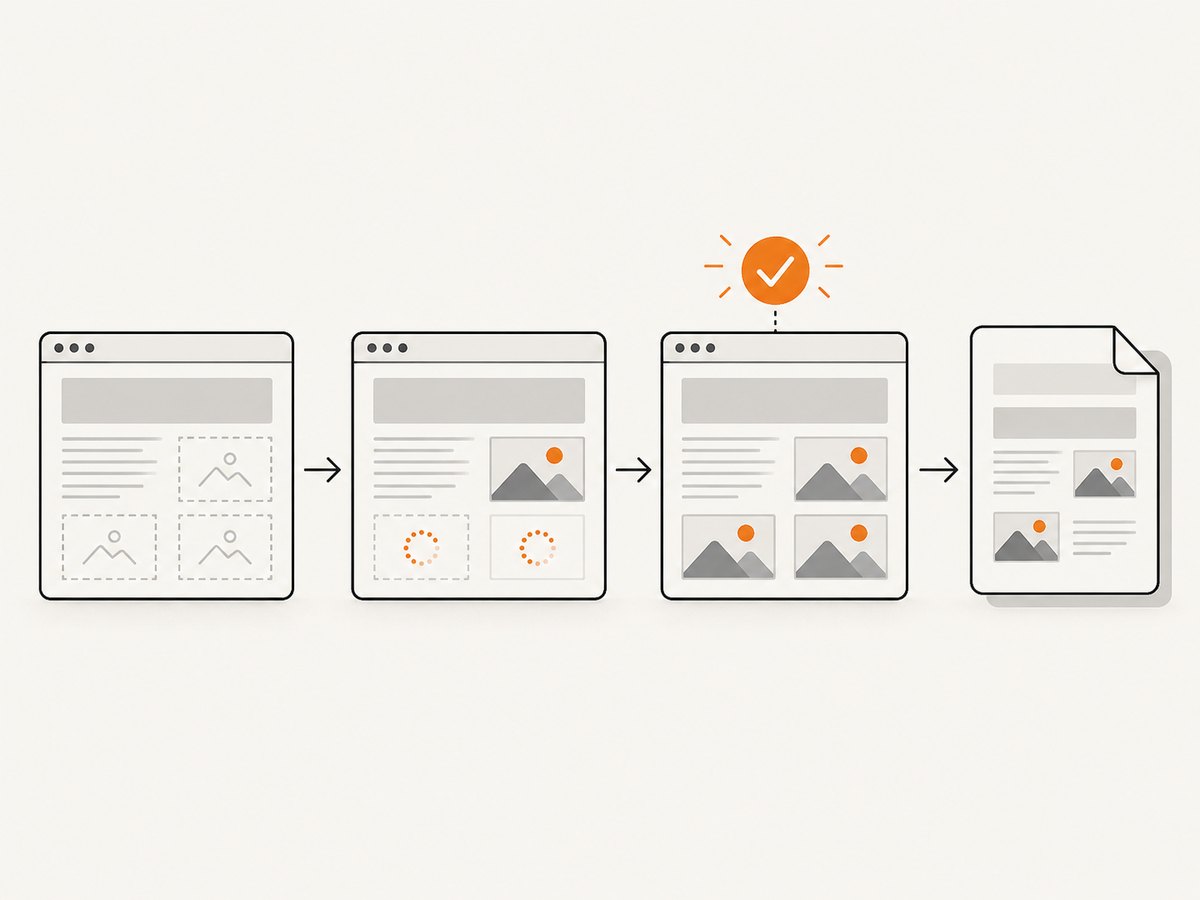
--window-status <windowStatus>waits until the page’swindow.statusequals the supplied string. The page must set that value after its required work is complete.--javascript-delay <msec>waits a fixed number of milliseconds for JavaScript to finish. It can help test a timing hypothesis, but a delay does not prove that a remote request completed.
# Use when the page sets window.status = "ready" after required assets finish
wkhtmltopdf --window-status ready https://example.com/report output.pdf

# A fixed wait can help investigate timing; adjust based on observation
wkhtmltopdf --javascript-delay 2000 https://example.com/report output.pdf
The first command only works if the page actually sets the matching status. A page owner might set it after the specific images or data needed for the PDF are ready. The fixed-delay example is an experiment, not a guarantee or a recommended universal timeout. Verify the generated PDF and logs. The historical slow-image issue does not establish that either option fixes a particular failure.
5. Decide how failed page and media loads affect the conversion
The documented --load-error-handling option accepts abort, ignore, or skip for page-load failures; its default is abort. --load-media-error-handling offers the same choices for media and defaults to ignore. These settings determine the conversion’s response to failures. They do not make a closed connection deliver missing content.
# Abort if a page load fails (documented default)
wkhtmltopdf --load-error-handling abort https://example.com/report output.pdf

# Continue despite media failures when missing media is acceptable
wkhtmltopdf --load-media-error-handling ignore https://example.com/report output.pdf

# Skip a page that fails to load, if that is the intended output policy
wkhtmltopdf --load-error-handling skip https://example.com/report output.pdf
Use ignore or skip only when the resulting omissions are acceptable. After conversion, inspect the PDF for missing charts, logos, text, or other required content and preserve logs that help explain what did not load. If the main document or an essential asset must be present, fix the request path or server behavior instead of silently accepting an incomplete document.
6. Handle TLS problems with evidence
Do not disable certificate checks as a generic response to RemoteHostClosedError. First establish from TLS diagnostics that certificate validation is the problem. Then correct the trust store, certificate chain, or server configuration where possible. Qt warns that ignoring SSL errors without inspecting them can create a security risk. Its warning concerns calls that ignore SSL errors; the generic remote-close error alone does not justify that action. Qt QNetworkReply SSL error guidance.
7. A practical troubleshooting table
| What you observe | What to check | Next step |
|---|---|---|
| Error appears for a page with remote assets | Find the precise image, stylesheet, font, script, or redirected URL that failed | Reproduce that request from the converter environment and inspect its response and logs |
| Request succeeds locally but fails in a job or container | Compare DNS, proxy variables, trust store, credentials, and outbound network policy | Correct the runtime environment so it can reach the required host |
| Only pages with delayed content are incomplete | Check whether required content loads asynchronously | Use a page-controlled window.status signal, or test a measured JavaScript delay |
| Conversion aborts after a media request fails | Confirm whether missing media is essential and review load-error policy | Repair the request, or choose ignore/skip only if omissions are acceptable |
| TLS errors appear in diagnostics | Inspect certificate chain, trust configuration, and handshake details | Correct certificate validation; do not suppress SSL errors blindly |
| The error is intermittent | Correlate timestamps with remote server and intermediary logs; compare repeated requests | Share the evidence with the server or network owner; do not infer a cause from intermittency alone |
8. Runnable conversion examples
Command line
wkhtmltopdf https://example.com/report output.pdfFor a page-controlled readiness signal, add --window-status ready only when the page sets that exact value. For troubleshooting, capture stderr and exit status in the same environment where the failure occurs:
wkhtmltopdf --window-status ready https://example.com/report output.pdf 2>wkhtmltopdf.log
status=$?
printf 'wkhtmltopdf exit status: %s\n' "$status"
cat wkhtmltopdf.log
Python wrapper
This uses Python’s standard library to invoke the installed command and capture its output. Replace the URL with the page being converted.
import subprocess

url = "https://example.com/report"
result = subprocess.run(
    ["wkhtmltopdf", "--window-status", "ready", url, "output.pdf"],
    capture_output=True,
    text=True,
    check=False,
)
print("exit status:", result.returncode)
print("stdout:", result.stdout)
print("stderr:", result.stderr)
Remove --window-status if the page does not set that readiness value. A nonzero status and captured stderr give you evidence to investigate; the wrapper does not diagnose the network cause.
Node.js wrapper
This example runs the locally installed binary and prints its exit status and diagnostics.
import { spawn } from 'node:child_process';

const child = spawn('wkhtmltopdf', [
  '--window-status', 'ready',
  'https://example.com/report',
  'output.pdf'
]);
let stderr = '';
child.stderr.setEncoding('utf8');
child.stderr.on('data', chunk => { stderr += chunk; });
child.on('close', code => {
  console.log('exit status:', code);
  console.log('stderr:', stderr);
});
As with the Python example, the readiness option assumes the page sets window.status to ready. Use the same runtime environment for the process as for the failing conversion.
9. Performance, reliability, and operating cost
Remote resources add network requests to a conversion, so the number of dependencies and their response behavior affect completion time and the chance that some content is unavailable. Reduce unnecessary remote dependencies when you control the page, and make required content available reliably to the converter. For dynamic pages, prefer an explicit readiness signal that represents the content you need; a fixed delay can add avoidable waiting and still fail to cover variable network latency.
For reliability, retain the input URL, build/version, full stderr, exit status, and timestamp. Correlate failures with server and proxy logs rather than retrying blindly. If retrying is part of your application, bound the attempts and inspect the output for completeness; repeated attempts cannot fix a persistent DNS, policy, certificate, or server problem. wkhtmltopdf’s options let you choose how some load errors affect output, but accepting a partial PDF is a product decision.
Conversion cost depends on your compute environment and workload; the cited sources provide no benchmark, failure rate, timeout threshold, or cost figure. Measure your own conversion duration and resource use with representative pages. Avoid inventing a universal delay or promising that a particular option improves throughput.
10. Or skip the browser setup
If your goal is to capture a clean website image or PDF through an API, ScreenshotNeo offers a single GET request rather than a local browser-conversion setup. Its API supports PNG, JPEG, WebP, or PDF output. See the ScreenshotNeo API documentation for the available parameters.
curl -G "https://api.screenshotneo.com/v1/shot" -d access_key=YOUR_API_KEY --data-urlencode url=https://stripe.com -o shot.webpScreenshotNeo accepts cookie and consent banners before capture and removes more than 60 known consent platforms, newsletter popups, and chat widgets; each step can be turned off. Bot checks and CAPTCHAs, blank pages, timeouts, failed loads, and cache hits cost nothing, and response headers identify the page verdict and billing status. Its MCP server gives AI agents, including Claude, Cursor, and other MCP clients, the tools take_screenshot, get_page_info, and capture_pdf. The free plan includes 1,000 shots per month with no card; paid plans start at $5 for 3,000 shots.
Sign up for ScreenshotNeo’s free plan: 1,000 screenshots a month, no card required.
11. Frequently asked questions
Does RemoteHostClosedError mean the website is down?
No. It means the peer closed a connection before the full reply was received and processed. Check the specific request and its path; the error alone does not establish whether the site is down.
Will increasing JavaScript delay always make the error go away?
No. It can help test whether page timing is involved, but a longer wait cannot repair a network path or ensure that an asset loaded. Verify the PDF and request diagnostics.
Does ignore make a PDF complete?
No. It changes whether conversion proceeds after certain failures. A missing asset may still be missing in the output.
What details are useful when asking for help?
Provide the exact failing URL or resource, wkhtmltopdf version and build, operating system or container, complete stderr, exit status, runtime proxy/network context, and whether the same request succeeds from that runtime.


