How to Use the –replace Option in wkhtmltopdf
Learn how wkhtmltopdf --replace fills custom header and footer variables, supports multiple values, and differs from HTML body substitution.
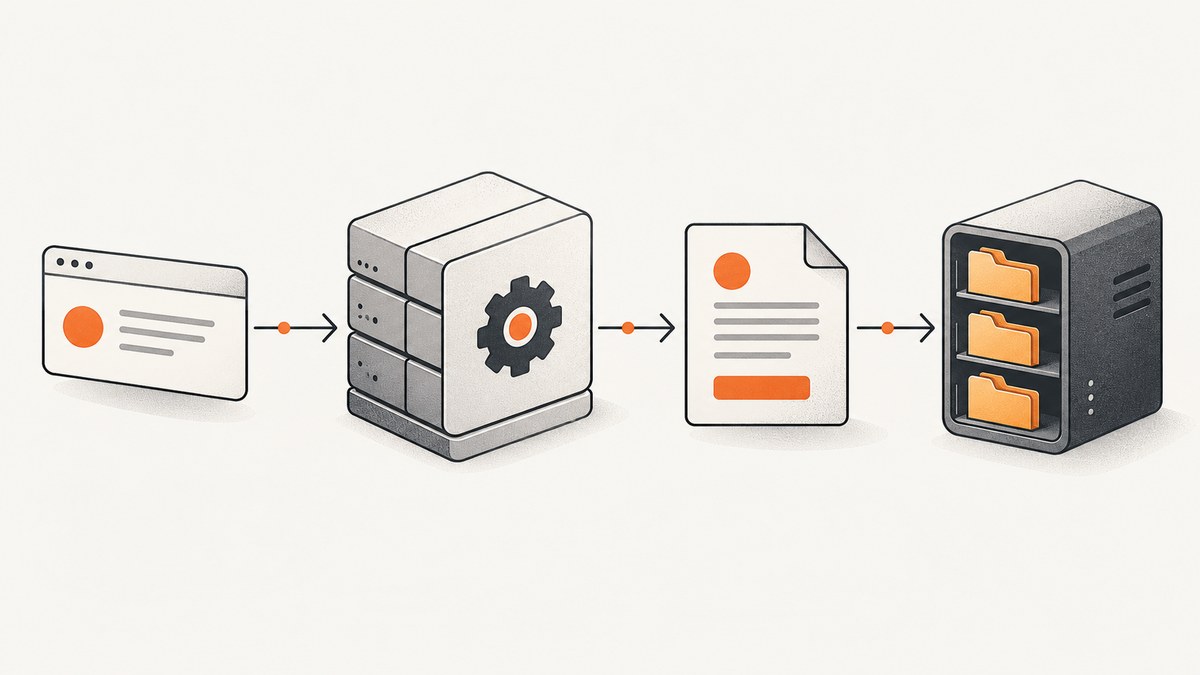
wkhtmltopdf --replace substitutes custom bracketed variables in header and footer text. Put a token such as [customer] in a header or footer option, then provide its value with --replace customer 'Acme Corp'. The option can be repeated for as many custom values as you need.
This feature is scoped to wkhtmltopdf headers and footers. It is not a general find-and-replace operation for the HTML body. For body content, render the value into your HTML before invoking wkhtmltopdf, or use JavaScript and a suitable page-loading strategy.
Basic syntax
The syntax is:
wkhtmltopdf [header-or-footer-option] '[name]' --replace name 'value' input.html output.pdfThe name after --replace is written without brackets. The matching token in the header or footer includes brackets. These two spellings must correspond exactly:
--header-left 'Customer: [customer]' \
--replace customer 'Acme Corp'
The official wkhtmltopdf usage documentation describes the option as “Replace [name] with value in header and footer (repeatable).” See the wkhtmltopdf usage documentation for the complete command reference.
Complete example with multiple replacements
This command places a customer name in the left side of the header and a ticket identifier on the right:
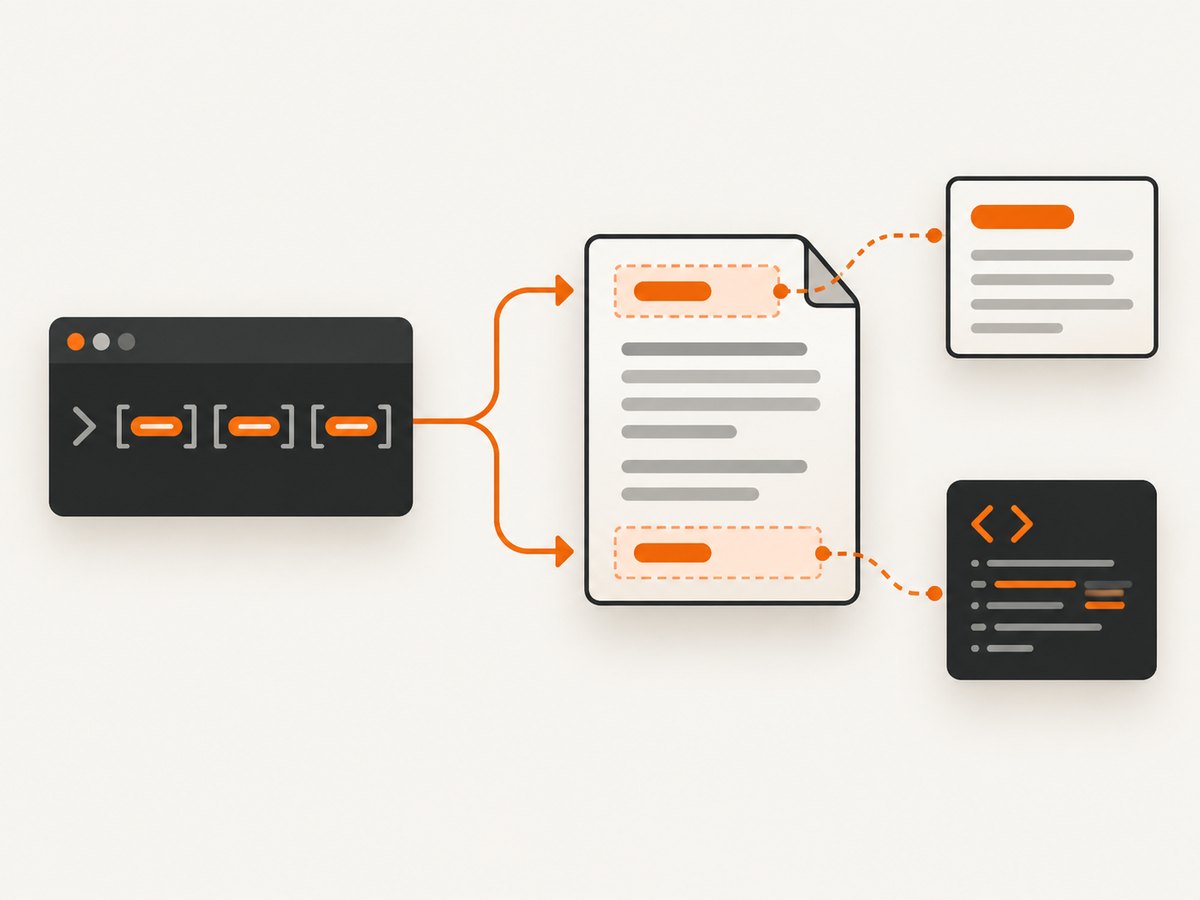
wkhtmltopdf \
  --header-left 'Customer: [customer]' \
  --header-right 'Ticket: [ticket]' \
  --replace customer 'Acme Corp' \
  --replace ticket 'A-1042' \
  input.html output.pdf
Every --replace consumes two arguments: the token name and the replacement value. Repeat the pair for each custom token. Values containing spaces should be quoted. The replacement is applied when wkhtmltopdf renders the header or footer.
Which header and footer options work with –replace?
You can use custom tokens in all of the plain-text header and footer positions:
| Option | Position | Example |
|---|---|---|
--header-left |
Top left | --header-left 'Account: [account]' |
--header-center |
Top center | --header-center '[report]' |
--header-right |
Top right | --header-right 'Owner: [owner]' |
--footer-left |
Bottom left | --footer-left '[department]' |
--footer-center |
Bottom center | --footer-center '[status]' |
--footer-right |
Bottom right | --footer-right 'Page [page] of [topage]' |
Header and footer appearance is controlled separately with options for font name, font size, text spacing, lines, and margins. If text is clipped or overlaps the document, increase the corresponding top or bottom margin and adjust header or footer spacing.
Built-in variables
wkhtmltopdf supplies several predefined variables for page and document metadata. Common examples include:
[page]— current page number.[frompage]— first page in the current range.[topage]— final page number.[webpage]— webpage URL.[section]and[subsection]— document section values when available.[date],[isodate], and[time]— rendering date and time values.[title],[doctitle]— page and document titles.[sitepage]and[sitepages]— page values for site or chapter output.
For example, a page counter needs no custom replacement:
wkhtmltopdf \
  --footer-right 'Page [page] of [topage]' \
  input.html output.pdf
Custom names and built-in names use the same bracket syntax in the rendered text. Keep custom names distinct from built-in variables unless you have a specific reason to investigate an override.
Quoting values safely
Shell quoting is a frequent source of errors. Use single quotes for ordinary values containing spaces:
--replace customer 'Acme Corp'Use double quotes when the value contains a literal apostrophe, or escape the apostrophe in a shell-specific way. If the value contains shell metacharacters such as $, !, backticks, or semicolons, quote it before passing it to wkhtmltopdf. Treat replacement values as command arguments; they are not parsed as HTML.
For data generated by an application, construct an argument array rather than concatenating a complete shell command. This avoids accidental shell interpretation and preserves spaces and punctuation in customer names, invoice numbers, or addresses.
Plain-text headers versus HTML headers and footers
Plain-text options such as --header-left are the simplest way to place a few dynamic values. They are appropriate when you need predictable text alignment and built-in page variables.
For complex layouts, wkhtmltopdf supports an HTML header or footer document:
wkhtmltopdf \
  --header-html header.html \
  --footer-html footer.html \
  input.html output.pdf
HTML header and footer files receive page metadata through the URL query string. The official example uses JavaScript to read those parameters and put values into elements whose classes correspond to names such as page, topage, title, and doctitle:
<span class='page'></span> / <span class='topage'></span>

<script>
function subst() {
  var vars = {};
  var query = document.location.search.substring(1).split('&');
  for (var i = 0; i < query.length; i++) {
    var pair = query[i].split('=', 2);
    vars[pair[0]] = decodeURIComponent(pair[1] || '');
  }
  var nodes = document.querySelectorAll('[class]');
  for (var j = 0; j < nodes.length; j++) {
    var key = nodes[j].className;
    if (vars[key]) nodes[j].textContent = vars[key];
  }
}
window.onload = subst;
</script>
The HTML approach gives you CSS layout control, logos, tables, and multiple elements, but it requires a separate file and JavaScript to insert page metadata. --replace remains the documented mechanism for bracketed substitutions in plain header and footer text; it does not rewrite arbitrary body HTML.
Why –replace does not change your HTML body
Consider this input:
<h1>Invoice for [customer]</h1>Running wkhtmltopdf with --replace customer 'Acme Corp' does not generally turn that heading into “Invoice for Acme Corp.” The option targets header and footer text supplied through the header and footer settings. To personalize the body, generate the HTML with the value already inserted:
cat > invoice.html <<'HTML'
<h1>Invoice for Acme Corp</h1>
HTML
wkhtmltopdf invoice.html invoice.pdf
In an application, use a template engine with escaped values, write a temporary HTML file, and then invoke wkhtmltopdf. If the value comes from an untrusted user, HTML-escape it before inserting it into the document.
Margins, spacing, fonts, and clipping
A header or footer occupies physical space on every page. Configure the page margin and header or footer spacing together:
wkhtmltopdf \
  --margin-top 25mm \
  --header-spacing 5 \
  --header-left 'Customer: [customer]' \
  --replace customer 'Acme Corp' \
  input.html output.pdf
If the header overlaps the first paragraph, increase --margin-top. If the footer overlaps the last line, increase --margin-bottom. If the text is too close to the page content but the margin is sufficient, adjust --header-spacing or --footer-spacing. Keep font size and long replacement values in mind: a value that fits in a short test may wrap or clip when a real customer name is longer.
Common errors and fixes
| Symptom | Likely cause | Fix |
|---|---|---|
The token prints literally as [customer]. |
The replacement name does not exactly match the token, or the option was omitted. | Use [customer] in the header and --replace customer '...' on the same command. |
| The footer changes but body text does not. | --replace is limited to header and footer text. |
Insert the value into the source HTML before rendering. |
| Only one of several values appears. | Multiple names were combined into one argument or a second --replace pair is missing. |
Repeat the complete two-argument option for every token. |
| Values with spaces are truncated. | The shell split an unquoted value into multiple arguments. | Quote the value: --replace customer 'Acme Corp'. |
| The header overlaps page content. | Top margin or header spacing is too small. | Increase --margin-top and, if needed, --header-spacing. |
| Page numbers are blank in an HTML footer. | The HTML footer does not read the query-string variables, or its script runs too early. | Use the documented JavaScript substitution pattern and run it on page load. |
| A long replacement wraps unexpectedly. | The available header or footer width is smaller than the value. | Shorten the value, reduce the font size, change alignment, or use an HTML header with controlled CSS. |
Debugging checklist
- Run
wkhtmltopdf --versionand confirm the binary is available. - Reduce the command to one header token and one replacement.
- Check brackets, capitalization, and spelling character by character.
- Quote every value that contains whitespace or punctuation.
- Confirm the header or footer margin leaves room for the rendered text.
- Test a built-in variable such as
[page]separately from custom variables. - If using HTML headers or footers, open the header file directly in a browser and verify its JavaScript.
- Inspect the generated PDF at 100% zoom; viewer scaling can make spacing appear different.
Performance and reliability considerations
--replace itself is inexpensive: it substitutes text while wkhtmltopdf renders the document. Rendering time is usually dominated by loading the input page, downloading assets, executing JavaScript, and laying out the PDF. Keep replacement values small and deterministic, and avoid rebuilding a large HTML header for every page when a plain-text option is sufficient.
For repeatable output, pin the wkhtmltopdf version used by your build or container, keep fonts available on the rendering host, and make external assets reachable from the renderer. A missing web font or image can change line wrapping and cause a header value to move. When generating many PDFs, reuse a warm worker process where your deployment permits it, but isolate jobs if untrusted HTML or differing command options could affect one another.
When to use a screenshot or PDF API instead
If maintaining a browser or wkhtmltopdf installation is unnecessary for your workflow, ScreenshotNeo provides a website screenshot API and MCP server. It can return PNG, JPEG, WebP, or PDF from one GET request and supports PDF paper size, margins, landscape mode, and page ranges. Its capture options also cover full-page pages with lazy images, CSS selectors, custom CSS and JavaScript, waits, cookies, headers, user agents, timezones, geolocation, and request blocking.

Or skip the browser setup
ScreenshotNeo accepts a URL and returns the rendered file. See the ScreenshotNeo documentation for all parameters.
curl -G 'https://api.screenshotneo.com/v1/shot' -d access_key=YOUR_API_KEY --data-urlencode url=https://stripe.com -o shot.webpimport requests
r = requests.get('https://api.screenshotneo.com/v1/shot', params={'access_key': 'YOUR_API_KEY', 'url': 'https://stripe.com'}, timeout=90)
open('shot.webp', 'wb').write(r.content)const q = new URLSearchParams({ access_key: 'YOUR_API_KEY', url: 'https://stripe.com' });
const res = await fetch(`https://api.screenshotneo.com/v1/shot?${q}`);Before capture, cookie and consent banners, newsletter popups, and chat widgets are removed. Bot checks, blank pages, timeouts, failed loads, and cache hits are not billed, and response headers identify the page verdict and billing result. An MCP server provides take_screenshot, get_page_info, and capture_pdf tools for Claude, Cursor, and other MCP clients. The free plan includes 1,000 screenshots per month with no card; paid plans start at $5 for 3,000.
Create a free ScreenshotNeo account to try the API.
FAQ
Can I use more than one –replace option?
Yes. The option is repeatable. Add one name and value pair for each custom token.
Do brackets belong in the –replace name?
No. Write brackets in the header or footer token, such as [customer], but pass the name without brackets: --replace customer 'Acme Corp'.
Can –replace substitute text in the page body?
No. It is documented for header and footer text. Generate personalized body HTML before calling wkhtmltopdf.
How do I show page numbers?
Use built-in variables such as [page] and [topage], for example --footer-right 'Page [page] of [topage]'.
Should I use –replace with –header-html?
Use --replace for plain-text header and footer options. For HTML header or footer files, read the query-string page variables with the documented JavaScript pattern.


