How to Run JavaScript with wkhtmltopdf’s –run-script Option
Run JavaScript during a wkhtmltopdf conversion with --run-script. Learn when it runs, how to wait for dynamic content, and how to troubleshoot common failures.
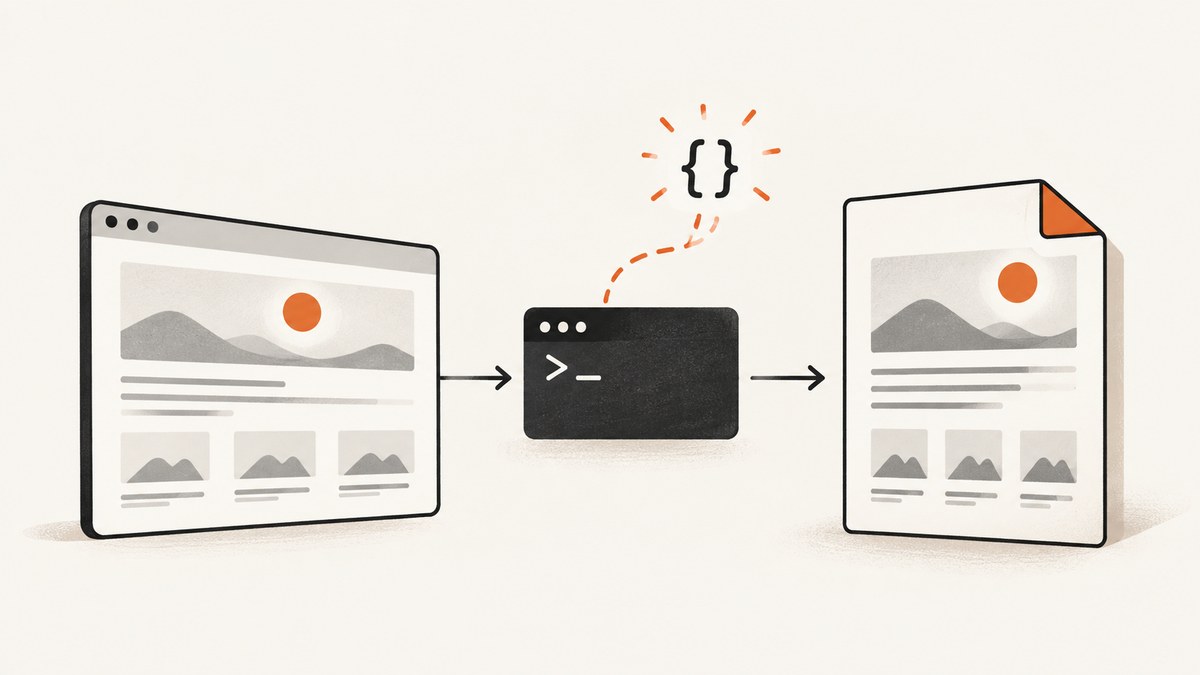
Use --run-script before the input page and output file:
wkhtmltopdf --run-script 'document.body.classList.add("ready")' https://example.com output.pdfThe option runs the supplied JavaScript after the page has finished loading. JavaScript is enabled by default. The option can be repeated, but its documented argument is JavaScript code, not a path to a script file. For asynchronous page content, coordinate conversion with a readiness signal or a deliberate delay; --run-script alone does not promise to wait for arbitrary asynchronous work.
This guide explains the command, quoting, timing, practical examples, limitations, security, and troubleshooting. Examples show the documented syntax; verify the generated PDF in your own environment because installed builds and pages can behave differently. See the wkhtmltopdf 0.12.6 command-line manual and check your local executable’s help.
1. What –run-script does
wkhtmltopdf converts an input object such as a web page into an output document. A global option belongs before the input object and destination:
wkhtmltopdf [options] INPUT OUTPUT.pdf--run-script <js> supplies extra JavaScript to run after the page has finished loading. JavaScript itself is enabled by default. Use this option when you need a small final page adjustment, such as adding a class that reveals content, setting a print state, or invoking a page function that already exists.
The option is repeatable:
wkhtmltopdf \
  --run-script 'document.body.classList.add("print-ready")' \
  --run-script 'window.preparePrint()' \
  https://example.com/report output.pdf
Repeated scripts are useful for separate operations, but keep dependencies and ordering explicit. If the second script depends on work done by the first, put the dependent operations in one script or ensure the first operation is synchronous. The manual does not specify a script-file-path form; use inline JavaScript as the argument.
2. Run a script against a local HTML file
For controlled input, the same option works with a local HTML path:
wkhtmltopdf \
  --run-script 'document.body.classList.add("ready-for-pdf")' \
  ./report.html ./report.pdf
The ordering matters: options precede the input and output. If you place the option after the input, it may be treated as an option to a different object or rejected, depending on the command structure and build. Keep it with the global options at the start.
To invoke a function defined by the page:
wkhtmltopdf \
  --run-script 'if (typeof window.preparePrint === "function") { window.preparePrint(); }' \
  ./report.html ./report.pdf
The guard prevents a missing function from throwing an error, but it does not make the page’s own scripts reliable or wait for asynchronous work they start. Make the page’s print-preparation function safe to call and test the resulting PDF for missing sections, unstyled content, and unexpected page breaks.
3. Quote JavaScript correctly in the shell
The shell passes each argument separately. Quote the whole JavaScript expression so spaces and punctuation remain one argument. The examples use single quotes outside and double quotes inside, which works in common POSIX shells:
wkhtmltopdf --run-script 'document.body.classList.add("ready")' input.html output.pdfIn PowerShell, use a quoted argument suitable for PowerShell’s parsing rules. For example, single quotes around the JavaScript also preserve the inner double quotes:
wkhtmltopdf --run-script 'document.body.classList.add("ready")' .\input.html .\output.pdfIf your JavaScript needs an apostrophe, choose the outer quoting carefully or escape the character according to your shell. For complex logic, a maintainable approach is to keep the logic in a function in the controlled HTML page and pass a short invocation such as window.preparePrint(). The command’s documented option takes JavaScript, not a script filename.
Avoid putting secrets or untrusted text into a shell-built JavaScript string. Quoting mistakes can change the code that runs, and unsanitized page content can be dangerous in a server-side renderer.
4. Coordinate scripts with page readiness
There are several different timing controls. They solve different problems:

| Control | What it does | Use it when |
|---|---|---|
--run-script |
Runs the supplied JavaScript after page load. | You need a final synchronous page action. |
--javascript-delay <msec> |
Adds a JavaScript delay; the manual lists 200 ms as the default. | A known, bounded delay is sufficient for the page’s behavior. |
--window-status <value> |
Waits for window.status to equal a chosen value. |
The page can explicitly signal that the data needed for printing is ready. |
--no-stop-slow-scripts |
Changes the default behavior of stopping slow scripts. | A legitimate script is being stopped and you have assessed the impact. |
For a page you control, a readiness signal is usually clearer than guessing a delay. Set a known status value only after the content needed in the PDF has been inserted, then tell wkhtmltopdf to wait for it:
<script>
async function loadReport() {
  const response = await fetch('/report-data');
  const report = await response.json();
  document.querySelector('#report').textContent = report.summary;
  window.status = 'report-ready';
}
loadReport();
</script>
wkhtmltopdf \
--window-status report-ready \
--run-script 'document.body.classList.add("print-ready")' \
https://example.com/report output.pdfUse the readiness value that the page actually sets. If the data request fails or the code never reaches the assignment, conversion can wait or produce an incomplete result depending on build behavior. Add page-side error handling that reports a failure state, and investigate a timeout rather than silently increasing waits without limit.
A fixed delay is simpler when the work has a predictable duration:
wkhtmltopdf \
  --javascript-delay 1500 \
  --run-script 'window.preparePrint()' \
  https://example.com/report output.pdf
The 1500 ms here is an example, not a recommended universal value. A delay that is too short can capture unfinished content; one that is too long wastes time. The manual’s default delay is 200 milliseconds. Neither a delay nor --run-script guarantees that every network request, timer, or framework task has completed.
5. Common uses and limits
Reveal content for printing
wkhtmltopdf \
  --run-script 'document.body.classList.add("print-mode")' \
  https://example.com/report output.pdf
This works only if the page’s CSS or JavaScript responds to that class. Confirm that the class is applied before the content is rendered into the PDF.
Call a page-defined function
wkhtmltopdf \
  --run-script 'window.preparePrint && window.preparePrint()' \
  https://example.com/report output.pdf
This is suitable for a synchronous function already available at the time the option runs. If the function starts a promise or fetch, signal readiness after that operation completes and configure a corresponding wait.
Change a page value
wkhtmltopdf \
  --run-script 'document.title = "Monthly report"' \
  ./report.html output.pdf
A changed document title does not necessarily change PDF metadata in the way you expect. Check the output and use PDF metadata tooling separately if the metadata requirement is important.
This option does not upgrade wkhtmltopdf into a current browser engine. The project describes its Qt/WebKit foundation as outdated and suggests considering Puppeteer for sites that depend on dynamic JavaScript. For controlled HTML report generation, the project also names WeasyPrint and commercial Prince as alternatives. These are project suggestions, not a performance comparison. See the project status page.
6. Troubleshooting
| Symptom | Likely cause | What to do |
|---|---|---|
| “Unknown long argument” or option error | The installed build has different options, or the option is placed incorrectly. | Run wkhtmltopdf --version and wkhtmltopdf -H; put global options before input and output. |
| JavaScript has no visible effect | The code targets a missing element, runs before a page-defined function is available, or changes something that does not affect PDF output. | Use a small, visible change on controlled HTML and inspect the output. Guard calls to optional page functions. |
| Dynamic data is missing | The page’s asynchronous work was not finished when the document was captured. | Have the page set a readiness status after data and DOM updates, then use --window-status. Use a measured delay only when appropriate. |
| JavaScript syntax error | Shell quoting split or altered the script argument. | Quote the whole expression; choose outer and inner quotes that fit your shell. Reduce the script to a simple expression to isolate parsing issues. |
| Slow script gets stopped | The manual says slow scripts are stopped by default. | Determine why it is slow first. --no-stop-slow-scripts can change that behavior, but may make a stuck conversion take longer. |
| Different results across machines | Different wkhtmltopdf packages or builds may behave differently. | Compare --version and -H output and use a consistent build in deployment. |
| Conversion hangs on readiness | The page never sets the requested window.status, perhaps because a request failed or code threw. |
Check the page’s console/logging and readiness path, add failure handling, and use an operational timeout around the conversion process. |
| Server risk from input content | Untrusted HTML or JavaScript can execute in the renderer process. | Do not render untrusted input without sanitization and process isolation; apply the project’s security warning seriously. |
7. Version, reliability, performance, and safety
The online generated manual identifies itself as wkhtmltopdf 0.12.6 with patched Qt. The downloads page calls 0.12.6 the stable series and dates it to June 11, 2020. The documentation index says the generated manual corresponds to the help shown by wkhtmltopdf -H. Operating-system distribution packages and other builds can differ, so inspect the executable used in production rather than assuming the online manual describes it exactly. See official downloads and the documentation index.

For reliable batch output, pin the executable and its environment, keep the input page and its dependencies stable, add a process-level timeout, and validate representative PDFs when templates or dependencies change. Record the exit status and stderr so a failed conversion can be distinguished from a successful but incomplete PDF. Do not blindly retry a page that contains side effects.
Performance depends on page load behavior, scripts, remote resources, and output complexity. A fixed delay directly adds waiting time to each conversion; slow page scripts and network dependencies also increase latency. Prefer eliminating unnecessary page work and using an explicit ready signal when possible. The dossier contains no representative benchmark, so test with your own pages and concurrency needs.
The project’s downloads page warns against using wkhtmltopdf with untrusted HTML: unsanitized user-provided HTML or JavaScript can lead to complete server takeover. Sanitize inputs and isolate renderer processes with limited permissions and access. Do not pass attacker-controlled JavaScript to --run-script. See the project security warning.
8. Or skip the browser setup
If you need a screenshot instead of a PDF, ScreenshotNeo takes a screenshot with one GET request. The API documentation covers the available options.
curl -G "https://api.screenshotneo.com/v1/shot" -d access_key=YOUR_API_KEY --data-urlencode url=https://stripe.com -o shot.webpimport requests
r = requests.get("https://api.screenshotneo.com/v1/shot", params={"access_key": "YOUR_API_KEY", "url": "https://stripe.com"}, timeout=90)
open("shot.webp", "wb").write(r.content)const q = new URLSearchParams({ access_key: 'YOUR_API_KEY', url: 'https://stripe.com' });
const res = await fetch(`https://api.screenshotneo.com/v1/shot?${q}`);Cookie banners, popups, and chat widgets are removed before the shot. Bot checks, blank pages, and failed loads are never billed. An MCP server lets AI agents use screenshot tools. The free plan includes 1,000 screenshots a month with no card; paid plans start at $5 for 3,000. ScreenshotNeo is a screenshot API, so use wkhtmltopdf when your required output is a PDF document. Sign up for 1,000 free screenshots a month, no card required.
9. Frequently asked questions
Is JavaScript enabled by default?
Yes. The wkhtmltopdf 0.12.6 manual says JavaScript is enabled by default.
Can I pass a JavaScript file to –run-script?
The documented argument is JavaScript code. The manual does not describe passing a file path. Put a short invocation inline or define logic in a page you control.
Does –run-script wait for a promise?
The documentation says the script runs after page load, but does not guarantee completion of arbitrary asynchronous work. Use a page readiness signal or a suitable delay for content that must finish first.
Does the option work on every wkhtmltopdf build?
Check --version and -H on the executable you actually use. The project notes that platform builds can differ.
When should I choose another renderer?
For sites that rely on dynamic JavaScript, the project suggests considering Puppeteer. For reports from controlled HTML, it names WeasyPrint and Prince as alternatives.


