How to Set Different wkhtmltopdf Margins Starting on the Second Page
wkhtmltopdf applies CLI margins to the whole document. Learn how to simulate a different inset from page two, or create true page-specific margins with separate PDFs.
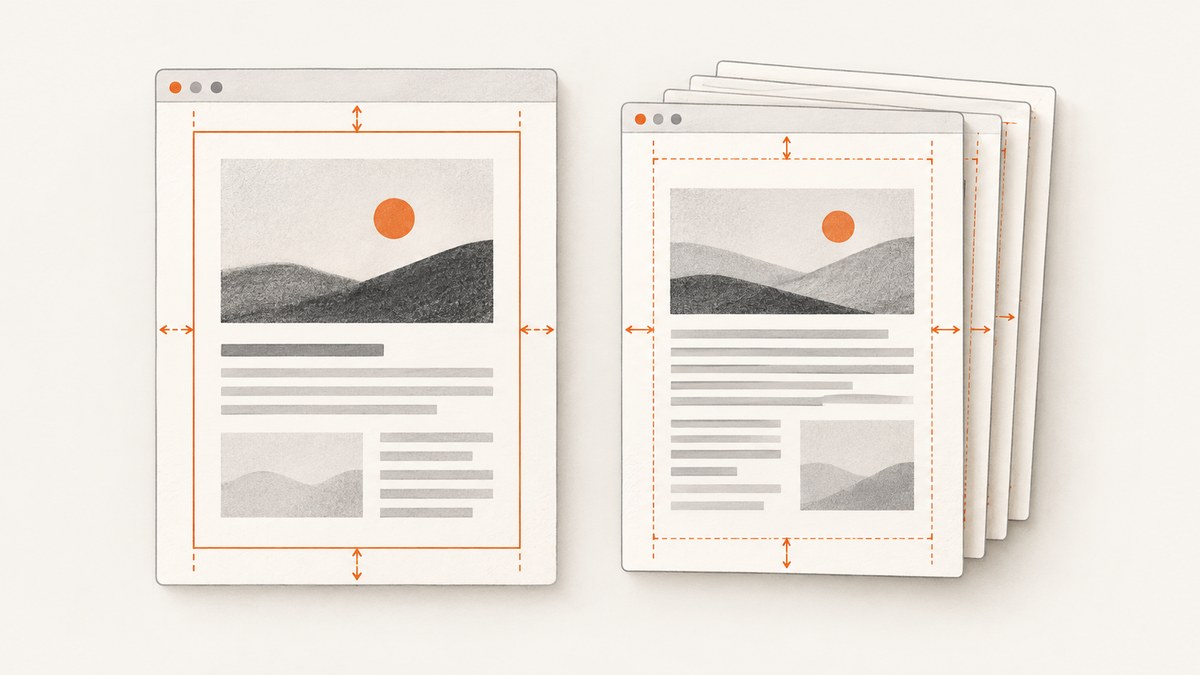
wkhtmltopdf’s --margin-top, --margin-bottom, --margin-left, and --margin-right options set margins for the whole PDF. They do not accept a page number or range. If you only need the content on pages two and later to start lower or farther inward, put the first page in its own wrapper, force a page break, and add padding to the body wrapper. That changes content placement, not the physical page box. For genuinely different printable areas, render the first page and the remaining pages as separate PDFs with their own margins, then merge them. The wkhtmltopdf manual and its archived issue discussions describe these document-level settings and pagination limitations.
1. Choose the right kind of margin change
Before changing the HTML, decide what “different margins” means for the output you need. Two approaches may look alike on screen but have different page geometry.
| Need | Approach | What changes |
|---|---|---|
| Move body content down or inward from page two | First-page wrapper, forced break, padding on the body wrapper | Content placement inside the document-wide page box |
| Change the actual printable page area from page two | Render cover and body separately with different CLI margins, then merge PDFs | Page geometry for each rendered part |
| Use standards-based page selectors | Try @page :first in a renderer with reliable support |
Potentially page-specific page rules; wkhtmltopdf behavior is limited |
Use the wrapper workaround for a cover page that needs to sit closer to the top edge while regular pages need a content header inset. Choose separate renders when the second page’s printable area itself must differ—for example, when content must flow within a shorter body region or must align with a physical binding or printer specification. Padding does not reclaim or add page area; it only shifts content.
2. Simplest workaround: one HTML document
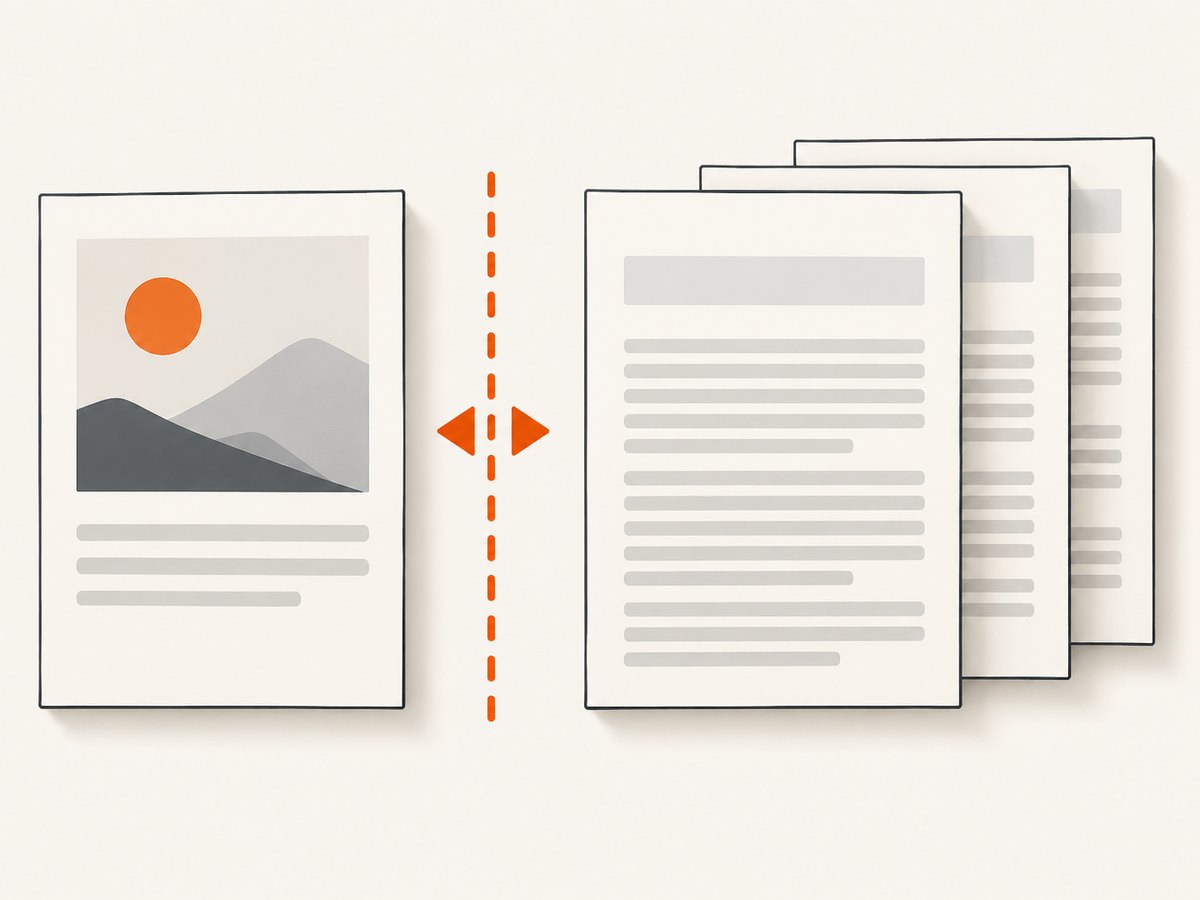
Set the CLI margins to the values appropriate for the regular body pages. Place the first-page content in a dedicated element, then put all remaining content in another element and force a break between them. Add padding to the body wrapper to simulate the different top inset. Avoid relying on the first child’s top margin: wkhtmltopdf has a reported issue where a top margin at the beginning of a document may be ignored.
Runnable example
Save this as document.html. Replace the sample content with your own. The first page is deliberately short; adjust its content and sizing for the paper format and selected CLI margins.
<!doctype html>
<html lang="en">
<head>
  <meta charset="utf-8">
  <title>Report</title>
  <style>
    @page { size: A4; }
    html, body { margin: 0; padding: 0; }
    body { font: 11pt Arial, sans-serif; line-height: 1.45; color: #222; }
    .first-page {
      page-break-after: always;
      min-height: 240mm;
      box-sizing: border-box;
      padding-top: 12mm;
    }
    .body-pages {
      page-break-before: always;
      padding-top: 20mm;
    }
    h1 { font-size: 26pt; }
    h2 { page-break-after: avoid; }
    p { orphans: 3; widows: 3; }
  </style>
</head>
<body>
  <section class="first-page">
    <h1>Quarterly Report</h1>
    <p>Prepared for the operations team</p>
  </section>
  <main class="body-pages">
    <h2>Summary</h2>
    <p>The regular report begins here. Add enough content to flow across pages.</p>
  </main>
</body>
</html>
Run it with global margins selected for the regular body pages. For example:
wkhtmltopdf \
  --page-size A4 \
  --margin-top 15mm \
  --margin-bottom 15mm \
  --margin-left 18mm \
  --margin-right 18mm \
  document.html report.pdf
The first page also has the global 15 mm top margin, plus its own 12 mm padding. The body starts after its wrapper break and receives 20 mm of additional padding, so its content begins farther down. Adjust the values after inspecting the actual PDF. The min-height is a starting point, not a universal page-height formula: paper size, global margins, headers and footers, and content all affect pagination.
Keep the forced break effective
- Keep
.first-pageand.body-pagesas ordinary block elements. A reported wkhtmltopdf issue shows page-break rules can be ignored when their parent is floated. - Use either
page-break-after: alwayson the first section orpage-break-before: alwayson the body section. Having both can make intent clear, but if you see an unexpected blank page, test with only one. - Do not put the break inside a floated container. Remove the float or move the break to an un-floated wrapper.
- Keep the body padding on the wrapper, not only as
margin-topon its first heading or paragraph. The document-start margin bug is one reason the wrapper approach is more predictable. - Check the first body page for an empty page or a doubled gap. A forced break can combine with content that already breaks naturally.
3. Exact page-box margins: render and merge
If the physical content area must change beginning on page two, generate the first page as one PDF and the body pages as another, using separate margin settings. Merge them in order into a final PDF. A 2017 wkhtmltopdf discussion describes Qt’s print-system margins as document-wide and points to post-processing for a cover/body split. This method makes page geometry explicit, but the merge tool and workflow need to preserve any PDF features your use case depends on.

Step 1: Make separate input files
Create cover.html with only the cover content and body.html with the remaining report. Ensure the body file does not repeat the cover and that its links and assets resolve when rendered from its location.
Step 2: Render each with its own margins
wkhtmltopdf \
  --page-size A4 \
  --margin-top 8mm --margin-bottom 12mm \
  --margin-left 18mm --margin-right 18mm \
  cover.html cover.pdf

wkhtmltopdf \
  --page-size A4 \
  --margin-top 25mm --margin-bottom 15mm \
  --margin-left 18mm --margin-right 18mm \
  body.html body.pdf
The margin values here are illustrative. Substitute the measurements required by your design and printer. Use the same page size unless the document intentionally mixes page sizes.
Step 3: Merge in order
Use a PDF merger available in your environment to append body.pdf after cover.pdf. The dossier does not establish a particular merger or command, so choose one already approved for your application and verify its output. Inspect page count and order, links, bookmarks/outlines, metadata, and any digital signatures or forms. Post-processing can affect outlines or links, and a merge invalidates existing digital signatures.
For automated pipelines, treat rendering and merging as separate checked steps: fail the job if either renderer exits unsuccessfully or if a resulting PDF is empty. Retain the intermediate files temporarily when debugging so it is clear whether a defect came from the cover render, body render, or merge.
4. What about @page :first?
CSS 2.2 defines paged-media rules and includes a :first page selector. The standard demonstrates a general @page margin with a different first-page top margin. That does not guarantee support in every HTML-to-PDF engine. wkhtmltopdf uses an older Qt/WebKit pagination path, and its own manual describes rendering content as a long page and cutting it into pages. Its behavior around page-specific rules, breaks, and split content is less capable than modern paged-media implementations.
You can try this CSS in a small reproduction against your exact binary:
<style>
  @page { margin: 20mm; }
  @page :first { margin-top: 8mm; }
</style>
Do not rely on it for production output until you confirm the resulting PDF’s page geometry in the same wkhtmltopdf build and operating environment used for deployment. If it does not apply consistently, use wrapper padding for a visual inset or split rendering for true page-specific margins.
5. CLI margin options and related settings
The four margin options apply to the full input document. Values can be given with units such as millimeters, centimeters, inches, or points. Set all four explicitly in automation to avoid depending on defaults.
| Option | Controls | Typical use |
|---|---|---|
--margin-top |
Top margin on every page in that render | Space for a running header or top printable boundary |
--margin-bottom |
Bottom margin on every page in that render | Space for footer content or printer limits |
--margin-left |
Left margin throughout the render | Binding or consistent side inset |
--margin-right |
Right margin throughout the render | Readable line width and printer limits |
--page-size / --orientation |
Paper geometry for that render | Keep cover and body formats aligned |
Headers and footers, when used, also interact with the available content area. Account for their spacing when deciding the margin and wrapper padding. For split rendering, configure those options separately for both commands and confirm page numbering: a body-only render may number its first page as page one unless the workflow explicitly handles numbering.
6. Pagination edge cases
Content spills from the cover
A cover that exceeds its available height will paginate before the body wrapper begins. Reduce content or spacing, or make the cover deliberately multi-page. Do not assume min-height forces an exact page: it sets a minimum box size, while flowing content can make it taller.
Unexpected blank page
Two adjacent break rules, a wrapper taller than the usable area, or a natural break near the wrapper boundary can create a blank page. Remove one break rule first, then inspect the wrapper height and margins. Keep a minimal reproduction with a short cover and a one-paragraph body to isolate the cause.
Images and long blocks split awkwardly
wkhtmltopdf’s pagination may cut through lines or images. The manual notes that page-break-inside: avoid is a partial remedy with patched Qt, not a universal guarantee. Apply it selectively to short blocks such as figures or cards, and verify that those blocks fit on the page; an oversized unbreakable block can move wholesale and leave a gap.
Body content starts too far down
Remember that body pages already have the global top margin. The wrapper padding is added inside that content area. Reduce one or the other instead of compensating with a negative margin. If the first paragraph has its own margin, reset it to avoid a compounded gap.
Different build, different result
The wkhtmltopdf repository was archived in 2023. Historical reports describe behavior in specific 0.12.x builds; they are useful diagnostic clues, not a guarantee for every binary. Pin the binary used by your production renderer and validate output after any operating-system or package change.
7. Troubleshooting
| Symptom | Likely cause | Fix |
|---|---|---|
--margin-top changes every page |
CLI margins are document-wide | Use wrapper padding for a visual shift, or render/merge separate PDFs for page-box changes. |
@page :first appears ignored |
Limited or inconsistent selector support in wkhtmltopdf’s engine | Test the exact binary; choose the wrapper or split-render method if it is not reliable. |
page-break-before does nothing |
The relevant element or an ancestor may be floated; engine pagination quirks | Remove the float, move the break to an ordinary block wrapper, and test a minimal file. |
| Extra blank page between cover and body | Both break rules, wrapper height, or natural pagination add a second break | Keep one explicit break and tune the cover height against the selected page size. |
| First-page spacing is missing | Top margin on the first document block was ignored | Use padding on the first-page wrapper and explicit CLI margins. |
| Body pages have too little usable space | Global margin plus body padding consume more vertical area than intended | Measure the desired content inset, then allocate it between the global margin and wrapper padding. |
| Split PDF loses links or outlines | Post-processing changed or discarded document structures | Check the merger’s handling of annotations and outlines; validate the final artifact, not just the component PDFs. |
8. Performance, reliability, and cost
The wrapper approach requires one wkhtmltopdf render and avoids a merge step, so it is generally simpler to operate. Its tradeoff is that the page box remains uniform and pagination can be sensitive to content changes. Separate renders add a second renderer invocation and a merge operation, which means more pipeline steps and intermediate artifacts to monitor. They provide direct control over each part’s CLI margins.
Neither method has a universal runtime or cost figure in the available evidence. Rendering time depends on the document, assets, environment, and chosen post-processing tool. For reliable output, pin and record the wkhtmltopdf version, use stable local or reachable assets, check process exit codes, and review the merged or final PDF’s page count and geometry. Do not treat the repository’s archived state as evidence that a particular build behaves identically on another platform.
9. Screenshot a web page instead of configuring a PDF renderer
If your goal is to capture a website as an image rather than create a paginated PDF, ScreenshotNeo provides a website screenshot API. It does not implement wkhtmltopdf page margins or replace a PDF workflow; it is an option when you need a web page capture.
curl -G "https://api.screenshotneo.com/v1/shot" \
  -d access_key=YOUR_API_KEY \
  --data-urlencode url=https://stripe.com \
  -o shot.webp
See the ScreenshotNeo API documentation for request options and key setup.
10. FAQ
Can I make --margin-top start on page two?
No. The CLI setting applies to the full render. Use CSS padding to change where body content begins, or create separate PDFs for true page-box differences.
Does page-break-after mean the next section always starts on page two?
It starts the next section on a new page after the preceding content. If the first section itself overflows, the next one may start later. Keep the cover within one page when that is required.
Will this work the same on every wkhtmltopdf version?
No. Pagination and CSS support can vary by binary and platform. Validate against the exact build deployed for the job.
Can I use this method for different left and right margins on facing pages?
The CLI settings remain document-wide, and the researched evidence does not establish dependable facing-page margin support in wkhtmltopdf. For exact page geometry, use a renderer with the needed paged-media support or split and post-process the document.
Or skip the browser setup
With ScreenshotNeo, cookie banners are accepted and 60+ known consent platforms, newsletter popups, and chat widgets are removed before the shot; each step can be turned off. Bot checks, blank pages, timeouts, failed loads, and cache hits cost nothing, and response headers report the page verdict and billing status. Its MCP server lets AI agents use take_screenshot, get_page_info, and capture_pdf. The free plan includes 1,000 shots a month with no card; paid plans start at $5 for 3,000 shots. This is for web capture, not a substitute for wkhtmltopdf’s page-specific margin workflow.
import requests

r = requests.get(
    "https://api.screenshotneo.com/v1/shot",
    params={"access_key": "YOUR_API_KEY", "url": "https://stripe.com"},
    timeout=90,
)
open("shot.webp", "wb").write(r.content)
See the API docs and sign up for 1,000 free screenshots a month with no card.


