How to Wait for a Condition Before Printing with wkhtmltopdf
Use wkhtmltopdf’s documented delay or window.print() signal, understand its limits, and choose a safer renderer when readiness depends on real application state.
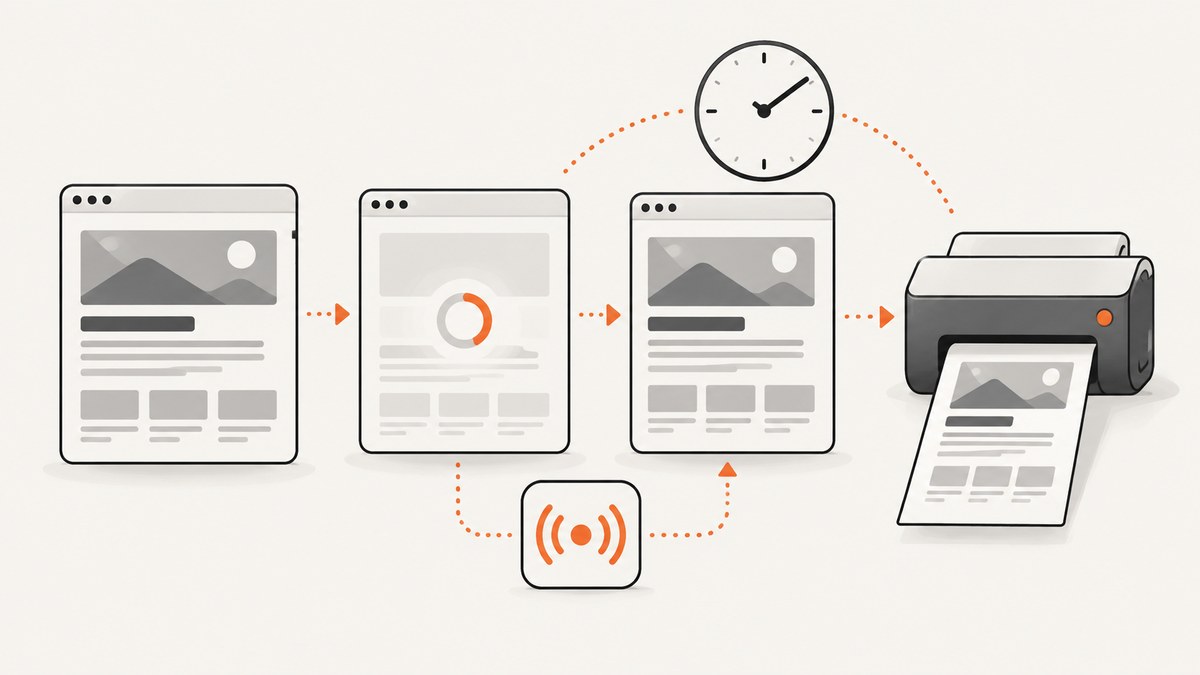
Short answer: wkhtmltopdf documents two ways to postpone printing: set load.jsdelay to a fixed number of milliseconds, or have page JavaScript call window.print() when your page is ready. It does not document a general option that waits for an arbitrary CSS selector, Promise, network request, or application condition. Enable JavaScript with web.enableJavascript, then verify the exact flags accepted by your installed binary with wkhtmltopdf -H.
The settings reference describes the delay this way: “We will wait this amount of time or until, javascript calls window.print().” Read the official page-settings reference. The practical consequence is that you must either choose a conservative fixed delay or turn your application’s readiness state into a call to window.print().
1. Choose the readiness strategy
| Situation | Use | Why |
|---|---|---|
| Content is predictable and loads quickly | load.jsdelay |
Simple, deterministic upper bound |
| Your page knows exactly when data and UI are ready | window.print() |
Prints on an application signal instead of guessing a delay |
| You need to wait for a selector, Promise, or network-idle state | A renderer with condition-aware automation | wkhtmltopdf’s documented settings do not expose those conditions |
| HTML or JavaScript comes from users | Sanitize, isolate, or choose another architecture | The project warns that untrusted HTML/JS can compromise the server |
Start by deciding what “ready” means. For a report, it may mean that an API response has populated a table and a chart has finished drawing. For a storefront page, it may mean that the initial route has rendered, fonts have loaded, and a cookie banner has been handled. A fixed delay can cover these steps only if their timing is stable.
2. Fixed delay with the command line
load.jsdelay is measured in milliseconds and belongs to page/object loading settings. The documentation uses 1200 as an example. Treat that as an example value, not a universal recommendation.
wkhtmltopdf \
  --enable-javascript \
  --javascript-delay 1200 \
  https://example.com/report \
  report.pdf
Some builds expose the underlying setting with a different long-option spelling, while others accept the generated command-line alias shown in their help output. Run this on the same machine and binary that performs production conversions:
wkhtmltopdf -HThe project says its command documentation is auto-generated from this help output, so use it as the authority for your installed build. Look for the JavaScript control and the delay option. If JavaScript has been disabled by a wrapper script or configuration file, a delay alone cannot make asynchronous content appear.
How long should the delay be?
- Measure the slowest normal path in your own environment, including API latency, chart rendering, and font loading.
- Add a margin for ordinary variation.
- Keep the value finite. A long delay increases conversion time even when the page is already ready.
- Revisit the value when the page’s data sources or JavaScript bundle changes.
A delay is an upper-bound guess. It can still print too early when a request is slow, and it can waste time when the page finishes quickly. Do not claim that a successful process exit proves that asynchronous content was ready.
3. Let the page call window.print()
When your application can identify readiness, call window.print() from page JavaScript. wkhtmltopdf can finish the documented wait when that call occurs.
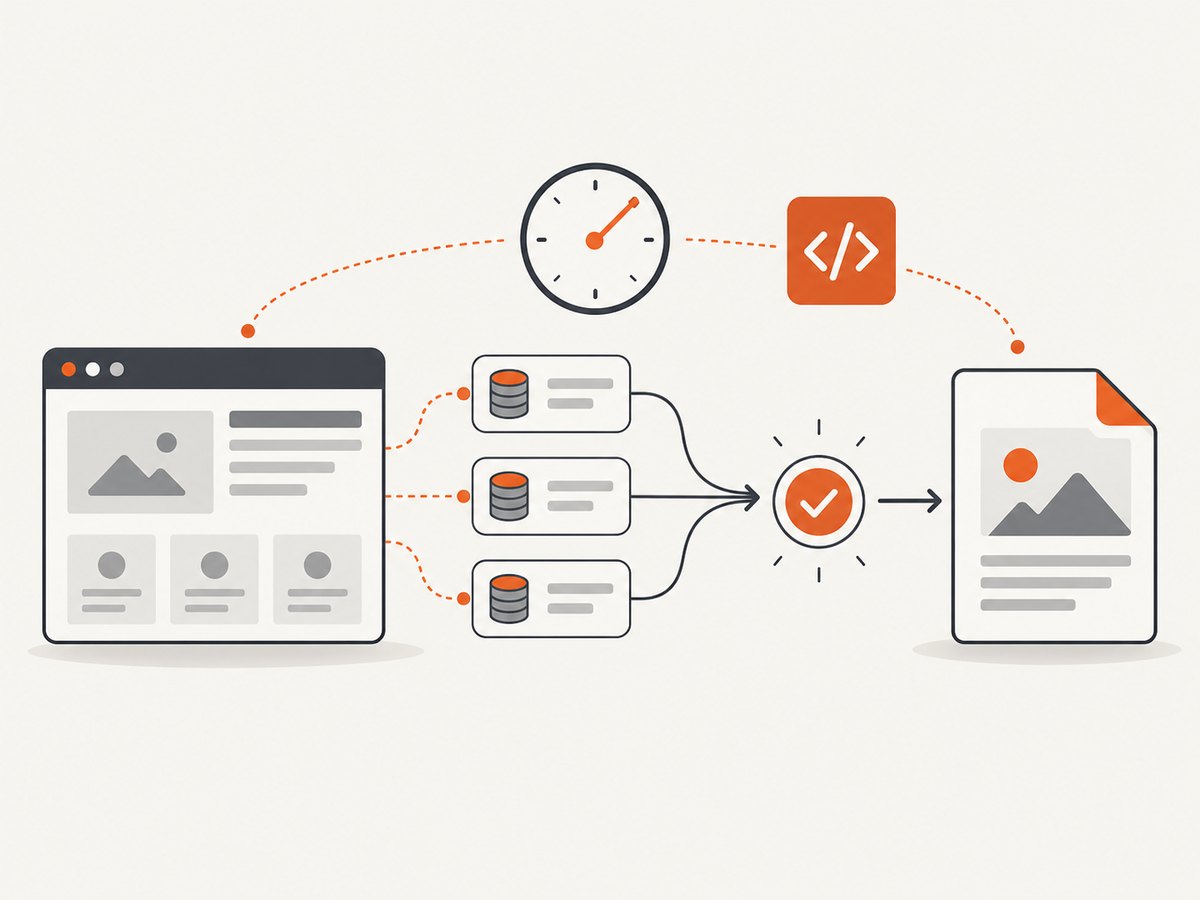
<script>
(async function renderReport() {
  try {
    const response = await fetch('/api/report');
    if (!response.ok) throw new Error(`HTTP ${response.status}`);

    const data = await response.json();
    document.querySelector('#total').textContent = data.total;
    document.querySelector('#status').textContent = 'Ready';

    // If a chart library renders asynchronously, await its completion here.
    await new Promise(requestAnimationFrame);
    window.print();
  } catch (error) {
    document.querySelector('#status').textContent = 'Unable to load report';
    console.error(error);
  }
})();
</script>
Pair the signal with a fallback delay so a bug in page code does not leave a conversion hanging forever:
wkhtmltopdf \
  --enable-javascript \
  --javascript-delay 15000 \
  https://example.com/report \
  report.pdf
The page should call window.print() only after all content that must appear in the PDF is present. If it calls the function immediately during initial script evaluation, wkhtmltopdf may print an empty shell. If it never calls it, the configured delay remains your practical fallback.
Guard against duplicate signals
let printed = false;
function signalReady() {
  if (printed) return;
  printed = true;
  window.print();
}

Promise.all([loadRows(), loadChart(), loadFonts()])
  .then(signalReady)
  .catch(reportFailure);
A one-time guard prevents multiple code paths from racing to signal readiness. It also makes the page easier to reason about when a retry or route transition occurs.
4. Why selector and Promise waits are not built in
The cited settings reference documents a duration and the window.print() escape signal. It does not document a switch such as “wait until #chart exists,” “wait for this Promise,” or “wait until network idle.” You can implement those checks in page JavaScript and then call window.print(), but wkhtmltopdf itself is not observing the condition.
function waitForSelector(selector, timeout = 10000) {
  return new Promise((resolve, reject) => {
    const start = Date.now();
    const timer = setInterval(() => {
      const element = document.querySelector(selector);
      if (element) {
        clearInterval(timer);
        resolve(element);
      } else if (Date.now() - start > timeout) {
        clearInterval(timer);
        reject(new Error(`Timed out waiting for ${selector}`));
      }
    }, 100);
  });
}

waitForSelector('#chart')
  .then(() => window.print())
  .catch(console.error);
This pattern is useful only when the page script is allowed to run and the selector is a reliable readiness marker. It does not add a new wkhtmltopdf command-line capability.
5. Complete example: a report page and conversion script
The following page waits for data, updates the DOM, waits one animation frame for layout, and signals readiness. The delay remains as a safety net.
<!doctype html>
<html>
<head>
  <meta charset="utf-8">
  <title>Monthly report</title>
  <style>
    body { font: 14px sans-serif; margin: 32px; }
    #status { color: #555; }
  </style>
</head>
<body>
  <h1>Monthly report</h1>
  <p id="status">Loading…</p>
  <p>Total: <strong id="total">—</strong></p>
  <script>
    (async () => {
      try {
        const r = await fetch('/api/report');
        if (!r.ok) throw new Error(`HTTP ${r.status}`);
        const report = await r.json();
        document.getElementById('total').textContent = report.total;
        document.getElementById('status').textContent = 'Ready';
        await new Promise(requestAnimationFrame);
        window.print();
      } catch (e) {
        document.getElementById('status').textContent = 'Load failed';
        console.error(e);
      }
    })();
  </script>
</body>
</html>
wkhtmltopdf \
--enable-javascript \
--javascript-delay 15000 \
--load-error-handling abort \
report.html report.pdfCheck the generated PDF itself. A zero exit status is not a content assertion: inspect the table, chart, images, and fonts that matter to your workflow.
6. Troubleshooting
| Symptom | Likely cause | Fix |
|---|---|---|
| PDF contains loading text | Delay is shorter than the data request or rendering work | Increase the delay temporarily, then add a precise readiness signal with window.print(). |
window.print() has no effect |
JavaScript is disabled, an exception occurred, or the call runs in an unexpected frame | Confirm --enable-javascript, inspect console/error output, and call it from the top-level page script. |
| Conversion waits until timeout | The page never signals readiness and the fallback delay is large | Fix the rejected request or selector logic; keep a bounded delay. |
| Images or fonts are missing | Resources are inaccessible from the converter, blocked by authentication, or still loading | Make resource URLs reachable to the process, provide required access, and signal only after resources are ready. |
| CLI option is rejected | Build-specific syntax differs | Run wkhtmltopdf -H on the installed binary and use that output. |
| Blank PDF | Early print signal, JavaScript error, or a page that requires unsupported browser features | Log page errors, move the signal after rendering, and evaluate a current browser-based renderer. |
| Different output in production | Different binary, fonts, network access, or timing | Record the binary version and flags, install matching fonts, and test from the production network. |
7. Security, version, and renderer choices
The wkhtmltopdf downloads page lists 0.12.6 as its stable series and dates that release June 11, 2020. That is release metadata from the page, not confirmation that every package repository currently provides the same build. Validate the executable, packaging, and flags in your deployment.
The project’s downloads page warns: “Do not use wkhtmltopdf with any untrusted HTML – be sure to sanitize any user-supplied HTML/JS, otherwise it can lead to complete takeover of the server it is running on!” Treat HTML-to-PDF conversion as a security boundary. Sanitize user content, isolate the process, restrict network access where possible, and avoid passing attacker-controlled command-line arguments.
The project status page explains that wkhtmltopdf relies on the WebKit1 in-process API and recommends considering Puppeteer for dynamic-JavaScript sites. For report generation from controlled HTML, it also mentions WeasyPrint or commercial Prince. These are project recommendations, not benchmark results. Compare candidates on JavaScript support, readiness controls, page fidelity, sandboxing, deployment runtime, and licensing cost.
8. Performance and reliability practices
- Prefer an application signal: it avoids waiting longer than necessary on fast requests.
- Keep a timeout: every request, selector wait, and conversion should have a bounded failure path.
- Make readiness observable: expose a visible status element and log the data-loading error before printing.
- Reduce page work: defer nonessential widgets and images, and avoid animations that can be captured mid-frame.
- Pin the runtime: record the wkhtmltopdf version, operating system, fonts, and exact flags.
- Retry selectively: retry transient network failures, but do not endlessly retry malformed HTML or deterministic JavaScript errors.
- Validate outputs: check file existence, size, page count, and required content rather than trusting process exit status alone.
There is no published reliability or speed statistic in the cited official sources. Benchmark your own pages if throughput or latency affects an SLA, and document the page mix and environment so results remain meaningful.
9. Or skip the browser setup
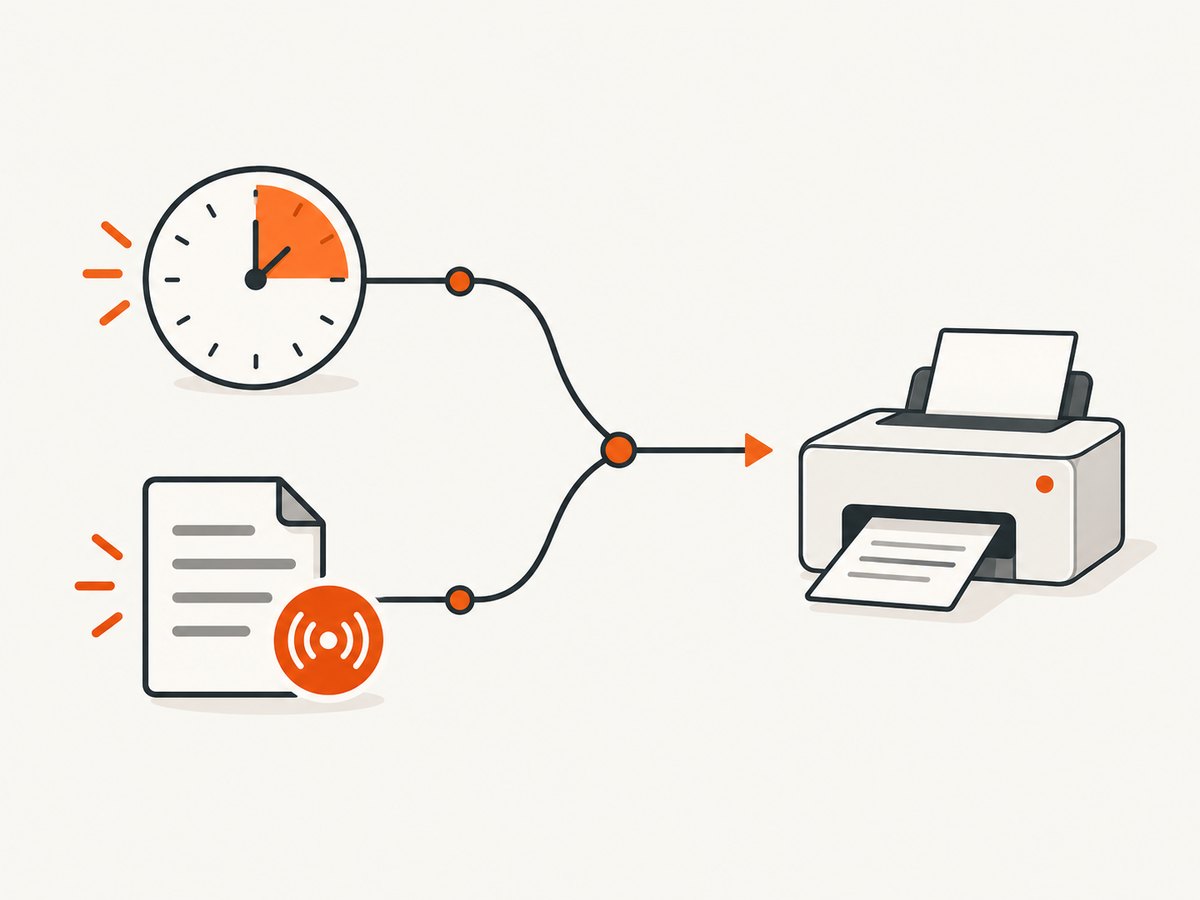
If your goal is a clean image or PDF rather than maintaining a wkhtmltopdf runtime, ScreenshotNeo provides a website screenshot API. Its request model is a single GET with a URL, and its options include waits for a selector, a delay, or network idle, along with full-page capture, custom JavaScript and CSS, device presets, PDF settings, headers, cookies, and more. See the ScreenshotNeo API documentation.
curl -G "https://api.screenshotneo.com/v1/shot" -d access_key=YOUR_API_KEY --data-urlencode url=https://stripe.com -o shot.webpimport requests
r = requests.get("https://api.screenshotneo.com/v1/shot", params={"access_key": "YOUR_API_KEY", "url": "https://stripe.com"}, timeout=90)
open("shot.webp", "wb").write(r.content)const q = new URLSearchParams({ access_key: 'YOUR_API_KEY', url: 'https://stripe.com' });
const res = await fetch(`https://api.screenshotneo.com/v1/shot?${q}`);Cookie banners, newsletter popups, and chat widgets are removed before the shot. Bot checks, blank pages, failed loads, timeouts, and cache hits are not billed, and response headers identify the page verdict and billing result. An MCP server lets Claude, Cursor, and other MCP clients call take_screenshot, get_page_info, and capture_pdf. The free plan includes 1,000 screenshots each month with no card; paid plans start at $5 for 3,000.
Create a free ScreenshotNeo account and start with the 1,000 included screenshots.
10. FAQ
Can I wait for a CSS selector using only a wkhtmltopdf flag?
Not according to the cited settings reference. Implement the check in page JavaScript and call window.print(), or use a renderer that exposes selector waits.
Does load.jsdelay begin before or after page load?
It is a post-load delay. The setting waits the specified number of milliseconds after loading, or until page JavaScript calls window.print().
Should I remove the delay when using window.print()?
Keep a bounded fallback. It protects against a readiness path that throws or never resolves; choose a value appropriate for your page and monitor timeouts.
Why does a page work in Chrome but not wkhtmltopdf?
wkhtmltopdf uses an older WebKit-based architecture. Modern JavaScript, CSS, fonts, or browser APIs may behave differently. The project recommends considering Puppeteer for dynamic-JavaScript pages.
Is wkhtmltopdf safe for user-submitted HTML?
The project explicitly warns against untrusted HTML and JavaScript. Sanitize and isolate input, or use a design that does not execute attacker-controlled code in a privileged conversion process.


