How to Write and Run a Playwright Test: Sample Program
Build your first Playwright Test, install browsers, run and debug it, then learn fixtures, projects, CI setup, reliability and troubleshooting.
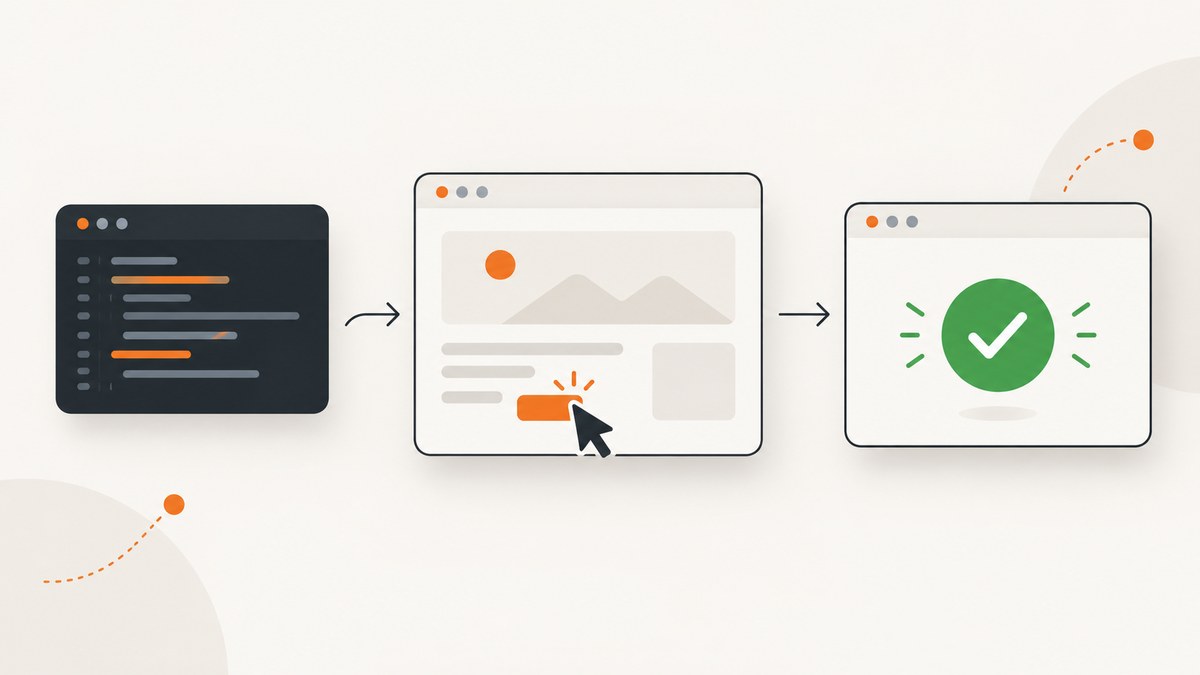
Direct answer: create a Playwright Test project, install its browser binaries, write a test that uses the page fixture, and run it with npx playwright test. A minimal test is:
import { test, expect } from '@playwright/test';

test('homepage has the expected title', async ({ page }) => {
  await page.goto('https://playwright.dev/');
  await expect(page).toHaveTitle(/Playwright/);
});
test declares the test, Playwright provides the isolated page fixture for browser actions, and expect verifies the result. Replace the URL and assertion with a stable page in your own application.
1. Create a Playwright Test project
Use the official initializer from your project directory:
npm init playwright@latestThe wizard creates a starter project, configuration, and sample test. Select TypeScript or JavaScript, choose the browsers you need, and decide whether to add a CI workflow. Setup commands can change between Playwright releases, so follow the prompts for the version you install. See the official Playwright introduction for the current setup flow.
2. Install the browser binaries
Playwright Test needs browser binaries that match the installed Playwright version:
npx playwright installAfter upgrading Playwright, run the install command again when the new release requires different browser binaries. On Linux CI machines you may also need operating-system dependencies:
npx playwright install --with-depsBrowser versions track Playwright releases; installing a system browser separately does not replace the Playwright-managed binaries.
3. Add and run a sample test
Save the following as tests/homepage.spec.ts:
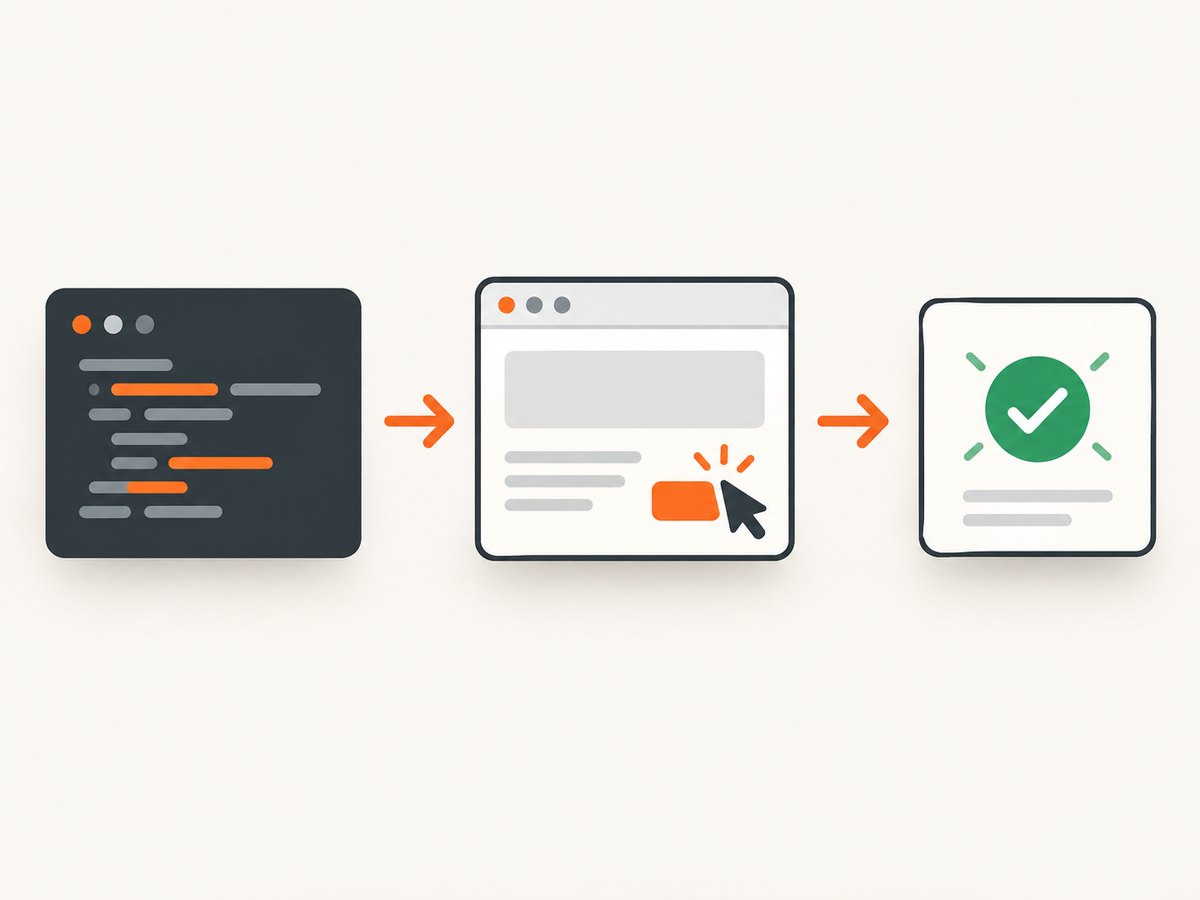
import { test, expect } from '@playwright/test';

test('homepage has the expected title', async ({ page }) => {
  await page.goto('https://playwright.dev/');
  await expect(page).toHaveTitle(/Playwright/);
});
Run every configured test headlessly:
npx playwright testThe command reports passed and failed tests in the terminal. Headless execution is the default, and configured projects run in parallel when possible.
4. See the browser and narrow a run
Use these commands while learning or debugging:
# Show the browser window
npx playwright test --headed

# Open the interactive UI mode
npx playwright test --ui

# Run one file
npx playwright test tests/homepage.spec.ts

# Run tests whose title matches a regular expression
npx playwright test -g "homepage"

# Run one configured project
npx playwright test --project=webkit
--project accepts names defined in your Playwright configuration. UI mode helps inspect steps and results; headed mode simply makes the browser visible. The Playwright CLI documentation lists the current command-line options.
5. Write useful assertions
Prefer web-first asynchronous assertions because they retry until the expected browser state appears or the assertion timeout expires:
import { test, expect } from '@playwright/test';

test('user can submit the form', async ({ page }) => {
  await page.goto('https://example.com/signup');
  await page.getByLabel('Email').fill('person@example.com');
  await page.getByRole('button', { name: 'Sign up' }).click();
  await expect(page.getByRole('status')).toHaveText('Account created');
});
The documented default assertion timeout is 5 seconds. Set a longer timeout for a specific assertion when the application legitimately needs more time:
await expect(page.getByRole('status')).toHaveText('Account created', {
  timeout: 15_000
});
You can also configure an expectation timeout globally. Avoid fixed sleeps when an assertion or locator state expresses what the test is waiting for.
6. Understand fixtures and test isolation
Each test receives its own browser context and page through fixtures. Keep mutable state inside the test or its fixtures rather than sharing a page between tests.
import { test, expect } from '@playwright/test';

test.beforeEach(async ({ page }) => {
  await page.goto('https://example.com');
});

test('header is visible', async ({ page }) => {
  await expect(page.getByRole('banner')).toBeVisible();
});

test('sign-in link is visible', async ({ page }) => {
  await expect(page.getByRole('link', { name: /sign in/i })).toBeVisible();
});
beforeEach repeats setup for every test. This keeps tests independent and makes failures easier to reproduce.
7. Choose browser projects
Playwright supports Chromium, Firefox, and WebKit. Projects group browser, device, or environment settings. A quick first run can use one project; compatibility checks can define several:
import { defineConfig, devices } from '@playwright/test';

export default defineConfig({
  testDir: './tests',
  use: {
    baseURL: 'https://example.com'
  },
  projects: [
    { name: 'chromium', use: { ...devices['Desktop Chrome'] } },
    { name: 'firefox', use: { ...devices['Desktop Firefox'] } },
    { name: 'webkit', use: { ...devices['Desktop Safari'] } }
  ]
});
All configured projects run by default. Selecting one with --project narrows the run; a passing Chromium run does not prove that Firefox and WebKit behave identically.
8. Capture a screenshot when a test fails
import { defineConfig } from '@playwright/test';

export default defineConfig({
  use: {
    screenshot: 'only-on-failure',
    trace: 'retain-on-failure',
    video: 'retain-on-failure'
  }
});
These artifacts help explain failures in CI. Keep them on failed runs to limit storage and upload time.
9. Run Playwright in CI
A CI job needs project dependencies, matching Playwright browsers, and then the test command:
npm ci
npx playwright install --with-deps
npx playwright test
Playwright recommends one worker in CI when stability and reproducibility are the priority. Capable self-hosted systems can parallelize or shard deliberately. Keep the application URL, credentials, and test data in CI secrets or environment variables rather than committing them.
10. Reliability and performance practices
- Use role, label, and test-id locators instead of brittle CSS paths.
- Wait for meaningful state with web-first assertions; do not add arbitrary delays to hide races.
- Keep tests independent so retries do not depend on a previous test’s data.
- Use one browser project for fast feedback and a broader project matrix for release checks.
- Reuse authenticated state through a deliberate setup project when login is expensive, while keeping test data isolated.
- Run only the affected file or title locally; reserve the full matrix for CI or release validation.
Parallel workers reduce wall-clock time but can expose shared database or account-state races. Reduce workers, isolate data, or shard intentionally when that happens.
11. Troubleshooting common errors
| Error or symptom | Cause | Fix |
|---|---|---|
Executable doesn't exist |
Playwright browsers are missing or belong to another version. | Run npx playwright install; on Linux CI use npx playwright install --with-deps. |
| Navigation timeout | The URL is unavailable, slow, redirected, or blocked in the test environment. | Verify the URL from the runner, inspect the trace, and wait for a specific ready state. Increase timeout only when the application genuinely needs it. |
| Assertion timeout | The locator never reaches the expected state, or the selector targets the wrong element. | Inspect the locator in UI or headed mode, prefer accessible locators, and set a per-assertion timeout only after fixing the condition. |
| Test passes locally but fails in CI | Different browser binaries, missing OS libraries, environment variables, timing, or parallel data collisions. | Install browsers in CI, use the same Playwright version, collect traces on failure, and isolate test data. |
--project is unknown |
The name does not match a configured project. | Check the projects array and use its exact name. |
| Flaky click or missing element | The page has not reached the required state or an overlay intercepts the action. | Use a locator assertion, wait for the relevant state, and inspect screenshots or traces for overlays. |
12. Or skip the browser setup
If your goal is a clean screenshot rather than an interaction test, ScreenshotNeo provides a website screenshot API and MCP server. One GET request returns PNG, JPEG, WebP, or PDF. The API accepts cookie and consent banners as a visitor and removes more than 60 known consent platforms, newsletter popups, and chat widgets before capture; each step can be turned off. Bot checks, CAPTCHAs, blank pages, timeouts, failed loads, and cache hits are not billed, and response headers identify the page verdict and billing result.
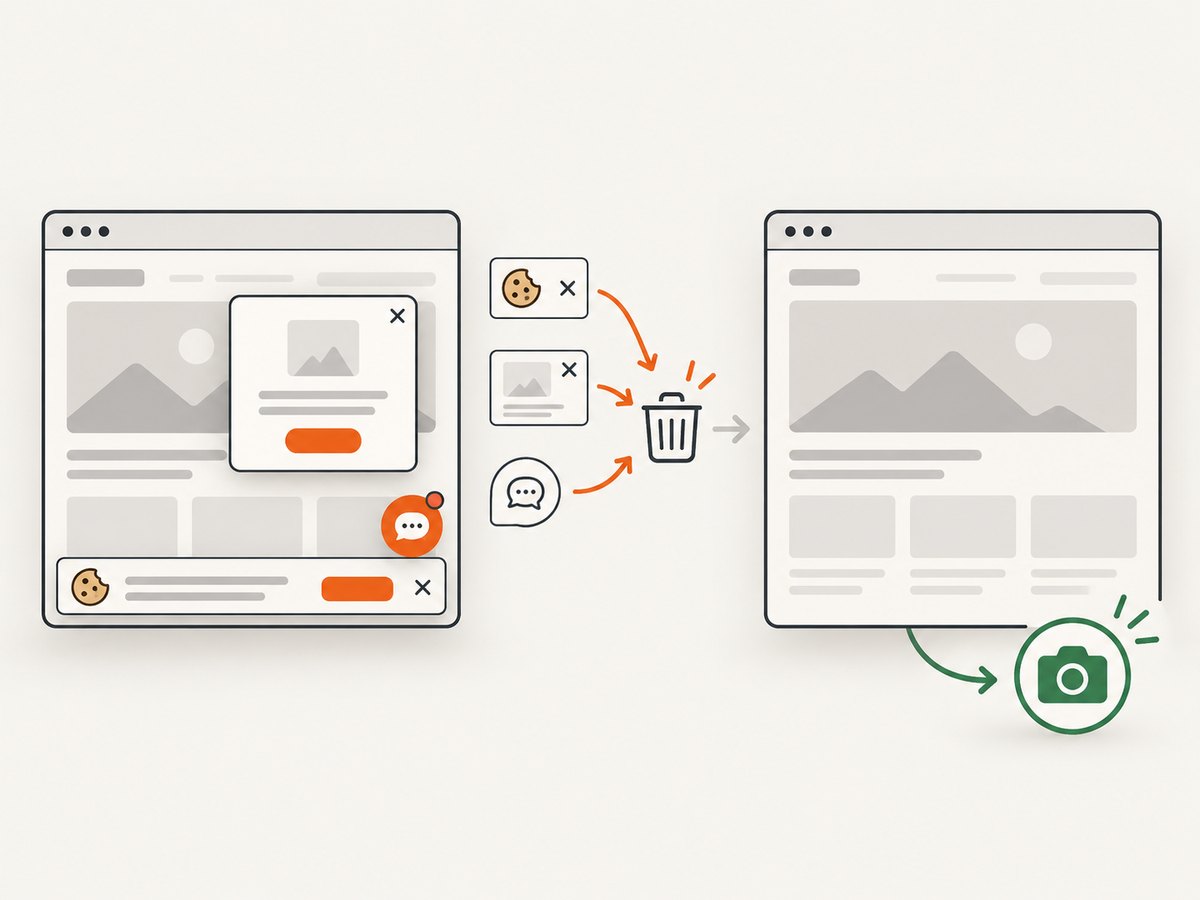
See the ScreenshotNeo API documentation for all options.
curl -G "https://api.screenshotneo.com/v1/shot" -d access_key=YOUR_API_KEY --data-urlencode url=https://stripe.com -o shot.webpimport requests
r = requests.get(
"https://api.screenshotneo.com/v1/shot",
params={"access_key": "YOUR_API_KEY", "url": "https://stripe.com"},
timeout=90,
)
r.raise_for_status()
open("shot.webp", "wb").write(r.content)const q = new URLSearchParams({ access_key: 'YOUR_API_KEY', url: 'https://stripe.com' });
const res = await fetch(`https://api.screenshotneo.com/v1/shot?${q}`);
if (!res.ok) throw new Error(`HTTP ${res.status}`);
const data = Buffer.from(await res.arrayBuffer());
await Bun.write('shot.webp', data);ScreenshotNeo also supports full-page capture with lazy images loaded, CSS-element capture, dark mode, device presets and custom viewports, retina scale, PDF settings, custom CSS and JavaScript, clicks, selector waits, delays, network-idle waits, request blocking, headers, cookies, user agents, authorization, timezone, geolocation, transparent backgrounds, resizing, configurable caching, signed links, asynchronous jobs with signed webhooks, bulk capture of 100 URLs per call, usage reporting, and an OpenAPI specification. Its MCP server exposes take_screenshot, get_page_info, and capture_pdf for Claude, Cursor, and other MCP clients.
Plans include 1,000 shots per month free with no card; paid plans start at $5 for 3,000 shots. Only clean shots are billed, which can reduce wasted spend when a target fails to load. Create a free ScreenshotNeo account to get started.
13. Cost and maintenance notes
- Playwright itself runs on your machines or CI runners, so account for runner CPU, memory, browser downloads, parallel workers, and artifact storage.
- Browser binaries are version-specific. Pin Playwright in your package manifest and update it deliberately.
- More projects and workers increase coverage or throughput but also increase CI resource use.
- ScreenshotNeo charges only for clean shots; failed loads, bot checks, blank pages, timeouts, and cache hits are free. Its paid plans are $5 for 3,000, $15 for 15,000, $39 for 60,000, $99 for 250,000, and $249 for 1,000,000 shots; yearly billing gives two months free.
FAQ
Do I need to write a browser launch script?
No. Playwright Test manages the browser, context, and page fixtures. You normally write the test and configuration only.
Can one test run in multiple browsers?
Yes. Define browser projects and run all of them, or select one with --project.
Why use expect instead of reading text immediately?
Web-first assertions retry while the page changes, which makes them less sensitive to normal rendering delays.
Should I use Playwright for screenshots?
Use Playwright when you need interactions and assertions. For unattended website images or PDFs, ScreenshotNeo removes browser setup and provides capture-specific controls.
What is the first command after cloning a Playwright project?
Install packages, install matching browsers, then run npx playwright test.


